Skyworth TV Repair
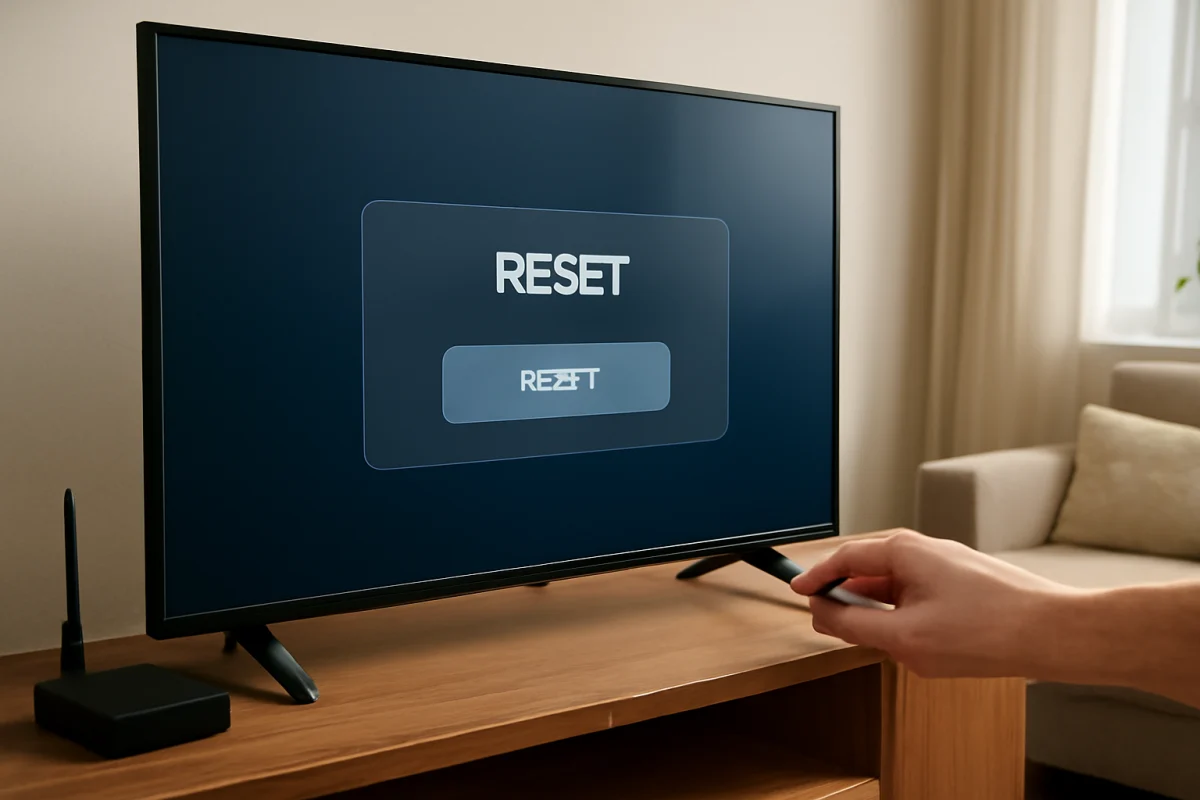
Skyworth TV Factory Reset Without a Remote
Learn how to reset a Skyworth TV without its remote using the TV’s physical controls, a temporary replacement remote, or a connected device.
Expert troubleshooting guides and practical repair solutions for Skyworth TV issues. Find step-by-step instructions to fix common screen problems, power failures, picture distortion, and sound errors quickly and safely.
Type the symptom, error message or feature that is not working. Results stay inside this category.
Learn how to reset a Skyworth TV without its remote using the TV’s physical controls, a temporary replacement remote, or a connected device.
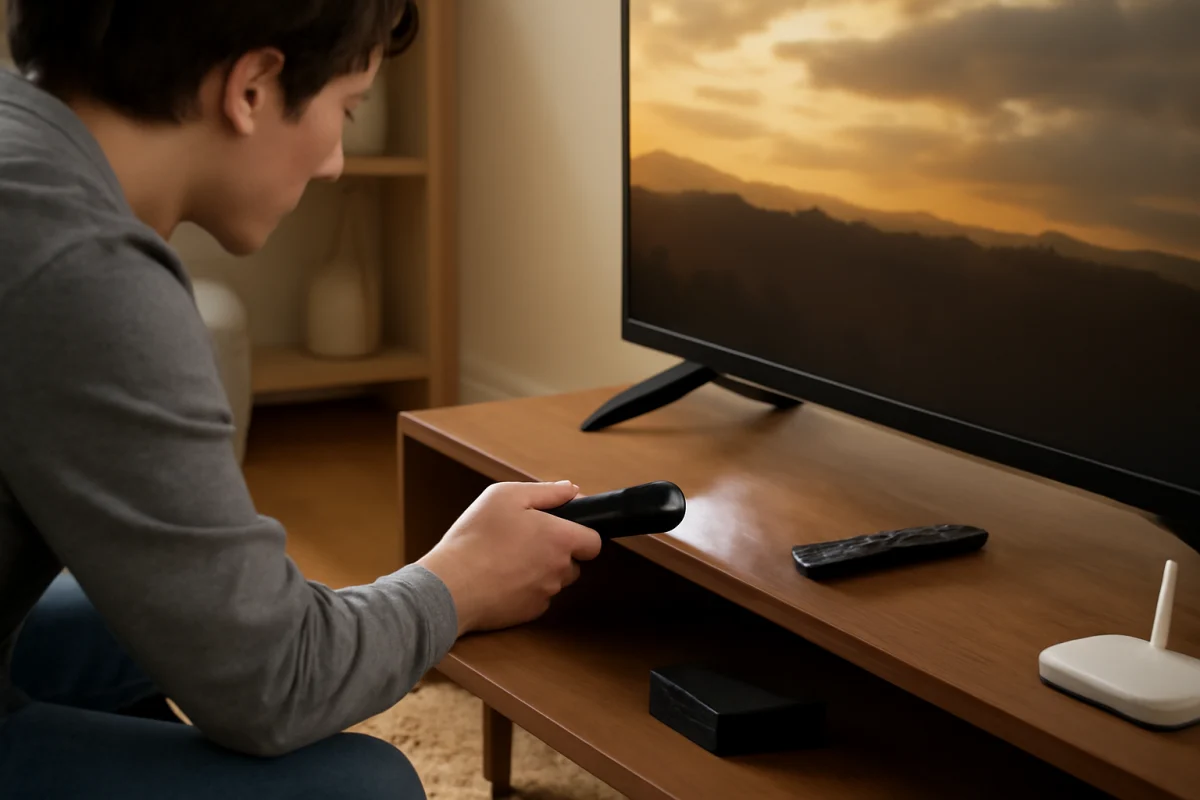
Find the manual buttons on your Skyworth TV, learn what each control does, and troubleshoot power, input, volume, and menu problems when the remote is unavailable.
Learn how to hard reset a Skyworth TV safely, including low-risk checks, menu reset steps, remote troubleshooting, and what to do if the screen is frozen.
Fix common Skyworth TV screen problems, including a black screen, flickering, lines, dim images, color issues, and picture problems caused by connected devices.
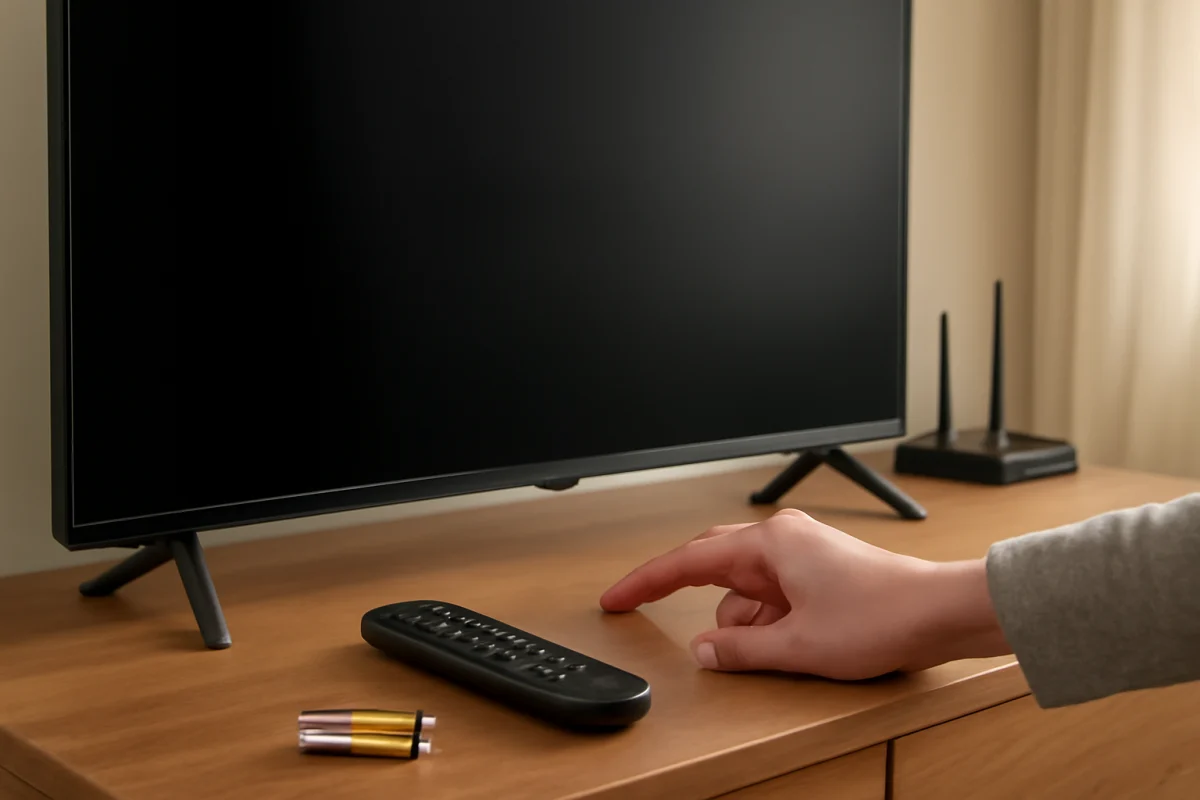
Is your Skyworth TV power button not working? Follow these low-risk checks to identify whether the problem is the remote, wall outlet, TV button, or internal hardware.
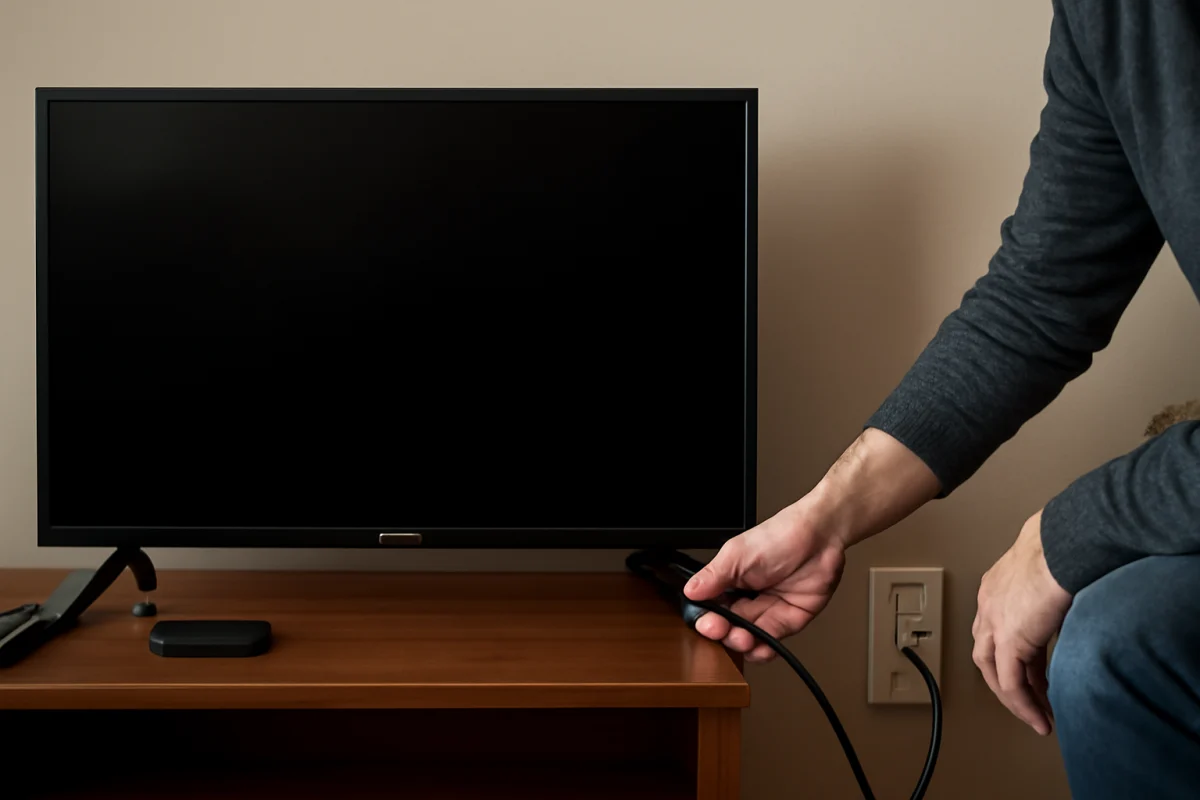
A Skyworth TV with no red standby light may not be receiving power, or its internal power circuit may have failed. Use these safe checks to identify the likely cause.
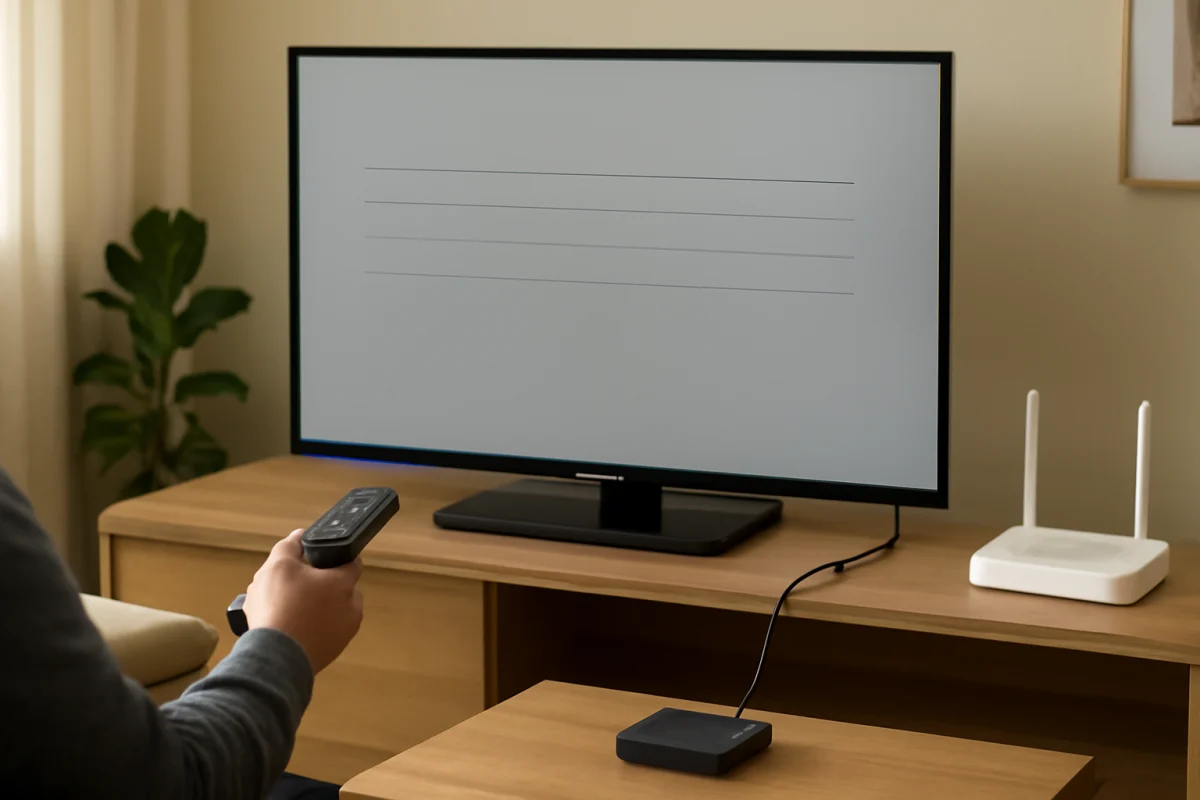
Learn how to troubleshoot common Skyworth TV problems, including no power, blank screens, sound failures, Wi-Fi issues, remote problems, and app errors.
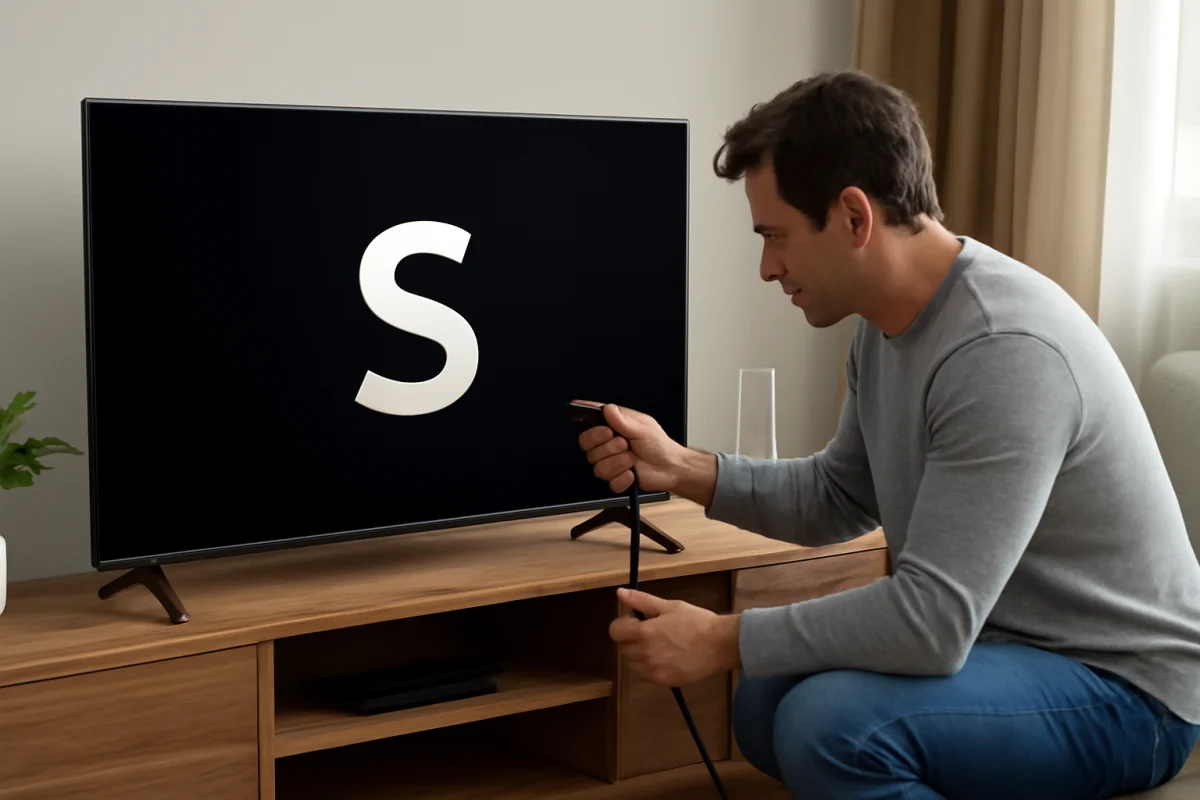
A Skyworth TV stuck on its logo may recover after a power reset, accessory check, or startup troubleshooting. Follow these steps before attempting a factory reset or repair.
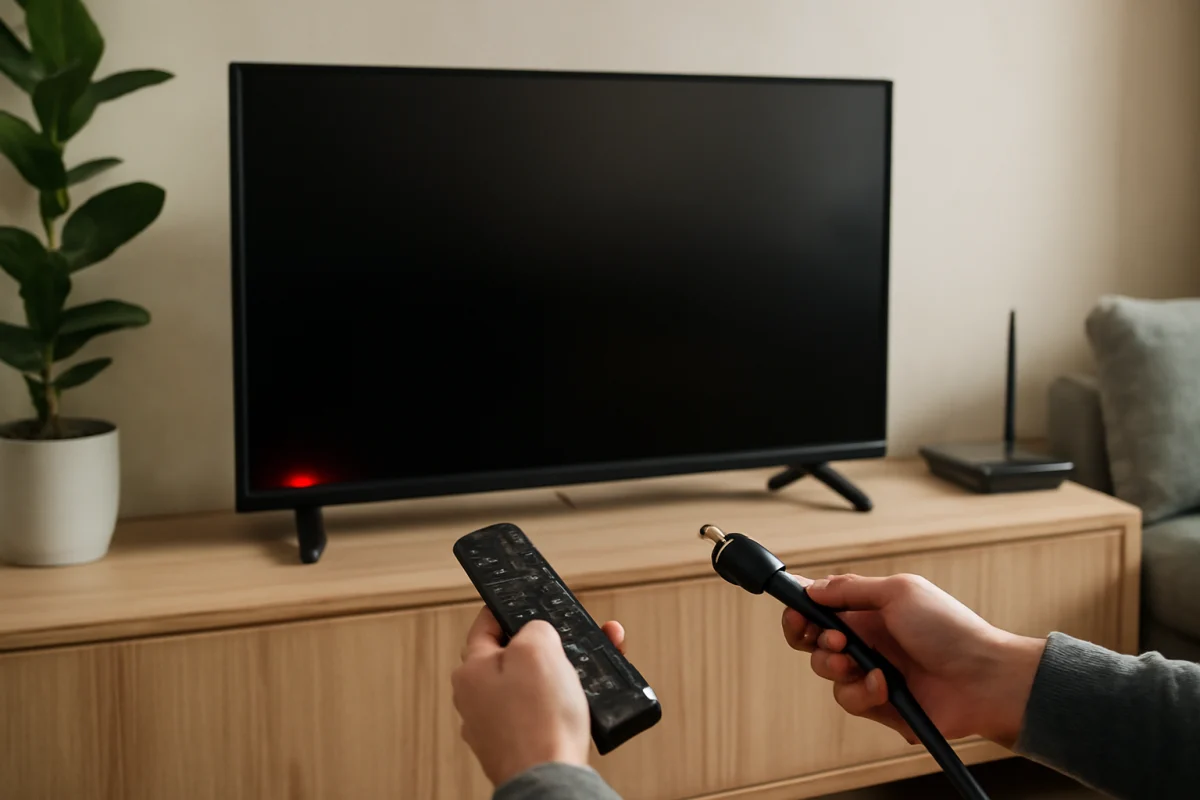
A red standby light usually means your Skyworth TV is receiving power, but it may not be completing the startup process. Use these safe checks to identify the cause.