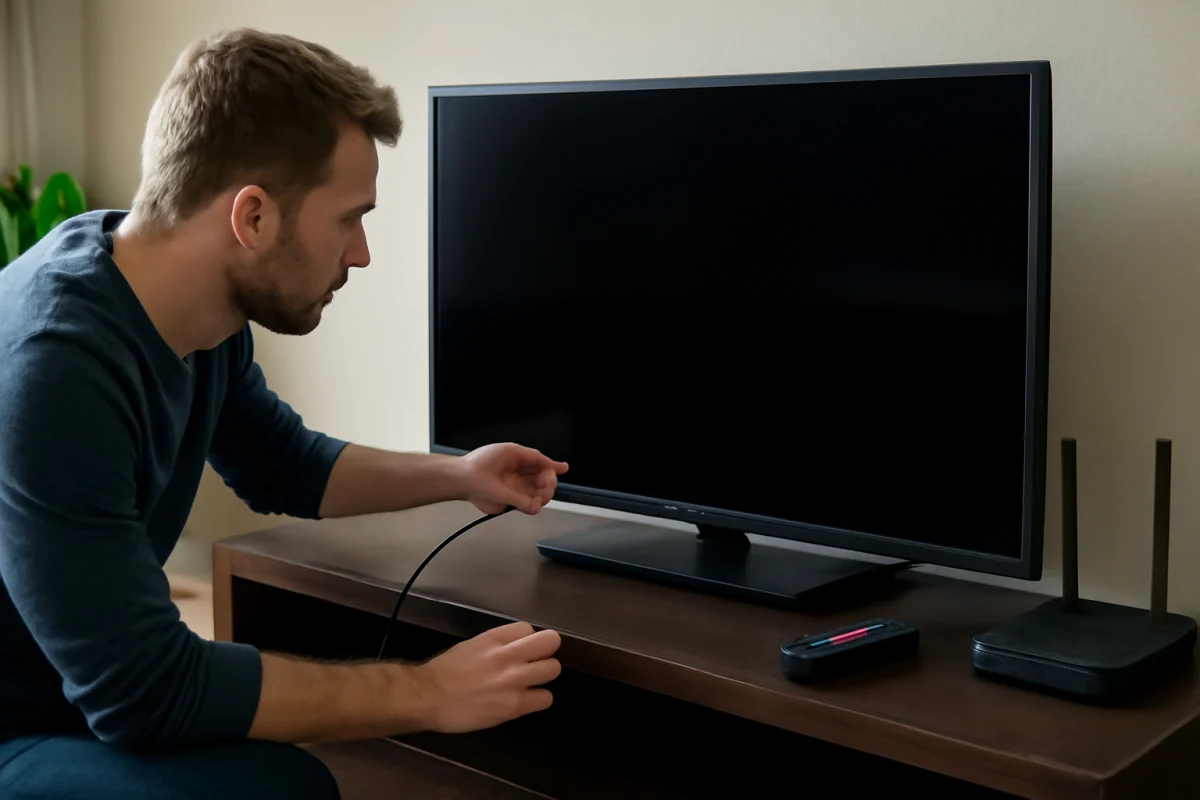
If your Skyworth TV has a black, dim, flickering, distorted, or partially missing picture, start with the simplest checks before changing advanced settings or performing a reset. Confirm whether the problem affects every input or only one device, check the cables and power connection, and test the TV's built-in menus or home screen. These steps can quickly show whether the issue is caused by the TV, an external source, or a loose connection.
Skyworth has released TVs with different operating systems, screen types, and menu layouts. For that reason, the exact names of settings and reset options can vary by model and region. Use the instructions below as a general diagnostic process, then check your TV's on-screen wording or owner's documentation when a step does not match your set.
First, identify what kind of screen problem you have
Describe the symptom as accurately as possible before changing anything. A completely black screen has different likely causes from horizontal lines, a washed-out picture, or an image that disappears only while using a game console.
- Black screen: The TV may be on, but no image appears. A faulty input, cable, backlight, software problem, or internal component may be involved.
- Flickering or flashing: This is often related to a cable, source device, refresh setting, power issue, or panel hardware.
- Lines or blocks: Lines that appear on every source can point to the panel or internal display circuitry, while lines on one source may be caused by that device or its cable.
- Dim or very dark picture: Picture settings, an energy-saving feature, ambient-light behavior, or a failing backlight can cause this symptom.
- Wrong colors or a tinted image: The source, picture mode, cable, color settings, or internal hardware may be responsible.
- Picture cuts out but sound continues: This may indicate a source or cable problem, but it can also point to a backlight or display hardware fault.
Check whether the TV itself is responding
Press the power button on the TV or remote and watch for any sign of activity. Look for a standby light, startup sound, a brief flash from the screen, or a response when you press the volume button. If the TV shows a volume indicator or menu overlay, the display may work and the problem may be limited to the selected input or source device.
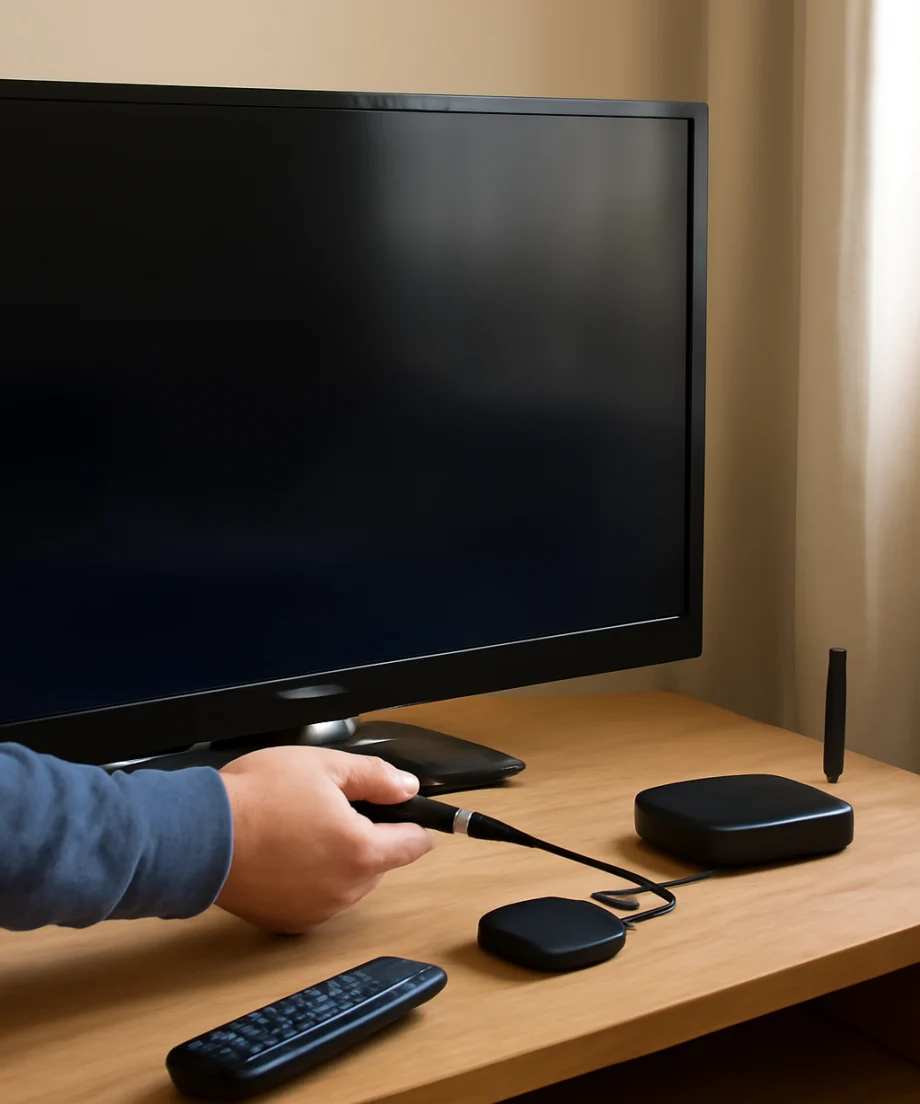
Press the home or menu button if your model provides one. If the TV's own menu is visible but a connected device is not, do not reset the TV yet. Select another input, switch to a built-in app, or open the television's home screen. If the built-in screen looks normal, focus on the HDMI device, cable, input selection, or source settings.
If there is no visible menu, shine a phone flashlight at an angle against the screen while audio is playing or while you press a button. A very faint image may suggest that the LCD is producing a picture but the backlight is not working correctly. Do not open the TV to inspect the backlight. Internal parts can retain dangerous voltage even after the set is unplugged.
Perform a safe power cycle
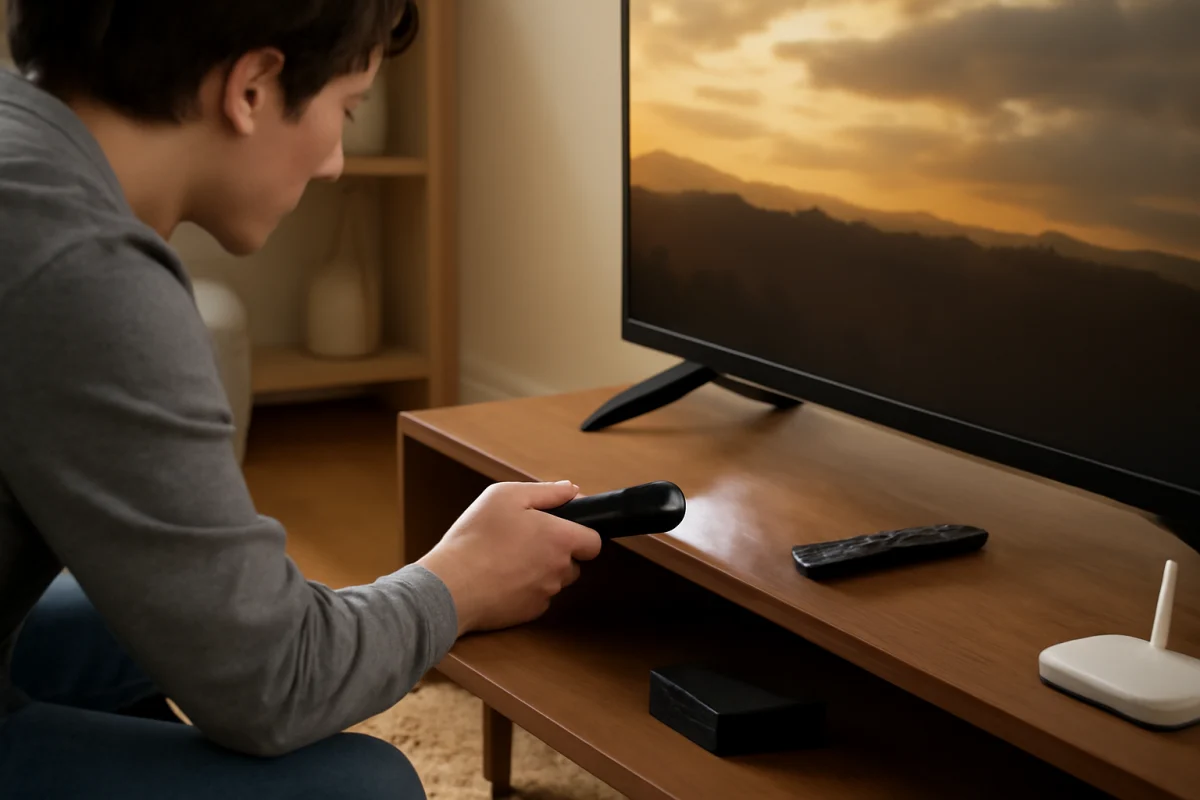
Turn off the Skyworth TV and unplug it from the wall outlet. Disconnect external devices such as streaming sticks, game consoles, cable boxes, and soundbars for the moment. Leave the TV unplugged for about one minute, then connect it directly to a known-working wall outlet and turn it on using the TV's physical power button if possible.
This process can clear a temporary startup or HDMI communication problem. Avoid repeatedly switching the TV on and off in quick succession. If the TV does not respond, test the outlet with another device and make sure the power cord is firmly seated where it connects to the TV, if the cord is removable. Stop using the cord if it is cut, crushed, hot, or otherwise damaged.
Test the input, HDMI cable, and external device
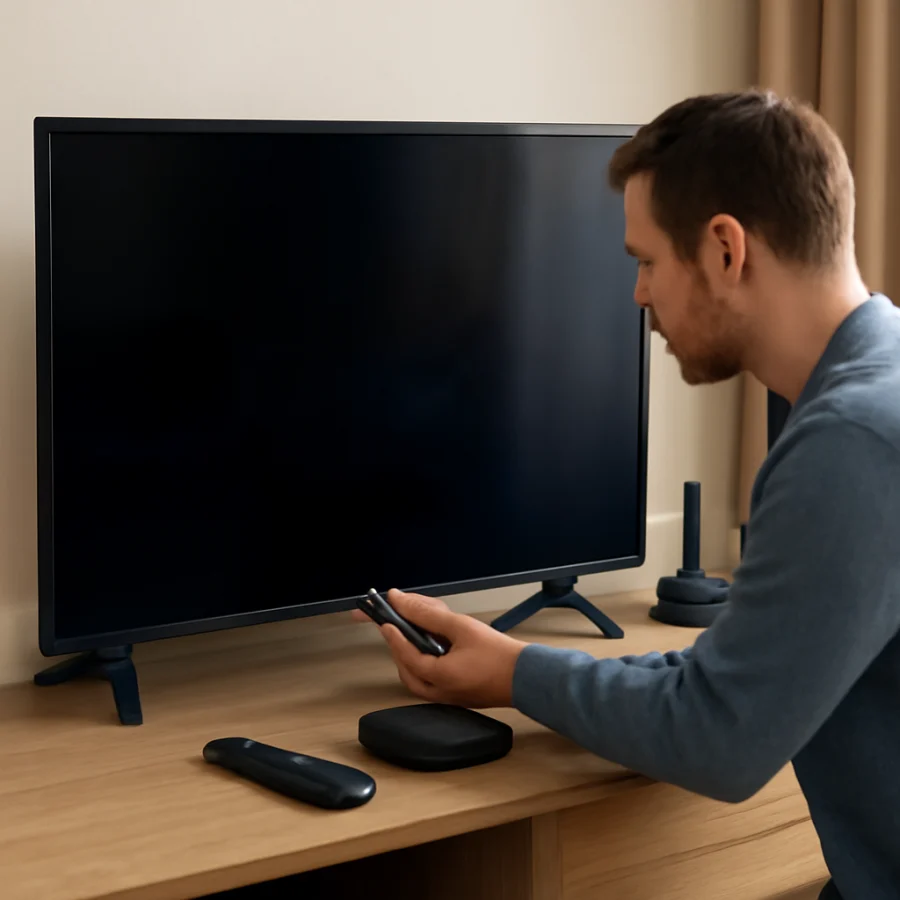
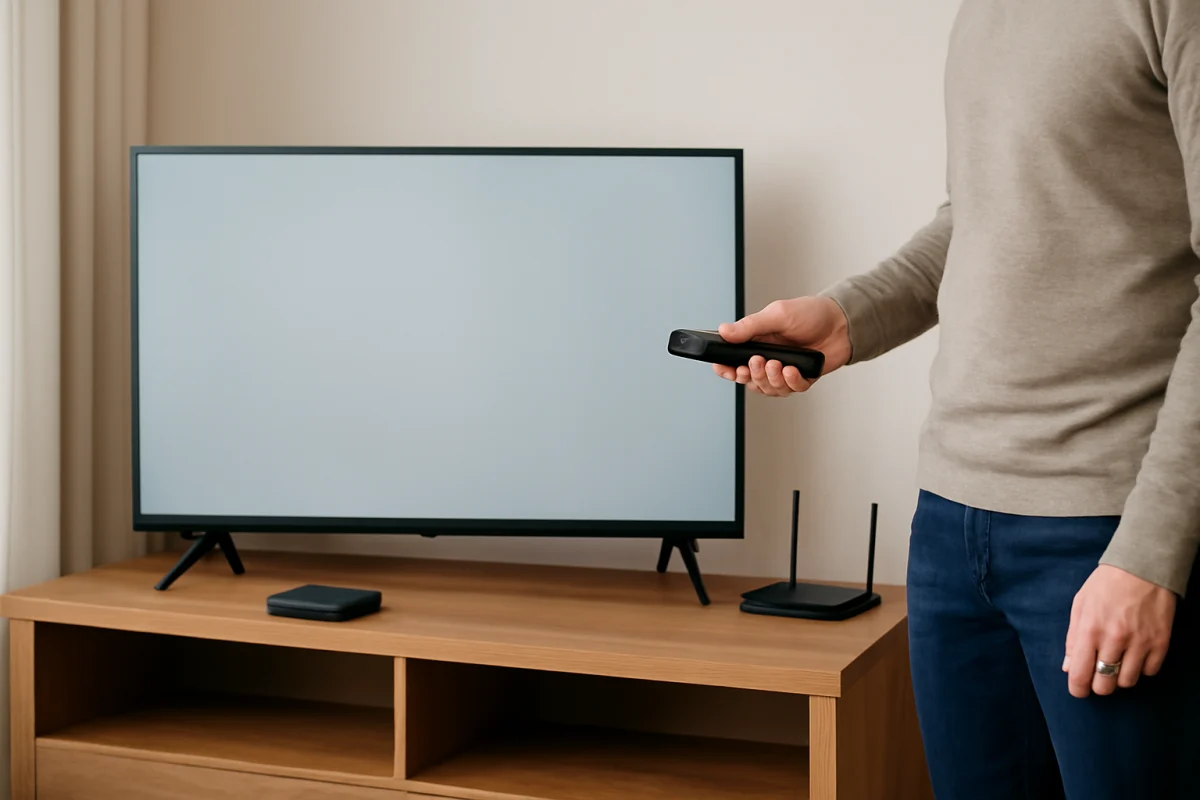
When the picture problem occurs only with one HDMI source, troubleshoot that connection before blaming the television. Confirm that the external device is powered on, then select the input that matches the port in use. If the TV has several HDMI ports, move the device to another port and select the corresponding input.
Try a different, compatible HDMI cable. A cable can fail even when its outside appearance is normal, particularly if it has been sharply bent or pulled. If possible, connect a second source to the same TV input. For example, another streaming device or game console can help determine whether the original source is at fault.
Disconnect HDMI accessories temporarily, including receivers, splitters, adapters, and soundbars. Connect the source directly to the TV. If the picture returns, reconnect each accessory one at a time until the problem appears again. Some source devices also have their own resolution, HDR, or refresh-rate options. If a device was recently configured for a display mode the TV does not handle properly, use that device's display recovery or automatic video setting.
For more guidance on source-related picture faults, see TV Fix Guide's picture and sound troubleshooting section.
Rule out remote-control and setting changes
A remote can accidentally change the input, picture mode, aspect ratio, brightness, or energy-saving behavior. Replace weak batteries, make sure the remote is aimed at the TV, and check whether the buttons on the television work. If the remote appears stuck or a button is being pressed by an object, remove the batteries briefly and test the TV using its physical controls.
Open the picture settings and look for obvious changes to brightness, contrast, backlight, color temperature, and picture mode. The available controls differ by model. If the screen is simply too dark or colors look unusual, choose a standard or default picture mode rather than adjusting every control individually. If the picture improves after a setting change, note the original values before making further adjustments.
Also check the aspect ratio or screen-size option if the image is stretched, cropped, or surrounded by black bars. Black bars are not always a fault; movies and some broadcasts use a wider format than the TV screen. Do not force the image to fill the screen if doing so cuts off important content.
What to do about a flickering Skyworth screen
First determine whether the entire screen flickers or only the picture from one source. If menus and several inputs flicker, remove all external devices and test the TV's home screen. If the flickering stops, reconnect devices one at a time and replace the cable connected to the source that triggers it.
Make sure the TV is not sharing an overloaded or unstable power strip with devices that draw substantial power. As a test, connect it directly to a suitable wall outlet. Do not use damaged extension cords or loose adapters. If the screen flickers when lights, appliances, or heating equipment start, the home's electrical supply may need attention from a qualified professional.
For gaming or computer use, temporarily choose the source device's automatic display setting. Unusual resolution or refresh-rate combinations can produce flashing, a blank image, or intermittent signal loss. If the TV has motion-processing or advanced picture features, compare the standard picture mode with the current mode. These settings normally do not cause hardware flicker, but testing with fewer processing features can help isolate the symptom.
Diagnose lines, spots, and part of the screen not working
Clean the screen gently with a dry, soft microfiber cloth. Do not spray cleaner directly onto the panel, press on the display, or rub a dark spot. Pressure can permanently damage the pixels and internal layers.
Take note of whether the lines move when the input changes. Lines visible over the TV's menus, home screen, and every connected source are more concerning than lines that appear only in one broadcast or app. A fixed vertical or horizontal line, a large dark area, repeated blocks, or a section that never lights up may indicate panel or display-control hardware trouble.
Do not press, twist, or tap the screen to make a line disappear. That may temporarily change a loose internal connection while causing additional damage. If the problem remains after a power cycle and appears on all sources, professional diagnosis is usually more appropriate than repeated resets.
When a dark screen may be a backlight problem
If the TV produces sound and a faint image is visible under a flashlight, the backlight may be failing. A backlight problem can affect the entire screen or create dark sections. Brightness settings can make a picture appear dim, but they generally will not create a completely black screen with a faint image underneath.
Backlight repair requires opening the television and handling delicate panels. It is not a good beginner repair. If the TV is still covered by a retailer, manufacturer, or service plan, check the applicable documents before opening it. If the screen smells burnt, the casing becomes unusually hot, or there are clicking sounds from inside, unplug the TV and stop testing it.
Check software and connected network features
A temporary software fault can affect menus, apps, or startup behavior. After the low-risk checks above, connect the TV to the internet if it is not already connected and look for a system or software update option. The location and name of this option vary by Skyworth model, so do not follow instructions intended for a different operating system without confirming they match your screen.
If the picture is normal on the home screen but an app displays a blank image, close and reopen the app, restart the TV, and test another app. A network problem usually causes buffering or an error message rather than physical lines or a permanently dark panel. For connection-specific help, visit the Wi-Fi and network troubleshooting guide.
Should you reset the Skyworth TV?
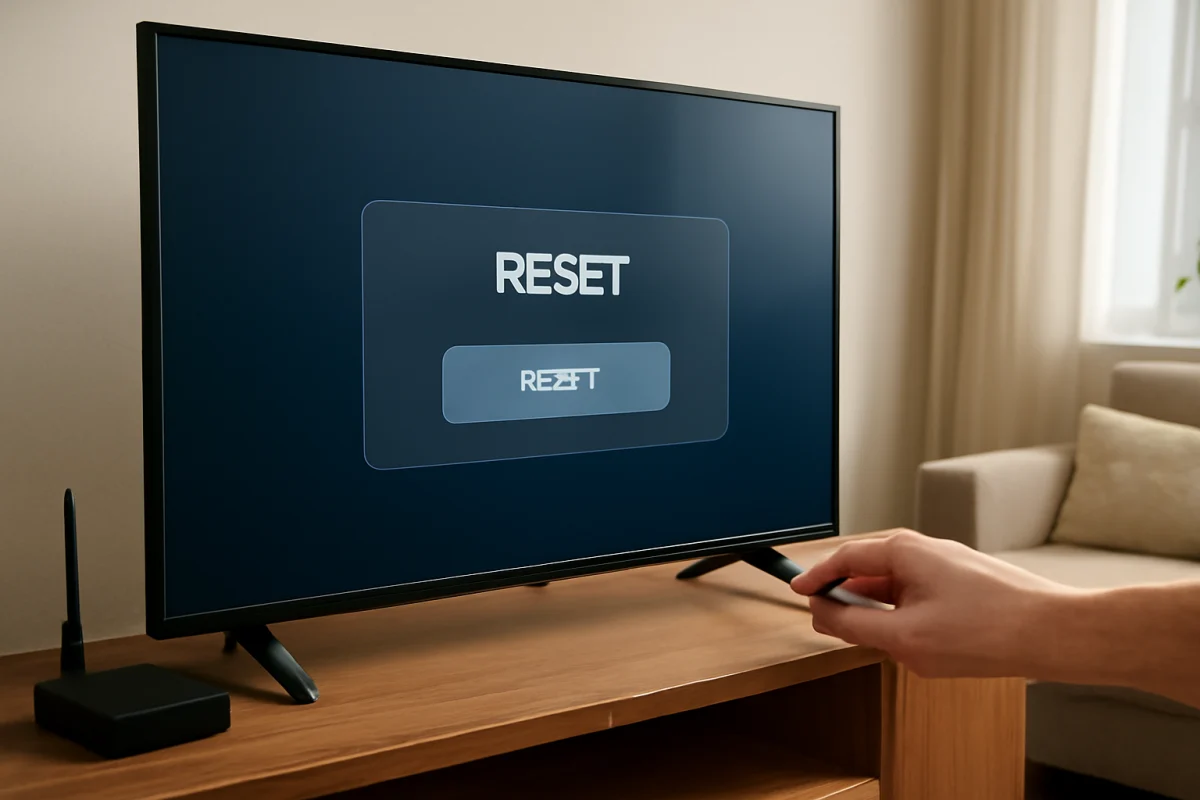
A factory reset can help when picture settings, input behavior, or software state has become confused, but it should not be the first response to physical lines, a cracked panel, or a faint image caused by a likely backlight failure. A reset also removes customized settings, connected accounts, app data, and possibly saved network information.
Before resetting, write down important picture settings and make sure you know the passwords needed to set up apps again. Use the reset option shown in your TV's own settings rather than a procedure for another Skyworth model. If the TV cannot display menus, do not repeatedly attempt button combinations found online unless they are confirmed for the exact model.
When professional repair is the safer choice
Arrange professional service when the screen has permanent lines, a cracked panel, widespread discoloration, a burning smell, visible damage, or a picture that disappears after the TV warms up. Service is also sensible when the TV does not show its own menu after testing the outlet, power connection, inputs, and a safe power cycle.
Record the model number, the symptoms, and which tests you performed. A short video showing the fault can be useful because intermittent problems may not appear during an inspection. If you need more brand-specific troubleshooting, the Skyworth TV repair hub collects related guides in one place.
The most useful dividing line is simple: if the TV's menus and built-in content look normal, investigate the source and cable; if the same fault appears across menus and every input, suspect the TV itself. Starting with that distinction helps you avoid unnecessary resets and makes the next repair decision much clearer.
Comments
0No comments yet. Be the first to share a helpful note or question.
Leave a Comment
Your email address will not be published. Comments are reviewed before appearing on the site.