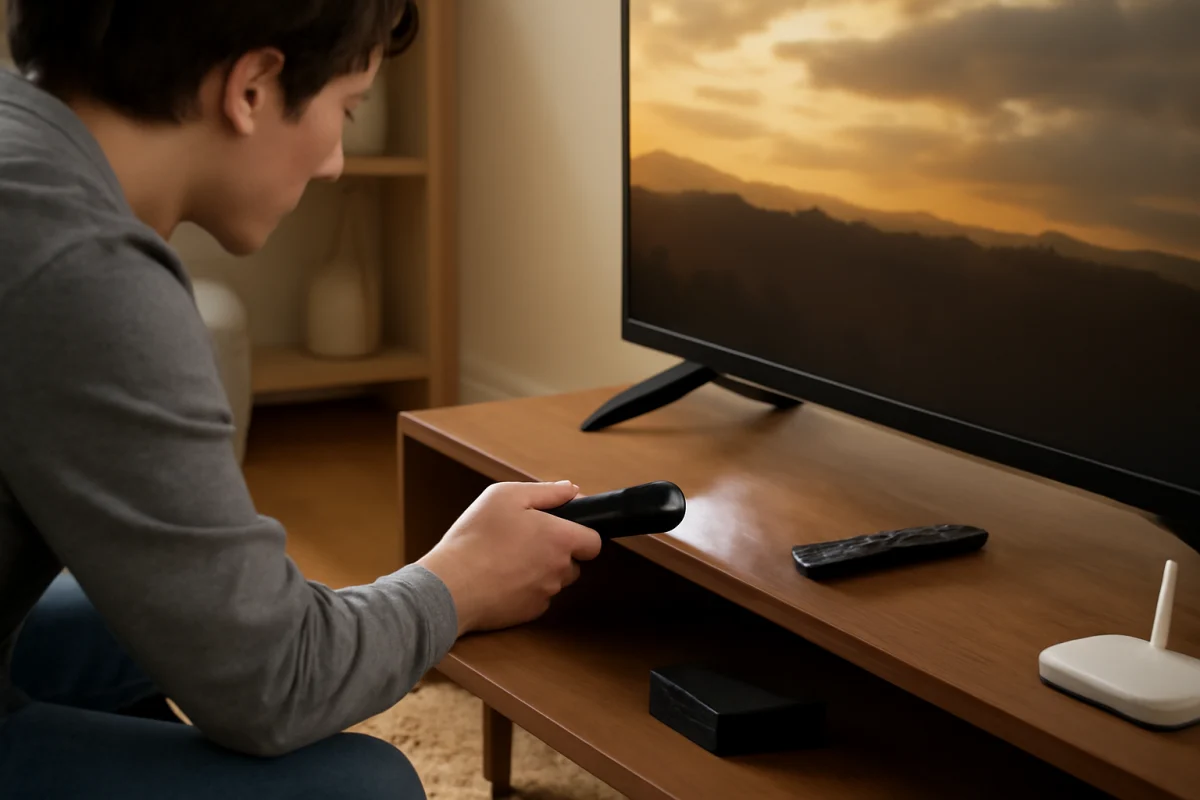
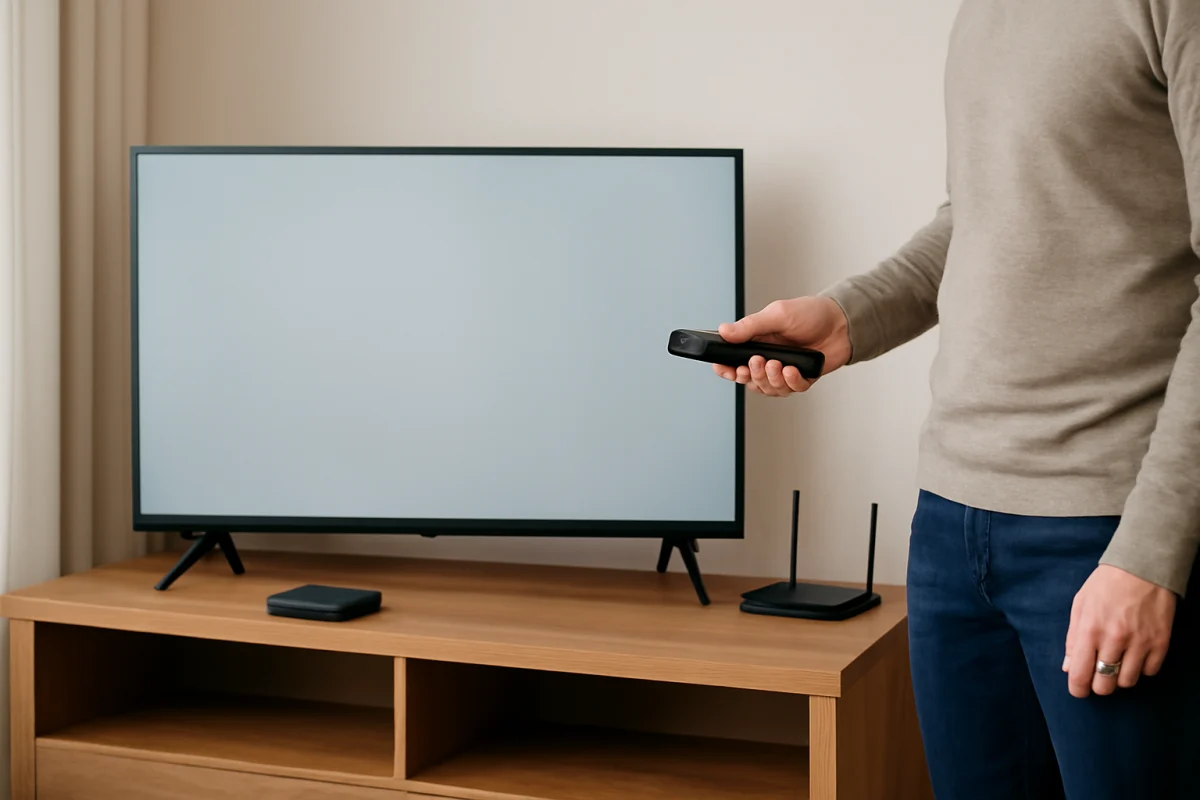
If your Skyworth TV remote is missing, unresponsive, or out of batteries, you can usually control the television with physical buttons on the set. These buttons may be on the underside, side, back, or lower edge of the TV. Their location and functions vary by model, so check every accessible edge before assuming the controls are missing.
Most Skyworth televisions provide at least a power button. Some models also include controls for volume, channel selection, input, and menu navigation. On newer sets, several functions may be combined into one small joystick-style button rather than separate buttons.
Where to Find the Manual Buttons on a Skyworth TV
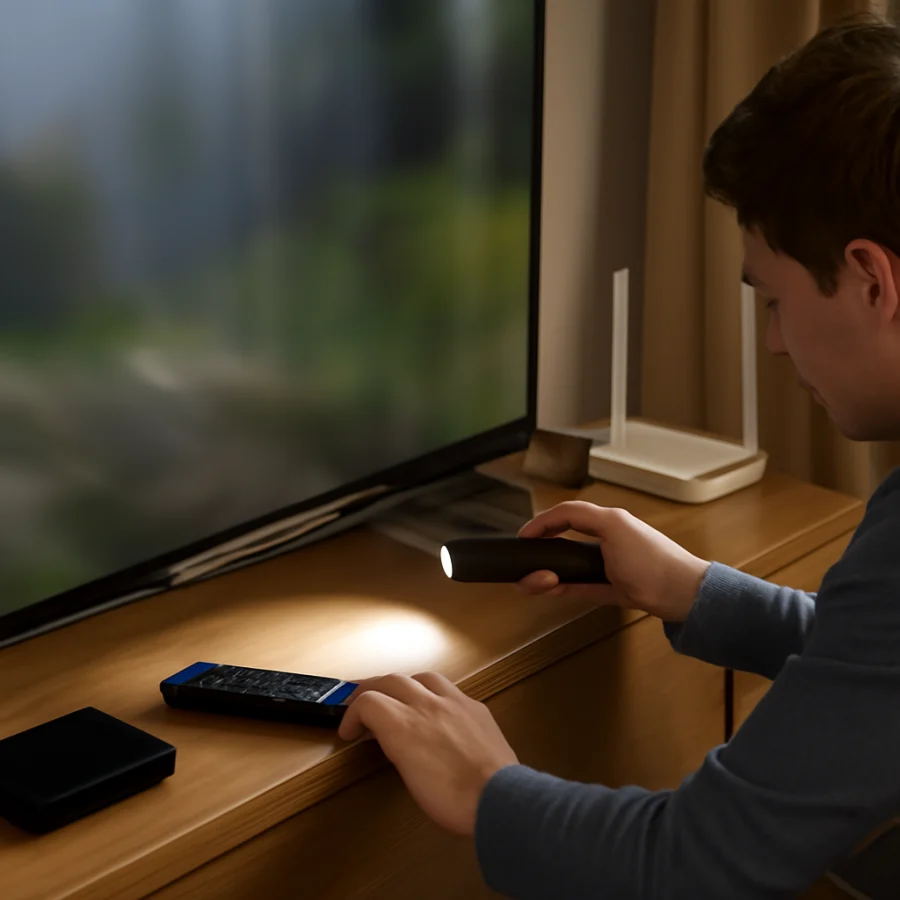
Start with the TV turned off and use a phone flashlight to inspect the frame. Avoid pressing hard or reaching into ventilation openings. The controls are usually placed where they can be reached without affecting the screen panel.
Common button locations
- Under the bottom edge: Look beneath the center of the screen, near the Skyworth logo, or slightly toward one side.
- Along the side edge: Check the left or right rear edge of the TV. The buttons may be arranged vertically.
- On the back panel: Some models place a small group of buttons near one lower corner or close to the input ports.
- Behind the lower bezel: A button may be recessed and difficult to see from the front.
Do not confuse the manual controls with the indicator light, infrared sensor, or a ventilation slot. The infrared sensor is typically a dark, unobtrusive area near the lower bezel and does not function as a button.
How to Use the Skyworth Power Button
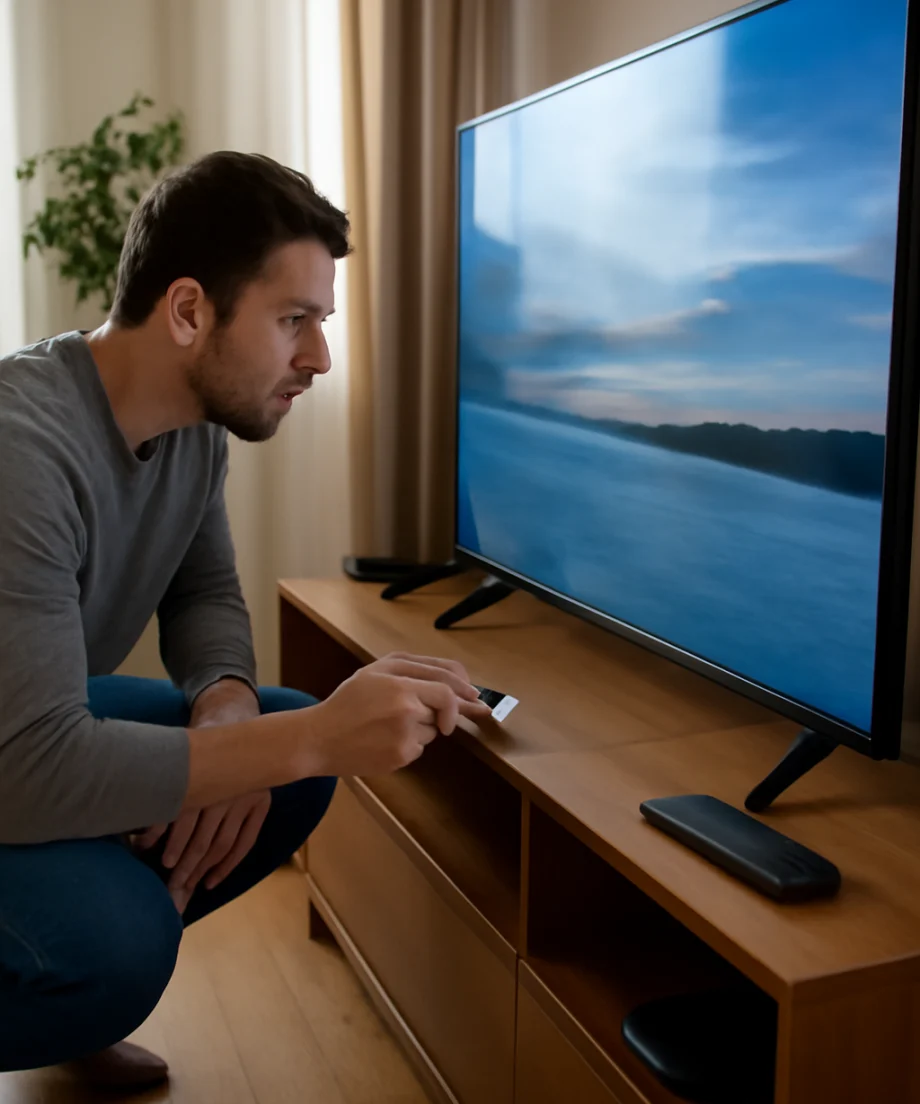
Press the power button once and release it. Do not hold it immediately unless the TV does not respond to a normal press. A working television may take several seconds to display a picture, especially after it has been unplugged.
If the TV is already on, pressing the same button may turn it off. On some models, a short press opens a control menu instead of switching the TV off. If that happens, use the directional controls or repeated presses to select the power option, then confirm if required.
If there is no response, perform these low-risk checks first:
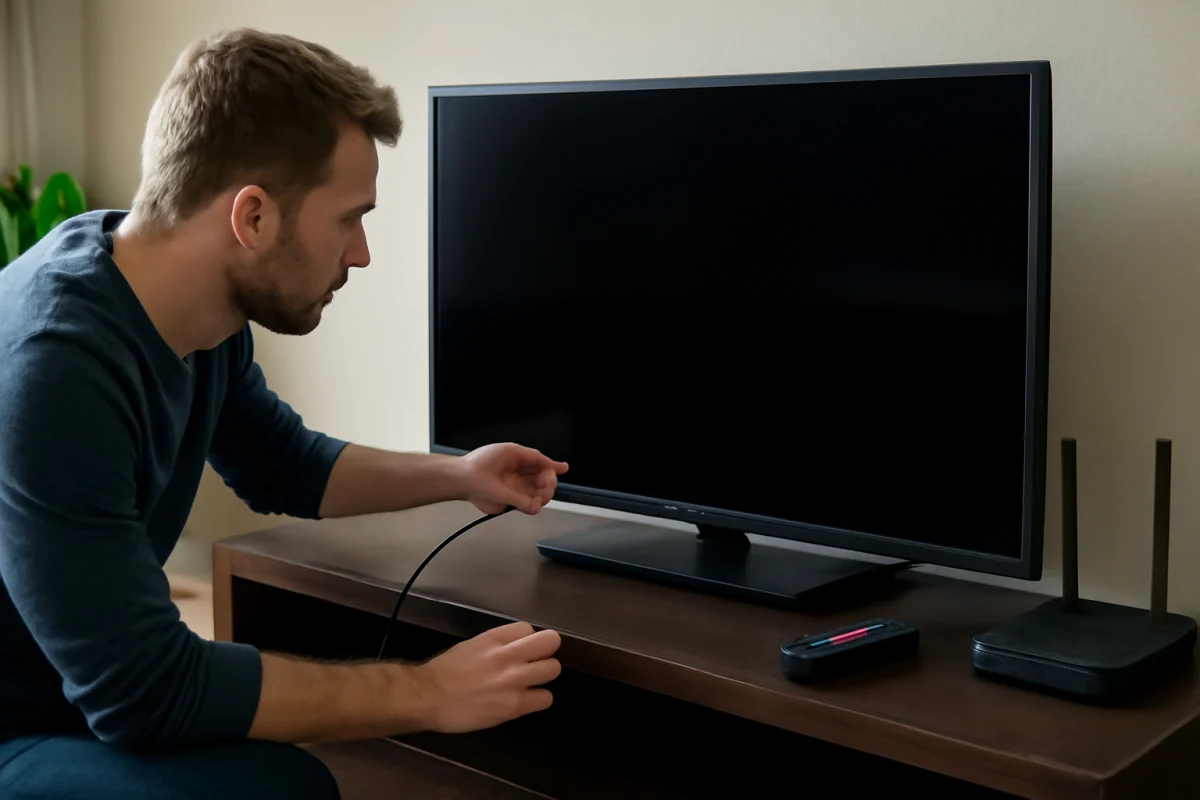
- Make sure the power cord is firmly connected to the TV and wall outlet.
- Test the outlet with a lamp or another device that you know works.
- If the TV is connected to a surge protector or power strip, bypass it temporarily and connect the TV directly to the wall.
- Unplug the TV for about one minute, reconnect it, and try the manual power button again.
- Check whether a standby light changes when you press the button.
A light that stays on but produces no picture may indicate a startup, input, backlight, or display problem rather than a failed button. If the standby indicator never appears and the outlet is working, the issue may involve the power cord, internal power circuitry, or the TV's control board.
Using Manual Buttons for Volume and Channels
When separate buttons are provided, they are often labeled with plus and minus symbols, arrows, or abbreviations. The volume buttons normally adjust the TV speakers, while channel buttons move through available broadcast channels. Channel controls may not change anything if you are watching an HDMI device or a streaming app.
If a single button controls several functions, press it briefly to move through the available options. Pressing up or down may change the selected setting, while pressing left or right may adjust it. A longer press may confirm a selection or turn the TV off, depending on the model.
Because Skyworth control layouts differ, do not assume that the same press pattern works on every television. Watch the on-screen control overlay if one appears. If the buttons only change volume when you expect them to change channels, the TV may be using a combined control system or may be focused on a different function.
How to Change the Input Without a Remote
To switch from the built-in TV tuner to a connected device, look for a button labeled Input, Source, or a rectangle-and-arrow symbol. Press it once to open the source list, then use the volume or channel buttons to move through the choices. Press the input button again, or press the power-style control, to select an option if the screen indicates that method.
On some models, the input list may appear as an on-screen overlay. If you cannot confirm a selection, wait several seconds after highlighting the desired source. The television may switch automatically, or the same button may act as an enter control.
Before troubleshooting a blank screen, confirm that the selected input matches the port being used. For example, a streaming stick connected to one HDMI port will not appear if the TV is set to another HDMI input. Also verify that the external device is powered on and that its cable is seated securely.
Opening the Menu and Adjusting Settings
Some Skyworth TVs include a dedicated menu button. Others use a joystick or multi-function control. Press the menu control briefly, then use the directional buttons to move through the settings. Common controls may include picture, sound, network, channels, system, and input options, but the exact menu names depend on the model and software version.
Make one change at a time and note the original setting when possible. This makes it easier to reverse an unwanted adjustment. If a menu disappears, wait briefly or press the menu button again rather than repeatedly pressing several controls.
Manual buttons are useful for basic adjustments, but they are usually less convenient for typing Wi-Fi passwords, searching for apps, or changing detailed picture settings. For those tasks, a compatible replacement remote, the manufacturer's recommended control method, or a supported mobile remote may be more practical. Compatibility can depend on the exact Skyworth model and the TV's operating system.
When the Buttons Do Not Respond
If the screen is on but none of the manual controls work, first check whether a button is physically stuck. Do not use sharp objects, liquid cleaners, or excessive force. Dust around a button can sometimes prevent normal movement, but cleaning should be limited to the exterior with the TV unplugged and a soft, dry cloth.
Next, disconnect all external devices, including HDMI equipment, USB drives, soundbars, and game consoles. Unplug the TV for about one minute, reconnect only the power cord, and test the buttons. A malfunctioning peripheral or HDMI control signal can occasionally interfere with normal operation.
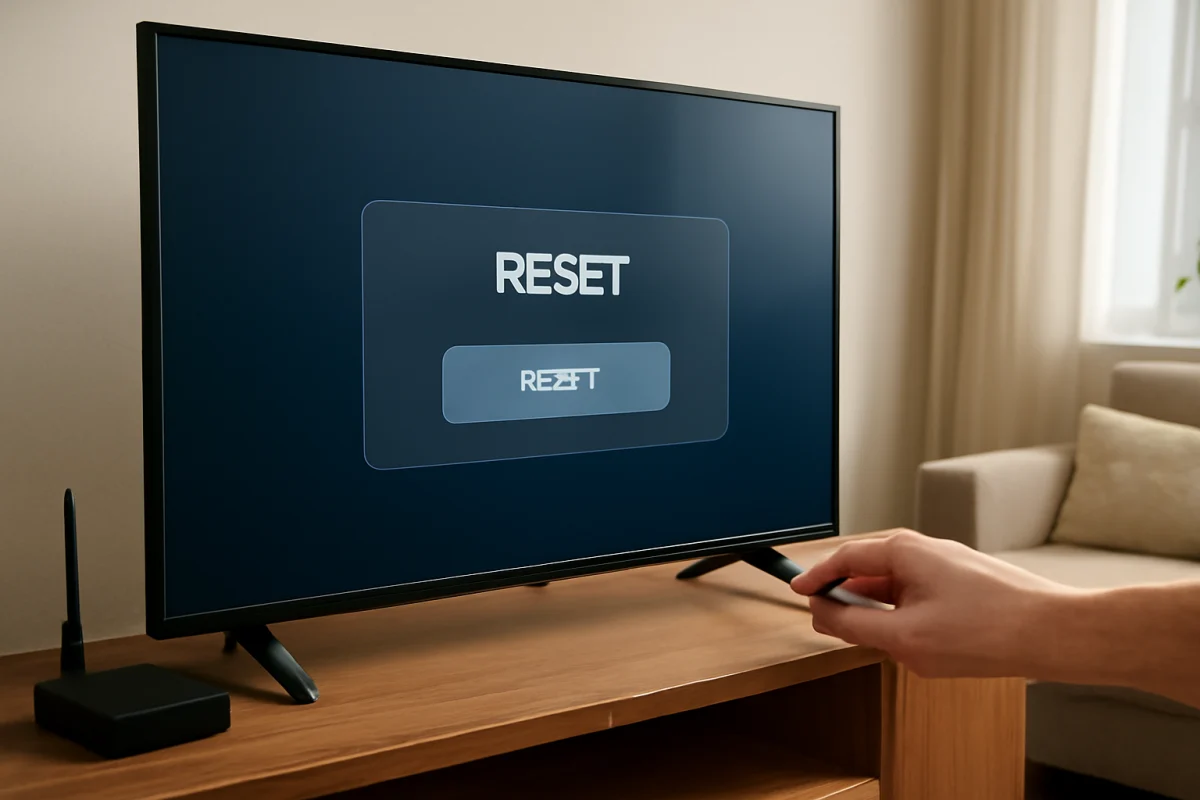
If the television responds slowly, wait several seconds between presses. Rapidly pressing a small control can make it seem unresponsive while the TV is processing a command. If the TV is frozen, a normal power press may not work immediately. A longer press may force a restart on some models, but the behavior is model-dependent, so use this only after the standard power check has failed.
You can also try the basic troubleshooting steps in the Skyworth TV repair guide. Keep in mind that a button problem and a picture problem can look similar, particularly when the TV has power but no visible image.
When a Remote or Replacement Control Is Needed
Manual buttons are enough for turning the TV on, changing an input, or making a basic volume adjustment. They may not provide full access to every feature. If the remote is lost, identify the exact model number from the label on the back of the TV or from its original documentation before purchasing a replacement.
Do not rely only on the screen size or the Skyworth brand name. Two televisions that look similar may use different remote layouts or communication methods. A replacement remote may need pairing, while another may work after inserting batteries. Universal remotes can offer basic commands but may not control every smart-TV function.
If you are considering a phone-based remote, the TV and phone may need to be on the same network, and the TV may require an on-screen approval. That option may not help if the television is offline or stuck during startup.
Signs the Manual Button Assembly May Be Faulty
Consider professional service when a button is loose, remains pressed, works only when pushed from one angle, or triggers a different command every time. A damaged control board can also cause multiple buttons to fail together.
Stop using the TV and unplug it if you notice a burning smell, unusual heat, smoke, liquid entry, sparking, or repeated clicking from inside the cabinet. Do not remove the back cover unless you are trained to work safely around electronics. Unplugging a television does not guarantee that all internal components are immediately free of stored electrical energy.
If the TV works with a remote but not with the physical controls, the problem is more likely limited to the button assembly or its connection. If neither the remote nor the manual buttons works, continue with power and input checks before assuming the buttons are defective.
Quick Manual-Button Checklist
- Inspect the bottom, side, and rear edges with a flashlight.
- Look for a single joystick-style control as well as separate buttons.
- Press the power button once and wait several seconds.
- Test the wall outlet and bypass the power strip.
- Disconnect external devices before testing again.
- Match the selected input to the connected HDMI or other device.
- Use slow, deliberate presses and watch for an on-screen control menu.
- Check the exact model number before buying a replacement remote.
- Stop and seek service if there is heat, smoke, liquid damage, or a burning smell.
The physical controls can restore basic operation when a Skyworth remote is unavailable, but their layout is not universal. Start with the location and power checks, then move to input selection and menu navigation. If the TV still does not respond after a controlled power reset and external-device check, the safest next step is model-specific documentation or qualified repair rather than repeated button presses.
Comments
0No comments yet. Be the first to share a helpful note or question.
Leave a Comment
Your email address will not be published. Comments are reviewed before appearing on the site.