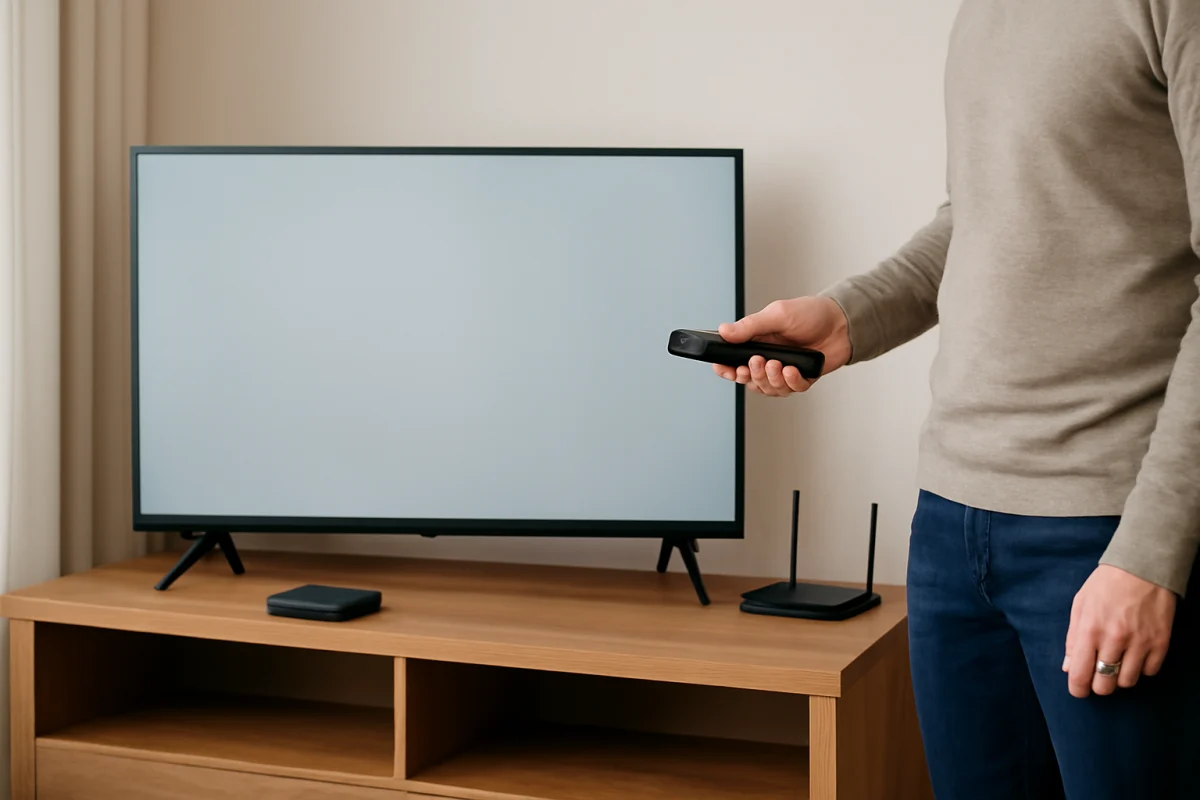
If your Skyworth TV is frozen, stuck on a logo, restarting repeatedly, or refusing to open apps, start with a power reset before erasing anything. Unplug the TV from the wall, wait at least 60 seconds, and plug it directly into a working outlet. Turn it on and test it for a few minutes.
If the problem continues, a factory reset is the more complete form of hard reset. It removes saved Wi-Fi networks, installed apps, account information, picture settings, parental controls, and other personal preferences. The exact menu names and recovery steps vary by Skyworth model and by the TV platform, so use the instructions that best match what you see on your screen.
Before you reset your Skyworth TV
A factory reset is useful, but it should not be the first response to every TV problem. Resetting will not normally repair a damaged display panel, a failed power board, a bad HDMI cable, or a weak Wi-Fi signal. It can also create extra work because you will need to sign back in to streaming services afterward.
Before proceeding, check these simple items:
- Confirm that the TV has power and that its standby light behaves normally.
- Replace the remote batteries or try the TV's physical control button.
- Disconnect external devices such as game consoles, cable boxes, USB drives, and soundbars.
- Try another HDMI input if the problem only appears with one connected device.
- Restart your router if apps fail to load but the TV menus work normally.
- Write down important picture, sound, network, and accessibility settings you may want to restore later.
For network-related symptoms, additional guidance is available in the Wi-Fi and network troubleshooting section. If the issue is limited to a streaming service, resetting the entire TV may be unnecessary.
Method 1: Perform a safe power reset
This procedure clears temporary electrical and software states without deleting your settings. It is the best first step for a slow interface, temporary freezing, an unresponsive remote, or an app that will not close.
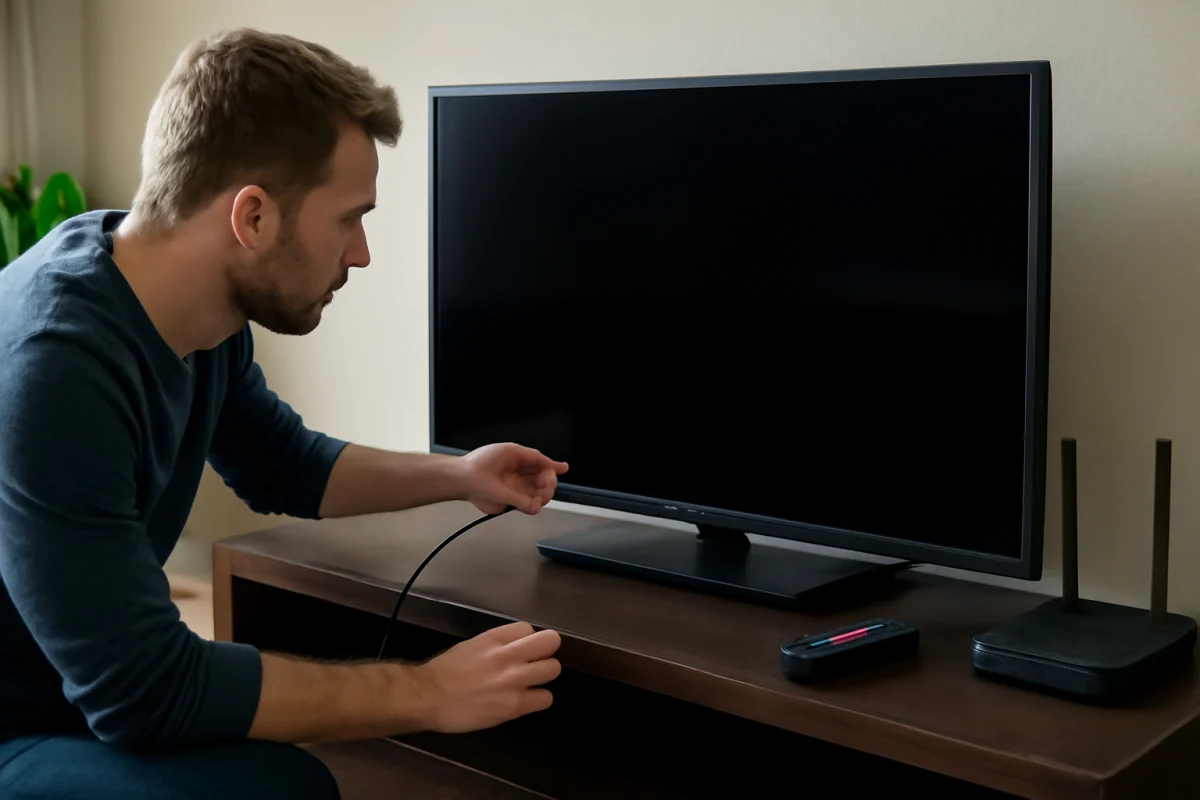
- Turn the Skyworth TV off using the remote if it responds.
- Unplug the TV's power cord from the wall outlet, not just from a surge protector if possible.
- Leave it unplugged for at least 60 seconds. Waiting several minutes is also reasonable if the TV was unusually hot or repeatedly restarting.
- While the TV is unplugged, press and hold the TV's physical power button for about 10 to 15 seconds if your model has one. This can help discharge stored power, but it is not required on every model.
- Reconnect the TV directly to a known-working wall outlet.
- Wait briefly, then turn the TV on with the remote or physical button.
Do not repeatedly unplug and reconnect the set in rapid succession. If the TV makes clicking sounds, smells like burnt electronics, shows sparks, or becomes unusually hot, disconnect it and stop troubleshooting. Do not open the back cover; televisions can retain hazardous electrical energy even after they are unplugged.
Method 2: Factory reset from the TV settings
If you can open the settings menu, this is usually the safest way to perform a full reset. The wording differs between Skyworth televisions, so do not worry if your menu does not use the exact labels below.
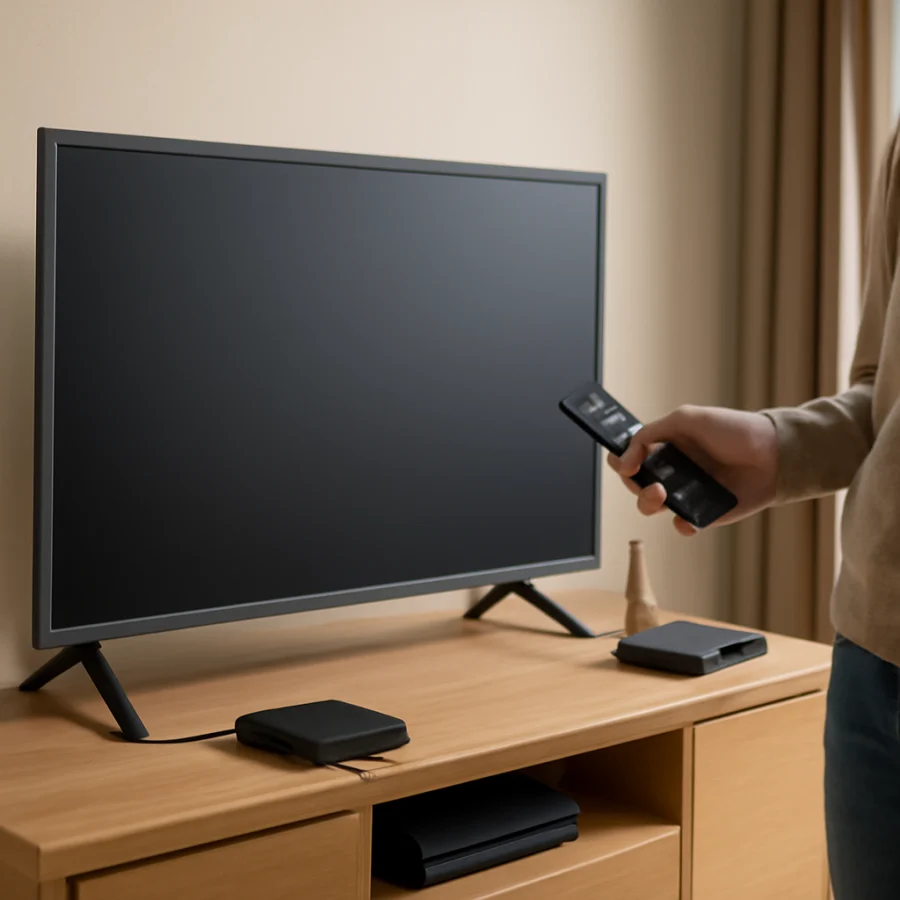
- Turn on the TV and press the remote button that opens the main menu or settings.
- Look for a section related to system settings, device preferences, general settings, support, or setup.
- Find an option referring to reset, restore, erase, or factory settings.
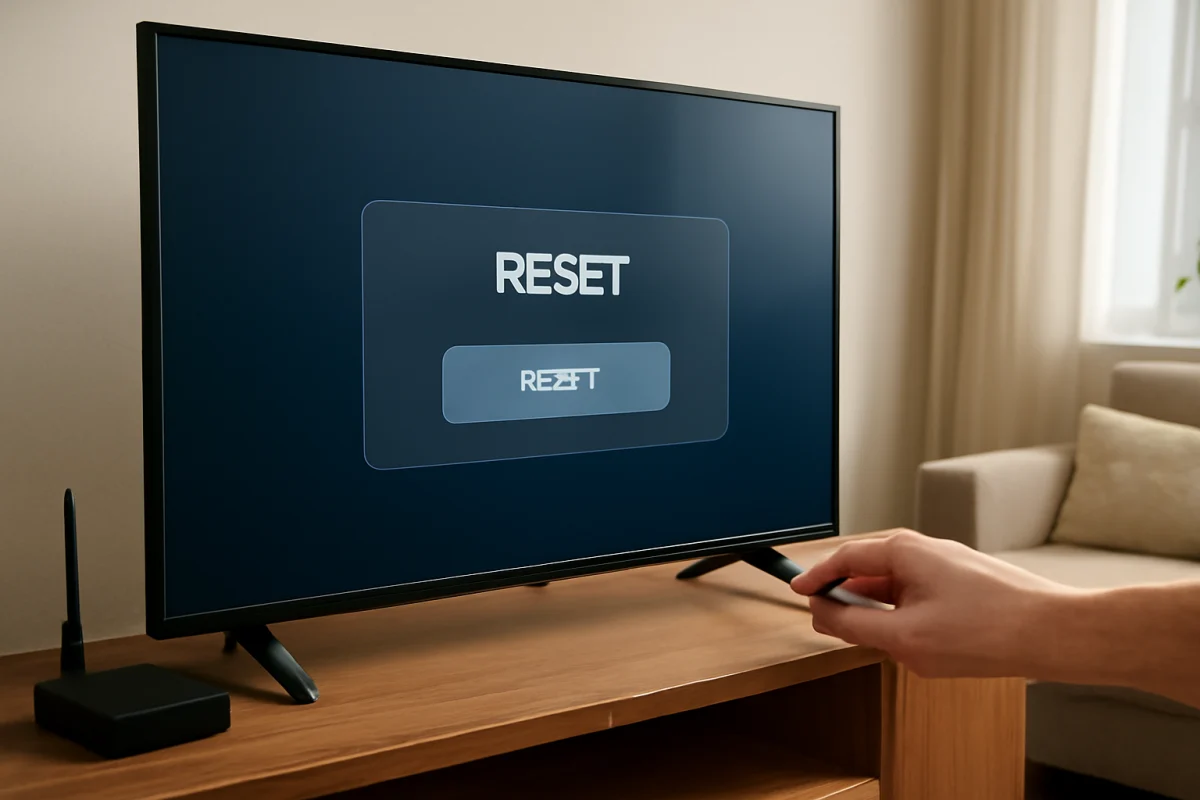
- Select the reset option and read the warning carefully.
- Enter a PIN if the TV requests one. If you never created a PIN, check the TV's documentation rather than guessing repeatedly.
- Confirm the reset and leave the TV connected to power while it works.
The TV may restart more than once and may remain on a blank screen for a short period. Do not press buttons, unplug the set, or switch outlets during the reset process unless the screen specifically tells you to do so. When the process finishes, the initial setup screen should appear.
What a factory reset removes
A factory reset generally removes information stored on the television itself. This can include Wi-Fi credentials, installed applications, app sign-ins, custom picture and audio settings, input labels, timers, accessibility preferences, and parental restrictions. The exact list depends on the model and software platform.
A reset does not normally cancel paid streaming subscriptions. However, it signs the TV out of services, so make sure you know the email addresses and passwords needed to sign in again. If you use two-factor authentication, keep your phone or other verification device nearby.
Method 3: Reset a Skyworth TV when the remote does not work
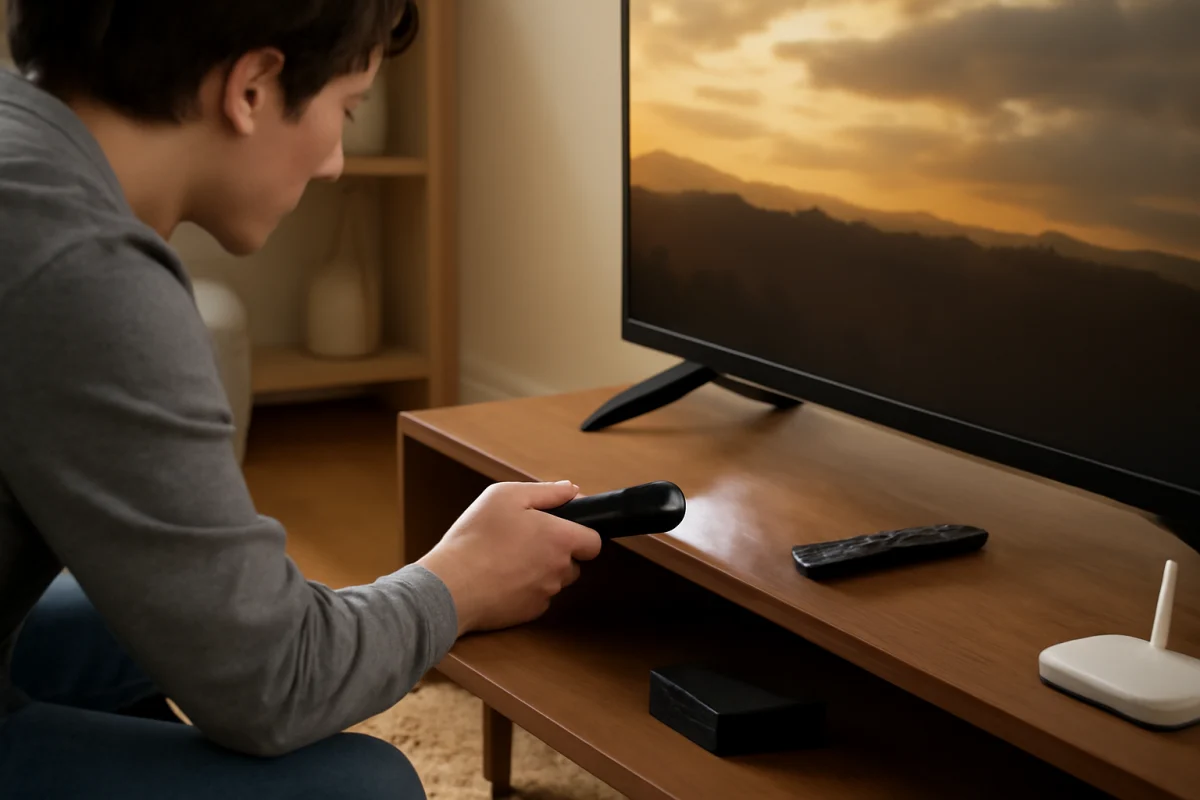
If the remote is the only problem, try to reset the remote issue instead of erasing the TV. Install fresh batteries, make sure no object blocks the TV's sensor, and test the physical controls on the set. A smartphone remote app may work on some smart TV platforms, but it normally requires the phone and TV to already be connected to the same network.
If the TV is responsive enough to show menus, use its physical button or buttons to navigate. On some models, a short press changes the selection while a longer press opens or confirms an option. Because button behavior varies, avoid holding a button for a long time unless the screen gives you clear instructions.
You can also connect a compatible wired USB keyboard to navigate certain TV interfaces. Compatibility is not guaranteed, and this will not help if the TV has a hardware failure or never reaches its software interface.
Method 4: Recovery reset for a frozen or boot-looping TV
A Skyworth TV that is stuck on its logo or repeatedly restarts may not allow access to the normal settings menu. Some models provide a recovery procedure using a physical button, while others require a service-specific process. The button location, timing, and key combination can differ significantly between models and software versions.
For that reason, do not apply a button combination found for a different Skyworth model. A procedure that is safe on one television may do nothing on another, and an interrupted recovery process can make the problem harder to diagnose.
First, complete the power reset described above. Disconnect every HDMI and USB accessory, then try starting the TV with only its power cable attached. If the screen still remains frozen, look for the exact model number on the rear label, original paperwork, or purchase record. Use the instructions provided for that model, or contact Skyworth support or a qualified repair technician for the correct recovery procedure.
If you do receive model-specific recovery instructions, follow them exactly. Keep the TV connected to stable power, use only the required remote or button, and do not interrupt the process. If the television shows no standby light, shows a damaged screen, or shuts off immediately after powering on, a factory reset may not solve the underlying problem.
Set up the TV after the reset
When the reset is complete, the TV will usually ask you to select basic preferences and connect to a network. The order and wording can vary, but the general setup process is similar:
- Select your language and location when prompted.
- Connect to your home Wi-Fi network or use another available connection method.
- Install any requested system updates only after the TV has a stable power and network connection.
- Sign in to your streaming accounts individually.
- Reconnect HDMI devices one at a time and select the correct input for each one.
- Restore your picture, audio, accessibility, and parental-control preferences.
Test the TV before reinstalling every app or reconnecting every accessory. Open the settings menu, check a built-in app, test the remote, and confirm that the TV remains on for several minutes. If the original problem returns only after one device is connected, that accessory, cable, or input may be responsible.
When a hard reset does not fix the problem
If the same fault remains immediately after a factory reset, the cause may be hardware, a failing remote, an incompatible accessory, a network problem, or software that needs an approved update. A reset cannot repair a cracked panel, backlight failure, damaged HDMI port, power-board fault, or defective main board.
Pay attention to the symptom that remains. A black screen with sound may point toward a picture or backlight issue. No sound from every source may require audio and output checks. Repeated restarts with no connected devices can indicate a power or main-board problem. Problems affecting only one app are more likely to involve that app, the network, or the account.
Keep the model number and a short description of the behavior available when requesting support. Mention whether the TV's standby light comes on, whether menus appear, and whether the issue began after a power interruption, update, new device, or cable change. Those details can help separate a resettable software problem from a repair that requires professional service.
For more model-specific troubleshooting, visit the Skyworth TV repair section of TV Fix Guide. Use a factory reset when simpler checks have failed, and remember that the correct recovery steps depend on the exact Skyworth model and TV platform.
Comments
0No comments yet. Be the first to share a helpful note or question.
Leave a Comment
Your email address will not be published. Comments are reviewed before appearing on the site.