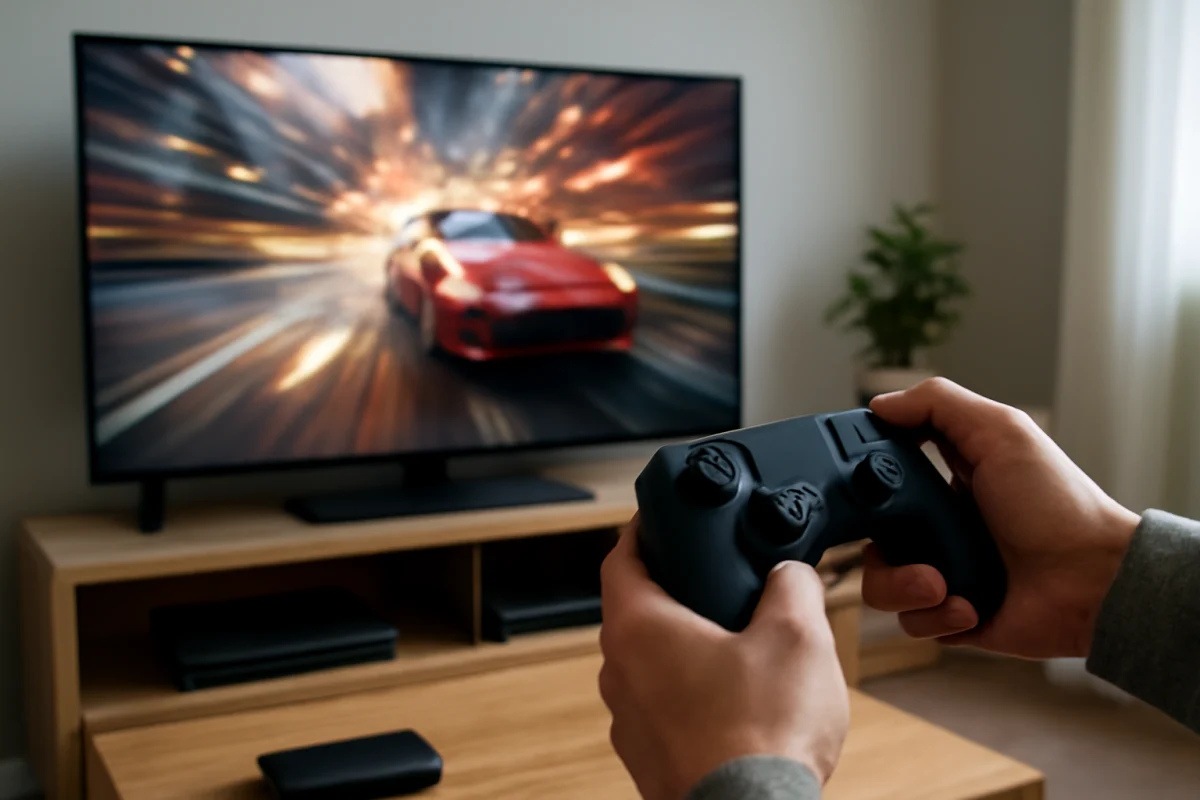
If your game feels slow, check the connection and TV settings before replacing the screen. Turn off unnecessary picture processing, use the TV’s gaming-optimized picture mode if available, and connect the console directly to the TV for testing. If the controls still feel delayed, the problem may be input lag, response time, the console, the game itself, or the network connection.
These terms are often used interchangeably, but they describe different parts of the gaming experience. Input lag is the delay between pressing a button and seeing the TV display the result. Response time describes how quickly the individual pixels change from one color or brightness level to another. Both matter, but they produce different symptoms and require different fixes.
What is input lag?
Input lag is the time the TV takes to process an incoming video signal and display it on the screen. For example, when you press a controller button to move a character, the console sends a new frame to the TV. The TV may then process that frame through scaling, noise reduction, motion smoothing, contrast adjustments, and other picture features before showing it.
That processing takes time. A small amount may be difficult to notice in casual games, movies, or turn-based titles. In a fast competitive game, even a short delay can make aiming, blocking, jumping, or timing a move feel less precise.
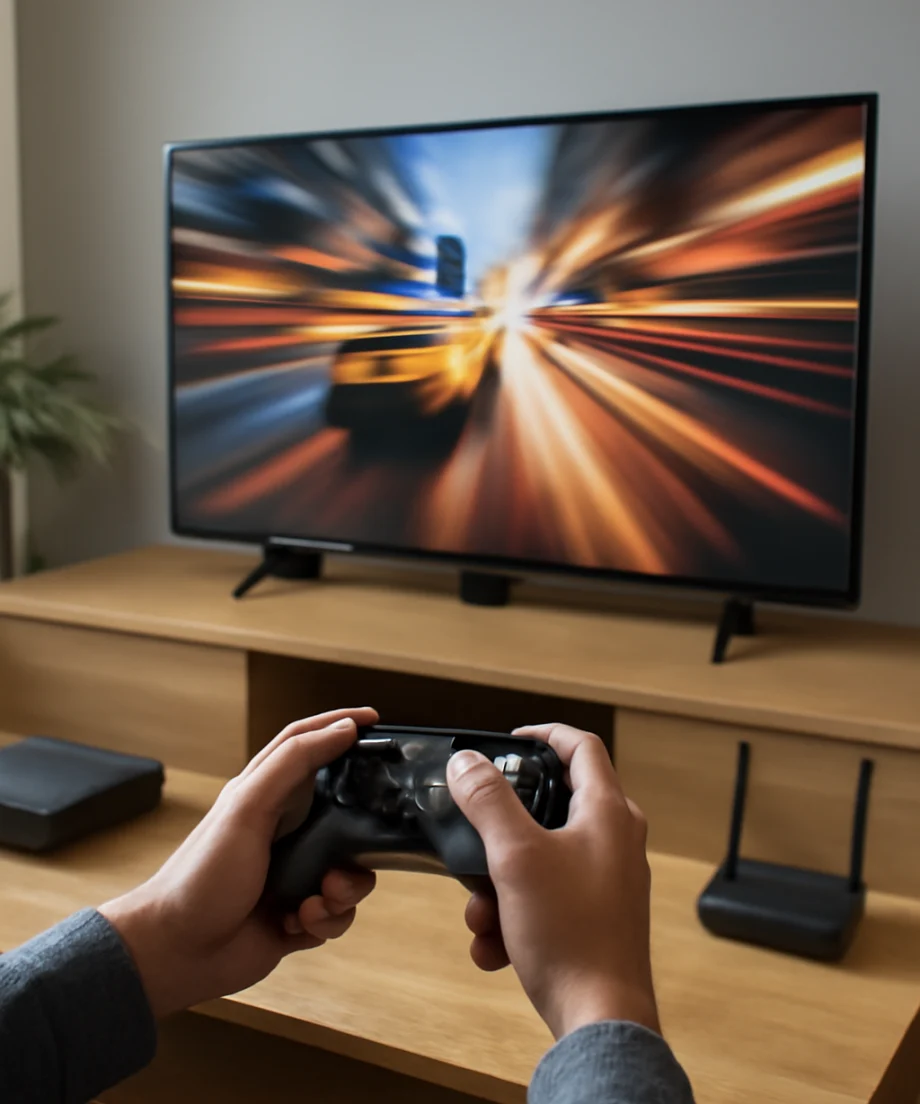
Input lag is measured in milliseconds, often written as “ms.” Lower is generally better for gaming, but published measurements are not always directly comparable. Testing methods, refresh rates, signal formats, and picture modes can all affect the result. A TV may also perform differently at different resolutions or refresh rates.
What is TV response time?
Response time is how quickly a pixel changes from one color or brightness value to another. It is a panel behavior rather than a measure of the TV’s signal-processing delay.
A TV with slow pixel response may show visible trails behind moving objects. This is commonly called ghosting or smearing. For example, a bright character moving across a dark background may leave a faint blur, or a fast camera pan may look less clean than expected.
Response time can vary depending on the specific color transition. A display may handle some transitions quickly and others more slowly. This is one reason a single response-time number in a product listing may not describe every gaming situation accurately.
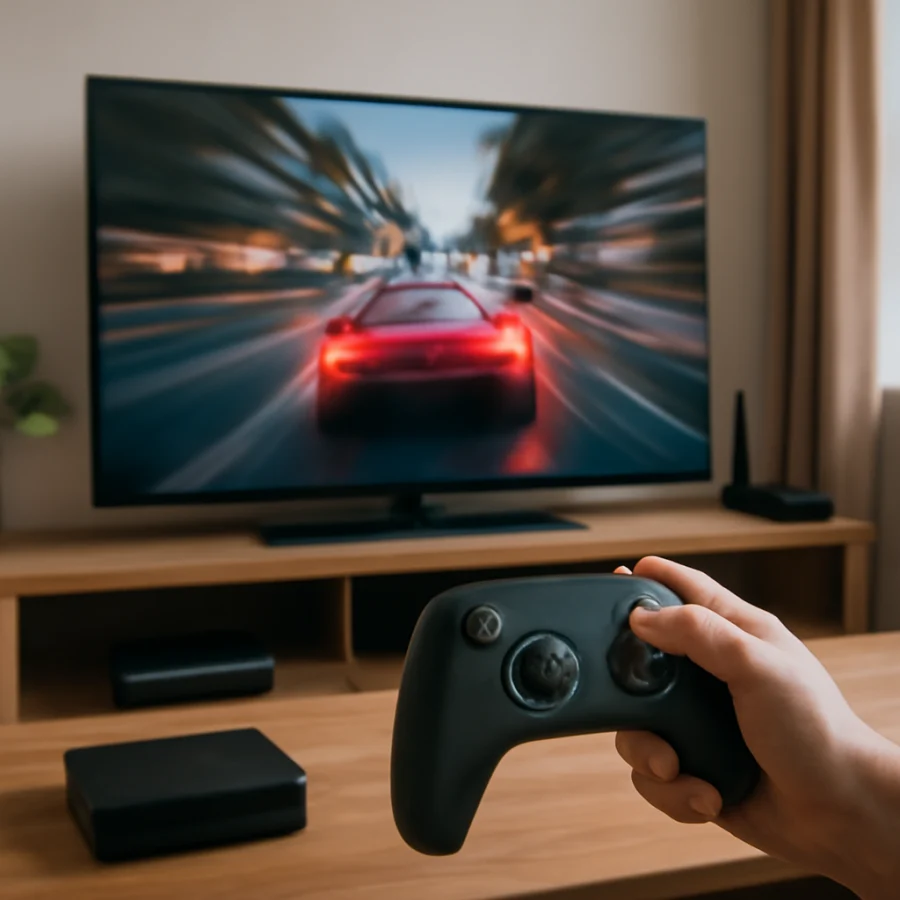
Input lag vs. response time
The simplest distinction is this:
- Input lag affects when the TV begins showing the result of your action.
- Response time affects how cleanly the pixels change while objects move on the screen.
High input lag feels like delayed controls. Slow response time looks like blur, trails, or smearing during motion. A TV can have low input lag but noticeable ghosting, or it can have fast pixel transitions while still feeling delayed because of heavy image processing.
Refresh rate is another separate factor. A 120 Hz display refreshes the image more often than a 60 Hz display, which can make motion appear smoother when the source and game support the higher rate. However, a higher refresh rate does not automatically eliminate input lag, and it does not guarantee fast pixel response.
Symptoms that point to input lag
Input lag is more likely when the following symptoms occur:
- Your character, camera, or menu selection responds noticeably after you press a button.
- Controls feel delayed even when the image looks sharp during motion.
- The delay is present in menus as well as gameplay.
- Switching to a gaming picture mode makes the controls feel more immediate.
- The same console feels more responsive on another display.
Do not assume every delay comes from the TV. Wireless controller issues, a weak connection between a cloud gaming service and your home network, game-specific behavior, or a console setting can create similar symptoms.
Symptoms that point to slow response time
Slow pixel response is more likely when the controls feel immediate but moving objects look blurry or leave trails. Look for these signs:
- Ghost images appear behind players, vehicles, or text during movement.
- Fast camera pans produce smearing even when input feels responsive.
- Static menus look sharp, but action scenes look soft or streaked.
- The problem changes with the brightness or contrast of the scene.
- Motion settings change the appearance, but button timing does not improve.
Some blur is also caused by the game’s own motion blur effect, camera movement, or a low frame rate. Test more than one game before deciding that the TV panel is the cause.
Low-risk checks to try first
1. Connect the console directly to the TV
For testing, connect the console directly to the TV instead of routing it through an audio receiver, soundbar, HDMI switch, capture device, or other intermediate equipment. These devices can add processing or compatibility problems. If the delay disappears, reconnect devices one at a time to identify the source.
Use a suitable, undamaged HDMI cable and make sure the cable is fully seated at both ends. A cable usually does not create ordinary input lag by itself, but a poor connection can cause signal drops, flickering, or repeated renegotiation that feels like an unstable gaming session.
2. Use the TV’s gaming-optimized picture mode
Many TVs include a picture mode designed to reduce processing for games. The name and location vary by brand and model, so check the TV’s on-screen guide if you cannot find it. This mode may reduce or disable features that are useful for movies but unnecessary for interactive play.
After changing the mode, test the same game and scene. Do not judge the result while switching between different games, resolutions, or frame rates.
3. Turn off motion and enhancement features for testing
Temporarily disable motion interpolation, artificial sharpness, noise reduction, frame smoothing, and similar enhancement features. The exact controls differ by TV. Some features may be grouped together, renamed, or unavailable in certain signal modes.
These settings do not always cause a large delay, but they can add processing or change the way motion appears. If a setting improves the picture but makes controls feel slower, leave it off for gaming and use a separate picture mode for movies or shows.
4. Check the console’s output settings
Confirm that the console is using a video format the TV and cable can handle consistently. If you recently enabled a higher resolution, higher refresh rate, high dynamic range, or another advanced format, test with a simpler supported option. The available choices depend on the console, TV, HDMI port, cable, and game.
If the issue started after a change, return only that setting to its previous value. This is safer than changing several options at once because you can identify which adjustment affected the delay or picture quality.
How refresh rate affects gaming
Refresh rate is the number of times the TV can update the image each second. A 60 Hz signal updates up to 60 times per second, while a compatible 120 Hz signal can update up to 120 times per second. Higher refresh rates can reduce the time between visible updates and make supported games look smoother.
The console, game, HDMI connection, and TV must all support the desired signal. A TV advertised with a high refresh rate may not accept every high-refresh signal at every resolution. Always verify compatibility for your particular model rather than relying on a general feature label.
A high refresh rate also cannot create extra game frames when the console or game is producing fewer frames. It may still improve motion handling in some situations, but the result depends on the source and the TV’s processing.
Testing for the source of the delay
Use a simple comparison rather than changing many settings at once:
- Test one game with the console connected directly to the TV.
- Record how the controls feel in a repeatable scene or menu.
- Switch to the TV’s gaming-optimized mode, if available.
- Disable motion and enhancement features temporarily.
- Try a different HDMI port and a known-good cable if available.
- Test another game or another console to see whether the symptom follows the source.
If the problem appears only in one game, check that game’s own graphics, frame-rate, and motion-blur options. If it affects every source connected to the TV, the TV’s settings or hardware become more likely. If it affects only one console, investigate that console, its controller, its output settings, and its software.
When network latency is mistaken for TV lag
Cloud gaming and online multiplayer can introduce network delay that feels similar to input lag. A local game running directly from a console is a useful comparison. If offline gameplay feels responsive but cloud gaming does not, the TV may not be the main problem.
For network-related symptoms, test the connection near the TV, reduce competing traffic, and compare wired and wireless connections when practical. A network problem may cause delayed actions, rubber-banding, dropped inputs, or sudden changes in responsiveness rather than a constant display delay. You can find more troubleshooting guidance in the Wi-Fi and network troubleshooting section.
When a factory reset is not the first step
A factory reset usually is not necessary for ordinary input-lag troubleshooting. It removes personal settings and may not fix a panel limitation or a game-specific issue. Start with the direct connection, picture mode, motion settings, console output, and comparison tests above.
If a reset becomes necessary after other checks, document your current picture and network settings first. The reset process varies by model, and some TVs may require you to set up apps, accounts, and connected devices again. Consult the TV’s official support instructions for the exact procedure rather than selecting an unfamiliar advanced option.
What to look for when choosing a gaming TV
When comparing TVs, consider measured input lag at the resolutions and refresh rates you actually plan to use. Also look for consistent motion handling, support for the console’s required signal formats, enough suitable HDMI inputs, and a gaming mode that does not noticeably reduce picture quality.
Do not choose based on one specification alone. A TV with impressive refresh-rate claims may still be a poor match if it has visible ghosting, limited input support, or processing that cannot be reduced. Reviews that explain testing conditions are more useful than a single unexplained number.
In short, delayed controls usually point toward input lag or a source-related problem, while trails and smearing usually point toward response time or motion handling. Test the simplest connections and settings first, compare multiple games or sources, and remember that exact menu names and capabilities vary by TV model. For more display terminology and buying guidance, visit the Tech & Specs section on TV Fix Guide.
Comments
0No comments yet. Be the first to share a helpful note or question.
Leave a Comment
Your email address will not be published. Comments are reviewed before appearing on the site.