If HDR content looks dull, gray, or less impressive than expected, peak brightness may be part of the problem—but it is not the only factor. Peak brightness describes how bright a TV can make small areas of the screen, such as sunlight reflecting off metal, a fire, headlights, or bright clouds. A higher peak brightness can make HDR highlights look more realistic, while a TV with lower peak brightness may still produce a good HDR image through effective tone mapping, strong contrast, and accurate picture processing.
Before changing advanced settings, check the basics. Confirm that the movie, show, game, or test video is actually available in HDR, make sure the playback device and HDMI connection support the required signal, and check whether the TV switches into an HDR picture mode. If the image still looks weak, the TV's panel technology, local dimming behavior, tone mapping, room lighting, and picture settings all deserve attention.
What peak brightness means
Peak brightness is the highest light output a TV can produce under particular conditions. It usually refers to bright highlights that occupy a small portion of the image rather than the entire screen. A tiny reflection on a helmet may look much brighter than a full-screen white scene because the TV has an easier time producing intense light over a limited area.
This is different from sustained or full-screen brightness. Sustained brightness describes how well a TV maintains a particular light level over longer periods or across a larger part of the screen. A TV may create impressive flashes in an HDR scene but reduce brightness when the image becomes mostly white. This behavior is often intentional. It can help manage heat, power use, and panel protection, and it varies by display type and model.
Brightness measurements also depend on testing conditions. Results can change with the test window size, picture mode, calibration, ambient light sensor settings, and the TV's software. For that reason, a number from a review should be treated as a useful reference rather than a guarantee of what every viewer will see in every scene.
Why peak brightness matters for HDR
HDR, or high dynamic range, is designed to show a wider range between dark and bright parts of an image. It can preserve detail in shadows while making highlights appear more intense than they would in standard dynamic range content. Peak brightness helps the TV display that difference instead of compressing the entire image into a narrower brightness range.
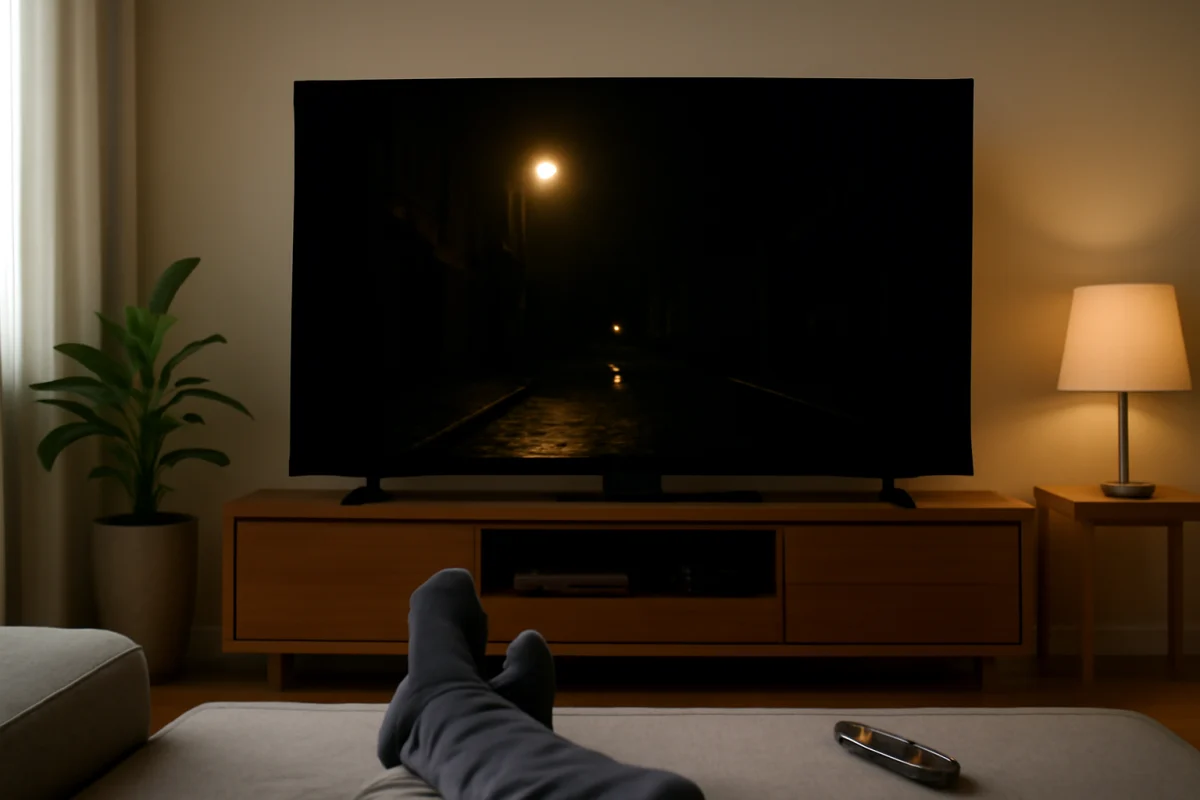
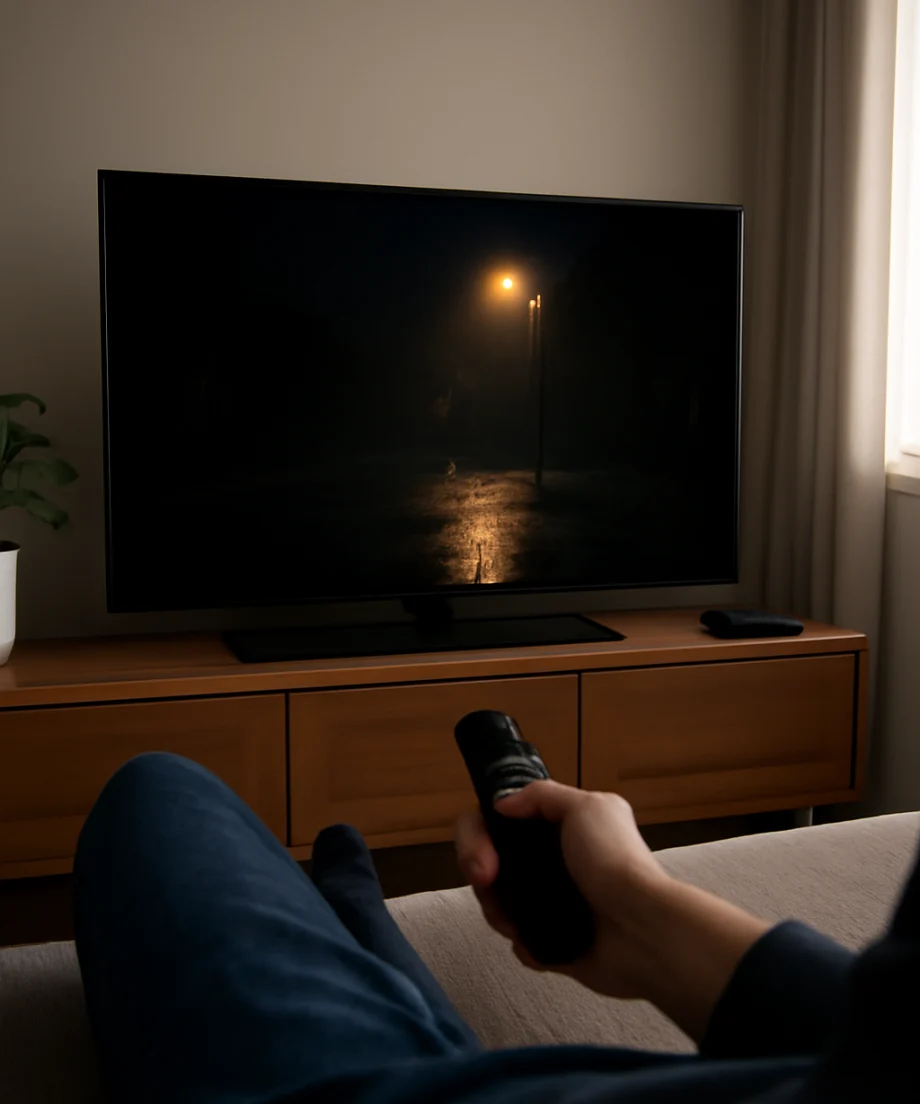
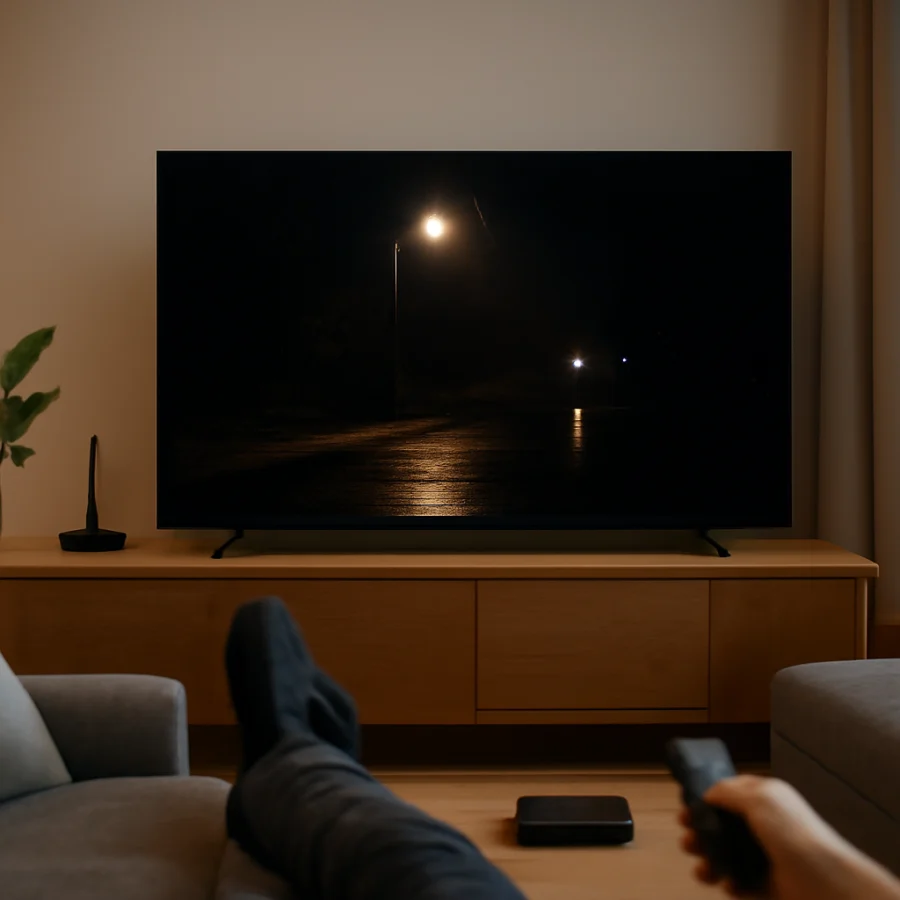
For example, imagine a night scene with a streetlamp, wet pavement, and a dark building. A brighter HDR TV may show the lamp as a more convincing light source while keeping the surrounding pavement and building relatively dark. A dimmer TV may lower the lamp's intensity to prevent clipping, making the scene look flatter. It may still show the same basic details, but the contrast between the light source and its surroundings will be less dramatic.
Peak brightness is especially noticeable in scenes containing specular highlights. These are small, intense areas such as sparks, polished metal, distant sunlight, explosions, candles, and reflections. HDR content can contain brightness information beyond what many TVs can reproduce directly. The TV must then decide how to fit that information within its capabilities.
Peak brightness is not the same as contrast
A TV can be very bright without producing excellent HDR contrast. Contrast depends on the relationship between the brightest and darkest parts of the image. If black levels are raised, bright highlights may not stand out even when the measured peak brightness is high.
OLED TVs, for example, can typically turn individual pixels off to create very dark areas. Their peak brightness may be lower than that of some high-output LED or Mini-LED TVs, but the strong black level can make HDR highlights appear vivid. LED and Mini-LED models may reach higher brightness, particularly in bright scenes, but their performance depends heavily on backlight control and local dimming. Blooming or halos around bright objects can reduce the perceived precision of HDR.
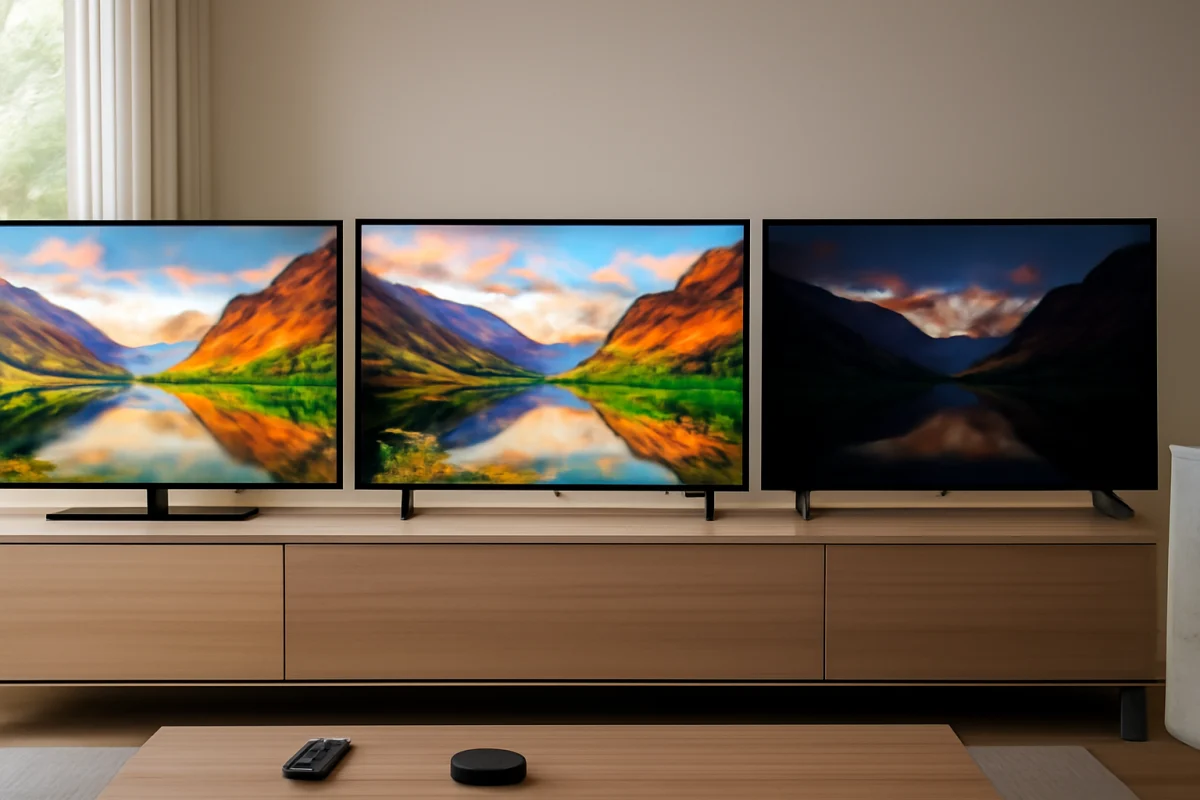
This is why two TVs with similar brightness measurements can produce noticeably different pictures. Native contrast, black level, local dimming, screen finish, viewing environment, and image processing all affect the result.
How tone mapping changes what you see
Tone mapping is the process a TV uses to adapt HDR content to its own brightness and contrast limits. When the source contains highlights brighter than the panel can reproduce, the TV must compress, roll off, or clip some of that information.
A more conservative approach may preserve highlight detail but make the brightest areas less intense. A brighter approach may make the picture look more dramatic but lose detail in parts of the highlight. Neither approach is automatically correct for every viewer or every TV. Manufacturers may use different names and controls for these behaviors, and the available options vary by model.
If HDR looks too dark, increasing a generic brightness control may not solve the problem. On many TVs, the standard brightness control affects black level rather than peak light output. Raising it too far can make blacks look gray. Look for picture controls related to HDR brightness, tone mapping, contrast, local dimming, or dynamic range, but change one setting at a time and note the original value.
Simple checks when HDR looks dim
Confirm that HDR is actually active
Start playback of known HDR content and check the TV's picture information screen or picture mode. The exact wording and location vary by manufacturer and model. Some TVs automatically change picture modes when an HDR signal arrives, while others may show a notification or expose HDR-related controls only during HDR playback.
Do not judge HDR from a streaming service's title page alone. The video may require a particular subscription, device, app version, or connection to deliver HDR. A title can also have different versions, and not every episode or source is mastered in the same format.
Check the source device and HDMI path
If you use a streaming box, game console, Blu-ray player, or computer, test the same content through the TV's built-in app when possible. This helps identify whether the issue comes from the TV or the external signal path.
Check the device's video output settings and use an HDMI cable and port that support the signal required by that device. Exact requirements vary by resolution, frame rate, HDR format, and equipment. Avoid assuming that every HDMI port on a TV has identical capabilities. The TV's manual or support information is the safest source for port-specific details.
Turn off unnecessary light sensors for testing
Ambient light sensors and automatic energy-saving features can change the picture based on room conditions. These features may reduce brightness in a dark room or alter the backlight during testing. Temporarily disable them only as a diagnostic step, then decide whether you prefer to keep them enabled for normal viewing.
Compare the same scene in a consistent picture mode
Picture modes can apply different brightness limits, color processing, sharpness, motion settings, and tone-mapping behavior. Compare the same HDR scene using the TV's available standard, cinema, filmmaker, game, or similar modes, but do not assume the labels mean exactly the same thing across brands. Give each mode a moment to settle and avoid comparing a bright scene with a dark one.
How room lighting affects perceived HDR
A bright room can make a good HDR image appear less impressive because reflections and ambient light lift the apparent black level. Strong overhead lighting or sunlight on the screen reduces the visual difference between shadows and highlights. A TV may be producing the same light output, but the image can look flatter.
Reduce direct reflections, reposition lamps, or test the TV in a darker part of the room. A matte or anti-reflective screen surface can help in some rooms, while a glossy surface may preserve contrast but reveal more reflections. This is a practical reason not to evaluate HDR performance using brightness alone.
What peak brightness means for gaming
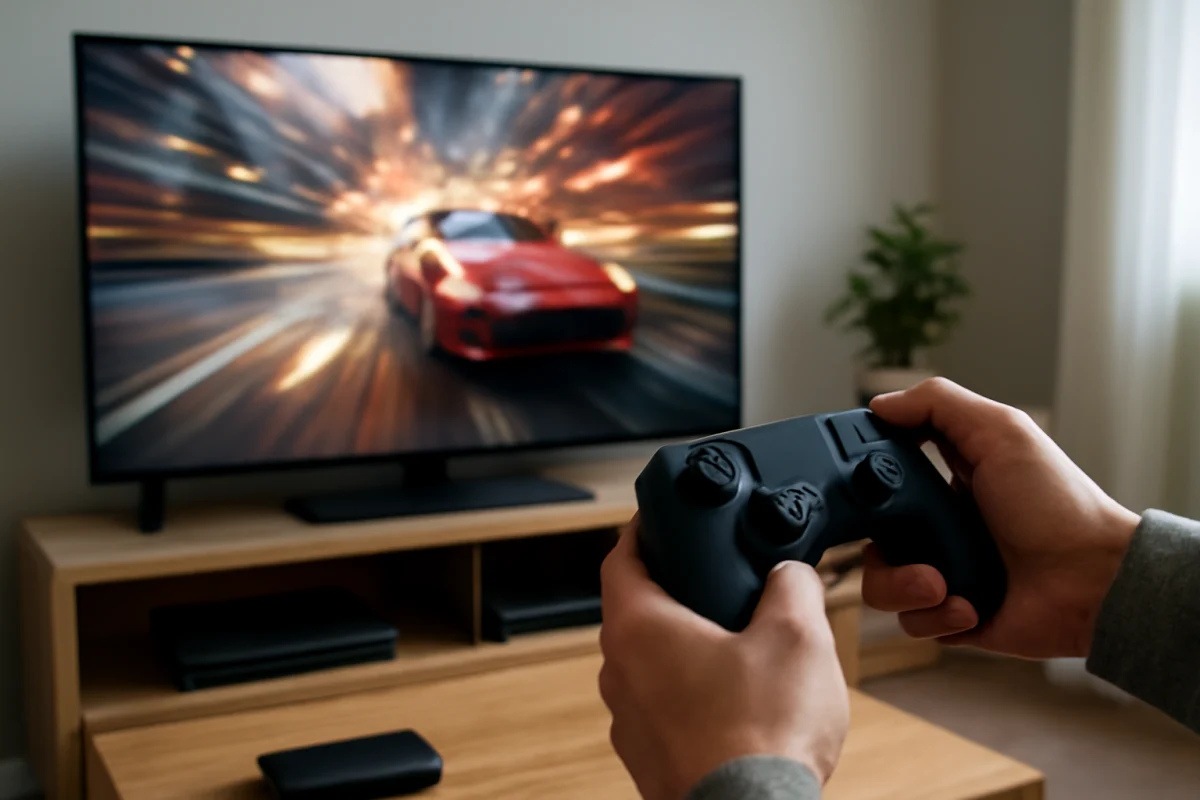
HDR gaming can make peak brightness especially obvious because games often contain bright effects, sunlight, neon signs, and explosions against dark environments. However, consoles and games may each have their own HDR calibration screens. If the console is calibrated incorrectly, the game may appear washed out or too dark even when the TV is working normally.
Run the console's HDR calibration again and follow the on-screen instructions rather than copying settings from another display. Game HDR settings may also use different terms, and some games require separate adjustments. Use a low-latency or game picture mode if appropriate, but confirm that it does not disable a feature you need, such as local dimming. The exact behavior varies by model.
When a high-brightness TV may still look disappointing
A high peak-brightness specification cannot compensate for poor source quality, incorrect settings, weak black levels, uneven backlighting, or excessive blooming. Streaming compression can reduce fine highlight detail, and some content is mastered with a darker creative intent. A dark-looking scene is not automatically a fault.
Also consider viewing angle. Some LCD-based TVs lose contrast or color intensity when viewed from the side, which can make HDR appear weaker away from the center position. Screen uniformity problems, dirty-screen effect, and backlight clouding can be more visible during dark HDR scenes, but these are separate from peak brightness.
When to consider advanced troubleshooting
If HDR is missing entirely, inconsistent across devices, or noticeably worse after a change, restart the TV and source device, reconnect the HDMI cable, and test another supported input or app. These are low-risk steps that can clear a temporary handshake problem without erasing settings.
Only after those checks should you consider updating software, resetting picture settings, or performing a broader reset. Firmware menus and reset procedures differ by model, so use the manufacturer's current instructions for your exact TV. A factory reset removes personal settings and app information; it should not be the first response to a picture-quality complaint.
If the screen remains unusually dim in every picture mode, including the TV's menus or built-in content, the issue may involve the backlight, panel, power circuitry, or another hardware component. Stop changing advanced settings and seek model-specific service guidance. For broader picture troubleshooting, you can also review the TV picture and sound troubleshooting guides on TV Fix Guide.
The practical takeaway
Peak brightness improves HDR by giving small highlights more intensity and helping the TV preserve a stronger separation between bright and dark parts of a scene. It does not work alone. Contrast, black levels, local dimming, tone mapping, source quality, room lighting, and accurate calibration all shape the final image.
When HDR looks disappointing, first verify that HDR is active, test the source and HDMI path, check automatic brightness features, and compare consistent picture modes. If the TV still looks too dark after those low-risk checks, model-specific settings and hardware limitations are more likely than a single universal brightness fix.
Comments
0No comments yet. Be the first to share a helpful note or question.
Leave a Comment
Your email address will not be published. Comments are reviewed before appearing on the site.