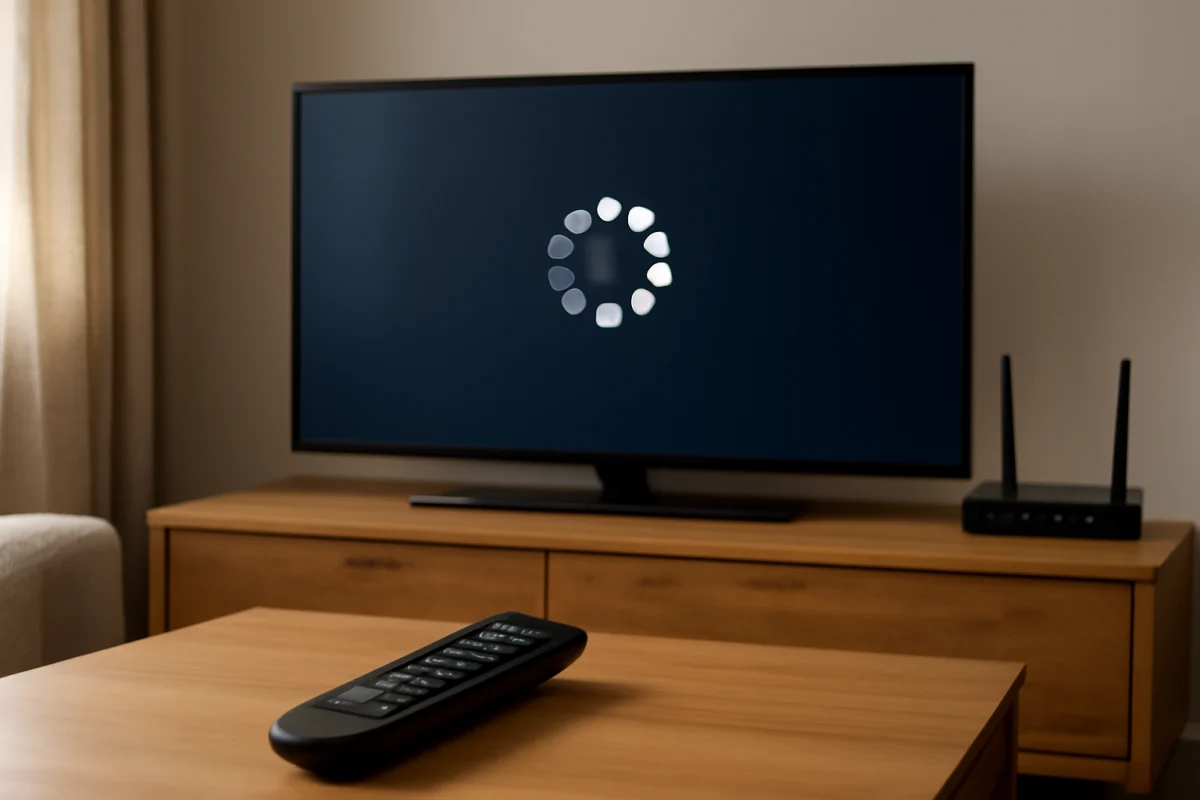
If Prime Video keeps freezing or buffering on your TV, start with the simplest checks: pause the video briefly, test another app, restart the TV and router, and check whether the problem affects one title or everything you watch. These steps can quickly show whether the cause is a temporary app problem, weak Wi-Fi, a busy home network, or an issue with the TV itself.
Avoid resetting the TV or deleting important settings at the beginning. Work through the low-risk steps below, testing Prime Video after each major change.
Check whether the problem affects one title or every title
First, try playing a different movie or show in Prime Video. If only one title freezes, the problem may be limited to that stream or to a temporary issue with the app's connection to the service. Try another episode or title before changing settings on your TV.
If every Prime Video title buffers, including the app's previews or menus, the problem is more likely to involve your internet connection, the Prime Video app, the TV's network connection, or a broader service interruption.
You should also compare Prime Video with another streaming app. Play a video on a different service for a few minutes. If the other app also buffers, focus on your Wi-Fi, router, or internet service. If other apps work normally while Prime Video freezes, the issue is more likely specific to Prime Video or its installation on the TV.
Pause the video and check the connection
Brief pauses can help if the stream is only slightly behind the available connection speed. Stop playback for a minute or two, then resume it. This gives the app time to build a larger playback buffer.
That is not a permanent fix if the connection is consistently too slow or unstable. Repeated buffering after a short pause usually means the TV cannot continuously receive the video data it needs.
Move other high-bandwidth activities out of the way temporarily. Large downloads, cloud backups, video calls, game updates, and several simultaneous streams can reduce the bandwidth available to your TV. If Prime Video works after those activities stop, the issue may be network congestion rather than a fault with the TV.
Restart the TV completely
A normal power-off action does not always fully close a streaming app. Use the TV's ordinary power control to turn it off, wait briefly, and turn it back on. If the TV appears to remain in a standby state, disconnect its power cable only if the manufacturer allows this as a normal troubleshooting step and the TV is safe to unplug.
Leave the TV disconnected for about a minute, then reconnect it and open Prime Video again. This can clear a temporary software state without deleting apps, accounts, or picture settings.
Do not unplug the TV while it is installing an update or displaying a warning about an update. The exact startup and power-reset behavior varies by model, so use the TV manufacturer's instructions if you are unsure.
Restart your modem and router
Restarting the network equipment can fix a temporary connection problem between the TV and your home network. Turn off or unplug the modem and router, wait until their lights settle or the equipment has fully shut down, and then power them back on. Wait for the network to become available before testing Prime Video.
The arrangement differs in homes that use one combined modem-router unit, a separate router, a mesh system, or an additional Wi-Fi extender. Restart the equipment according to the manufacturer's instructions. If you use mesh Wi-Fi, allow all nodes to reconnect before deciding whether the restart helped.
After the network returns, test another app and then Prime Video. If other devices also have trouble connecting, contact your internet provider or check its service-status information rather than changing TV settings.
Improve the TV's Wi-Fi connection
A TV can have a weaker Wi-Fi connection than a phone or laptop in the same room. The TV may be farther from the router, blocked by furniture, or affected by walls and nearby electronics. If possible, place the router in a more open, central location and keep it away from large obstructions.
Do not assume that a strong Wi-Fi signal always means a fast internet connection. Signal strength describes the link between the TV and router; it does not guarantee that your internet service is stable or that the router has enough capacity for every device.
If your TV has an Ethernet port and your router is nearby, a wired connection may help identify whether Wi-Fi is the cause. Use a suitable network cable and test playback again. If Prime Video becomes stable over Ethernet, investigate Wi-Fi placement, interference, or mesh coverage. If it still freezes, the problem may be elsewhere.
You can find more general connection advice in the Wi-Fi and network troubleshooting guide.
Check the TV's date and time
Streaming apps use secure internet connections, and an incorrect date or time can sometimes interfere with sign-in or playback. Open the TV's time settings and make sure the date and time are set automatically when that option is available. The wording and location of these controls vary by TV brand and software version.
Restart the TV after correcting the setting, then try Prime Video again. This step is low risk and does not remove any installed apps or saved preferences.
Close and reopen Prime Video
If your TV provides an app switcher or a way to close recently used apps, close Prime Video completely and launch it again. Some smart TV platforms keep apps suspended in the background, so reopening the app may not be the same as starting it from a clean state.
If the app becomes unresponsive, first try the TV's normal back, home, or exit controls. Avoid repeatedly pressing buttons while the TV is still processing a command, because this can make the interface appear slower.
Sign out of Prime Video and sign back in
A damaged or expired login session can cause problems that look like buffering, especially if menus load but playback does not start correctly. If Prime Video allows you to sign out on the TV, do so and sign back in using the correct Amazon account.
Keep your account information available before signing out. If you use a code or phone-based sign-in method, complete the process from a separate device as directed on the TV screen.
If the app cannot open far enough to sign out, do not immediately erase all TV data. Continue with the restart, network, and app-maintenance steps first.
Clear the app cache or reset app data if available
Some TV platforms provide separate controls to clear an app's temporary cache or reset its stored data. These options are not available on every TV, and the labels vary by brand and operating system. Look for app-management settings associated with Prime Video, but read the on-screen warning before confirming anything.
Clearing temporary cache data may remove corrupted short-term files. Resetting app data is more extensive: it may sign you out and remove local app preferences. It should not normally erase the entire TV, but the exact behavior depends on the platform.
If you cannot identify the difference between clearing cache and resetting data, check the TV manufacturer's support instructions for your specific model before continuing.
Update Prime Video and the TV software
Updates can correct compatibility problems, but update controls differ between smart TV platforms. Check whether Prime Video is set to update automatically or whether an app-store update is available. You can also check the TV's system software settings for a pending update.
Do not install software from unofficial websites or use an update file intended for a different model. TV software is model-specific, and installing the wrong file can create additional problems. If an update is already in progress, let it finish before restarting the TV.
A software update is not guaranteed to fix buffering. If every app buffers, continue investigating the network even when the TV reports that it is fully updated.
Reinstall Prime Video carefully
If Prime Video alone continues to freeze, removing and reinstalling the app may repair damaged app files. This option is not supported in the same way on every smart TV. Some platforms let you uninstall and reinstall apps, while others treat certain built-in apps differently.
Before removing the app, make sure you know how you will sign back in. Reinstalling may erase the app's local data and require account verification. Do not reset the entire TV just to reinstall one app unless the manufacturer's support instructions specifically recommend it after other steps have failed.
Check for a Prime Video service problem
If your internet works, other apps play normally, and Prime Video fails on more than one device, the problem may be on the service side. Check Amazon's official service information or trusted outage reports from another device. A service issue can affect playback even when the TV and router are working correctly.
You can also test the same Prime Video account on a phone or computer connected to the same network. Then, if practical, test it on a different network. These comparisons help separate an account or service problem from a TV-specific problem.
What to do if Prime Video works on other devices
If Prime Video plays normally on your phone or computer but freezes only on the TV, focus on the TV app, the TV's network connection, and the TV software. Repeat the full power restart, confirm the TV is connected to the intended Wi-Fi network, and compare playback over Ethernet if that is practical.
Check whether the issue happens only at a particular time of day. If playback fails when the household is busiest, congestion may be the cause. If it happens immediately after opening the app every time, app data or compatibility is more likely.
For brand-specific troubleshooting, you can browse TV Fix Guide's resources for Samsung TVs, LG TVs, Roku devices, or Fire TV devices. Menu names and available repairs can differ substantially between platforms.
When to contact support
Contact your internet provider if multiple devices lose connection, several streaming apps buffer, or the connection drops during ordinary browsing. Contact Amazon support if Prime Video fails across different devices and networks, or if your account cannot sign in correctly.
Contact the TV manufacturer if the TV freezes outside Prime Video, loses its network connection repeatedly, cannot update, or becomes unresponsive in multiple apps. Before contacting support, note the TV model, whether other apps work, whether the issue affects one title or all titles, and which troubleshooting steps you already tried.
In most cases, Prime Video buffering on a TV is resolved by restoring a stable connection, restarting the TV and router, or repairing the app without performing a full factory reset. Save that more destructive step for last, and only use it after confirming that you have the information needed to set up the TV again.
Comments
0No comments yet. Be the first to share a helpful note or question.
Leave a Comment
Your email address will not be published. Comments are reviewed before appearing on the site.