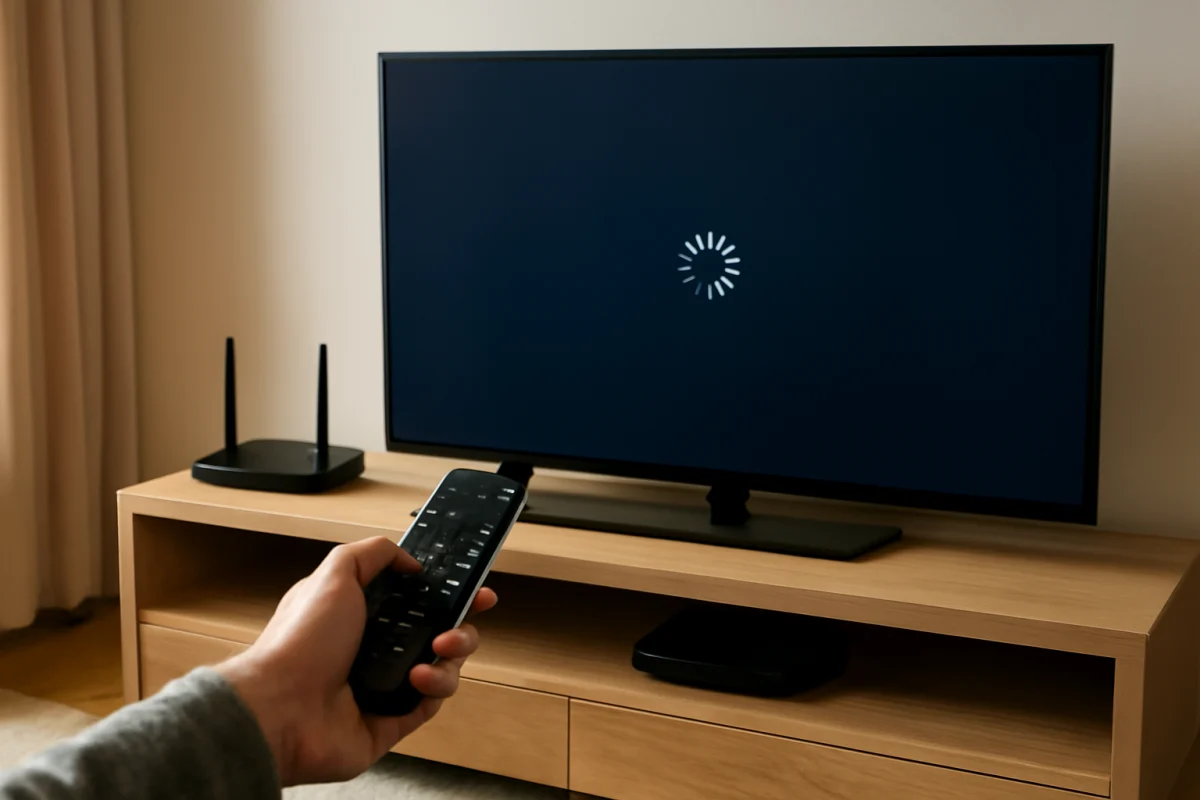
If Amazon Prime Video is not working on your smart TV, start by checking whether the problem affects only Prime Video or the entire television. Open another streaming app, test the TV’s internet connection, and try a different Prime Video title. These quick checks can show whether the cause is an app glitch, a network problem, an account issue, or a TV software problem.
Work through the steps below in order. Most Prime Video problems can be resolved without resetting the TV or changing advanced settings. Menu names and available options vary by TV brand, operating system, and model year, so use the closest equivalent when your screen looks different.
Check whether the problem is Prime Video or the TV
Before changing settings, identify the scope of the failure:
- Open another streaming app on the TV. If other apps work normally, Prime Video may be the only affected service.
- Try a different movie or show in Prime Video. A single title may have a temporary availability, playback, or content-specific problem.
- Check whether Prime Video works on a phone or computer using the same Amazon account.
- Notice what happens when you open the app. A blank screen, endless loading, sudden closing, sign-in loop, playback error, missing audio, or poor picture can point to different causes.
If several apps fail at the same time, focus first on the TV’s internet connection and restart process. For broader connection troubleshooting, see our Wi-Fi and network troubleshooting guide.
Restart the Prime Video app and smart TV
A temporary app or memory problem can prevent Prime Video from loading correctly. Exit the app and return to the TV home screen, then open Prime Video again. If the TV has a way to close recently used apps, close Prime Video from that list before relaunching it.
Next, perform a full power cycle:
- Turn off the TV using the remote or the TV’s power button.
- Unplug the TV from the wall outlet.
- Wait at least 60 seconds.
- Plug the TV back in and turn it on.
- Open Prime Video and test playback.
Using the remote to turn off the TV may leave some models in a standby state. Unplugging it briefly helps clear temporary operating conditions, but it does not erase accounts, apps, or personal settings.
Test the TV’s internet connection
Prime Video may open successfully but fail when you start a video if the connection is weak, unstable, or intermittently dropping. Use the TV’s built-in network test if one is available, then check whether other apps load and play video.
For a useful comparison, connect the TV to a phone’s mobile hotspot temporarily. This is only a diagnostic test; it may use mobile data quickly. If Prime Video works over the hotspot but not your home network, the likely cause is the router, wireless signal, DNS behavior, or an issue between the home network and the streaming service.
If possible, move the router closer to the TV or test a wired connection. Keep the router away from enclosed cabinets, large appliances, and other sources of wireless interference. Restart the router by unplugging it, waiting briefly, and reconnecting it. Allow the network to come fully back online before testing Prime Video again.
Confirm that Prime Video is not having a service problem
Sometimes the TV and home network are working, but the streaming service is temporarily experiencing an outage or regional issue. Check Prime Video on another device and look for current service reports from reliable sources. If the app fails across multiple devices on the same account or network, waiting and trying again later may be the appropriate next step.
A service problem cannot usually be fixed by reinstalling the app or changing TV settings. Avoid repeated resets when the same failure is occurring on your phone, computer, and TV.
Check your Amazon account and subscription
If Prime Video opens but refuses to play content, asks you to sign in repeatedly, or shows an access message, verify the account details. Make sure the TV is signed in with the Amazon account that has access to the title or Prime Video subscription you intend to use.
On another device, sign in to the Amazon or Prime Video account and confirm that the account is active. If you recently changed the password, the TV may still have an expired sign-in session. Sign out of Prime Video on the TV, restart the app, and sign in again carefully.
Check for typing mistakes, especially when entering a password with the TV remote. If the TV displays a code for registration, enter it only on the official Amazon page shown by the app. Do not share account passwords or registration codes with anyone offering unsolicited technical support.
Update the Prime Video app and TV software
An outdated app or TV operating system can cause loading, compatibility, sign-in, and playback problems. Open the TV’s app store or app-management area and check whether Prime Video has an available update. The exact menu path differs by brand and operating system.
Also check the TV settings for a system software update. Do not interrupt the TV while an update is installing. If the TV is old and Prime Video is no longer available in its app store, the built-in app may have limited support. In that situation, a compatible external streaming device may be a practical alternative.
For brand-specific troubleshooting, you can browse our guides for Samsung TVs, LG TVs, or Roku devices. Settings can differ substantially even when the symptom is the same.
Clear Prime Video data or reinstall the app
If Prime Video still freezes, closes, or remains stuck on a loading screen, look for an option to clear the app cache or app data. Not every smart TV provides these controls. Clearing cache usually removes temporary files, while clearing app data may remove the saved sign-in session and require you to log in again.
Use the less disruptive option first if both are available. After clearing the cache, restart the TV and test Prime Video. If the problem continues, uninstall and reinstall the app only if your TV allows it. Reinstalling can remove corrupted app files, but it will not fix a weak Wi-Fi signal, account restriction, unsupported TV software, or a service outage.
Fix common Prime Video playback problems
Video keeps buffering
Buffering usually points to an unstable or insufficient connection, but it can also result from a temporary app issue. Pause other downloads and streaming sessions on the network, restart the router, and test the TV closer to the router if possible. If available, use a wired network connection for comparison.
The picture is blurry or keeps changing quality
Prime Video may reduce video quality automatically when the connection cannot sustain playback. Wait briefly after starting the video, then test another title. If other apps also look soft, inspect the TV picture settings and the connected HDMI equipment. If only Prime Video is affected, update or reinstall the app before changing picture controls.
There is no sound
First confirm that the TV is not muted and that the volume works in another app. If you use a soundbar or receiver, check its input and power. Temporarily switch the TV audio output to its built-in speakers if that option is available. This helps determine whether the issue comes from Prime Video, the TV, or external audio equipment.
If sound fails only on certain titles, try another audio track or title when the app provides that choice. Audio format compatibility can vary between TV models, sound systems, and connected devices.
The app opens but the screen is black
Restart the TV and Prime Video first. If you use an external streaming player, check the HDMI connection, try another HDMI input, and confirm that the player is powered correctly. A black screen affecting only protected video content can sometimes involve an HDMI or display-compatibility problem rather than the Prime Video account.
Sign out, deregister, and sign in again
If the app repeatedly returns to the sign-in screen, the saved account session may be corrupted or out of date. Sign out from within Prime Video if possible, restart the TV, and sign back in. Some versions of the app also provide a way to deregister the TV from the Amazon account. Use that option carefully and follow the instructions displayed on the TV.
If you cannot reach the account menu, manage registered devices through the official Amazon account page from a phone or computer. The wording and location of device-management controls can change, so avoid relying on unofficial instructions that ask for sensitive account information.
When to reset the TV
A factory reset should be a last resort, not the first fix for Prime Video. It removes saved accounts, installed apps, network details, picture settings, and other personal preferences. Before considering it, make sure you know the TV’s account credentials and have recorded any settings you want to restore.
Consider a reset only when Prime Video and other apps remain unstable after restarting, updating, checking the network, and reinstalling the affected app. Follow the instructions for your exact TV model because the reset process and wording vary. If multiple apps fail after a reset, contact the TV manufacturer or consider whether the TV’s software or hardware is no longer fully supported.
What to do if Prime Video still does not work
At this point, compare the results from each test. If Prime Video works on other devices but not the TV, the issue is probably local to the app, TV software, account session, or TV compatibility. If it fails on every device, investigate the account or a wider service problem. If it works on the TV hotspot but not home Wi-Fi, concentrate on the router and network connection.
When contacting Amazon or the TV manufacturer, provide the TV brand and model, the type of failure, whether other apps work, whether the issue affects every title, and which troubleshooting steps you already tried. Avoid guessing at a cause or repeatedly factory-resetting the TV. Clear test results will help support staff identify the next appropriate step faster.
Comments
0No comments yet. Be the first to share a helpful note or question.
Leave a Comment
Your email address will not be published. Comments are reviewed before appearing on the site.