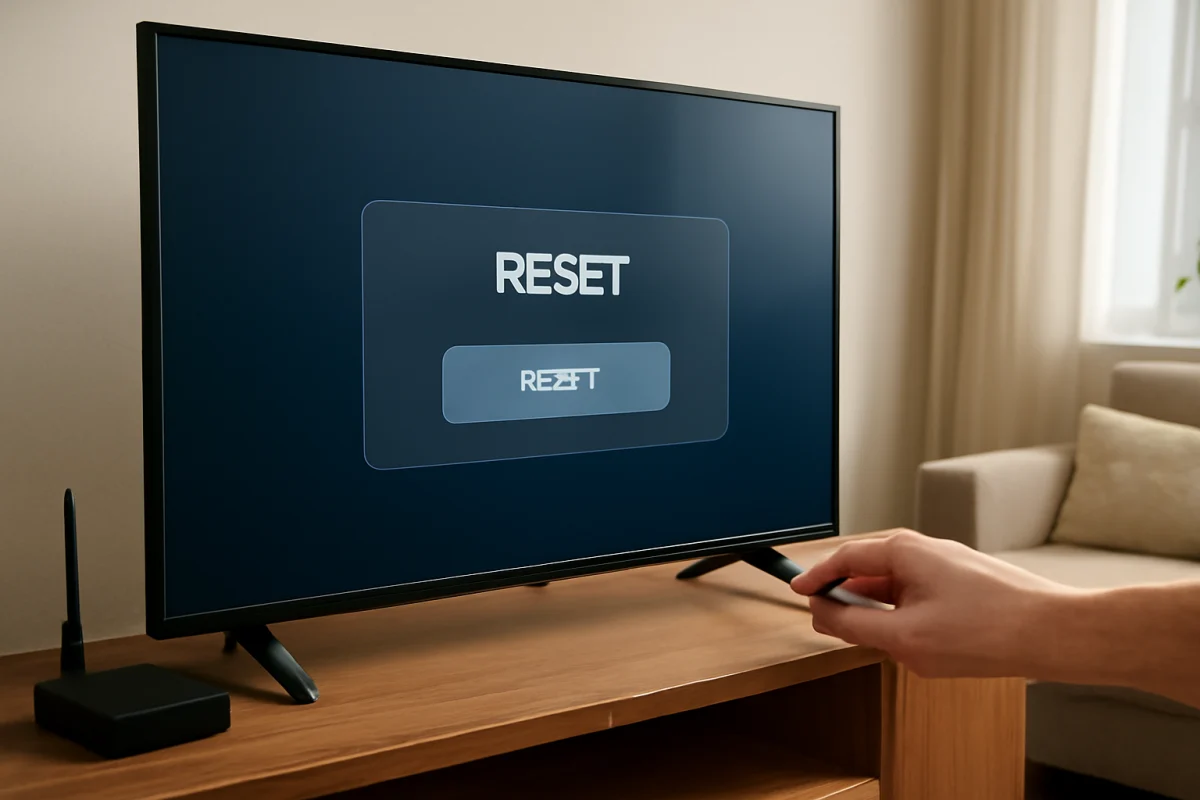
You can often factory reset a Skyworth TV without the original remote, but the exact method depends on the model and operating system. Start with the least disruptive options first: check the TV’s physical buttons, try a compatible replacement remote or remote app, and only use a recovery reset when normal controls are unavailable.
A factory reset erases saved Wi-Fi networks, streaming accounts, picture settings, installed apps, and other personalized settings. If the television still responds normally, write down your important settings and make sure you know your streaming service passwords before continuing.
First, check whether you really need a factory reset
A reset is useful when you cannot reach the home screen, the TV is locked in an unusable setup state, or persistent software problems remain after restarting it. It is not usually the best first step for a blank screen, no sound, weak Wi-Fi, or a failed external device.
Before resetting, try these low-risk checks:
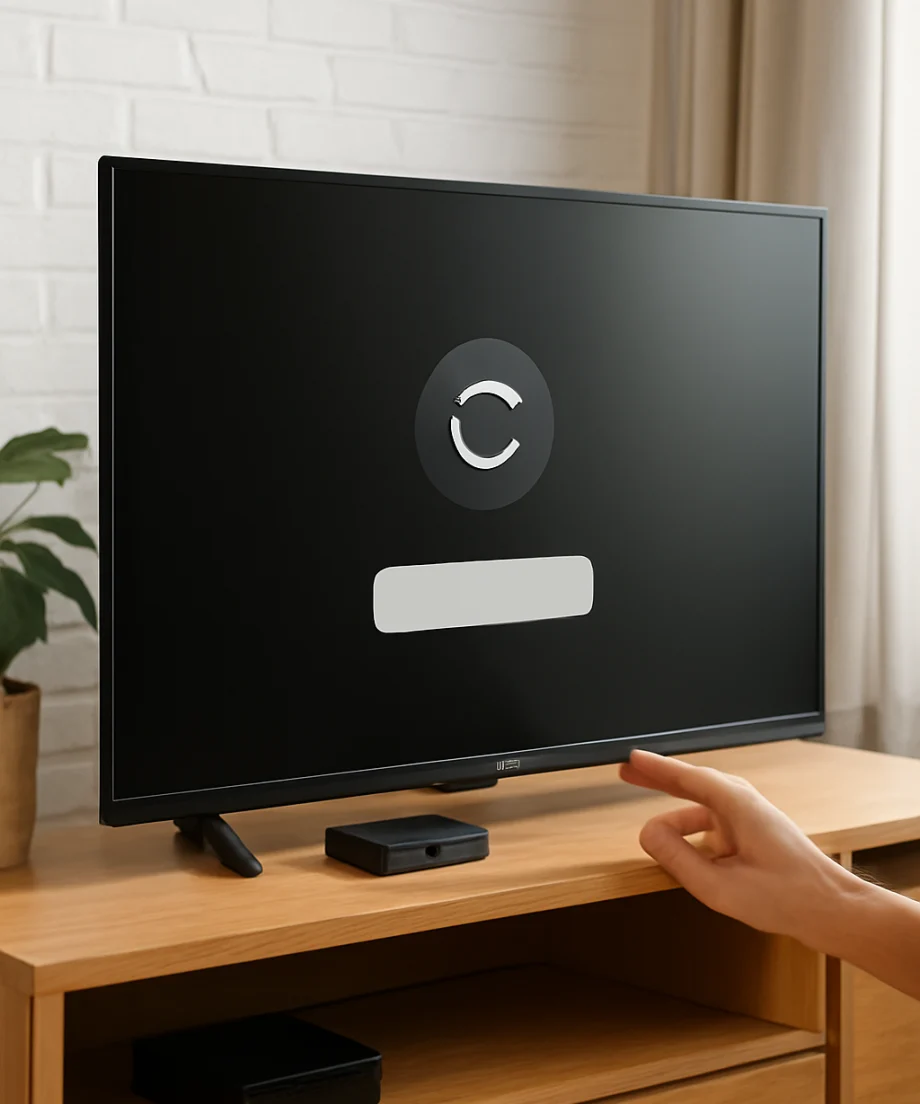
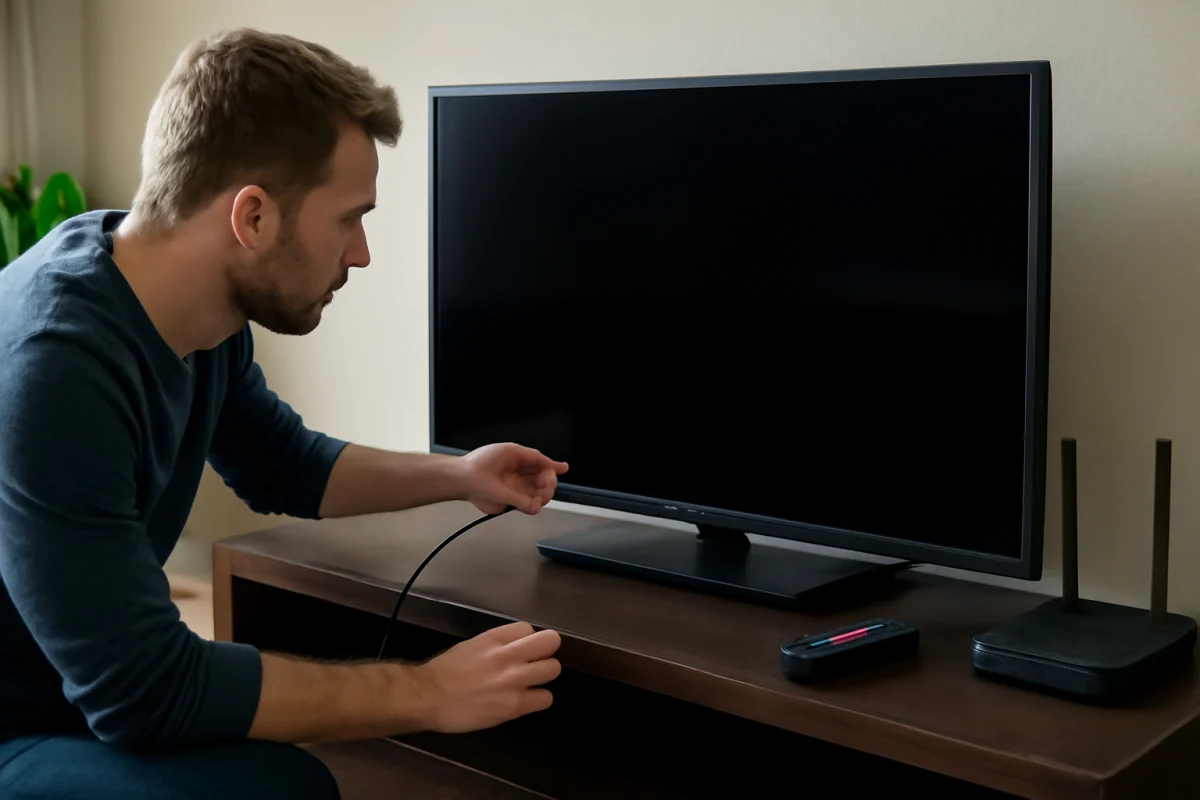
- Unplug the TV from the wall outlet.
- Disconnect HDMI devices, USB drives, antennas, and other accessories.
- Wait at least a minute, then reconnect the TV directly to a working outlet.
- Press the physical power button once and allow the TV time to start.
- Check whether the standby light changes when you press the button.
If the TV works after the power cycle, a full reset may not be necessary. If it starts but remains stuck, continue with the control methods below.
Find the physical controls on the Skyworth TV
Many Skyworth televisions have a physical power button, while some models use a small button panel or a single multi-function button. The controls may be underneath the lower edge, on the back, or along one side of the cabinet. Their location and functions vary by model, so do not assume that every Skyworth TV uses the same button sequence.
Look for labels such as power, menu, input, volume, channel, or navigation arrows. A single button may work as a joystick: pressing it can select an option, while moving it up, down, left, or right can navigate menus. Other models provide only power control, which may not be enough to complete a normal reset through the on-screen settings.
Try opening the TV menu with its buttons
With the TV powered on, press the physical menu or control button once. If an on-screen menu appears, use the available navigation controls to look for a settings area. The reset option may be located under a general system, device, support, setup, or storage section, but the wording and menu path can differ significantly by model.
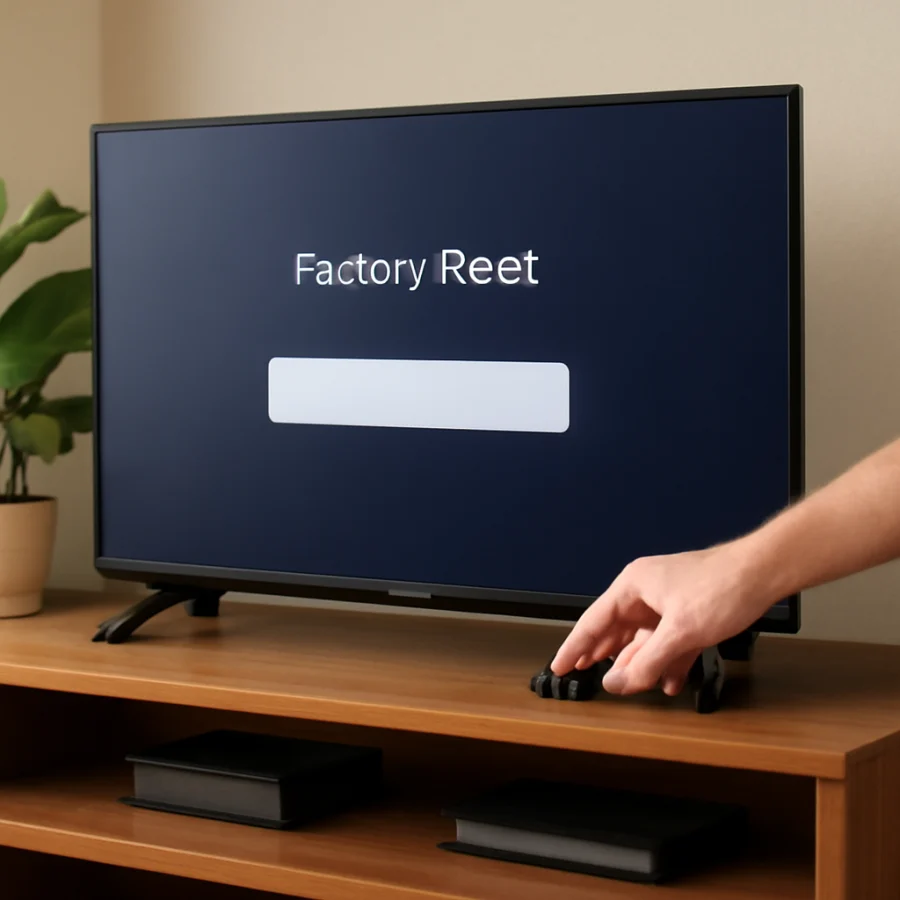
Look for an option with wording similar to factory reset, reset TV, erase everything, or restore default settings. Read the confirmation screen carefully. A reset normally removes personal data and returns the TV to its initial setup process.
If the physical controls only turn the TV on and off, do not repeatedly press random combinations. Button shortcuts are not universal, and the wrong sequence may open a diagnostic or service screen. If you see a service menu, exit without changing any values.
Use a compatible replacement or universal remote
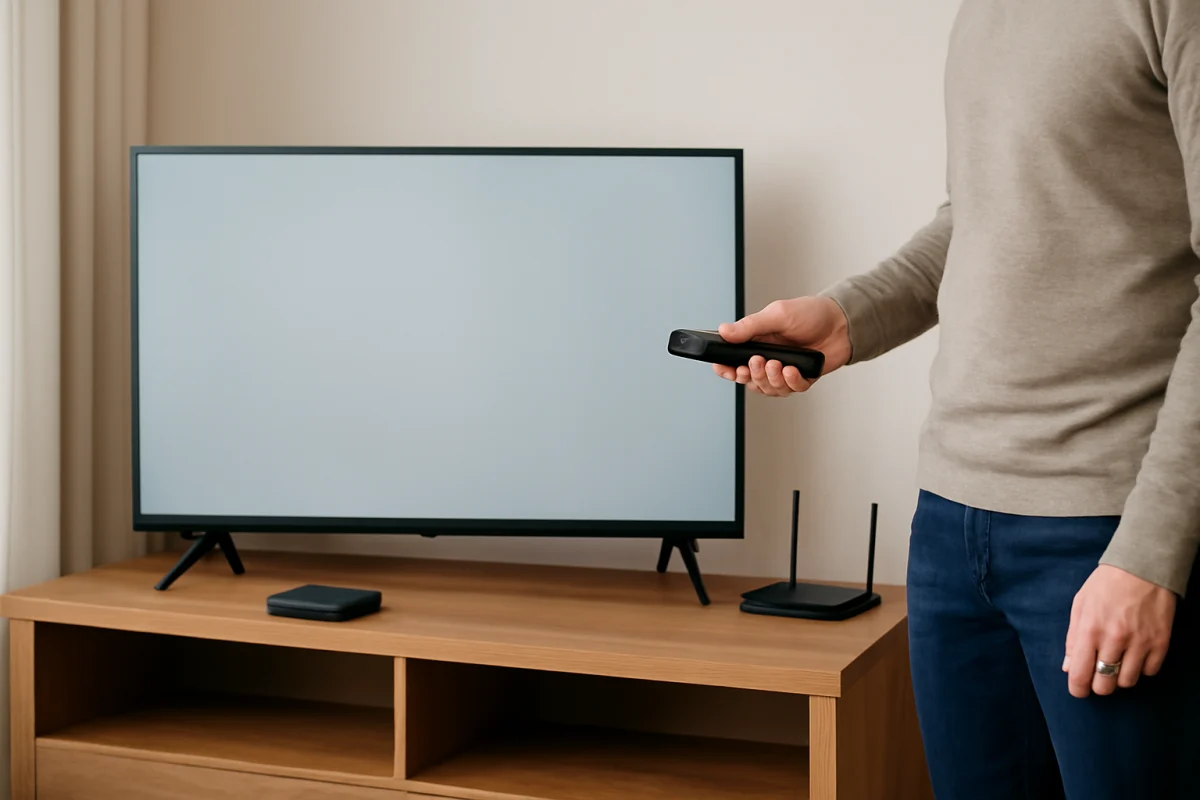
The simplest solution is often a compatible replacement remote. You do not necessarily need the original Skyworth remote, but the replacement must support your specific television or its operating system. A basic universal remote may control power and volume while failing to provide the menu, navigation, or home buttons needed for setup.
When choosing a remote, check the TV model number printed on the rear label, side label, original packaging, or purchase record. Avoid relying only on the brand name because Skyworth has used different platforms and remote layouts across product lines and model years.
After pairing or programming the replacement remote, open the TV settings and search for the factory reset option. If the TV displays a pairing screen, follow the instructions shown on the television. Keep the remote close to the TV during pairing and replace its batteries if button presses are delayed or inconsistent.
For more help choosing or troubleshooting a replacement controller, see the TV remote controls guide.
Try a phone remote app carefully
A phone may control some Skyworth TVs through an official or compatible remote app, but this method has important limitations. The TV generally must already be connected to the same Wi-Fi network as the phone, and the television must be able to receive network commands. If the TV is frozen at initial setup, disconnected from Wi-Fi, or unable to reach the home screen, an app may not work.
Before installing an app, confirm the television’s operating system and model information. Use a reputable app source and review the permissions requested. Some apps advertise broad compatibility but provide only basic power or volume controls unless the TV is detected correctly.
If the app connects, use its directional pad, home button, and settings controls to reach the reset option. Do not assume that a phone app can recover a television that will not boot. In that situation, a physical control procedure or service assistance may be required.
Use a keyboard or mouse only if the TV supports it
Some smart TVs accept a USB keyboard or mouse for navigation. Connect one directly to a USB port and wait briefly for the TV to respond. If a pointer or keyboard focus appears, try opening the settings area and navigating to the reset command.
This option is model-dependent. A USB port may support storage or service functions without accepting a mouse or keyboard. Do not format a USB drive or install files simply because the TV does not respond to the input device. A reset procedure that requires firmware files must come from documentation for the exact model.
Attempt a recovery reset only when normal access fails
If the Skyworth TV cannot reach its menus and no remote is available, some models provide a recovery reset using a physical button. The procedure may involve holding a button while reconnecting power, holding a control during startup, or using a small recessed button. There is no single reset sequence that is safe to apply to every Skyworth television.
Before trying any recovery method, identify the full model number and consult the television’s manual or reliable model-specific support documentation. The model number is usually printed on a label on the back of the set. Instructions for one Skyworth model may not apply to another, even when the televisions look similar.
Keep these precautions in mind:
- Disconnect external devices before beginning.
- Use the TV’s own power cord and a stable wall outlet.
- Do not interrupt power while the TV is erasing data or restarting.
- Do not open the back cover or touch internal components.
- Do not change options in a hidden service menu unless a qualified technician directs you.
A recovery reset can remove user data, but it may not repair a failed power supply, damaged storage, faulty main board, or defective display hardware. If the TV never shows a logo, repeatedly restarts, or has no standby indicator, the problem may be hardware-related rather than a settings problem.
What to do after the reset
When the reset finishes, the TV should return to an initial setup screen. The first startup may take longer than usual. Reconnect the TV to Wi-Fi, sign in to your streaming accounts, select your preferred picture and sound settings, and reconnect external devices one at a time.
If the reset screen appears again or the TV becomes stuck during setup, remove external devices and restart the process once. A single problematic HDMI device, USB drive, or network condition can interfere with setup. If the same failure continues with nothing connected, record the model number and the exact point where setup stops.
Do not repeatedly factory reset the television if it cannot complete the first-time setup. Multiple resets will not correct a failing component or an incompatible software condition, and they will continue to erase your settings.
When a technician or manufacturer support is the better option
Get model-specific assistance if you cannot find a valid reset procedure, the physical buttons do not respond, or the television shuts off during recovery. You should also stop troubleshooting if the TV smells hot, makes unusual electrical sounds, shows signs of liquid damage, or has a damaged power cord.
Have the full model number, approximate purchase date, symptom description, and steps already attempted ready when requesting help. Explain whether the TV displays a logo, reaches the home screen, responds to its physical button, or remains completely dark. Those details help distinguish a missing remote from a startup or hardware fault.
For related troubleshooting, browse the Skyworth TV repair section for practical guidance on power, picture, sound, and connection problems.
Comments
0No comments yet. Be the first to share a helpful note or question.
Leave a Comment
Your email address will not be published. Comments are reviewed before appearing on the site.