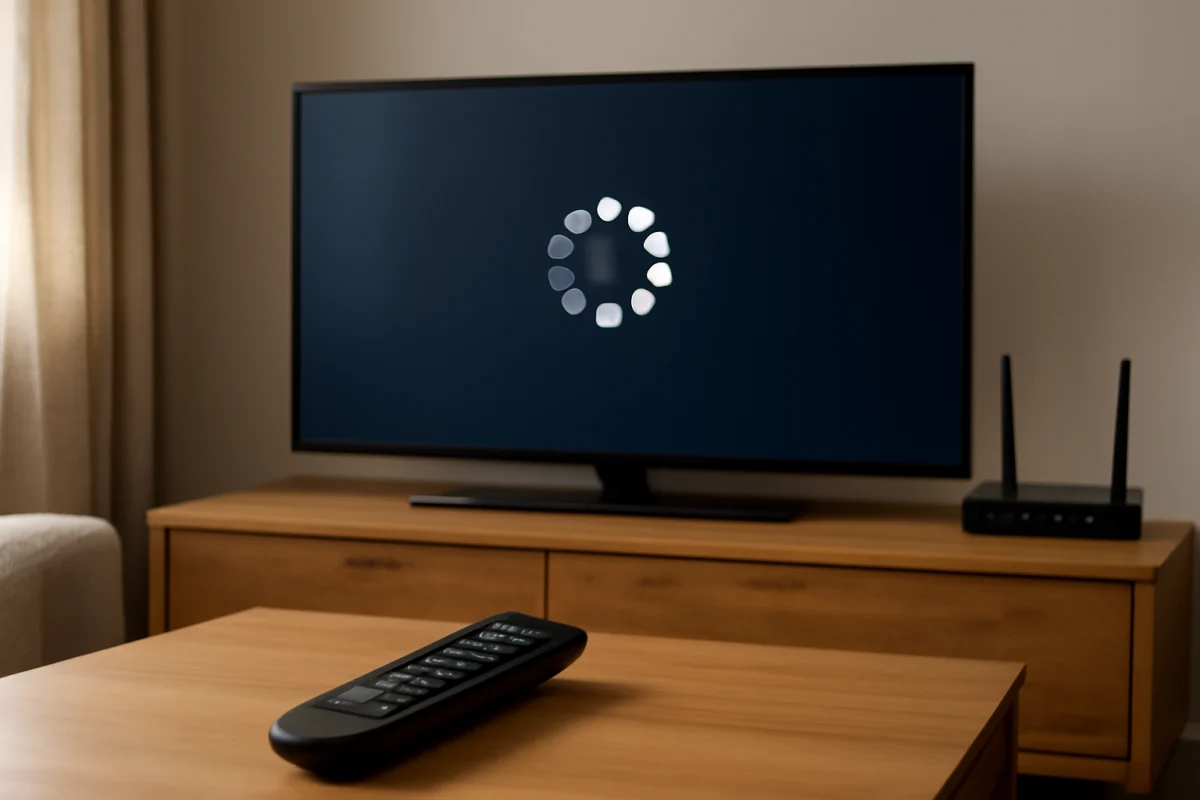
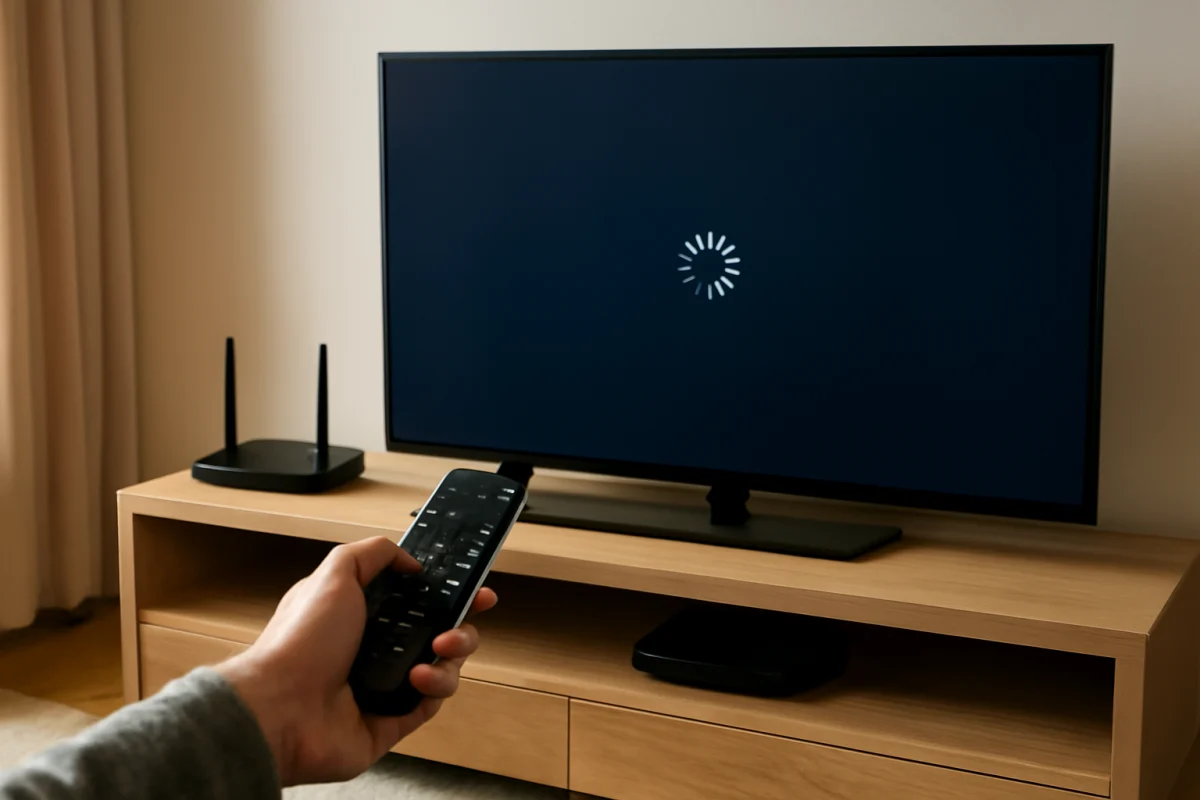
If streaming apps keep crashing on your smart TV, start with the simplest possibilities: close the app, restart the TV completely, and check whether other apps have the same problem. A single app that crashes may have corrupted temporary data or a service issue. Several apps crashing usually points to the TV's software, storage, network connection, or memory.
Work through the steps below in order. Most of them do not erase your settings or account information. Menu names and available options vary by TV brand, operating system, and model, so use the closest equivalent on your screen.
First, identify what is actually crashing
Pay attention to the pattern before changing settings. Does the app close as soon as it opens, freeze during playback, return to the home screen after a few minutes, or make the entire TV restart? These symptoms can have different causes.
- One app crashes: The app installation, its temporary data, or the app's service may be responsible.
- Several apps crash: The TV may need a restart, software update, storage cleanup, or network check.
- Apps freeze but do not close: A weak or unstable connection is more likely, although TV software can also be involved.
- The whole TV reboots: The issue may involve system software, overheating, power, or hardware rather than one streaming app.
Also test a different title in the same app. If only one movie or show fails while other content plays normally, the problem may be temporary content or service data rather than your TV.
Restart the app and perform a full TV restart
Exit the streaming app and return to the TV's home screen. If the TV has an app switcher or recently used apps list, close the affected app there as well. Then open it again.
Next, restart the TV using its normal power control. If the TV appears to remain in standby, disconnect its power cord for about one minute, then reconnect it and turn it on. This clears temporary processes more thoroughly than pressing the remote's power button on some models.
Do not repeatedly unplug a TV while it is installing an update or displaying a message that it is working. Wait for that process to finish. After the restart, test the app before changing other settings.
Check whether your internet connection is stable
A streaming app may crash or return to the home screen when it repeatedly loses contact with its service. This can happen even when other devices still show a Wi-Fi connection. Smart TVs sometimes have weaker wireless reception than phones or laptops, especially when the TV is far from the router or behind thick furniture.
Try playing content in a second streaming app. If several services buffer, freeze, or crash, focus on the network first. Restart your router and modem if you control them, then wait until the connection is fully available before testing the TV again.
Look for a network test in the TV's settings, but do not assume that a successful connection test guarantees reliable streaming. A test may only confirm that the TV can reach the network at that moment. If possible, temporarily move the router closer, remove obstacles, or test the TV with a wired connection. Wired networking is not available on every model, and connection options vary.
You can find more troubleshooting ideas in the Wi-Fi and network troubleshooting section. If only one service is affected while other apps work normally, check that service on another device before changing your TV's network settings.
Update the streaming app
An outdated app can stop working correctly after the streaming service changes its systems. Open the TV's app store or app management area and look for available updates. The process differs by platform, and some TVs update apps automatically.
If the app is already current, close it and restart the TV again. A recent update may not work correctly until the TV reloads its system. Avoid downloading unofficial versions of streaming apps or attempting to install software intended for a different TV platform.
Update the TV software
TV manufacturers periodically release system updates that can improve app compatibility, fix stability problems, or change how the TV manages memory and network connections. Look for the TV's software or system update option and check for updates while the TV is connected to the internet.
The exact menu path and update behavior depend on the model. Keep the TV connected to power during the update, and do not turn it off unless the on-screen instructions specifically tell you to do so. If the TV says it is already up to date, continue with the app-specific checks rather than trying to install firmware from an unrelated source.
Clear the app's temporary data
Some smart TV platforms let you clear an app's cache or temporary data without removing the app. This can help when the app opens to a blank screen, crashes during startup, or behaves differently after an update.
Search the TV's settings for the affected app under application, storage, device, or app management options. The wording varies widely. If you see a choice to clear cache, try that first. It is generally less disruptive than clearing all app data.
Clearing app data may sign you out and remove saved preferences or downloads. Read the confirmation screen before proceeding, and make sure you know the email address and password for the streaming account. If the TV does not offer separate cache and data controls, reinstalling the app may be the available alternative.
Delete and reinstall the affected app
Reinstalling can repair files that became damaged during an update or an interrupted installation. Remove the app using the TV's normal app management controls, restart the TV, and then install it again from the official app store.
Before deleting it, confirm that the app is available for your TV platform and that you can sign in again. Some older TVs may no longer support the newest version of a service. In that situation, the app store may hide the app, display a compatibility message, or provide only limited support. Do not try to bypass those restrictions with unknown downloads.
After reinstalling, test playback for several minutes. If the app crashes immediately again, the cause may be a service outage, an unsupported TV software version, or a broader system problem.
Free up storage and reduce system load
Smart TVs need available storage for app updates, temporary files, and system operations. When storage is nearly full, apps may fail to install, open slowly, or crash while loading content.
Remove apps you no longer use, delete downloaded content if your TV stores it locally, and clear temporary files where the TV provides that option. Do not delete system applications just because their names are unfamiliar. If the TV reports that storage is full but you cannot find enough removable content, note the message and model information before contacting support.
Close unused apps if your TV allows it. Leaving many apps open may not cause a problem on every platform, but reducing the number of active processes is a reasonable test when the TV feels slow or unresponsive.
Check the date, time, and account settings
Streaming services use secure connections that can fail when the TV's date or time is incorrect. If your TV offers automatic date and time settings, enable them or correct the time using the available options. A wrong clock can also interfere with sign-in, content licensing, and app updates.
Sign out and back in only after confirming that you know your account credentials. If the app crashes before you can reach its account screen, reinstalling it may be the simpler way to refresh the sign-in session.
Test for an outage or service-side problem
Your TV may not be the cause. Streaming services occasionally experience outages, overloaded systems, or problems affecting a particular device platform. Check the service's official status information or try the same account on a phone or computer connected to the same network.
If the service fails everywhere, wait and try again later. If it works on other devices but not on the TV, continue with the app and TV software steps. You can browse the Streaming Apps section for service-specific troubleshooting topics.
When a factory reset is appropriate
A factory reset should be a later step, not the first response to an app crash. It can remove installed apps, saved accounts, network settings, picture settings, and other preferences. Before using it, record your important settings and confirm that you can sign back into your services.
Consider a reset only when multiple apps remain unstable after restarting, updating, reinstalling, and checking storage, or when the TV has other persistent software problems. Use the reset option provided by the TV itself and follow its warnings carefully. If the reset does not help, repeating it is unlikely to solve a hardware or service compatibility issue.
Signs the problem may be hardware-related
Contact the TV manufacturer or a qualified repair service if the entire TV repeatedly reboots, becomes unusually hot, shows widespread screen or sound problems, fails to stay on, or crashes even when you are not using a streaming app. These symptoms suggest a problem beyond one application.
Keep the TV's ventilation openings clear and avoid placing it in an enclosed, heat-trapping space. Do not open the TV or attempt board-level repairs unless you have the appropriate training. If only one app crashes and the TV otherwise works normally, hardware failure is less likely.
A practical troubleshooting order
For most cases, use this sequence:
- Test another title and another streaming app.
- Close the affected app and restart the TV completely.
- Check the network and restart the router if needed.
- Update the app and the TV software.
- Clear temporary app data or reinstall the app.
- Free storage and check the TV's date and time.
- Check for a streaming service outage.
- Use a factory reset only after backing up information and exhausting lower-risk options.
Keeping notes about which apps crash, when the problem started, and what changed before it began can make support much more useful. Include the TV brand and model, the affected app, whether other apps work, and whether the TV itself restarts. For additional brand-specific guidance, visit TV Fix Guide if that page is available for your device, or choose the appropriate brand category from the site's home page.
Comments
0No comments yet. Be the first to share a helpful note or question.
Leave a Comment
Your email address will not be published. Comments are reviewed before appearing on the site.