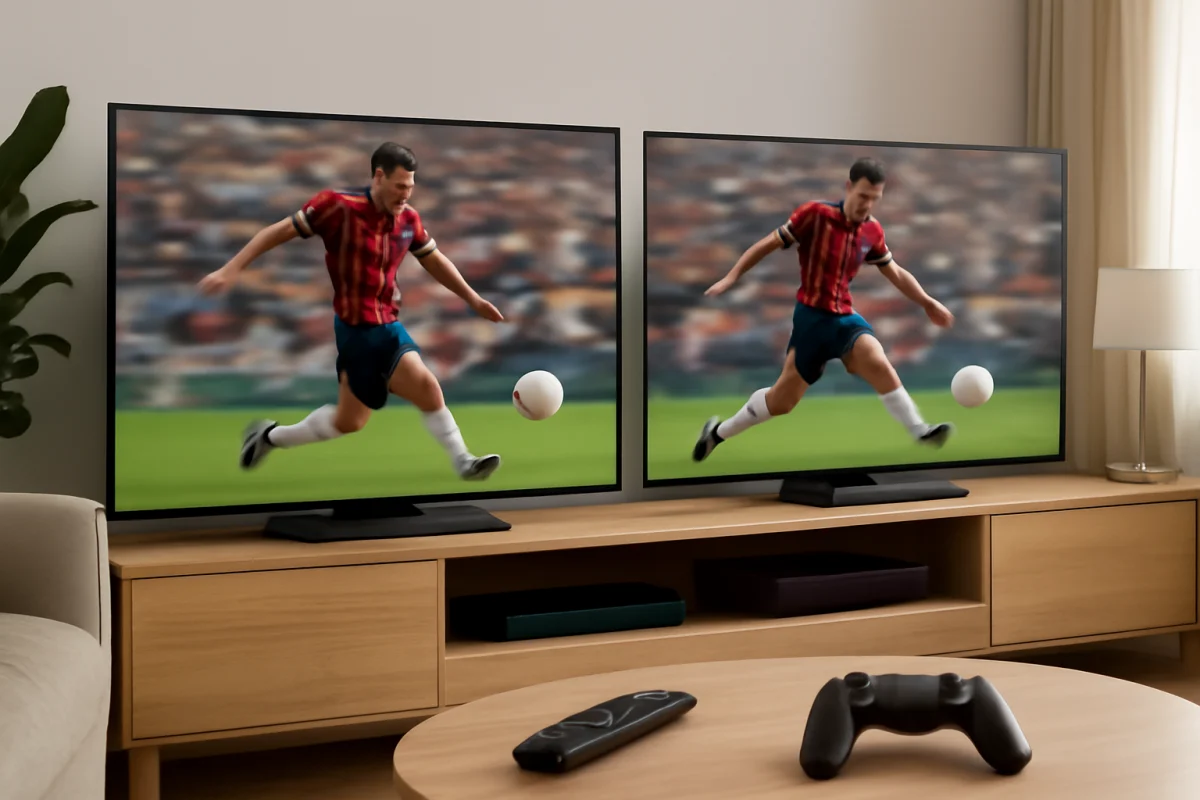
Sony usually delivers the more natural-looking motion, especially for movies, TV dramas, and slower camera pans. Samsung can be the better fit if you watch a lot of sports, prefer a sharper and brighter presentation, or want responsive motion for gaming. However, the specific model matters more than the logo on the bezel. A premium Sony may handle motion differently from an entry-level Sony, just as Samsung's processing varies across its TV range.
If motion looks blurry, jittery, or strangely artificial on either brand, do not assume the TV is defective. First check the source, picture mode, motion settings, and connection. These low-risk checks often solve the problem without a reset or complicated troubleshooting.
What Motion Handling Means on a TV
Motion handling describes how well a television displays moving objects and camera movement without excessive blur, stutter, judder, or visual artifacts. It involves several parts of the TV's performance, including the panel's response behavior, image processing, refresh rate, and the way the television handles different video frame rates.
Good motion handling should keep a moving football, puck, car, or actor reasonably clear while preserving the intended look of the content. It should also avoid obvious processing problems, such as halos around moving objects, duplicated edges, flickering details, or a distracting “video” appearance in movies.
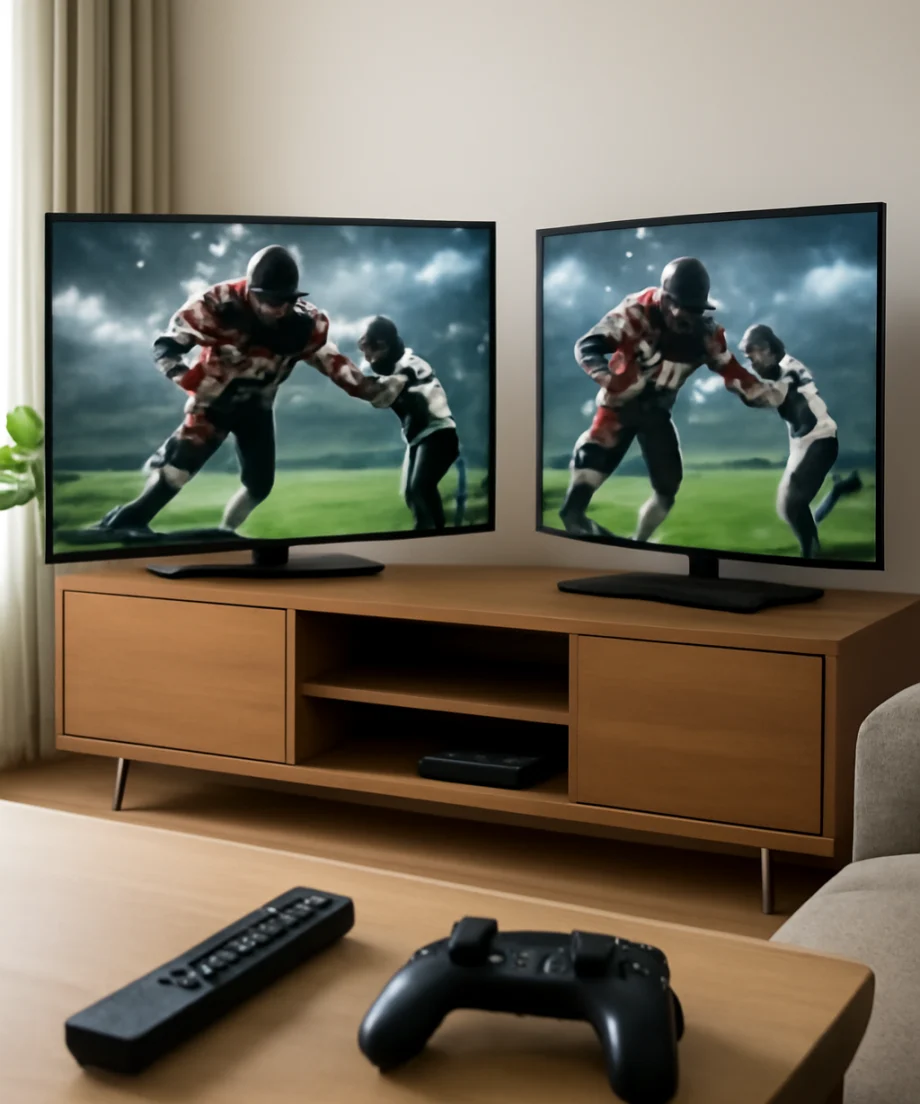
Motion is not determined by one specification alone. A TV may have a fast panel but still produce poor-looking motion if its processing or settings are not well matched to the content. Conversely, a television with carefully tuned processing can look smoother and more natural even when its specifications appear similar to a competitor's.
Sony vs Samsung Motion Handling at a Glance
| Viewing situation | Typical advantage | What to watch for |
|---|---|---|
| Movies and scripted shows | Sony often looks more natural | Excessive smoothing can remove the cinematic appearance |
| Sports | Both can perform well; Samsung may look sharper to some viewers | Fast pans, camera focus, and broadcast quality matter |
| Gaming | Samsung often appeals to gamers seeking a responsive image | Motion processing may be limited or changed in game-focused modes |
| Low-quality cable or streaming video | Sony may produce a more controlled image on some models | Compression artifacts can look like motion blur |
| Bright rooms | Samsung may appear more immediately vivid on some models | Glare and room lighting can make motion defects easier to notice |
This table describes common tendencies, not a guarantee for every television. Before buying, compare the exact Sony and Samsung models at the same screen size when possible. Panel type, processing hardware, picture mode, and software can all change the result.
Why Sony Often Looks Better for Movies
Sony TVs are frequently favored for film and television because their motion processing tends to prioritize a natural presentation. When the TV handles a slow camera pan or a scene shot at a cinematic frame rate well, the image can retain the original sense of movement instead of appearing unnaturally smooth.
This matters most in movies, scripted shows, and high-quality streaming content. Viewers who dislike the “soap opera effect” may prefer Sony's default or lightly adjusted motion behavior. Sony can also be a strong choice for viewers who notice uneven camera movement, distracting judder, or artificial-looking interpolation.
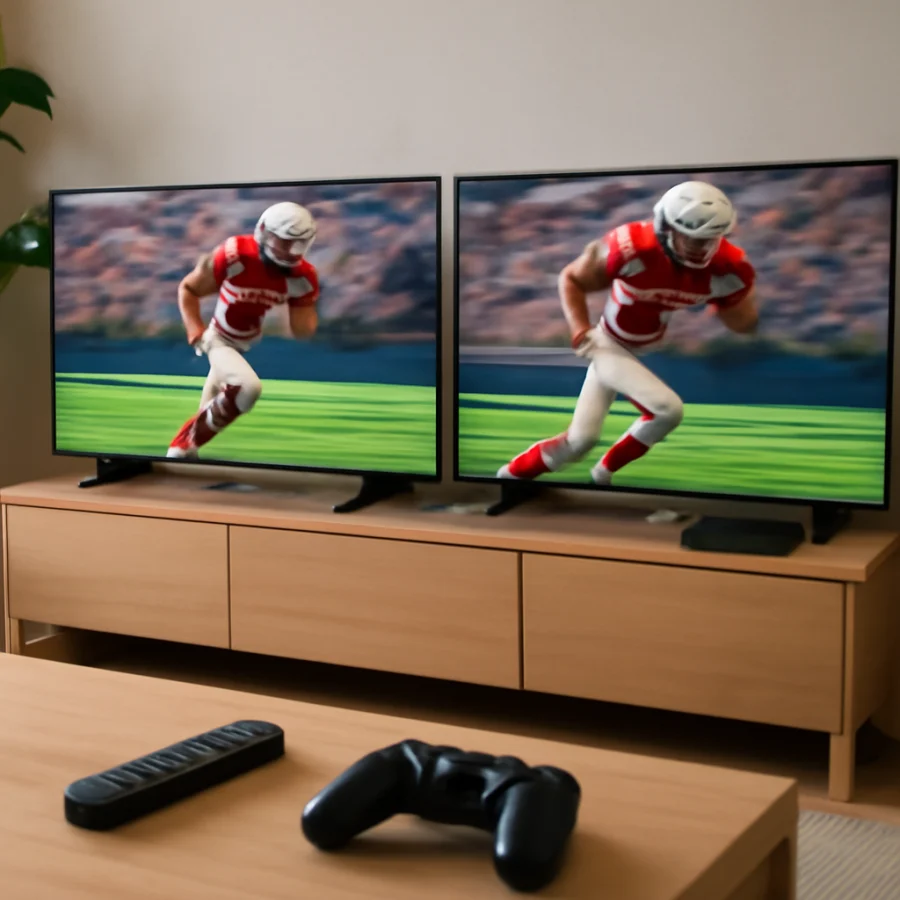
That does not mean every Sony TV will eliminate motion problems. A lower-cost model may use less advanced processing than a higher-end model. A streaming app may also deliver a compressed or inconsistent signal. In addition, the chosen picture mode can change the amount of smoothing, sharpness, and processing applied to the image.
When Sony may not be the best fit
If you mainly watch fast sports in a brightly lit room, you may prefer the visual impact of a Samsung TV. Some Sony models may also appear less aggressively sharpened, which can be mistaken for softness when compared side by side with a more vivid display.
For competitive gaming, compare input response and gaming features in addition to motion quality. Traditional motion smoothing is often reduced or disabled in game-focused modes because processing can add delay. This is normal and does not necessarily indicate a fault.
Why Samsung Can Look Sharper and More Responsive
Samsung TVs often appeal to viewers who want a bright, crisp, and energetic picture. On some models, moving sports and games can look particularly clear when the source is high quality and the TV is configured correctly. The sharper presentation may make motion easier to follow, especially for fast-moving players or objects.
Samsung can also be a strong option for gaming because many models are designed around responsive operation. However, the exact experience depends on the model, console, game, cable, and selected picture settings. A TV may switch behavior when a console is detected, so evaluate gaming motion separately from movie motion.
The tradeoff is that aggressive motion or clarity processing can sometimes create artifacts. You may notice flickering around a moving object, a halo near fast edges, broken lines, or a scene that looks too smooth. If that happens, reduce the motion enhancement rather than immediately blaming the panel.
Check These Things Before Blaming the TV
1. Test more than one source
Play a scene from a built-in streaming app, a different app, and an external device if available. If motion problems appear only on one source, the issue may involve the app, stream quality, set-top box, console, or HDMI connection rather than the television.
Live broadcasts are especially inconsistent. Sports channels can use different cameras, compression levels, and broadcast settings. A poor feed may show blur or blockiness on both Sony and Samsung TVs, even when the televisions work correctly.
2. Try a different picture mode
Picture modes can change motion processing, sharpness, contrast, and other image controls. Test a standard or cinema-oriented mode for movies and a game-focused mode for gaming. Menu names and available controls vary by model, so use the labels shown on your TV rather than following instructions written for a different generation.
3. Reduce motion enhancement gradually
If movies look unnaturally smooth, reduce the motion interpolation or clarity setting one step at a time. If sports look too blurry, try a modest increase instead. Avoid changing every picture control at once; otherwise, you will not know which adjustment helped.
Some TVs separate blur reduction from judder reduction, while others combine them. If both controls are available, make small changes and watch the same moving scene after each adjustment. Strong settings can improve one type of motion while creating artifacts in another.
4. Check the source and cable
Make sure an external player, cable box, or console is outputting a compatible signal. For troubleshooting, reconnect the HDMI cable firmly, try another HDMI input, and test another known-good cable if one is available. Do not assume that an expensive cable will automatically improve motion; the goal is a stable connection that supports the source's signal.
If the problem affects only a console, check the console's video settings and test another game. If it affects only a cable box, compare the same program through a built-in app when possible.
Which Brand Is Better for Sports?
There is no universal winner for sports. Sony may be more appealing if you want natural camera movement and controlled processing. Samsung may be preferable if you like a brighter, sharper image that makes uniforms, field markings, and fast action stand out.
The broadcast itself is just as important. Low-resolution or heavily compressed sports feeds can look smeared during quick pans. Even a high-end TV cannot recreate detail that is missing from the source. When comparing TVs in a store, use the same content, similar picture modes, and comparable brightness levels. A brighter display can appear to have better motion simply because it attracts more attention.
Which Brand Is Better for Gaming?
Samsung often has an advantage for buyers who prioritize gaming responsiveness and a sharp, energetic image. Sony can still be an excellent gaming choice, particularly when you prefer more natural image processing and also watch a lot of movies or shows.
For gaming, focus on the exact model's input response, supported console features, refresh behavior, and performance in its gaming mode. These characteristics can differ substantially within each brand. Also check whether motion blur comes from the game itself, the console output, or the TV. Some games intentionally use camera blur, and disabling or reducing it in the game settings may help more than changing the TV.
How Panel Type Changes the Comparison
Two TVs from the same brand can handle motion differently because they use different panel technologies. Response behavior, viewing angle, brightness, contrast, and refresh characteristics can all affect how movement appears. A fast-moving scene may look clearer on one panel while a dark movie scene may reveal different weaknesses on another.
Do not compare Sony and Samsung by brand alone. Compare the specific model, size, panel type when known, picture mode, and intended use. If you are unsure which specifications matter, the TV model comparison guides on TV Fix Guide can help you organize the differences without relying on a single marketing label.
What to Do If Motion Looks Wrong After Setup
Start with the lowest-risk steps:
- Pause and resume the content to check whether the issue was a temporary stream problem.
- Test another app or input.
- Restart the streaming device or external source.
- Reseat the HDMI cable and try another input.
- Change the picture mode and adjust motion controls gradually.
- Check for a TV software update using the TV's normal settings, since the process varies by model.
- Restart the TV using its standard power controls.
A full reset should be a later step, not the first response. It removes personal settings and may not fix a source, cable, panel, or broadcast problem. If the same artifact appears on every input, every app, and the TV's own menus or test screens, document the behavior and consult the model's support information or a qualified service provider.
For related troubleshooting, see TV Fix Guide's picture and sound troubleshooting resources. The most useful details to record are the exact model, the content source, whether the issue affects all inputs, and which picture mode was active.
The Better Choice Depends on Your Viewing Habits
Choose Sony if your priority is natural motion for movies, scripted shows, and mixed-quality streaming content. Choose Samsung if you prefer a bright, crisp presentation and place greater emphasis on sports or gaming responsiveness. Neither brand wins every motion test, and a well-adjusted TV can outperform a poorly configured one regardless of the logo.
The safest buying decision is to compare the exact models under similar conditions, then check how each handles the content you watch most. If you already own one of these brands and motion looks wrong, begin with the source, picture mode, cables, and modest setting changes before considering a reset or hardware service. You can also browse the dedicated Sony TV and Samsung TV troubleshooting guides for brand-specific help.
Comments
0No comments yet. Be the first to share a helpful note or question.
Leave a Comment
Your email address will not be published. Comments are reviewed before appearing on the site.