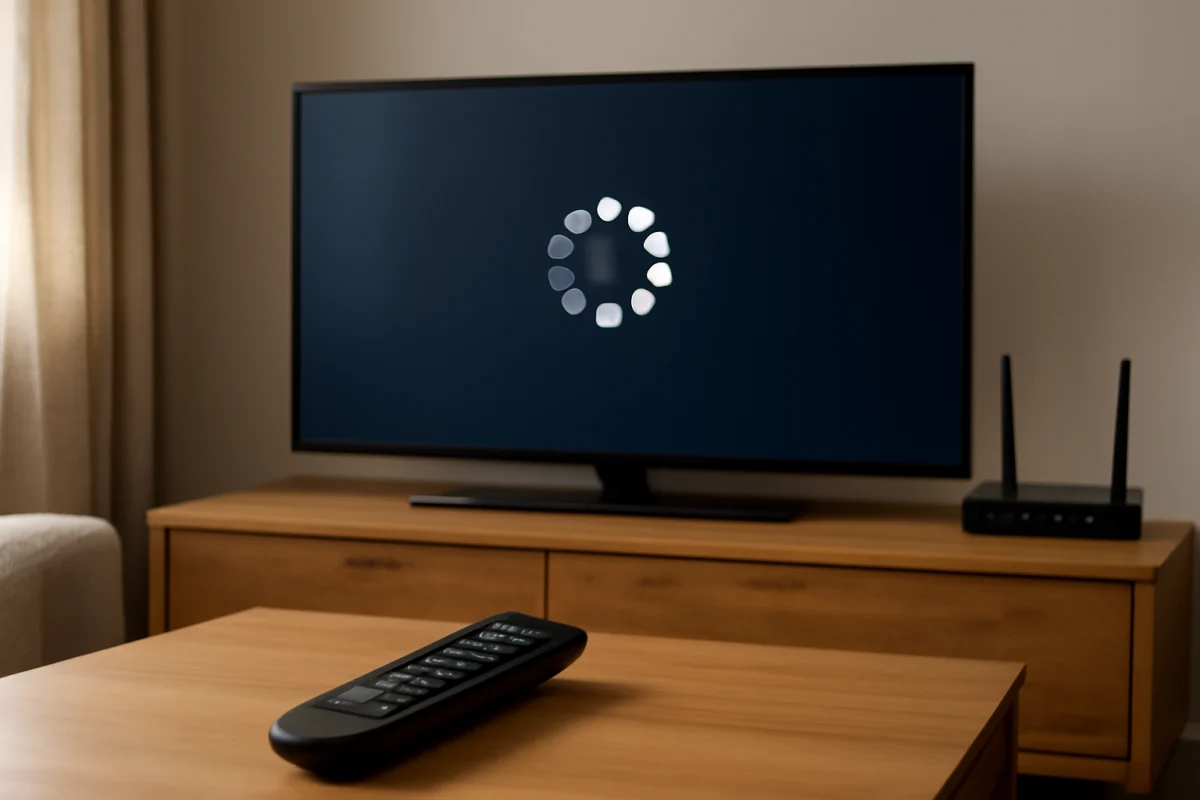
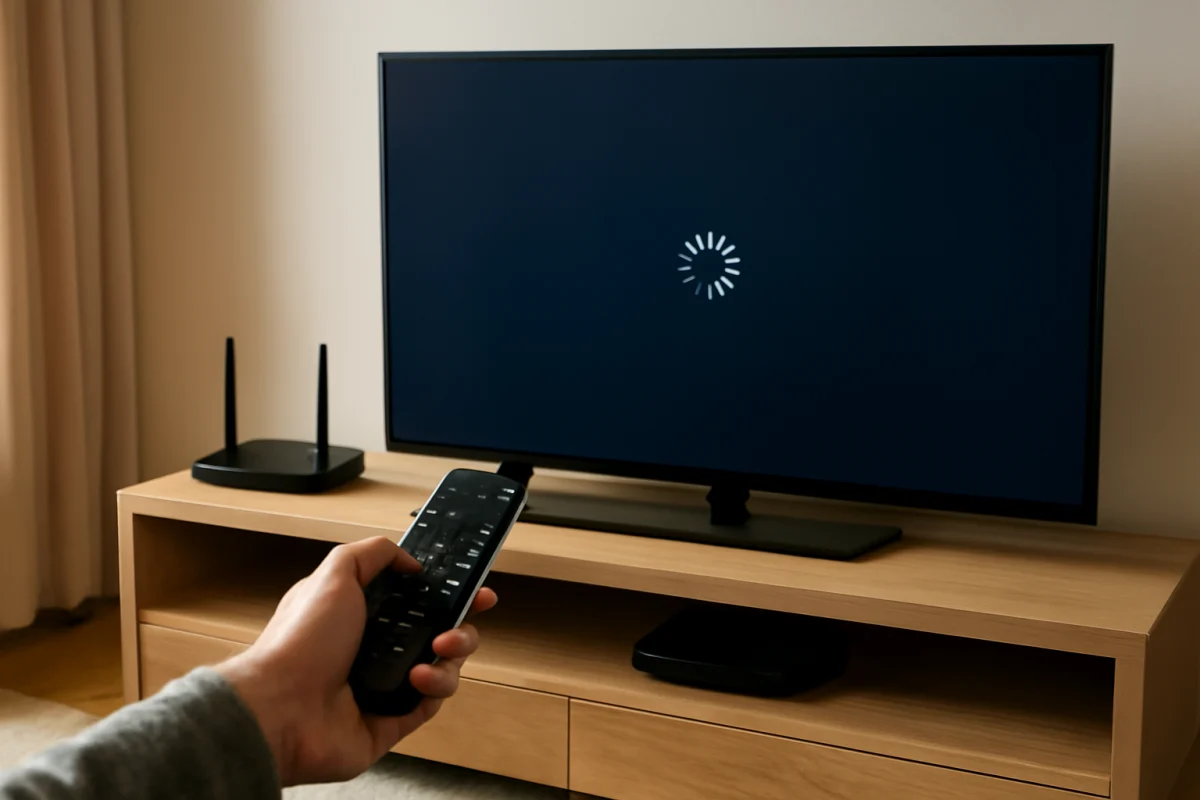
If your smart TV is connected to the internet but apps are not loading, the connection itself may not be the problem. The TV can show that Wi-Fi is working while an app is stuck, outdated, signed out, blocked by a temporary service issue, or unable to communicate correctly with its servers.
Start with the safest checks: close and reopen the app, restart the TV completely, test another app, and check whether the problem affects one service or several. Avoid a factory reset until you have tried the steps below, because a reset removes saved accounts, app settings, and network information.
First, determine whether one app or every app is affected
Open two or three different apps on the TV. For example, test a free video app, a music app, and another service you regularly use. The exact apps available will depend on your TV platform.
- Only one app fails: The issue is more likely related to that app, its account, its servers, or its stored data.
- Several apps fail: The TV software, date and time, network settings, DNS communication, or the television's app platform may be involved.
- Apps open but videos will not play: The problem may involve the app account, playback service, network stability, or device authorization rather than the TV's internet connection.
This simple comparison prevents you from changing network settings when the actual problem is limited to one service. You can find more troubleshooting guidance in the TV Fix Guide streaming apps section.
Close the app and open it again
An app can remain stuck in memory even after you return to the home screen. Press the back or home button, wait briefly, and then launch the app again. On some televisions, switching to another app does not fully close the first one.
If your TV has an app switcher or a way to force-close an application, use that option. Menu names vary by brand and operating system, so look for wording such as app management, running apps, or recently opened apps. Do not delete the app yet; closing it is a lower-risk first step.
Perform a complete TV restart
Using the remote to turn the screen off may place the television in standby rather than fully restarting its software. A complete restart can clear a temporary app process, refresh the TV's network connection, and release memory without erasing your settings.
- Turn the TV off with the remote.
- Wait a few seconds.
- Unplug the TV from the wall outlet.
- Leave it unplugged for about one minute.
- Plug it back in and turn it on.
If the TV is connected through a power strip or surge protector, make sure that device is switched on and working. If the television does not respond normally after the restart, check the power connection before continuing.
Restart the modem and router
A TV may report that Wi-Fi is connected even when the router has lost access to part of the internet. Restarting the network equipment can refresh the connection between your home network and the app service.
- Unplug the modem and router, or the combined gateway device.
- Wait at least one minute.
- Reconnect the equipment.
- Wait until the network has finished starting up.
- Try the TV apps again.
The indicator lights and startup time differ between providers and equipment. You do not need to change router settings for this test. If other devices also cannot reach websites or streaming services, focus on the home network or internet provider before changing the TV.
Check whether the app service is having an outage
An individual streaming service can be unavailable while your internet works normally. If only one app fails, use a phone or computer on the same network to check the service's official status page or support account. You can also try the service outside your home network to see whether the issue follows the account or service.
A service outage may cause an app to hang at its logo, show a blank screen, refuse to sign in, or repeatedly return to the home screen. In that situation, reinstalling the app or resetting the TV is unlikely to help. Wait until the service is operating normally, then test the TV again.
Check the TV's date and time
Incorrect date or time settings can interfere with secure connections. Some apps use encrypted connections that depend on the TV's clock being reasonably accurate. If the TV lost power or its clock was set manually, check the date, time, time zone, and automatic time option.
The location of these settings varies by manufacturer. Use the TV's general settings or system settings and, when available, enable automatic time synchronization. If your model does not offer that option, set the values manually and restart the TV afterward.
Sign out of the affected app
If the app opens but will not load your profile or content, signing out and back in can refresh the account session. Before signing out, make sure you know the correct email address and password, and confirm that you can access the account on another device if necessary.
Some services use a code shown on the TV to authorize a browser or phone. Follow the instructions displayed by the app and do not share that code publicly. If the account works on another device but not on the TV, the problem may be the TV's saved authorization data.
Update the TV and the affected app
App services can change their software requirements over time. A TV or app that has not updated for a long period may stop loading correctly, even though the television still connects to Wi-Fi.
Check the TV's software update area and the app management area for available updates. The names and locations of these options vary by brand, model, and operating system. Keep the TV connected to power during an update, and do not interrupt it unless the on-screen instructions specifically allow you to do so.
If the TV is very old and no longer receives platform updates, some apps may have limited compatibility. In that case, an external streaming device may be a practical alternative, although compatibility and setup depend on the device and the television.
Clear the app cache or reset the app
Some smart TV platforms let you clear temporary app data without removing the app. This can help when the app has a damaged cache or is holding onto an expired session. Look for app settings that include options such as clear cache, clear temporary data, reset app, or remove saved data.
These choices do not mean the same thing on every TV. Clearing a cache may preserve your login, while resetting or clearing app data may sign you out and remove local preferences. Read the confirmation screen before accepting. If your TV does not provide a cache option, do not assume that a hidden service menu is safe to use.
Remove and reinstall the app
If only one app continues to fail, uninstalling and reinstalling it can replace corrupted local files. This is more disruptive than closing the app, but it normally affects only that app rather than the entire television.
- Record or confirm your app login details.
- Remove the affected app using the TV's normal app management controls.
- Restart the TV.
- Install the app again from the TV's official app store.
- Sign in and test playback.
Some preinstalled apps cannot be removed. If the TV offers a reinstall, refresh, or reset option for that app, use the standard on-screen option instead. Availability varies by model and region.
Test the network without changing advanced settings
Run the TV's built-in network test if one is available. Pay attention to whether the TV connects to the router but fails when connecting to the internet. That distinction can reveal a problem beyond the home Wi-Fi signal.
You can also test the TV with a phone hotspot for a short time. If the apps work through the hotspot, the TV may be having trouble with the home router, DNS service, filtering, or wireless band. If the same apps fail through both connections, the issue is more likely related to the TV, app, account, or service.
Use a hotspot carefully because streaming can consume mobile data. Turn it off after testing and reconnect the TV to your normal network.
Review router restrictions and DNS settings
Parental controls, ad-blocking services, custom DNS settings, guest-network isolation, and firewall rules can prevent apps from reaching required servers. This is especially possible if websites load but specific streaming services do not.
Check whether the TV is connected to a guest network or a network with content filters. If you recently changed router settings, temporarily undo that change or test the TV on a normal home network. Do not change advanced DNS values unless you understand how to restore the original settings. The correct DNS configuration depends on your network and provider, and there is no single setting that fixes every app problem.
For more network-focused guidance, see the Wi-Fi and network troubleshooting section.
When a factory reset is appropriate
A factory reset should be a last resort, not the first response to an app that will not load. It removes saved Wi-Fi networks, accounts, app preferences, and other personal settings. It may help when the TV's software has a persistent configuration problem, but it will not fix an active service outage, an invalid account, or a router that blocks the app.
Before resetting, confirm that the issue affects several apps, the TV has been restarted, updates are installed, and the network works on other devices. Write down the information needed to set up the TV again. Then use only the reset option provided in the TV's regular settings. Menu names and reset behavior vary by model.
Get help when the problem points to the TV
Contact the TV manufacturer or app provider if the apps still fail after a restart, update, reinstall, and network comparison. Have the TV model, app name, approximate time the problem began, and the results of your tests ready. Avoid posting account passwords or authorization codes.
If every app fails, the TV repeatedly crashes, the home screen is also slow, or the television cannot complete software updates, the issue may involve the TV's internal software or storage. If only one service fails on every device, contact that service instead. This approach helps you reach the right support team without performing unnecessary resets.
Most cases of smart TV apps not loading while internet appears to work come down to a stuck app, an expired session, outdated software, a service outage, or a network rule affecting specific servers. Test the scope of the problem first, then move through the least disruptive fixes before changing advanced settings or erasing the TV.
Comments
0No comments yet. Be the first to share a helpful note or question.
Leave a Comment
Your email address will not be published. Comments are reviewed before appearing on the site.