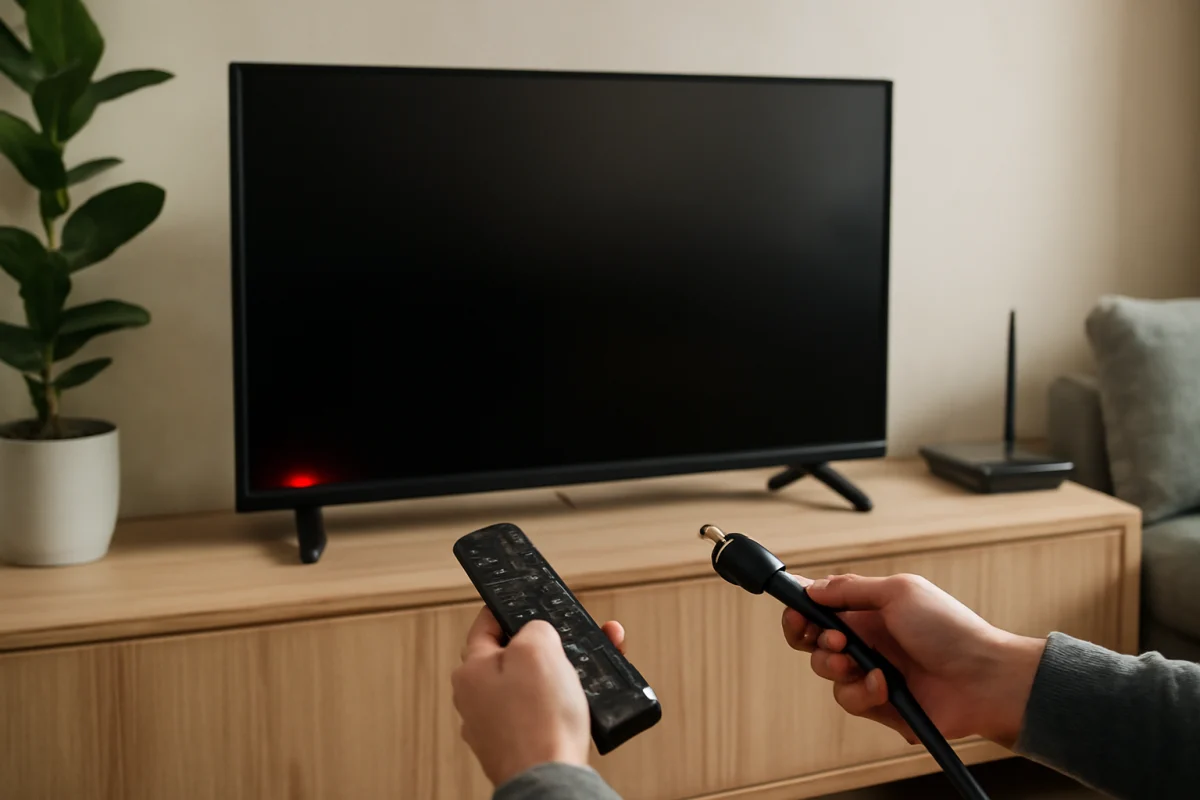
If your Skyworth TV has a red light but will not turn on, the set is usually receiving standby power but is not responding to the startup command. The cause may be a remote-control problem, a temporary software lockup, an input or HDMI device interfering with startup, or an internal hardware fault.
Start with the simple checks below before attempting a reset or opening the TV. Do not remove the back cover. Televisions can retain dangerous electrical energy even after they are unplugged.
What the red light usually means
A red indicator commonly means that the television is plugged in and in standby mode. It does not prove that every part of the TV is working. The main board, power supply, display system, remote receiver, or software may still fail to complete the power-on process.
The light may behave differently depending on the Skyworth model. It might remain solid, change color, blink, or turn off when the TV receives a power command. Because indicator behavior is not identical across all models, use the light as a clue rather than a definite fault code.
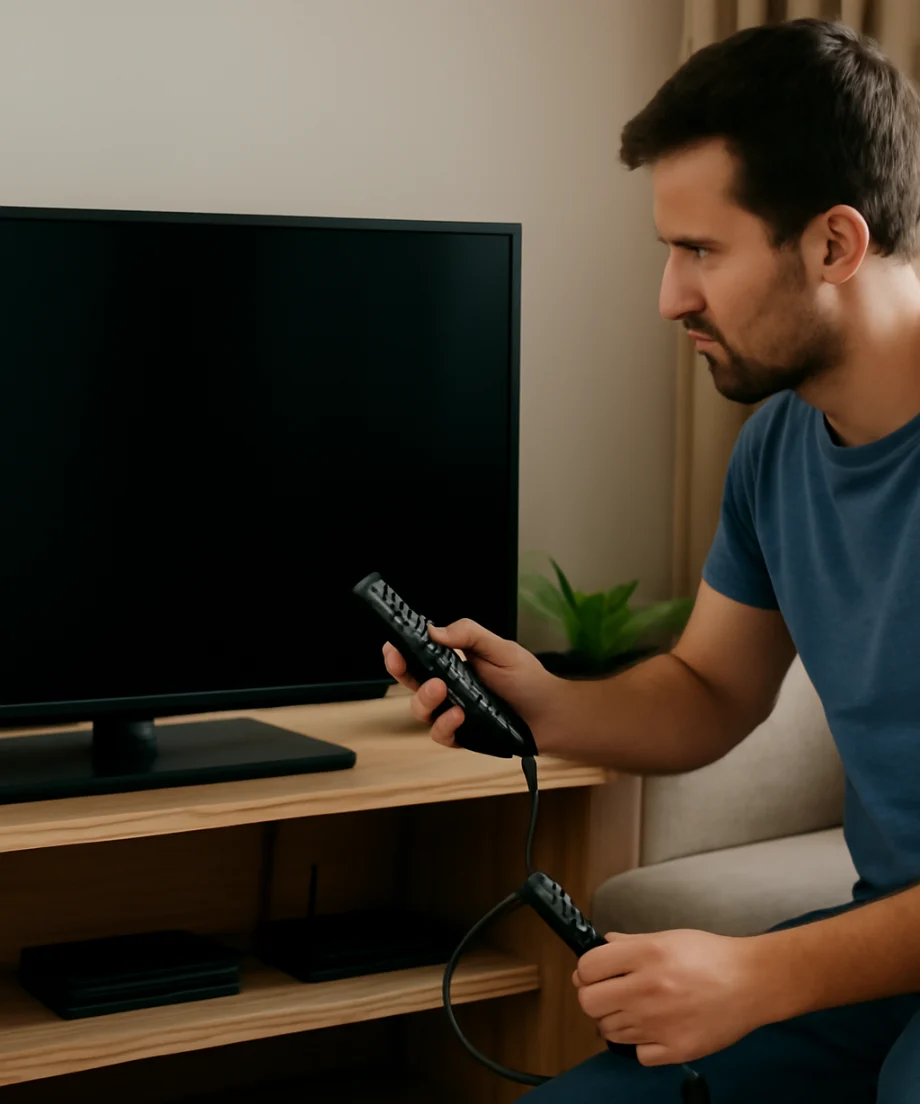
Try the TV's physical power button first
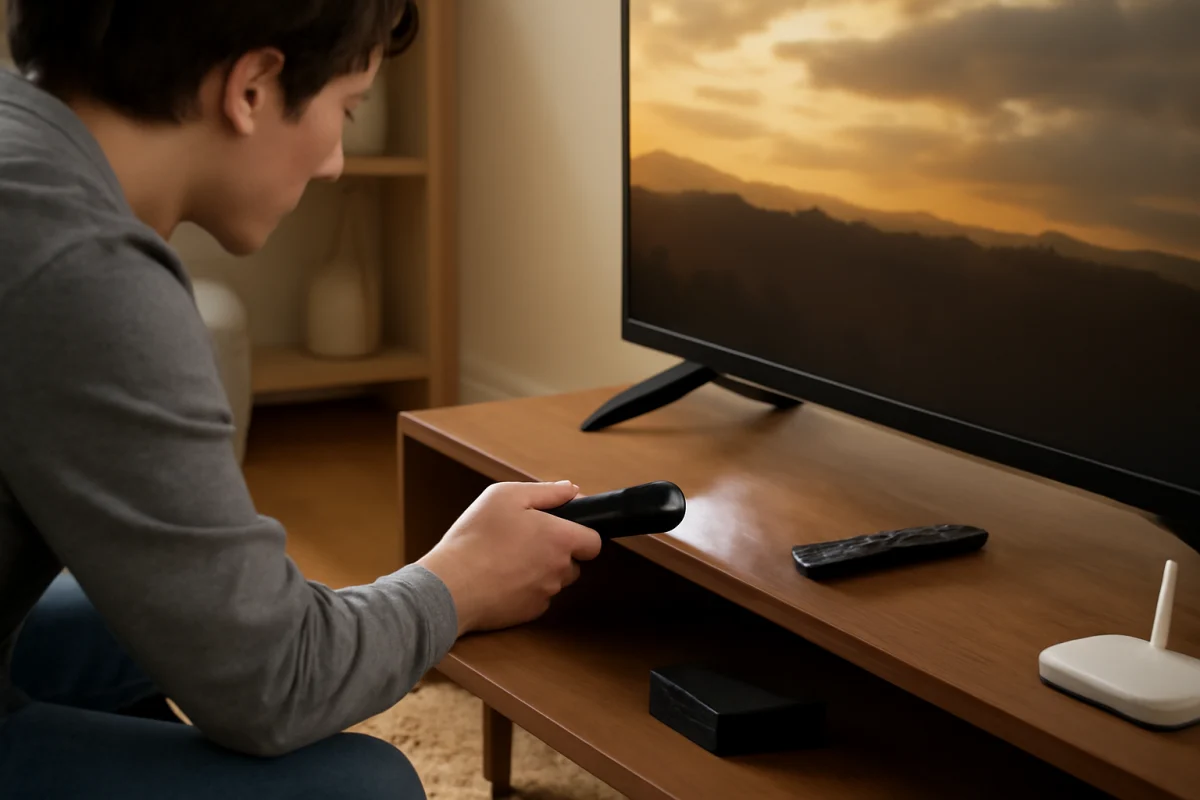
The fastest way to separate a remote problem from a TV problem is to use the physical power button on the television. Look along the lower edge, the side panel, or the back of the set. Some models use a single multi-function button or a small control area, so its location and operation can vary.
Test the button carefully
- Stand close to the TV and press the physical power button once.
- Wait several seconds for a response. Some televisions need a short delay before the screen lights up.
- If the TV does not respond, press the button once more rather than holding it repeatedly.
- Watch for a change in the red light, a startup sound, a brief flash on the screen, or any backlight glow.
If the TV turns on with its physical button, the television itself may be fine. Focus on the remote, its batteries, or an obstruction near the TV's infrared receiver. If the TV does not respond to either the remote or the physical button, continue with the power and reset checks.
Check the remote and replace its batteries
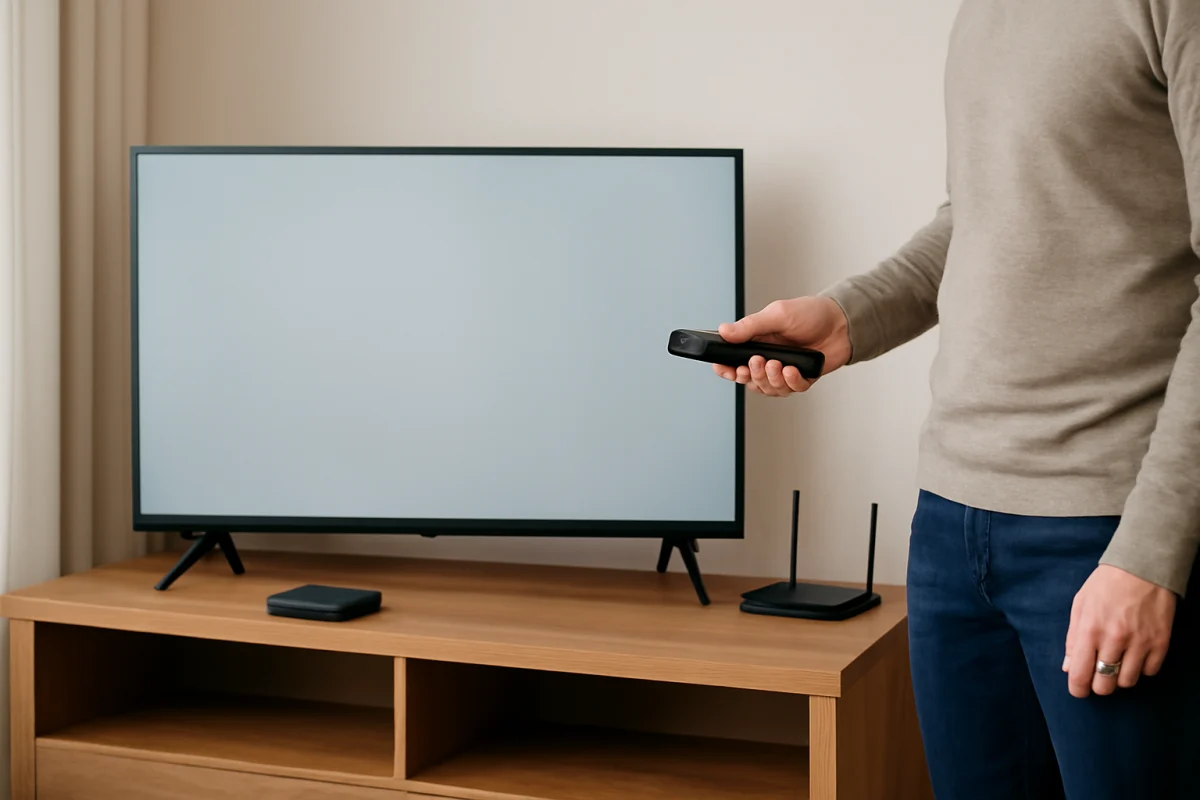
A remote can appear to work while its batteries are too weak to send a reliable signal. Replace both batteries with fresh ones of the correct type, making sure the positive and negative ends match the markings inside the battery compartment.
Remove objects that may block the receiver on the front or lower edge of the TV. Bright sunlight or strong light aimed directly at the receiver can sometimes interfere with infrared commands. Point the remote directly at the TV from a short distance and press the power button once.
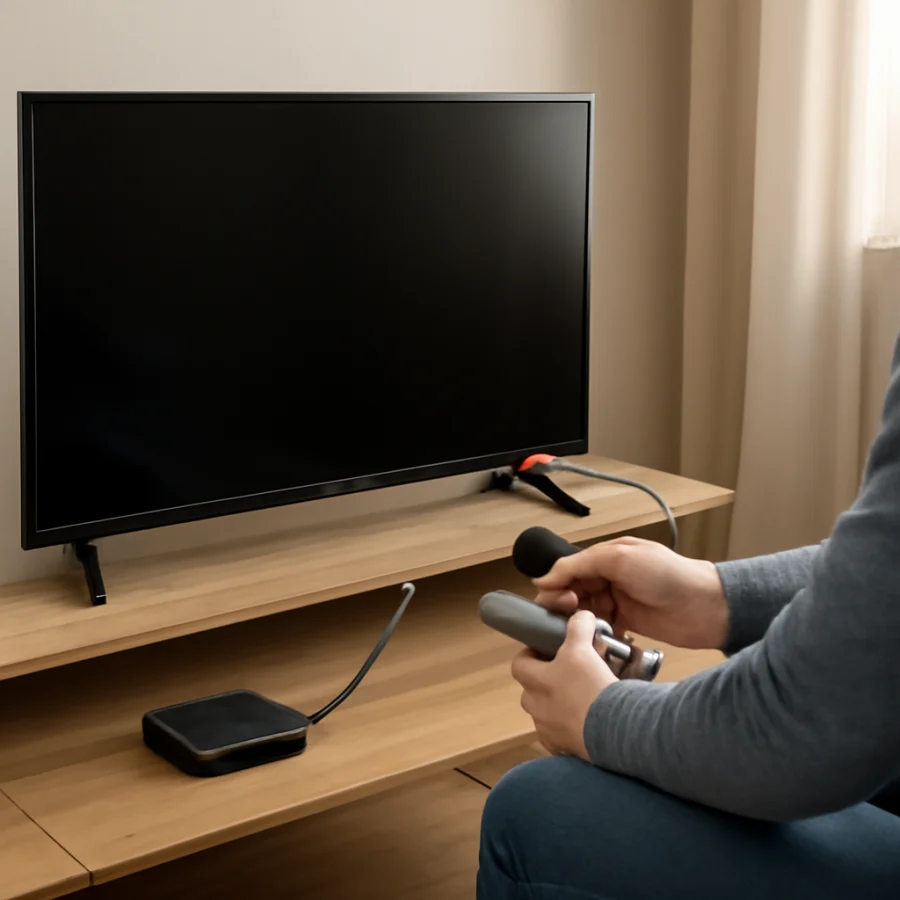
If the remote has a voice, Bluetooth, or pairing feature, its behavior may depend on the specific model. A remote that was previously paired may need a separate pairing process after a reset or replacement. Do not assume that every Skyworth remote uses the same procedure.
Perform a safe power cycle
A temporary software or power-management lockup can leave the red light on while the TV ignores commands. A power cycle removes temporary electrical charge and gives the TV a fresh startup attempt.
- Turn off connected devices such as a streaming stick, game console, cable box, soundbar, or Blu-ray player.
- Unplug the Skyworth TV directly from the wall outlet.
- Leave it unplugged for at least one minute.
- While it is unplugged, press and hold the TV's physical power button for about 15 seconds. This is not a factory reset; it helps discharge residual power.
- Release the button and reconnect the TV directly to a known-good wall outlet.
- Wait briefly, then try the physical power button before reconnecting other devices.
Avoid using a power strip, surge protector, smart plug, or extension cord during this test. These accessories can introduce another possible point of failure. If the TV starts normally from the wall outlet, reconnect the accessories one at a time to identify whether one is defective or switched off.
Rule out an outlet or power-cord problem
A red light suggests that some power is reaching the television, but it does not rule out an unstable outlet or a damaged cord. Test the same outlet with a small appliance that you know works, such as a lamp. If the outlet is controlled by a wall switch, make sure the switch is on.
Inspect the visible power cord for cuts, crushed sections, loose connections, or signs of overheating. If the cord is detachable, check that it is firmly seated at the TV and the wall. Do not use a damaged cable, and do not continue testing if you smell burning, see smoke, hear repeated electrical clicking, or notice unusual heat.
Disconnect HDMI and USB devices
External equipment can occasionally cause startup conflicts, especially when HDMI-CEC or automatic input switching is active. A connected device may send repeated commands, fail during its own startup, or keep the television from completing its normal boot sequence.
Unplug every HDMI, USB, antenna, Ethernet, and audio connection from the TV. Leave only the power cord connected, then try turning the set on with its physical button. If it starts, reconnect one device at a time and test after each connection.
If the problem returns after a particular device is connected, check that device's power cable and settings. You may need to disable automatic device control or use a different HDMI cable, but the exact menu names and available options vary by Skyworth model and software version.
Look closely at the screen and indicator
Sometimes the TV turns on but appears dead because the backlight, picture output, or selected input is not working. After pressing power, listen for startup sounds and look for a faint glow from the screen in a dark room. You can also shine a flashlight at an angle across the display, but do not press against the panel.
A faint image with no normal brightness may point to a backlight or display-related problem. Sound without a visible picture can also indicate a display fault rather than a complete power failure. If the indicator changes but the screen remains completely dark, note exactly what happens and report it to a repair technician.
If the screen shows a logo and then goes black, the TV may be failing during startup. Disconnect external devices and repeat the power cycle once. Avoid repeatedly turning the set on and off because that can make diagnosis harder and may place additional stress on a failing component.
Check whether the red light is blinking
Count any repeating blink pattern and write down what you observe. Some television models use indicator patterns to signal a fault, but the meaning is not universal. A certain number of flashes on one Skyworth model may not mean the same thing on another.
Do not treat a blinking light as a confirmed diagnosis unless the instructions for your exact model explain it. Find the model number on the label at the back of the TV, on the original paperwork, or on the purchase record. Use that information when checking the owner's manual or contacting Skyworth support.
When to consider a factory reset
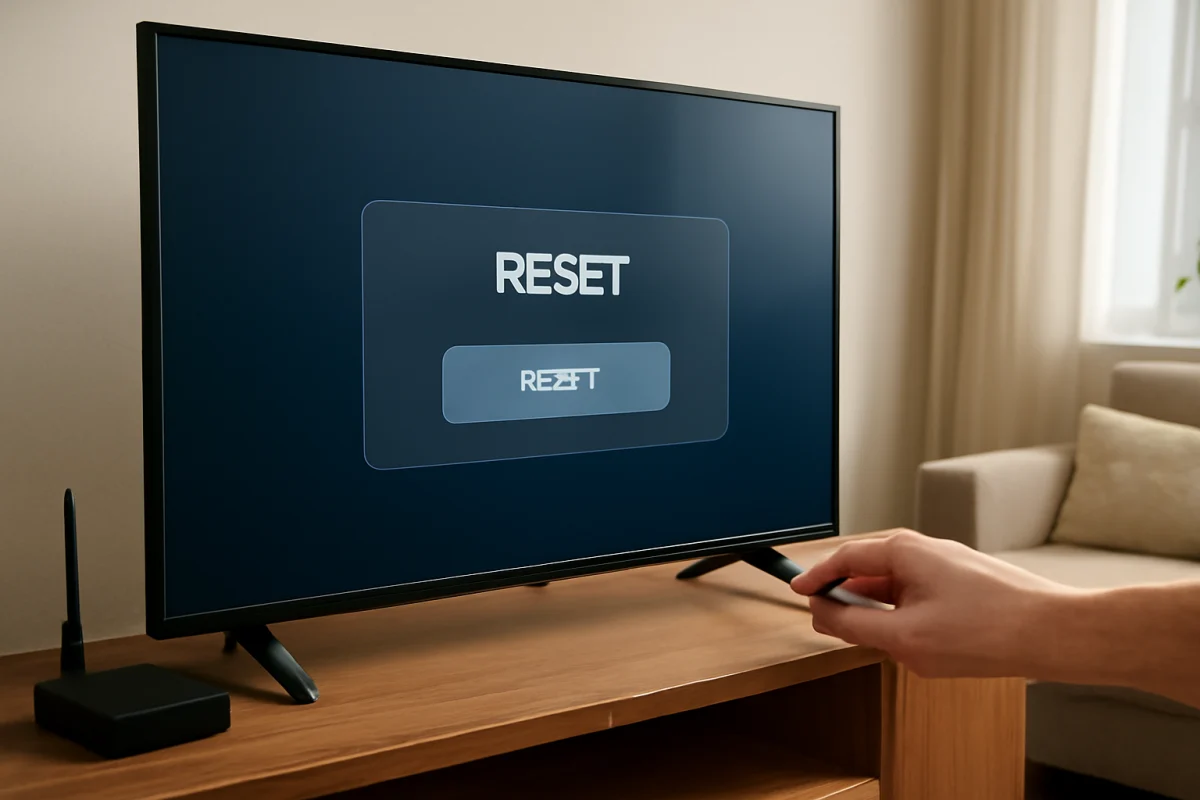
A factory reset can help if the TV turns on but freezes, restarts, or refuses to load its home screen. It is not usually the first step when the screen never responds at all. A reset erases saved settings and may remove installed apps, account details, network information, picture settings, and paired accessories.
If you can reach the settings screen, use the reset option described for your exact model. Menu wording and reset methods vary, so do not follow a procedure intended for a different Skyworth series. If the TV cannot display a menu, some models may provide a button-based recovery method, but the correct sequence is model-dependent. Confirm it in the manual before trying it.
Signs of an internal hardware problem
The TV may need professional service if the red light remains on after a direct-wall power test, a full power cycle, remote checks, and removal of all external devices. Hardware trouble becomes more likely when you notice any of the following:
- The physical power button has no effect.
- The indicator blinks in a repeating pattern and the TV never starts.
- The screen flashes briefly and immediately goes dark.
- You hear clicking, buzzing, or repeated startup attempts.
- The set turns on only after several attempts or works intermittently.
- There is a burning smell, visible damage, or evidence of liquid exposure.
Possible causes include a failing power supply, main board, backlight system, display panel, or control circuit. Identifying the exact component usually requires electrical testing and model-specific service information. A red light alone is not enough to justify replacing a particular board.
What not to do
Do not open the TV, bypass a fuse, short contacts, or apply heat to the back panel. Do not repeatedly press the power button while plugging and unplugging the set. Avoid unofficial firmware files and model-mismatched reset instructions, since they can create a second problem or make recovery more difficult.
If the TV is under a retailer or manufacturer warranty, check the applicable service instructions before arranging an independent repair. Keep the model number and a description of the indicator behavior ready. For related television troubleshooting, you can also browse the Skyworth TV repair guide or review our general TV how-to articles.
When replacement or repair makes sense
A technician can often diagnose a power board or backlight issue without replacing the entire television, but the practical choice depends on the model, age, panel condition, and local repair cost. A cracked panel, liquid damage, or a failed display panel is usually more serious than a remote or power-cord problem.
Before approving service, ask for a diagnosis rather than guessing from the red light. Describe whether the light is solid or blinking, whether the physical button responds, whether the screen flashes, and whether the TV produces sound. Those details can help the technician narrow the fault and avoid unnecessary parts replacement.
In most cases, the best order is simple: test the physical button, replace the remote batteries, power-cycle the TV, test a direct wall outlet, disconnect external devices, and then check model-specific reset or service options. If the red light remains on and the television still shows no response, stop at the safe checks and arrange professional support rather than opening the set.
Comments
0No comments yet. Be the first to share a helpful note or question.
Leave a Comment
Your email address will not be published. Comments are reviewed before appearing on the site.