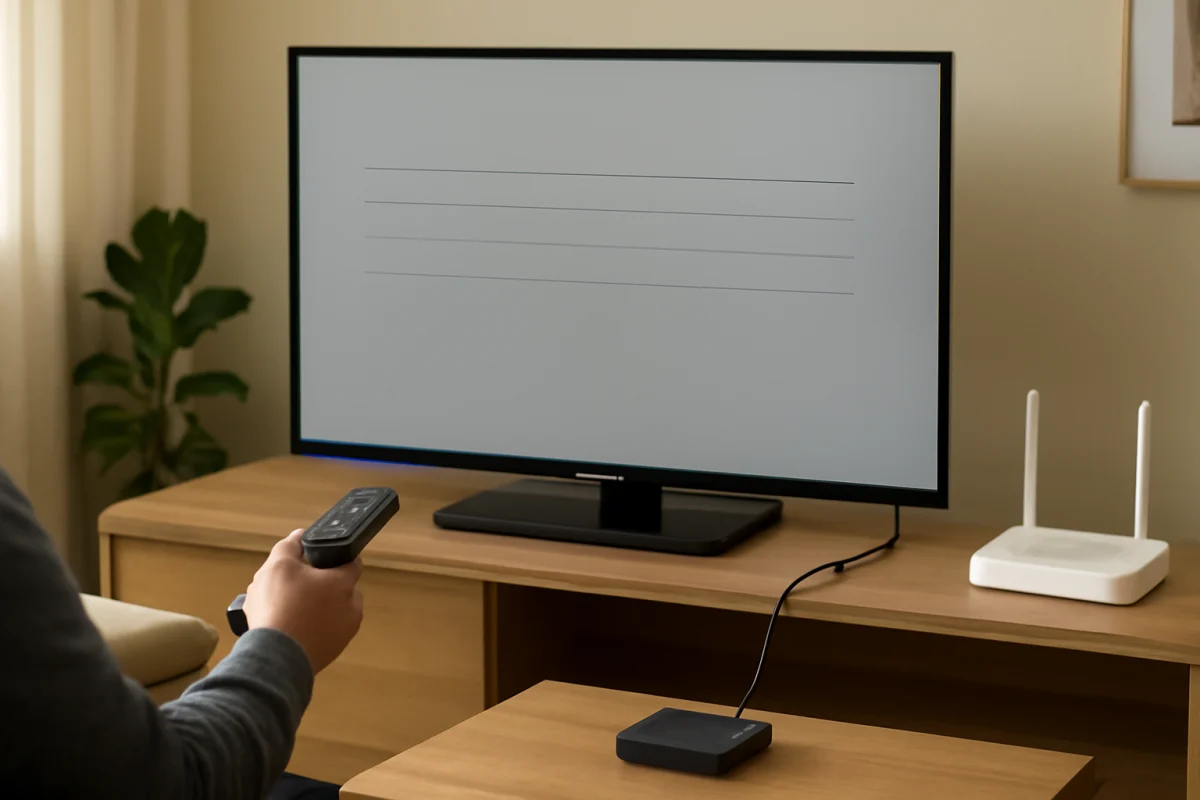
Common Skyworth TV problems usually come from a simple power, input, cable, network, remote, or software issue. Before assuming the television has a failed main board or display panel, check the power connection, confirm the selected input, test another device or app, and restart the TV and related equipment. The exact menus and available features vary by Skyworth model and operating system, so use the wording shown on your screen rather than relying on a guide for a different model.
Skyworth TV will not turn on
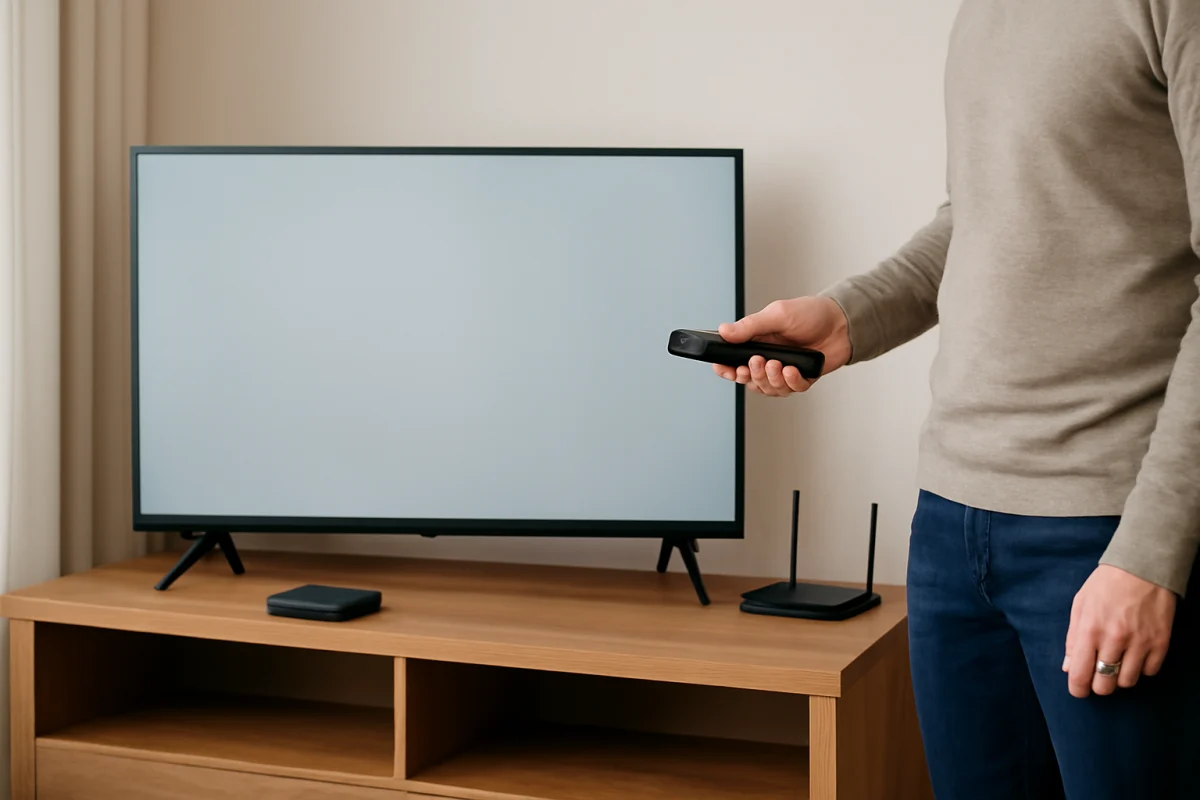
If the screen stays completely dark and the TV shows no sign of activity, start with the basic power checks:
- Make sure the power cord is firmly connected to both the TV and the wall outlet.
- Test the outlet with a lamp or another small device.
- If the TV is connected through a surge protector or power strip, plug it directly into the wall temporarily.
- Press the physical power button on the TV instead of using the remote.
- Remove the batteries from the remote and try the TV's own controls.
Unplug the TV from the wall for about 60 seconds, then reconnect it and try again. This can clear a temporary control or standby problem without changing your settings. If a power indicator is lit but the television does not respond, try the physical button and check whether the remote is sending commands.
If the outlet works and the TV remains completely unresponsive, the problem may involve the power supply, internal control board, or another hardware component. Do not open the television unless you are qualified to work safely around electronic power circuits. Arrange professional service, especially if there was a burning smell, a pop, visible damage, or a recent power surge.
Skyworth TV has a black or blank screen
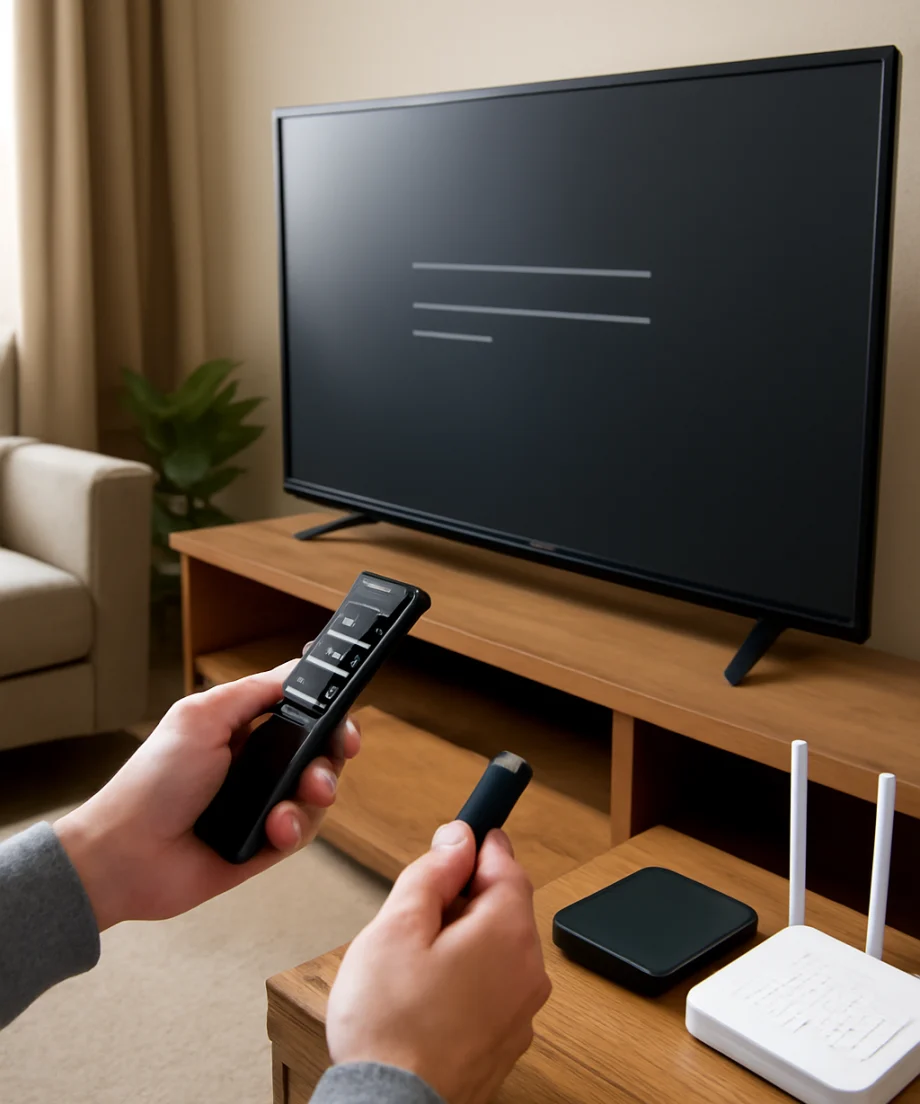
A black screen does not always mean the display panel has failed. First, check whether the TV has sound, a status light, or any response to the remote. Those clues help separate an input problem from a display or hardware problem.
Check the selected input
Press the input or source control and select the port connected to your device. If the TV is connected to a cable box, game console, Blu-ray player, or streaming device, confirm that the external device is powered on and awake. Disconnect and reconnect the HDMI cable at both ends, then try another HDMI cable or port if available.
Test the TV's own menus or apps
If the home screen, settings, or a built-in app appears normally, the panel is probably working and the issue is more likely related to the external source, HDMI connection, or device output. If every source is black but the TV produces sound, shine a flashlight at the screen only as a brief diagnostic check in a dim room. A very faint image can suggest a backlight problem, but this test is not a repair and should not involve pressing on the panel.
When the TV displays no picture from any source, restart it by unplugging it for about a minute. If that does not help, check whether the problem began after moving the TV, connecting new equipment, or experiencing a power event. Persistent audio with no visible picture may require professional diagnosis.
There is no sound or the sound is too low
Press the volume-up button and verify that mute is not enabled. If you use a soundbar, receiver, headphones, or Bluetooth audio device, check whether the TV is sending sound somewhere other than its built-in speakers. Temporarily disconnect external audio equipment and test the TV by itself.
When only one app or channel has no sound, try another channel, input, or built-in app. This helps determine whether the problem is with the source rather than the TV. For an HDMI device, reseat the cable and restart both the device and the television.
Audio settings can differ by model. Look for the sound or audio section and confirm that the selected output matches the equipment you want to use. If available, try a different digital audio format when a soundbar or receiver produces silence. Avoid changing several audio options at once; make one change, test it, and note the original setting so you can reverse it.
If the TV speakers remain silent across every source, even after a restart, the issue may involve software, the speaker system, or internal audio hardware. A service technician can test those components more safely than attempting to open the set.
Skyworth TV cannot connect to Wi-Fi
First, check whether other devices in the home can reach the internet. If nothing connects, restart the router and modem according to your internet provider's normal procedure. Keep the TV within a reasonable range of the router while testing, and avoid assuming that a strong Wi-Fi signal always means the internet service is working.
- Restart the TV and try the wireless connection again.
- Re-enter the Wi-Fi password carefully, paying attention to capitalization and similar characters.
- Test another network, such as a phone hotspot, if practical. This can show whether the issue is with the home router or the TV.
- Temporarily reduce network congestion by pausing large downloads and other high-bandwidth activity.
If the TV connects to Wi-Fi but streaming apps buffer or fail, run a connection test if the model provides one and check the router location. A wired Ethernet connection may be a useful comparison when the television supports it. If Wi-Fi settings repeatedly disappear, the TV cannot see any nearby networks, or every network fails while other devices work, the wireless hardware or TV software may need attention.
For broader network troubleshooting, see our Wi-Fi and network troubleshooting guides.
Streaming apps freeze, crash, or will not open
Begin by testing a different app. If only one service fails, the problem may be limited to that app, its account, or a temporary service outage. Close and reopen the app if the TV allows it, then restart the television and router.
Check that the TV has a stable internet connection and that the date and time are correct if the model provides automatic time settings. Incorrect time information can interfere with sign-ins and secure connections. Sign out and back in only after confirming that you know the account credentials.
App storage and software controls vary considerably between Skyworth models. If the TV offers options to clear an app's cache, force it to stop, or reinstall it, follow the on-screen instructions carefully. Reinstalling may remove saved sign-in information. Do not install unofficial firmware or files from random websites.
If several apps fail at the same time, focus on the TV's network connection and available system updates rather than repeatedly reinstalling each app. Update options and reset procedures differ by model, so consult the manual or the manufacturer's support information for the exact steps.
The remote control does not work
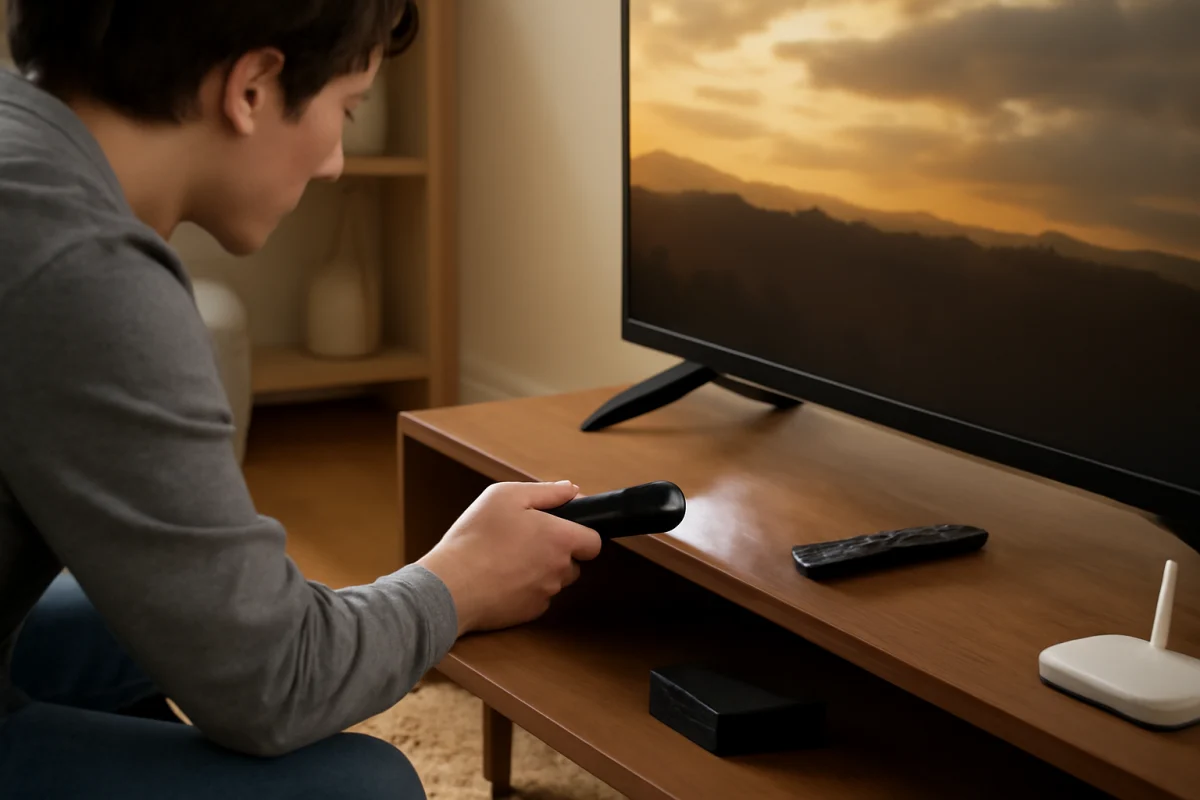
Replace both batteries with a matching new pair and confirm their polarity. Check for dirt or damage around the battery contacts. Aim the remote toward the TV's sensor without placing objects directly in front of it, and test the physical buttons on the television.
Some Skyworth remotes use infrared signals, while others may rely on wireless pairing. If the remote has recently been replaced, reset, or used with another TV, it may need to be paired again. The pairing process is model-specific, so use the instructions supplied with that remote or TV.
A phone camera can sometimes show an infrared remote transmitting: point the remote at the camera and press a button. A flashing light on the camera view is only an indication that the remote is emitting infrared; it does not prove that the TV sensor or every button is working. If the physical TV controls work but the remote does not, replacing or correctly pairing the remote is usually the next low-risk step.
For more help, browse our remote control troubleshooting guides.
Picture looks wrong, dim, or distorted
If the image is too dark, unusually bright, tinted, stretched, or blurry, first check whether the problem affects every source. A problem on only one HDMI device often comes from that device, its cable, or its output settings.
Try switching to a different picture mode or restoring picture settings to their defaults if the TV provides that option. Ambient-light features, energy-saving settings, and automatic picture adjustments can change brightness from one scene to another. Disable or adjust those features temporarily for testing, then decide whether you prefer them enabled.
Make sure the TV is not placed in direct sunlight and that ventilation openings are not blocked. Do not press on the LCD panel or use household glass cleaner on the screen. Use a soft, dry microfiber cloth and follow the care instructions in the manual.
Permanent lines, large dark areas, cracks, liquid damage, or a picture that changes when the panel is touched can indicate physical damage. Those symptoms are not good candidates for a software reset.
When to try a reset
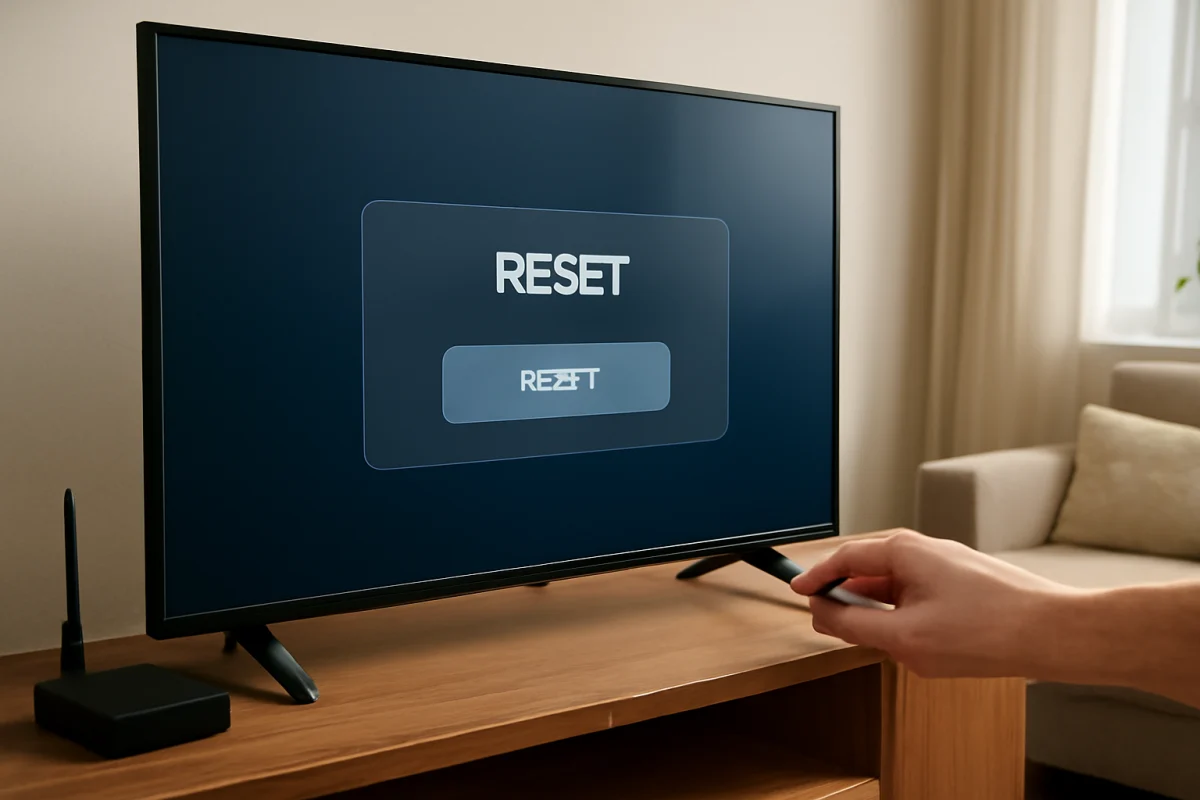
A restart is a low-risk first step. A factory reset is more disruptive because it can erase Wi-Fi details, app sign-ins, personal settings, and channel information. Try it only after checking power, cables, inputs, network equipment, and the affected app or device.
The reset path and wording differ by Skyworth model. Before starting, write down important settings and confirm that you have the passwords needed to set the TV up again. If the screen is unusable, the remote is missing, or the TV repeatedly freezes during startup, a reset may not be practical; contact support or a qualified technician instead.
Signs that professional repair may be needed
Stop troubleshooting and seek qualified service if the TV repeatedly shuts off, smells burnt, makes unusual electrical noises, shows visible internal damage, or trips a circuit breaker. Professional diagnosis is also appropriate when there is no power after testing a known-good outlet, when the backlight appears to fail, or when the TV has a persistent hardware fault across every input and app.
Have the exact model number, a description of when the problem occurs, and the steps you have already tried available when requesting help. This information can prevent unnecessary resets and make it easier to identify whether the fault is related to the remote, source device, network, software, or television hardware. You can find more brand-specific guidance in the Skyworth TV repair section and broader advice in our picture and sound troubleshooting guides.
Comments
0No comments yet. Be the first to share a helpful note or question.
Leave a Comment
Your email address will not be published. Comments are reviewed before appearing on the site.