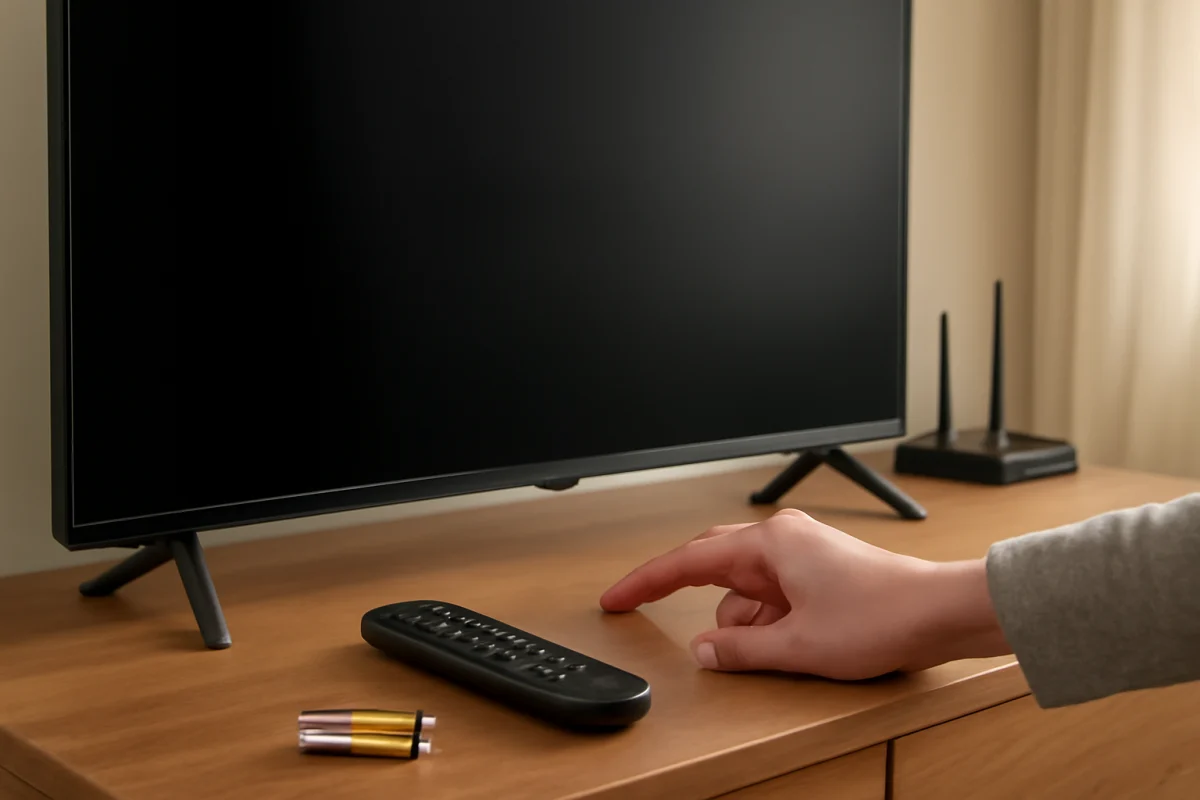
If your Skyworth TV power button is not working, first determine whether the problem is the remote, the television’s physical button, or the power supply. Replace or test the remote batteries, unplug the TV, check the outlet, and try the button on the TV itself. These simple checks can restore power without opening the set or changing settings.
The location of the controls and the available menu options vary between Skyworth models, so use your model’s manual when a step refers to a specific button or feature. Do not remove the back cover. Television power circuits can remain dangerous even after the set has been unplugged.
1. Check whether the TV has any power
Look for a standby light or another sign that the TV is receiving power. The indicator may be on the front, underneath the panel, or near the side controls, depending on the model. A dark indicator does not always prove that the television has failed, but it is useful information.
Press the power button once and wait several seconds. Some TVs take a short time to respond after the button is pressed. Avoid pressing it repeatedly, because repeated commands can make it harder to tell whether the TV is responding slowly or not responding at all.
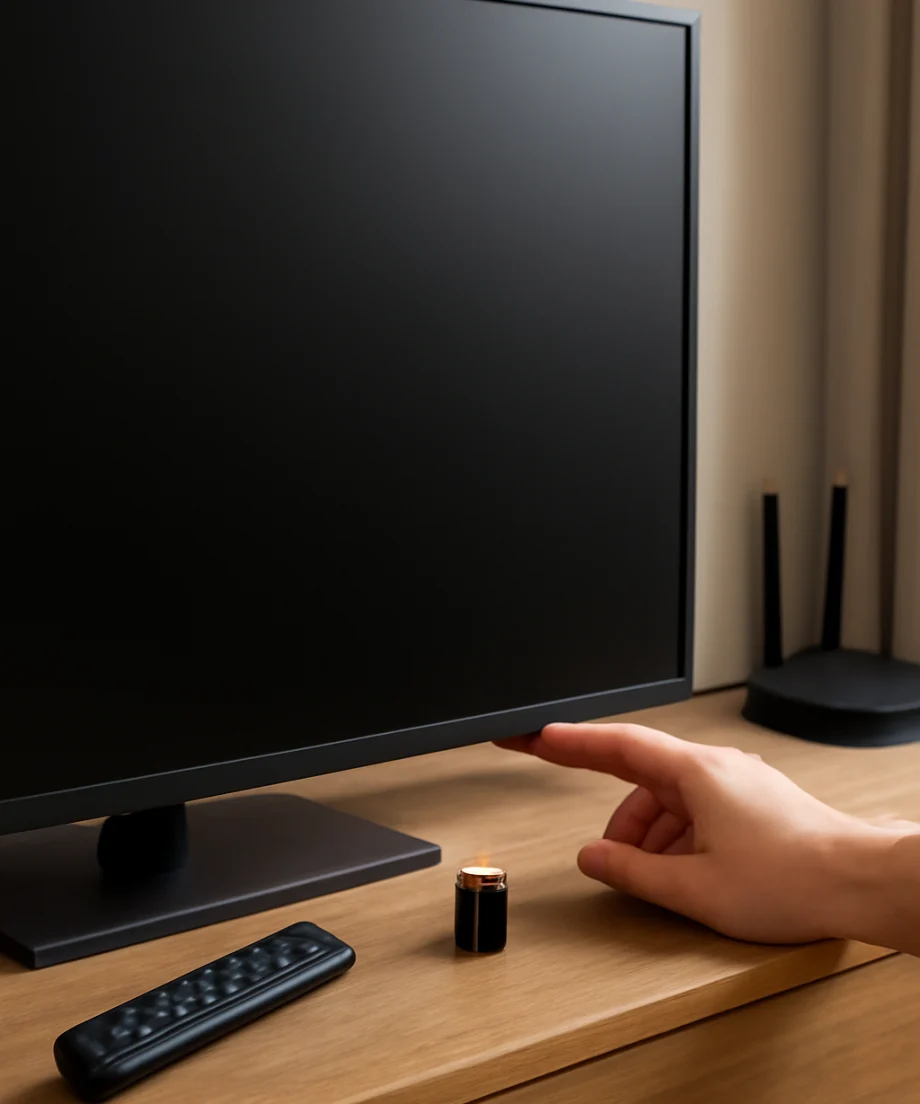
If you hear a click, see the indicator change, or notice a brief flash on the screen, the TV may be receiving the command but having trouble starting. If there is no light, sound, or screen activity, focus first on the outlet, power cord, remote, and physical controls.
2. Test the Skyworth remote
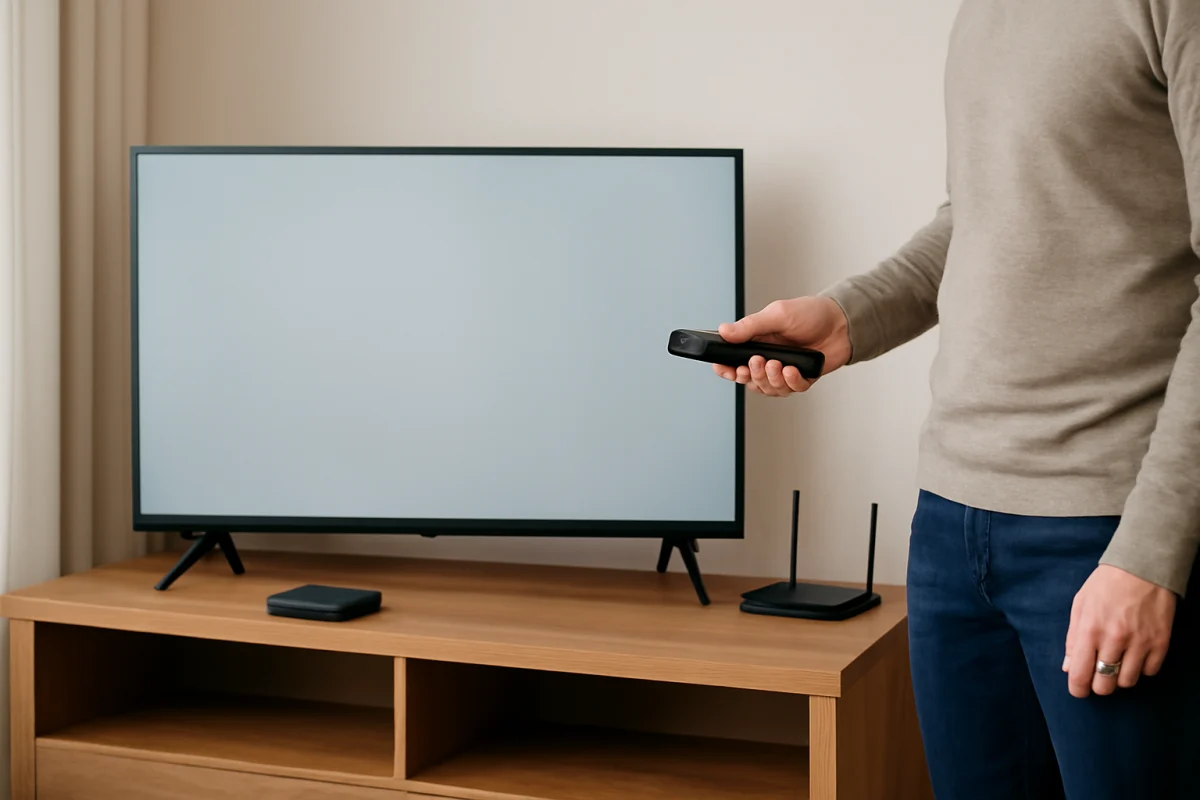
A remote that appears to work may still have a failed power button, weak batteries, or a blocked infrared signal. Start by removing the batteries and checking for corrosion or dirt around the contacts. Install a fresh pair of the correct type, matching the positive and negative marks inside the battery compartment.
Make sure you press the TV’s power key rather than a streaming, input, or device-control key. If your remote controls more than one device, select the TV mode if the remote has that option. Keep the remote pointed toward the TV’s infrared receiver, and remove objects that may block the receiver near the lower edge of the screen.
Check whether the remote is sending a signal
You can perform a basic infrared check with many smartphone cameras. Open the camera app, point the front of the remote toward the camera, and press the power button. A working infrared transmitter may appear as a flashing light on the phone screen, although some phone cameras filter infrared light and will not show it. This test is not conclusive, but it can help identify a remote problem.
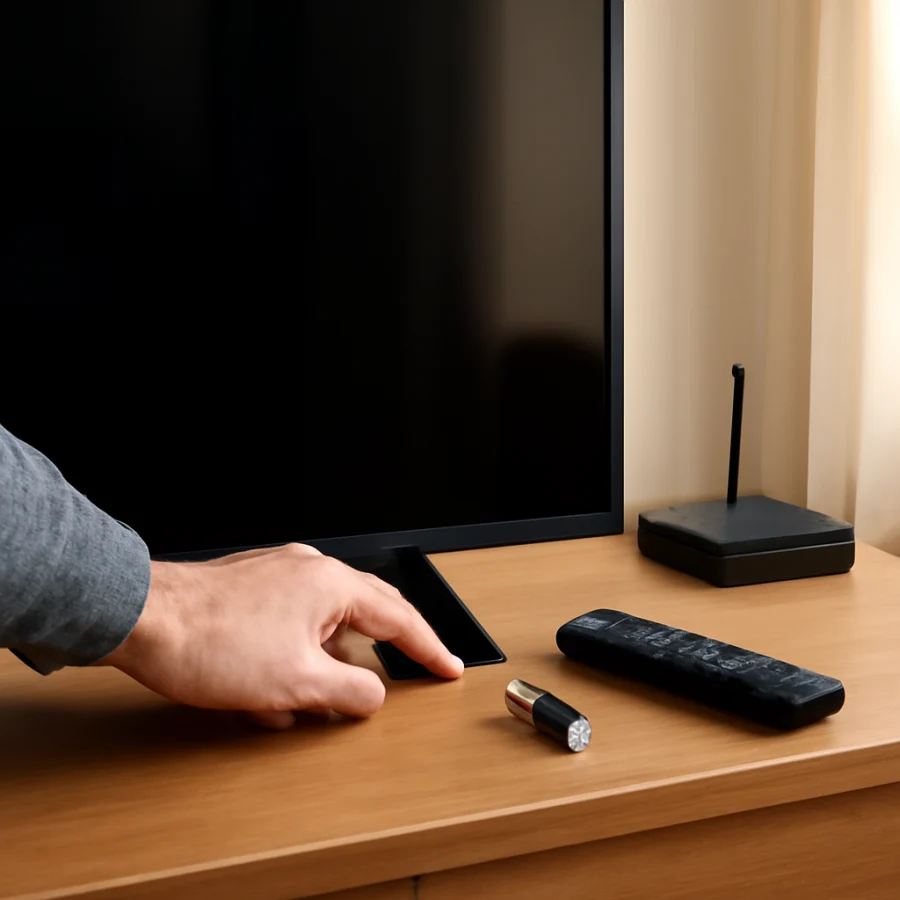
If other remote buttons work but the power button does not, the button itself may be worn or dirty. Try the TV’s physical power control before buying a replacement remote. If the TV turns on with its own button, the television may be fine and the remote is the likely cause.
For more general remote troubleshooting, see the TV Fix Guide guide to TV remote controls.
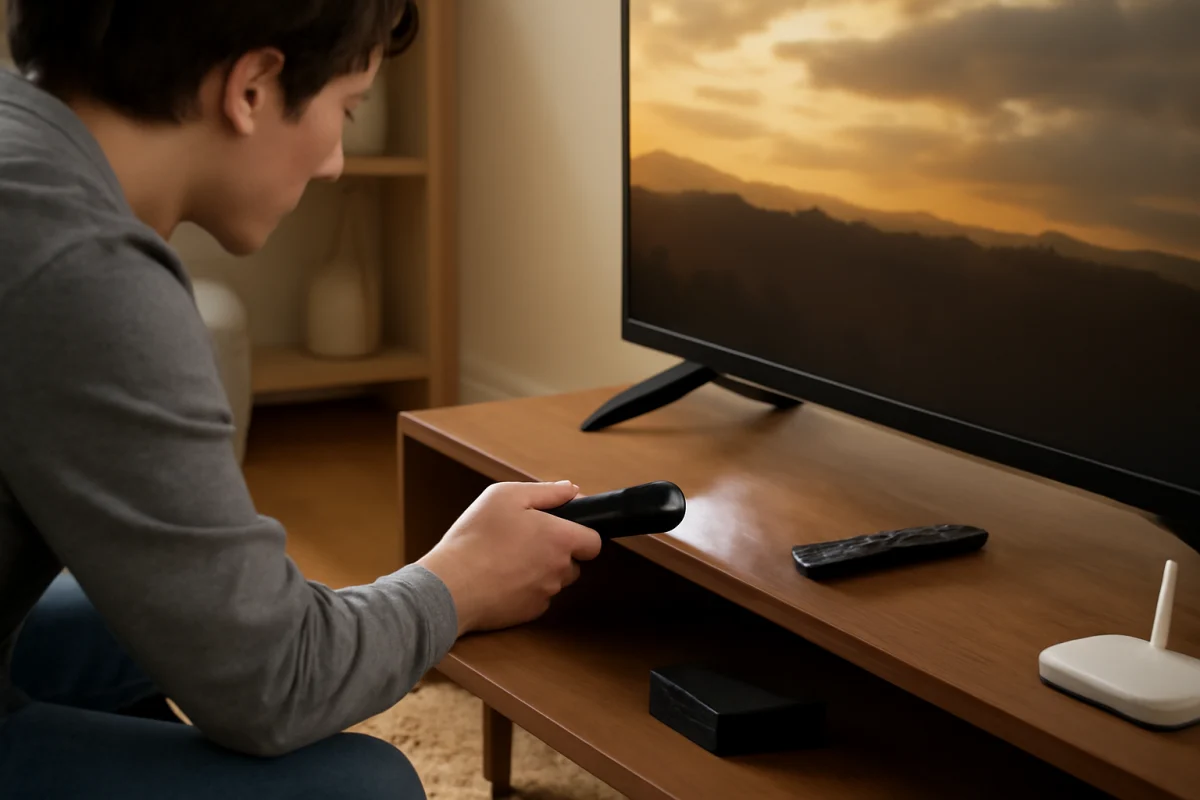
3. Try the physical power button on the TV
Find the control on the TV itself. It may be underneath the center of the panel, along the side, or on the rear edge. Some models use one button, while others use a small control cluster or a joystick-style button. Run your finger gently along the edges rather than pressing hard on the screen or bezel.
Press the button once, then wait. If the TV uses a multi-function control, a short press may power it on while other actions require holding or moving the control. The correct operation can differ by model, so check the printed manual or the manufacturer’s documentation for your exact TV.
If the button feels loose, stays pressed, or does not move as it normally does, stop forcing it. A damaged button may need service. Dust, liquid, or a cleaning product that entered the control area can also cause unreliable operation. Do not spray cleaner directly onto the TV.
4. Perform a safe power reset
A power reset can clear a temporary control or standby problem. Turn the TV off if it responds, then unplug the power cord from the wall outlet. If the cord is detachable, leave it connected to the TV unless you need to inspect the connection. Wait at least one minute.
While the TV is unplugged, press and hold the physical power button for about 15 to 30 seconds if your model has one. This helps discharge residual power, but it is not a factory reset and should not erase your apps or settings. Release the button, reconnect the TV directly to a known-working wall outlet, and try powering it on.
Do not use a power strip, surge protector, smart plug, or extension cord for this test. Those devices can introduce another possible failure point. If the TV starts when connected directly to the wall, inspect the accessory or replace it with a suitable, undamaged unit.
5. Verify the outlet and power cord
Test the wall outlet with a lamp or another small device that you know works. If the second device also fails, check the room’s breaker or reset the appropriate ground-fault outlet if one is present. Only reset a breaker or outlet if it can be done safely and there are no signs of burning, moisture, smoke, or electrical damage.
Inspect the Skyworth TV’s power cord for cuts, crushed sections, bent connectors, loose fittings, or scorch marks. Check both ends without forcing them. If the cord is permanently attached, do not attempt to replace it yourself. If it is detachable, use only a compatible replacement with the correct connector and electrical rating.
Stop using the TV and disconnect it if you smell burning, see smoke, hear repeated popping, notice sparks, or find melted plastic. These symptoms require qualified electrical or television service rather than more button tests.
6. Check whether the TV is on but the screen is blank
Sometimes the power button works and the TV turns on, but the screen remains dark. Look for a standby light change, sound, startup animation, or a response when you press volume or input. Shine a flashlight at an angle toward the screen in a dim room. If you can faintly see an image, the backlight system may have a problem.
If the TV has sound but no visible picture, try changing the input source and disconnecting external devices such as a streaming stick, game console, or cable box. A failed connected device can make the TV appear unresponsive. Reconnect devices one at a time after the television starts normally.
If there is no sound, no picture, and no indicator after the outlet and power reset checks, the issue is more likely related to the power board, main board, internal button assembly, or another hardware component. These parts are not safe for most owners to diagnose by opening the TV.
7. Consider a remote pairing or control issue
Some Skyworth televisions use infrared remotes, while others may use Bluetooth or a combination of connection methods. A Bluetooth remote can stop controlling the TV after a reset, battery change, or pairing problem, even when its buttons still feel normal. The exact pairing process depends on the model and remote.
If the physical TV button turns the television on, use it to reach the TV’s settings only if the screen is working. Look for the remote or accessory section described in your model’s instructions, then follow the published pairing procedure. Do not select a factory reset simply because the remote is not working. A reset may remove apps, wireless network details, and personal settings without repairing a damaged button.
8. When a factory reset is appropriate
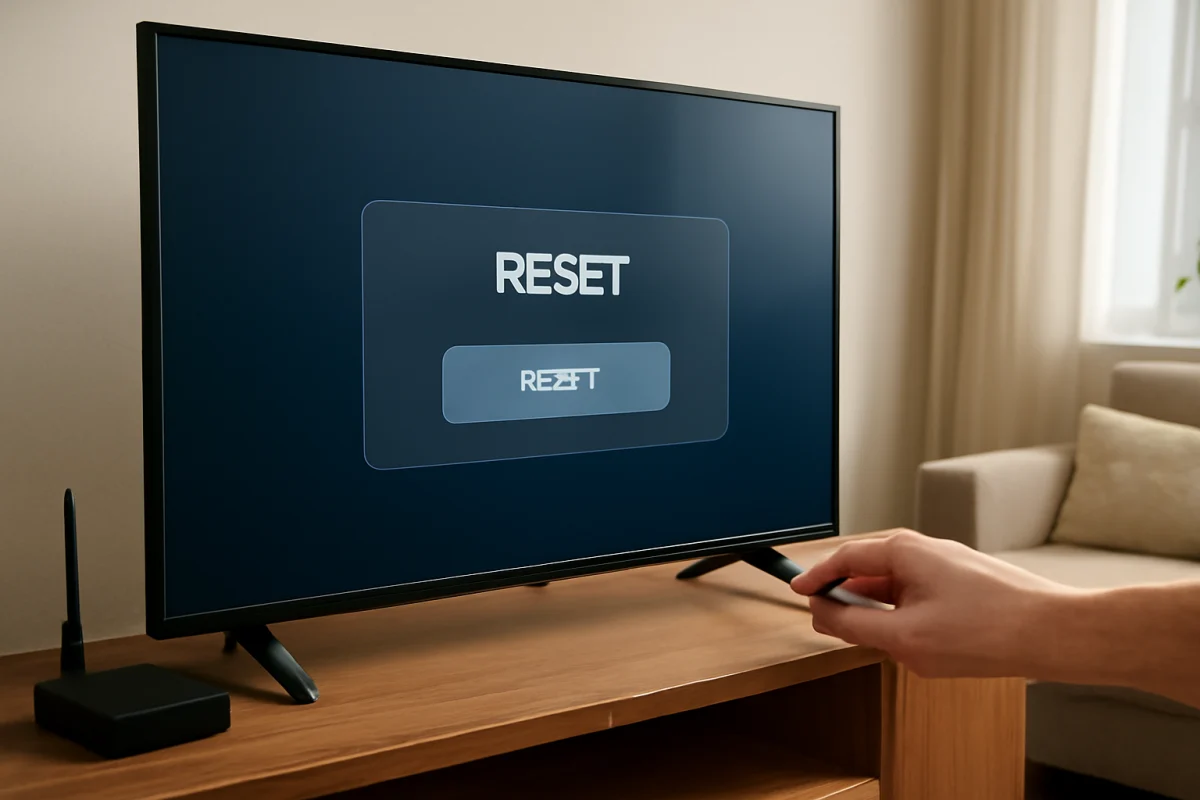
A factory reset should be a later option, not the first response to a dead power button. It can help when the TV turns on and responds to its physical controls but has a software or control-interface problem. It will usually remove some or all user settings, and the exact result varies by model.
Before resetting, make sure the remote or physical control can reliably navigate the menus and that you know your Wi-Fi password and streaming account sign-in details. If the TV will not power on at all, a factory reset cannot normally be performed through the on-screen menu. Avoid undocumented button combinations found online unless they are confirmed for your exact model, because service procedures can differ.
9. Signs the TV needs professional service
Arrange professional inspection when the TV remains completely unresponsive after testing a known-good outlet, checking the cord, trying fresh remote batteries, using the physical button, and completing a safe power reset. Service is also appropriate when the power button is physically broken, the TV repeatedly clicks without starting, or the standby indicator flashes in an unusual pattern.
Record the full model number from the label on the back or side of the television, describe what happens when you press each power control, and note whether the standby light changes. A short video of the indicator or startup behavior can help a technician. Do not open the case to look for a blown fuse or test internal boards unless you are trained and equipped to work safely with television power circuits.
What the symptoms usually indicate
- The TV turns on with the physical button: the remote, its batteries, its signal path, or its pairing is the most likely problem.
- The remote works but the TV button does not: the built-in button or control assembly may be damaged or obstructed.
- No indicator appears at any time: check the outlet, cord, power connection, and internal power system.
- The indicator changes but the screen stays dark: the TV may be starting with a display, backlight, input, or software issue.
- The TV works after unplugging it: a temporary standby or software fault may have been cleared, but recurrence should be monitored.
Start with the simplest comparison: does the TV respond to its own control, the remote, or neither? That answer usually narrows the fault more effectively than repeatedly pressing the power key. For additional brand-specific troubleshooting, visit the Skyworth TV repair section on TV Fix Guide.
Comments
0No comments yet. Be the first to share a helpful note or question.
Leave a Comment
Your email address will not be published. Comments are reviewed before appearing on the site.