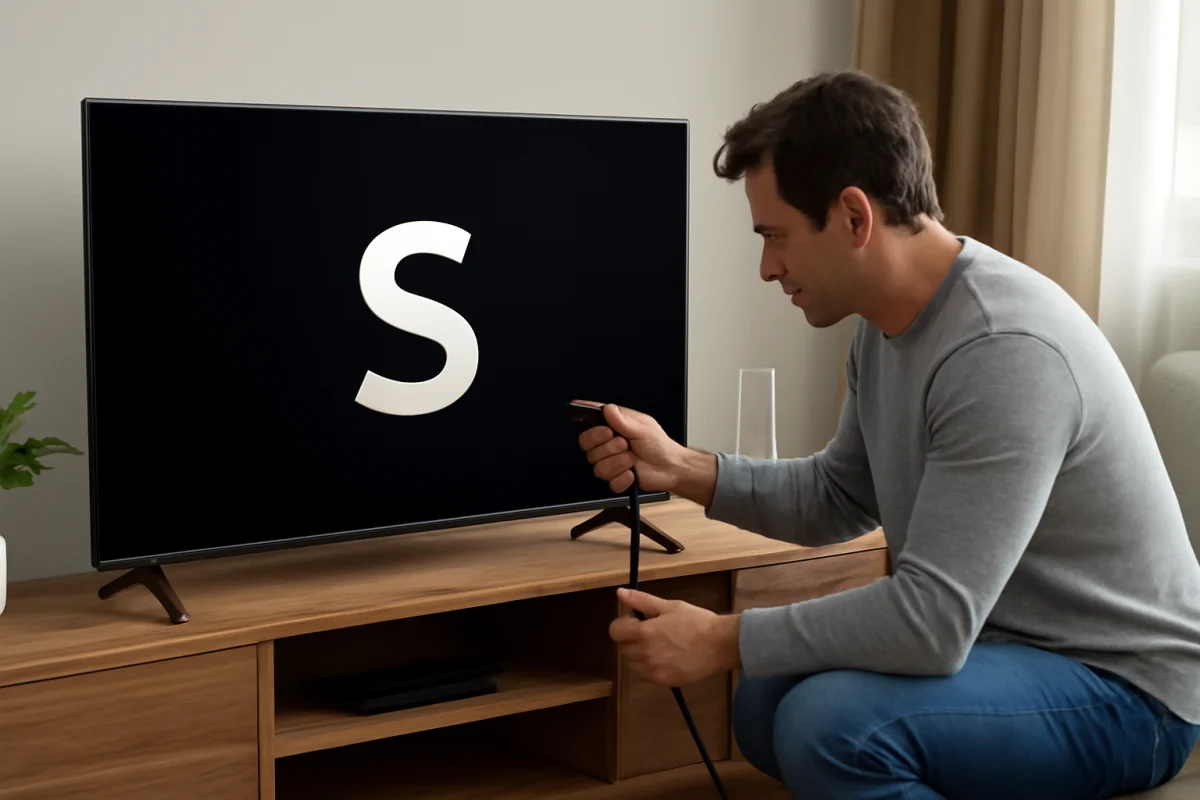
If your Skyworth TV stays on the logo and never reaches the home screen, start with a complete power reset and remove every external device. These low-risk steps often clear a temporary startup freeze. If the TV still stops at the logo, the problem may involve the remote, a connected device, software, internal storage, the power supply, or the main board.
Work through the steps below in order. Do not repeatedly unplug and reconnect the TV while it is trying to start, and do not open the television unless you are qualified to work safely with electronics.
1. Perform a full power reset
A normal restart may not clear a startup problem because the TV can retain a temporary state while it is in standby. A full power reset removes power from the set and gives its internal components a fresh start.
- Turn the TV off if it responds to the remote or the physical power button.
- Unplug the TV's power cord from the wall outlet.
- Disconnect the power cord from a surge protector or power strip if one is being used.
- Leave the TV unplugged for at least one minute.
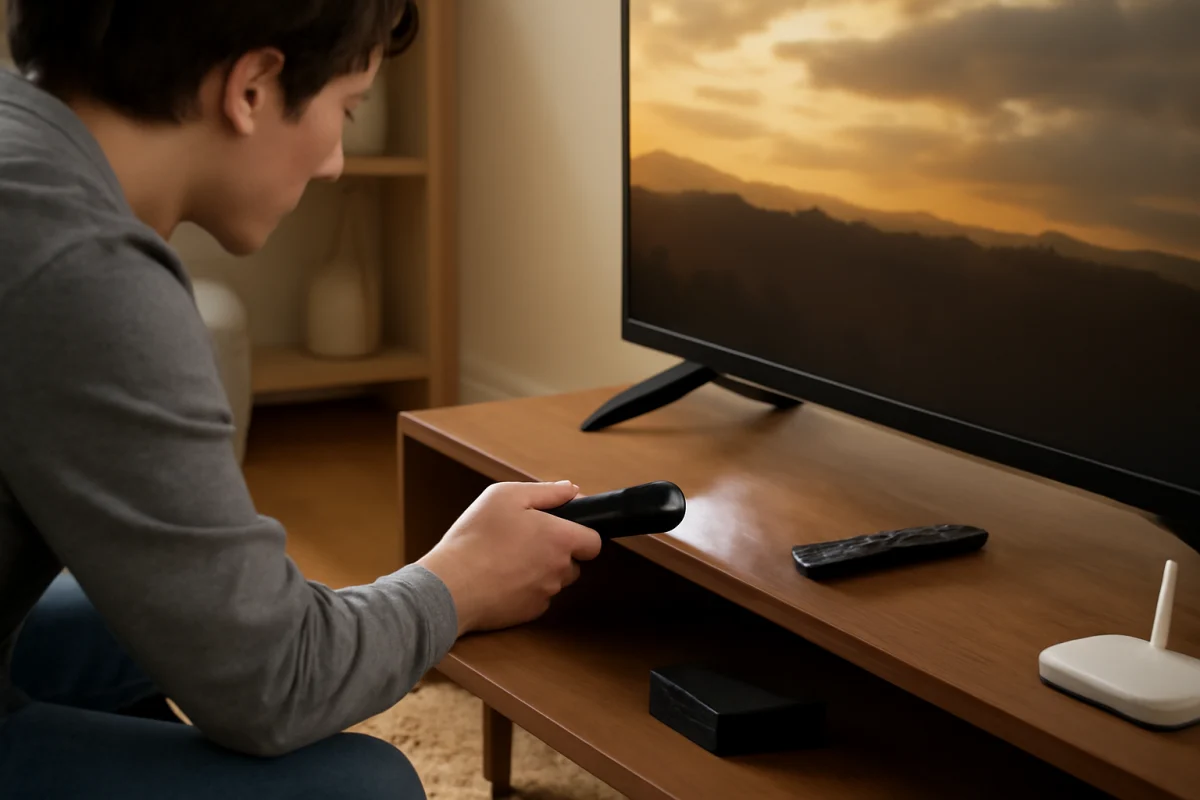
- While it is unplugged, press and hold the TV's physical power button for about 15 seconds, if the button is accessible.
- Plug the TV directly into a known-good wall outlet.
- Press the TV's physical power button once and wait several minutes for it to start.
Startup can take longer than usual after a power interruption or software problem, so avoid pressing the power button repeatedly. The location and design of the physical button vary by Skyworth model. It may be underneath the screen, on the back, or along one of the sides.
2. Remove external devices and accessories
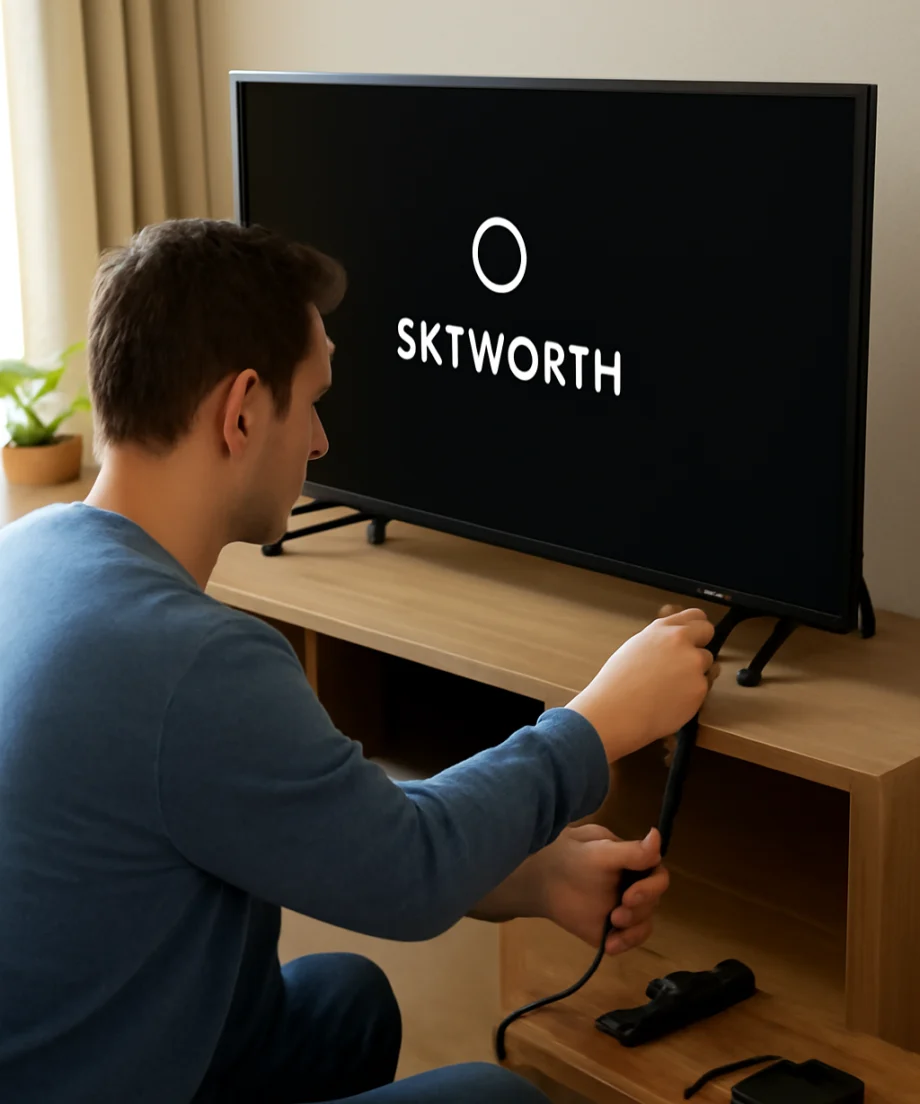
A faulty HDMI device, USB drive, soundbar, receiver, game console, or streaming stick can interfere with startup. Some TVs check connected devices while booting, and a device that is frozen or sending an unusual signal may leave the television appearing stuck.
Unplug all accessories from the TV, including:
- HDMI devices such as consoles, Blu-ray players, cable boxes, and streaming players
- USB drives and other USB accessories
- Optical audio cables and analog audio cables
- Ethernet cables
- Antenna or cable connections
- External speakers, receivers, and soundbars
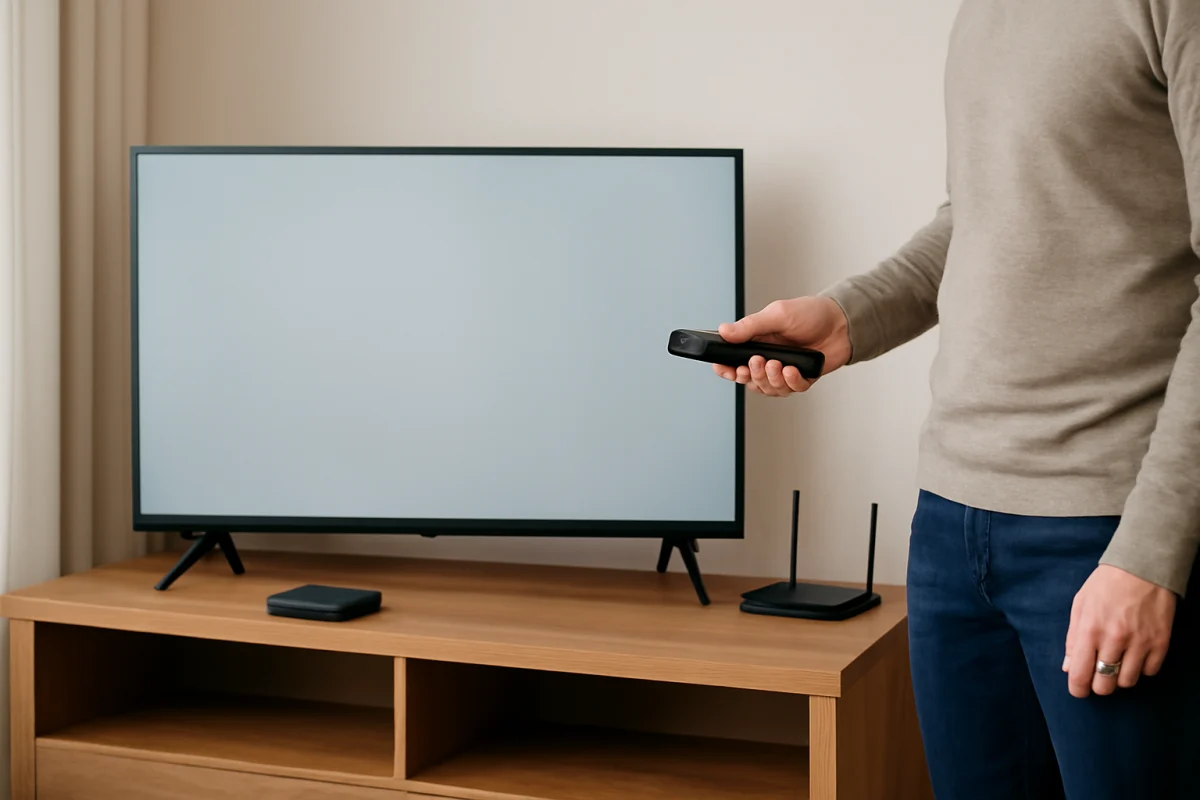
Leave only the TV's power cord connected, then perform the power reset again. If the TV starts normally, reconnect devices one at a time. Turn the TV off before reconnecting each accessory, and wait after each connection to identify which device or cable causes the problem.
If the TV starts but later freezes when a particular HDMI device is connected, try another HDMI input and another compatible cable. You can also test the external device on a different display if possible.
3. Check whether the remote is causing confusion
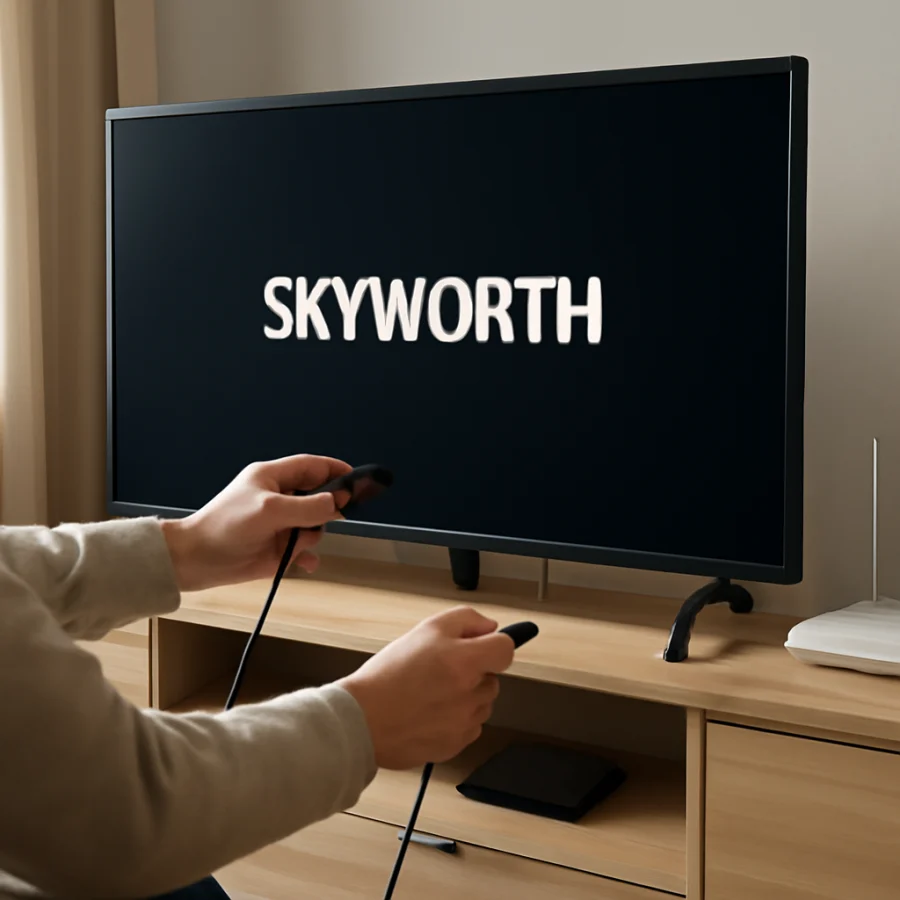
A stuck button on the remote can send repeated commands while the TV is starting. This is not the most common cause of a logo freeze, but it is easy to rule out.
Remove the batteries from the remote, then unplug and restart the TV using its physical power button. If the TV reaches the home screen without the remote batteries installed, inspect the remote for a stuck power, home, input, or navigation button. Replace the batteries if they are weak or leaking, and test the remote again only after the television has started.
If the TV remains on the logo with the remote completely removed from the situation, the remote is unlikely to be the cause.
4. Check the power connection
Unstable power can prevent a TV from completing its startup sequence. Inspect the power cord for cuts, crushed sections, exposed wires, melted areas, or loose connections. Do not use a damaged cord.
Test the wall outlet with a lamp or another small appliance. If the outlet is controlled by a wall switch, make sure the switch remains on. For troubleshooting, connect the TV directly to the wall instead of using a surge protector, extension cord, smart plug, or power strip.
If the TV repeatedly turns off, clicks, flashes its standby light, or restarts before returning to the logo, disconnect it and stop testing if you notice a burning smell, smoke, unusual heat, or buzzing. Those symptoms can indicate an electrical fault and require professional attention.
5. Look for signs that the TV is still responding
Pay attention to what happens when the TV is stuck. Is the screen completely frozen, or does it briefly go black and return to the logo? Does the standby indicator change? Can you adjust the volume? Does the physical power button respond? These details help separate a software freeze from a power or hardware problem.
Try pressing the volume buttons on the TV itself rather than the remote. If you hear sound, see a response, or notice the indicator changing, the display may be working while the operating system is having trouble completing startup. If nothing responds and the TV repeatedly cycles through the logo, an internal fault becomes more likely.
Do not assume that a blinking light has one universal meaning. Indicator behavior varies by model, and Skyworth TVs do not all use the same startup or diagnostic patterns. Record a short video of the behavior and note how long the TV remains on the logo before changing.
6. Disconnect the network temporarily
In some cases, a TV can stall while attempting to reconnect to a network or resume an online service. This is less likely than a power or accessory issue, but it is simple to test if your Skyworth TV is connected by Ethernet.
Unplug the Ethernet cable, if present, and restart the TV with no external devices connected. If the TV uses Wi-Fi only, you may not be able to disconnect it until the home screen appears. Do not reset your router as the first response; a router reset will not repair a TV that cannot complete its own startup process.
If the television eventually starts after several attempts, check for system updates using the menus available on that specific model. Menu names and update procedures vary, so use the TV's documentation or Skyworth's official support resources for model-specific instructions.
7. Give the TV time after an interruption
If the problem began immediately after a power outage, an interrupted update, or a recent change to the TV's settings, allow the set a little extra time to start after one complete power reset. Do not unplug it repeatedly during this period.
However, do not leave a TV running indefinitely if it remains on the logo for a long time, gets unusually hot, or repeatedly restarts. There is no single startup time that applies to every Skyworth model. If the behavior does not change after the basic checks, move on to model-specific recovery options rather than guessing.
8. Consider a factory reset only when necessary
A factory reset can resolve corrupted settings or certain software problems, but it erases personal settings and may remove saved apps, accounts, network details, and preferences. It should not be the first step.
Use a reset only if you can reach the appropriate settings or recovery option for your exact model and you understand what information will be erased. Skyworth models may use different menus, button combinations, or recovery procedures. Do not apply instructions written for a different screen size, operating system, or model family just because the TV has the same brand name.
If the TV never gets beyond the logo, you may need model-specific recovery instructions. Find the full model number on the label on the rear of the TV, in the original paperwork, or on the purchase record. Then consult the manual or official support information for that exact model. Avoid downloading firmware from unofficial websites or using a file intended for another model. Incorrect firmware can make the problem worse.
9. When a hardware repair may be needed
If the TV remains stuck on the logo after a direct-wall power reset, with all accessories removed, the fault may be inside the television. Possible causes include a failing power board, main board, internal storage, memory component, or another circuit involved in startup. A damaged panel is less likely to be the direct cause of a logo freeze, although display symptoms can occur at the same time as an internal failure.
Hardware trouble is more likely when the TV:
- Restarts in a continuous loop
- Shows a logo briefly and then goes black
- Has a standby light that behaves unusually for that model
- Produces clicking, buzzing, or burning smells
- Stopped working after a power surge, lightning event, liquid exposure, or physical impact
- Was already freezing or taking longer to start before the logo problem began
Unplug the TV and arrange a diagnosis if it shows any sign of electrical damage. Do not remove the back cover unless you have the training and equipment to do so. TVs can contain components that retain dangerous electrical charge even after they are unplugged.
What information to give a repair technician
Before requesting service, write down the full model number, approximate age of the TV, and what happened immediately before the failure. Mention whether the problem began after an outage, update, new HDMI connection, or change in network equipment. Also report whether the TV has sound, whether the logo stays still or loops, and whether the physical buttons respond.
These details can prevent unnecessary part replacements and help a technician determine whether the problem is likely related to software, power, or the main board. If the TV is still under a retailer or manufacturer service arrangement, check the applicable documentation before opening it or paying for parts.
Start with the safest fix
For most Skyworth TVs stuck on the logo, the best starting sequence is straightforward: unplug the television, hold its physical power button while it is disconnected, reconnect it directly to a wall outlet, and try starting it with every HDMI, USB, network, and audio accessory removed. Test the remote separately and watch for signs of electrical trouble.
If those steps do not change the behavior, avoid random button combinations and unofficial firmware files. Use the exact model number to find the correct recovery instructions, or have the TV inspected by a qualified technician. For more brand-specific troubleshooting, visit the Skyworth TV repair guide on TV Fix Guide.
Comments
0No comments yet. Be the first to share a helpful note or question.
Leave a Comment
Your email address will not be published. Comments are reviewed before appearing on the site.