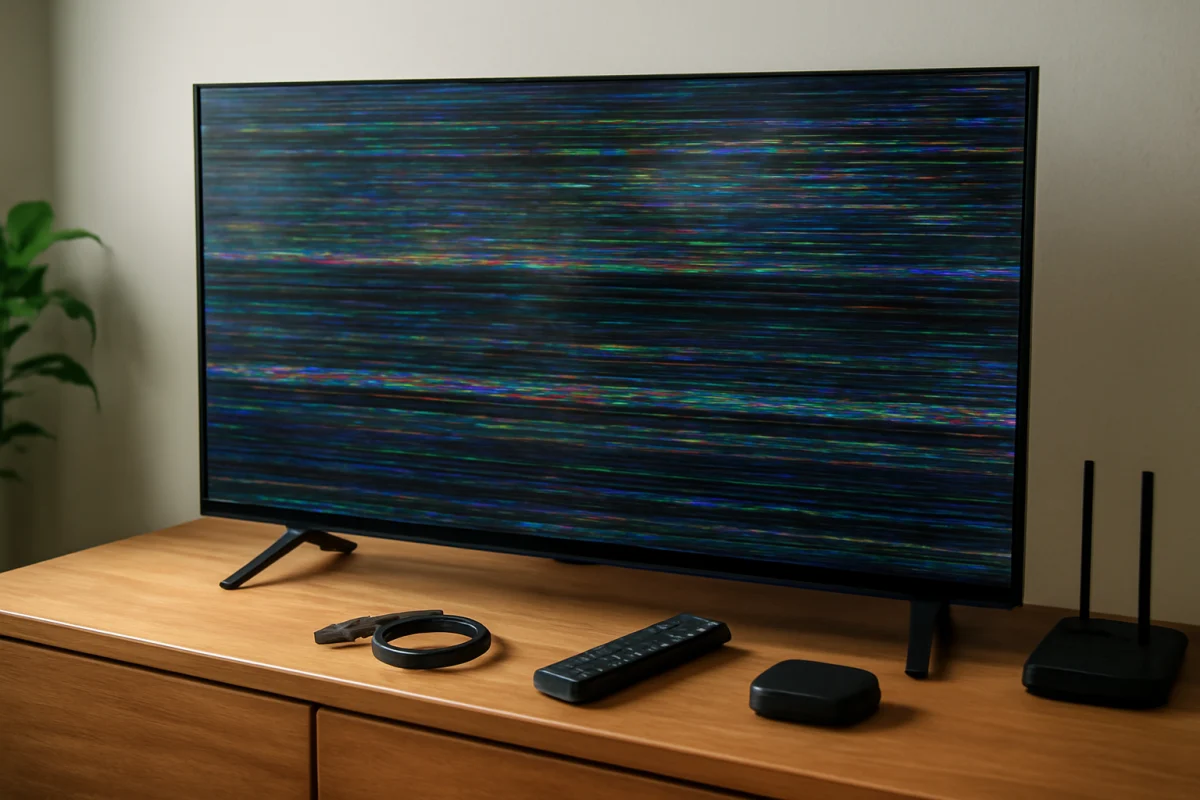
A Samsung TV that is glitching may flicker, freeze, restart, display horizontal or vertical lines, show blocks or distorted colors, or respond slowly to the remote. Start by identifying whether the problem appears everywhere or only in one app, input, channel, or connected device. That distinction usually points to the cause and helps you avoid unnecessary resets.
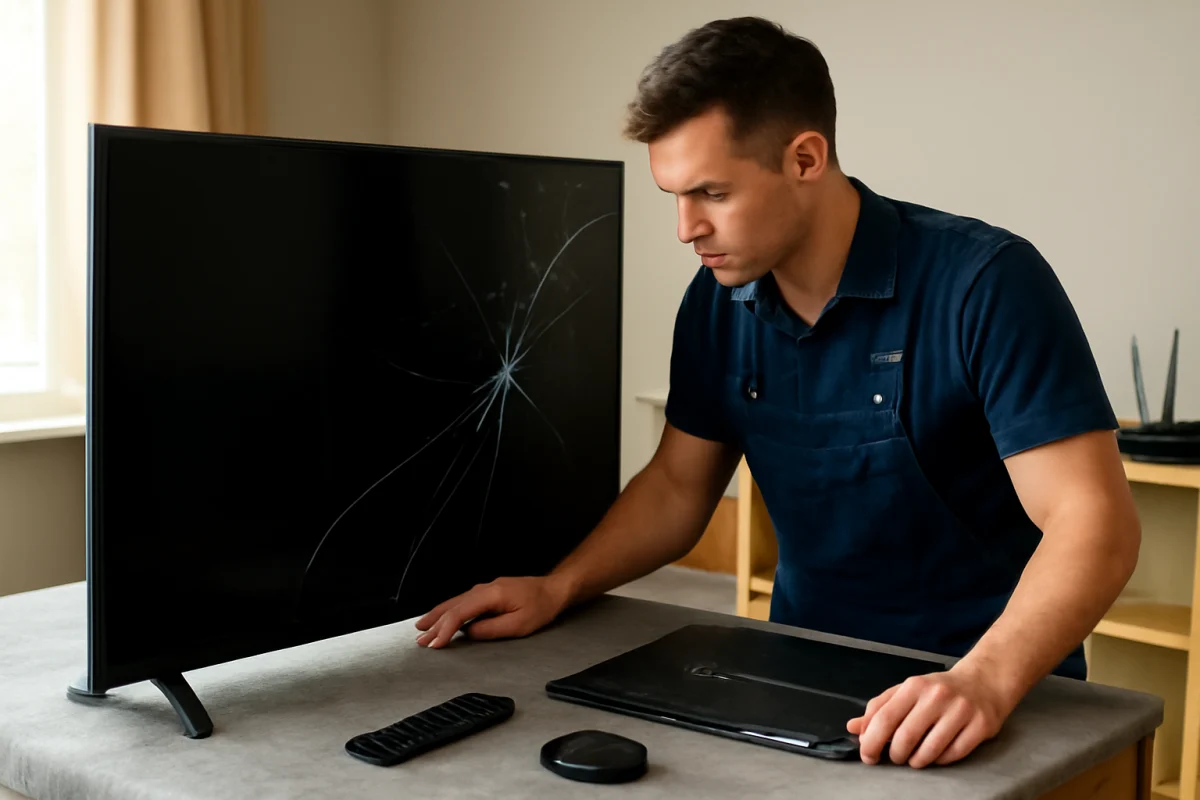
Begin with the low-risk checks below. Do not open the TV or attempt internal repairs. If the screen is physically cracked, smells burned, becomes unusually hot, or makes repeated popping sounds, unplug it and arrange professional service.
First, check when the glitch appears
Watch for a pattern before changing settings. Does the problem appear on the TV's home screen, in every app, or only while using a game console? Does the picture recover after a few seconds, or does the TV keep restarting? These details help separate a display problem from an HDMI, network, app, or power issue.
- Only one app glitches: The app, its data, the network, or the TV's available storage may be involved.
- Only one HDMI device glitches: Check the cable, source device, input, and any receiver or soundbar between the device and TV.
- The home screen and all sources glitch: The TV software, power delivery, display hardware, or main board may be involved.
- The picture glitches but sound continues: The display path, backlight, panel, or video processing may need closer inspection.
- The TV restarts or turns off: Check power connections, overheating, software behavior, and connected devices.
Power-cycle the TV and connected equipment
A complete power cycle can clear a temporary software or communication fault. Turn the TV off, then unplug it from the wall. Disconnect external devices such as streaming sticks, game consoles, cable boxes, receivers, and USB accessories. Leave the TV disconnected for at least one minute.
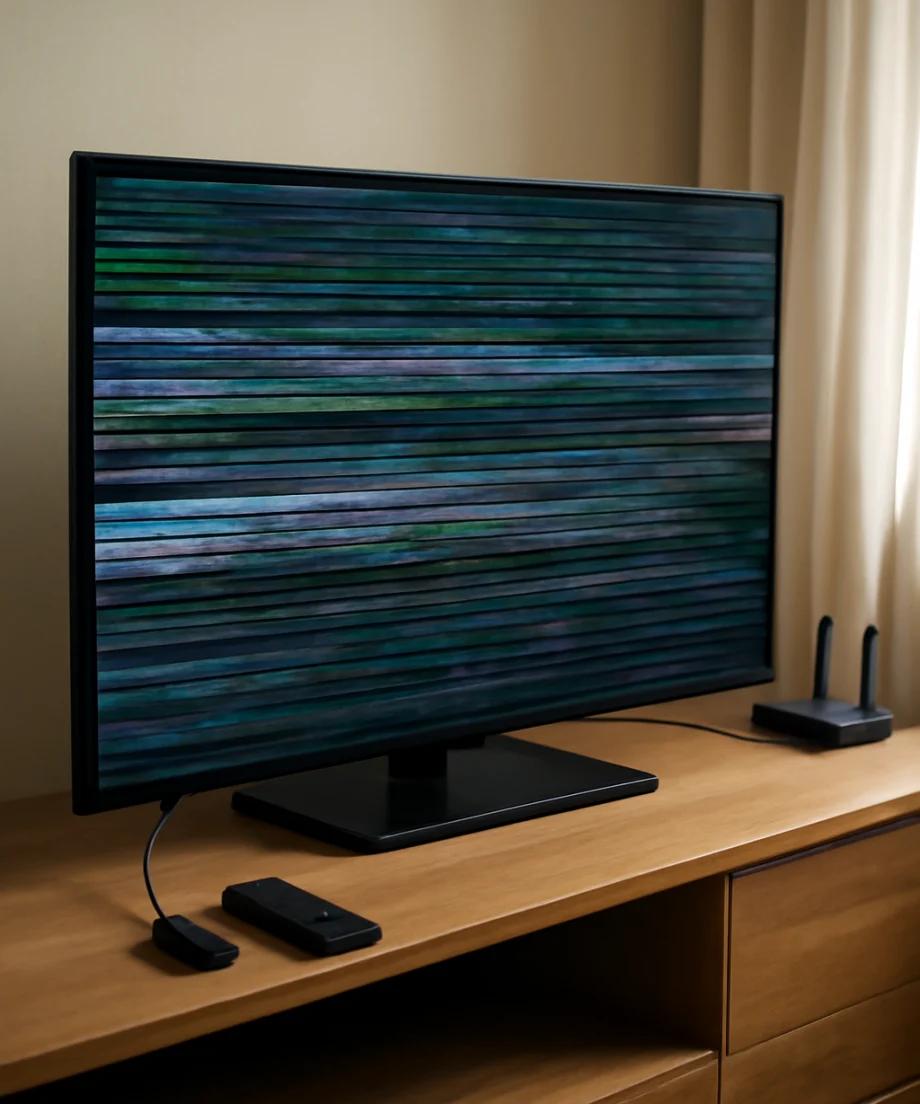
While it is unplugged, press and hold the TV's physical power button for several seconds if your model has one. This may help discharge residual power, although the button location and behavior vary by model. Plug the TV directly into a known-good wall outlet, turn it on, and test the home screen before reconnecting other equipment.
If the glitch returns only after you reconnect one device, that device or its cable is a strong suspect. Reconnect equipment one item at a time so you can identify which connection triggers the problem.
Inspect HDMI cables and external devices
Loose or damaged HDMI connections can cause flickering, brief black screens, sparkles, missing colors, or a picture that repeatedly drops out. Turn off the TV and source device, then firmly reconnect both ends of the HDMI cable. If possible, test a different HDMI cable and a different HDMI input on the TV.
Temporarily connect the source directly to the TV. If the signal normally passes through a soundbar, AV receiver, HDMI switch, or capture device, bypass that equipment during testing. A problem that disappears with a direct connection may be caused by the intermediate device or its settings rather than the Samsung TV.
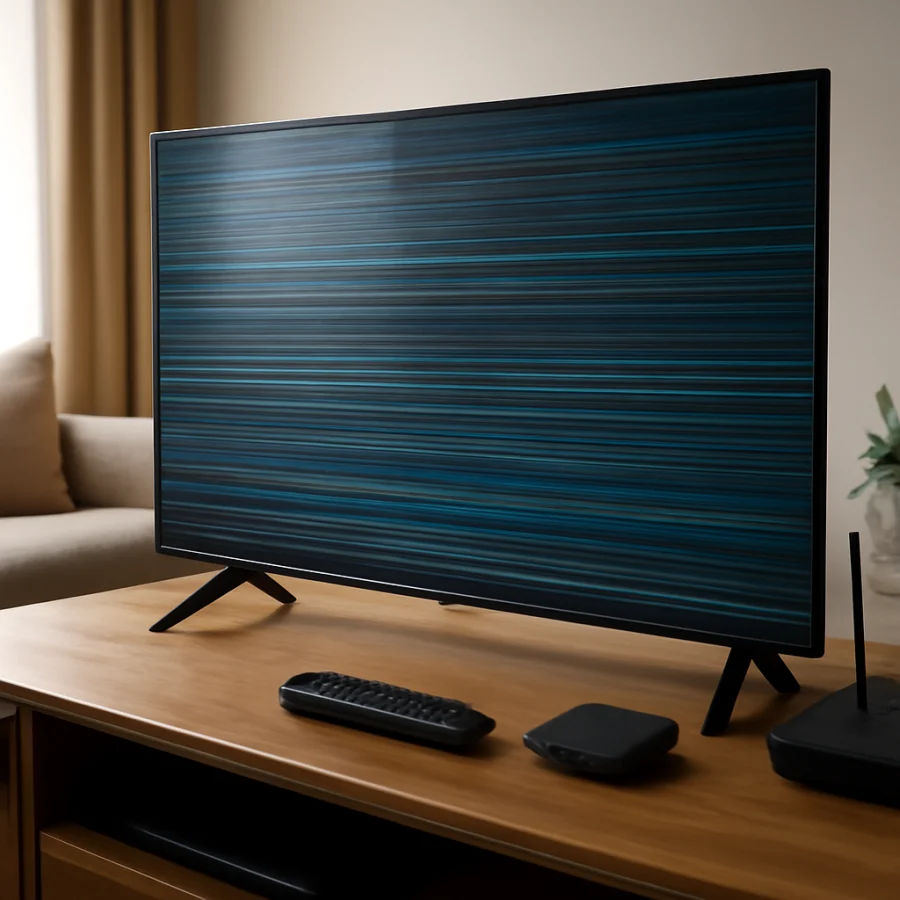
Also test the TV's built-in apps or another source. If built-in content is stable but a console or cable box glitches, focus on that source, its output resolution, refresh behavior, cable, and connection path. For a console-related no-signal problem, see these Samsung TV HDMI diagnostic steps.
Check whether heat or ventilation is involved
Excess heat can contribute to freezing, slow menus, random restarts, or picture problems. Make sure the ventilation openings are not blocked by a wall, cabinet, fabric, or nearby equipment. Do not place a streaming device or cable box directly against the back of the TV if it adds heat.
Turn the TV off and allow it to cool naturally. Do not use a hair dryer, compressed air held too close to the vents, or other methods that could force dust deeper into the set. If the TV becomes hot again quickly, shuts down repeatedly, or behaves worse after extended use, stop testing and seek service.
Test the picture without changing many settings
Picture processing can make motion appear unstable or create trails, flicker, or unusual sharpness. Look through the TV's picture settings for an option that restores picture settings to their default values. The exact menu names and available options vary by Samsung model, software version, and region.
Before changing anything, note your current settings. Then test with a simpler picture mode and temporarily disable extra motion, noise-reduction, contrast, or dynamic processing options if your TV provides them. You do not need to change every setting at once. Make one change, test the same content, and reverse it if the picture becomes worse.
If sports or fast-moving scenes look especially distorted while menus and still images are normal, motion processing may be contributing to the issue. Our guide to Samsung picture settings for sports and fast motion explains how to approach those adjustments without guessing.
Check the network when apps freeze or buffer
Network instability can look like glitching when an app pauses, drops video quality, displays a blank frame, or returns to the home screen. Test more than one app and compare the TV with a phone or computer on the same Wi-Fi network.
Restart the router and modem according to the provider's normal procedure, then wait for the connection to return before testing the TV. If the TV is far from the router, interference or weak signal strength may be involved. A wired connection, when available and practical, can help determine whether Wi-Fi is the cause.
Do not assume a network issue is responsible for lines or distortion on the TV's own menus. Network problems affect streaming content, but they generally do not create physical-looking artifacts on the home screen. For repeated connection drops, see this guide to Samsung TV Wi-Fi disconnections.
Update the TV software carefully
Samsung TV software can vary by model, and update instructions or menu labels may not be identical. If the TV remains stable long enough, check its support or software-update area using the wording shown on your screen. Use only software intended for the exact model, and do not turn off the TV during an update.
If the TV cannot stay on long enough to complete an update, do not repeatedly interrupt the process. Check the model information on the TV label or in its system information and use Samsung's official support resources for model-specific instructions. Avoid firmware files from unofficial sources.
Clear app problems without resetting the whole TV
If only one streaming app freezes, crashes, or shows corrupted video, close it and reopen it after the power cycle. Check whether other apps work normally. If the issue remains limited to that app, look for the TV's available options to update, reinstall, or remove the app. Menu names and app-management steps vary by model.
Limited storage can also make apps behave poorly. Remove unused apps only if you are comfortable signing in again afterward, since deleting an app may remove its local data. You can find more targeted steps in our guide to Samsung TV apps that freeze, crash, or refuse to open.
Check the remote and physical controls
Sometimes the TV is not displaying a picture fault; it is receiving unwanted commands or failing to process input correctly. Remove the remote batteries for a moment and test the TV's physical controls or a compatible alternate remote. Look for a stuck button, liquid damage, or interference from another remote in the room.
If the TV works normally after removing the remote batteries, replace the batteries and pair or reset the remote according to the instructions for your model. Do not assume every Samsung remote uses the same pairing method. Our guide to a Samsung TV remote that will not pair covers the common checks.
When a factory reset may be appropriate
A factory reset should be a later step, not the first response. It removes personal settings and may sign you out of apps, erase network information, and require the TV to be set up again. Consider it only after you have tested the power, cables, external devices, app behavior, and software options.
If you choose to reset the TV, use the reset option provided in its own settings and follow the on-screen instructions. The location and wording can differ by model. Do not unplug the TV while the reset is in progress. Afterward, test the TV with its built-in menus before reinstalling apps or reconnecting every external device.
Signs the glitch may be hardware-related
Hardware becomes more likely when lines, blocks, flickering, or discoloration appear on the Samsung logo, home screen, built-in menus, and every input. A persistent dark screen with sound, sections of the display that remain black, or artifacts that worsen as the TV warms up also deserve professional evaluation.
Take a short video of the problem and note when it occurs, which sources you tested, and whether a power cycle changed anything. This information can help a technician avoid repeating basic tests. Do not remove the back panel: televisions can retain dangerous electrical charges even when unplugged, and panel or board repairs require specialized equipment.
What to do if the problem keeps returning
Reconnect the TV one device at a time and keep a simple record of the result. If the glitch follows one HDMI device, replace or isolate that device and cable. If it follows one app, focus on the app and network. If it affects every source, including the TV menus, arrange model-specific support rather than repeatedly resetting the set.
These steps can resolve temporary software, connection, and configuration problems while also showing when the fault is beyond safe home troubleshooting. A Samsung TV that continues glitching after direct-source testing, cooling, power cycling, and a careful software check may need a qualified repair assessment.
Comments
0No comments yet. Be the first to share a helpful note or question.
Leave a Comment
Your email address will not be published. Comments are reviewed before appearing on the site.