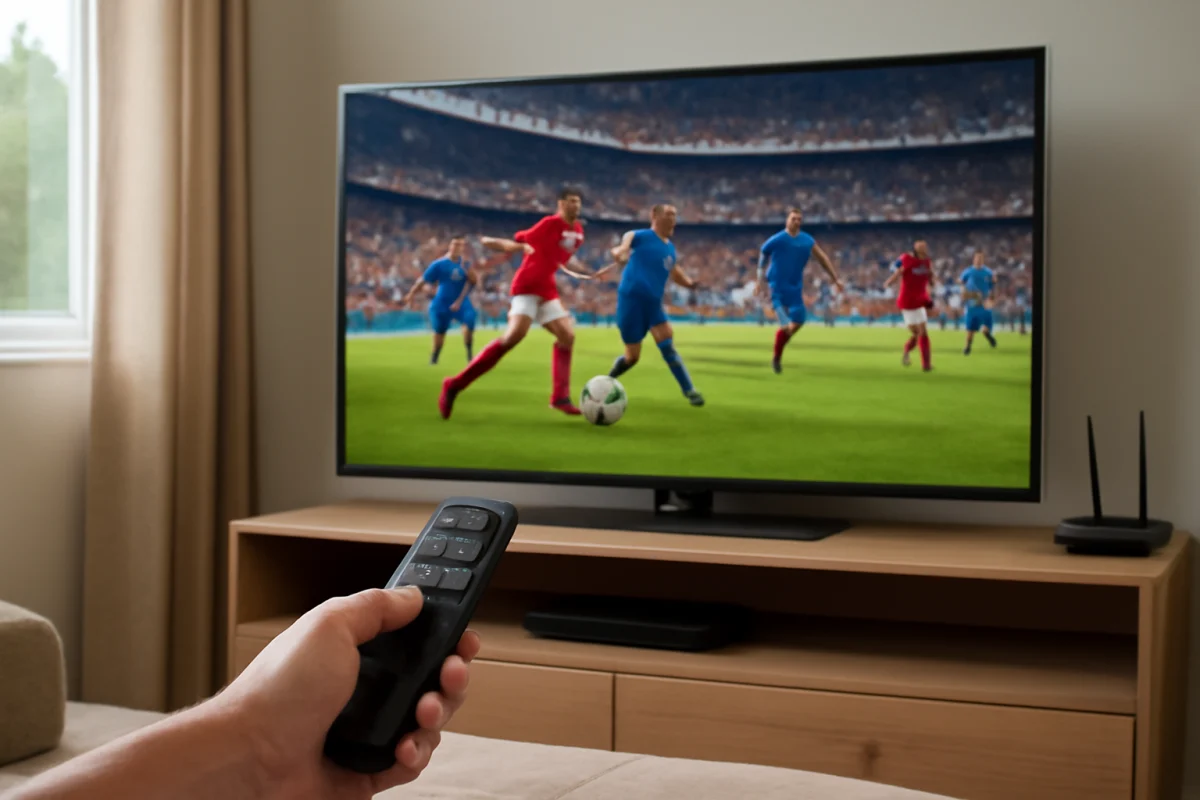
For clearer sports and fast motion on a Samsung TV, start with a suitable picture mode, enable the TV’s motion-processing controls carefully, and turn off settings that exaggerate blur or create distracting artifacts. The best setup depends on whether you are watching through a cable box, streaming app, antenna, game console, or another HDMI device, so test the settings with the actual source you use most.
There is no single setting combination that works perfectly for every Samsung TV. Menu names, available controls, and the effect of each option can vary by model, screen type, software version, and source. Make one change at a time and compare it with the original picture before changing anything else.
Start with the source and picture mode
Before adjusting advanced settings, check whether the problem is caused by the video source rather than the TV. A low-quality broadcast, unstable stream, crowded Wi-Fi connection, or poorly configured cable box can make motion look soft or uneven. Open a different sports channel or app, and compare live content with a prerecorded video. If only one source looks poor, the TV may not be the main problem.
On the Samsung TV, open the picture settings from the main settings menu. The exact path and wording vary, but look for options related to Picture, Picture Mode, Expert Settings, or Motion. Begin with a standard or movie-oriented picture mode if the image looks excessively bright, oversharpened, or artificial. Some TVs also offer a dynamic or vivid mode. These modes can make a brightly lit room look more energetic, but they may exaggerate halos around players, wash out details, or make the picture tiring to watch.
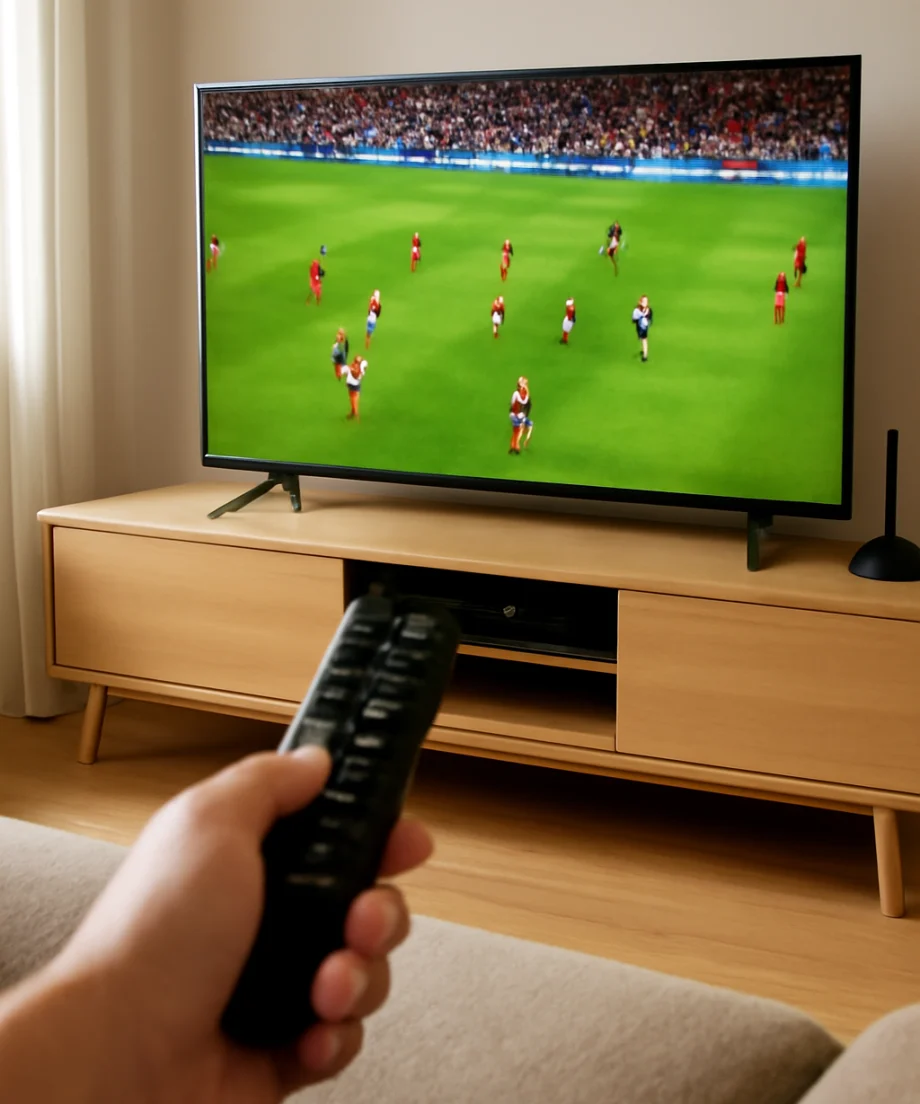
For a daytime sports setup, a standard mode can be a reasonable starting point. For a darker room, a more restrained mode may provide more natural colors and less eye strain. If the TV has a dedicated sports mode, try it, but do not assume it is automatically best. Preset modes often change several controls at once, and a custom setup may look better after a few small adjustments.
Adjust motion processing carefully
Motion processing is usually the most important area for sports. It can reduce visible blur during camera pans, quick passes, and players crossing the screen. Samsung TVs may place these controls under a Motion, Picture Clarity, or similar section, but the name and available options differ across models.
Look for a setting that lets you adjust motion clarity manually rather than simply choosing an automatic preset. If the TV provides separate controls for blur reduction and judder reduction, increase them gradually and watch a live game for several minutes. A moderate setting is often a safer starting point than maximum processing.
What the motion controls do
- Blur reduction: This generally targets softness caused by fast-moving objects. Increasing it may make players and the ball appear more defined, although the result depends on the panel and video source.
- Judder reduction: This generally targets uneven motion in lower-frame-rate video or content converted from film. Too much can create a highly processed appearance or make movement look unnaturally smooth.
- LED or backlight-based motion options: Some models use a blinking or scanning backlight to improve perceived motion clarity. This may reduce brightness and can bother viewers who notice flicker, so use it only if the result is comfortable.
- Automatic motion settings: These may adjust processing based on the content. They are convenient, but manual settings make it easier to identify which change is helping.
If fast-moving players develop strange outlines, shimmering edges, broken-looking limbs, or a brief double image, reduce the motion settings. These artifacts are often a sign that the processor is working too aggressively, not that the TV needs a higher sharpness setting.
Set brightness, contrast, and backlight for the room
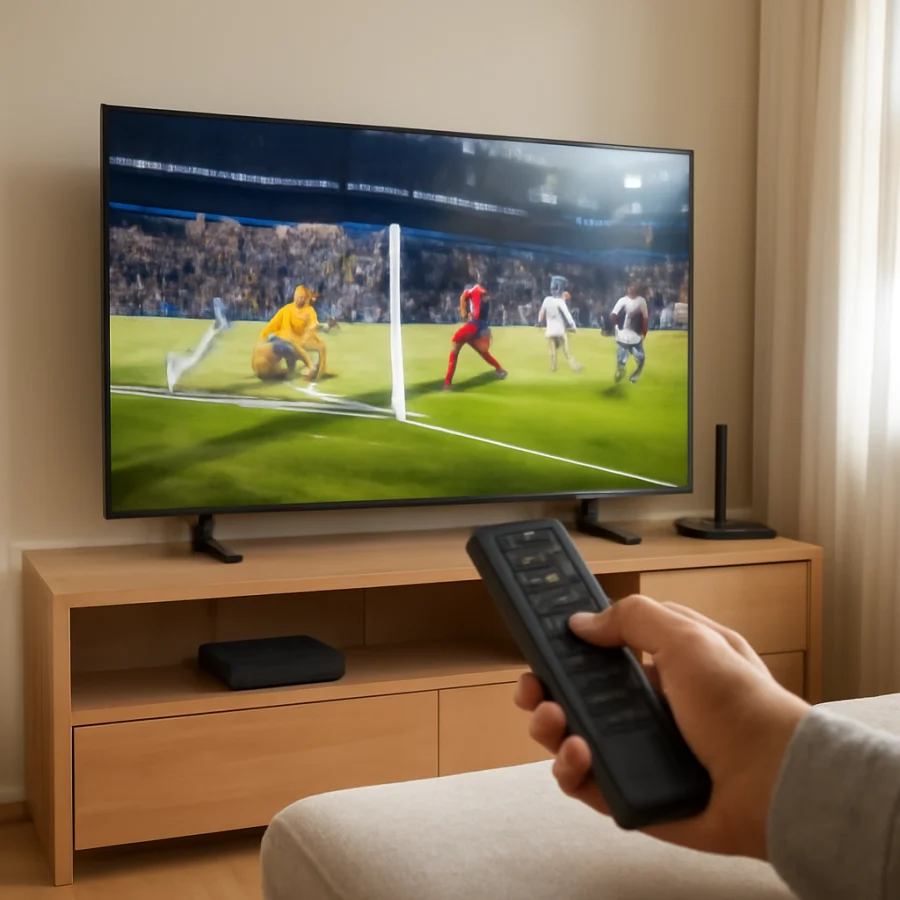
Motion can appear worse when the screen is too dim or too bright. In a bright room, increase the TV’s overall brightness or backlight-related control only enough to overcome reflections. In a dark room, lower it to avoid eye fatigue. The names vary by Samsung model, and some newer displays use a separate panel-light control instead of a traditional backlight setting.
Do not raise contrast to its maximum just to make the picture look more vivid. Excessive contrast can remove detail from bright uniforms, clouds, ice, or stadium lights. Use a scene with white jerseys or bright field markings and reduce the setting if those areas look like flat, featureless patches.
Brightness affects shadow detail. If dark uniforms blend into the background, raise it slightly. If the black areas look gray and washed out, lower it slightly. Make these changes while watching the same scene because different broadcasts can have very different levels.
Automatic brightness or ambient-light features can be useful in a room that changes throughout the day, but they may also make the picture shift during a game. If the screen repeatedly becomes brighter or darker and you find that distracting, test the TV with that automatic feature disabled. Whether the option is available depends on the model and viewing mode.
Keep color and sharpness under control
Sports broadcasts often use saturated team colors, green fields, bright courts, and intense arena lighting. If the colors look exaggerated, reduce color intensity slightly rather than changing multiple color controls at once. Skin tones are a useful reference: players’ faces should not look unusually red, orange, or gray.
Sharpness does not usually solve motion blur. Raising it too far can add bright outlines around players, field markings, and score graphics. Start with a low or moderate value and compare it with the original setting. If fine text in a scoreboard looks fuzzy, first check the source quality and motion processing before increasing sharpness.
Some Samsung TVs include additional clarity, contrast enhancement, noise reduction, or detail-processing options. These features can help with a weak broadcast, but they can also soften the image or create texture around moving objects. Test them individually. For a high-quality streaming source or modern console, turning unnecessary processing down may produce a cleaner result.
Use the right setting for a cable box, streaming app, or console
Samsung TVs may save picture adjustments separately for different inputs or content types. A setting that looks good in a built-in app may not carry over to a cable box connected through HDMI. After making changes, test the device you actually use for sports and confirm that the settings apply to that input.
For a cable or satellite box, check the box’s output resolution and picture format if the image looks soft. Use the highest stable output supported by both devices, but avoid repeatedly changing formats while diagnosing the problem. If the broadcast itself is low resolution, the TV cannot recreate missing detail.
For streaming apps, verify that the stream is not dropping quality because of a slow or unstable connection. A lower-quality stream can look blurry during wide shots and fast pans. If other devices also have network problems, check the Wi-Fi and network troubleshooting guides before adjusting the TV’s picture controls further.
For a console, use a low-latency or game-oriented picture setting when available. Motion smoothing can add delay, so compare the game with motion processing reduced or disabled. If the issue is a blank screen, flickering signal, or unstable HDMI connection rather than motion blur, use the steps in this guide to diagnose a Samsung TV HDMI connection.
Reduce input lag without sacrificing sports quality
Input lag matters mainly for gaming, not ordinary sports viewing. If you watch sports through a console or interactive device, a low-latency setting may make controls feel more responsive. The tradeoff is that some picture processing may be limited or disabled.
For live TV and streaming, you can usually prioritize the picture appearance. For gaming, prioritize responsiveness and then add only the processing that does not introduce noticeable delay or artifacts. Samsung’s available options vary, so use the TV’s on-screen descriptions where provided.
Check the broadcast before changing advanced settings
If the ball disappears, the players smear, or the entire picture stutters, compare several channels and sources. A single broadcast may have poor camera motion, compression, or an inconsistent frame rate. Check a built-in app, a different channel, and a prerecorded sports clip.
Also inspect the TV’s signal information if your model provides it. Weak antenna reception can cause interruptions and blocky video. A congested home network can reduce streaming quality. HDMI cables and external devices can also cause intermittent picture problems, although they are less likely to be responsible for ordinary motion blur when the picture remains stable.
Save a comfortable sports profile
Once you find settings that look good, write them down or photograph the menus before experimenting further. Some Samsung TVs let you apply picture settings to the current input or to all inputs. Choose carefully: applying one profile everywhere may make a console, cable box, and streaming app look different from what you intended.
A practical starting profile is a moderate picture mode, moderate brightness for the room, restrained sharpness, natural color, and low-to-medium motion processing. Then adjust based on the problem you actually see. Increase blur reduction if moving players remain soft. Decrease judder reduction if movement looks artificial. Lower sharpness if you see outlines. Turn off extra processing if the picture contains halos or shimmering.
When resetting the picture settings makes sense
If several adjustments have made the image worse and you no longer know what changed, use the picture reset option for the current mode or input if your TV provides one. A picture reset is generally less disruptive than a full TV reset because it should affect visual settings rather than apps, network connections, or account information. Confirm the on-screen prompt before proceeding, since the available reset behavior varies by model.
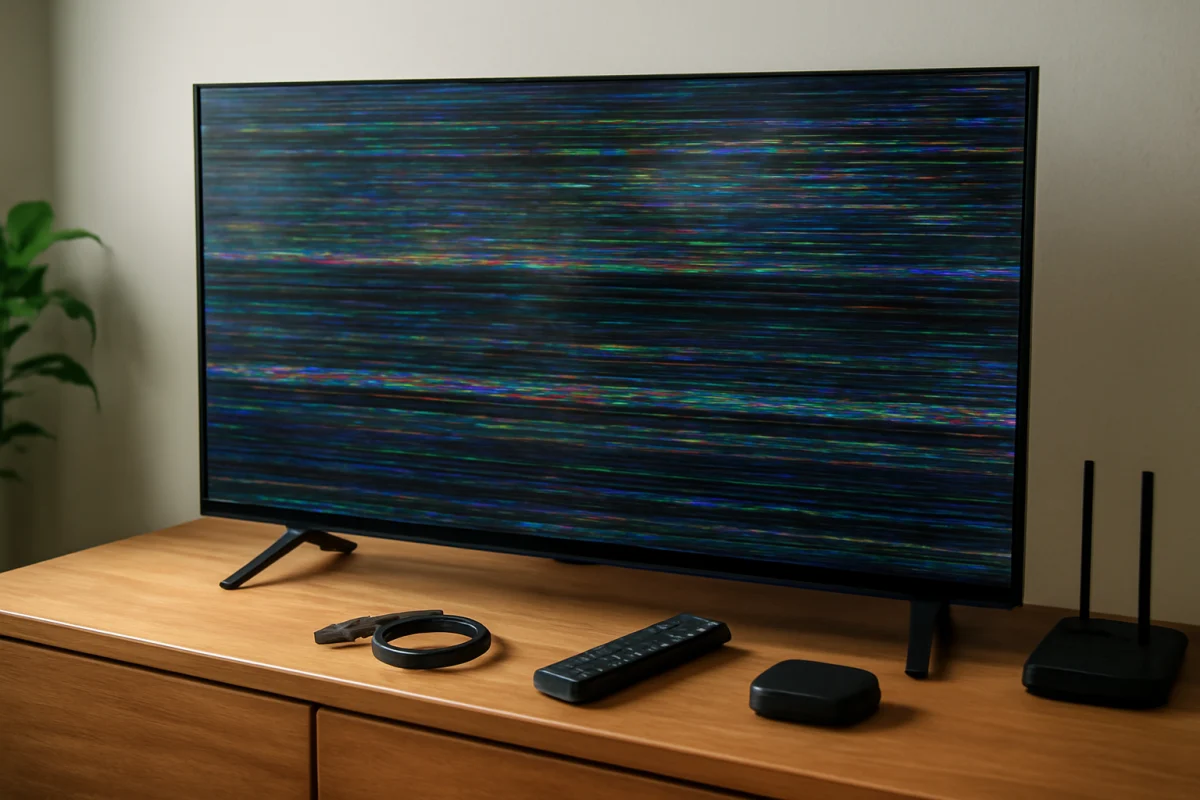
After the reset, test one source and make changes slowly. If motion remains poor across every source, the screen flickers, or the picture contains persistent lines or large areas of distortion, stop changing settings and inspect the TV, connected devices, and cables. Hardware problems cannot be corrected with picture adjustments. For related Samsung troubleshooting, visit the Samsung TV troubleshooting section or browse the broader picture and sound guides.
Comments
0No comments yet. Be the first to share a helpful note or question.
Leave a Comment
Your email address will not be published. Comments are reviewed before appearing on the site.