Samsung TV connection problems usually come from one of four places: the TV, the home network, the connected device, or the cable between them. Start by identifying what is failing. If the TV cannot connect to Wi-Fi, focus on the network and TV network settings. If an HDMI device is missing, check the input, cable, and source device. If only one app is affected, the internet connection may be fine and the problem may be limited to that app.
Before resetting the TV or changing advanced settings, turn off the affected devices, check the cables, and test another connection. These low-risk checks often solve the problem without removing apps, picture settings, or saved network information.
First, identify the type of connection problem
Use the symptom to narrow down the cause:
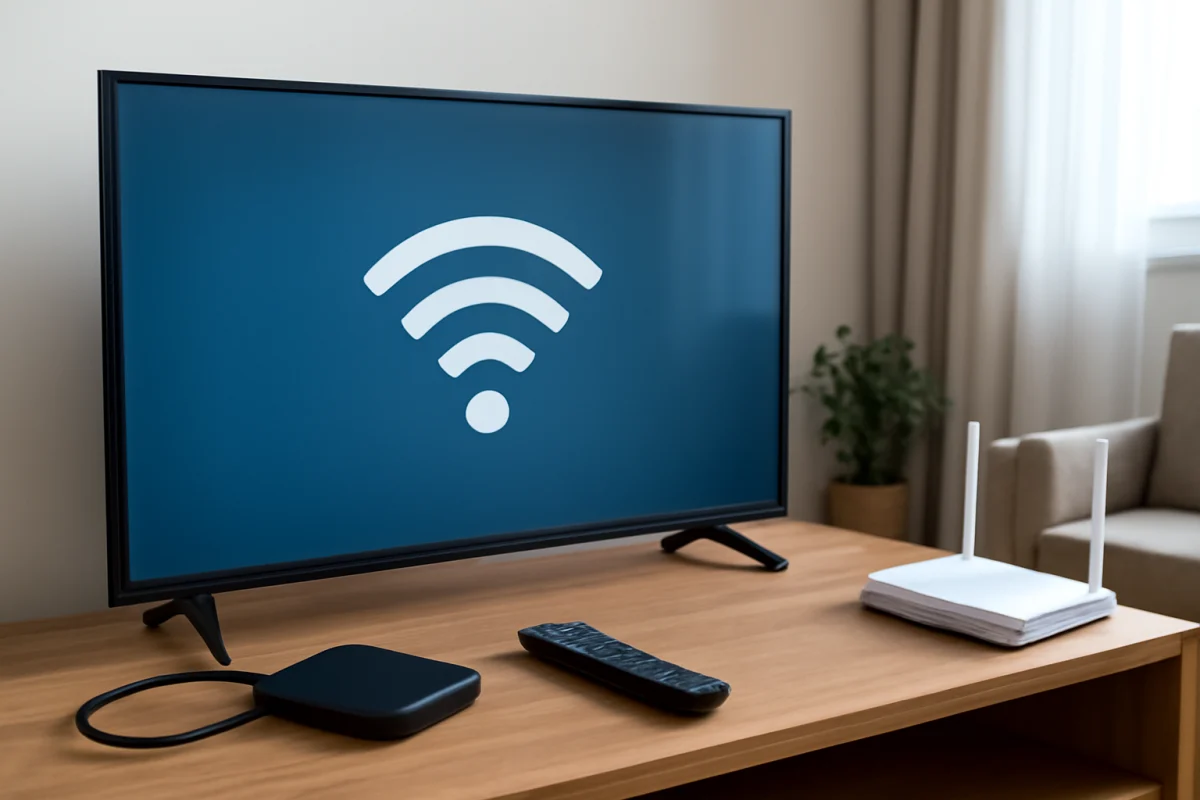
- No internet on the TV: The TV may not be connected to Wi-Fi, the router may be offline, or the network may be blocking the connection.
- Wi-Fi keeps disconnecting: The signal may be weak, the router may be unstable, or the TV may have trouble maintaining its network session.
- HDMI device shows no signal: The wrong input, a loose cable, a damaged port, or a sleeping source device may be responsible.
- Only one streaming app fails: The app may need to be closed, updated, signed in again, or reinstalled.
- Bluetooth accessories will not connect: The accessory may still be paired with another device, be out of range, or not be supported by that TV model.
- Screen mirroring or AirPlay fails: The phone and TV may be on different networks, or the TV model and software may not support the feature in the same way.
If your main issue is repeated wireless disconnection, see our guide to Samsung TV Wi-Fi disconnects for more targeted checks.
Check the basics before changing settings
Power-cycle the TV, router, and source device
Turn off the Samsung TV and unplug it from the wall. If the problem involves Wi-Fi, also unplug the router and modem or gateway. If an HDMI device is involved, turn that device off as well. Wait about a minute, then reconnect the network equipment first. Give it time to restore internet access before turning on the TV and the source device.
This is different from a factory reset. A power cycle does not normally erase apps, accounts, or personal settings. It can clear temporary communication errors between the TV, router, and connected equipment.
Inspect cables and connections
Push HDMI, Ethernet, power, and antenna cables firmly into place. Look for bent pins, crushed sections, loose connectors, or cables under tension. If possible, test the same device with another HDMI cable and another HDMI port on the TV. Avoid routing power cables tightly against signal cables, although cable placement is rarely the only cause of a complete connection failure.
For HDMI issues, turn on the source device before selecting its input on the TV. Some devices take a moment to establish an HDMI handshake after both products start.
Test another device or network
Try a different streaming app or a second device on the same TV. If every app fails, investigate the TV or network. If only one app fails, do not change the router yet. You can also test the TV with a phone hotspot if your mobile plan and TV support it. A hotspot test is useful for diagnosis, but it may use substantial mobile data and is not always a suitable permanent connection.
Fix Samsung TV Wi-Fi and internet problems
Confirm that the network itself is working
Use a phone or computer connected to the same Wi-Fi network to open several websites or services. If those devices also fail, restart the router and check whether the problem affects the whole home. If only the TV is offline, continue with the TV-specific steps.
Move the router closer to the TV for testing if the signal may be weak. Thick walls, metal furniture, appliances, and a crowded wireless environment can reduce reliability. A temporary improvement after moving the router does not prove that the TV is defective; it points to a coverage or interference issue.
Reconnect to Wi-Fi carefully
Open the TV's network settings and select the wireless network again. Menu names and navigation can vary by Samsung model, year, and software version, so use the labels shown on your screen rather than relying on an exact menu path from another model. Enter the Wi-Fi password slowly and check capitalization, numbers, and special characters.
If the network name does not appear, restart the router, check whether other devices can see it, and move the TV closer temporarily. Some routers broadcast separate wireless bands or use security settings that older TVs may not handle consistently. Router settings should be changed carefully, and you may need the router manufacturer's instructions.
Try a wired connection when practical
If the TV has an Ethernet port, connect it directly to the router with a known-good cable. A wired test helps separate wireless problems from TV software or internet-service problems. If Ethernet works reliably while Wi-Fi does not, the TV may be far from the router, the wireless signal may be unstable, or the router's wireless configuration may need attention.
Check date, time, and software updates
Incorrect date or time settings can interfere with secure connections and account sign-ins. If the TV allows it, use an automatic time setting or set the correct time manually. Also check for available TV and app updates. Update names and locations vary by model, and an update may require the TV to be connected temporarily by Wi-Fi or Ethernet.
A software update can help with compatibility, but do not interrupt the TV while it is installing. If the TV loses power during an update, it may create a more serious problem.
Fix HDMI connection problems and “no signal” messages
First, use the TV remote to select the HDMI input that matches the port being used. Do not assume the TV will always switch automatically. Confirm that the connected device is powered on and not in sleep mode.
Next, disconnect and reconnect the HDMI cable at both ends. Test another HDMI input and, if available, another cable. If the device works on another TV, the Samsung TV input or compatibility may be involved. If several TVs fail with the same device, troubleshoot the device, its output settings, or its cable instead.
Remove intermediate equipment for testing. Soundbars, AV receivers, HDMI switches, capture devices, and adapters can interrupt the signal even when the source and TV are working. Connect the source directly to the TV first. If that works, reconnect the other equipment one piece at a time.
For a detailed console-specific process, read our guide to Samsung TV HDMI no signal after connecting a console.
When only Samsung TV apps have connection problems
If the TV's network test succeeds but one app will not open, freezes, or displays a network error, close the app and restart the TV. Check whether other apps play video. A single-service outage, expired sign-in, corrupted app data, or an app compatibility issue can affect one service without affecting the rest of the TV.
Sign out and sign back in only if you know the account credentials. Check for an app update, then reinstall the app if the TV provides that option. Reinstalling may remove downloads and saved app data. Do not perform a full TV reset for a problem limited to one application unless the simpler steps have failed.
Our guide to Samsung TV apps that freeze, crash, or refuse to open covers this situation in more detail.
Fix Bluetooth, screen mirroring, and AirPlay connections
For Bluetooth headphones, speakers, or controllers, place the accessory close to the TV and put it into pairing mode. Disconnect it from phones, tablets, or other TVs that may automatically reconnect. Remove an old pairing from the TV if the model provides that option, then try pairing again. Compatibility varies by Samsung TV model and accessory type, so a device that pairs with a phone may not be supported by the TV.
For screen mirroring or AirPlay, make sure the phone and TV are connected to the same local network. Disable any active VPN on the phone temporarily, restart both devices, and check that the TV's sharing feature is enabled if your model includes a related setting. Network isolation or guest Wi-Fi can prevent devices on the same premises from discovering each other.
If you are connecting from an iPhone, follow the model-specific steps in our guide to setting up AirPlay on a Samsung TV.
Reset network settings only when necessary
If the TV repeatedly rejects a working Wi-Fi password or remains stuck with an old connection, a network reset may help. This is less disruptive than a full factory reset, but it normally removes saved wireless information. You will need to reconnect to the network afterward.
The location and wording of the network reset option vary by model. Read the confirmation message before proceeding, and make sure you have the Wi-Fi password available. If the TV is used by multiple people, tell them that saved network details may be removed.
When a factory reset or service is appropriate
A factory reset should be a last resort for connection problems. It can remove installed apps, account sign-ins, picture adjustments, network details, and other personal settings. Before using it, record important settings and confirm that the issue is not caused by the router, cable, source device, or a single app.
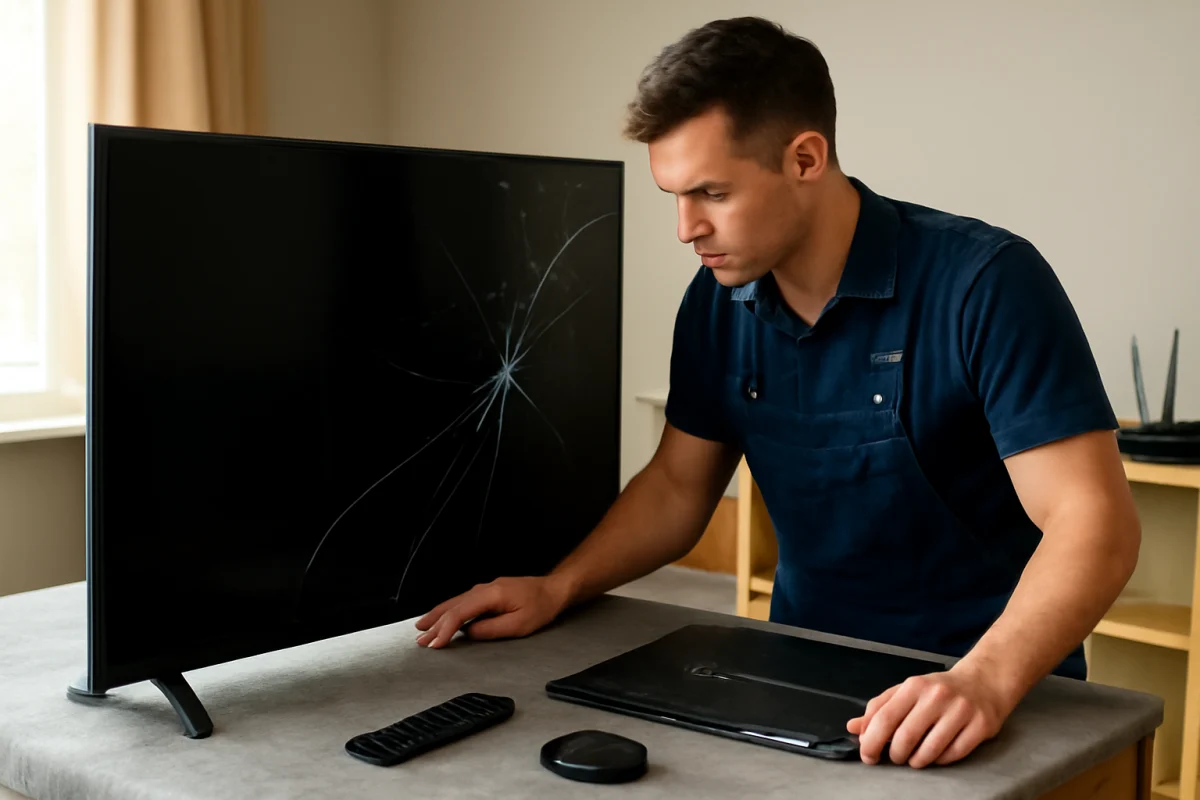
Contact Samsung support or a qualified repair provider if the TV cannot connect through either Wi-Fi or Ethernet after a confirmed working network, multiple HDMI ports fail with known-good devices, ports are physically damaged, or the TV repeatedly loses connections after a reset. Have the exact model number, the affected connection type, and the tests you already performed ready. Those details can help separate a software issue from a failing network board, input port, or power-related fault.
Most Samsung TV connection problems can be isolated without replacing parts or erasing the TV. Start with the simplest test that matches the symptom, change one thing at a time, and confirm the result before moving to a more disruptive step.
Comments
0No comments yet. Be the first to share a helpful note or question.
Leave a Comment
Your email address will not be published. Comments are reviewed before appearing on the site.