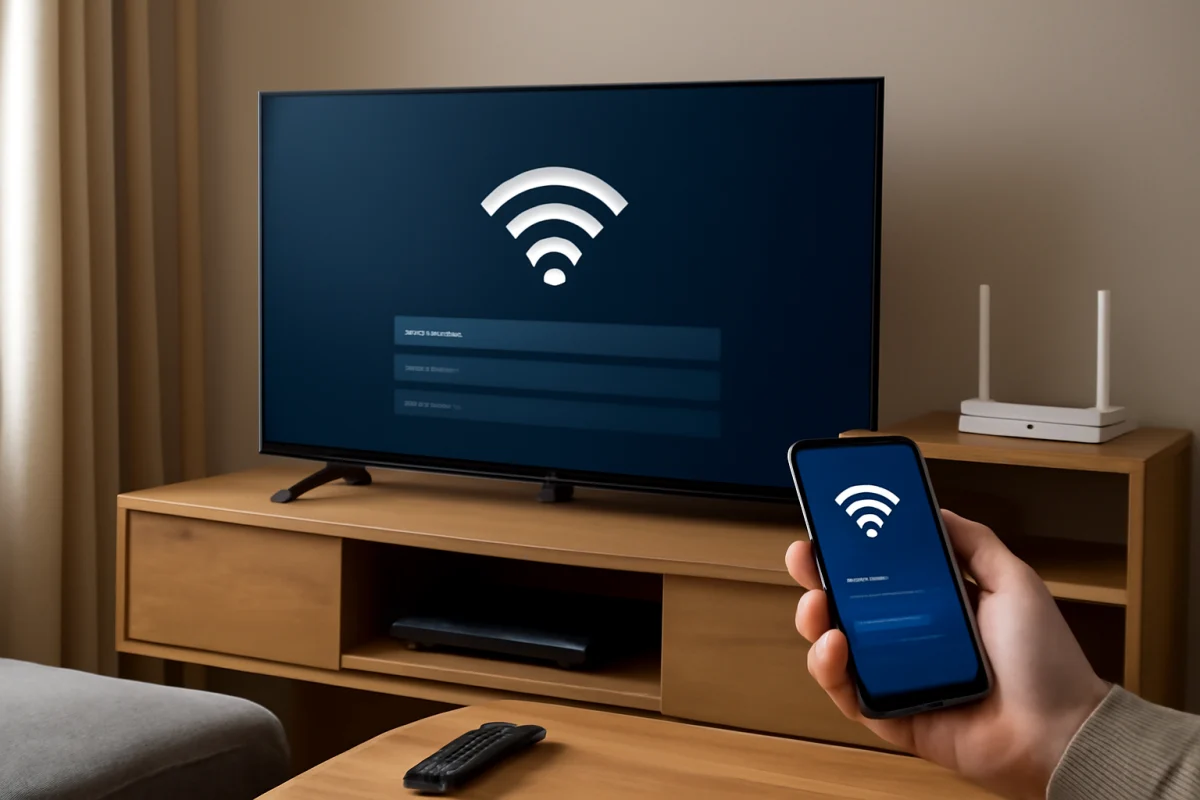
If your Samsung TV keeps disconnecting from Wi-Fi, start by checking whether the problem affects only the TV or your whole home network. Test another device in the same room, restart the router and TV, then move the router closer or reduce obstructions if the signal is weak. If other devices stay online but the TV continues dropping the connection, forget and reconnect to the network before trying more advanced resets.
The exact menu names can vary between Samsung TV models and software versions, but the general troubleshooting process is similar. Work through the steps below in order so you do not erase network settings unnecessarily.
Check whether the problem is the TV or the network
First, determine whether the disconnection is limited to your Samsung TV. Use a phone, laptop, or streaming device connected to the same Wi-Fi network and try browsing the internet or playing a short video. If several devices lose internet access at the same time, the TV may not be the main cause. The router, modem, internet service, or wireless interference is more likely responsible.
If only the TV disconnects, note when it happens. A TV that loses Wi-Fi immediately after waking may have a saved-network or software issue. A TV that disconnects during streaming may be dealing with weak signal strength, congestion, or a router that struggles with the connection. If the connection drops at a similar time every day, check whether another device or network activity is using significant bandwidth.
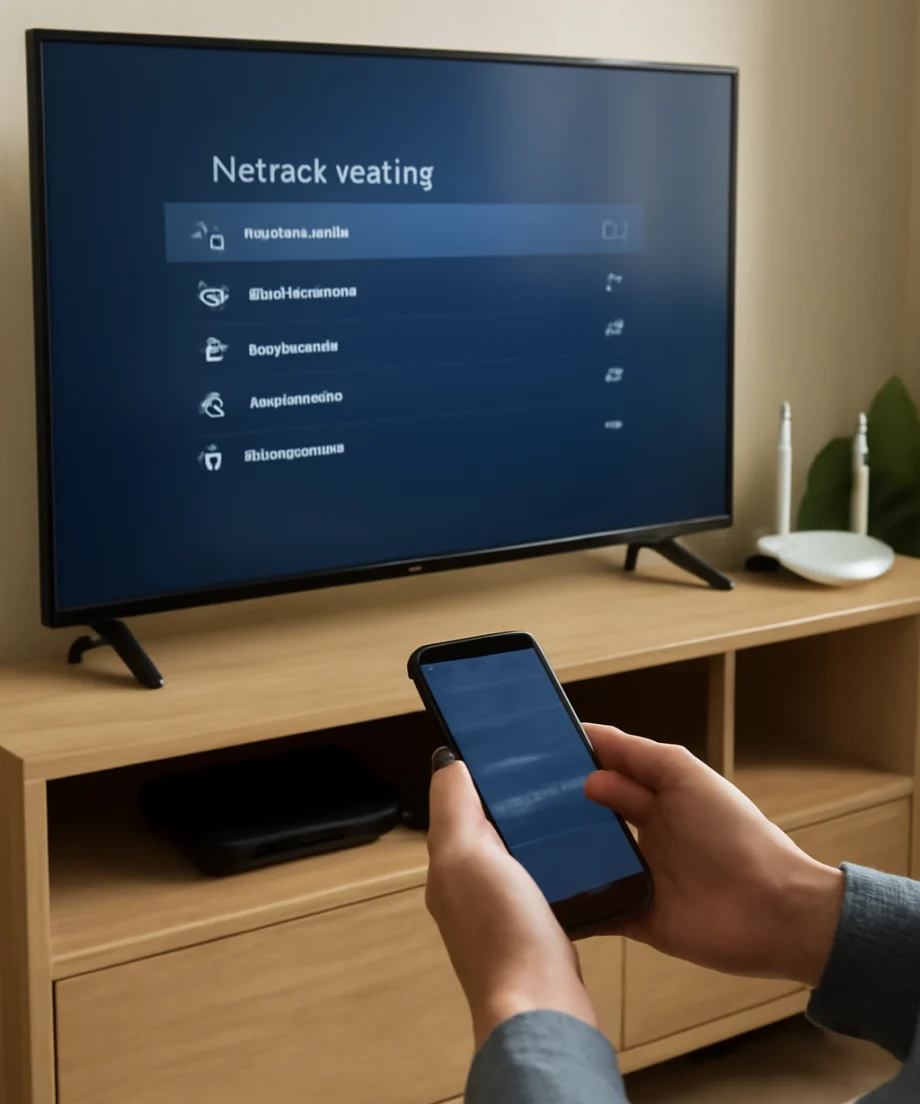
For more general network troubleshooting, see the Wi-Fi and network troubleshooting guides on TV Fix Guide.
Restart the TV, router, and modem
A complete restart can clear a temporary network or software fault. Turn the TV off and unplug it from the wall. Leave it disconnected for at least 60 seconds, then plug it back in and turn it on.
Next, unplug the router and modem or gateway. If you have separate devices, unplug both. Wait about a minute, reconnect the modem or gateway first, and give it time to establish an internet connection. Then reconnect the router if it is separate. Wait several minutes before testing the TV.
Do not rely only on the TV remote's power button for this test. On some TVs, pressing the button puts the television into standby rather than fully restarting its internal system. Unplugging it briefly is a simple way to perform a fuller power cycle.
Improve the Wi-Fi signal near the TV
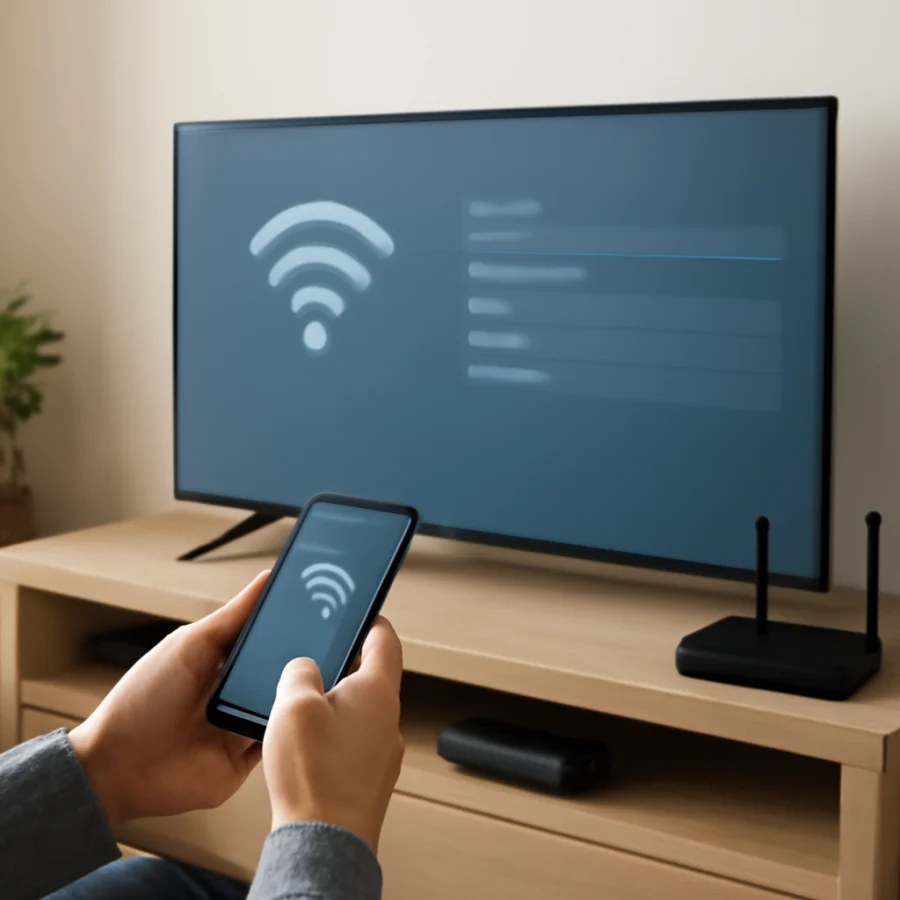
A Samsung TV may disconnect when its wireless signal is too weak or unstable, even if a phone appears to work in the same room. Phones often have different antennas and may handle weak signals differently.
- Place the router in an open, elevated location instead of inside a cabinet.
- Keep the router away from large metal objects, thick walls, appliances, and other electronics that may interfere with wireless signals.
- Avoid placing the TV and router at opposite ends of the home if possible.
- Temporarily move the router closer to the TV to see whether the connection becomes stable.
- If you use a mesh system or extender, test the TV near the main router as well as near the satellite unit.
If the TV works reliably when it is closer to the router, distance or interference is probably contributing to the problem. You may need to reposition the router, adjust the mesh system, or use a wired Ethernet connection if your TV and home layout support it.
Forget the Wi-Fi network and reconnect
A corrupted or outdated saved network profile can cause repeated disconnections. On many Samsung TVs, the network settings include an option to manage or reset saved wireless connections. The wording and path can vary, so look in the TV's general settings for network or connection options.
Reconnect carefully
- Open the TV's settings and find the network or internet connection section.
- Choose the option to manage the current connection or forget the saved network, if available.
- Select your home Wi-Fi network from the list.
- Enter the password carefully, paying attention to uppercase letters and special characters.
- Wait for the TV to confirm that it is connected before opening a streaming app.
If your network does not appear in the list, make sure the router's Wi-Fi is enabled and that other devices can see it. A hidden network may need to be added manually, although the available options vary by model. Our guide on connecting a Samsung TV when the network is not showing covers that situation in more detail.
Test the other Wi-Fi band
Many routers broadcast more than one wireless band, commonly a lower-frequency band and a higher-frequency band. The lower-frequency option often travels farther and may work better through walls. The higher-frequency option can be faster nearby but may be less reliable at a distance.
If your router shows separate network names, try connecting the TV to the other band. Test the connection from the TV's normal viewing position rather than beside the router. If one band is stable and the other repeatedly disconnects, keep the TV on the more reliable option.
Some routers combine bands under one network name and automatically move devices between them. If the TV repeatedly drops during these changes, router settings may need adjustment. Because these controls differ widely by router brand, consult the router's documentation rather than changing advanced wireless settings at random.
Check for software updates
TV software can affect networking, streaming apps, and wireless stability. Open the TV's support, software update, or device maintenance area and check for an available update. Menu labels differ by model and region.
If the TV cannot stay online long enough to update, check whether Samsung provides an offline update method for your model. That process may involve downloading the appropriate file from Samsung's support site and using a USB drive. Use only instructions and files intended for the exact model, and do not interrupt the TV while an update is installing.
It is also worth checking whether the issue affects one streaming app or every online feature. If only one app disconnects while the TV's network test remains successful, update or reinstall that app instead of resetting the entire TV.
Run the TV's built-in network test
Samsung TVs commonly include a network status or connection test. It may show whether the TV is connected to the router, the internet, or neither. The exact screen varies by model.
Run the test after the TV disconnects, if possible. A failure between the TV and router points toward wireless signal, saved credentials, or router compatibility. A successful router connection but failed internet connection points more toward the modem, service provider, DNS, or router internet settings.
Also check the router's device list, if it provides one. See whether the TV disappears completely when the problem occurs or remains connected to the router without internet access. This distinction can help identify where the connection is failing.
Try a phone hotspot as a diagnostic test
A mobile hotspot can help separate a TV problem from a home-router problem. Turn on a hotspot on a phone, connect the TV temporarily, and watch whether it remains connected for a short test. Avoid streaming for a long period because hotspot data may be limited.
If the TV stays connected to the hotspot but not your home Wi-Fi, the home router, wireless environment, or internet service is the stronger suspect. If the TV disconnects from both networks, the issue is more likely within the TV, its software, or its wireless hardware. This test does not prove that the TV is defective, but it provides useful direction.
Reset the network settings
If forgetting the network did not help, use the TV's network reset option if your model includes one. This removes saved wireless information and returns the TV's network configuration to its default state. You will need to reconnect to Wi-Fi afterward.
Before using it, make sure you know your Wi-Fi password and understand that other network-related settings may also be cleared. Avoid a full factory reset at this stage. A factory reset removes personal settings, installed apps, accounts, picture preferences, and other configuration data, and it is usually unnecessary for a simple Wi-Fi problem.
Check router settings and connected-device limits
If the TV disconnects while many devices are active, the router may be overloaded or applying a device limit. Temporarily pause large downloads, cloud backups, game updates, or high-resolution streams and test the TV again.
Router features such as access controls, parental controls, guest-network isolation, scheduled Wi-Fi, and automatic device blocking can also interrupt a TV's connection. Review these settings if the problem began after changing the router or internet service. Make sure the TV is connected to the intended main network rather than a guest network with restrictions.
Do not change security settings blindly. If you are unsure which router option is affecting the TV, record the original setting before making a change or contact the router manufacturer or internet provider for guidance.
Use Ethernet to confirm a wireless problem
If your Samsung TV has an Ethernet port and the router is close enough, connect the TV directly with a network cable for testing. A stable wired connection while Wi-Fi continues to fail strongly suggests a wireless signal, router configuration, or TV Wi-Fi hardware issue.
Check that the cable clicks firmly into both devices and try another cable if the wired connection also drops. Ethernet will not fix an internet service outage, but it can show whether the wireless portion of the connection is the main problem.
When to contact Samsung or your internet provider
Contact your internet provider if multiple devices lose internet access, the modem repeatedly reconnects, or the router cannot maintain a stable connection. Contact Samsung support if the TV disconnects from several different networks, fails after a network reset and software update, or cannot maintain a wired connection when the rest of the network works normally.
Before requesting help, note the TV model, how often the disconnections occur, whether other devices are affected, and which troubleshooting steps you have already tried. If the TV is still under warranty or service coverage, avoid opening the television or attempting hardware repairs yourself.
Most likely fixes, in order
For most Samsung TV Wi-Fi problems, the quickest path is to restart the TV and network equipment, improve the signal, forget and reconnect to Wi-Fi, and test the other wireless band. After that, check for software updates, run the built-in network test, and try a hotspot or Ethernet connection to isolate the cause. Use a network reset only after the simpler connection steps fail, and reserve a factory reset or service request for cases where the evidence points to a deeper software or hardware problem.
Comments
0No comments yet. Be the first to share a helpful note or question.
Leave a Comment
Your email address will not be published. Comments are reviewed before appearing on the site.