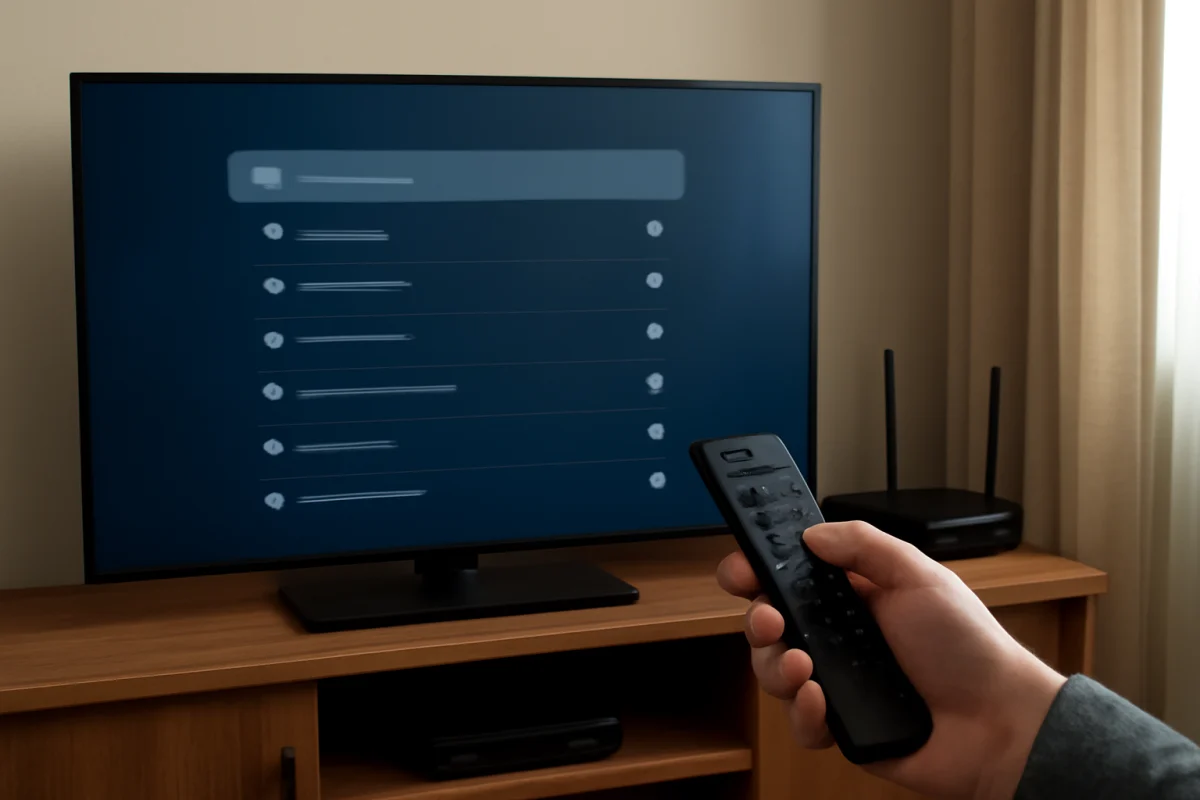
If your Samsung TV does not show your Wi-Fi network, first check whether other devices can see and use that same network. If phones, tablets, or computers also cannot find it, the problem is probably with the router or wireless network rather than the TV. If other devices connect normally, restart the TV, move it closer to the router for testing, and check the TV’s network settings for a hidden or incorrectly configured connection.
Samsung TV menus differ slightly by model and software version, so the wording and location of some options may not match your screen exactly. Look for settings related to Network, Wireless, Wi-Fi, or Open Network Settings. Work through the checks below in order, starting with the changes that are least likely to affect your other devices.
Check whether the Wi-Fi problem is limited to the TV
Before changing anything on the TV, use a phone or laptop in the same room to search for your wireless network. You do not necessarily need to connect the device; simply check whether the network name appears in the available Wi-Fi list.
- If the network is missing on every device: check the router, modem, internet service, and wireless settings.
- If the network appears on other devices but not the TV: focus on the TV, signal range, network band, and compatibility settings.
- If the TV sees other nearby networks but not yours: the router may be hiding the network name, using a band the TV cannot detect reliably, or broadcasting with settings the TV does not support.
- If the TV sees your network but will not connect: the issue is more likely to involve the Wi-Fi password, signal quality, router security, or a saved network profile.
This quick comparison prevents you from resetting the TV when the wireless signal is actually unavailable throughout the home. For more general router and connection checks, see our WiFi & Network troubleshooting guides.
Restart the TV and network equipment
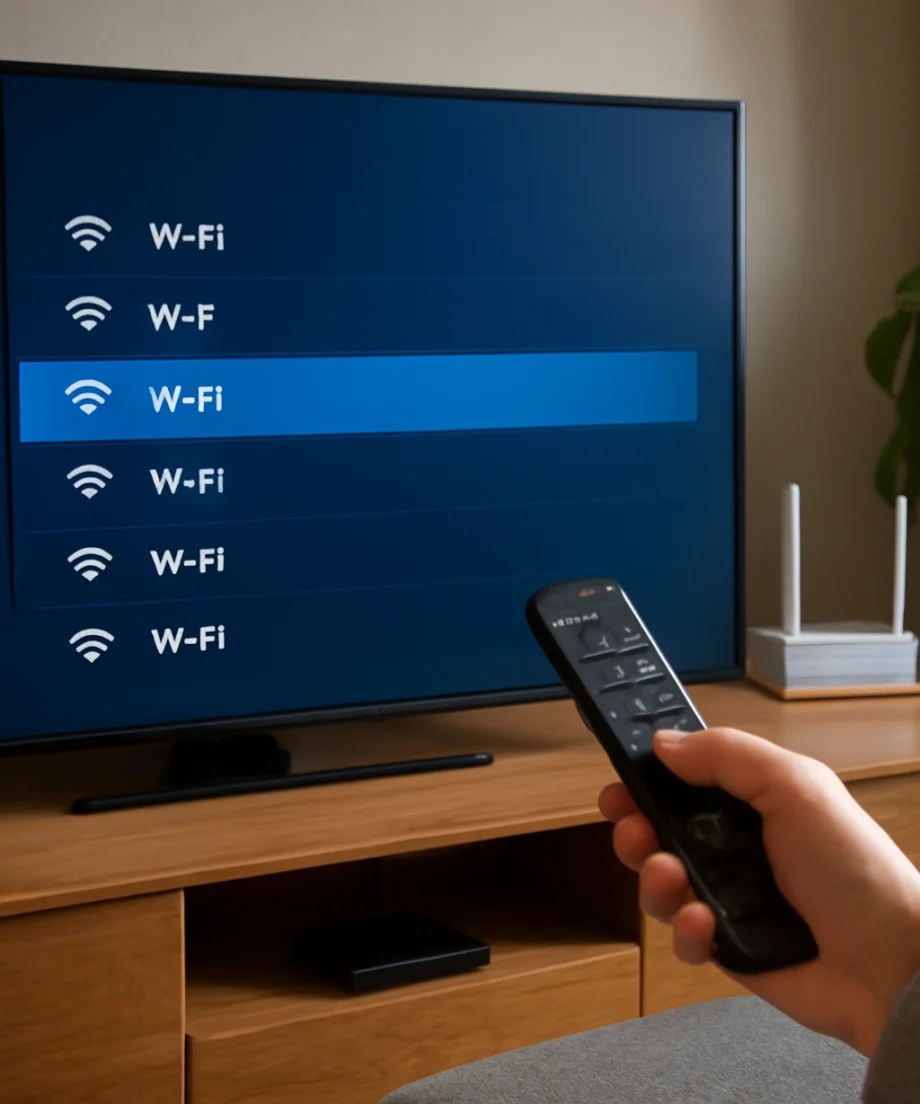
A normal standby press does not always fully clear a temporary network or software problem. Restart the Samsung TV by turning it off, unplugging it from power, waiting about one minute, and plugging it back in. Turn it on and check the Wi-Fi list again.
Next, restart the router and modem if they are separate devices. Unplug the network equipment, wait for the indicator lights to settle after power is removed, and reconnect it. Give the equipment time to finish starting before checking the TV. The exact time varies, but the wireless network should not be expected to appear immediately.
Do not press the router’s reset button for this step. A power restart is different from a factory reset. The reset button can erase wireless names, passwords, and other settings, creating a larger problem if it is used accidentally.
Confirm that the network is within range
A Samsung TV may fail to display a network when the signal is weak, especially if the router is behind furniture, inside a cabinet, on another floor, or separated by several walls. For a simple test, move the router or TV temporarily so they are closer together. You do not need to rearrange the room permanently; the goal is to determine whether distance is affecting network discovery.
Keep the router away from large metal objects, dense furniture, and devices that may interfere with wireless signals. If the network appears only when the TV is close to the router, improve the router’s location or consider a properly placed mesh node or access point. Avoid placing a wireless extender in the weak-signal area itself; it usually works better where it can still receive a strong signal from the main router.
Make sure the router is broadcasting the network name
Some routers are configured not to broadcast the wireless network name, also called the SSID. A hidden network will not normally appear in the TV’s standard Wi-Fi list. If your Samsung TV offers an option to add a network manually, you may be able to enter the network name and password yourself. The wording varies by model.
Before using manual entry, verify the network name exactly. Wireless names can include spaces, punctuation, and capital letters. Also confirm the password rather than relying on memory. If manual entry is unavailable or does not work, temporarily enable network-name broadcasting in the router settings. You may need the router’s app, web interface, or help from the person who manages the home network.
After changing the router setting, wait briefly and scan for networks again on the TV. Restore the hidden-network setting later only if you have a specific reason to use it. Hiding a network name is not a substitute for a strong Wi-Fi password and secure router configuration.
Check the router’s Wi-Fi band and compatibility
Many modern routers broadcast more than one wireless band, often with separate or combined network names. Depending on the Samsung TV model and its wireless hardware, one band may be detected more reliably than another. Older TVs may have more limited support than newer models.
If your router shows separate names for its wireless bands, try connecting the TV to the other available network. If only one name is shown, check whether the router has a setting that combines bands under one name. For testing, the router administrator may be able to create a separate network on the compatible band. Do not change advanced wireless settings unless you can record the original values and restore them if necessary.
Router security can also affect whether a TV discovers or joins a network. A current Samsung TV may support security options that an older model does not, while an old security mode may be unsuitable for a newer router. Because the supported options vary, avoid guessing. Check the TV’s manual or Samsung support information for the exact model, and change router security only when you understand the effect on the other devices in your home.
Open the TV’s network settings and scan again
On many Samsung TVs, network controls are found by opening Settings and looking for a General, Connection, or Network section. From there, choose the option that lets you set up or check a wireless network. The exact path varies by model and software version.
Once the wireless list appears, wait for the scan to finish. If your network is listed, select it and enter the password carefully. Pay attention to similar characters, such as a zero and the letter O, or a one and a lowercase L. If the password is long, entering it with the remote can be difficult. A phone or router app may help you confirm the correct credentials, but do not share your password publicly.
If the TV shows a wired connection, disconnect the Ethernet cable temporarily before testing Wi-Fi. Some models prioritize a wired connection while the cable is attached. Reconnect the cable afterward if you prefer using Ethernet.
Clear the TV’s network settings
If the network used to appear but disappeared after a router change, password change, or software update, the TV may have an outdated saved network profile. Many Samsung TVs include a network reset or reset-network option inside the network settings. This normally removes saved network information without erasing picture settings or installed apps, but the exact behavior can vary by model.
Before using it, write down the Wi-Fi password and make sure you can access any other network information you may need. Then use the TV’s network reset option, restart the TV if it prompts you to do so, and scan for the network again.
This step is different from a full factory reset. Do not choose a general reset or reset-all option unless you have reached the end of troubleshooting and understand what will be erased. A factory reset may remove app sign-ins, custom settings, and other preferences.
Try a mobile hotspot as a diagnostic test
A temporary mobile hotspot can help separate a TV problem from a router problem. Turn on a hotspot on a phone, give it a simple temporary name, and check whether the Samsung TV can see it. Keep the phone near the TV and remember that hotspot data may count against your mobile plan.
- If the TV sees the hotspot: the TV’s Wi-Fi scanner is probably working, so focus on the home router’s band, security, visibility, or signal.
- If the TV cannot see the hotspot or any other network: restart the TV again and review its wireless settings. A hardware or software fault becomes more possible if the issue persists.
- If the TV connects to the hotspot but not the home network: do not use the hotspot as a permanent solution until you understand data limits and costs.
When testing is complete, turn the hotspot off or change its password if you do not want the TV to retain the connection.
Check for a wired connection or TV software update
If Wi-Fi remains unavailable but the TV has an Ethernet port, connect it to the router with a network cable as a temporary workaround. A wired connection can also let the TV reach its update settings. If an update is available, install it only through the TV’s normal update process or the manufacturer’s documented method for your exact model.
Do not download random firmware files from unofficial sources. Installing software intended for a different model can create additional problems. If the TV cannot connect by Wi-Fi or Ethernet, check the model-specific support information using another device and follow the instructions for that exact television.
When to contact Samsung or a repair professional
Contact Samsung support or a qualified technician if the TV cannot detect any wireless network after a power restart, a network reset, and a hotspot test. Also seek help if Wi-Fi disappears repeatedly, the TV reboots while scanning, or the wireless option is missing entirely from the settings.
Have the TV’s model information, the router model, and a description of what other devices can see ready before contacting support. Explain whether the network is visible on other devices, whether the TV can see a hotspot, and whether the problem started after a router or TV change. Those details can shorten the diagnosis.
What usually fixes a missing Wi-Fi network
In most cases, the safest path is to confirm whether the network is missing everywhere, restart the TV and router, test the signal at close range, and verify that the router broadcasts a compatible network. If the network still does not appear, a hotspot test and a model-specific review of wireless compatibility can identify whether the router or TV needs further attention. Only use a full factory reset or advanced router changes after simpler checks have failed and you have recorded the settings you may need to restore.
Comments
0No comments yet. Be the first to share a helpful note or question.
Leave a Comment
Your email address will not be published. Comments are reviewed before appearing on the site.