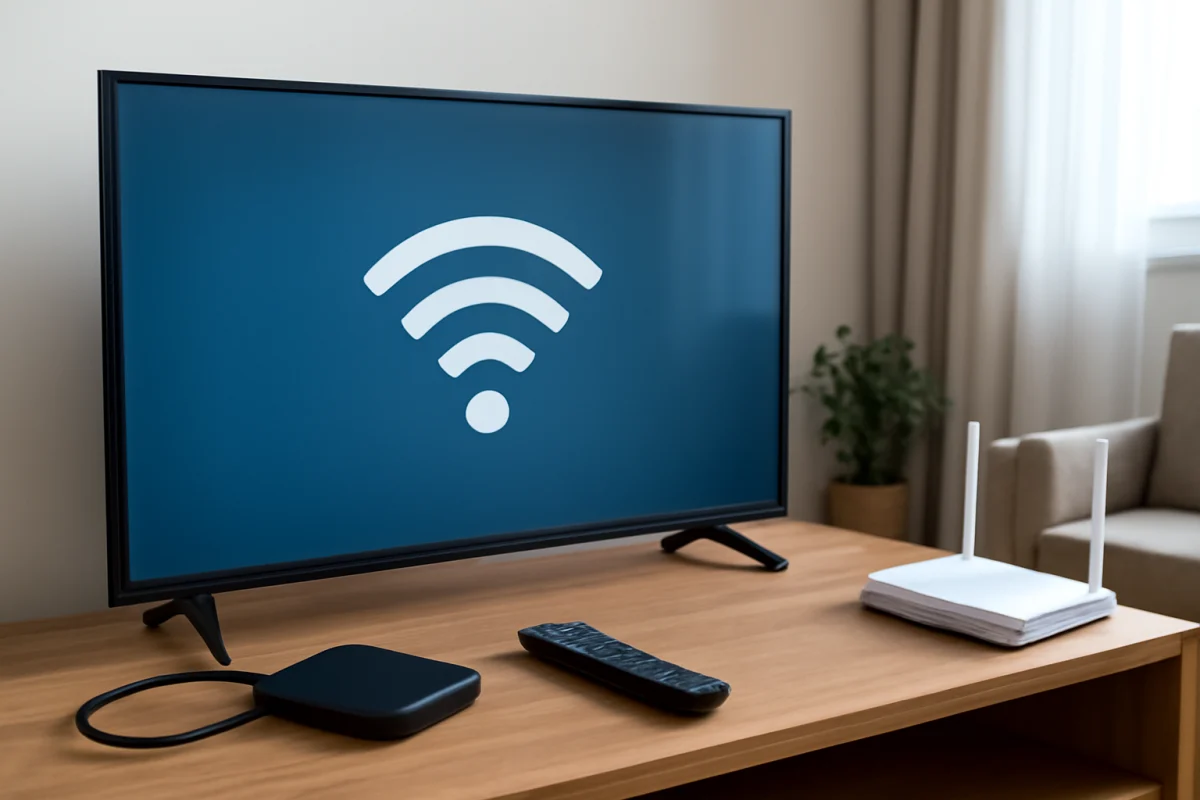
When a Samsung TV will not connect, start by identifying what has failed: the internet connection, an external device, a streaming service, or a phone-to-TV connection. Check the cables and source selection first, then restart the affected devices and test another network or input. These low-risk checks often fix the problem without changing advanced settings or resetting the TV.
Connection behavior can vary by Samsung TV model, software version, router, and connected device. Menu names and available options may not look exactly the same on every television. Use the closest matching option on your screen rather than forcing a step that does not appear.
Identify the type of Samsung TV connection problem
The symptom usually points to the correct starting point:
- The TV cannot join Wi-Fi: The network may be unavailable, the password may be incorrect, or the router may be having trouble.
- The TV connects but has no internet: The TV may be connected to the router while the router itself is offline.
- An HDMI device shows no picture: The TV may be on the wrong source, or the cable, port, or external device may be at fault.
- Streaming apps buffer or disconnect: The internet connection may be weak, congested, or unstable, although the app itself could also be malfunctioning.
- A phone or computer cannot connect: The devices may be on different networks, or the feature may require compatible settings on both devices.
- The connection works briefly and then drops: Wireless interference, router behavior, power-saving settings, or a software issue may be involved.
Separating these situations prevents unnecessary changes. For example, resetting Wi-Fi will not repair a damaged HDMI cable, and changing picture settings will not restore a disconnected router.
Check the TV, cables, and source first
Restart the TV normally
Turn the TV off, wait about 30 seconds, and turn it back on. If the television appears frozen, disconnect its power cable from the wall outlet, wait briefly, and reconnect it. A normal power cycle can clear temporary communication problems between the TV and a router, streaming device, game console, or cable box.
Do not repeatedly unplug the TV while it is installing an update or displaying a message that it is processing an operation. Allow that process to finish when possible.
Inspect external connections
For a console, Blu-ray player, soundbar, cable box, or streaming stick, make sure the HDMI cable is firmly inserted at both ends. Select the HDMI input that matches the port being used. If the TV has several HDMI ports, test another port and, if available, another known-good cable.
Disconnect adapters, HDMI switches, audio receivers, and capture devices temporarily. Connect the source directly to the TV for testing. If the direct connection works, one of the removed devices or its settings is likely involved. For a more focused HDMI checklist, see this guide to Samsung TV HDMI no-signal problems.
Confirm that the external device is on
A black screen or “no signal” message does not always mean the TV is defective. Check whether the connected console or player has power and whether its indicator lights or display respond. Restart that device separately. If it is connected through a receiver or soundbar, bypass the intermediary during testing.
Fix Samsung TV Wi-Fi and internet problems
Test another device on the same network
Use a phone or computer connected to the same Wi-Fi network to open a few websites or services. If those devices also fail, restart the router and modem or gateway according to the internet provider's normal procedure. Wait for the network to return before testing the TV again.
If other devices work normally, the problem is more likely limited to the TV, its saved network information, wireless signal, or compatibility with that network.
Move the TV or router closer for a test
Walls, cabinets, metal surfaces, wireless speakers, and other nearby electronics can reduce Wi-Fi reliability. You do not need to permanently rearrange the room at first. If possible, test with the router closer to the TV or use a temporary wired connection. A wired connection can help determine whether the issue is wireless rather than an overall internet failure.
Reconnect to the network
Open the TV's network settings and remove or forget the saved Wi-Fi connection if that option is available. Then scan for the network and enter the password again carefully. Network menus differ by model, so look for wording related to network status, wireless setup, or available networks.
Be careful with passwords containing similar characters, spaces, or punctuation. If the network does not appear at all, restart the router and check whether the network is visible from a nearby phone. You can also follow our guide on connecting a Samsung TV when the Wi-Fi network is not showing.
Try a phone hotspot briefly
A phone hotspot can be a useful diagnostic test, although it may use mobile data. If the TV connects to the hotspot but not to your home Wi-Fi, the TV's wireless hardware is probably working. The likely causes then include router settings, signal strength, congestion, or an incompatibility between the TV and home network.
If the TV cannot connect to the hotspot either, restart the TV, confirm the hotspot is visible to other devices, and continue with the TV-side checks. Do not treat a hotspot as a permanent solution unless your data plan and service are suitable.
What to do when Wi-Fi keeps disconnecting
Intermittent disconnections are different from a network that never appears. First, note whether every device loses internet access at the same time. If they do, focus on the router, modem, or internet service. If only the Samsung TV drops offline, inspect the TV's saved network connection and its signal location.
Restart both the router and TV, then test the television without downloading or streaming on several other devices. Heavy network use can make a weak connection appear worse. If your router combines multiple wireless bands under one network name, testing the TV on another available band may help, but the exact process depends on the router.
Also check for a TV software update when the TV is stable enough to reach its update screen. Update wording and installation methods vary by model. Do not interrupt power during an update. If the problem began immediately after a router change, review the router's current settings or contact the router manufacturer or internet provider before making advanced changes.
For a problem that repeatedly returns, see our guide to Samsung TVs that keep disconnecting from Wi-Fi.
Troubleshoot streaming and app connections
If the TV is online but one streaming app will not open, freezes, or buffers while other apps work, the issue may be limited to that app or its service. Close and reopen the app, restart the TV, and test another app. If only one service fails, check whether it works on a phone or computer using the same network.
Sign out and back in only if the app loads well enough to do so. Avoid deleting every app or resetting the TV as a first step. App storage or a damaged app installation can sometimes contribute to failures, but the available repair options vary by model and software version. Use the steps in this Samsung TV app troubleshooting guide when the problem is limited to applications.
Fix phone, tablet, and computer connection problems
For screen mirroring, casting, or AirPlay, place the phone and TV on the same local network and turn off any temporary VPN connection during testing. Confirm that the TV is awake and that the correct sharing feature is enabled. The names and requirements for these features can differ by TV model and phone operating system.
Restart both devices and try again. If the TV appears on the phone but the connection fails, another device may already be using the TV's sharing session, or the wireless network may block communication between connected devices. Guest Wi-Fi networks sometimes restrict this type of local discovery.
For Apple devices, compatibility and setup depend on the Samsung TV model. Use the steps in our Samsung TV AirPlay setup guide if you are connecting from an iPhone or iPad.
When a reset is appropriate
A network reset or full TV reset should come after cable checks, restarts, network reconnection, and basic testing. A network reset may remove saved wireless information, requiring you to enter the password again. A full reset can remove accounts, app sign-ins, preferences, and other personal settings. The exact reset path varies by model, so read the on-screen warning before confirming.
Before resetting, write down important login details and confirm that the problem affects more than one service or input. If the TV works with another network, a full factory reset is unlikely to repair your home router. If every HDMI port, network method, and external device fails, note the tests you completed before contacting Samsung or a qualified repair provider.
When to seek professional help
Stop troubleshooting and seek assistance if the TV smells hot or burnt, shows signs of liquid damage, repeatedly shuts off, or has damaged ports. Do not open the television to repair an HDMI socket, wireless board, or power supply unless you are trained to work safely with TV hardware.
Before contacting support, record the TV model shown in its settings or on its label, the affected connection, the devices and cables tested, and whether another network worked. This information makes it easier to distinguish a TV fault from a router, cable, service, or compatibility problem.
Comments
0No comments yet. Be the first to share a helpful note or question.
Leave a Comment
Your email address will not be published. Comments are reviewed before appearing on the site.