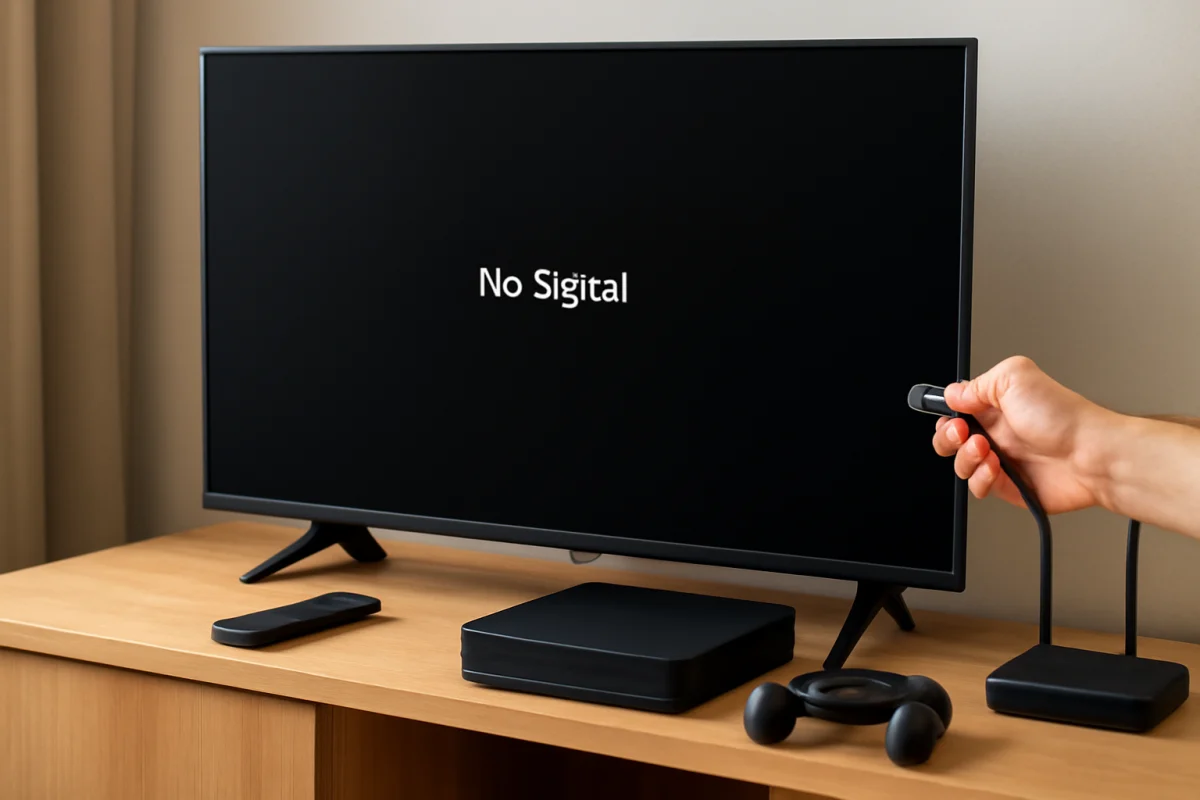
If your Samsung TV says No Signal after connecting a PlayStation, Xbox, Nintendo Switch, or another console, start with the input and cable rather than resetting the television. Select the HDMI port you actually used, reseat both ends of the cable, and restart the TV and console completely. These simple checks resolve many connection problems without changing picture settings or erasing anything.
If the message remains, work through the diagnosis in order. The goal is to determine whether the problem is the console, HDMI cable, TV port, an accessory such as an AV receiver or capture device, or a video-output setting the TV cannot display.
Check the selected HDMI input
A Samsung TV can show No Signal when the console is connected correctly but the TV is viewing a different source. This is especially common after moving the cable to another port or using the TV's home screen instead of the input list.
- Turn on the TV and press the Source, Home, or input-selection button on the Samsung remote. The wording and button layout vary by model.
- Choose the HDMI input that matches the port labeled on the back or side of the TV. For example, a console connected to HDMI 2 will not appear on HDMI 1.
- Wait several seconds after selecting the input. Some consoles and TVs need a short time to complete the HDMI handshake.
If you are unsure which port is in use, follow the cable physically from the console to the TV instead of guessing from memory. Also check whether the TV labels the input by a device name. Changing a source label can make the list easier to understand, but it does not repair a signal problem.
Reseat the HDMI cable and inspect the connection
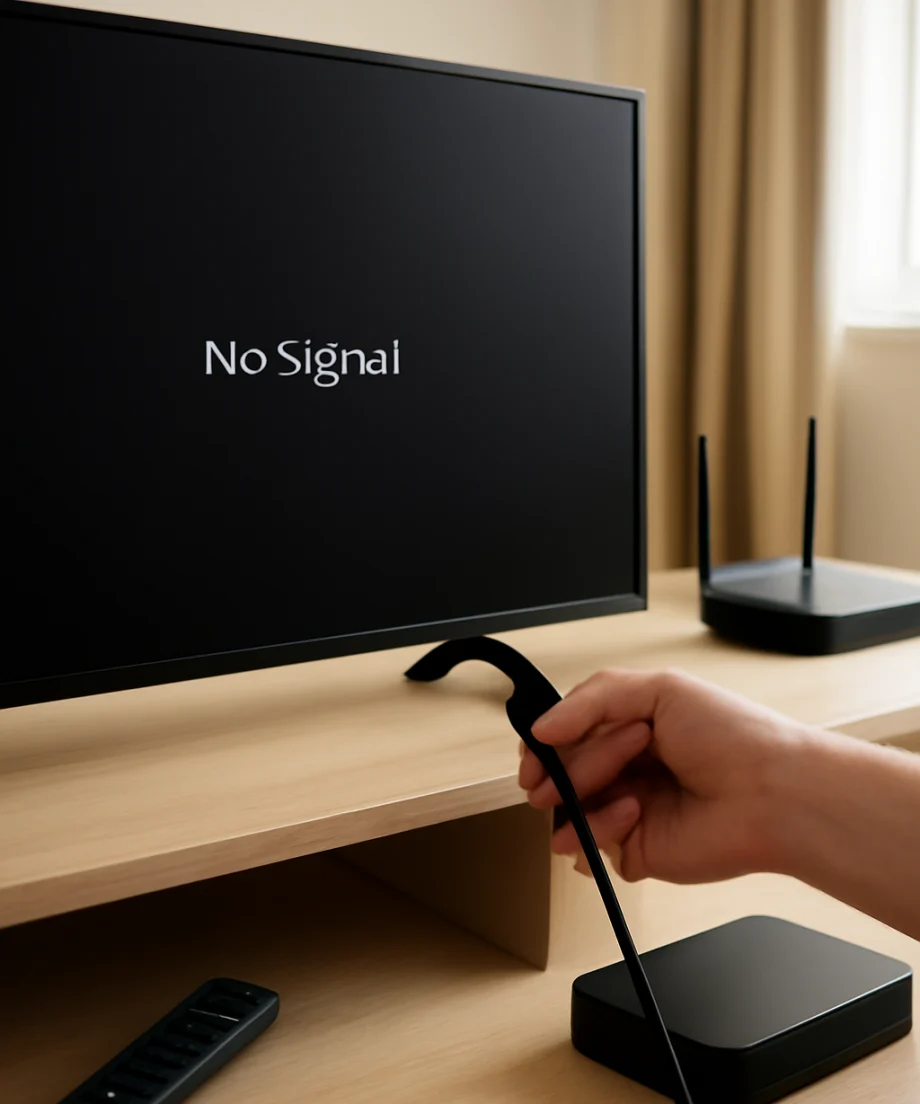
Turn off the console before removing the cable. Disconnect the HDMI plug from both the console and the TV, then reconnect it firmly. The plug should be fully inserted and should not hang at an angle or fall out under its own weight.
Inspect the cable and ports with a light. Look for a bent connector, damaged housing, debris, or a port that moves unusually when the plug is inserted. Do not force the connector and do not use a metal object to clean inside an HDMI port. If the cable is sharply bent behind a wall-mounted TV, relieve the strain before testing again.
If possible, test with a different HDMI cable that you know works with another device. A cable can fail even when there is no obvious external damage. For troubleshooting, connect the console directly to the TV with the shortest practical cable. Temporarily remove HDMI extenders, wall plates, splitters, switches, soundbars, AV receivers, and capture devices from the path.
Restart both devices completely
HDMI communication can get stuck after the console wakes from sleep, the TV changes inputs, or an accessory loses power. A normal remote-control power-off may leave some devices in a standby state, so perform a complete restart:
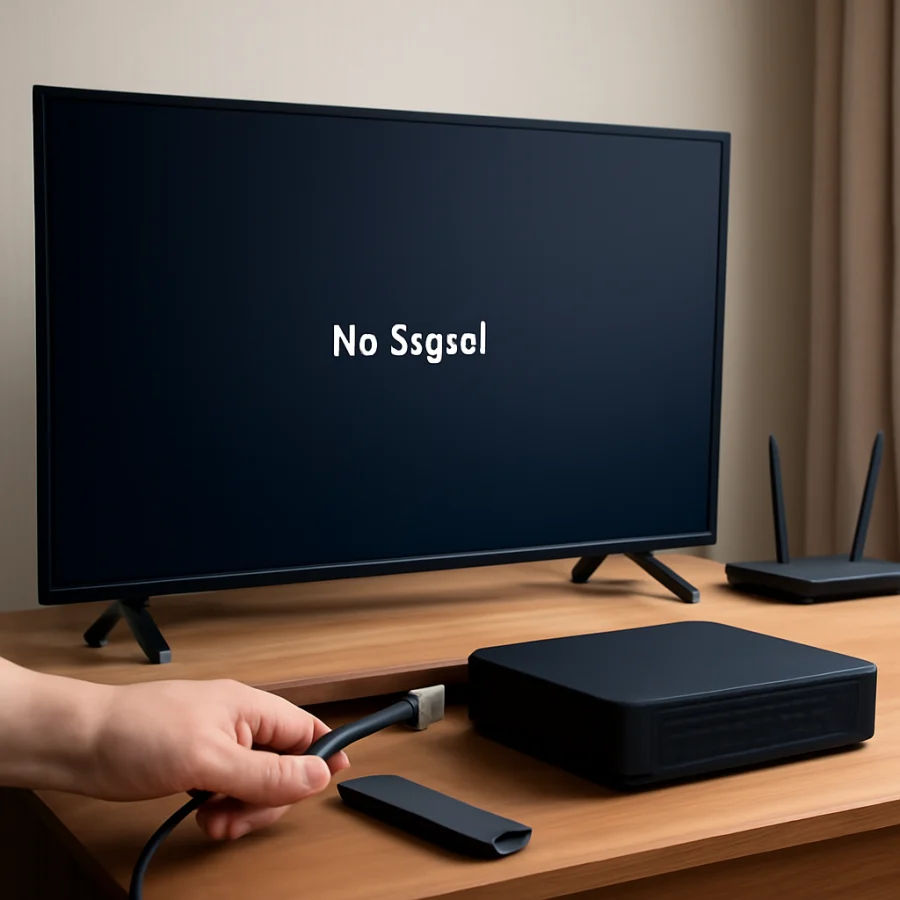
- Save any game progress, then shut down the console using its normal power option.
- Turn off the Samsung TV.
- Unplug the TV and console from power if the console manufacturer allows this and no update or shutdown process is still running.
- Wait about one minute.
- Plug the TV and console back in, turn on the TV first, select the correct HDMI input, and then start the console.
Do not repeatedly unplug a console while it is installing an update or saving data. If the console does not respond to its normal controls, use the instructions supplied for that model before disconnecting power.
Test the TV port and console port
The next step is to isolate the failing part. Move the console cable to another HDMI input on the Samsung TV, then select that new input. If the picture appears on the second port, the original TV port or its connection may be the issue. You can continue using the working port while deciding whether service is needed.
If the TV has more than one HDMI input, test another known-working device on the port that showed No Signal. A streaming device, disc player, or laptop can provide a useful comparison. If several devices fail on the same TV port, the port is more likely to be the problem. If other devices work there but the console does not, focus on the console, its cable, or its output settings.
You can also test the console on another television or monitor, provided the display accepts the console's connection. If it fails on multiple displays with different cables, the console or its HDMI output becomes the leading suspect. Avoid repeatedly inserting and removing the connector, because a loose or damaged port can become worse.
Remove accessories from the HDMI chain
Connect the console directly to the TV during testing. An AV receiver, soundbar, HDMI switch, splitter, capture card, or adapter can interrupt the signal even when every device appears powered on. Some accessories also pass video only when they have power or when the correct input is selected.
Once the direct connection works, add accessories back one at a time. Check the signal after each addition. This identifies the device or cable that causes the failure. If the console works directly but not through an accessory, check that accessory's input selection, power connection, and supported video settings. Model-specific limitations can vary, so consult the accessory's documentation rather than assuming every HDMI feature will pass through it.
Check the console's display settings
A console may have been configured for a resolution, refresh rate, HDR mode, or color setting that the Samsung TV or the current HDMI path cannot display. This can happen after using the console with a different TV or monitor. The TV may show No Signal, a blank screen, or an intermittent picture rather than a detailed explanation.
If the console displays correctly on another screen, open its video or display settings and choose a basic automatic or recommended output mode. Then reconnect it to the Samsung TV. The exact menus differ among PlayStation, Xbox, Nintendo, and other devices, so use the console manufacturer's current instructions for safe recovery or low-resolution startup options.
When the picture returns, add advanced options one at a time. Test resolution, HDR, high refresh rate, variable refresh rate, and enhanced HDMI features separately. The exact capabilities depend on the Samsung TV model, console model, HDMI port, cable, and intermediate equipment. Do not assume that an option supported by one port or display is supported by every port.
Review Samsung TV input and external-device settings
Samsung TVs may include input-related options for recognizing external devices or allowing enhanced HDMI features. Menu names and locations vary by model, software version, and region. Open the TV's Settings menu and look for sections related to external devices, connected devices, inputs, or HDMI. If an enhanced or high-bandwidth HDMI option is enabled, test the connection with it disabled; if it is disabled, test the compatible setting recommended for your console and TV.
Make one change at a time and write down the original setting. Avoid changing several picture and input options together, because that makes it difficult to identify what helped. If you cannot find a setting mentioned in a guide for another Samsung TV, your model may use a different menu or may not include that feature.
Check for a TV or console software update
Software updates can improve compatibility, but update availability and installation steps vary by model and region. If you can use the TV's menus and internet connection, check its software-update area. Do the same for the console when it is possible to access its settings using another display.
Do not interrupt an update by unplugging either device. If the TV cannot display the console but its own menus work, that does not necessarily mean the TV needs a factory reset. Update first when practical, then retest the direct HDMI connection.
When a factory reset is not the right first step
A factory reset erases personalized settings and may remove saved network information, installed apps, and other setup data. It usually should not be the first response to one console showing No Signal. If the TV's built-in menus and apps work normally, the problem is more likely related to the HDMI path or console output than to the entire TV configuration.
Consider a reset only after the cable, ports, direct connection, restart, and compatible display settings have been tested, and only if Samsung's model-specific support guidance recommends it. Record important settings first. If the TV has a separate option to reset picture settings or external-device settings, check what it affects before selecting it.
Signs that hardware service may be needed
Contact the console or TV manufacturer, or a qualified repair provider, if the console fails on multiple known-good displays and cables, the TV's HDMI port is physically damaged, or several HDMI inputs stop detecting every device. Stop testing if you notice burning smells, unusual heat, sparks, or visible electrical damage.
Before requesting help, note the TV model, console model, HDMI port used, cable and accessories tested, and whether another device works on that port. Tell support whether the console appears to power on and whether its picture works on another display. This information helps separate a TV input fault from a console output problem and avoids repeating basic tests.
A practical order for the diagnosis
For the quickest low-risk check, use this order: select the correct HDMI source, reseat the cable, try a known-good cable, restart both devices, connect the console directly to the TV, test another TV port, test another device on the original port, and test the console on another display. Only after those steps should you investigate console recovery modes, advanced HDMI options, updates, or a reset.
In most cases, the result of the port and cable tests points to the cause. A picture on another TV port suggests an input issue. A picture with another cable suggests a cable failure. A console that works on another display but not this Samsung TV usually needs a compatible output setting or a review of the TV's HDMI options. A console that fails everywhere may need manufacturer support.
Comments
0No comments yet. Be the first to share a helpful note or question.
Leave a Comment
Your email address will not be published. Comments are reviewed before appearing on the site.