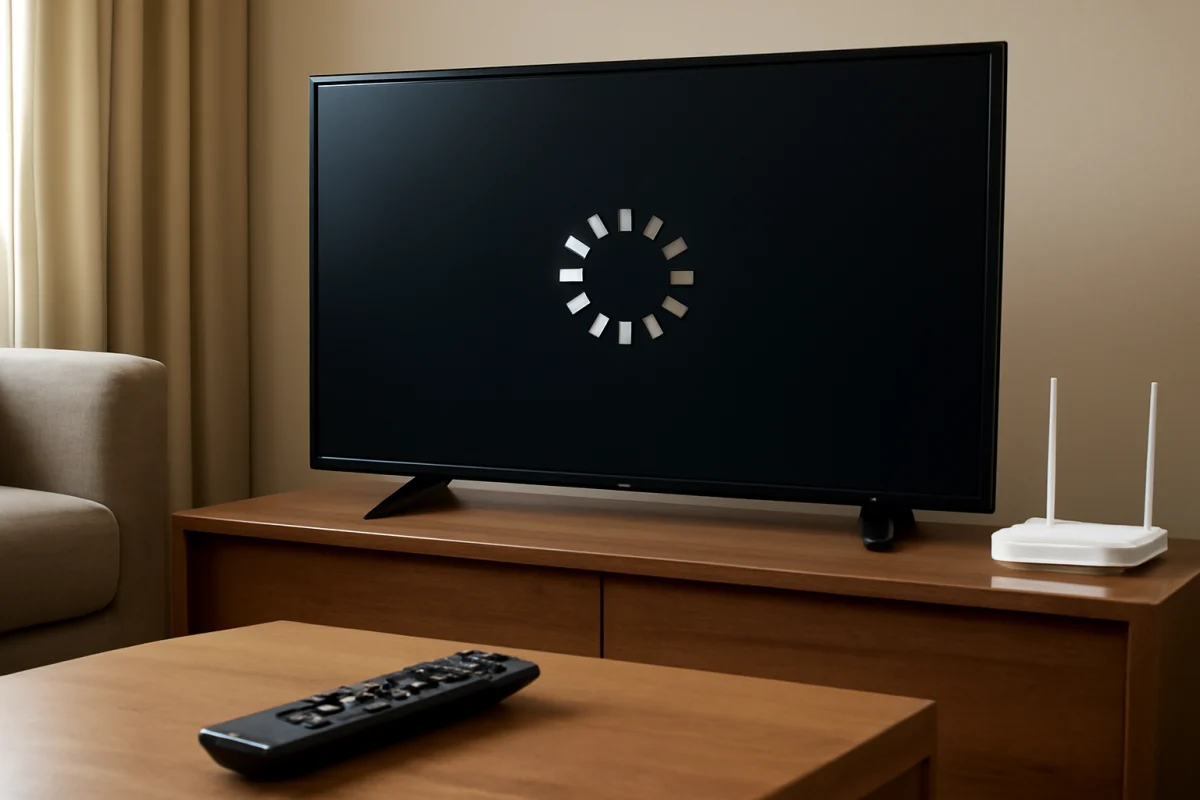
When a Samsung TV app freezes, crashes, or will not open, start with a full TV restart and a quick network check. These two steps clear temporary software problems without deleting your apps or changing most settings. If only one app is affected, focus on that app; if several apps fail, investigate the TV's internet connection, software, or Smart Hub.
Menu names and available options vary by Samsung TV model, year, and software version. Use the closest matching option on your screen, and avoid a factory reset until the simpler fixes have failed.
First, identify whether the problem affects one app or several
Try opening two or three different apps. If Netflix, YouTube, and another service all freeze or refuse to load, the problem is more likely to involve the TV, internet connection, or Smart Hub. If one app fails while the others work normally, the app itself, its account, or a service outage is the more likely cause.
Also note what happens when you select the app. A spinning loading screen, an immediate return to the home screen, a blank screen, and an error message can point to different causes. You do not need to know the exact cause before troubleshooting, but this quick comparison prevents you from resetting the entire TV for a problem limited to one service.
1. Restart the Samsung TV completely
A normal press of the power button may leave the TV in standby rather than fully restarting its operating system. A cold restart can clear a stuck app process and temporary memory issue.
Use the remote
- Turn the TV on.
- Press and hold the remote's power button until the TV turns off and back on. On some models, this takes several seconds.
- Wait for the home screen to appear, then try the problem app again.
Unplug the TV if the remote method does not work
- Turn the TV off.
- Unplug its power cord from the wall outlet.
- Wait at least 60 seconds.
- Plug the TV back in, turn it on, and test the app.
Do not repeatedly unplug the TV while it is installing an update. If an update screen is visible, let the process finish unless the TV has clearly stopped responding for an unusually long time.
2. Check whether the TV is still connected to the internet
Streaming apps may open but fail during loading when the TV has a weak or interrupted connection. Open the TV's network settings and look for a connection or network test. The wording varies by model, but it is commonly found under Settings, Connection, Network, or General settings.
If the TV reports that it is offline, restart your router and modem if you use separate devices. Disconnect power from the network equipment, wait about a minute, reconnect it, and allow the internet connection to return before testing the TV.
For more focused network troubleshooting, see this guide to Samsung TV Wi-Fi disconnects. You can also test the app using a phone hotspot briefly. If the app works through the hotspot, your home network or router settings are more likely responsible. A hotspot test may use mobile data, so stop after confirming the result.
Try a different connection method
If you normally use Wi-Fi, move the router closer to the TV if practical, remove obstructions, or test an Ethernet cable. If the TV works reliably over Ethernet but not Wi-Fi, the app may not be the real problem. Wireless interference, distance, router issues, or a crowded network can cause apps to stall.
If your network does not appear in the TV's list, follow these steps for connecting a Samsung TV when the Wi-Fi network is missing.
3. Check the app and service outside the TV
Open the same streaming service on a phone or computer connected to the same network. If it also fails there, the service may be experiencing an outage, your account may need attention, or the internet connection may be unreliable. Wait and try again later rather than repeatedly reinstalling the TV app.
If the service works on other devices, check that you are using the correct account and that your subscription or sign-in has not expired. Some apps require a new sign-in after an update or security change. If the TV displays an option to sign out, sign out normally, restart the TV, and sign in again.
4. Update the TV software and the affected app
Software compatibility problems can cause apps to crash or return to the home screen. Open the TV's support or software update area and check for an available update. The exact path differs across Samsung models, so use the labels shown on your TV rather than following a menu path from a different model.
After the TV update finishes, restart the television and test the app. Then check the app area for an update option. Some Samsung TVs update apps automatically, while others provide an option to update all apps or update an individual app. If the TV says everything is current, continue to the next step.
Keep the TV connected to power and the internet while an update is running. Do not turn it off just because the screen appears inactive for a short period.
5. Reinstall the app that keeps crashing
Reinstalling can replace damaged app files and is a useful next step when other apps work normally. Select the app from the home screen or app list, open its available options, and look for Delete, Remove, or Reinstall. Some built-in apps cannot be removed completely; in that case, the TV may offer a reinstall or reset option instead.
- Remove or uninstall the affected app if the TV allows it.
- Restart the TV.
- Open the app store or app list and install the app again.
- Sign in and test playback.
Reinstalling normally removes the app's local data, so you may need to enter your email address, password, activation code, or parental-control settings again. It does not usually cancel a subscription, but account details are controlled by the streaming service.
6. Refresh Smart Hub or the TV's app platform
If several apps are affected and the network test is normal, the TV's Smart Hub data may be stuck. Samsung models use different wording and may place the relevant command under support, device care, self-diagnosis, or Smart Hub settings. Look for an option that resets or refreshes Smart Hub, app settings, or the TV's smart features.
Read the on-screen warning before confirming. This action may sign you out of apps, remove downloaded apps, or restore the app platform to its initial state. It may also require you to accept terms and configure app settings again.
After the refresh, allow the TV a few minutes to load the app platform. Install or open one affected app first. If it works, add other apps gradually so you can tell whether one particular app is causing the problem.
7. Check the TV's date, time, and available storage
An incorrect date or time can interfere with secure connections, sign-ins, and video services. Open the TV's time settings and use automatic network time if that option is available. If you set the clock manually, confirm the date, time, and time zone are correct.
Storage can also become a problem when the TV has many apps or downloaded content. Look through the app list and remove apps you no longer use, if the TV permits it. Avoid deleting an app that is still being installed or updated. After freeing space, restart the TV and try the affected service again.
8. Test without external devices and unusual network settings
Disconnecting an HDMI device is not normally necessary for an app crash, but a connected soundbar, receiver, streaming device, or control system can sometimes complicate testing. Temporarily disconnect nonessential HDMI devices, restart the TV, and see whether the built-in app behaves differently.
If you use a VPN, custom DNS service, ad-blocking network, parental-control filter, or other special router setting, disable it temporarily if you know how to do so safely. Streaming services may reject modified network routing or fail when required domains are blocked. Restore your normal settings after the test.
9. Use a factory reset only as a last resort
A factory reset can correct deeper software configuration problems, but it erases personal settings and may remove apps, accounts, Wi-Fi details, picture adjustments, and other preferences. Before using it, make sure you know your streaming passwords and have tried the restart, network check, update, app reinstall, and Smart Hub refresh.
The reset option is usually located in the TV's general, support, or reset settings, but the location and wording vary. Follow the on-screen instructions for your exact model. If the TV is managed by a workplace, hotel, landlord, or service provider, do not reset it without permission because custom configuration may be required afterward.
When the problem may be hardware or account-related
Contact Samsung or the app provider if every app crashes after a factory reset, the TV repeatedly restarts, the screen becomes unresponsive across multiple menus, or the TV cannot complete software updates. Those symptoms may indicate a broader TV software or hardware fault rather than an individual app problem.
Contact the streaming service if only one app fails on the Samsung TV while it works on other devices, especially after reinstalling it. Have the TV model, app name, approximate time of the failure, and any message on screen available. Avoid sharing passwords or payment information in public support forums.
Best order for fixing Samsung TV app problems
For most cases, use this order: fully restart the TV, test the network, compare other apps, check the service on another device, update the TV and app, reinstall the affected app, refresh Smart Hub, and only then consider a factory reset. This sequence starts with reversible checks and helps identify whether the fault belongs to the app, account, network, or television.
Comments
0No comments yet. Be the first to share a helpful note or question.
Leave a Comment
Your email address will not be published. Comments are reviewed before appearing on the site.