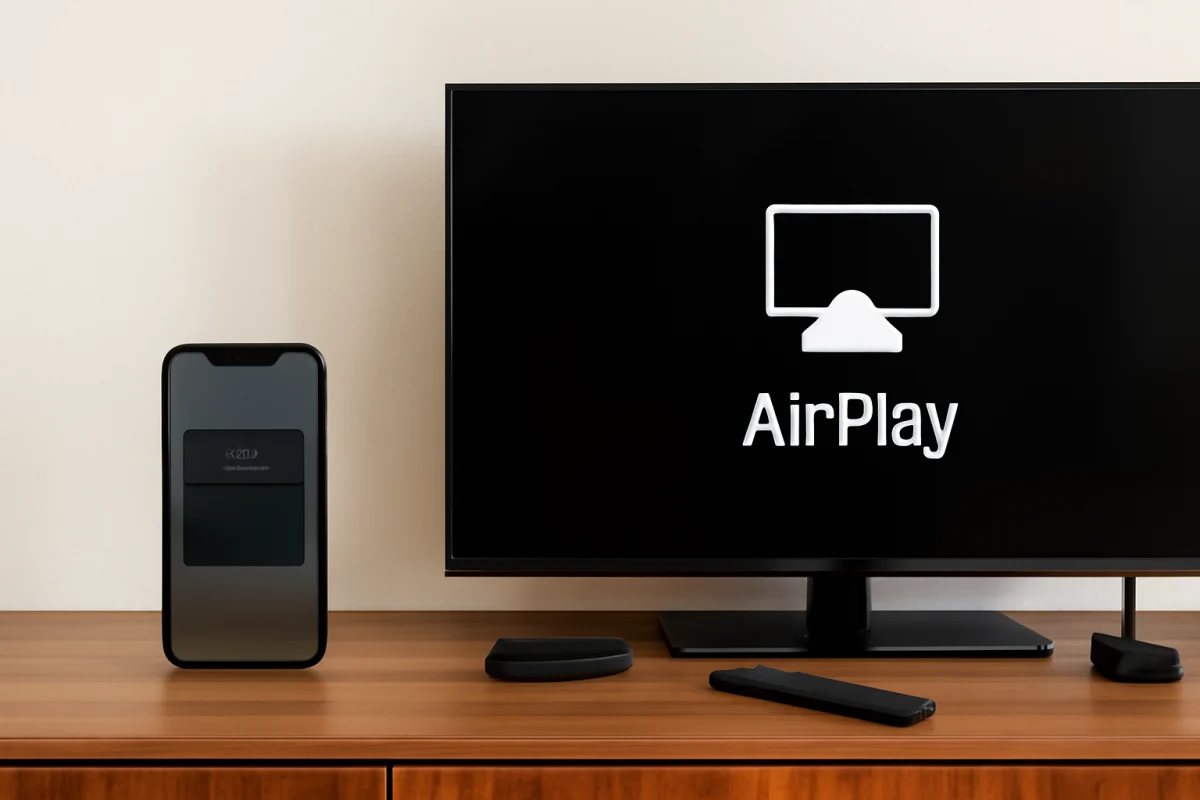
You can set up AirPlay on a compatible Samsung Smart TV by connecting the TV and iPhone to the same Wi-Fi network, enabling AirPlay in the TV's settings, and selecting the TV from your iPhone's Screen Mirroring or app controls. The exact menu names vary by Samsung TV model and software, but the process is usually quick.
Before troubleshooting, confirm that your Samsung TV supports AirPlay. AirPlay is available on many newer Samsung Smart TV models, but support depends on the model, region, and software. If you cannot find any AirPlay setting, check the TV's manual or Samsung's support information for your specific model rather than assuming the feature is available.
What you need before setting up AirPlay
Check these basics first:
- An iPhone with a reasonably current version of iOS
- A Samsung Smart TV that supports AirPlay
- Both devices connected to the same Wi-Fi network
- The latest available software updates for the iPhone and TV, when practical
- A working remote or access to the TV's settings
The iPhone and TV must usually be on the same local network. They do not necessarily need to use the same Wi-Fi frequency, but some routers isolate devices on different bands or guest networks. For the simplest setup, connect both devices to the same regular home network and avoid a guest network.
Turn on AirPlay on the Samsung TV
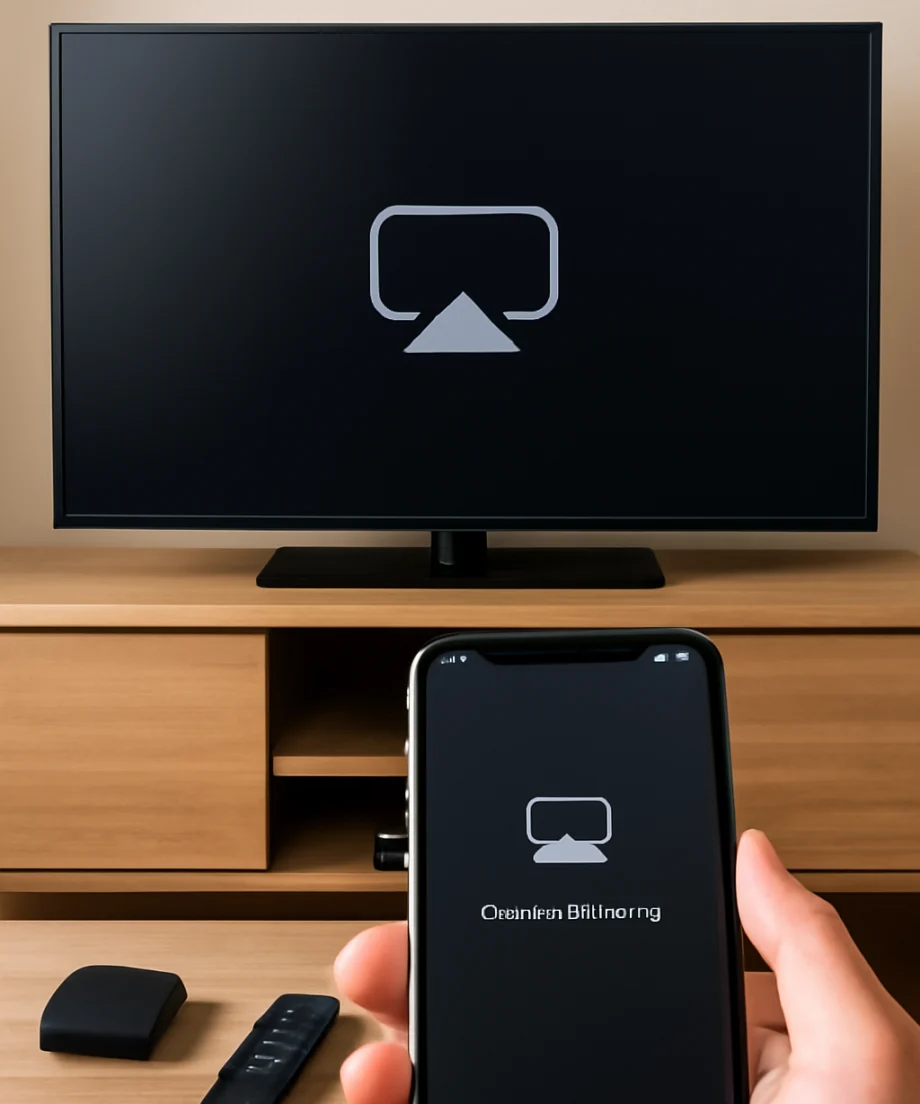
- Turn on the Samsung TV and press the Home button on the remote.
- Open Settings. Depending on the model, you may need to open All Settings first.
- Look for a Connection, General, or Apple AirPlay Settings section.
- Open the AirPlay settings and set AirPlay to On.
- Review the code or access settings. You can usually choose whether the TV asks for a code the first time you connect or every time.
Samsung has changed its settings layout across different TV generations, so the path may not match these labels exactly. If you see an AirPlay option under a different settings category, use that option. Do not change unrelated network or security settings while looking for it.
If there is no AirPlay option, first make sure you are looking in the full settings menu rather than a quick settings panel. Then check whether the TV is connected to the internet and whether a software update is available. An update may improve compatibility, but it cannot add AirPlay to every unsupported model.
Connect your iPhone to the Samsung TV
Use Screen Mirroring for the entire iPhone screen
- Connect the iPhone to the same Wi-Fi network as the Samsung TV.
- Open Control Center. On iPhones with Face ID, swipe down from the upper-right corner. On iPhones with a Home button, swipe up from the bottom edge.
- Tap Screen Mirroring, which uses an icon showing two overlapping rectangles.
- Wait for the Samsung TV to appear in the device list.
- Tap the TV's name.
- If a code appears on the TV, enter that code on the iPhone.
Your iPhone screen should then appear on the TV. You can open photos, browse supported content, or display other compatible apps. To stop mirroring, open Control Center, tap Screen Mirroring, and choose Stop Mirroring.
Use AirPlay inside a compatible app
Some apps offer an AirPlay button without mirroring the entire phone. Start playing a video or other media, then look for the AirPlay icon in the playback controls. Tap it and select the Samsung TV. The icon may be hidden behind a Share button or another controls menu, and its location differs by app.
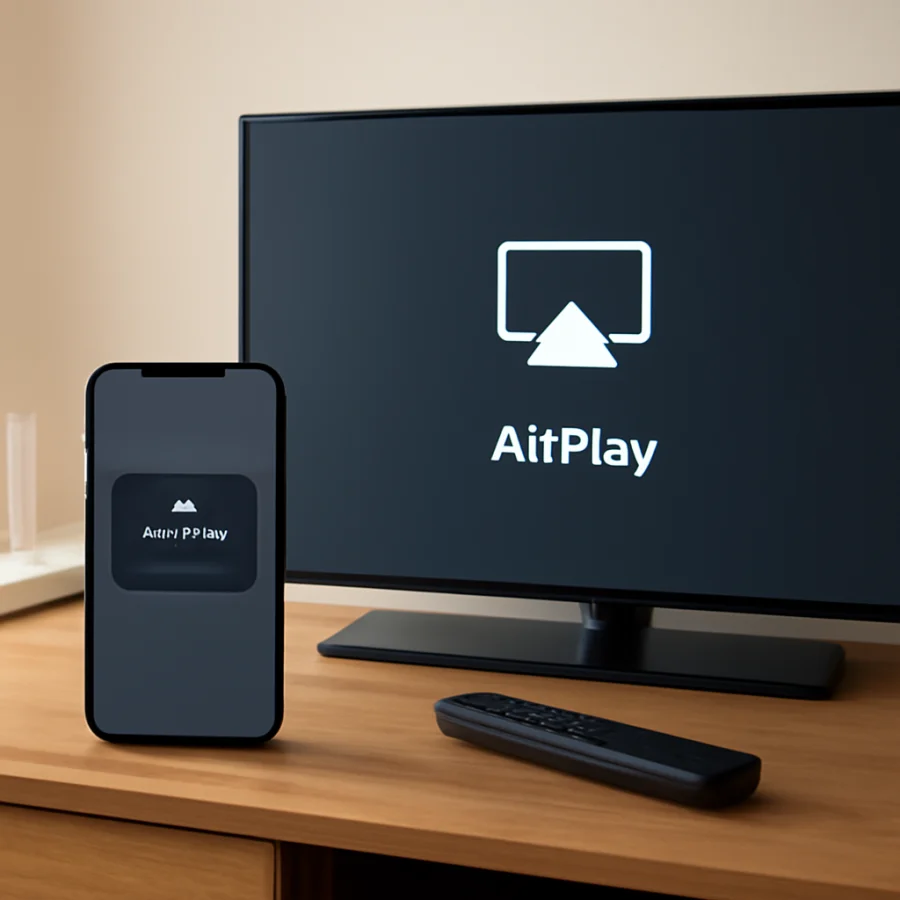
App-based AirPlay can be preferable for video because the TV receives the stream directly in some cases, while the iPhone acts as the controller. However, not every app supports AirPlay, and some services restrict playback on certain devices. If Screen Mirroring works but one app does not, the problem may be specific to that app rather than the TV's AirPlay connection.
If the Samsung TV does not appear on the iPhone
When the TV is missing from the Screen Mirroring list, start with the network connection. On the TV, open the network settings and confirm that it is connected to your home Wi-Fi. On the iPhone, open Wi-Fi settings and verify the connected network name. If the names differ, connect both devices to the same network.
Also check for these common causes:
- The iPhone is connected to a guest, hotel, office, or public network that blocks device discovery.
- A VPN or security app on the iPhone is interfering with local network communication.
- The TV is connected by Ethernet while the iPhone uses Wi-Fi on a router that separates wired and wireless devices.
- The TV's AirPlay setting is off.
- The TV or iPhone is temporarily stuck after waking from standby.
- The router's device isolation or parental-control settings are blocking local connections.
Start with the least disruptive fixes. Turn AirPlay off and on in the TV settings, close and reopen Control Center on the iPhone, and wake the TV fully. Then restart both devices normally. A restart often clears a temporary discovery problem without erasing saved settings.
If the issue appears to be network-related, our guide to connecting a Samsung TV when the Wi-Fi network is not showing covers additional network checks. You can also find more Samsung troubleshooting guides in the Samsung TV section.
If AirPlay asks for a code repeatedly
A code prompt is normal when AirPlay is configured to verify new connections. Enter the code displayed on the TV. If the TV asks for a code every time even after you change the access setting, check that the TV's date and time are correct and that both devices are on the same network.
Some TVs have AirPlay access choices such as requiring a code the first time, requiring it every time, or using a password. The wording varies by model. Choose the least restrictive option that suits your household, but avoid disabling access controls on a shared network where other people could try to connect.
Fix a connection that starts but keeps disconnecting
AirPlay depends on a stable local network. A weak Wi-Fi signal, heavy network traffic, or router problems can cause pauses and disconnects even when the TV initially appears correctly.
- Move the iPhone closer to the router or TV if the wireless signal is weak.
- Pause large downloads, game updates, cloud backups, and other high-bandwidth activity.
- Restart the router by unplugging it briefly, waiting, and reconnecting it. Allow the network to return before testing AirPlay.
- Restart the TV and iPhone after the router is back online.
- Test a short video or photo before trying a long stream.
If the Samsung TV repeatedly loses its Wi-Fi connection outside of AirPlay, see our guide to Samsung TV Wi-Fi disconnects. If other devices also lose connectivity, focus on the router or internet service rather than AirPlay alone.
Fix lag, a black screen, or missing sound
A small delay is normal when mirroring an iPhone, especially during games or other interactive content. For smoother playback, use the app's AirPlay button when available instead of mirroring the entire screen.
For a black screen, stop mirroring and try again. Then test a photo or a different app. If photos appear but a particular video remains black, that service may limit screen recording or mirroring because of content-protection rules. AirPlay compatibility can also vary between app versions.
If the picture works but there is no sound, raise the volume on both the iPhone and TV, check that the TV is not muted, and test another piece of media. Disconnect Bluetooth headphones or speakers from the iPhone because audio may still be routed to them. Also check the app's playback controls for a separate audio-output selection.
When to update or reset settings
Install available software updates for the TV and iPhone if basic steps have not helped. Updates can resolve compatibility issues, but menu labels and update behavior vary by model. Keep the TV connected to power and the network during an update, and follow the instructions shown on the screen.
A factory reset should be a last resort. It removes saved accounts, apps, network details, and personal preferences, and it may not solve the problem if the TV does not support AirPlay or the router blocks local discovery. Before considering a reset, test another iPhone or iPad if one is available. That comparison can show whether the problem is with the original iPhone, the TV, or the network.
Quick checklist
- Confirm the Samsung TV model supports AirPlay.
- Turn on AirPlay in the TV settings.
- Put the iPhone and TV on the same regular Wi-Fi network.
- Open Control Center and choose Screen Mirroring.
- Select the TV and enter the on-screen code if requested.
- Restart the devices before changing advanced router settings.
- Test another app or device to isolate compatibility problems.
Once AirPlay is working, the TV should appear in the iPhone's Screen Mirroring list whenever both devices are awake and connected to the same local network. If it disappears later, repeat the network and AirPlay checks before resetting the TV.
Comments
0No comments yet. Be the first to share a helpful note or question.
Leave a Comment
Your email address will not be published. Comments are reviewed before appearing on the site.