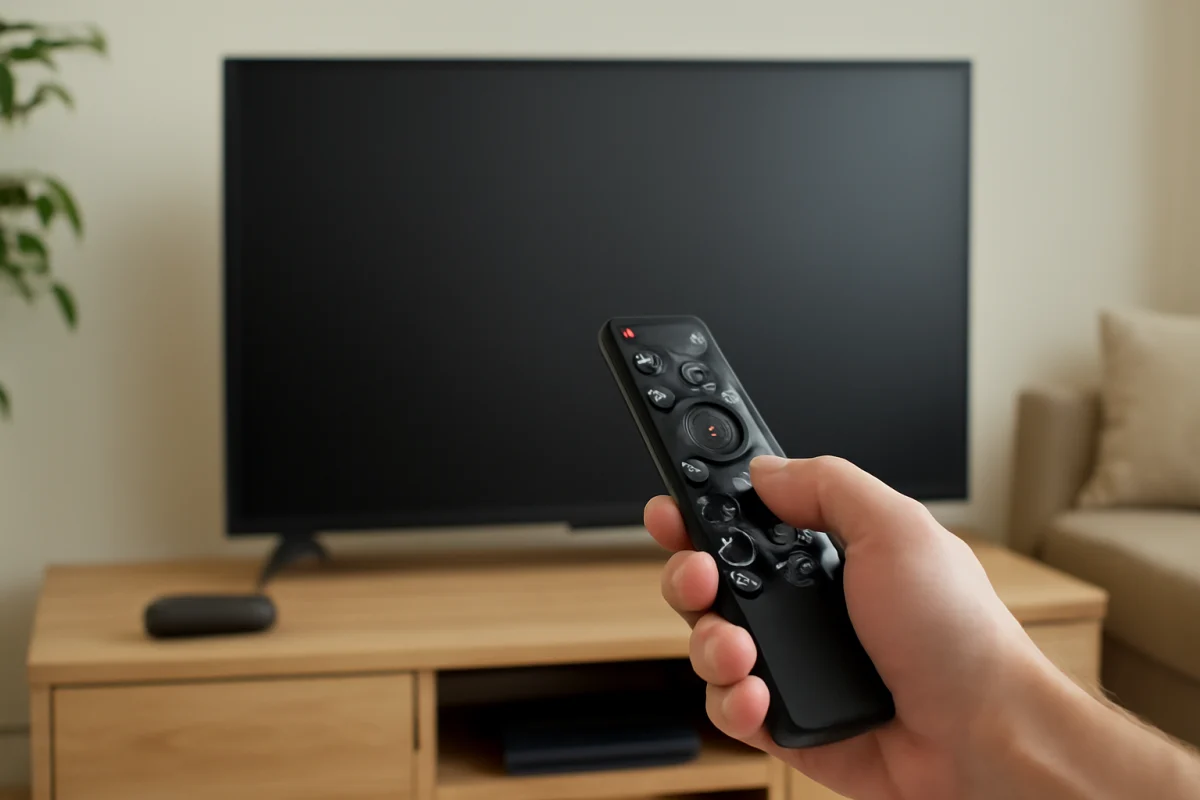
If your Samsung TV remote is not pairing, start with the simple causes: replace the batteries, remove anything blocking the TV’s sensor, and restart both the TV and remote. For many Samsung Smart Remotes, pointing the remote at the TV and holding the Return and Play/Pause buttons together for several seconds starts the pairing process. The exact button combination can vary by remote model, so check the markings on your remote or the manual if that shortcut does not work.
A remote that still controls basic functions but will not open apps or navigate menus may have lost its Bluetooth connection. A remote with no response at all may have dead batteries, a damaged button, a blocked sensor, or a problem with the remote itself. Work through the checks below in order so you do not reset the TV unnecessarily.
Check whether the remote is actually unresponsive
Before trying to pair the remote, determine what kind of connection problem you have. Samsung TVs may use infrared signals for some commands and Bluetooth for additional Smart Remote features. This means a remote can sometimes turn the TV on or off but still fail to navigate reliably if its wireless pairing has been lost.
- Press the Power button and see whether the TV responds.
- Try the volume, channel, Home, and directional buttons.
- Watch for a pairing message or an on-screen prompt after pressing buttons.
- If only one or two buttons fail, inspect those buttons for dirt, sticking, or physical damage.
If the TV responds to some buttons, continue with the pairing steps. If it does not respond to any button, begin with the batteries and physical checks.
Replace the remote batteries
Weak batteries are one of the most common reasons a Samsung remote stops pairing. Bluetooth pairing requires more power than a simple button press, so a remote may appear partly functional even when its batteries are nearly depleted.
- Remove both batteries from the remote.
- Check the battery compartment for corrosion, moisture, or bent contacts.
- Insert a fresh pair of batteries in the direction shown inside the compartment.
- Press several buttons to discharge any residual power, then try pairing again.
Use two matching new batteries rather than mixing old and new ones. If the remote uses a rechargeable battery, charge it fully with the appropriate cable and allow it to sit for a short time before testing. Avoid using a damaged, swollen, or leaking battery.
Remove obstacles around the TV
Infrared commands need a reasonably clear path between the remote and the TV’s sensor. The sensor may be located along the lower edge of the screen, but its position differs by model. Remove soundbars, decorations, game consoles, or other objects that may cover the lower bezel or sit directly in front of the TV.
Point the remote toward the front of the TV from a short distance. Bright sunlight or strong lighting aimed directly at the sensor can occasionally interfere with infrared commands. Move the remote and test again from several positions.
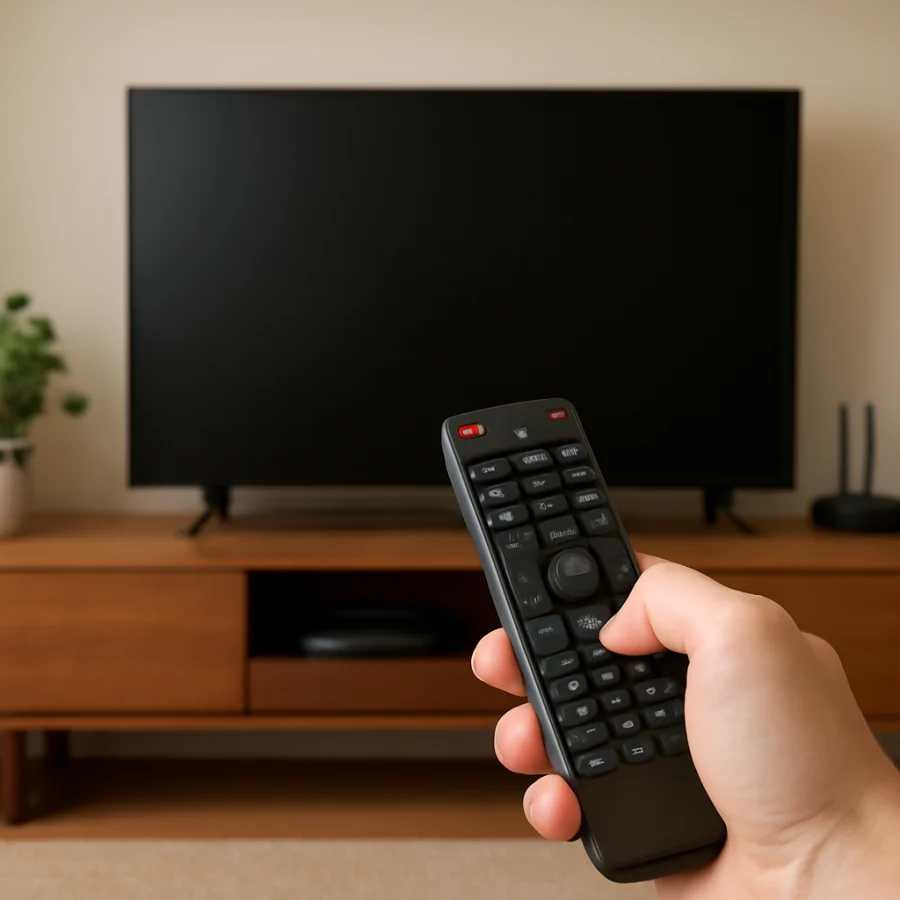
If the TV is inside a cabinet, open the doors while testing. Do not place the remote behind the television or rely on it through a closed cabinet until you know the pairing works.
Restart the Samsung TV and remote
A restart can clear a temporary communication problem without removing settings or apps. Turn the TV off, unplug its power cord from the wall, and wait about 60 seconds. Plug it back in and allow it to finish starting before testing the remote.
While the TV is unplugged, remove the remote batteries. Press and hold the Power button on the remote for a few seconds, then reinstall the batteries. This is not a full factory reset; it simply gives both devices a fresh start.
After the TV displays its normal picture, press a button on the remote while standing close to the screen. If the TV shows a pairing prompt, follow the instructions on screen.
Pair a Samsung Smart Remote again
Many Samsung Smart Remotes can be paired by holding two buttons at the same time. On numerous models, the combination is Return and Play/Pause. Hold both buttons while pointing the remote at the TV until a pairing message appears or the remote begins working normally.
Because Samsung has released several remote designs, the buttons and pairing instructions may differ. Some remotes use a different shortcut, and some older remotes rely mainly on infrared rather than Bluetooth. If Return and Play/Pause does nothing, do not repeatedly hold random button combinations. Look at the remote’s model information, check the TV’s supplied guide, or use Samsung’s support documentation for the exact instructions for your model.
Keep the remote close during pairing
Hold the remote within a few feet of the TV and point it toward the screen. Keep other Bluetooth devices away temporarily if the TV is in a crowded entertainment center. Do not press several buttons while the pairing attempt is in progress. Wait for the TV to respond before trying another command.
Use the TV’s physical controls if necessary
If the remote will not navigate the TV, use the physical control button on the television, when available. Its location and functions vary by model, but it may let you open basic controls or select a source. A connected USB keyboard may also help with navigation on some TVs, although compatibility is not guaranteed.
Check for a stuck or damaged button
A stuck button can make the remote behave unpredictably or prevent another command from registering. Look for buttons that remain pressed, sit lower than the others, or feel unusually soft. Gently press each button once and check whether one is sticking.
Clean the outside of the remote with a dry, soft cloth. Do not spray liquid directly onto it or pour cleaner into the gaps around the buttons. If the remote has been dropped, exposed to liquid, or cracked, pairing may not be possible even after replacing the batteries.
Try the Samsung TV remote app as a temporary control
If your TV and phone are already connected to the same Wi-Fi network, a compatible Samsung TV control app may provide temporary access to the TV. This can help you open settings, confirm network information, or update the TV without the physical remote. App availability and features vary by TV model, phone, and software version.
This option may not work if the TV has never been connected to your network, if the TV is offline, or if it requires an on-screen approval that you cannot select. It is a convenience option, not a guaranteed replacement for the physical remote.
Check the TV’s network only if the remote app or smart features fail
A lost remote pairing is not usually caused by Wi-Fi, but network problems can make a phone-based remote appear unavailable and can affect certain smart features. If you are also seeing connection problems, review our guide to Samsung TV Wi-Fi disconnecting problems. For a network that does not appear in the TV’s list, see our steps for connecting a Samsung TV when Wi-Fi is not showing.
Do not change network settings just to fix a physical remote that has stopped pairing. Focus on the batteries, sensor, restart, and pairing procedure first.
When to reset the TV
A factory reset should be a last resort. It removes personal settings and may require you to sign in to apps, reconnect the TV to Wi-Fi, rescan channels, and adjust picture and sound preferences again. It also may not fix a defective remote or a failed Bluetooth component.
Consider a reset only if the TV has broader software problems and you have already confirmed that another compatible remote works. The reset path varies by Samsung TV model and software version, so use the TV’s own support information rather than following instructions for a different model. If you cannot navigate the menus, a factory reset may not be practical without a working remote or another control method.
Test with another compatible remote
The quickest way to separate a remote problem from a TV problem is to test another compatible Samsung remote, if one is available. A replacement must support your TV and may need to be paired before all features work. An inexpensive universal remote may handle basic infrared commands but may not provide the full Smart Remote experience.
If another compatible remote pairs normally, the original remote likely needs replacement. If no compatible remote pairs, the TV’s wireless receiver, software, or control system may be at fault. Contact Samsung support or a qualified repair provider with the TV model and remote model available.
Signs the remote may need replacement
- Fresh batteries make no difference.
- The remote has visible liquid or impact damage.
- Buttons are stuck, missing, or consistently fail.
- The remote will not pair while another compatible remote works.
- The remote’s indicator behaves differently from normal or does not respond at all.
Before buying a replacement, compare the model information on the old remote with the replacement listing and confirm compatibility with your exact TV. Samsung remotes can look similar while supporting different features. If you are unsure, use the TV’s model number and the remote’s model number when checking support information.
Get the remote working without unnecessary resets
Most Samsung TV remote pairing problems can be narrowed down with a fresh set of batteries, a clear path to the TV, a power restart, and the correct pairing shortcut. Pair the remote close to the TV and follow the instructions for your specific model. Avoid a factory reset unless the TV has other serious software issues, because resetting the television will not repair a damaged remote.
For more troubleshooting help, browse the Samsung TV troubleshooting section or the broader remote controls guide on TV Fix Guide.
Comments
0No comments yet. Be the first to share a helpful note or question.
Leave a Comment
Your email address will not be published. Comments are reviewed before appearing on the site.