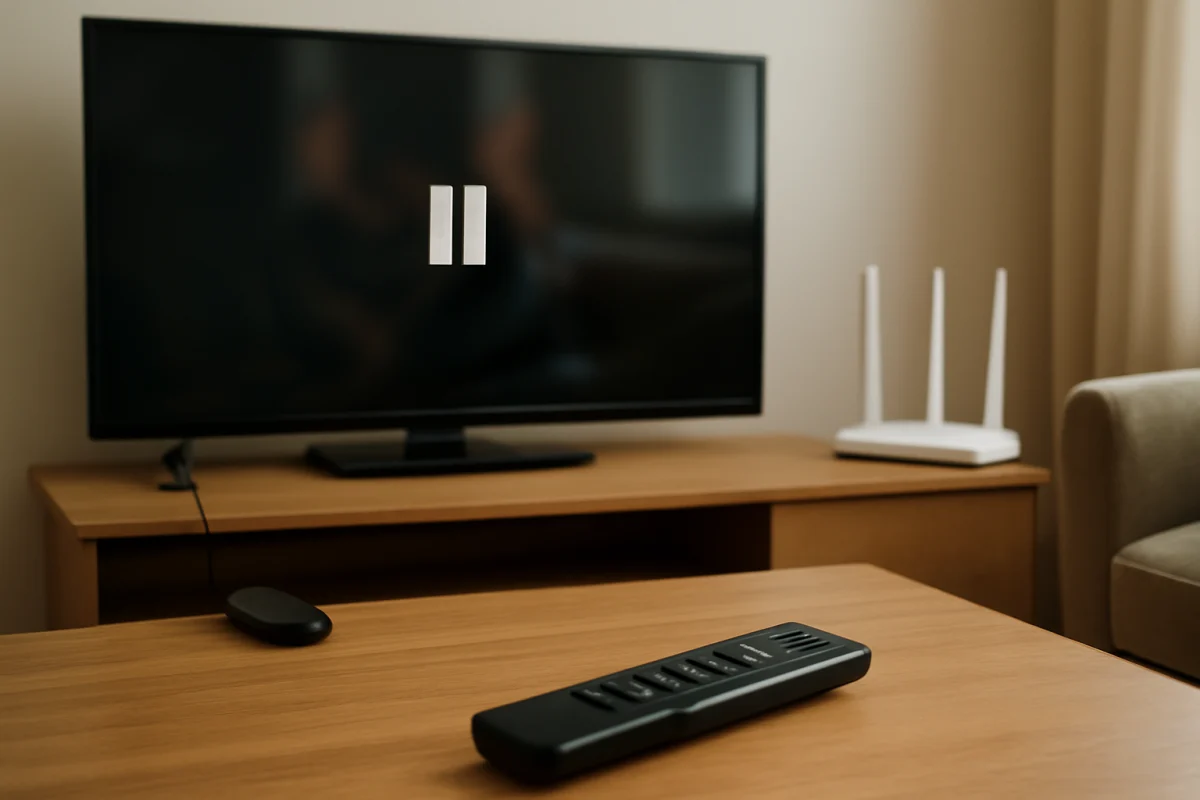
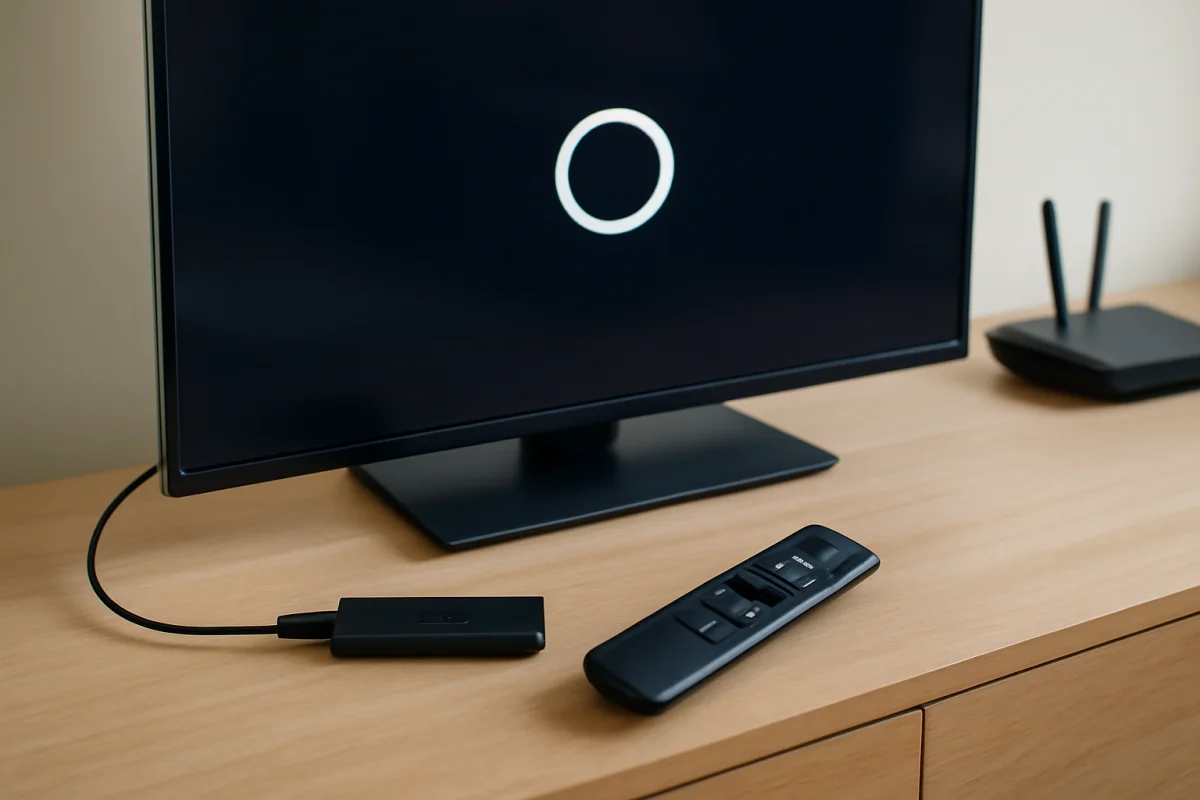
If streaming keeps stopping on your Fire TV, start by checking whether the problem affects one app or every streaming service. A single app usually points to an app-specific problem, while interruptions across several apps are more likely related to Wi-Fi, the Fire TV device, or your home network.
Pause the video and let it buffer for a minute, then try a different title. If playback still stops, use the steps below in order. The early checks are quick and low risk, and they can often restore smooth streaming without resetting the device.
Check whether the problem affects one app or every app
Open another streaming app and play a different video for a few minutes. You can also try another title within the same app. This simple comparison helps narrow down the cause:
- Only one title stops: The problem may be limited to that title, its service, or the app's current playback session.
- Only one app stops: The app may need to be restarted, updated, or reinstalled.
- Several apps stop: Check the Wi-Fi connection, network equipment, Fire TV software, available storage, and device temperature.
- Video stops but audio continues: The issue may involve the app, video output, or a temporary display problem rather than buffering alone.
Also check whether the interruption happens at the same point every time. A repeatable stoppage can indicate a problem with one video or app session. Random pauses across different services more often suggest an inconsistent connection or a device resource problem.
Test the Fire TV's internet connection
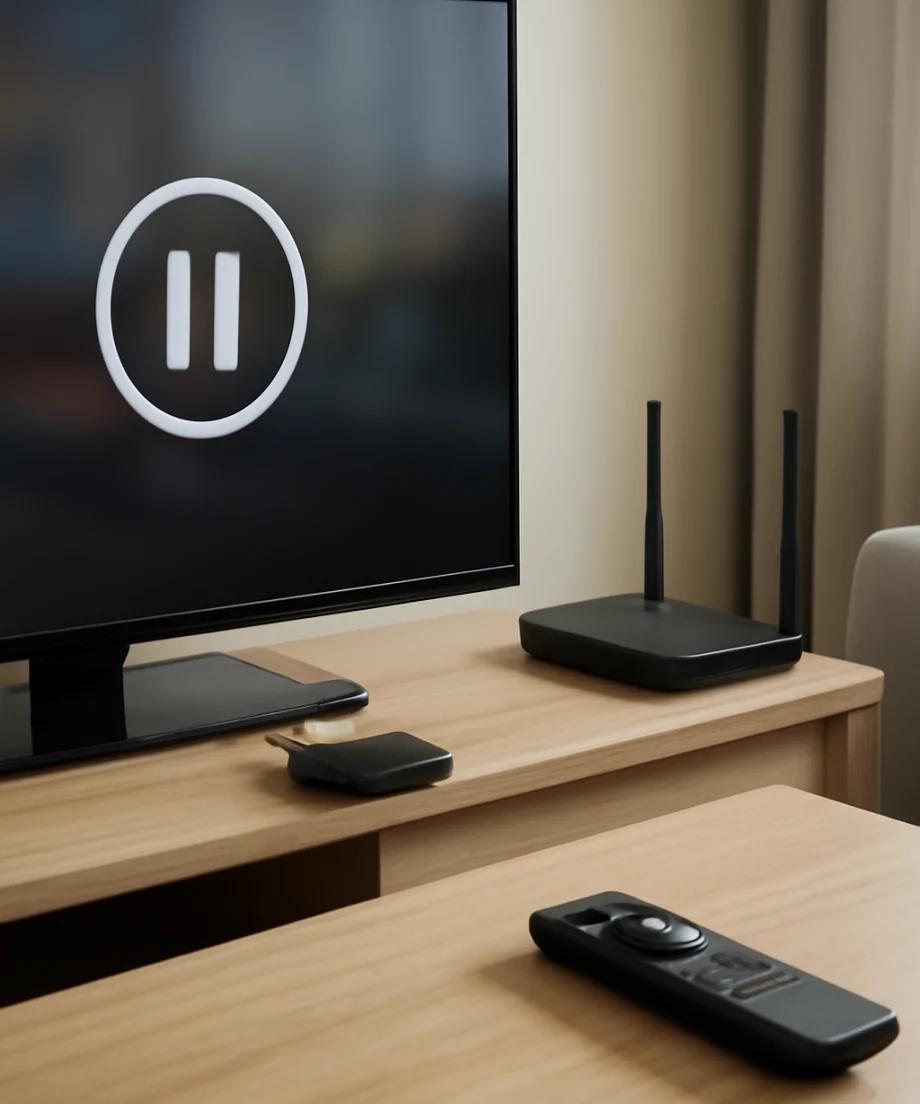
Streaming can stop even when the Fire TV says it is connected to Wi-Fi. A connection may be strong enough to load menus but not stable enough to maintain video playback.
Try opening a website or streaming app on another device connected to the same network. If several devices are slow or frequently disconnecting, restart your home network. Unplug the modem and router, wait about 30 seconds, reconnect them, and allow the network to come back fully before testing Fire TV again.
Keep the Fire TV and router reasonably close when possible. Walls, cabinets, large appliances, and other wireless networks can weaken or interfere with the signal. If your router has separate network bands, trying the other available band may help, although the best option depends on your home layout and router settings.
For more network-focused checks, see our guide to connecting Fire TV to Wi-Fi. Avoid changing advanced router settings until you have confirmed that a basic network restart does not help.
Restart Fire TV completely
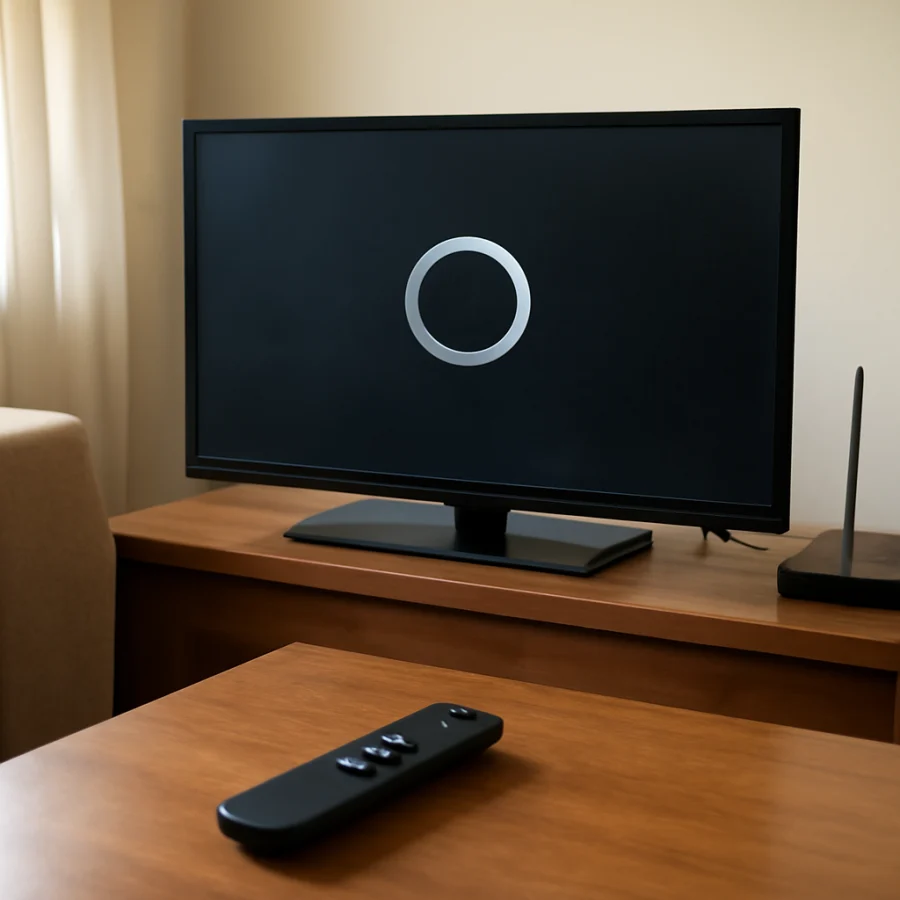
A full restart can clear a temporary playback process, network session, or memory problem. Use the restart option shown in your Fire TV's settings if it is available. Menu wording and organization can vary by device model and software version.
If the screen is unresponsive, disconnect the Fire TV from power, wait at least 30 seconds, and reconnect it. If you use a Fire TV Stick, unplug the power cable from the wall adapter or power source rather than only removing the Stick from the television's HDMI port.
Do not repeatedly unplug the device while it is starting, installing an update, or responding slowly. Give it time to finish loading, then test the same app again.
Close and refresh the streaming app
An app can remain stuck in a damaged or incomplete playback session. Return to the Fire TV home screen, reopen the app, and try again. If the problem continues, use the app management controls on your device to stop the app and clear its cache if those options are available.
Clearing an app's cache generally removes temporary files, but the exact effect and menu path can vary. Clearing app data is more disruptive: it may sign you out and remove local preferences. Use that option only when closing the app and clearing its temporary cache have not helped.
Check for an available update for the affected app. App menus and update controls can differ, so follow the options shown on your Fire TV rather than relying on instructions for a different model. If the app keeps crashing or stopping, our guide to apps that keep crashing on Fire TV covers additional app-specific checks.
Reduce possible Wi-Fi congestion
Other activity on your network can interrupt streaming. Large downloads, cloud backups, video calls, online games, and several simultaneous streams may compete for bandwidth. Temporarily pause nonessential network activity and test Fire TV again.
If streaming improves when other devices are idle, the issue may be network congestion rather than a fault with Fire TV. You may need to spread demanding devices across the available network bands, move the router, or use a wired connection if your setup supports one.
Internet speed is not the only factor. A connection that repeatedly drops for short periods can stop playback even if a speed test shows a good result. Compare the behavior at different times of day to see whether the problem follows network usage in your home or occurs constantly.
Check Fire TV storage and background load
Limited free storage can make apps slower, less reliable, or more likely to stop responding. Review the storage information in your device settings and remove apps you no longer use. Do not delete an app you need unless you are prepared to install it again and sign in.
After removing unused apps, restart Fire TV and test playback. If the device is also slow when opening menus, taking a long time to load apps, or freezing outside streaming, storage and general system load deserve more attention. You can also read our guide on why Fire TV becomes slow.
Check for overheating and power problems
Fire TV hardware can become less reliable when it gets too warm or does not receive consistent power. Make sure the device is not pressed tightly against the back of the television or enclosed in a small, poorly ventilated space. Move nearby objects that block airflow, and allow the device to cool before testing it again.
Use the power adapter and cable intended for your Fire TV when possible. Power supplied through a television's USB port may not be appropriate for every setup, and a worn cable or loose connection can cause intermittent behavior. Check that the power cable is firmly connected at both ends, but do not force any connector.
If the Fire TV repeatedly restarts, goes black, or becomes unresponsive as well as stopping streams, the issue may be more than ordinary buffering. Our guide to Fire TV freezing problems can help you separate playback trouble from a broader device problem.
Update Fire TV software when an update is available
Software updates can address compatibility and stability problems, but the available controls depend on the Fire TV model and current software version. Open the device's settings and look for a system update option. If an update is available, connect the device to reliable power and Wi-Fi, then allow the process to finish.
Avoid interrupting an update by unplugging the device. If Fire TV reports that it is already current, continue with app and network troubleshooting instead of trying to install software from an unofficial source.
Reinstall the affected app
If only one app continues to stop after restarting it and clearing temporary data, reinstalling it may repair damaged local files. Before removing the app, make sure you know the account email address and password because you may need to sign in again.
Uninstall the app using the options available on your Fire TV, restart the device, and install the app again from an official source. Then test a title that previously stopped. If other apps work normally but the same service still fails, check that service's support pages for outages or account-related problems.
Use a reset only as a last resort
A factory reset removes accounts, installed apps, preferences, and other local settings. It can help with persistent software corruption, but it should not be the first response to ordinary buffering. Before considering it, confirm that the issue affects several apps, the network works normally on other devices, the Fire TV has adequate ventilation and power, and restarting or updating has not helped.
Because reset steps and menu labels can vary by model, use the instructions displayed on your device or the official support documentation for your specific Fire TV. Make sure you can sign back into your Amazon account and streaming services before starting. If the device continues to stop streams after a reset, the problem may involve hardware, power, the network environment, or a particular service.
When to seek further help
Contact the streaming service if one app or one account fails while other apps play normally. Contact your internet provider if multiple devices lose connection, especially when the problem continues after restarting your network equipment. If Fire TV repeatedly overheats, restarts, freezes across all apps, or will not stay powered, use Amazon's official support options for device-specific help.
Keep notes about what you tested: which apps stop, whether other devices have the same problem, how often playback pauses, and whether restarting changes anything. That information can make the cause much easier to identify and can prevent you from repeating low-value fixes.
Comments
0No comments yet. Be the first to share a helpful note or question.
Leave a Comment
Your email address will not be published. Comments are reviewed before appearing on the site.