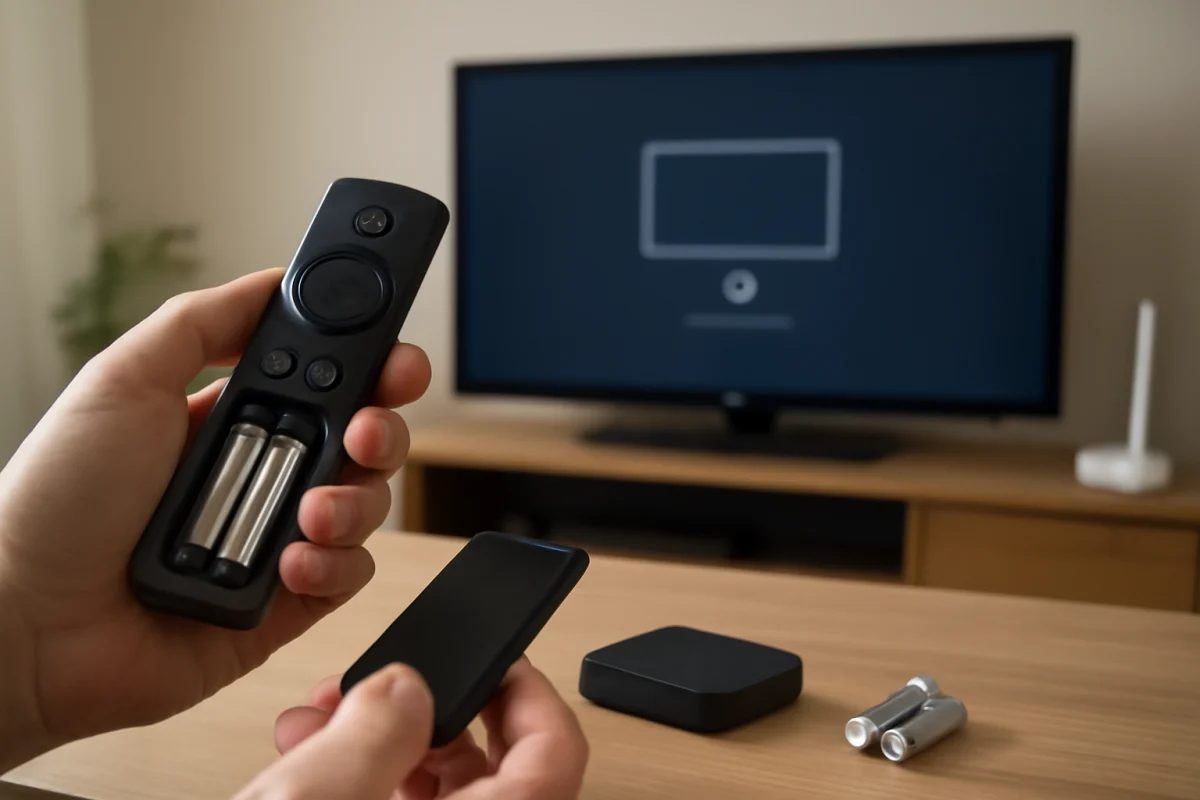
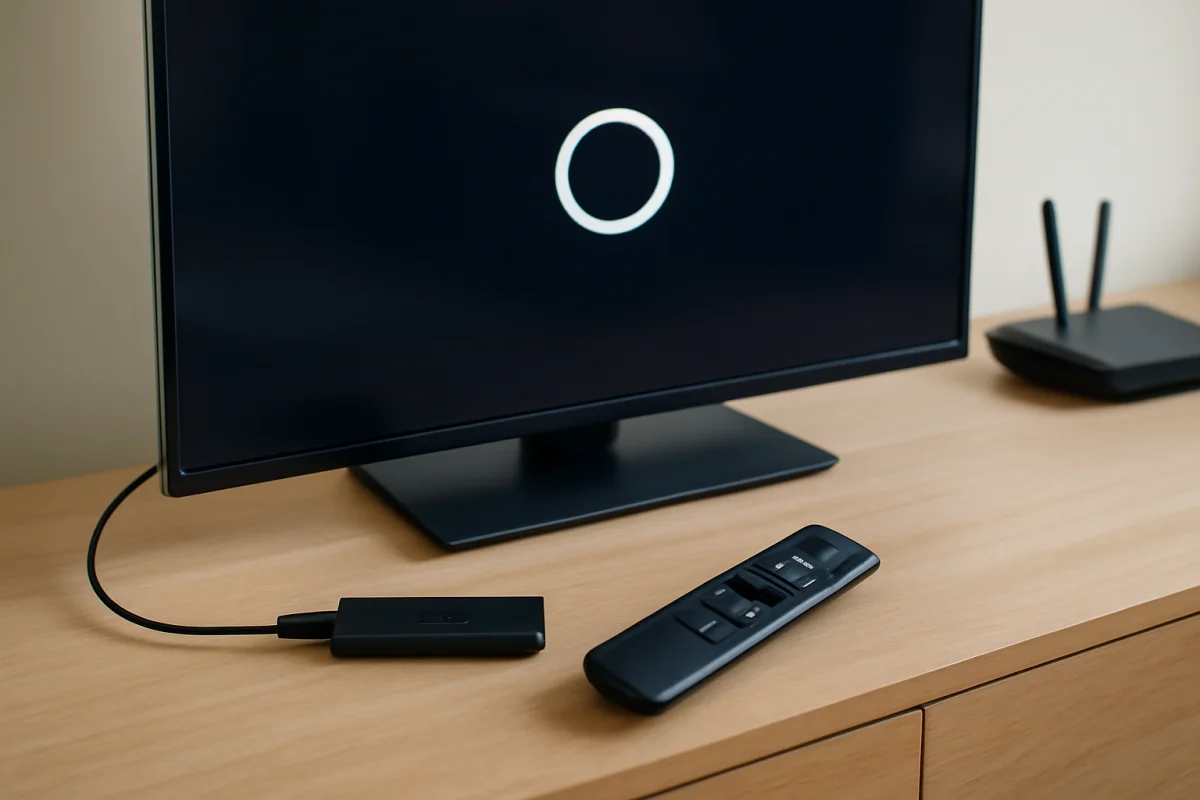
If your Fire TV remote will not pair, start with the simplest checks: replace both batteries, restart the Fire TV, move the remote close to the device, and try the pairing process again. Most pairing problems come from weak batteries, a temporary software issue, wireless interference, or a remote that is already connected to another Fire TV device.
The exact button combination and on-screen instructions can vary between Fire TV models, remote generations, and television setups. Use the instructions that appear on your screen when available, and avoid resetting the device until the basic checks are complete.
Check the batteries first
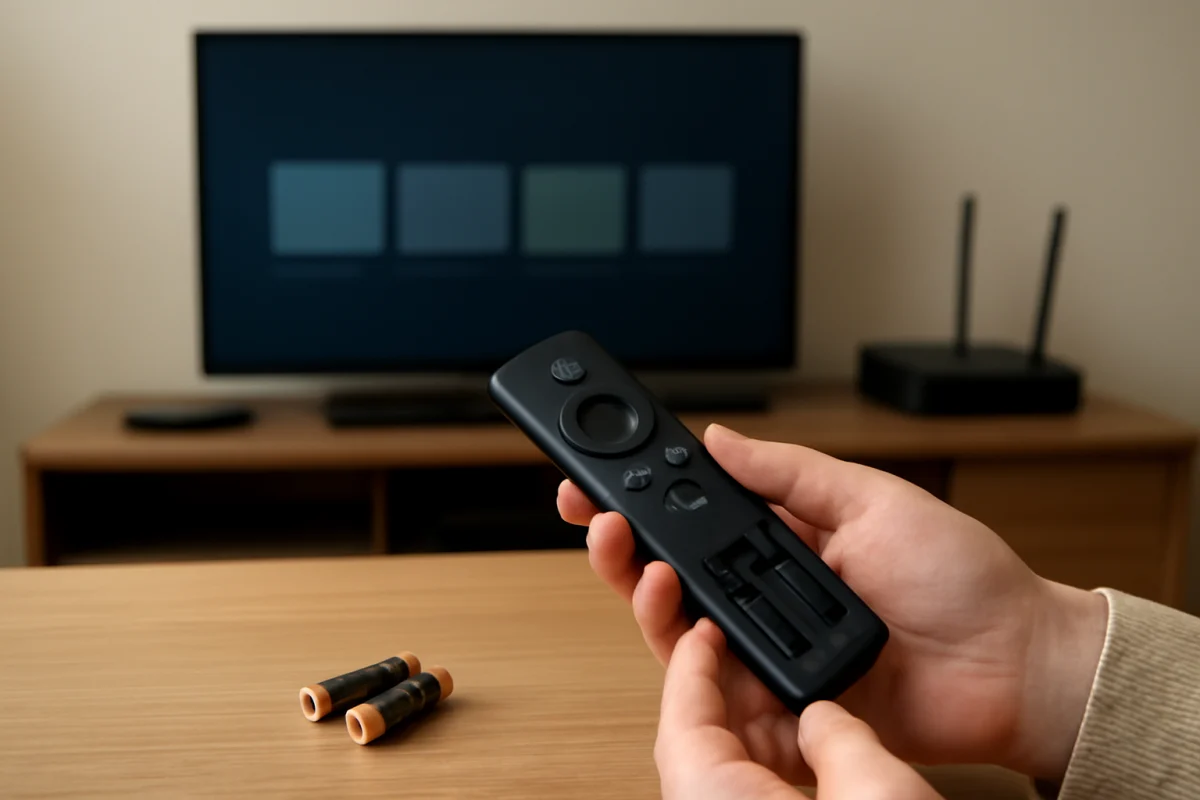
Weak batteries can make a remote appear completely dead or cause it to lose its connection repeatedly. Pairing uses more power than ordinary button presses, so a remote may still flash a light or respond occasionally even when its batteries are too weak to complete pairing.
- Remove both batteries from the remote.
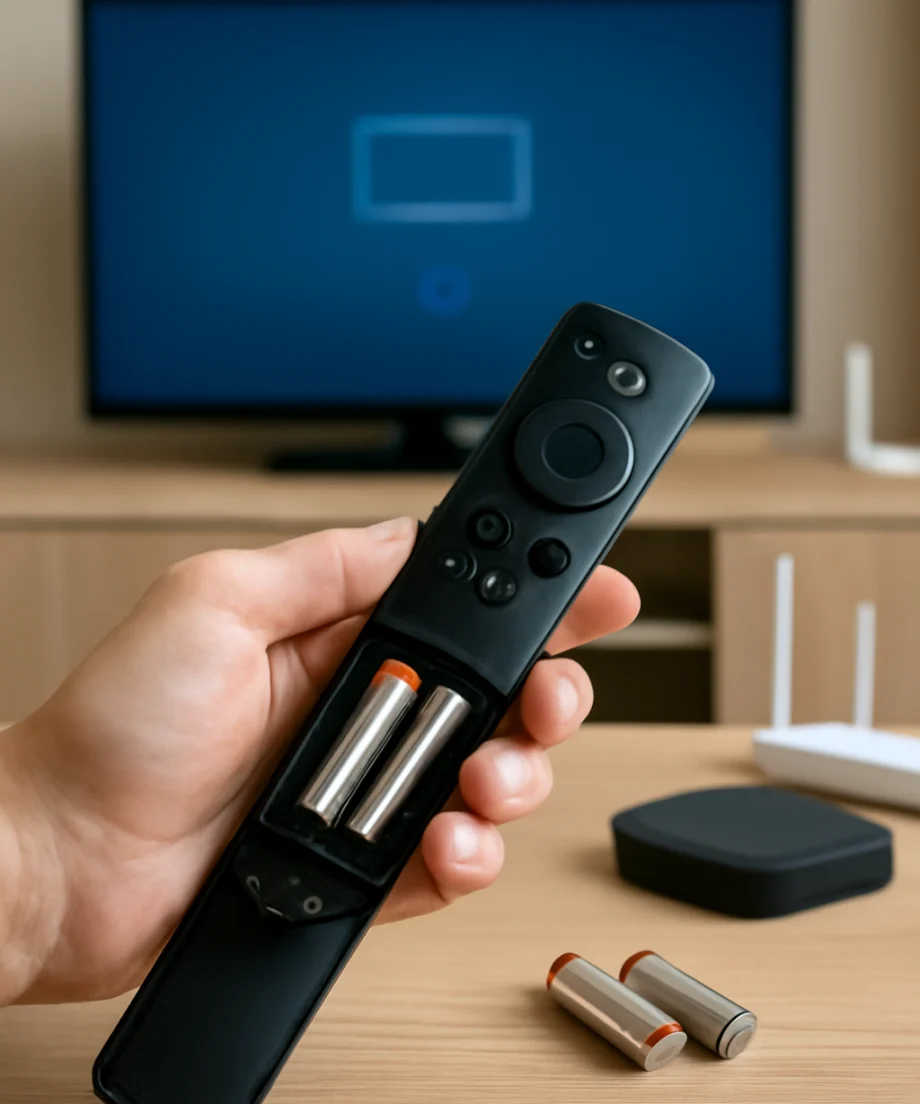
- Install a fresh matching pair, checking the positive and negative markings inside the battery compartment.
- Make sure the batteries sit firmly against the contacts.
- Try pairing the remote again while standing close to the Fire TV.
Do not mix old and new batteries or combine different battery types. If the battery contacts look dirty, remove the batteries and gently wipe the contacts with a dry cloth. Do not pour liquid into the compartment.
Restart the Fire TV and try pairing again
A temporary communication or startup problem can prevent a remote from pairing. Restarting the Fire TV is a low-risk step that does not normally remove apps, account information, or personal settings.
- Turn off the television if the Fire TV is built in, or disconnect the Fire TV device from power.
- Wait at least 30 seconds.
- Reconnect the Fire TV device or turn the television back on.
- Wait for the Fire TV home screen or pairing prompt to appear.
- Hold the remote close to the Fire TV and follow the pairing instructions shown on the screen.
If you use a Fire TV Stick, disconnect its power cable from the power source rather than only switching the television off. Some televisions continue supplying power through a USB port after the screen is turned off, so a full power restart may not happen unless the cable is unplugged or the television is disconnected from power.
Move the remote closer and reduce interference
Pairing can fail when the remote is too far away or when nearby electronics interfere with the wireless connection. Remove any objects directly in front of the Fire TV device, especially if it is inside a cabinet or behind the television.
For the pairing attempt, place the remote within a few feet of the Fire TV. Temporarily move wireless speakers, game controllers, USB hubs, external hard drives, and other Bluetooth devices farther away. This is especially useful if the remote works intermittently or stops responding when you sit in a different part of the room.
If a Fire TV Stick is plugged directly into the back of a television, consider using its included HDMI extension if one is available. Positioning the device away from the television can improve wireless reception and also reduce heat buildup. Do not block the television's ventilation openings.
Pair the remote manually
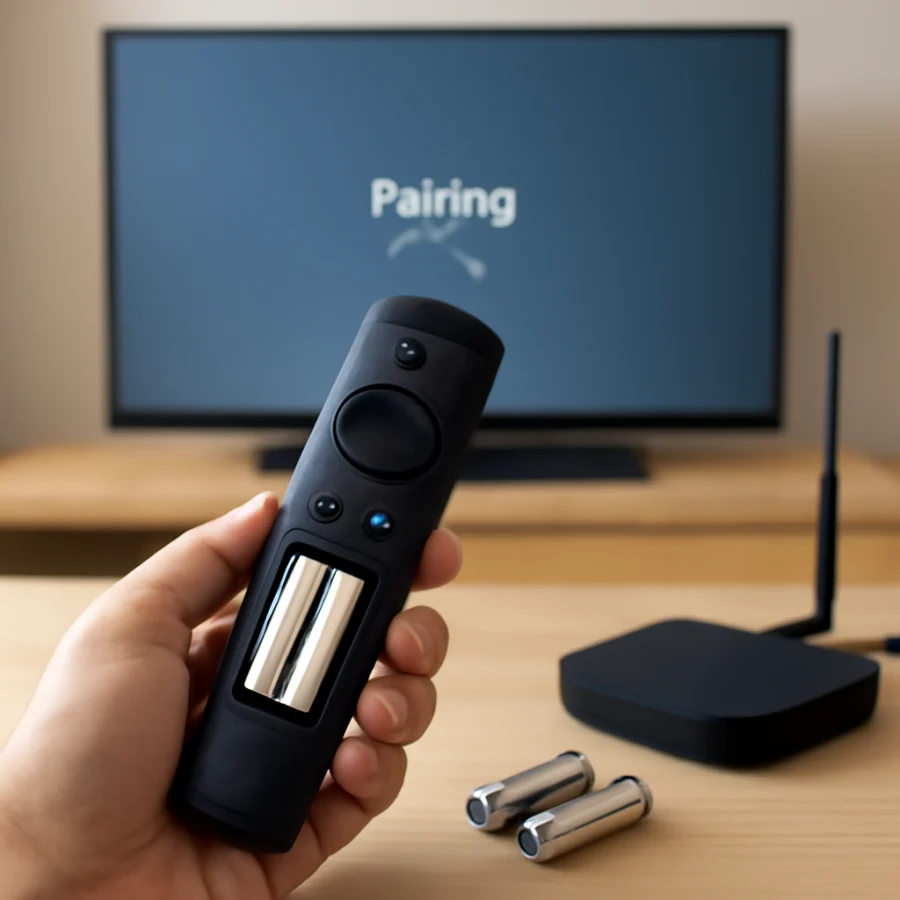
When the Fire TV is on but does not recognize the remote automatically, use the remote's pairing control. On many compatible Fire TV remotes, this means pressing and holding the Home button for several seconds while the remote is close to the device. However, the timing and behavior can vary by remote version.
After holding the button, wait briefly for an on-screen confirmation or pairing message. Avoid pressing several buttons at once, because repeated commands can make it harder to tell whether the remote has connected.
If the remote was previously paired with another Fire TV, it may need to be unpaired or placed into pairing mode before it can connect to the new device. The correct procedure depends on the remote model. Check the markings on the remote and use the instructions supplied for that version rather than assuming every Fire TV remote uses the same reset sequence.
Use the Fire TV app as a temporary remote
If the physical remote will not pair, the official Fire TV app may let you control the device from a compatible phone or tablet. The phone and Fire TV generally need to be connected to the same Wi-Fi network, so this option may not work during initial setup or when the Fire TV is offline.
Open the app, select the available Fire TV device, and follow the instructions to complete the connection. Some setups display a code on the television that must be entered in the app. If the Fire TV does not appear, check that the phone is connected to the same network and temporarily turn off a VPN or guest-network connection if one is in use.
Once the app is working, use it to navigate to the Fire TV's remote and device settings. The wording and location of these options can vary by software version and device model. You may be able to add a replacement remote, remove an old remote, or start the pairing process again from the settings screen.
Check whether the remote is compatible
Not every Fire TV remote works with every Fire TV product. Compatibility can depend on the device generation, television model, remote features, and whether the remote was designed for a specific television brand or bundled product.
If you recently bought a replacement remote, check its model information and compatibility details. A remote that looks almost identical may still use different controls or may not support your particular Fire TV television or streaming device.
Also check whether the remote is intended for a Fire TV television rather than a Fire TV Stick, or the other way around. Some bundled remotes include television power and volume controls that require additional setup, while the basic Fire TV navigation buttons may pair differently.
Remove an old or unwanted remote
A Fire TV can remember more than one compatible remote. This is useful in a household with several remotes, but it can also make troubleshooting confusing. A remote may be connected to another Fire TV in the same room, or an old remote may continue responding while the replacement appears not to work.
Use the working remote or the Fire TV app to review connected controllers in the device settings. If an old remote is listed, remove it only if you are sure it is no longer needed. Keep at least one usable control method available before deleting a paired device.
If multiple Fire TV devices are close together, unplug the ones you are not trying to pair. Then repeat the pairing process with only the target device powered on. This prevents the remote from connecting to the wrong Fire TV.
Try a remote reset only after basic checks
A remote reset can help when the remote is stuck in an incomplete pairing state, but reset steps are not identical across all models. They may also remove the remote's current connection, so try the battery, power, distance, and compatibility checks first.
Look for the instructions that match the exact remote model. If the remote has a battery compartment label, model number, or included documentation, use that information when searching for the correct procedure. Do not rely on a button combination intended for a different remote generation.
After resetting the remote, restart the Fire TV, install fresh batteries, place the remote close to the device, and follow the pairing prompt. Give the process time to finish before pressing additional buttons.
When a factory reset may be necessary
A factory reset should be a last resort. It can remove installed apps, account details, network information, and customized settings. It may also leave you at the initial setup screen, where a working remote or another supported control method is needed.
Consider a factory reset only when the Fire TV has broader problems, such as persistent setup failures, corrupted settings, or a device that cannot recognize any compatible control method after a full restart. Before resetting, confirm that the remote is compatible and that its batteries are new.
If you decide to reset, read the on-screen warning carefully and make sure you know the account credentials and Wi-Fi password needed to set up the device again. If the screen is frozen, the reset method may differ by product. Use the instructions for your specific Fire TV model rather than holding random buttons.
Tell whether the problem is the remote or the Fire TV
The quickest way to isolate the fault is to test one part at a time. If another compatible remote pairs with the Fire TV, the original remote is likely the problem. If no compatible remote or app can control the device, the Fire TV may have a software, power, wireless, or hardware issue.
Check whether the Fire TV responds to the app, whether its home screen is visible, and whether it remains powered on. If the device is stuck on a logo, repeatedly freezing, or failing to connect to Wi-Fi, the remote may not be the main cause. For related symptoms, see our guide to getting past a stuck Fire TV logo or review these Fire TV Wi-Fi fixes.
If the physical remote has no light, no button response, visible liquid damage, loose battery contacts, or a damaged casing after fresh batteries are installed, replacement may be more practical than repeated pairing attempts. For general remote troubleshooting, visit our remote controls guide.
What to do if pairing keeps failing
Write down which steps you have already tried and note whether the Fire TV displays a pairing message. Then verify the exact model of both the Fire TV and the remote. This information is more useful than repeating the same reset sequence or buying an unverified replacement.
Keep the Fire TV connected to reliable power, avoid placing it inside a crowded cabinet, and disconnect nearby devices during pairing. If a known-compatible remote still will not connect after a restart and correct pairing attempt, the problem may require manufacturer support or service. Stop before opening the device or attempting electrical repairs, since internal components can be damaged and may present safety risks.
Comments
0No comments yet. Be the first to share a helpful note or question.
Leave a Comment
Your email address will not be published. Comments are reviewed before appearing on the site.