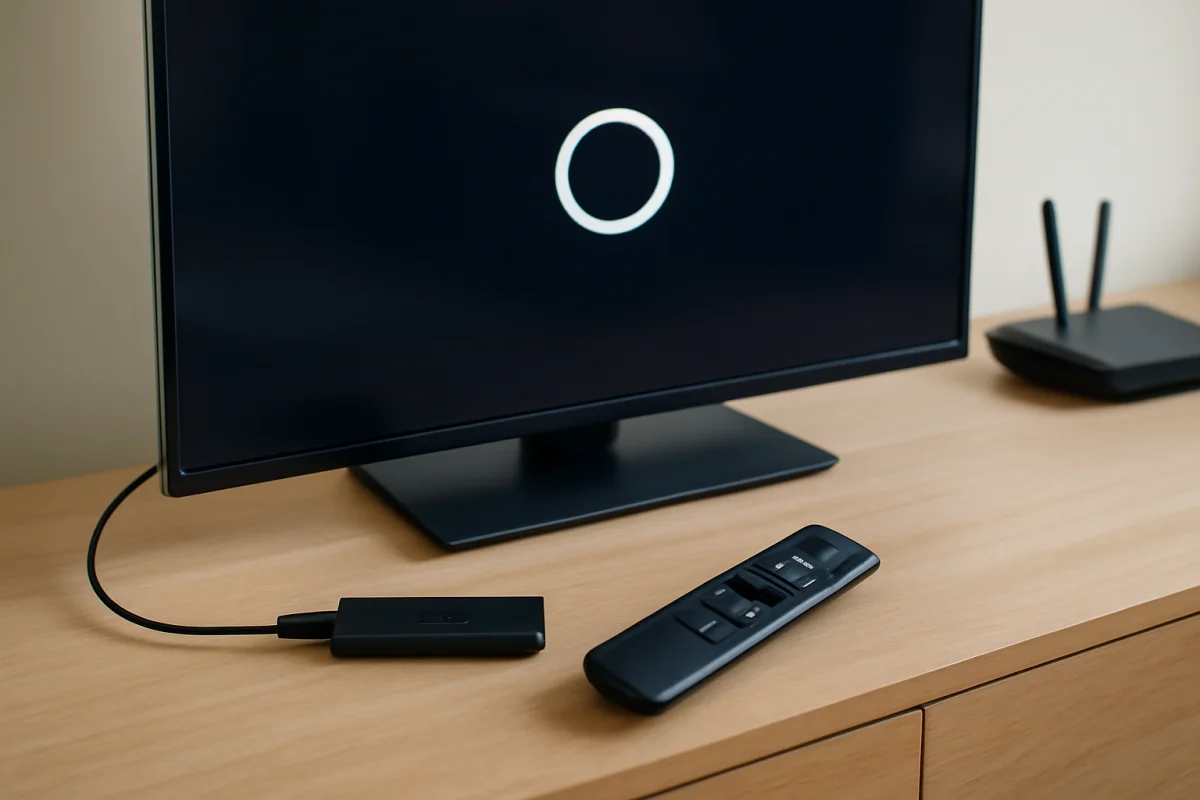
If your Fire TV stays on the Amazon or Fire TV logo and never reaches the home screen, start with a complete power reset, then check the power source and HDMI connection. These steps are safe, quick, and often resolve a startup loop without deleting your apps or settings. If the logo remains after the basic checks, continue through the software and hardware tests below before attempting a factory reset.
What a Fire TV Stuck on the Logo Usually Means
A logo that remains on screen during startup means the device is receiving power and beginning to boot, but it is not completing the process. The cause may be temporary software corruption, an unstable power connection, an HDMI communication problem, insufficient power from a television USB port, or a hardware fault.
The right fix depends on whether you are using a Fire TV Stick or another Fire TV streaming device, or a television with Fire TV built in. The menu names, button combinations, and recovery options can vary by model and software version, so do not assume that every step applies exactly the same way to every device.
1. Restart the Fire TV Completely
Begin with a full restart rather than repeatedly pressing buttons on the remote. A device can remain stuck after a temporary startup error, and removing power gives it a clean chance to boot.
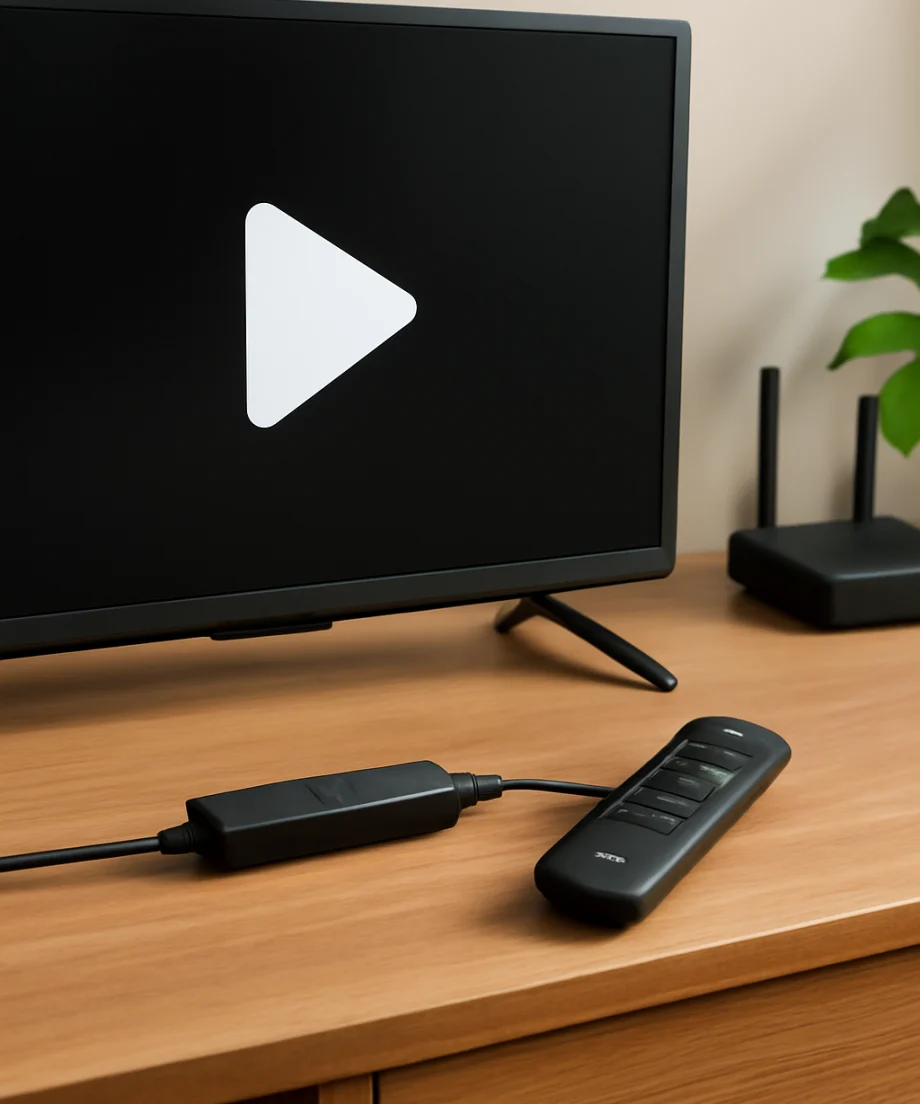
- Unplug the Fire TV device from its power source.
- Disconnect it from the TV’s HDMI port if you are using a Fire TV Stick or another external device.
- Wait at least one minute.
- Reconnect the Fire TV directly to power, then reconnect it to the television.
- Turn on the TV and select the correct HDMI input.
If the Fire TV uses a separate power adapter, use that adapter and cable rather than a random replacement. If the device is powered from a television USB port, move it to a wall outlet using the original or a compatible power setup. Some TV USB ports do not provide consistent power during startup, especially when the television is waking from standby.
2. Check the Power Source and Cable
Power problems are easy to overlook because the logo may still appear even when the device is not receiving stable power. A weak or damaged cable can allow the Fire TV to start but prevent it from finishing the boot process.
- Make sure the power cable is firmly connected at both ends.
- Try a different wall outlet.
- Inspect the cable for cuts, sharp bends, loose connectors, or signs of heat damage.
- Keep the power adapter connected directly to a wall outlet while testing.
- Avoid testing through a USB hub, extension with a loose connection, or an unpowered accessory.
If changing the power source makes the logo disappear, the original outlet, cable, or adapter may be the problem. Replace only the part that is clearly faulty, and choose a compatible replacement rather than one with unknown specifications.
3. Test the HDMI Connection
An HDMI problem can make a working Fire TV appear frozen. The device may be booting normally while the television is showing an incomplete or unchanging image.
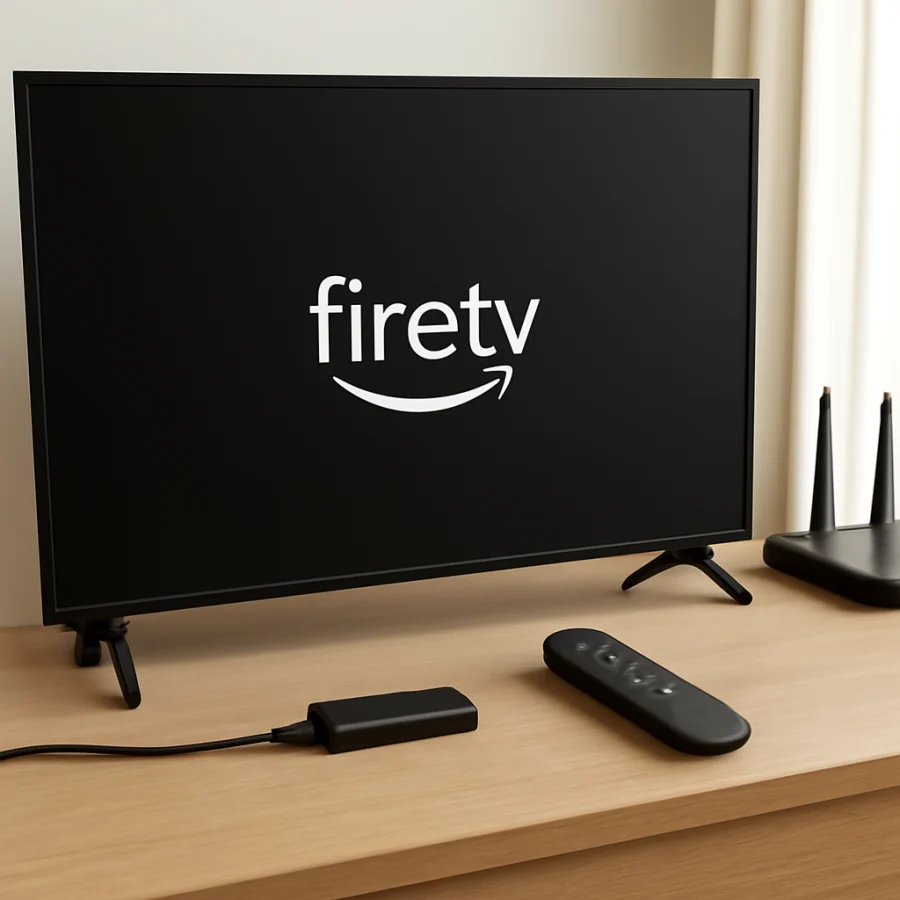
With the Fire TV unplugged, try another HDMI input on the television. Then select that input using the TV remote. If possible, test the Fire TV on a second television. This helps separate a Fire TV problem from an issue with the original TV input or HDMI port.
Remove HDMI switches, soundbars, receivers, capture devices, and adapters from the connection temporarily. Connect the Fire TV directly to the television while troubleshooting. If the device works directly but hangs when connected through another piece of equipment, reconnect the accessories one at a time to identify the source.
For a Fire TV television rather than a separate Stick, unplug the television itself and disconnect any external HDMI devices. Wait before reconnecting only the TV. A connected device can sometimes interfere with startup or input detection.
4. Give the Device Time to Finish Starting
After a forced restart, a Fire TV may take longer than usual to load. This can happen after an interrupted update, a long period without restarting, or a storage-related slowdown. Leave the device connected to power for several minutes without repeatedly unplugging it.
Do not interrupt the process if the screen changes, goes blank briefly, or shows signs of activity. A brief blank screen is not necessarily a failure. However, if the same logo remains indefinitely after several clean power cycles, move on to the next checks.
5. Remove Accessories and Check for Overheating
Disconnect USB storage, Ethernet adapters, powered hubs, and other accessories from the Fire TV. A faulty accessory or overloaded connection can interfere with startup. Test the device with only its power connection and HDMI connection attached.
Also check whether the Fire TV is unusually hot. Streaming devices need ventilation, and placing one behind a crowded television cabinet or against another warm device can contribute to instability. Let it cool completely, then test it in an open location. Never cover the device or place it near a heater.
6. Check the Remote Before Assuming the Fire TV Is Frozen
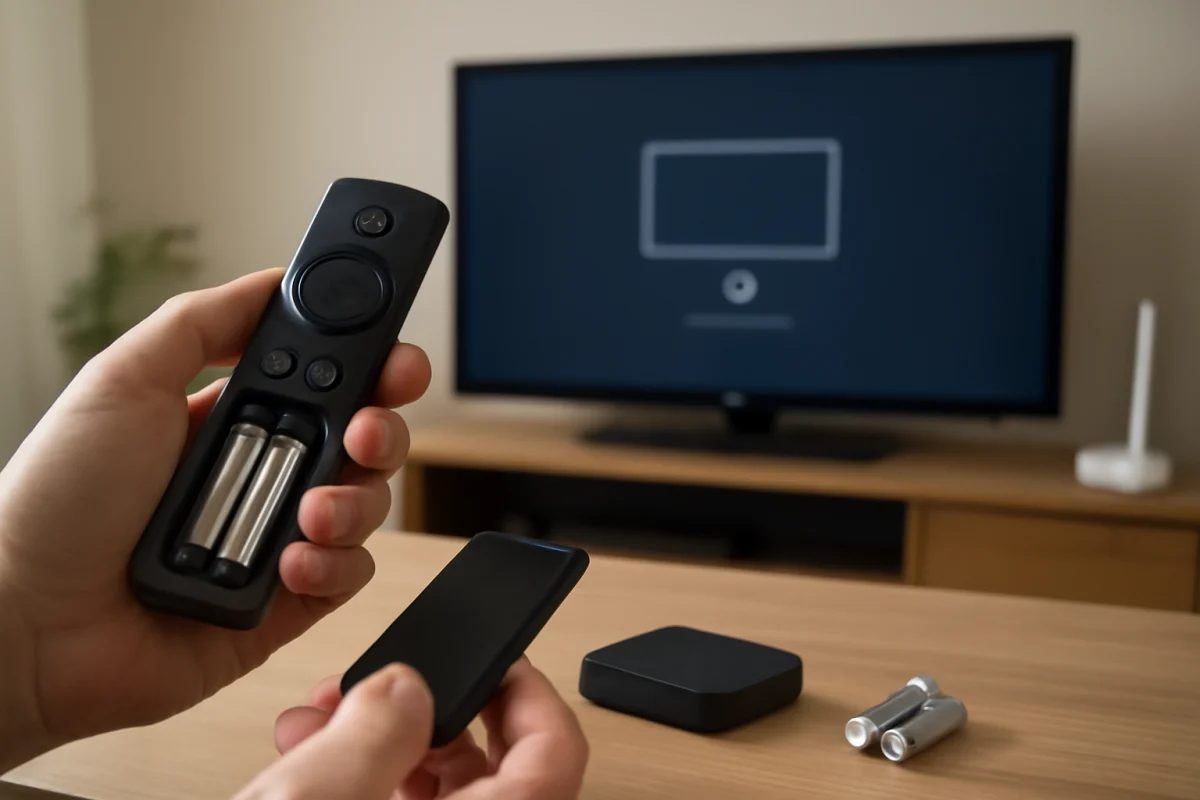
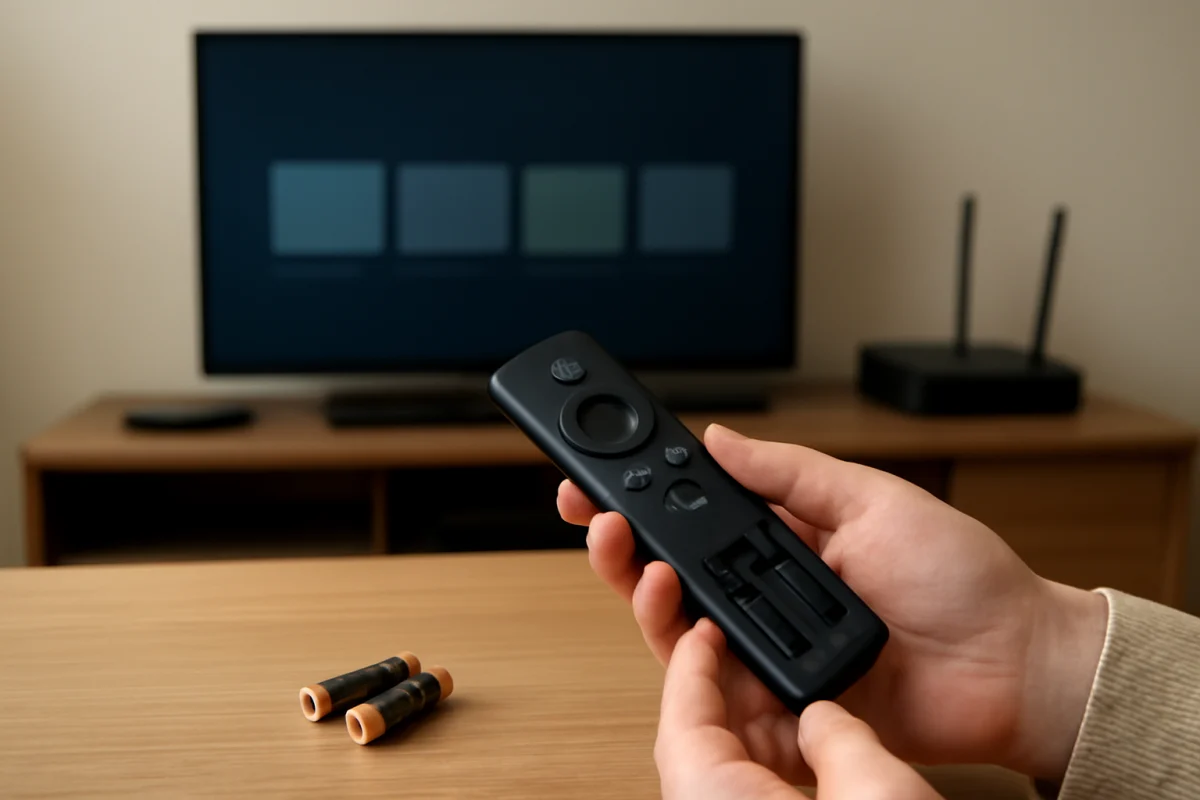
A stuck logo usually points to the device or its connection, but a remote that is not responding can make it difficult to tell whether startup has completed. Press a few navigation buttons and watch for any response. If nothing changes, replace the remote batteries and remove nearby sources of interference.
You can also try the TV’s physical controls, if available, or use another compatible control method. The exact pairing and reset procedure depends on the Fire TV model and remote generation, so use the instructions designed for your specific device. Our guide to fixing a remote that suddenly stops responding covers common remote checks.
7. Try the Fire TV’s Recovery or Reset Shortcut Carefully
If the device still will not move past the logo, some Fire TV models provide a recovery or reset shortcut using the remote. The button combination and on-screen behavior can vary, and using a reset option may erase installed apps, accounts, preferences, and network information.
Before trying any shortcut, confirm the model you own and look for the instructions that match that model. Do not keep holding random button combinations, and do not choose a factory reset unless you understand what will be removed. If a recovery screen appears, read each option carefully. A restart is generally less destructive than a reset, but the available choices differ between devices.
If the remote does not respond at all, a shortcut may not work. In that situation, focus on power, HDMI, cooling, and testing the device on another television before assuming that a reset is possible.
8. Consider a Factory Reset Only as a Last Resort
A factory reset can clear corrupted settings that prevent startup, but it is not the first solution for a Fire TV stuck on its logo. It removes personal settings and usually requires you to sign in again, reconnect to Wi-Fi, reinstall apps, and configure the device from the beginning.
Use a reset only after you have ruled out unstable power, a bad HDMI connection, overheating, external accessories, and the television itself. If you can reach the Fire TV settings, back up or note anything important first. If the device never reaches the home screen, you may not have an opportunity to preserve its settings.
Because reset instructions differ by device, follow the procedure for your exact Fire TV model rather than relying on a generic button combination. If the screen gives no clear recovery option, do not repeatedly force the device through uncertain procedures.
When the Fire TV Logo Still Will Not Go Away
If the Fire TV remains stuck after a direct wall-power test, a different HDMI input, a second television, and a complete cooling period, the problem may be hardware-related. Possible causes include a failing power adapter, damaged charging port, internal storage failure, or a fault on the device’s main board. These problems generally cannot be fixed through ordinary settings.
For a Fire TV built into a television, the issue may involve the TV’s internal software or hardware rather than a removable streaming stick. Note whether the television responds to its own remote, displays other inputs, or shows any picture away from the Fire TV screen. That information can help a repair professional narrow down the fault.
Stop using the device if you notice a burning smell, melted plastic, smoke, sparking, or unusual heat. Disconnect it from power and arrange service or replacement. Do not open the device while it is connected, and avoid attempting board-level repairs without the proper experience.
How to Prevent Startup Problems Later
Once the Fire TV is working again, keep it connected to a reliable power source and avoid repeatedly unplugging it while content is loading. Leave ventilation space around external devices, and disconnect accessories that are no longer needed. If the device is very slow before it becomes stuck, reduce the number of unused apps and restart it normally from its available power or settings controls.
Network trouble usually does not cause a device to remain permanently on the logo, but it can make setup appear stalled after startup. If the Fire TV eventually reaches the home screen but cannot load content, see our guide to connecting a Fire TV to Wi-Fi. For devices that freeze during normal use rather than only during startup, these Fire TV freezing fixes can help identify the next step.
The safest order is simple: restart the device, verify stable power, test the HDMI path, remove accessories, check heat and remote response, and only then consider model-specific recovery options or a factory reset. If the logo remains after those checks on more than one television, replacement or professional service may be more practical than repeated resets.
Comments
0No comments yet. Be the first to share a helpful note or question.
Leave a Comment
Your email address will not be published. Comments are reviewed before appearing on the site.