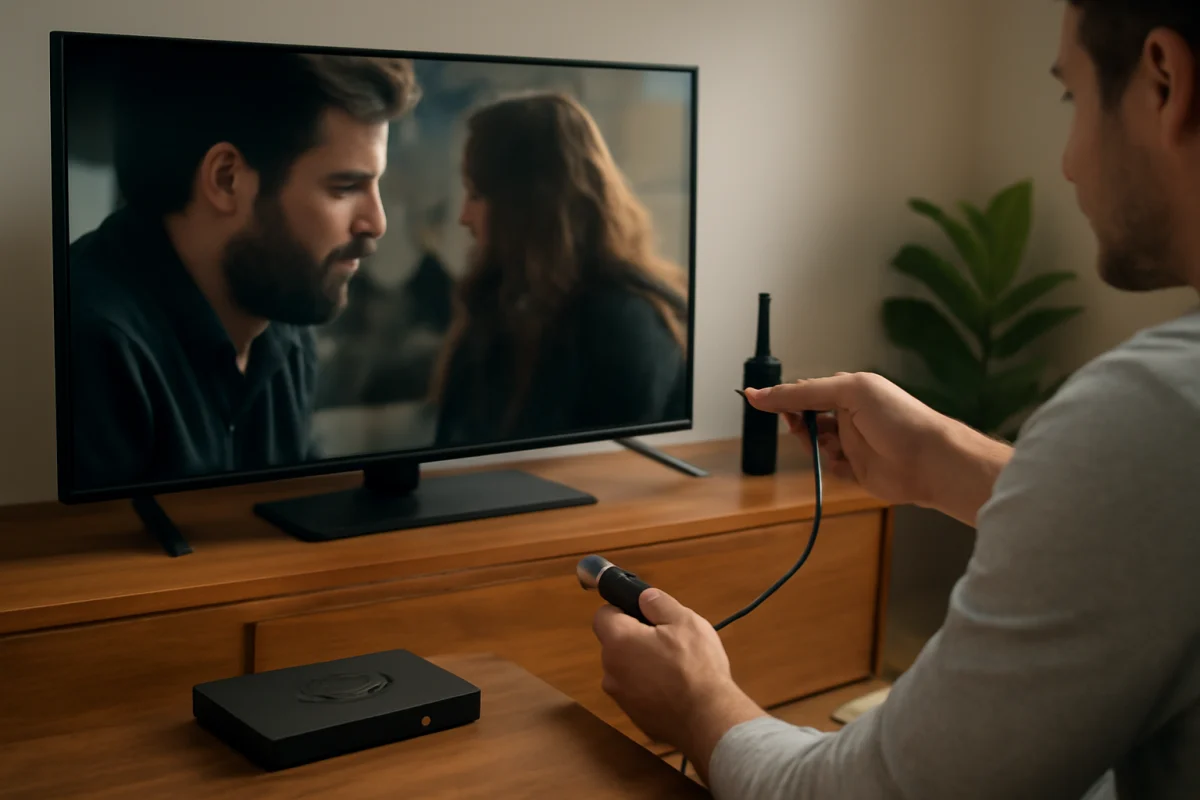
A Fire TV that keeps freezing is usually affected by one of a few common problems: a temporary software glitch, an unstable internet connection, an app that is misbehaving, limited available storage, or excess heat. The fastest way to narrow it down is to check whether the entire Fire TV interface freezes or only one streaming app.
If the home screen, menus, and remote responses stop working, begin with a power restart and basic connection checks. If only one app freezes while other apps work normally, focus on that app rather than immediately resetting the whole device. The steps below move from simple, low-risk checks to more advanced solutions.
Check whether the problem affects one app or the entire Fire TV
First, notice what happens when the freeze occurs. Can you still move around the Fire TV home screen? Does the Back button respond? Can another app open normally? These details help identify the likely cause.
- Only one app freezes: The app may have corrupted temporary data, an outdated installation, or a problem with the service.
- Several apps freeze: The issue may involve the internet connection, available storage, the Fire TV software, or the device's temperature.
- The home screen also freezes: A full restart, power check, storage cleanup, or software update is more likely to help.
- Video pauses but menus still work: The network connection or streaming service may be the main cause.
Also test a different title in the same app. A problem with one movie, show, or live stream does not necessarily mean the Fire TV itself is failing.
Restart the Fire TV and check its power connection
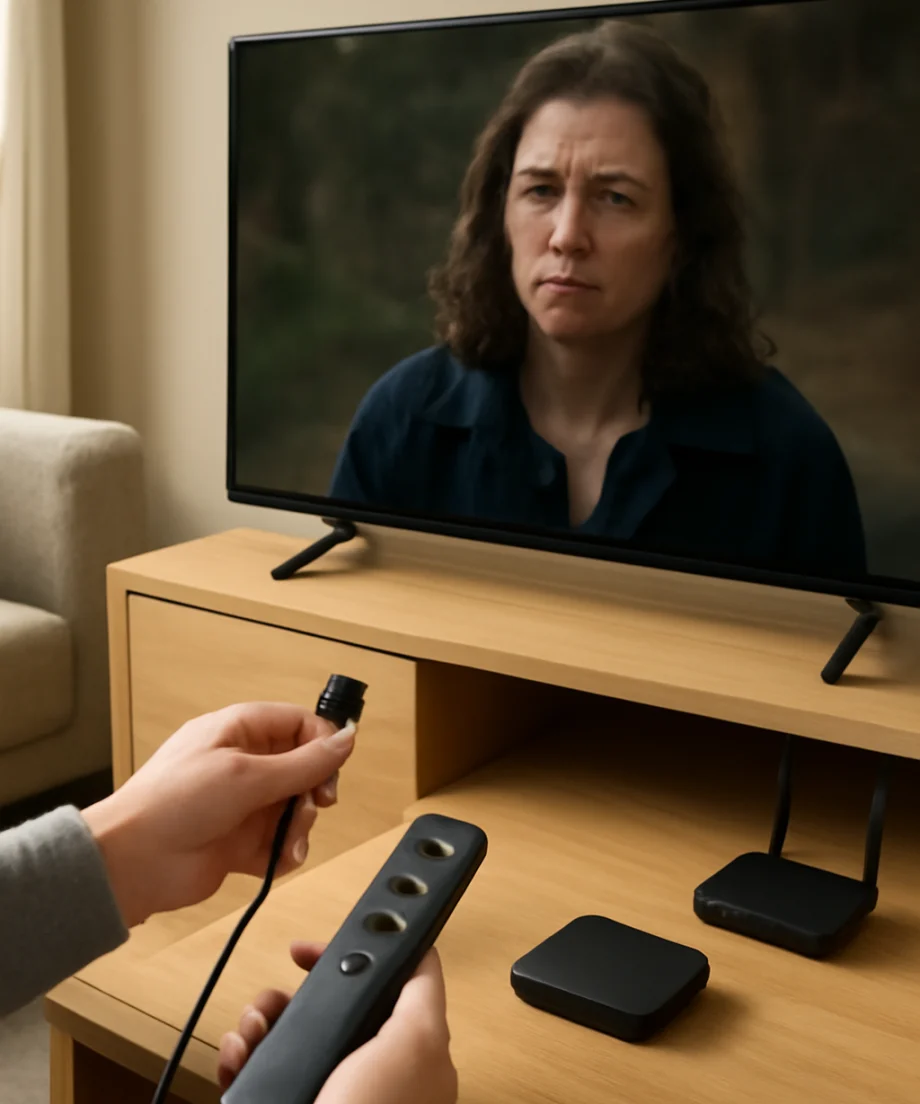
A restart clears temporary system problems without deleting your apps or account information. If the remote still responds, use the restart option available in the device settings or on-screen power menu. The exact wording and location can vary by Fire TV model and software version.
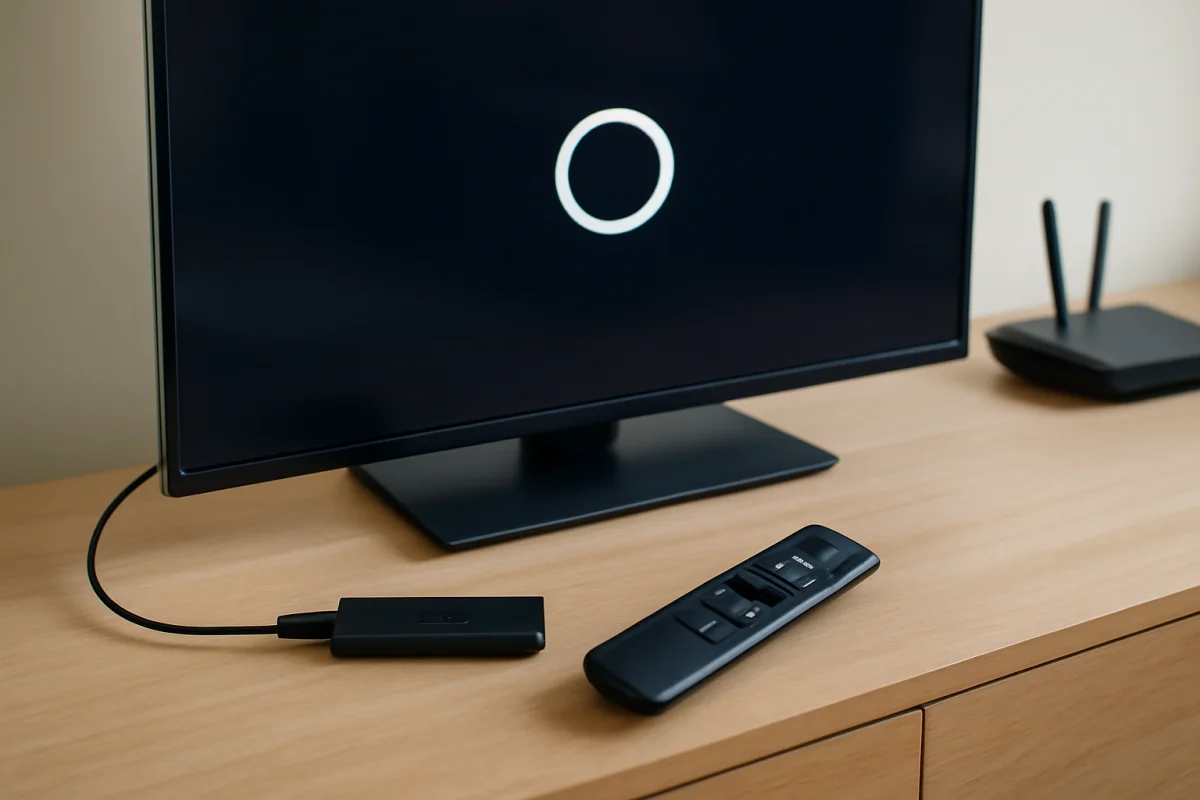
If the screen is completely unresponsive, unplug the Fire TV from power. Leave it disconnected briefly, then plug it back in and wait for the home screen to load. For a Fire TV Stick, disconnecting the device's power cable is more useful than simply removing the stick from the HDMI port. For a Fire TV television, use the television's power cable.
Check that the power cable is firmly connected at both ends. If the device is powered through a television USB port, try the power adapter and cable supplied with the device, if available. Some televisions may not provide consistent power through USB, especially when the Fire TV is under load. Avoid repeatedly unplugging the device while it is installing an update or changing important settings unless it has clearly become unresponsive.
Test your internet connection
Freezing during playback often comes from a connection that is slow, interrupted, or inconsistent rather than from the Fire TV hardware. Pause other heavy internet activity temporarily, such as large downloads, cloud backups, game updates, or multiple high-bandwidth streams.
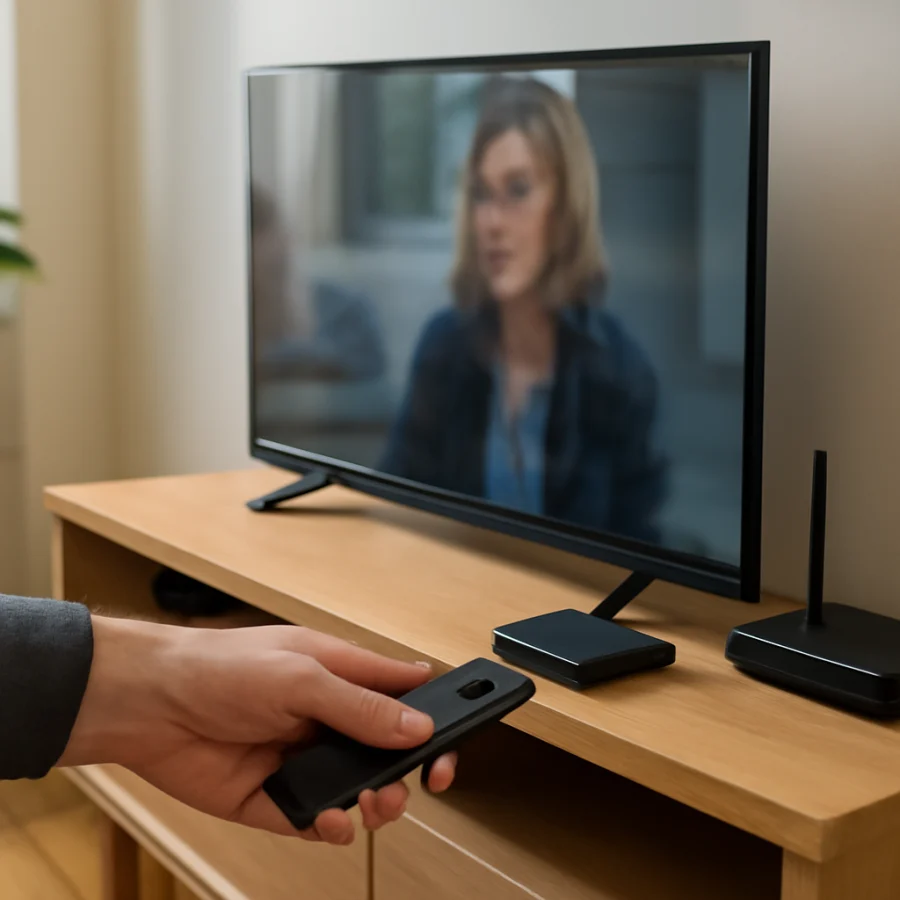
Move the router closer to the Fire TV if possible, or reduce obstacles between them. Thick walls, cabinets, metal objects, and nearby wireless equipment can affect the signal. If your Fire TV is hidden behind a television or inside a crowded media cabinet, repositioning it may improve wireless performance.
Restart the router and modem if your other devices are also having trouble. Wait for the home network to return before testing the Fire TV again. Then compare the result with another streaming app. If every app buffers or freezes, investigate the network first. Our Wi-Fi and network troubleshooting guide has additional checks for unstable connections.
When possible, test the Fire TV on another trusted network, such as a phone hotspot. This is only a diagnostic test, not necessarily a permanent solution. If the freezing stops on the alternate network, the original router, wireless signal, or internet service is more likely responsible. If the same problem continues, focus on the Fire TV or the app.
Close and repair the affected app
If one app repeatedly freezes, force it to stop using the app management controls in Fire TV settings. Menu names can differ depending on the device and software version, so look for the installed applications or app management section rather than relying on one exact path.
After stopping the app, open it again and test playback. If the problem continues, clear its temporary cache if that option is available. Clearing a cache usually removes temporary files, but it should not normally remove the app itself. Avoid selecting an option that clears the app's stored data unless you are prepared to sign in again and reset app-specific settings.
Make sure the app is updated through the Fire TV app store. If it is already current, uninstalling and reinstalling it can repair a damaged installation. You may need to enter your account credentials again after reinstalling. Before doing this, confirm that you know the email address and password used for the service.
Check whether the same service is having an outage by testing it on a phone or computer connected to the same network. If the service fails on several devices, changing Fire TV settings will not resolve the provider-side problem. You can also find more app-focused advice in our streaming apps troubleshooting section.
Free up storage space
Limited storage can make an older or heavily used Fire TV less responsive. Uninstall apps you no longer use, especially games or large apps that were installed for a short-term purpose. Review the installed app list and remove unnecessary items rather than deleting apps at random.
Clear temporary cache data for frequently used apps when the option is available. Do this selectively, because clearing stored data may sign you out or remove local preferences. After removing apps or temporary files, restart the Fire TV and test it again.
If the device remains sluggish even after cleanup, avoid installing several additional apps while troubleshooting. A simple setup makes it easier to determine whether a particular app is causing the freezes.
Install available Fire TV software updates
Software updates can address compatibility and stability problems, but the available controls and update wording vary by model, region, and software version. Open the device settings and look for a system information or software update area. Allow the device to check for updates while it is connected to reliable power and internet.
Do not interrupt an update if the screen appears to be working through a normal installation process. The device may restart more than once. If the update check repeatedly fails, first confirm that the Fire TV has a stable network connection and enough free storage.
Check for overheating
Heat can cause slow performance, playback interruptions, or unexpected restarts. Make sure the Fire TV Stick is not pressed tightly against the back of the television or enclosed in a small, poorly ventilated space. Keep vents clear and do not cover the device with fabric or other objects.
Allow the device to cool after extended use, especially if it is noticeably hot. Do not place ice, cold packs, or liquids near the Fire TV. If the device repeatedly becomes very hot in a normal, ventilated setup, stop using it until you can inspect the power arrangement and consider contacting Amazon support or the television manufacturer, depending on which Fire TV product you own.
Check the HDMI connection and television input
An HDMI problem usually causes a blank screen, flickering, or lost audio rather than a true software freeze, but it can make the Fire TV appear stuck. Confirm that the television is on the correct input and that the Fire TV Stick is firmly connected. If your model includes an HDMI extension or adapter, try the setup recommended for that device.
Test another HDMI port if one is available. Change only one connection at a time so you can tell whether the problem changes. If the Fire TV works normally on another television, the original TV's HDMI port, power arrangement, or compatibility may be involved. For broader television troubleshooting, see the TV Fix Guide Fire TV help section.
Try the remote only after confirming the device is responsive
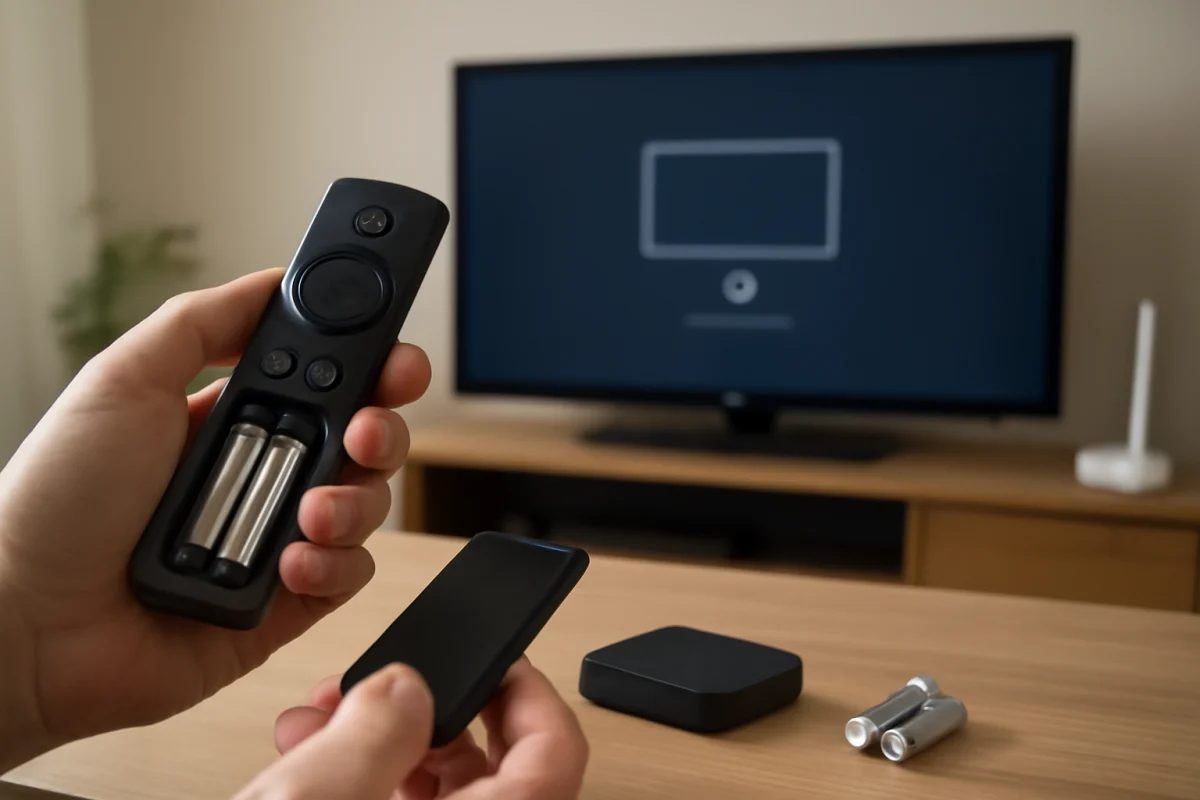
Sometimes a frozen Fire TV is actually a remote-control problem. Press a few navigation buttons and watch for an on-screen response. Replace or recharge the remote batteries if the buttons respond inconsistently. Make sure nothing is blocking the remote's signal path, and test the remote close to the television.
If the Fire TV responds to another control method but not the physical remote, troubleshoot the remote rather than resetting the streaming device. Our remote control troubleshooting guide covers common pairing and response problems.
When to consider a factory reset
A factory reset should be a last resort. It removes installed apps, account information, personal settings, and other stored data, and the setup process will need to be completed again. Before using it, confirm that restarting, improving the network, repairing the affected app, freeing storage, checking heat, and installing available updates did not help.
If you do reset the Fire TV, follow the reset instructions shown for your specific model. The exact menu path and confirmation wording may vary. Make sure you have access to your Amazon account and streaming-service sign-in details before starting. Do not disconnect power during the reset unless the device specifically instructs you to do so.
When the freezing problem may be hardware-related
Contact the appropriate manufacturer or retailer for support if the Fire TV freezes immediately after every restart, repeatedly shuts down, becomes unusually hot, shows physical damage, or fails on more than one known-good network and television. A failing power adapter, cable, HDMI connection, or device may require replacement, but test the inexpensive connections first.
In most cases, the best starting point is a full restart followed by a network test. If only one app freezes, repair that app instead of resetting the entire Fire TV. Working through the checks in this order helps protect your settings while revealing whether the cause is the app, connection, storage, heat, software, or hardware.
Comments
0No comments yet. Be the first to share a helpful note or question.
Leave a Comment
Your email address will not be published. Comments are reviewed before appearing on the site.