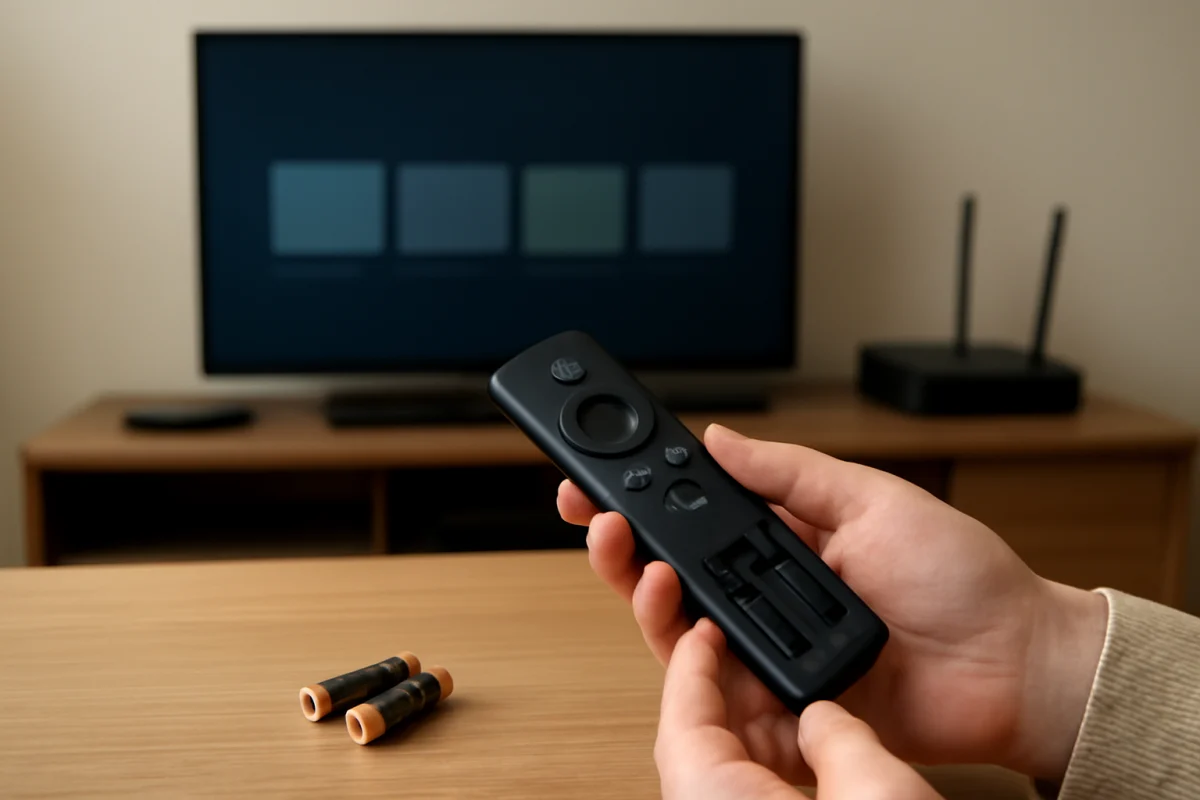
If your Fire TV remote suddenly stops responding, start with the simple checks: replace the batteries, confirm the Fire TV is powered on, move closer to the device, and restart the Fire TV. These steps often restore control without resetting the remote or changing account settings.
A remote can appear completely dead when the real problem is weak batteries, a temporary Bluetooth connection failure, an obstructed Fire TV device, or a system that has stopped responding. Work through the checks below in order. The button layout and exact pairing instructions can vary between Fire TV models, televisions with built-in Fire TV, and replacement remotes.
1. Check whether the Fire TV itself is responding
Before troubleshooting the remote, look at the screen and the Fire TV device. If the picture is frozen, the TV shows no signal, or the Fire TV has lost power, the remote may not be the main problem.
- Confirm that the television is on and displaying the Fire TV input.
- Press a button on the TV itself, if the television has physical controls, to check whether the screen responds.
- Check the Fire TV Stick, streaming box, or television power connection.
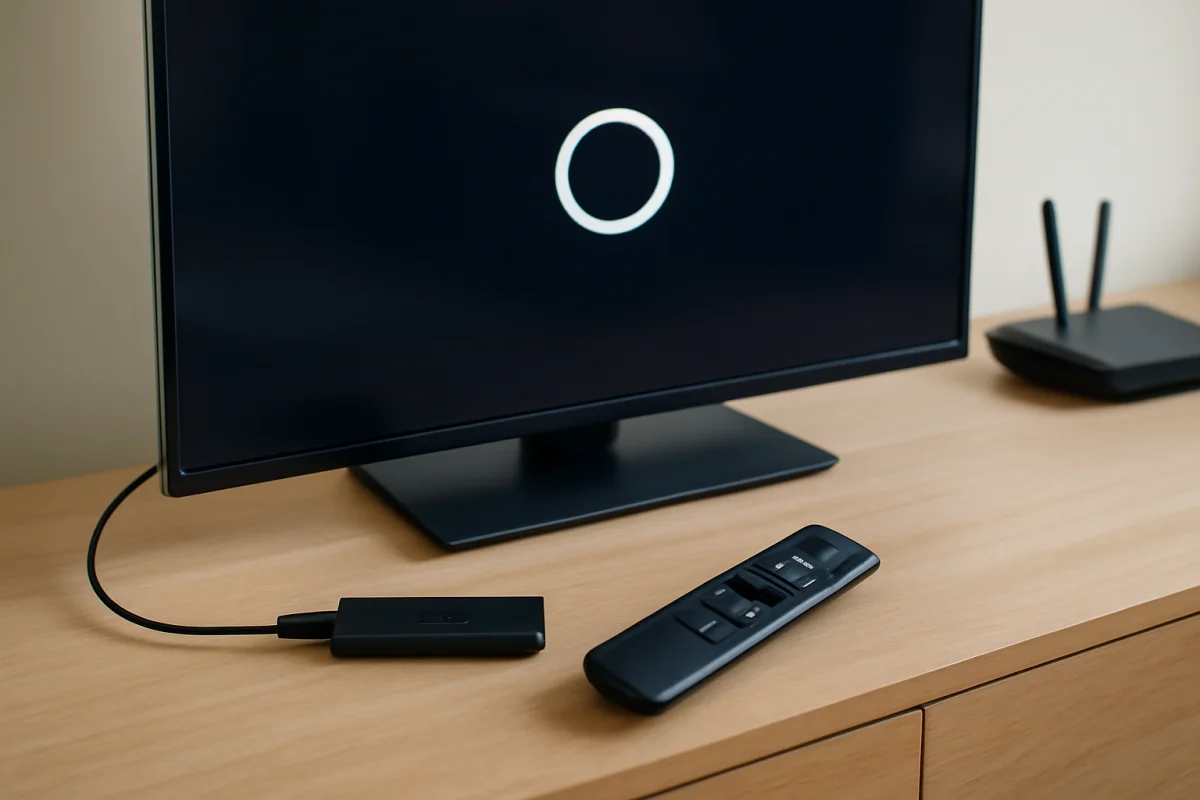
- If the screen is frozen, unplug the Fire TV device from power, wait about 60 seconds, and reconnect it.
If you are using a Fire TV Stick, unplug the device's power cable rather than only disconnecting the stick from the HDMI port. If the Fire TV is built into the television, restart the TV using its normal power control or power connection. Give the system time to fully start before testing the remote again.
For more help with device freezes, see our guide to why Fire TV keeps freezing.
2. Replace and reseat the batteries
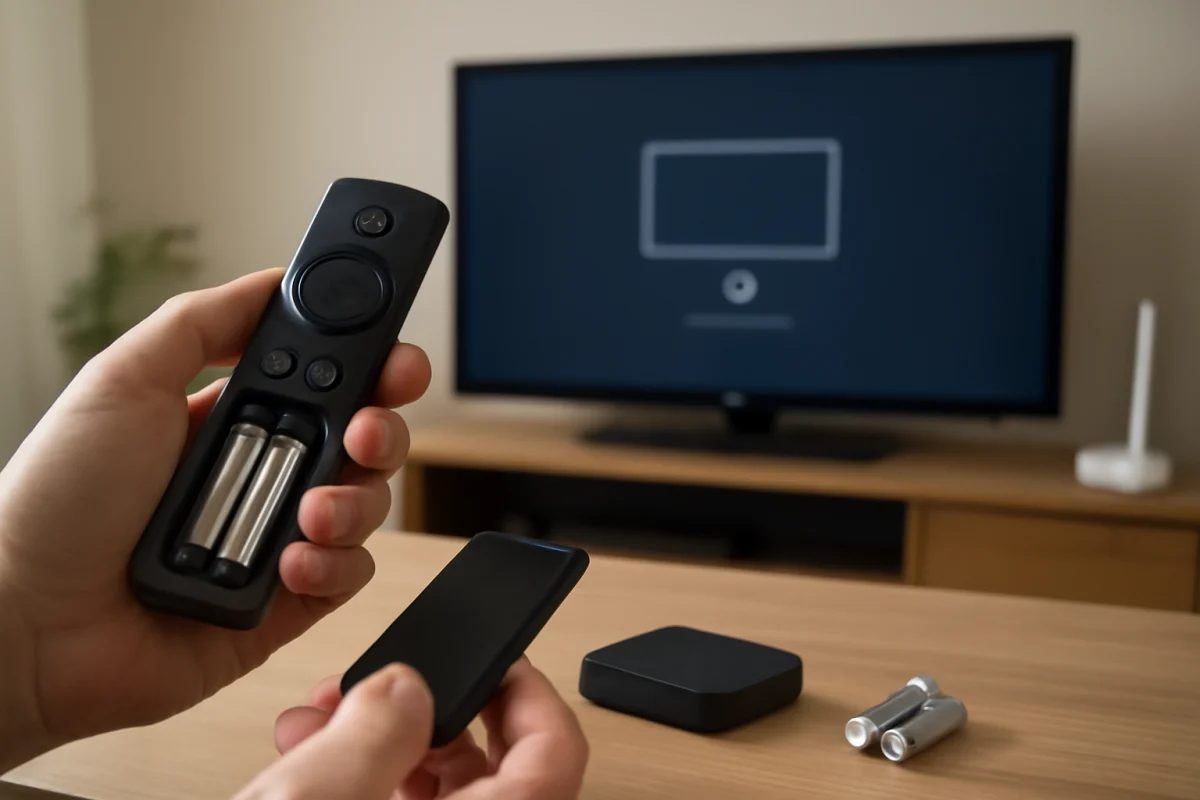
Weak batteries are one of the most common reasons a Fire TV remote stops responding. The remote may still light up or work intermittently even when the batteries no longer provide enough power for a reliable connection.
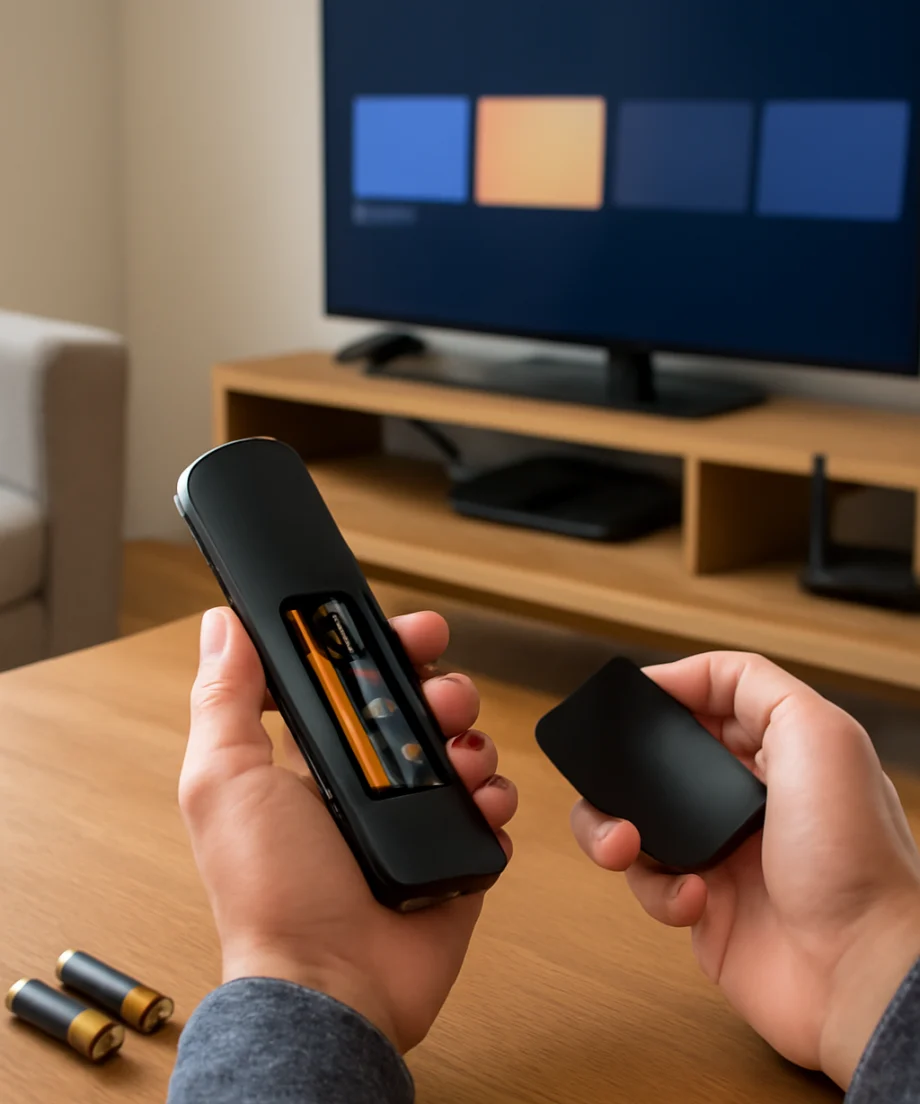
- Remove both batteries from the remote.
- Check the battery compartment for corrosion, moisture, or loose contacts.
- Install a fresh matching pair, following the positive and negative markings.
- Press several buttons and test the remote near the Fire TV.
Do not mix old and new batteries or combine different battery types. If the contacts look dirty, wipe them gently with a dry cotton swab. Do not pour liquid into the battery compartment. If you see heavy corrosion or a battery that has leaked, stop using the remote until it has been safely cleaned or replaced.
3. Remove obstacles and reduce interference
Fire TV remotes commonly use a wireless connection, but the Fire TV device still needs to be positioned where its signal is not heavily blocked. This is particularly important when the device is hidden behind the television, inside a cabinet, or next to several other electronics.
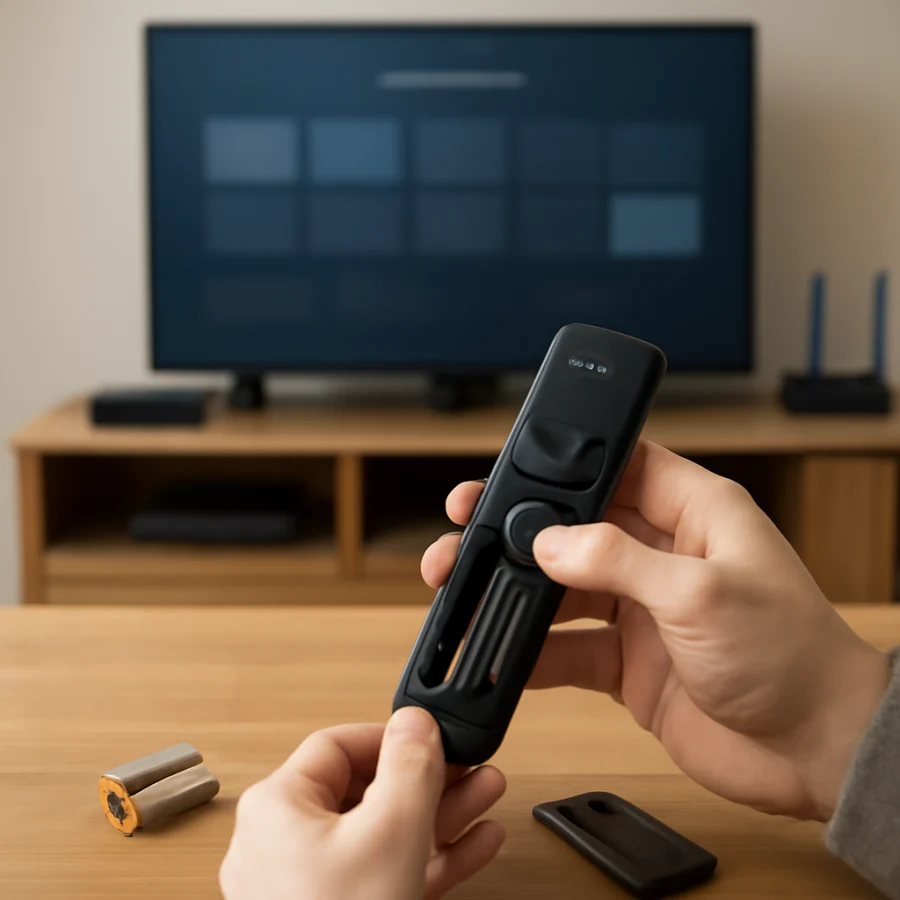
Move close to the Fire TV and point the remote toward it while pressing a button. Then check the area around the device:
- Remove objects directly in front of the Fire TV Stick or box.
- If possible, move the device away from the back of the television or an enclosed cabinet.
- Temporarily disconnect nearby USB accessories, hubs, or other wireless equipment.
- Make sure the remote is not inside a drawer, under a cushion, or pressed against another device.
The exact effect of interference depends on the device and its surroundings, so this is a diagnostic test rather than a permanent rule. If the remote works only when you are very close, the issue may involve pairing, batteries, obstruction, or the Fire TV's wireless connection.
4. Restart the remote and the Fire TV
A temporary communication problem can sometimes be cleared by removing the remote batteries and restarting the Fire TV.
- Remove the batteries from the remote.
- Disconnect the Fire TV from power and wait about 60 seconds.
- Reconnect the Fire TV and wait for the home screen or setup screen to appear.
- Reinstall the batteries in the remote.
- Press a navigation button and wait several seconds for a response.
Avoid repeatedly pressing buttons during startup. The device may need time to load its software and re-establish the wireless connection. If the remote works after this restart but stops again later, note when the problem returns. Repeated failures can point to weak batteries, overheating, a software issue, or a failing remote.
5. Try pairing the remote again
If the Fire TV starts normally but does not respond to the remote, the remote may have lost its pairing. Pairing steps vary by remote generation and Fire TV model, so use the instructions that came with your device whenever possible.
As a general test, hold the remote near the Fire TV and press and hold its Home button for several seconds. Watch the screen for an on-screen pairing message. If nothing happens, remove and reinstall the batteries, restart the Fire TV, and try again.
Some Fire TV devices allow a remote to be added through the settings menu, but you may need another working remote or the Fire TV mobile app to navigate there. The wording and location of the relevant option can vary, so do not assume that every model uses the same menu path.
If you use the Fire TV app as a temporary remote, the phone and Fire TV generally need to be connected to the same local network. The app will not necessarily work if the Fire TV is offline, connected to a different network, or still loading after a restart.
6. Check whether only certain buttons fail
Test the directional controls, Home, Back, Select, volume, and power buttons separately. If no buttons work, the problem is more likely to involve batteries, pairing, power, or the remote's internal electronics. If only one or two buttons fail, dirt, wear, or physical damage may be responsible.
Do not spray cleaner directly onto the remote. If the buttons feel sticky, remove the batteries and clean around the outside edges with a slightly damp cloth, keeping moisture away from openings. Let the remote dry completely before reinstalling the batteries.
Also check for damage caused by drops, liquid, heat, or a cracked battery cover. A remote that worked normally until it was exposed to one of these conditions may need replacement rather than additional software troubleshooting.
7. Use another control method to isolate the fault
If the Fire TV app can control the device but the physical remote cannot, the Fire TV itself is probably working and the problem is limited to the remote, its batteries, or its pairing. If neither the app nor the physical remote works, investigate the Fire TV's power, network, and software state instead.
You can also test the remote with another compatible Fire TV device if one is available. Compatibility is not universal, so confirm that the remote is intended for that device before drawing a conclusion. A remote that fails everywhere is more likely to be defective. A remote that works with another device may need to be paired again with the original Fire TV.
For additional remote troubleshooting, visit our remote controls guide.
8. Check for software or device-specific problems
If the remote connects but the Fire TV is slow, frozen, or inconsistent, the issue may be with the device rather than the remote. Check for available system updates only after the Fire TV is responding reliably enough to navigate. Update names and menu locations can vary by model and software version.
If a television has Fire TV built in, its remote may control both the streaming system and television functions such as volume or power. A failure limited to volume or power does not always mean the entire remote is disconnected. It may indicate a device-control configuration issue, a television setting, or a compatibility limitation.
Likewise, if a soundbar or receiver is involved, test the Fire TV remote with the streaming interface first. Separating navigation problems from volume-control problems makes the diagnosis more accurate.
9. Reset only when the simpler steps fail
A full remote reset or Fire TV reset should be a later step, not the first response. Reset procedures vary by remote and may remove pairing information or require you to set up the device again. A Fire TV factory reset can also remove installed apps, preferences, and account-related settings.
Before using any reset combination, identify the exact Fire TV device and remote model. Use the manufacturer's current instructions for that model, and confirm what information will be erased. If the Fire TV is still usable through the app or another remote, back up or note important settings first when possible.
If the device is frozen and you cannot reach its menus, a power restart is generally a lower-risk step than a factory reset. Do not keep repeating reset combinations if the remote does not respond; this can make it harder to tell whether the problem is pairing or hardware failure.
When the remote probably needs replacement
Consider replacing or servicing the remote if fresh batteries, a power restart, pairing attempts, and obstruction checks do not help. Replacement is especially likely to be necessary when:
- The remote shows visible liquid or impact damage.
- The battery contacts are broken or badly corroded.
- Only a cluster of frequently used buttons has stopped working.
- The remote disconnects repeatedly after successful pairing.
- Another compatible remote controls the Fire TV normally.
Check compatibility before buying a replacement. Fire TV remotes can differ in supported controls, television power and volume functions, voice features, and compatibility with particular devices. If you are unsure, identify the Fire TV model and the original remote before choosing one.
Quick diagnosis
If new batteries solve the problem, the original batteries were likely too weak. If a power restart restores control, the Fire TV or its wireless connection probably experienced a temporary fault. If pairing fixes the issue, the remote had lost its connection. If the app works but the physical remote does not, focus on the remote itself. If nothing controls the Fire TV, troubleshoot the device's power, display, network, or software before replacing the remote.
For broader Fire TV troubleshooting, you can browse the Fire TV section on TV Fix Guide.
Comments
0No comments yet. Be the first to share a helpful note or question.
Leave a Comment
Your email address will not be published. Comments are reviewed before appearing on the site.