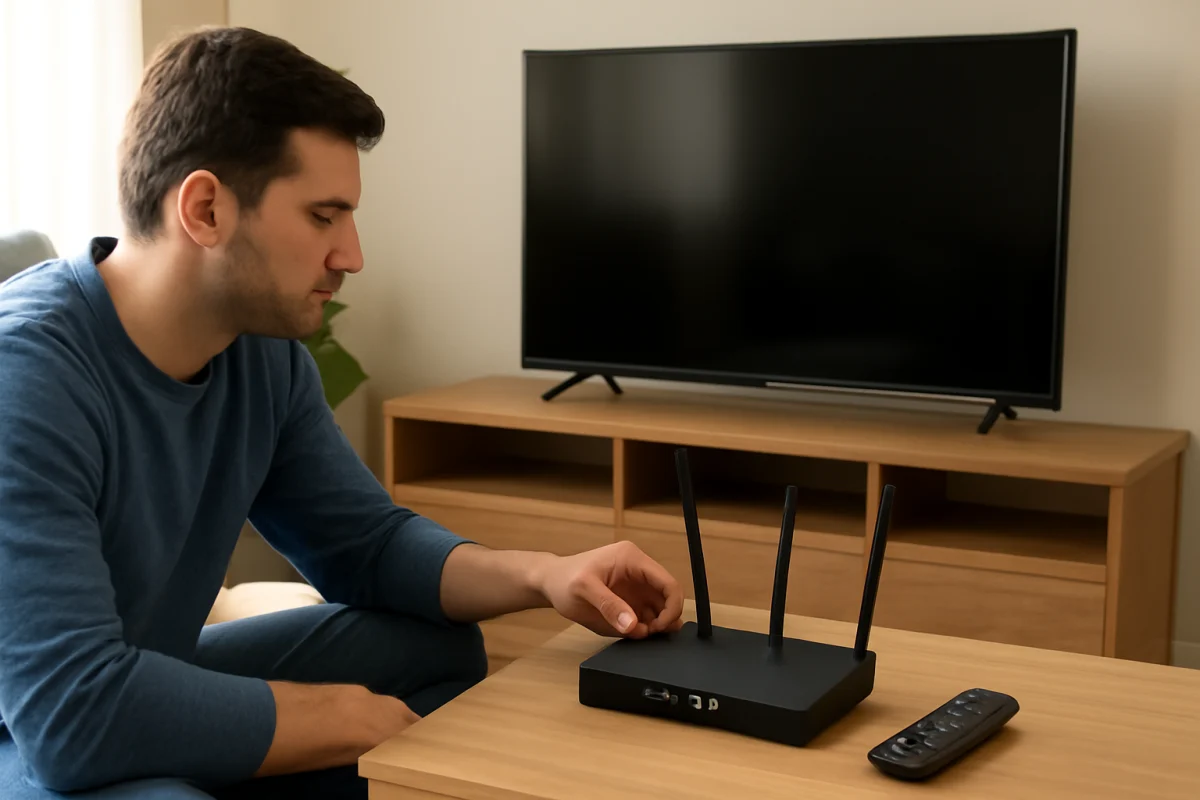
If your Fire TV cannot connect to Wi-Fi, start by checking whether the problem affects only the Fire TV or every device in your home. Confirm that your router is powered on, move the Fire TV closer to it if possible, and restart both devices. These low-risk steps often restore the connection without changing network settings or erasing anything.
Work through the steps below in order. The names and arrangement of some options can vary between Fire TV devices, television models, and software versions, but the general troubleshooting process is similar.
Check whether the problem is the Fire TV or the network
First, use a phone, computer, or another streaming device on the same Wi-Fi network. Try loading a few websites or opening an online app. If none of your devices can get online, the Fire TV may not be the cause. Check your internet service, modem, and router before changing settings on the streaming device.
If other devices work normally but the Fire TV does not, focus on the Fire TV connection. If the Fire TV connects but streaming remains slow or stops frequently, the issue may be weak Wi-Fi rather than a completely failed connection. You can find more network troubleshooting guidance in our Wi-Fi and network troubleshooting guide.
Restart the Fire TV and network equipment
Restart the Fire TV
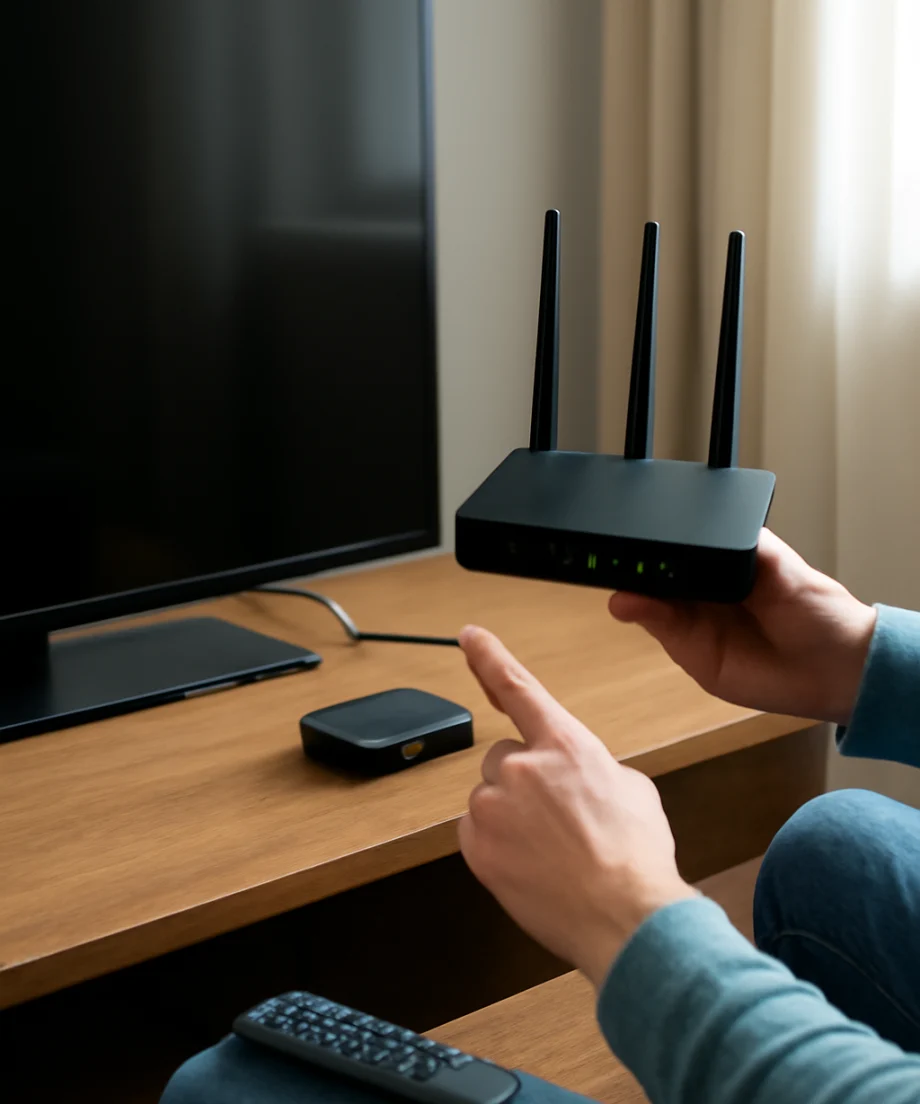
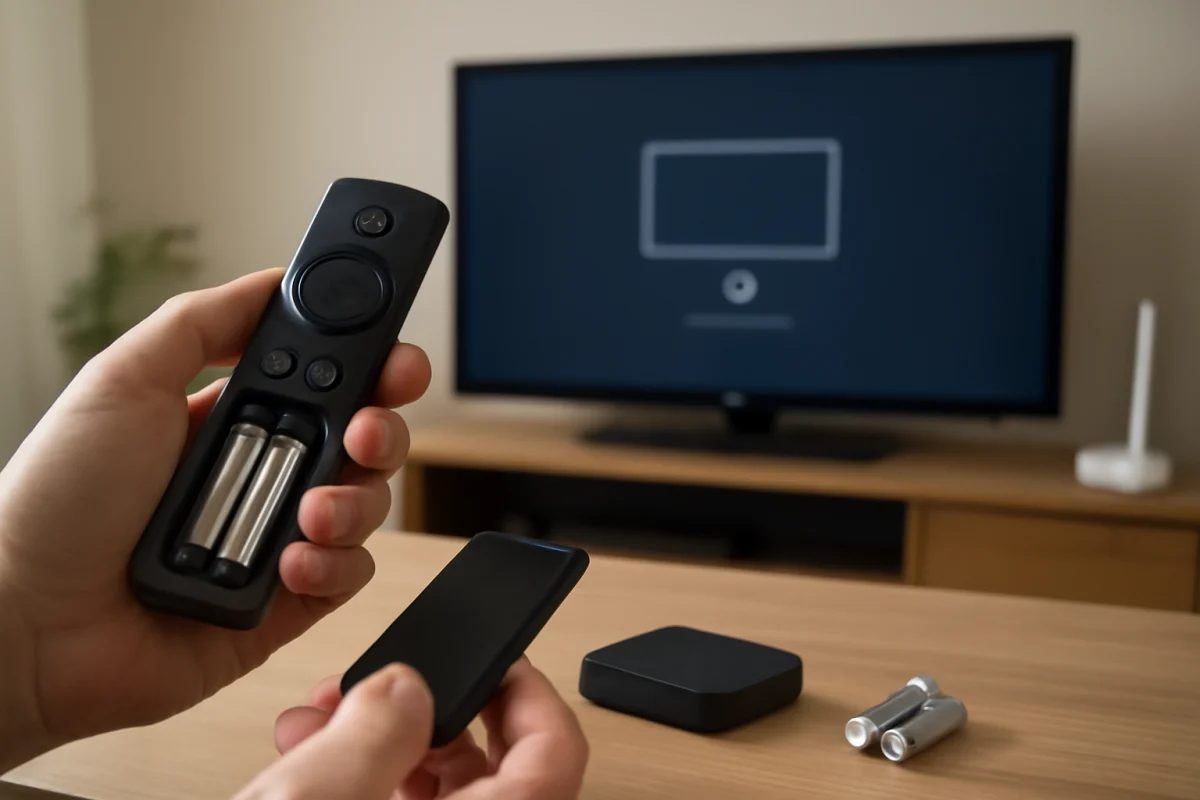
A restart can clear a temporary wireless or software error. Use the Fire TV remote to open the device settings and look for the restart option. The exact menu wording may differ by model. If the device is frozen and the menus do not respond, unplug the Fire TV or television from power, wait at least 30 seconds, and plug it back in.
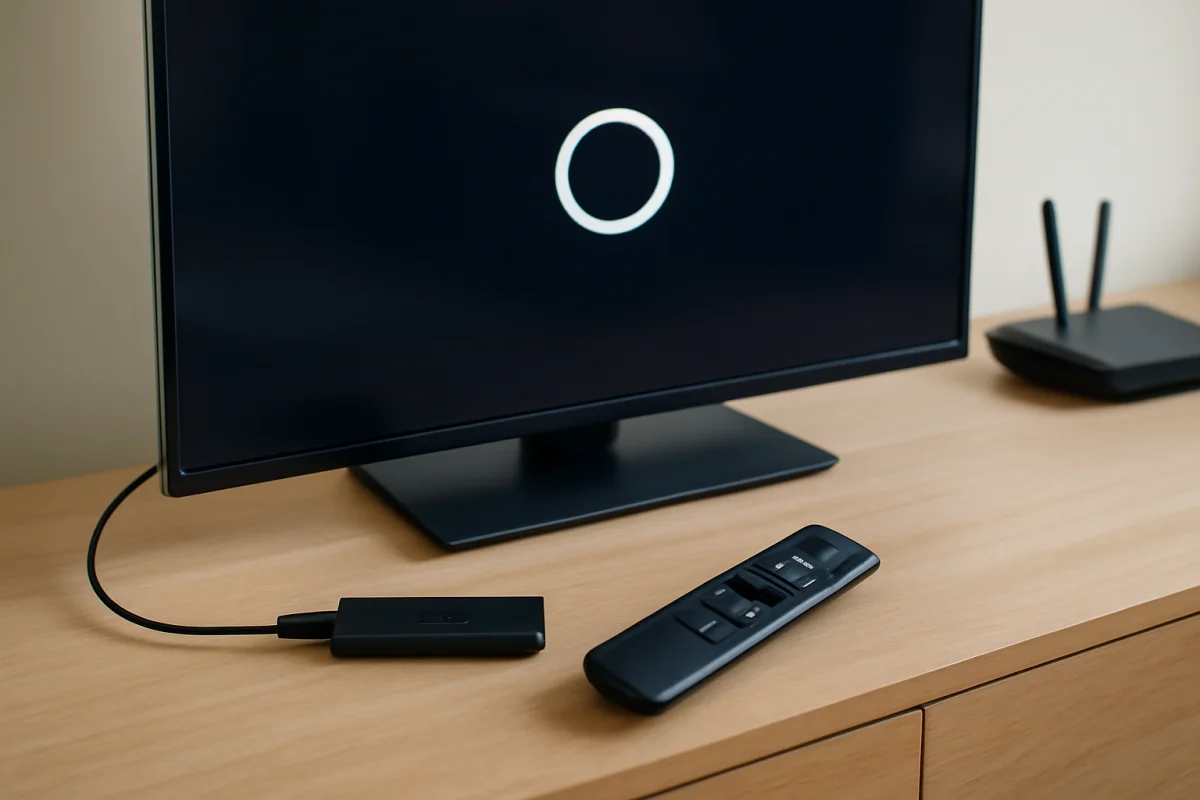
When using a Fire TV Stick or another external Fire TV device, unplug the device's power cable rather than only removing it from the television's HDMI port. The HDMI connection carries the picture and sound, but the device still needs its power connection to restart fully.
Restart the modem and router
Unplug the modem and router from power. Wait about 60 seconds, then reconnect them. If you have separate devices, reconnect the modem first and give it time to establish an internet connection before powering the router. The indicator lights and startup time vary by equipment, so wait until the network appears available on another device before testing Fire TV again.
Do not press the small reset button on the router unless you intend to restore its factory settings. A factory reset can remove your Wi-Fi name, password, and other custom settings.
Confirm the Wi-Fi password and network name
A Fire TV may fail to connect after a router replacement, password change, or Wi-Fi name change. Open the Fire TV network settings and select your home network. Carefully re-enter the password, paying attention to uppercase letters, numbers, and similar-looking characters.
If the network is saved on the Fire TV, choose the option to forget or remove it before trying again. This clears the old connection details and lets you enter the current password. The option may have a different name depending on the device and software version.
Check the password on a device that is already connected if you are unsure of it. Avoid guessing, because repeated failed attempts can make troubleshooting more confusing. If your router uses separate Wi-Fi names for different bands, try the other available network as a test.
Move the Fire TV closer to the router
Distance, walls, floors, cabinets, and nearby electronics can weaken Wi-Fi. For testing, temporarily move the router closer to the television or use the Fire TV in a location with a stronger signal. If the Fire TV connects when it is closer, the main problem is probably signal strength or interference.
A Fire TV Stick hidden behind a television can also have a weaker wireless signal than a device positioned with more open space. If your device came with an HDMI extension or similar adapter, using it may help move the Fire TV away from the back of the television. Use only compatible accessories and avoid forcing the device or cable into an awkward position.
If the connection is reliable near the router but not in its normal location, consider improving coverage with a better router position, a mesh system, or a compatible Wi-Fi extender. Test the placement before purchasing additional equipment.
Check the Wi-Fi band and router compatibility
Some Fire TV models support different wireless bands and network features than others. Because compatibility varies by model, do not assume that every Fire TV supports every router setting. If your router combines multiple bands under one network name, temporarily creating separate test networks may help identify whether one band is causing the problem.
Older Fire TV hardware may also have trouble with certain newer security modes, advanced wireless settings, or unusual channel configurations. If other devices connect but the Fire TV consistently rejects the network, review the router's wireless settings. Change one setting at a time, and record the original value so you can undo the test.
Router administration screens differ widely. If you are not comfortable changing wireless security or band settings, ask your internet provider or router manufacturer for guidance. Do not disable network security permanently just to make the Fire TV connect.
Check for interference and connected accessories
Wireless interference can come from neighboring networks, Bluetooth devices, cordless phones, microwaves, and crowded entertainment centers. Temporarily turn off nearby equipment that is not needed and test the Fire TV again. Keep the router in an open, elevated location rather than inside a cabinet or directly beside large electronics.
Also check the Fire TV's power supply. An unstable or insufficient power source can cause restarts, freezing, or unreliable network behavior that looks like a Wi-Fi problem. If you are using a television USB port for power, test the original power adapter and a suitable wall outlet when available. Do not use a damaged cable or adapter.
Try a phone hotspot as a diagnostic test
If available, create a temporary mobile hotspot and try connecting the Fire TV to it. This is a diagnostic step, not necessarily a permanent solution. If the Fire TV connects to the hotspot, the device's Wi-Fi hardware is probably working, and the issue is more likely related to your home router, password, signal, or network configuration.
If it cannot connect to the hotspot either, restart the Fire TV and check whether nearby networks appear in the network list. A missing or nearly empty network list may point to a signal, hardware, or software issue. Mobile hotspot data can be limited or expensive, so disconnect the Fire TV after testing.
Check the date, time, and software
Incorrect date or time settings can sometimes interfere with secure connections and online services. If your Fire TV offers automatic date and time settings, enable them and confirm that the time zone is appropriate for your location. Menu names and available controls can vary.
Once the Fire TV is online, check for available device updates. If it cannot connect to your home Wi-Fi, an update may not be possible through the normal menu. Do not download firmware from an unverified website or attempt an update intended for a different model.
If the device recently updated and stopped connecting afterward, restart it and restart the router again. Also test the network after temporarily disconnecting other high-bandwidth devices, such as game consoles or computers performing large downloads.
Forget the network and reconnect
Removing the saved Wi-Fi network is a useful middle step before considering a factory reset. Open the Fire TV network settings, select the affected network, and choose the available option to forget, remove, or disconnect it. Then restart the Fire TV, return to the network list, select the network again, and enter the password.
This step removes the saved network credentials but does not normally delete your installed apps, profiles, or device preferences. Read the on-screen confirmation carefully before accepting any option that mentions resetting the device.
When to consider a factory reset
A factory reset should be a last resort because it removes personal settings and may require you to sign in again, reinstall apps, and reconnect accessories. Consider it only when the Fire TV still will not connect after testing another network, restarting the equipment, checking the password, and addressing signal or router issues.
Before resetting, make sure you know the account credentials needed to set up the device again. Look for the reset option in the device settings, but remember that the exact menu path can differ. If the Fire TV is managed by someone else or is part of a television's built-in software, confirm the correct reset procedure for that model first.
Signs the problem may be hardware-related
Contact the device manufacturer, television manufacturer, or internet provider for support if the Fire TV cannot see nearby networks, repeatedly loses power, overheats, or fails to connect to multiple known-good networks. Hardware may also be involved if the device only works when positioned unusually close to the router and all other devices have normal signal strength.
Before requesting help, note what you tested: whether other devices connect, whether the Fire TV sees your network, whether a hotspot works, and whether restarting or forgetting the network changed anything. These details can make support faster and help prevent unnecessary resets.
For more Fire TV troubleshooting, browse the Fire TV section on TV Fix Guide. If your connection is working but apps are failing, see our guide to apps that keep crashing on Fire TV.
Comments
0No comments yet. Be the first to share a helpful note or question.
Leave a Comment
Your email address will not be published. Comments are reviewed before appearing on the site.