If apps keep crashing on your Fire TV, start by restarting the device, checking your internet connection, and clearing the affected app’s cache. App crashes are often caused by temporary software glitches, low available storage, corrupted cache data, an unstable connection, or an outdated app. Work through the steps below in order so you can identify the cause without immediately erasing your settings.
1. Restart your Fire TV
A normal restart can clear a temporary process or memory problem that is making one or more apps close unexpectedly. It is also a safe first step because it does not remove installed apps, account information, or saved settings.
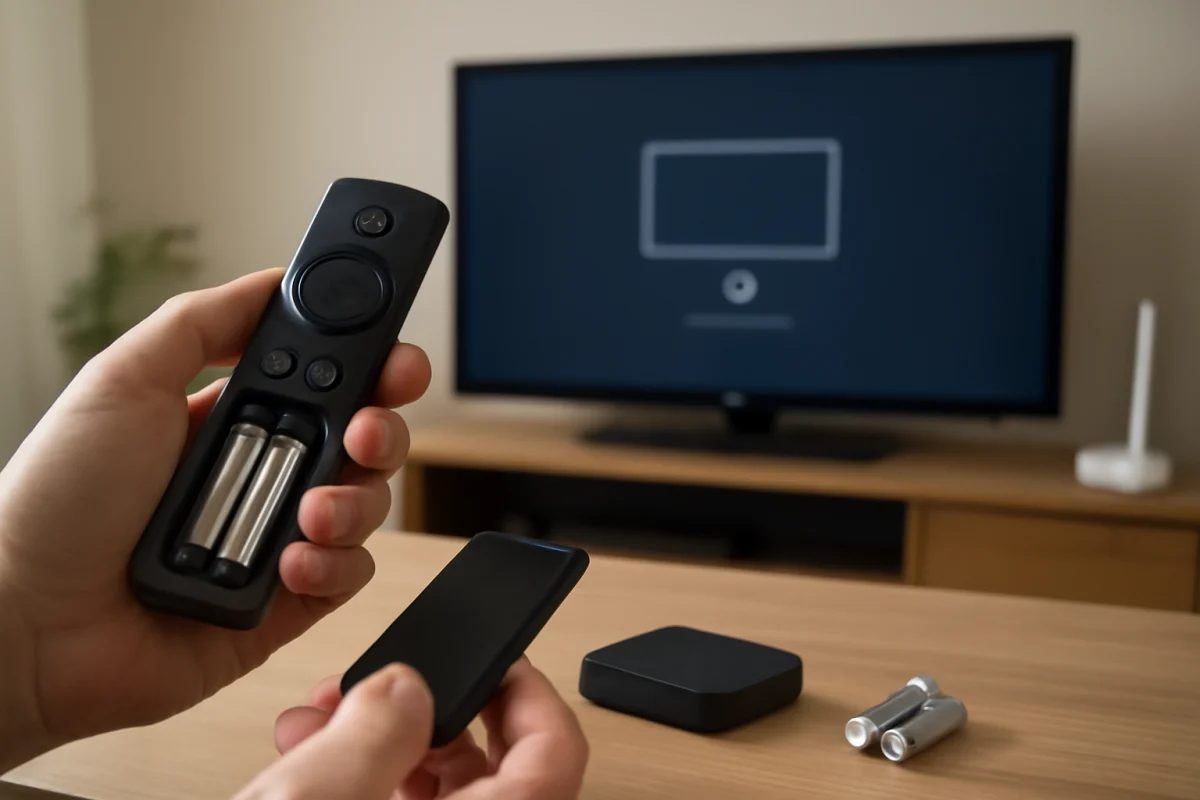
Use the restart option available in your Fire TV settings, or disconnect the Fire TV device from power briefly and reconnect it. If you are using a Fire TV television, avoid switching only between inputs; the TV and its built-in Fire TV software may need a full power restart.
After the device starts again, open the app that was crashing and test it for several minutes. If only one app fails, continue with the app-specific steps below. If every app crashes, pay closer attention to storage, system software, power, and network problems.
2. Check whether the problem affects one app or every app
The pattern of the crashes helps narrow down the cause:
- One app crashes: The app may have corrupted temporary data, an account issue, or a problem with its current installation.
- Several apps crash: The Fire TV may have low storage, a system software problem, overheating, or an unreliable power connection.
- Apps crash during playback: The network connection, streaming service, or video-loading process may be involved.
- Apps crash as soon as they open: Cached data, an incomplete update, or limited free storage is more likely.
Try opening a different streaming app after restarting. This simple comparison can prevent you from changing system settings when the issue is limited to one service.
3. Check the internet connection
A weak or repeatedly dropping connection can cause an app to freeze, return to the home screen, or appear to crash while it is trying to load content. The app itself may not be the original problem.
Open another app and try loading a different title. If multiple apps have trouble connecting, restart your modem and router according to the equipment manufacturer’s normal procedure. Wait for the network to become available again before testing Fire TV.
If possible, move the Fire TV device or television closer to the router, or reduce obstacles between them. Avoid placing a streaming device inside a closed cabinet where both wireless reception and ventilation may be limited. If other devices on the same network also disconnect, troubleshoot the network rather than focusing only on Fire TV. You can find more general connection guidance in the Wi-Fi and network troubleshooting section.
Do not assume that a speed test alone proves the connection is reliable. Brief wireless dropouts, interference, or router problems can still interrupt an app even when the measured speed looks adequate.
4. Clear the crashing app’s cache
Temporary files can become damaged or unusually large. Clearing an app’s cache removes those temporary files while usually preserving the app and its account configuration. The wording and location of the option can vary slightly between Fire TV devices and software versions.
Open the Fire TV settings, find the area for installed applications, select the affected app, and look for an option to clear its cache. Do not select the option to clear data unless you are prepared to sign in again or restore app preferences.
After clearing the cache, launch the app again. It may take a little longer to open the first time because it has to recreate temporary files. If the app still crashes, return to its information screen and note how much storage it is using before taking the more disruptive step of clearing its data.
5. Clear app data or reinstall the app
If clearing the cache does not help, the app’s saved local data may be corrupted. Clearing app data can fix that condition, but it may sign you out, remove downloaded content, and reset app-specific preferences. Make sure you know the email address, password, or other sign-in method needed before proceeding.
Use the Fire TV application settings to clear the affected app’s data if that option is available. Then open the app and sign in again. If the app does not work afterward, uninstall it and install it again from the Fire TV app store.
Reinstalling is especially useful when an update was interrupted or the app files were damaged. If the app is unavailable for reinstallation, or if the problem affects only that service, check the service’s official support resources before repeatedly changing Fire TV settings.
6. Check available storage
Fire TV needs working space for app updates, temporary streaming files, and system operations. When available storage becomes very limited, apps may behave unpredictably or fail during startup and playback.
Review the storage information in your Fire TV settings. The exact menu labels may differ by device and software version. Remove apps you no longer use, especially large games or streaming services that were installed for one-time use. You can also remove downloaded content from apps that support offline viewing.
After freeing space, restart Fire TV and test the apps again. Avoid installing many duplicate apps simply to compare services; unnecessary installations can quickly reduce the available space on smaller devices.
7. Install available app and system updates
An outdated app may stop working correctly after changes on the streaming service’s side. Likewise, a pending Fire TV system update can include compatibility or stability fixes. Check for updates using the options provided in your Fire TV settings and app store.
Menu names and update behavior vary by model, region, and software version, so do not rely on instructions that show a different layout as if it were universal. If an update is available, keep the device connected to power and the internet until the process finishes. Interrupting an update can create additional problems.
If only one app is affected and no update is offered, reinstalling it may be more useful than repeatedly checking the system update screen.
8. Check power, heat, and physical connections
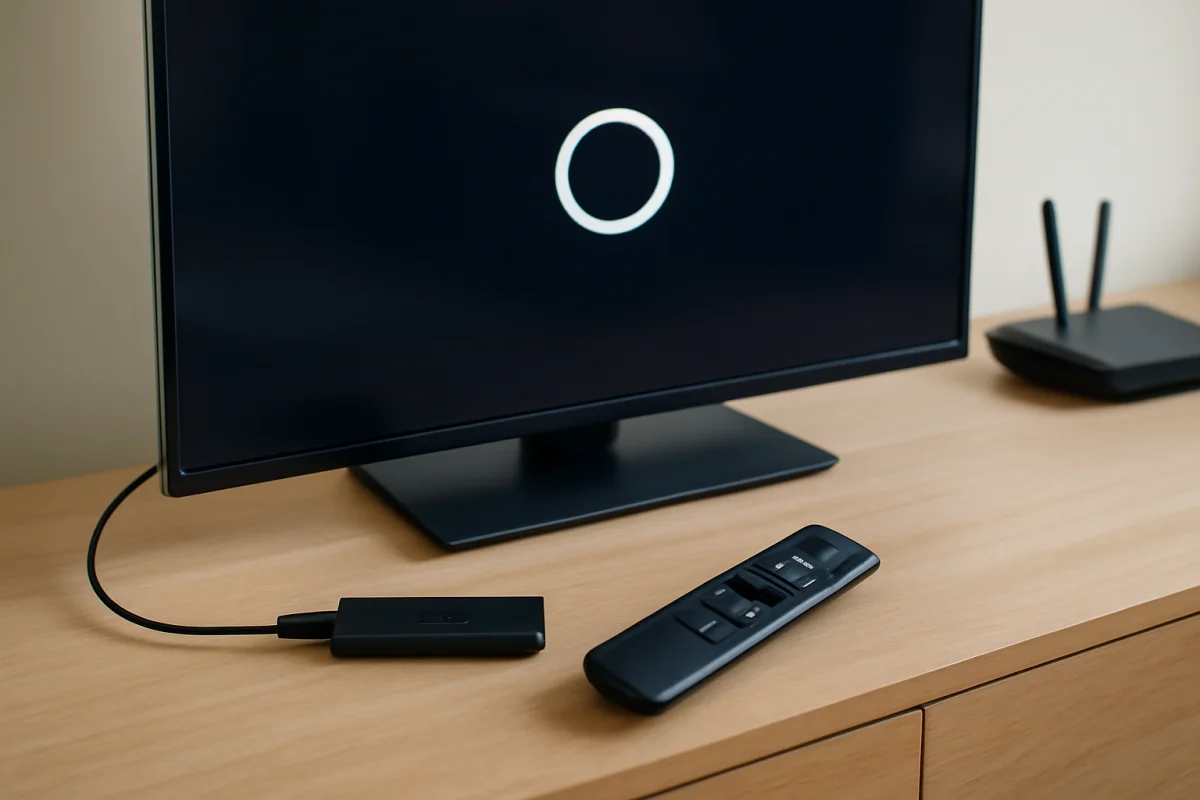
A Fire TV Stick or another external Fire TV device can become unstable if it does not receive consistent power. Use the power adapter and cable intended for the device when possible. Avoid relying on a television’s USB port if the device behaves as though it is restarting, freezing, or losing power during demanding tasks.
Inspect the cable and adapter for visible damage, loose connections, or unusual heat. Connect the device securely and make sure it is not pressed tightly against the back of the television or enclosed in a poorly ventilated space.
If the television itself feels unusually hot, has been running for a long period, or is installed in a tight cabinet, turn it off and let it cool before testing again. Heat alone may not be the cause, but it can make instability worse.
9. Sign out of the app and test the account
Some crashes are connected to a damaged session, a profile problem, or an account authorization issue. If the app stays open long enough, sign out and sign back in. If the app supports multiple profiles, test another profile to see whether the behavior is limited to one user.
Also test the same account on another supported device if you have one. If the service fails there too, the problem may be account-related or caused by a temporary service outage rather than Fire TV. Do not repeatedly change your password unless there is evidence of a sign-in or security problem.
10. Use a factory reset only as a last resort
A factory reset removes installed apps, account details, network settings, and other personal configuration. It can help when system data is seriously damaged, but it should not be the first response to a single app crash.
Before resetting, confirm that the problem remains after a restart, cache cleanup, app reinstall, storage cleanup, update check, and power check. Write down your important sign-in details and make sure you can reconnect the device to your wireless network.
Use the reset option provided in the Fire TV settings and follow the on-screen warnings carefully. If the device cannot complete the reset, repeatedly restarts, or continues crashing with several apps afterward, the issue may involve the device, television, power supply, or system software rather than a normal app problem.
When to contact support
Contact the app provider when only one service crashes after you have cleared its cache, reinstalled it, and tested your connection. Include the device type, the app version if shown, what you were doing when it crashed, and whether other apps work normally.
Contact Amazon or the television manufacturer when several apps crash after a clean restart, there is repeated rebooting, the device becomes unusually hot, or the problem continues after a factory reset. If your Fire TV is built into a television, the correct support path may depend on the television manufacturer and the software installed on that model.
For related device problems, see our guide to why Fire TV keeps freezing. If the screen goes blank rather than closing an app, the troubleshooting path can be different; our guide to what causes a black screen on Fire TV covers that symptom separately.
Comments
0No comments yet. Be the first to share a helpful note or question.
Leave a Comment
Your email address will not be published. Comments are reviewed before appearing on the site.