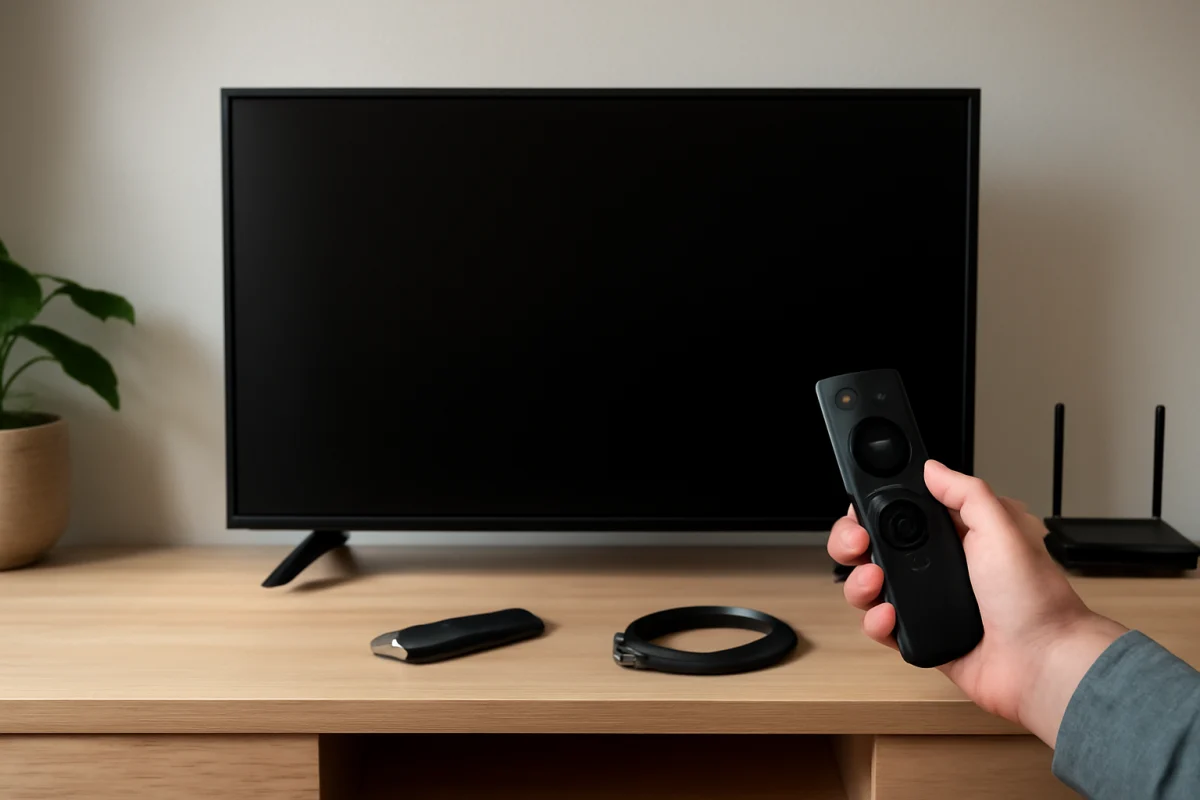
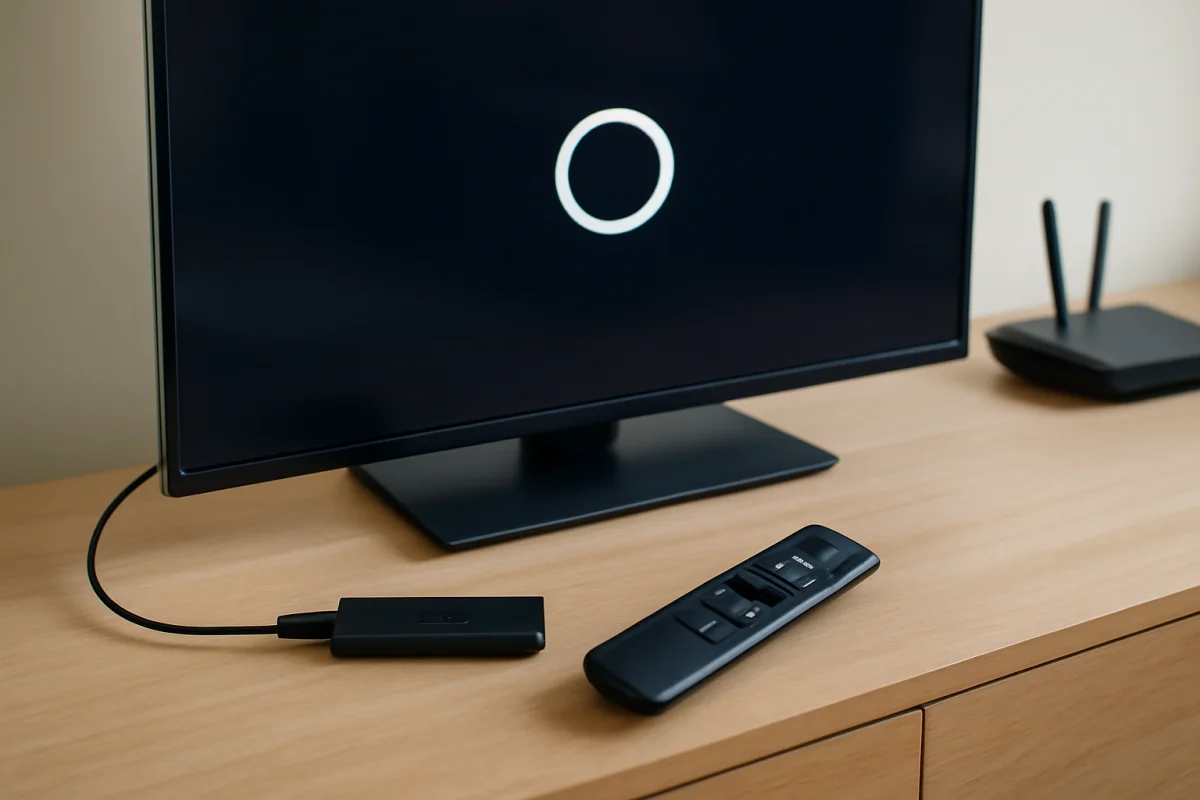
A black screen on Fire TV is usually caused by a problem with the TV input, HDMI connection, power supply, remote command, or a temporary software freeze. Start with the simplest checks: confirm that the television is on the correct input, reseat the HDMI cable, test another HDMI port, and restart both the TV and Fire TV device. These steps are safe for nearly every setup and often restore the picture without deleting apps or settings.
If the screen remains black, pay attention to what you can still see or hear. A completely blank TV with no power light may have a television power problem. A black picture with sound may point to an input, HDMI, display, or picture-setting issue. If the Fire TV logo appears and then disappears, the device may be starting incorrectly or losing its connection to the TV.
Check whether the TV itself is working
Before troubleshooting Fire TV, use the television's own remote to open its volume control, input menu, or settings screen. The exact button names vary by TV brand and model. If the TV displays its menu normally, the panel is probably working and the problem is more likely related to the Fire TV, HDMI connection, or selected input.
If the TV cannot show its own menu, unplug it from the wall for about one minute, then reconnect it and try again. Make sure the power cord is firmly connected at both ends. You can also test the outlet with another device that you know works. Avoid repeatedly switching the TV on and off if it makes unusual noises, smells hot, or shows signs of physical damage. Those symptoms may require professional service.
Confirm the correct HDMI input
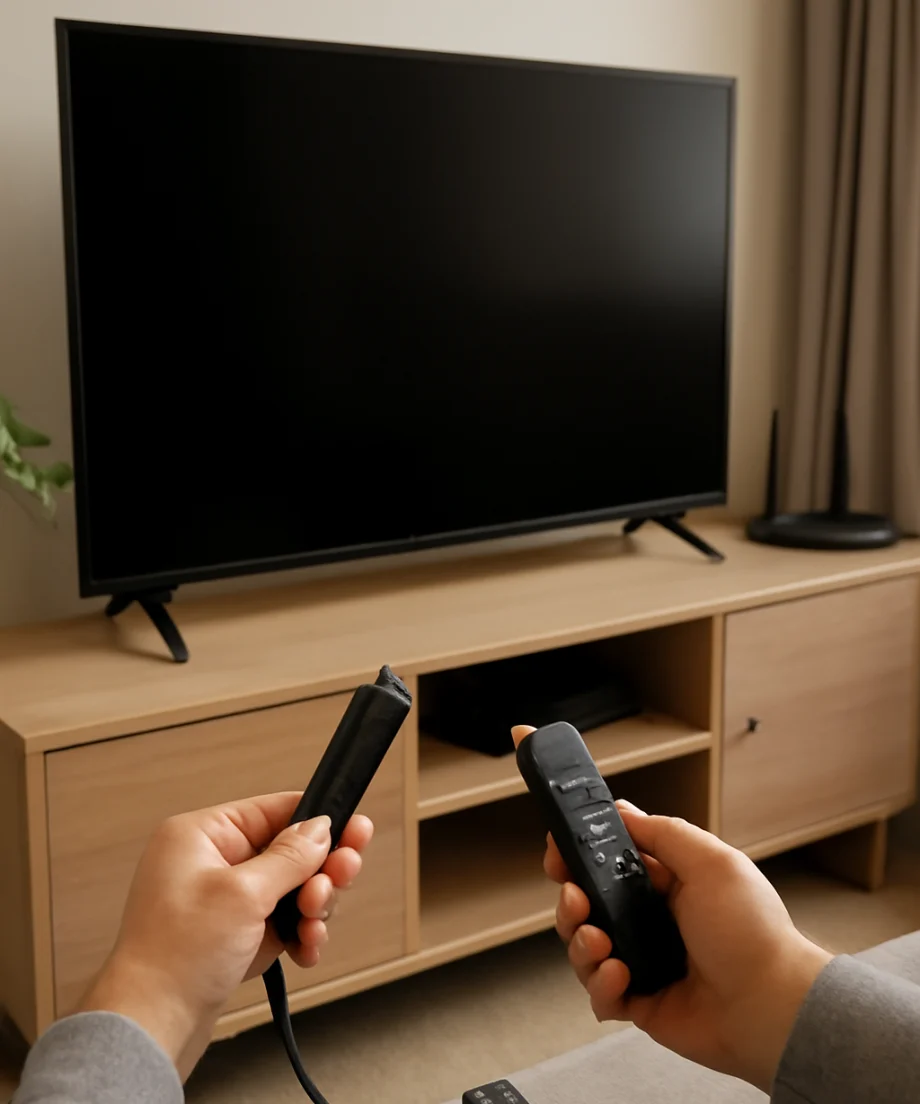
A Fire TV Stick or similar device can be powered on while the television is set to a different source. Press the TV remote's Input, Source, or a similarly labeled button and cycle through the available HDMI inputs. Pause briefly on each one rather than switching rapidly.
Check which HDMI port physically contains the Fire TV. If it is plugged into the port labeled HDMI 2, for example, select HDMI 2 on the television. Some TVs also include separate inputs for external devices, and the displayed labels may not match the port's position. If you recently moved the Fire TV or changed cables, the selected source is one of the most likely causes of a black screen.
Reseat the Fire TV and HDMI connection
Turn off the TV, then remove the Fire TV from its HDMI port. Inspect the connector and the port for dust, bent parts, or visible damage. Do not force the device into the port. Reconnect it firmly, making sure it is not hanging under strain or being pushed sideways by a nearby cable.
If your setup uses an HDMI extender, adapter, switch, soundbar, or AV receiver, temporarily connect the Fire TV directly to the television. Extra equipment can introduce a signal problem even when the Fire TV itself is functioning. If the picture returns when connected directly, reconnect the other equipment one piece at a time to identify the cause.
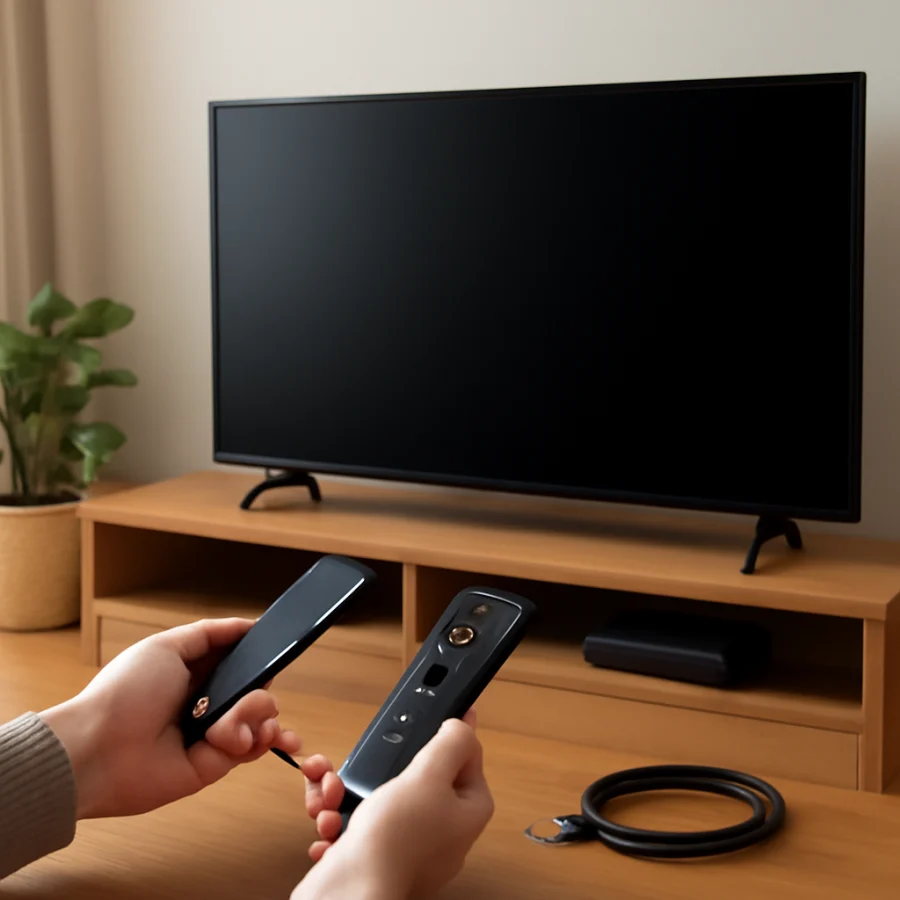
Try a different HDMI port on the TV. If possible, test the Fire TV with another known-good HDMI cable or extender that is suitable for your device. A damaged cable may allow intermittent sound or a startup logo but fail to maintain a picture during normal use.
Restart the TV and Fire TV safely
A restart can clear a temporary HDMI handshake problem or software freeze. First, turn off the television and unplug both the TV and the Fire TV power adapter from the wall. Wait about one minute. Plug the television back in and turn it on, then reconnect the Fire TV power adapter. Select the correct HDMI input and wait for the device to start.
Use the Fire TV remote's restart command only if the screen is visible enough to navigate. Menu wording can differ by device and software version, so look for a power, restart, or device restart option in the settings area rather than relying on an exact menu path.
Do not confuse a power cycle with a factory reset. A restart normally preserves your apps and preferences. A factory reset removes account information, installed apps, and many personal settings, so it should not be the first response to a black screen.
Check the Fire TV power supply
Fire TV streaming sticks and boxes need stable power. If the device is powered from the TV's USB port, move it temporarily to the original wall power adapter, if available. Some television USB ports do not provide consistent power for every streaming device, especially during startup or while an app is running.
Make sure the power cable is fully inserted into the Fire TV and the adapter. Try another wall outlet, preferably without a loose power strip or overloaded extension. If you need a replacement adapter or cable, use one that is compatible with the device. Avoid guessing based only on whether the connector fits, because an unsuitable power supply can cause repeated restarts, freezing, or a blank screen.
Look for signs that the Fire TV is responding. You may hear navigation sounds, see the television react when you press buttons, or notice the device's indicator light, depending on the model. These clues can help separate a power problem from a video-output problem, but an indicator light alone does not prove that the HDMI signal is working.
Check the remote and remove interference
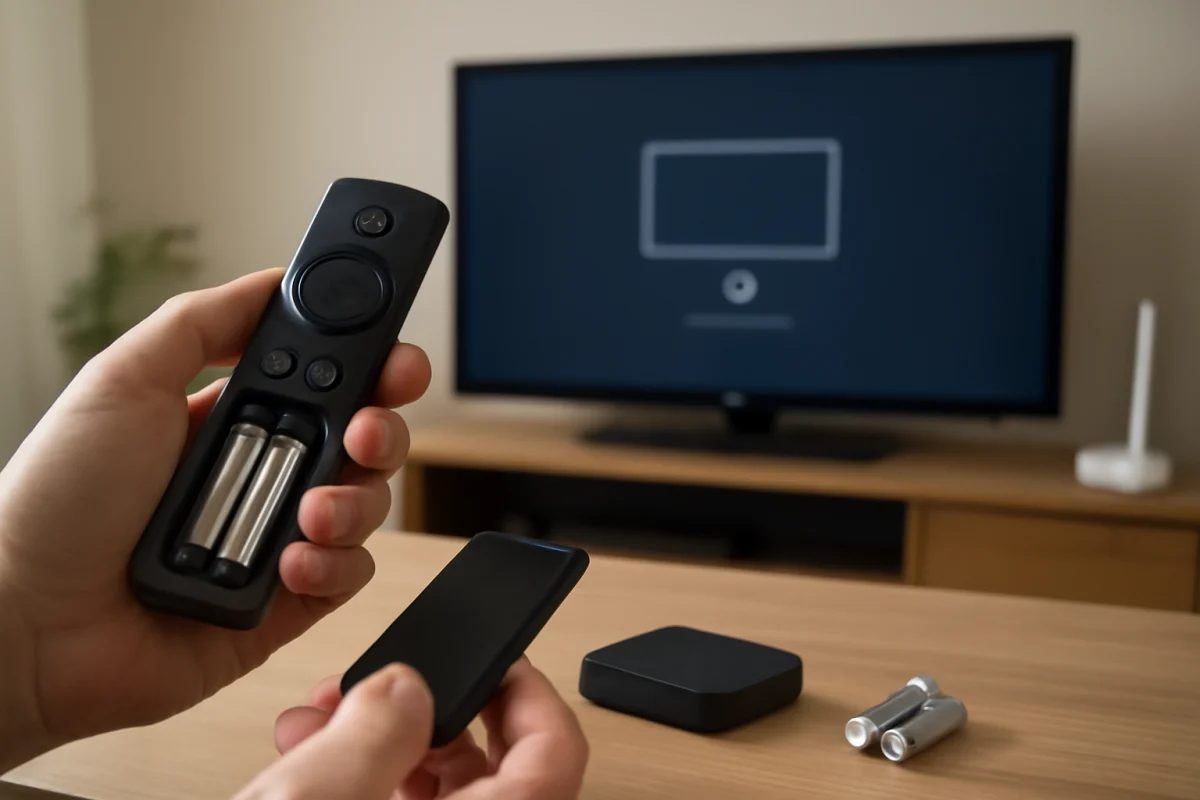
A remote problem can make the TV appear stuck on a black screen, particularly if the TV is off, the input changed, or the Fire TV is not receiving commands. Replace the remote batteries with a fresh, correctly installed pair. Move the remote closer to the Fire TV and press a few navigation buttons.
Make sure nothing blocks the remote's signal path if your setup uses infrared control. Other devices, bright lighting, or a crowded entertainment cabinet can sometimes interfere. If the Fire TV remote stopped responding before the screen went black, troubleshoot the remote separately using this guide to fix a remote that suddenly stops responding.
If you have a compatible alternative control method already set up, use it to check whether the Fire TV is responding. Do not assume that every phone or Bluetooth remote can control every Fire TV model; compatibility and pairing requirements vary.
Determine whether sound is still present
Press the TV volume buttons and listen for audio from the Fire TV. If sound plays while the picture is black, the Fire TV may be running normally but failing to send a usable video signal. Test another HDMI port and remove intermediate equipment first. If the TV has picture settings that affect brightness, contrast, backlight, or energy saving, restore those settings to a normal level. The names and locations of these controls vary by television.
A black screen with no sound does not automatically mean the Fire TV is dead. It can still result from the wrong input, insufficient power, a frozen startup process, or a television issue. Continue with the direct-connection and power checks before considering a reset.
Consider resolution or display compatibility
In some setups, the Fire TV and television may temporarily fail to agree on a video format. This is more likely after moving the device to another TV, adding an HDMI switch, or changing display equipment. If the Fire TV works on another television, the original TV, cable path, or compatibility settings become more likely suspects.
Do not change advanced display options repeatedly while the screen is blank. If you can restore a picture by connecting the Fire TV to another compatible display, use the visible settings to select an automatic or broadly compatible display option when available. Exact choices depend on the Fire TV model, television, and software version.
Test the Fire TV on another display
Testing the device on another television is one of the most useful ways to isolate the fault. Disconnect the Fire TV from the original setup and connect it directly to a second TV with its normal power supply. Select the new TV's matching HDMI input.
If the picture works on the second TV, inspect the original television's HDMI port, input selection, cable, and any connected soundbar or receiver. If the screen stays black on both TVs after a proper power cycle and direct connection, the Fire TV, its power equipment, or its software may be responsible.
Similarly, test another streaming device or game console on the original TV input if one is available. If every external device produces a black screen on that port, the television or HDMI port deserves closer attention.
When to use a factory reset
A factory reset is an advanced step, not a general fix for every black screen. Consider it only after you have confirmed the TV input, tested the HDMI connection, used stable wall power, removed extra equipment, and tried a restart. You also need a visible picture or a reliable way to navigate the device's reset process.
A reset erases personal data and requires you to sign in again and reinstall apps. Before using it, make sure you know the account credentials needed to set up the Fire TV. If the device cannot display anything on multiple known-good TVs, resetting it blindly is unlikely to solve a failed HDMI output or hardware problem.
When the problem may be hardware-related
Hardware becomes more likely when the Fire TV remains blank after direct connection, stable wall power, a different HDMI cable or port, and testing on another display. The same is true if the HDMI connector is loose or damaged, the device becomes unusually hot, or it repeatedly loses power.
A television hardware issue is more likely when its own menus also fail to appear, multiple external devices show no picture, or the screen has physical damage. Stop using equipment that smells burned, sparks, becomes dangerously hot, or has a damaged power cord. Contact the appropriate manufacturer or a qualified repair professional rather than opening the TV or streaming device yourself.
For related troubleshooting, you can browse the Fire TV troubleshooting section, review guides for Wi-Fi and network problems, or find additional help in the picture and sound section.
What usually fixes a Fire TV black screen
Most cases are resolved by selecting the correct TV input, reconnecting the Fire TV directly to the television, supplying power from a wall adapter, restarting both devices, or replacing a faulty cable. If those checks fail, test the Fire TV on another display and test another device on the original TV. This comparison identifies whether the problem follows the Fire TV or stays with the television and its connections, allowing you to avoid an unnecessary factory reset.
Comments
0No comments yet. Be the first to share a helpful note or question.
Leave a Comment
Your email address will not be published. Comments are reviewed before appearing on the site.