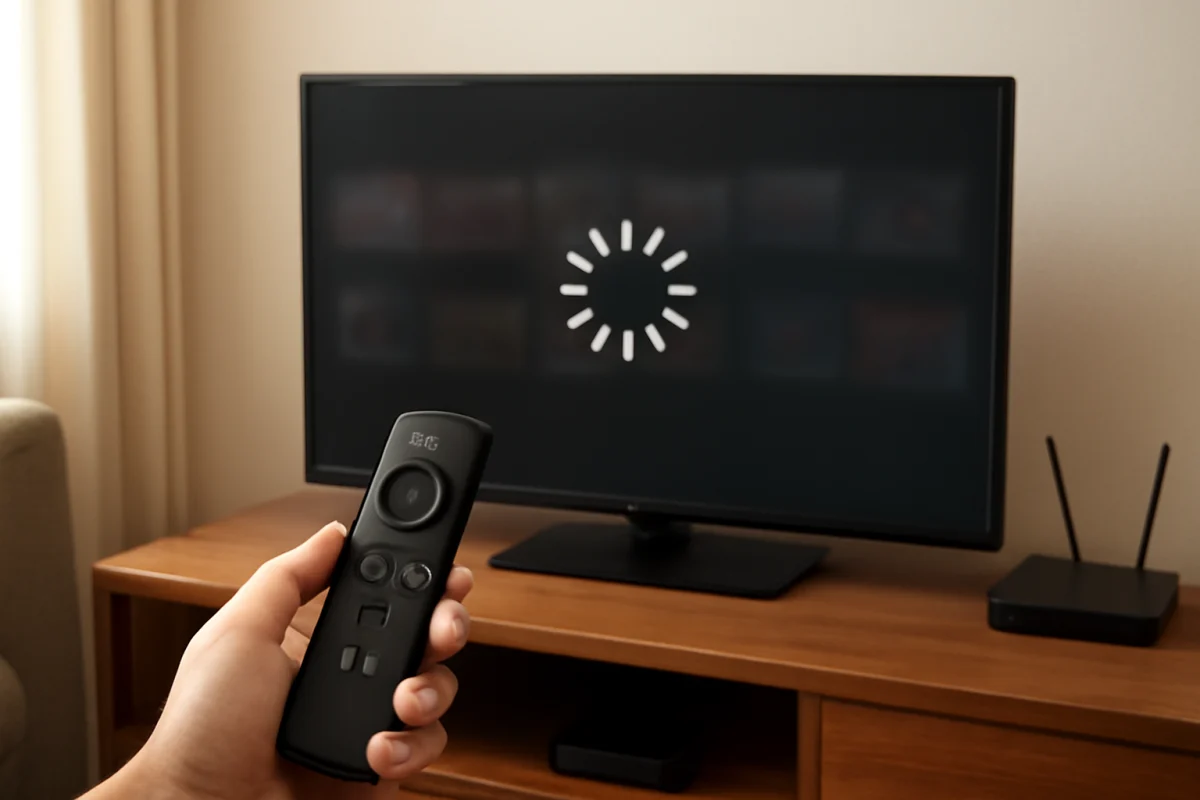
If your Fire TV is slow, start by restarting it and checking whether the problem affects the entire device or only one app. A Fire TV that takes a long time to open menus, responds slowly to the remote, buffers during playback, or freezes may be dealing with low storage, a temporary software problem, a weak network connection, or an app that is misbehaving.
Work through the steps below in order. The early checks are low risk and often solve the problem without deleting apps or changing important settings.
First, identify what is actually slow
Pay attention to when the delay happens. If the Home screen, Settings, and app menus all respond slowly, the issue is probably related to the Fire TV device itself. Low free storage, excessive cached data, or a temporary system process can affect the whole interface.
If the menus are normal but one streaming app is slow, crashing, or buffering, the app or its connection may be the cause. If video pauses across several services while menus remain responsive, focus on Wi-Fi and internet performance instead.
Also check whether the problem started after moving the Fire TV, changing your router, installing an app, or connecting a USB device. This information can help you avoid making unrelated changes.
Restart the Fire TV completely
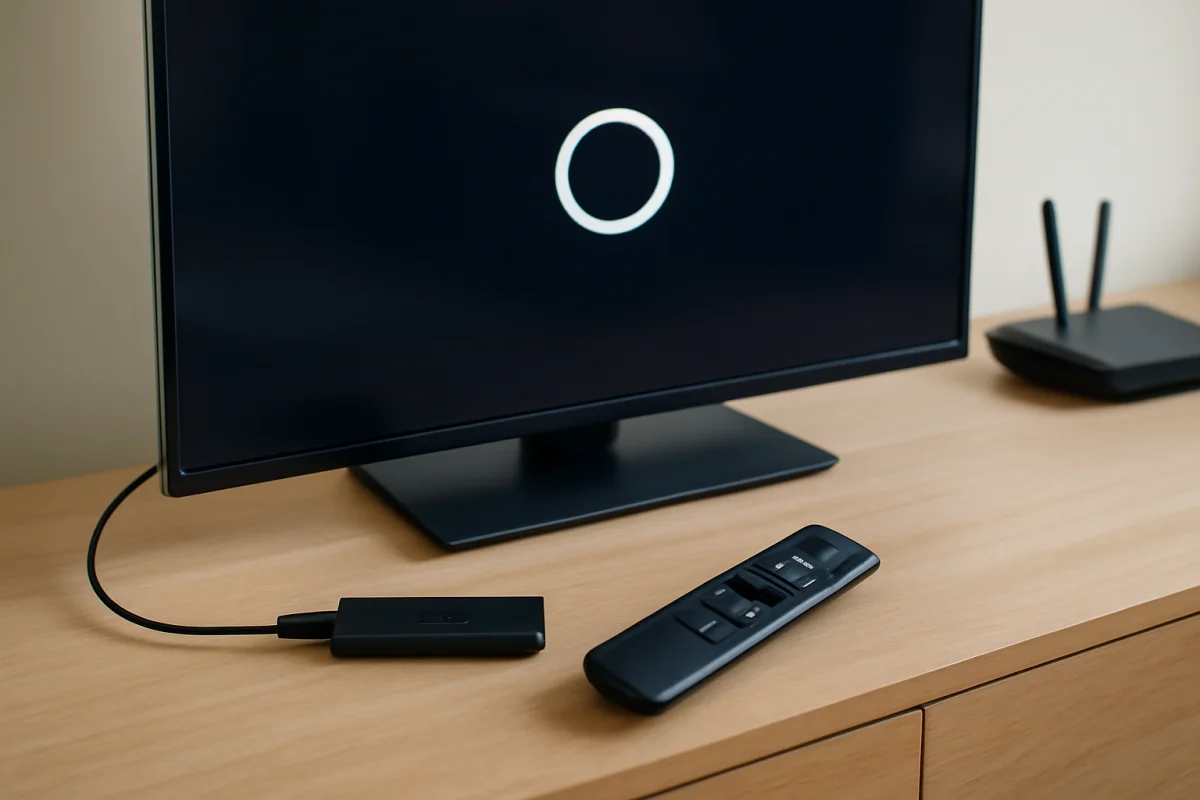
A restart is the safest first fix because it clears temporary processes without removing your apps or account information. Use the restart option available in your Fire TV settings, or disconnect the device from power, wait briefly, and reconnect it. If your model uses a power adapter, unplug the adapter from the outlet rather than relying only on the television’s power button.
After the Fire TV starts again, wait for the Home screen to finish loading before opening several apps. Test the remote, move through the menus, and play a video. If the device becomes fast again but slows down later, a background process, app, or storage problem may be returning.
Check the remote before blaming the Fire TV
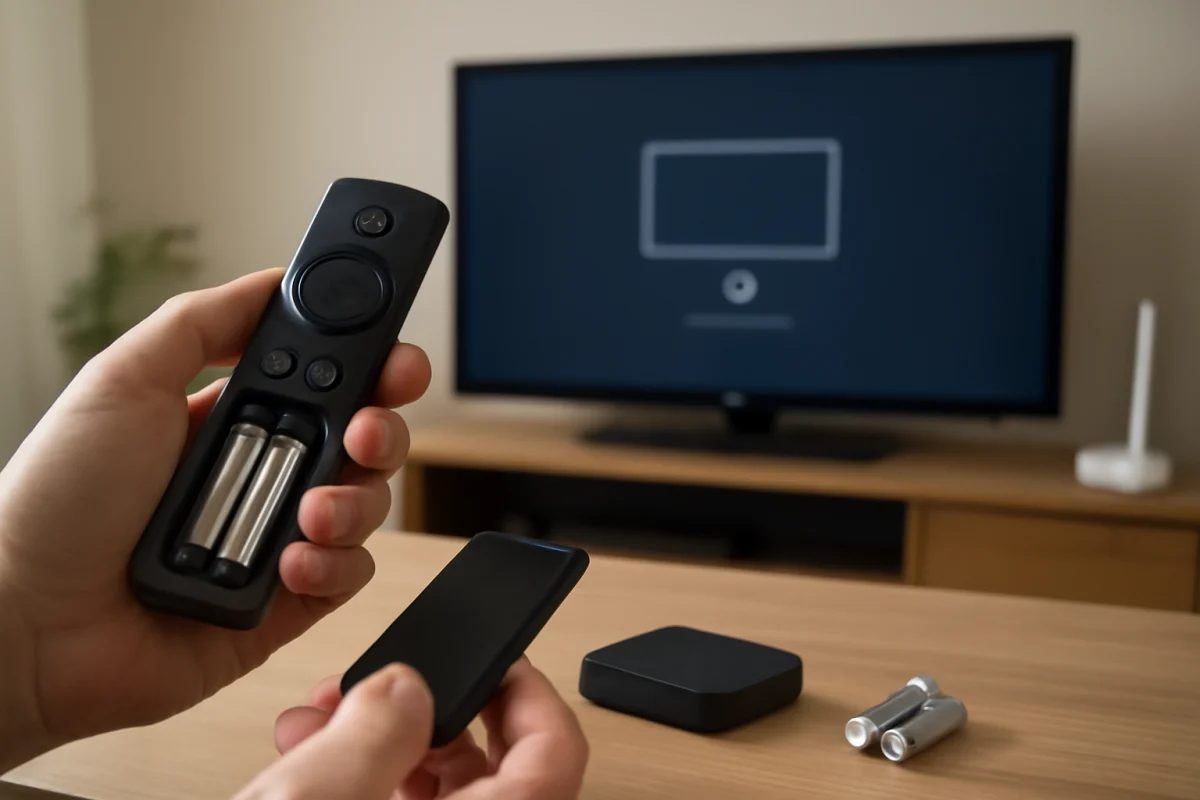
A delayed remote can feel like a slow streaming device. Replace weak batteries, make sure the remote has a clear path to the device if it uses infrared communication, and try pressing one button at a time. Remove objects that may block the Fire TV or the television’s sensor area.
If only the remote seems delayed while an attached keyboard or the Fire TV mobile app responds normally, troubleshoot the remote separately. Our guide to fixing a remote that suddenly stops responding covers additional checks.
Free up storage on the device
Limited storage can make a Fire TV feel sluggish, especially when there is not enough room for app updates, temporary files, or normal system activity. Open the device’s storage or application management area and review the apps you no longer use. Menu names and available options can vary by Fire TV model and software version.
Remove unused apps first. Avoid deleting an app that contains important local data unless you are comfortable signing in again or setting it up from scratch. You can also review large apps and games that you rarely open.
Do not assume that installing a storage-cleaning app will improve performance. Some cleaner apps use their own resources, display unwanted prompts, or provide little benefit. The built-in storage controls are generally the safer place to begin.
Clear the cache for a troublesome app
Streaming apps store temporary files called cache data. This data can speed up normal use, but it may become damaged or unusually large. Clearing an app’s cache can help when one app is slow, freezes, or takes a long time to load.
Open the Fire TV application settings, choose the affected app, and look for an option to clear its cache. The exact menu wording may differ by device and software version. Be careful not to choose an option that removes all app data unless you are prepared to sign in again and reset the app.
Clear the cache for one problem app at a time, then test it. If several apps are affected, restarting the device and checking storage is usually more useful than repeatedly clearing every cache.
Update the problem app and Fire TV
An outdated app can perform poorly after a service changes, while an incomplete or pending update may also cause unusual delays. Check for available app updates through the Fire TV’s app management area or the app store. If only one service is affected, check that service’s status using another device before changing system settings.
You should also check for a system update in the Fire TV settings. The menu location and wording can change between models and software versions, so follow the options shown on your screen rather than relying on an exact menu path from another device. Keep the Fire TV connected to power and the internet while an update is being installed.
Test the Wi-Fi connection
Weak or unstable Wi-Fi usually causes buffering, reduced video quality, and playback interruptions rather than slow Home screen navigation. However, a network problem can make apps appear slow because they are waiting for account details, images, or video data.
Check whether other devices on the same network are also slow. Move the Fire TV closer to the router if possible, or reduce obstructions between them. Restart the router by unplugging it, waiting for it to shut down fully, and reconnecting it. Give the network time to return before testing the Fire TV again.
If the Fire TV cannot connect, repeatedly disconnects, or performs poorly only on Wi-Fi, use our guide to fixing Fire TV Wi-Fi connection problems. If every device in your home has trouble, the issue may be with the router, internet service, or wireless congestion rather than the Fire TV itself.
Close the app and reinstall it only if necessary
When one app remains slow after a restart and cache clearing, force-closing it may help. Use the application management controls available on your device, then open the app again. If the problem continues, uninstall and reinstall that app as a later step.
Reinstalling removes the app and may erase its stored settings. Make sure you know the account email address and password before doing this. If the app continues to fail after a clean installation while other apps work normally, contact the app provider or check whether the service is experiencing an outage.
For repeated crashes and app-specific failures, see our guide to apps that keep crashing on Fire TV.
Check power, heat, and connected accessories
A Fire TV that is hot, enclosed, or receiving inconsistent power may become unreliable. Make sure air can circulate around the device and do not cover it with other equipment, fabric, or decorative objects. If it is connected through a television USB port, try the power adapter and cable supplied for your device when available. Power behavior varies by Fire TV model, so do not substitute an adapter unless its compatibility is clear.
Temporarily disconnect USB storage, hubs, Ethernet adapters, or other accessories that were added recently. Test the Fire TV with only its normal power and display connections. If performance improves, reconnect accessories one at a time to identify the source.
When a factory reset makes sense
A factory reset should be a last resort, not the first response to a slow menu. It removes installed apps, account information, preferences, and other stored data. Before using it, confirm that the device has adequate power, remember your account credentials, and try the less destructive steps above.
A reset may be reasonable when the Fire TV remains slow after a restart, storage cleanup, updates, app troubleshooting, and network checks. It can also help when multiple system functions are corrupted and normal settings no longer behave correctly. Because reset instructions and confirmation screens can vary by model, read each prompt carefully and make sure you are resetting the intended device.
If the Fire TV becomes slow again immediately after a reset, the cause may be hardware, power, overheating, an accessory, or a recurring app problem. Avoid repeatedly resetting it without testing those possibilities.
When to seek further help
Get additional support if the device will not complete startup, repeatedly shuts down, becomes extremely hot, shows persistent display problems, or remains unresponsive after basic troubleshooting. Keep note of what changed, which apps are affected, whether other devices have the same network problem, and whether the issue continues after a restart. Those details can make support conversations more productive.
Most slow Fire TV problems can be narrowed down by separating device performance from app performance and internet speed. Start with a restart, check storage and power, test the network, and only then consider reinstalling apps or performing a factory reset.
Comments
0No comments yet. Be the first to share a helpful note or question.
Leave a Comment
Your email address will not be published. Comments are reviewed before appearing on the site.