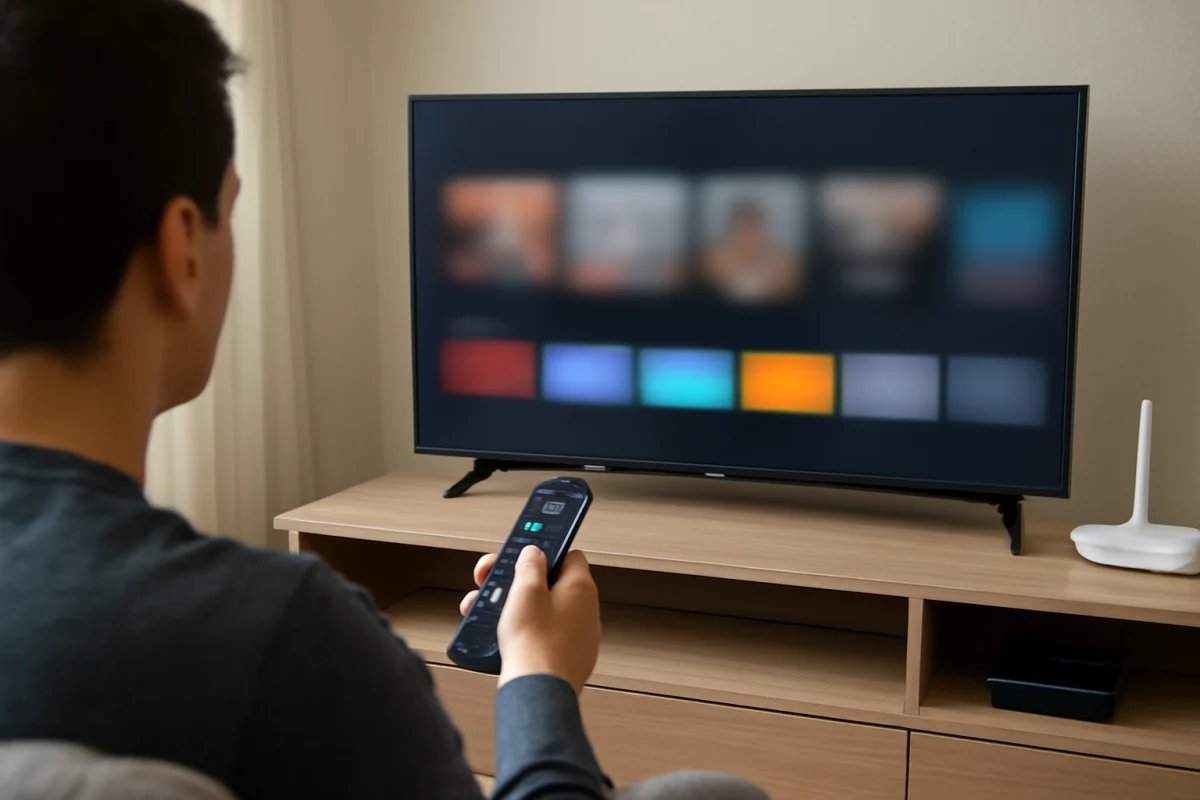
A TCL TV that responds slowly usually has a software, app, network, or storage problem rather than a failed screen. Start by checking whether the entire TV is slow or only one app. Then perform a full restart, close or remove problem apps, test the internet connection, and check for available software updates. These steps are low risk and often restore normal response without erasing your settings.
The exact menus and features can vary between TCL models and platforms, including Roku TV, Google TV, and other TCL smart TV systems. If a menu name looks different on your TV, use the closest equivalent rather than forcing a step that does not match your screen.
First, identify what is actually running slowly
Notice when the delay happens. Does the TV take a long time to respond to the remote, or do streaming apps simply buffer and load slowly? These symptoms can have different causes.
- The home screen and settings are slow: The TV may need a full restart, have too many background processes, or be dealing with limited storage or a software issue.
- Only one app is slow: That app may have corrupted temporary data, an outdated version, or a service-side problem.
- Video buffers but menus respond normally: The likely cause is Wi-Fi signal strength, internet congestion, or a problem with the streaming service.
- The remote seems delayed: Weak batteries, interference, or a pairing problem may be responsible rather than the TV itself.
Try several different actions, such as opening settings, changing inputs, and launching another app. This quick comparison helps prevent you from changing TV settings when the real problem is a single streaming app or your network.
Restart the TCL TV completely
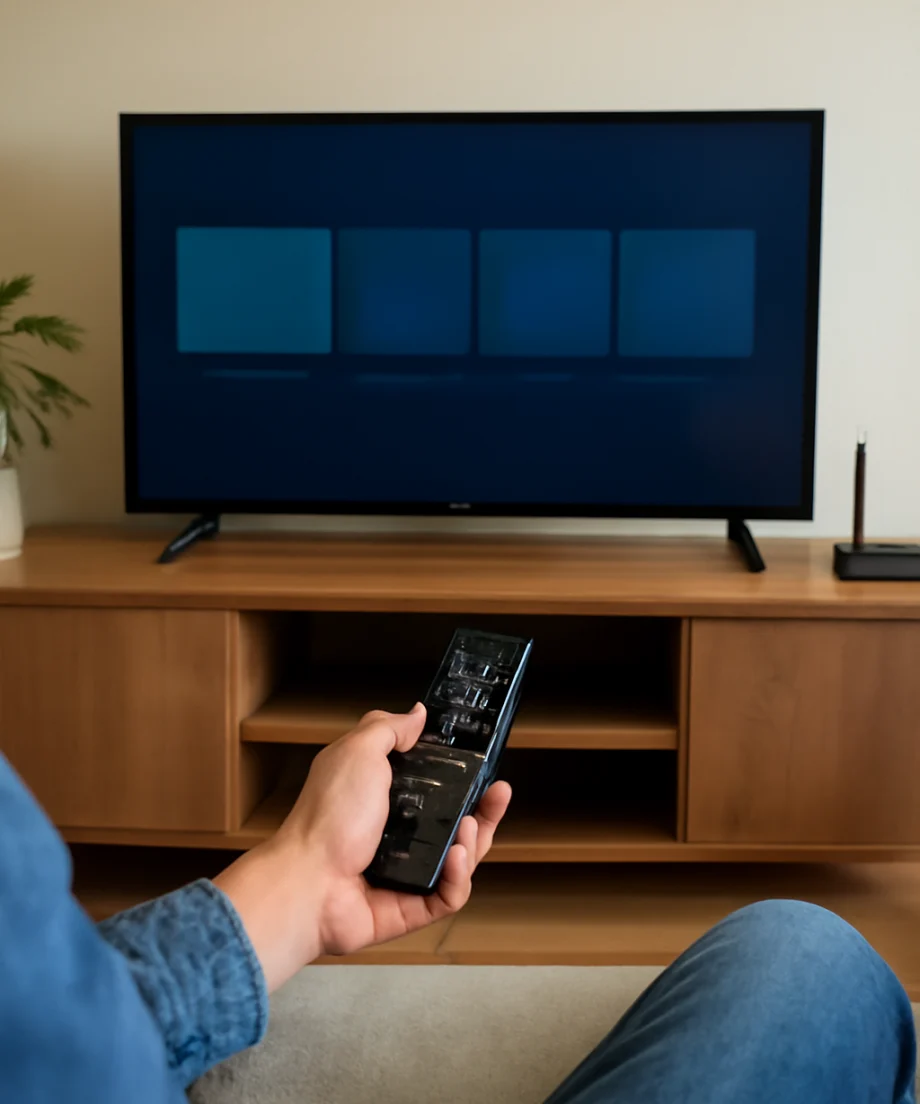
A normal press of the power button may leave some TVs in a standby state. A full power cycle clears temporary processes and can fix sluggish menus, apps that hang, and delayed remote commands.
- Turn the TV off.
- Unplug the power cord from the wall outlet or surge protector.
- Wait at least 60 seconds.
- Plug the TV directly into a reliable outlet, if possible.
- Turn it on and wait for the home screen to finish loading before opening an app.
Do not repeatedly unplug the TV while it is installing an update or displaying a message that an update is in progress. If the television is frozen and will not respond, unplugging it once and waiting before reconnecting is generally a reasonable troubleshooting step, but avoid making it a habit.
Check the remote before changing TV settings
A slow response can come from the remote control. Replace both batteries with fresh ones and make sure they are installed in the correct direction. Remove objects that may block the remote’s signal path, especially if the TV responds only when you point the remote directly at it.
Press a few buttons while watching the TV. If some buttons work immediately but others do not, the remote may have worn or stuck buttons. If the TV responds normally to its physical controls or another compatible remote, focus on the remote rather than the television.
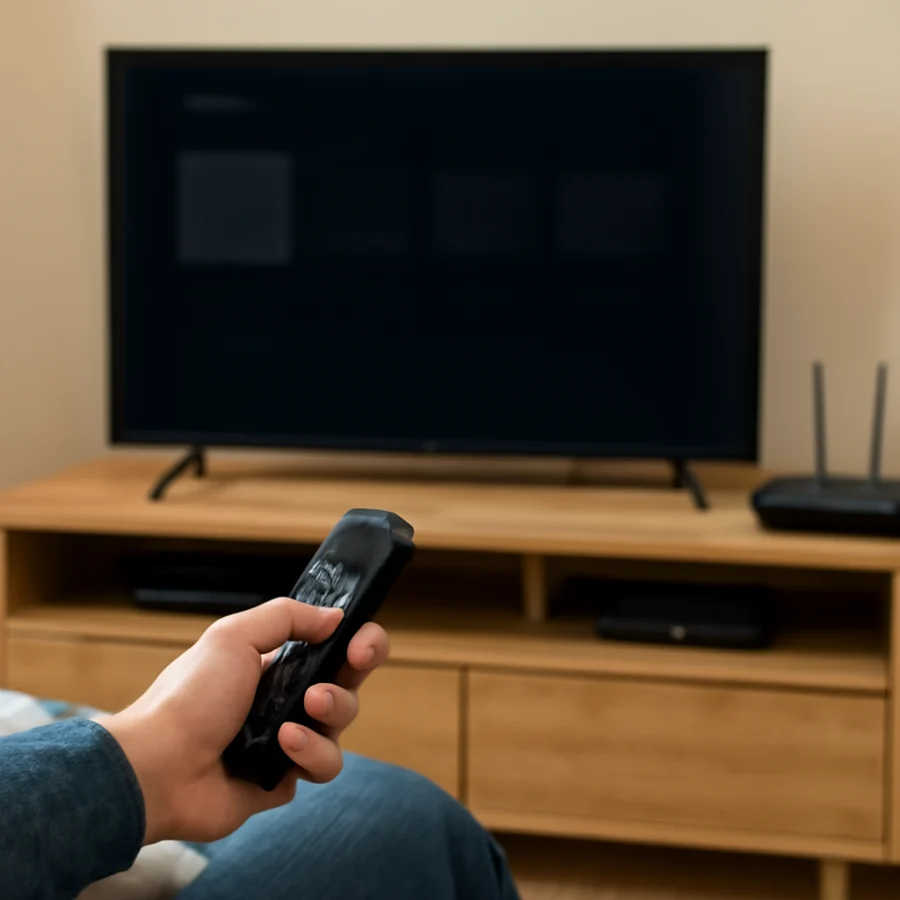
For Bluetooth or voice remotes, pairing and connection behavior can vary by TCL platform. If the remote repeatedly disconnects, follow the pairing instructions shown on the TV or in the remote’s documentation. You can also review our guide to a TCL remote that suddenly stopped working.
Close or remove apps you do not use
Installed apps do not always make a TV slow by themselves, but a nearly full storage area, a poorly behaving app, or damaged temporary data can affect performance. Start with the app that appears to trigger the delay.
Open the TV’s app management area and look for options to remove, uninstall, clear temporary data, or force-stop an app. The available choices depend on the TCL operating system. If you cannot clear an app’s temporary data, uninstalling and reinstalling that app may provide a similar result.
Before removing an app, make sure you know the email address and password used for that service. Removing an app can erase its local sign-in information. If an app repeatedly freezes or closes, see our troubleshooting guide for TCL TV apps that will not load or keep closing.
Remove apps you no longer use if the TV provides that option. This may not produce a dramatic speed increase on every model, but it can free storage and make app management easier.
Test the internet connection separately
Slow streaming is not always the same as a slow TV. Start a video in a second app or try navigating the TV’s menus. If the menus are responsive but videos pause, reduce the video quality temporarily and test again. A weak wireless signal, interference, an overloaded router, or a busy home network can all cause buffering.
Restart your router and modem if you control them. Unplug the networking equipment, wait about a minute, reconnect it, and allow the connection to return before testing the TV. If possible, temporarily move the TV or router to reduce walls and obstacles between them. A wired network connection can also be a useful comparison when the TV supports it.
Do not assume that the TV is defective because one service is buffering. Test more than one app and, if available, another device on the same network. For repeated disconnects, use our guide to TCL TV Wi-Fi disconnections and check whether the issue affects other devices.
Look for software updates
TCL periodically provides software updates that can improve compatibility, correct bugs, or change how apps and system features behave. Open the TV’s system or support settings and look for an option to check for updates. The wording and location vary by model and operating system.
Connect the TV to stable power and a reliable network before starting an update. Do not turn the TV off or disconnect it during the installation. After the update finishes, restart the TV and test the home screen, settings, and the apps that were slow.
If the TV says it is up to date but remains sluggish, do not install firmware from an unofficial source. An incorrect file can create additional problems, and the correct update process depends on the exact model.
Check external devices and HDMI connections
A connected streaming stick, game console, cable box, soundbar, or receiver can make the overall experience feel slow if the TV spends extra time switching inputs or waiting for a device to respond. Turn off external devices and test the TV’s built-in menus and apps by themselves.
Disconnect unused HDMI devices temporarily, then reconnect them one at a time. This can reveal a device that is sending repeated commands, causing input switching, or interfering with HDMI control features. If the problem happens only when you select one input, the TV may not be slow; the connected device or its cable may be the cause.
For a no-signal problem rather than a performance problem, follow our guide to an HDMI input showing no signal on a TCL TV.
Reduce possible network and system load
Pause large downloads, cloud backups, game updates, and high-bandwidth video streams on other devices in the home. If the TV becomes faster afterward, the issue may be network congestion rather than the TV’s processor or software.
Also check whether the television is placed in a very hot, enclosed area. Do not cover its ventilation openings or place it tightly against a wall or cabinet. Excess heat can contribute to instability, although it is not the most common cause of ordinary menu delays. Give the TV room for airflow and keep dust from building up around its openings.
When to consider a factory reset
A factory reset is more disruptive than the earlier fixes. It removes installed apps, accounts, preferences, network details, and other personal settings. Consider it only after restarting the TV, testing the network, removing problem apps, and checking for updates.
Before resetting, write down important login details and make sure you know how to reconnect the TV to your Wi-Fi network. Use the reset option provided in the TV’s own system settings when the menus are available. Because the exact instructions differ by TCL model, do not rely on a button sequence from a different television unless it is specifically documented for yours.
After the reset, test the TV before reinstalling every app. If it is fast immediately after the reset but slows down later, add apps gradually to identify the likely trigger. If it remains slow even with a clean setup, the issue may be related to hardware, storage wear, overheating, or a deeper software fault.
Signs the problem may be hardware-related
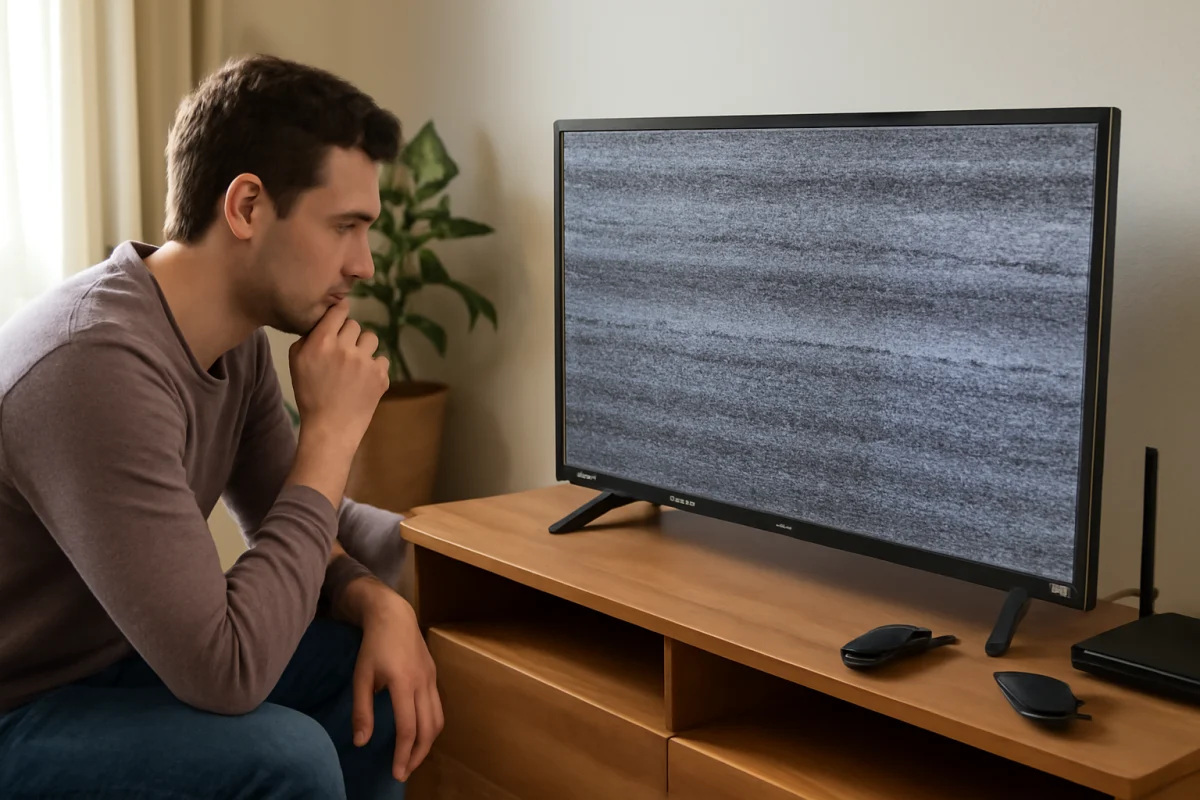
Contact TCL support or a qualified repair professional if the TV stays slow after a clean reset and stable network test, or if it also freezes, restarts, shows unusual lines, loses sound, or fails to respond to both the remote and built-in controls. A TV that becomes unusually hot, smells burnt, or makes abnormal electrical sounds should be unplugged and inspected rather than repeatedly restarted.
Have the exact model information available when asking for help. The model label may be on the back of the TV, in the system information screen, or in the original documentation. Providing the operating system, the apps affected, and the steps that already failed will make diagnosis more efficient.
Quick order of troubleshooting
For most slow TCL TVs, follow this order:
- Test whether the whole TV or only one app is slow.
- Replace the remote batteries and check for blocked signals.
- Complete a 60-second power cycle.
- Restart the router if streaming is buffering.
- Remove or reinstall the app causing the problem.
- Check for a TV software update.
- Disconnect external HDMI devices and test again.
- Use a factory reset only as a final software step.
This approach starts with the least disruptive checks and separates TV performance problems from app, remote, network, and external-device issues. In many cases, a full restart or a single problematic app is all that needs attention.
Comments
0No comments yet. Be the first to share a helpful note or question.
Leave a Comment
Your email address will not be published. Comments are reviewed before appearing on the site.