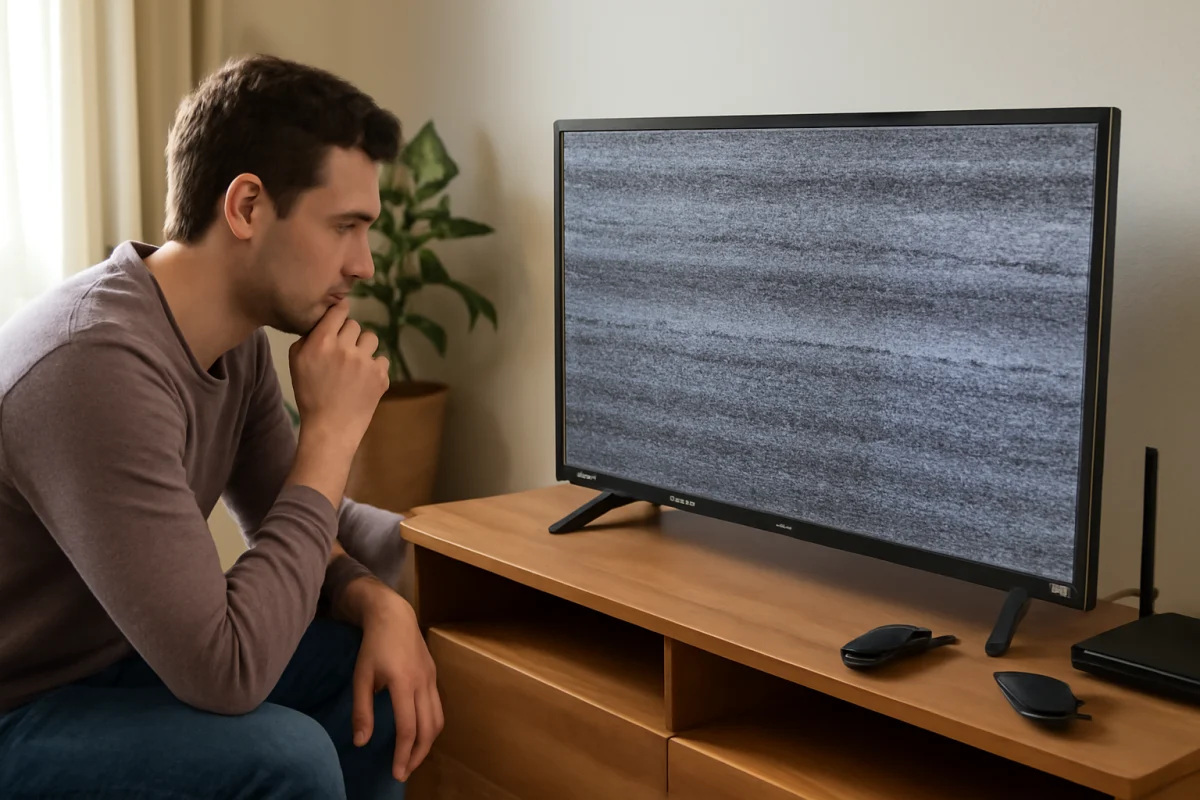
If your TCL TV screen keeps flickering, start by checking the source, cables, and power connection before changing advanced settings or resetting the television. A flicker that appears only on one HDMI device usually points to that device, its cable, or the selected input. If the entire TV—including its menus and home screen—flickers, the problem is more likely related to the TV’s settings, software, power delivery, or internal hardware.
Use the steps below in order. They begin with simple checks that are unlikely to erase settings or create new problems.
Check whether the TV menus also flicker
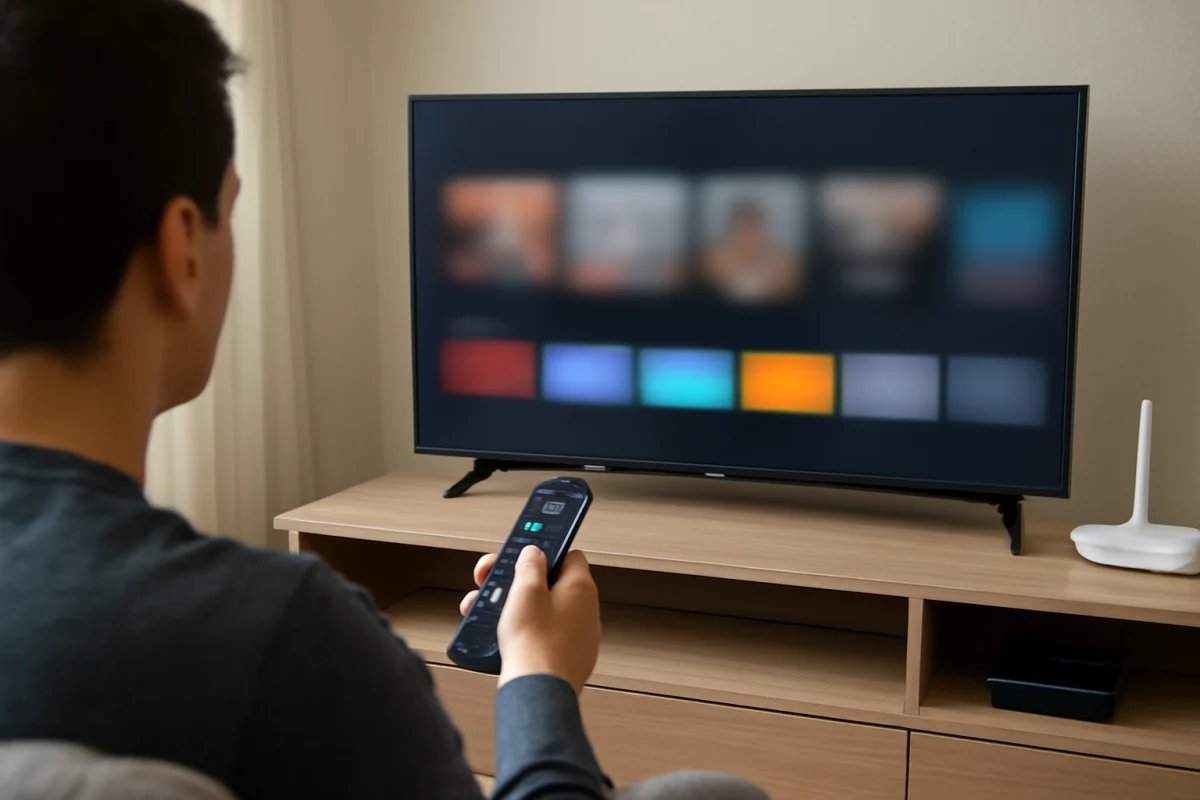
Press the Home or menu button on your TCL remote and watch the screen for a minute. Move through a few menu pages if possible.
- If only a cable box, game console, or streaming device flickers: focus on that device, its HDMI cable, and the selected HDMI input.
- If the home screen and TV menus flicker too: continue with the TV power, picture, software, and hardware checks below.
- If the screen flashes only during fast scenes or bright content: a picture-processing setting or a source-specific signal problem may be involved.
This quick test helps separate a display problem from a problem with the video signal reaching the television.
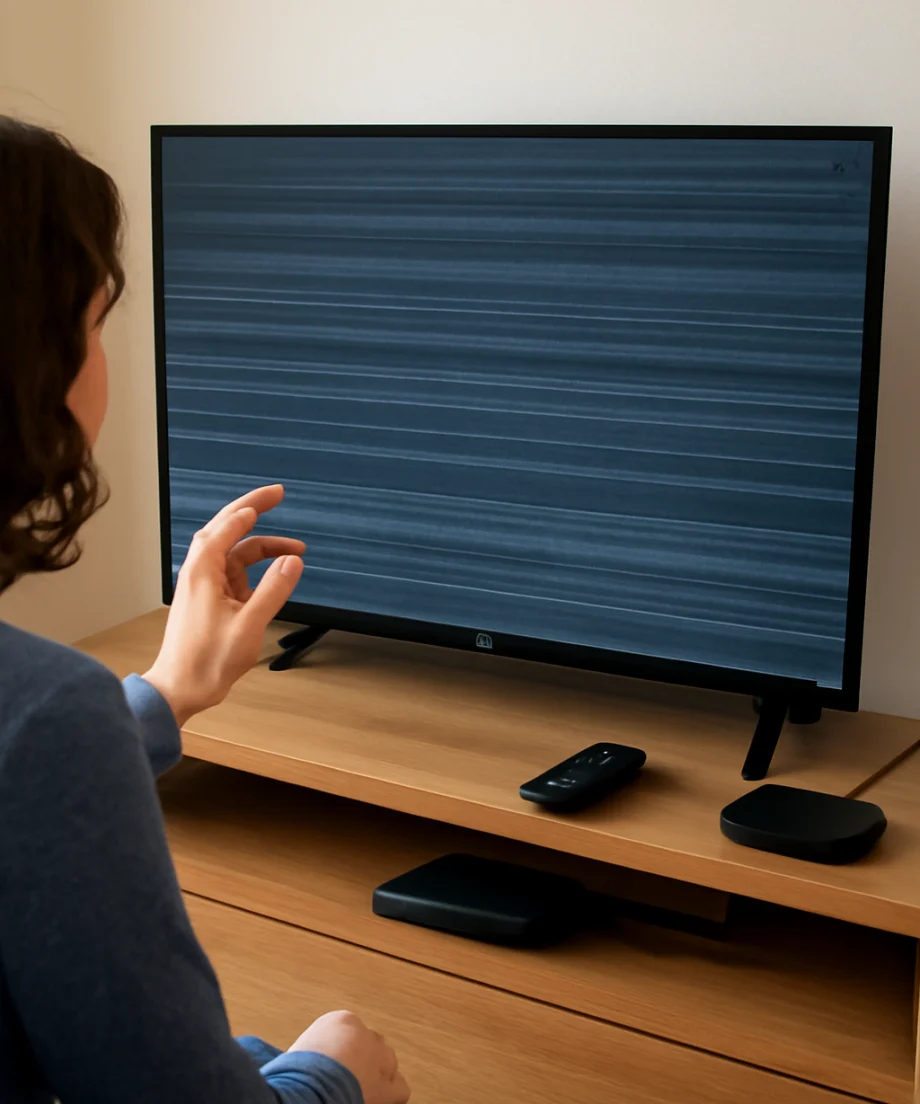
Power-cycle the TCL TV and connected devices
A temporary software or signal-handling fault can make the picture flash, blink, or briefly go black. Turn off the TV and every connected source, such as a cable box, console, Blu-ray player, or streaming stick. Unplug the TV from the wall outlet and wait at least 60 seconds.
While the TV is unplugged, disconnect the HDMI devices as well. Plug the TV directly into a wall outlet if practical, then turn it on without reconnecting anything. Check the home screen and menus first. If the picture is stable, reconnect one device at a time and test after each connection.
A power strip, surge protector, loose outlet, or overloaded extension cable can also contribute to intermittent behavior. Do not use a visibly damaged power cord. If the outlet feels loose, smells hot, or shows signs of damage, stop using it and have it inspected by a qualified professional.
Inspect the HDMI cable and input
If the flicker happens only while using an external device, reseat both ends of the HDMI cable. Push the connectors firmly into the device and the TV, but do not force them. Check the cable for bent connectors, damaged insulation, or a loose fit.
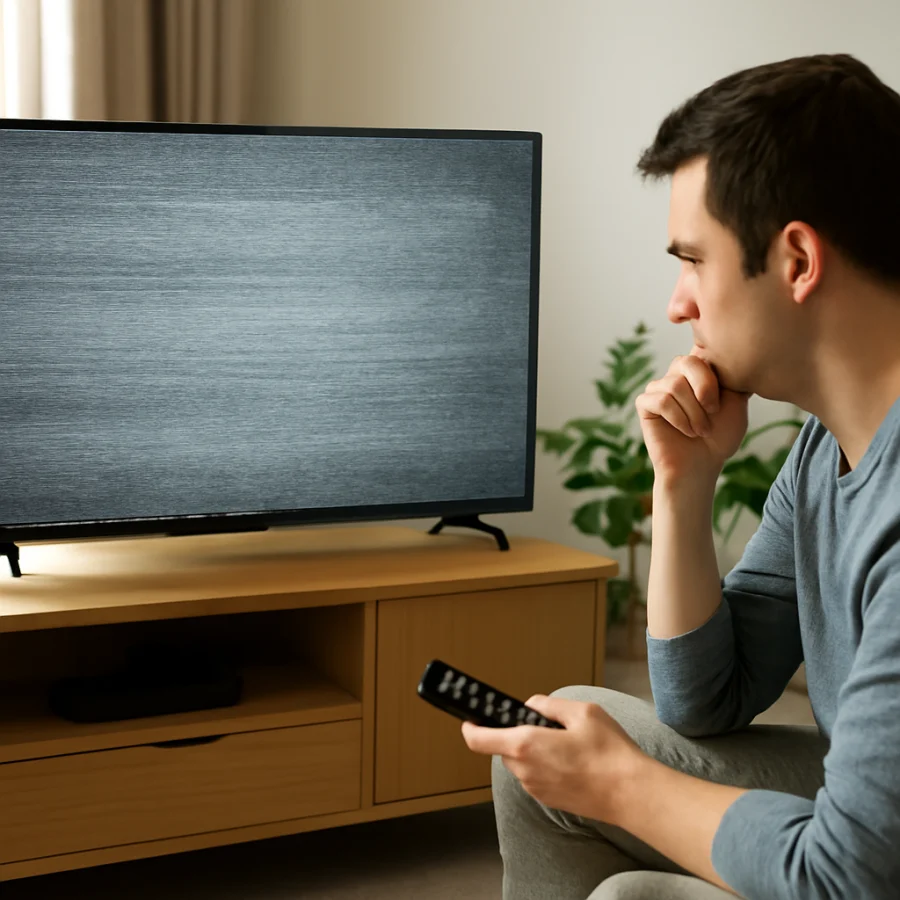
Then try these comparisons:
- Connect the same device to a different HDMI input on the TV.
- Try a different HDMI cable that is known to work correctly.
- Test another source on the original HDMI input.
- Connect the original source to another TV or display, if available.
These tests can identify the faulty part without requiring a reset. If only one source flickers, check that device for resolution, refresh-rate, HDR, or display-output settings. The available options vary by device, so use its own support instructions rather than guessing at a setting.
For related HDMI troubleshooting, see our guide to HDMI input problems on a TCL TV.
Check the antenna, cable, or live TV signal
When flickering occurs only on broadcast or cable channels, the TV panel may not be the cause. A weak or unstable signal can produce flashing, blocky video, brief black frames, or repeated picture interruptions.
Inspect the coaxial cable connecting the wall outlet, antenna, cable box, or satellite receiver. Tighten the connectors by hand and look for a damaged cable. If a splitter is being used, temporarily test the TV with a direct connection when possible. Check several channels as well. If only one channel has the problem, the issue may be with that channel or the incoming signal rather than the TV.
Temporarily change picture settings
Some picture-processing features can make flickering more noticeable, especially with particular sources or lighting conditions. Open the TV’s picture settings and temporarily choose a basic picture mode, if one is available. Then turn off or reduce automatic features related to brightness, contrast, motion, or power saving one at a time.
The exact names and locations of these controls vary between TCL models, operating systems, and software versions. Do not worry if your menu does not use the same wording as another TCL TV. The goal is to test whether an automatic picture adjustment is causing the screen to change brightness rapidly.
Also check whether the flicker changes when the room becomes brighter or darker. If the screen pulses in response to room lighting, an automatic brightness or energy-saving feature may be involved. If the flicker remains in every picture mode and on every source, settings are less likely to be the main cause.
Test the TV with all external devices disconnected
Disconnect every HDMI, USB, antenna, Ethernet, and audio cable from the TV, leaving only the power cord connected. Turn the television on and leave the home screen visible for several minutes.
If the screen is stable with everything disconnected, reconnect the cables individually. The flicker may return when a particular device, cable, or accessory is added. This process is slower than reconnecting everything at once, but it is one of the most reliable ways to isolate an intermittent connection.
Do not assume that a USB accessory is harmless. A faulty powered device, adapter, or cable can sometimes interfere with the TV. Remove accessories during testing, then add them back only after the display remains stable.
Check for a software update
TV software can affect video processing, HDMI compatibility, and picture behavior. If the screen is stable enough to navigate, check the TV’s settings for its software-update option. The menu path differs by TCL model and platform, so use the wording shown on your screen.
Install an update only if the TV has a reliable internet connection or if the manufacturer provides a supported update method for your model. Do not unplug the TV during an update. If the flicker is severe, the TV repeatedly restarts, or the update cannot complete, avoid repeatedly forcing the process.
You can also test whether the problem is limited to a recently changed device or setting. If the flicker began immediately after adding an accessory or changing a source’s video output, restore that source to its previous configuration before making broader changes.
Try a factory reset only after other checks
A factory reset can remove corrupted preferences, but it also erases personal settings, saved network details, app sign-ins, and other stored information. It should not be the first step for a flickering screen.
Before resetting, write down your important settings and make sure you know the passwords needed to set up the TV again. The reset procedure varies by TCL model and software platform. Use the reset option provided in the TV’s own settings, and do not interrupt the process once it begins.
If the screen flickers in the TV menus, with every source disconnected, and after a reset, a settings problem is unlikely. At that point, additional resets are unlikely to help.
Signs the problem may be hardware-related
Arrange professional service or contact TCL support for model-specific guidance if any of these conditions apply:
- The home screen and menus flicker even when all external cables are removed.
- The picture flickers immediately after the TV starts and never becomes stable.
- Only part of the screen flashes, shows horizontal or vertical lines, or changes brightness.
- The TV has been exposed to liquid, impact, unusual heat, or a power event.
- The problem is getting progressively worse or is accompanied by a burning smell, buzzing, or clicking.
- The screen goes black while sound continues, then returns after the TV warms up or is moved.
Possible causes can include a failing backlight, power supply, display connection, or panel. These components are not safely diagnosed by opening the TV at home. Televisions can contain hazardous voltages even after they have been unplugged, so do not remove the back cover unless you are trained and properly equipped.
What to record before requesting help
Write down the TCL model information, when the flicker occurs, and whether it affects menus, built-in apps, live TV, or only an external source. Record whether the screen flashes, dims, goes black, shows lines, or loses the picture completely. If possible, take a short video using another device, making sure the recording shows the TV’s behavior and the connected equipment.
Tell support which cables and inputs you tested, whether a power-cycle helped, and whether the TV was reset. This information can prevent repeated basic troubleshooting and helps determine whether the next step should involve the source device, a cable replacement, software support, or service.
Find the most likely cause
In many cases, flickering that affects one source is caused by an HDMI cable, an unstable external device, or an output setting. Flickering that affects every source—including menus—points more toward the TV’s settings, software, power delivery, or internal display hardware.
Start with the simplest comparison: view the TV with every external device disconnected. If the screen stays stable, reconnect equipment one item at a time. If it still flickers with nothing connected, avoid spending money on multiple HDMI cables and seek model-specific support. For more TCL troubleshooting guides, visit the TCL TV section of TV Fix Guide.
Comments
0No comments yet. Be the first to share a helpful note or question.
Leave a Comment
Your email address will not be published. Comments are reviewed before appearing on the site.