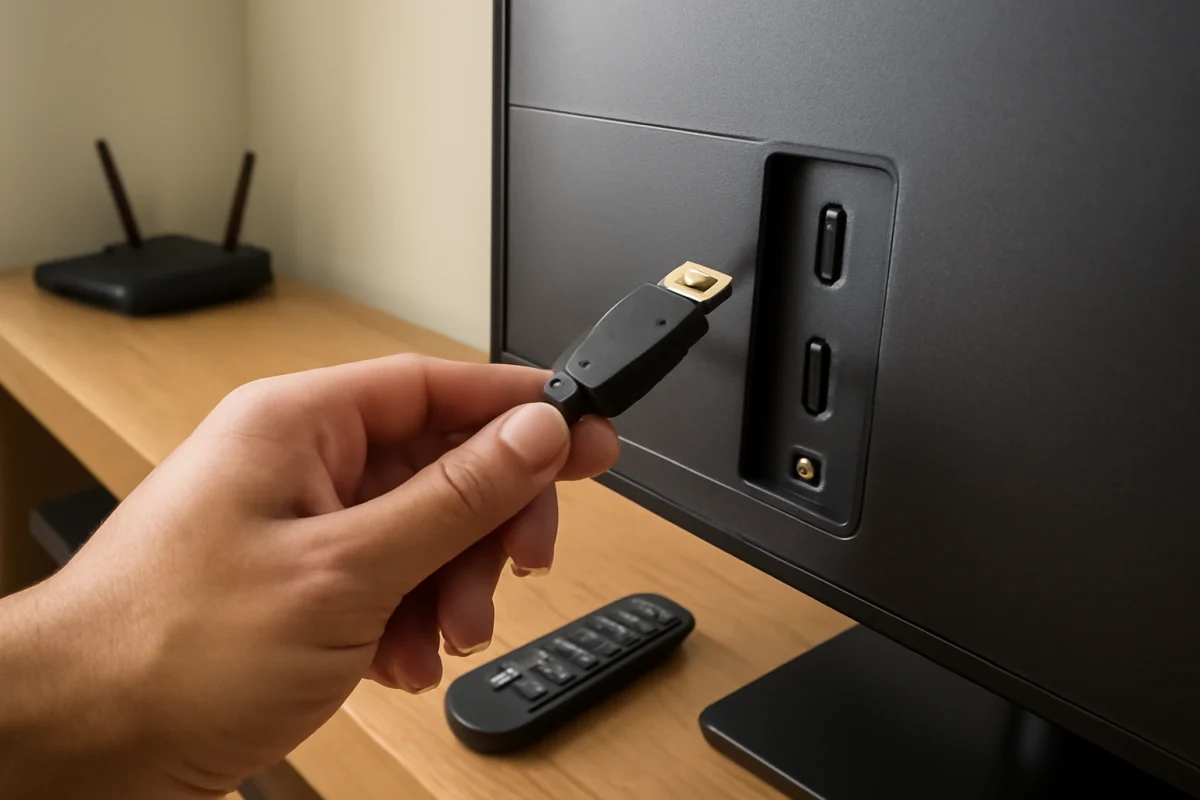
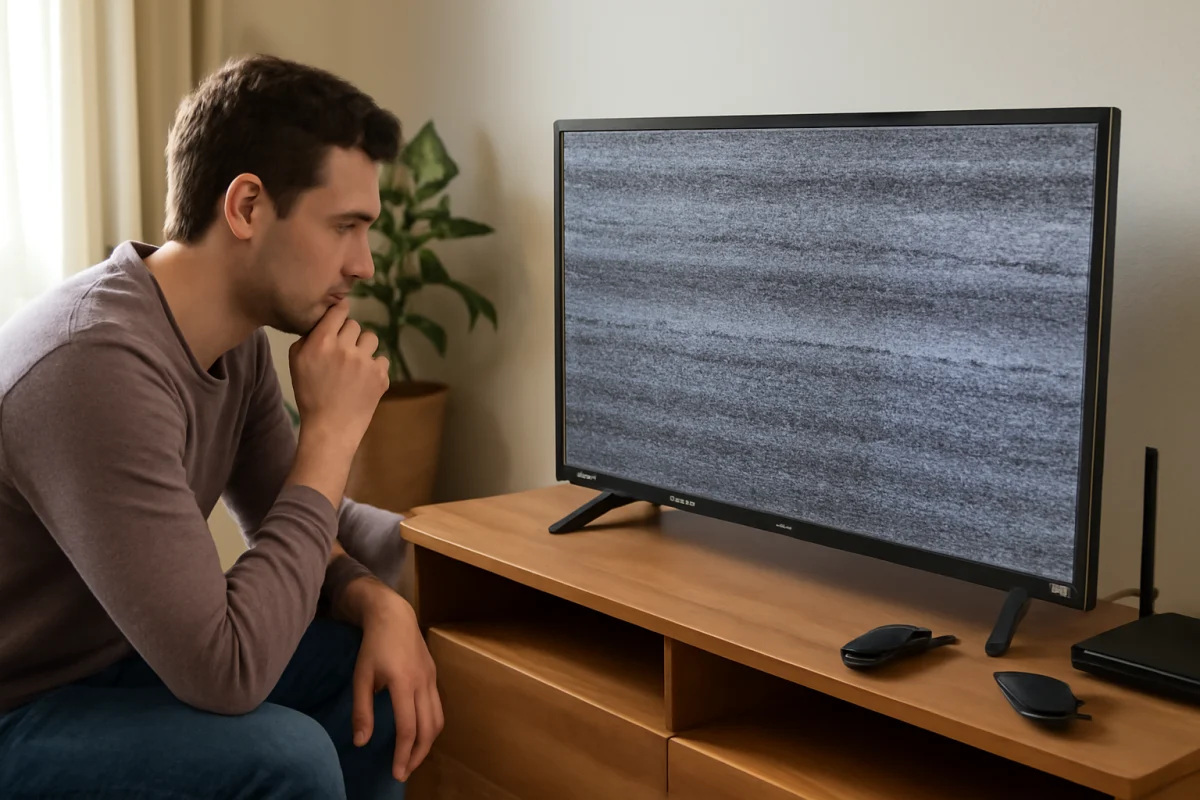
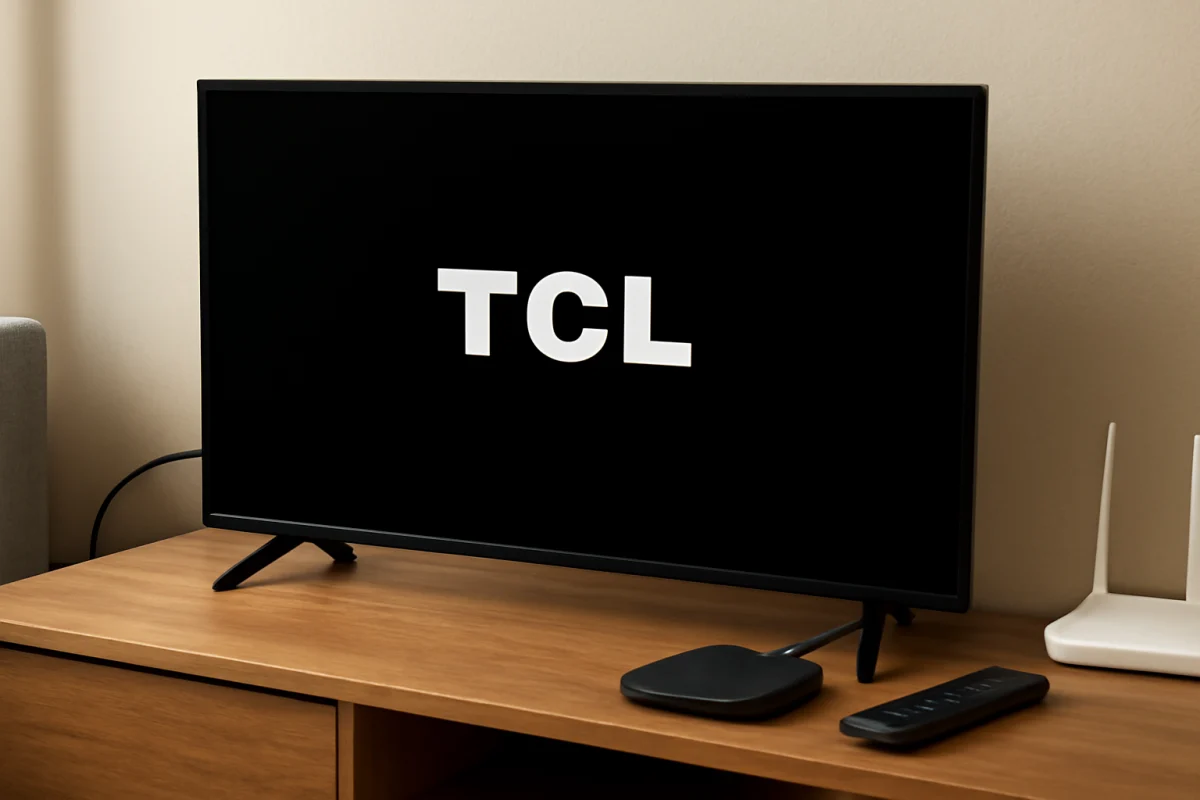
If your TCL TV shows “No Signal” on an HDMI input, first confirm that the connected device is powered on, the cable is firmly connected, and the TV is using the correct HDMI source. These simple checks solve many HDMI problems without changing TV settings or performing a reset.
The message usually means the TV is not receiving a usable video signal from the selected HDMI port. The problem may be the streaming device, game console, cable box, Blu-ray player, HDMI cable, TV input, or an incompatible signal handshake. Work through the checks below in order so you can identify which part is causing the failure.
Check the HDMI source and input selection
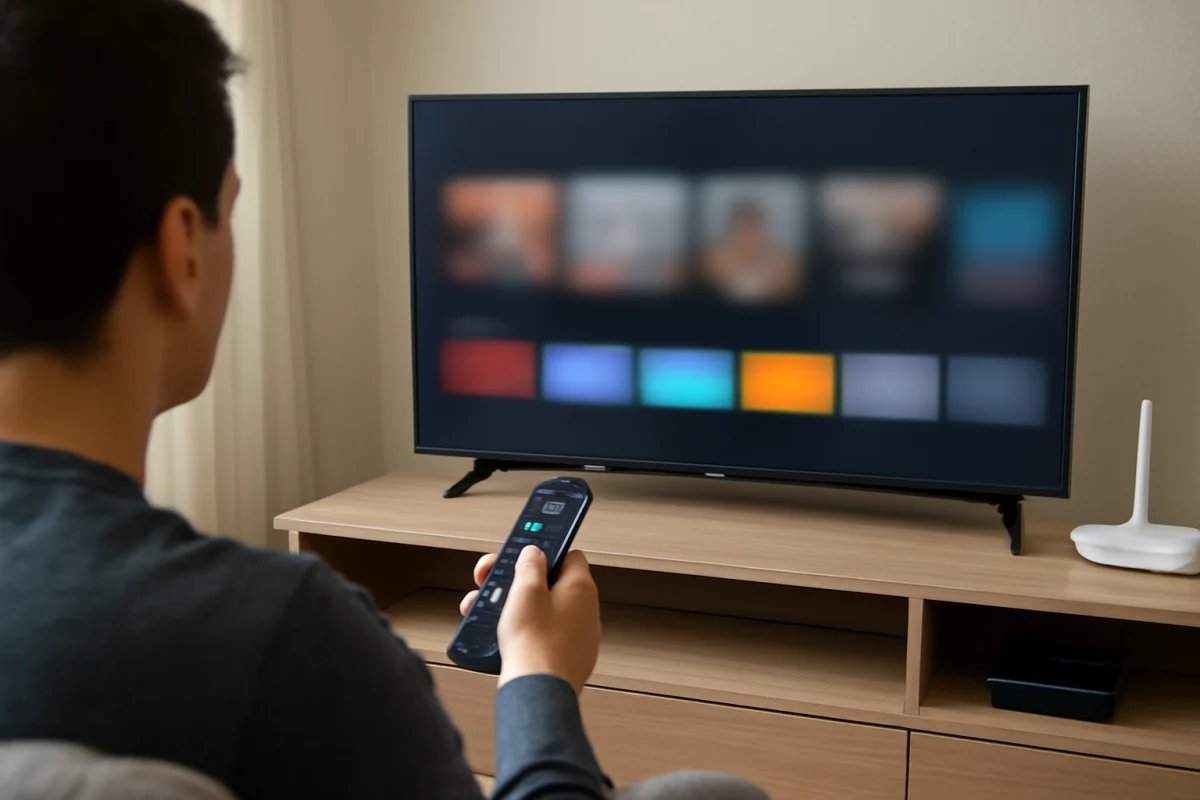
Press the Input, Source, or similar button on the TCL remote, then select the HDMI port where the device is connected. The wording and layout can vary between TCL TV models and operating systems, so use the label shown on your screen rather than relying on one exact menu path.
If the TV has several HDMI inputs, test the connected device on another input. For example, move the cable from one HDMI port to a different port and select that new source on the TV. If the picture appears on the second port, the original port or its connection may be the problem.
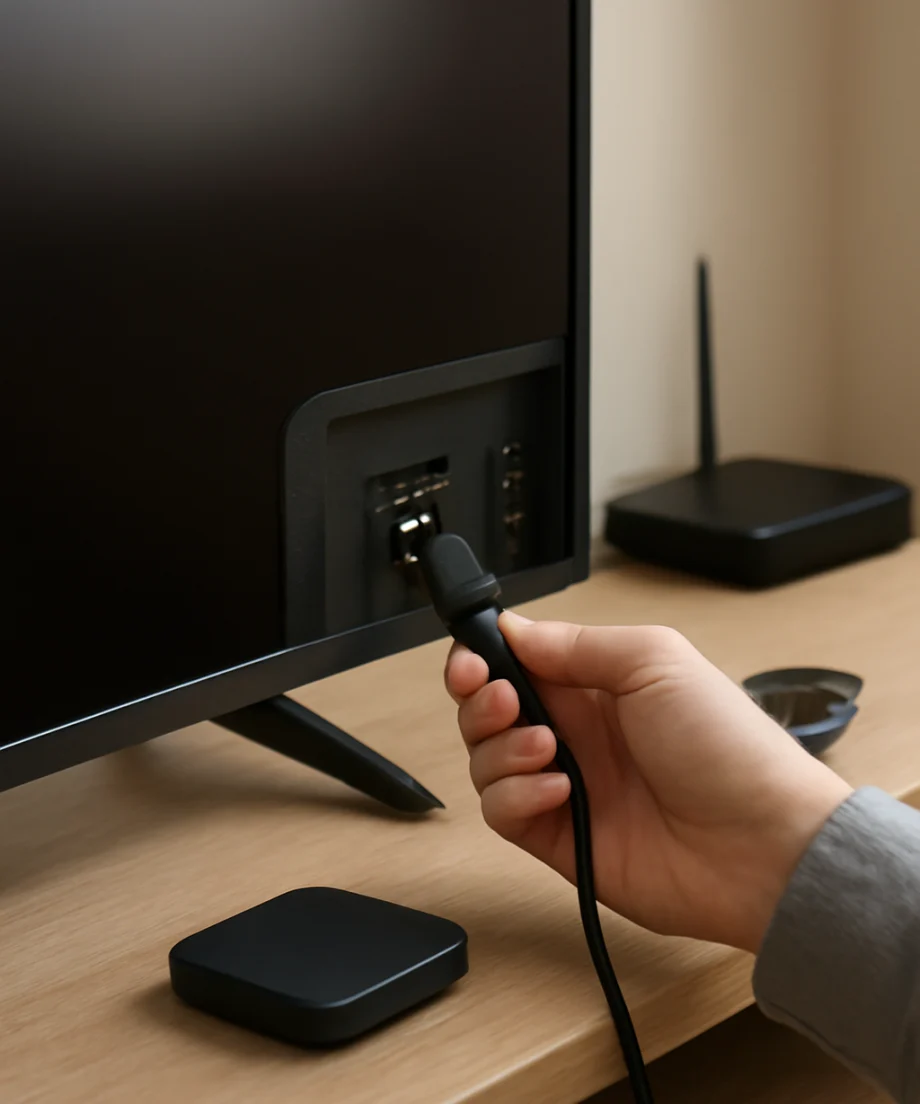
Also check the source device itself. A game console, cable box, or streaming player may be asleep, powered off, stuck during startup, or set to send video to another display. Turn it on and wait a minute for its startup screen to appear. If the device has a power indicator, make sure it is actually running rather than merely receiving standby power.
Reconnect the cable at both ends
Turn off the external device, then disconnect the HDMI cable from the TV and the source device. Reconnect both ends firmly. A plug can look connected while its contacts are not making a reliable connection, especially if the TV or device has been moved recently.
Inspect the cable and connectors for visible damage, bent sections, loose plugs, or objects blocking the ports. Do not force a connector into an HDMI port. HDMI plugs only fit in one orientation, and excessive pressure can damage the port.
If the cable runs through a wall, soundbar, receiver, HDMI switch, capture device, or other accessory, temporarily remove that equipment. Connect the source directly to the TCL TV. This bypasses another possible failure point and helps determine whether the issue is caused by the intermediate device.
Power-cycle the TV and HDMI device
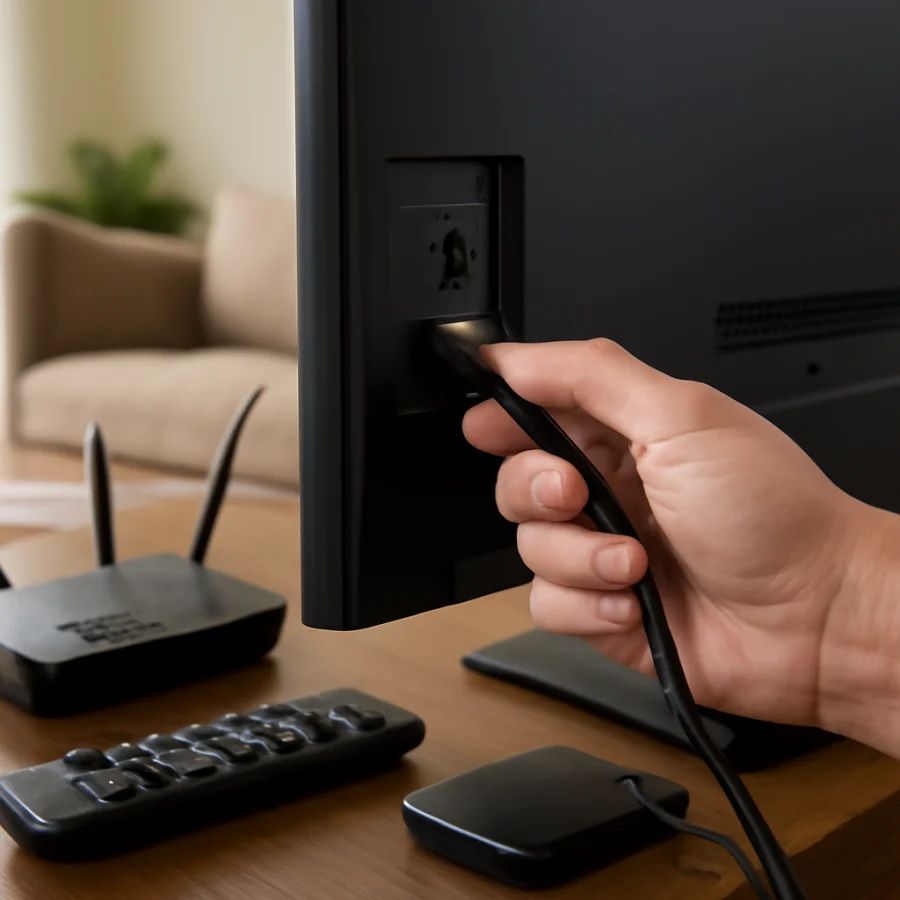
A full power cycle can clear a temporary HDMI handshake problem. Turn off the TCL TV and the connected source device. Unplug both from the wall outlet, if practical, and wait about 60 seconds. Plug the TV and source back in, turn on the source first, and then turn on the TV.
After the TV starts, select the correct HDMI input again. Some devices need additional time to negotiate a resolution and establish a connection. If the signal returns after this process but disappears again later, note what happens immediately beforehand. A repeated failure after sleep mode, input switching, or a power outage can point to a device or handshake issue rather than a permanently damaged port.
Try a different HDMI cable
An HDMI cable can fail internally even when the outside looks normal. If you have another known-working cable, use it to connect the same source to the same TCL HDMI input. Avoid changing several things at once; testing one replacement at a time makes the result easier to interpret.
If the replacement cable works, the original cable is likely defective or unable to handle the signal being sent by the source. A cable that worked with an older device may not reliably handle a newer device’s higher-resolution or higher-bandwidth output. You do not necessarily need the most expensive cable, but it should be suitable for the source and display combination.
Test the source device on another screen
Connect the console, streaming player, cable box, or other HDMI source to another television or monitor, if one is available. This separates a source problem from a TCL TV problem.
- If the source also shows no picture on another screen, restart or troubleshoot the source device.
- If the source works elsewhere but not on the TCL TV, focus on the TCL input, cable, resolution settings, or HDMI handshake.
- If only one source fails while other HDMI devices work on the TCL TV, the source or its cable is more likely responsible.
- If every HDMI source fails on every port, the TV may need additional software or hardware troubleshooting.
Test each HDMI port with a known-working device
If possible, connect a device that displays correctly on another TV to each HDMI input on the TCL TV. Select the matching input after every connection. This test can reveal whether the issue affects one port or the entire TV.
A single port may have a physical fault, loose internal connection, or damage caused by inserting a plug at an angle. If one port works and another does not, use the working port as a temporary solution and avoid repeatedly inserting and removing cables from the problem port.
If no port displays a signal from a known-working source and cable, continue with the software and settings checks below. Do not assume the HDMI board has failed until you have ruled out the source, cable, and power cycle.
Remove HDMI accessories temporarily
HDMI switches, AV receivers, soundbars, splitters, adapters, and long cable runs can interrupt communication between the source and TV. Disconnect these accessories and connect the source directly to the TCL TV.
If the direct connection works, reconnect the accessories one at a time. The device that causes the “No Signal” message is the most likely source of the problem. Check that device for its own power state, input selection, cable connections, and compatibility settings. If a soundbar is involved and your problem is limited to audio rather than video, see our guide to TCL TV picture with no sound.
Adapters deserve special attention. A passive adapter may not convert every video format, and an adapter designed for one direction may not work in the reverse direction. If a laptop, phone, or computer is involved, test a direct connection or use an adapter specifically intended for that device’s output.
Check the source’s display resolution
A source device may be set to a resolution or refresh rate that the TCL TV does not accept through that particular connection. This is more common after moving a console or computer from another display. If the source works on another screen, open its display settings and temporarily choose a standard, widely supported resolution and refresh rate.
The exact options depend on the device and TCL TV model. Do not select a setting solely because it sounds better on paper. Start with the source’s automatic display setting if available. If automatic detection fails, choose a lower or standard setting, then reconnect the source to the TCL TV.
Computers can create additional problems when they treat the TV as a second monitor. Press the computer’s display-switch shortcut or open its display settings and confirm that the external screen is enabled. If the computer screen is also blank, restart the computer with the HDMI cable connected and the TV set to the correct input.
Check for a device-specific HDMI setting
Some TCL TVs and connected devices include HDMI options related to enhanced formats, compatibility, color modes, or control features. The names and locations vary by model, so do not rely on an exact menu path from another TCL TV.
If the device works only after changing one of these options, leave the setting at the lowest level that provides a stable picture. You can test advanced features later, one at a time. If you cannot see the source’s settings because the screen is blank, connect it to another display first and change the setting there.
Install available updates when the TV is usable
If you can use the TCL TV’s home screen and it has an internet connection, check for available system updates through the TV’s normal software-update area. The menu name and update process can vary by TCL model and platform. Follow the instructions shown on the TV rather than interrupting power during an update.
Also check whether the source device has pending updates. An update is not the first step when the TV shows no signal, but it can help when the issue began after a software change or affects a particular device. If the TV cannot display any HDMI source, do not disconnect power during an update or attempt unfamiliar service procedures.
When a TCL TV reset may help
A factory reset should be a later step, not the first response. It erases or changes personal settings and may require you to sign in to apps or set up the TV again. Consider it only after you have tested a different cable, source, and HDMI port, removed accessories, and completed a normal power cycle.
Reset instructions differ by TCL model and operating system. Use the reset option provided in the TV’s own settings, if you decide to proceed, and read the on-screen warning first. If the TV cannot reliably display its menus, a reset is unlikely to fix a damaged cable or HDMI port and may create extra setup work without addressing the cause.
What the results usually mean
The pattern of the problem can narrow the diagnosis:
- One device fails on one port: Check that device, its cable, and the individual port first.
- One device fails on every TCL HDMI port: The source’s output, resolution, adapter, or cable is more likely responsible.
- Several devices fail on one port: That HDMI port may be damaged or malfunctioning.
- Every device fails on every port: Investigate power, software, accessories, and possible TV hardware failure.
- The picture appears briefly and then disappears: Suspect a loose connection, failing cable, overheating source, unstable accessory, or signal-format problem.
For other TCL display symptoms, you can also review our guide to what causes a TCL TV black screen. If the TV is repeatedly restarting while you test the HDMI connection, see why a TCL TV keeps restarting.
When to seek repair or support
Stop troubleshooting and arrange professional help if an HDMI port is physically loose, smells burnt, shows signs of heat damage, or has visible damage inside. Do not insert tools into the port or attempt to open the TV unless you are qualified to work safely on television hardware.
Before contacting TCL or a repair provider, record the TV model, the HDMI port tested, the source device, the cable used, and the results of your tests. Explain whether the TV’s home screen works and whether another HDMI source displays correctly. This information can prevent repeated basic checks and help identify whether the problem is limited to one component.
In most cases, an HDMI “No Signal” message comes from an incorrect input, a sleeping source, a loose or defective cable, or a temporary handshake failure. Starting with those low-risk checks gives you the best chance of restoring the picture without changing important TV settings or resetting the entire device.
Comments
0No comments yet. Be the first to share a helpful note or question.
Leave a Comment
Your email address will not be published. Comments are reviewed before appearing on the site.