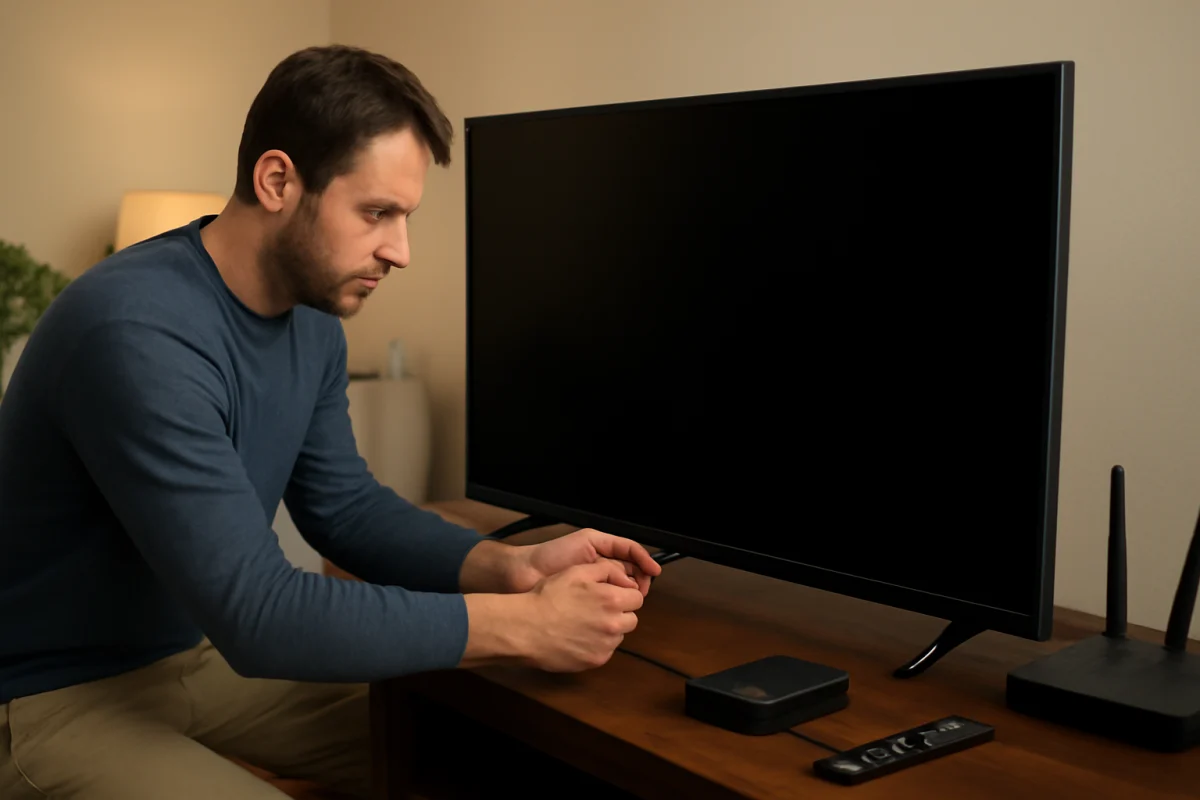
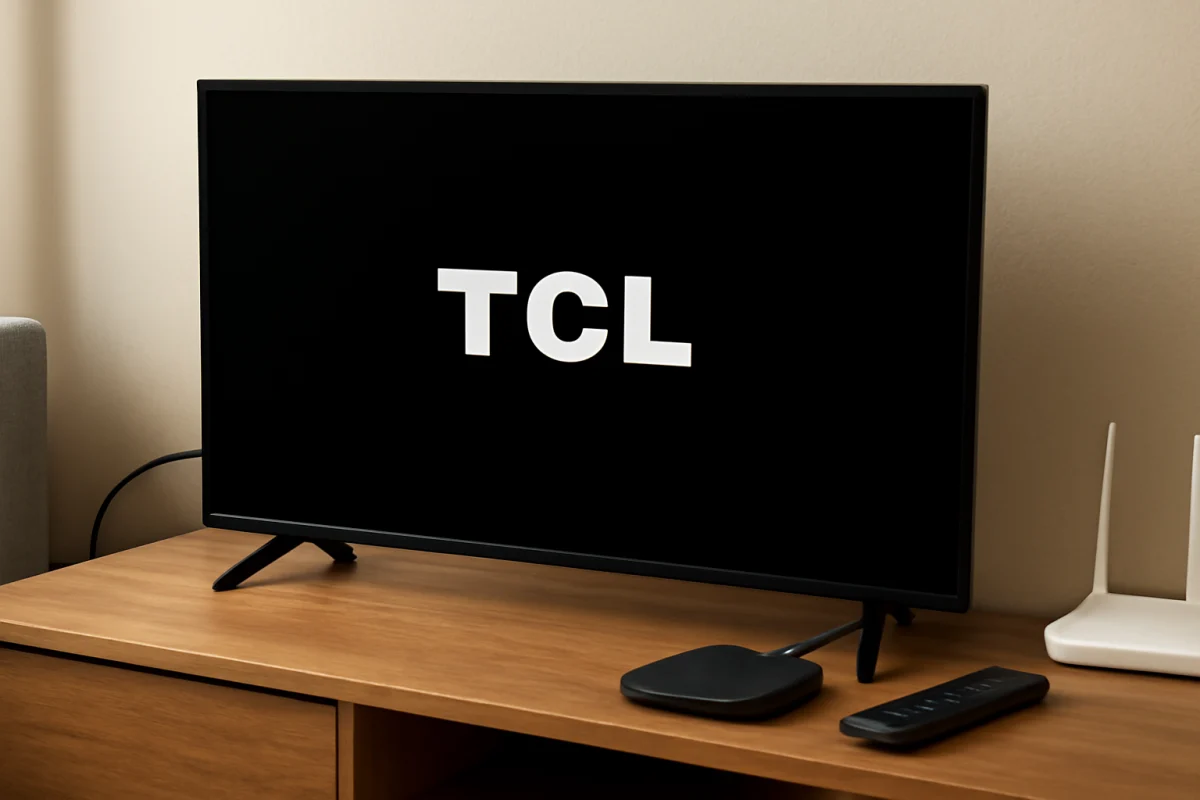
A TCL TV black screen is often caused by a simple power, input, connection, or software problem, but it can also indicate a failed backlight or another internal hardware fault. Start by checking whether the TV has any signs of power, whether the screen is completely dark or faintly visible, and whether the problem affects every input.
Do not begin with a factory reset or open the TV. First work through the low-risk checks below. TCL TV menus, button locations, and reset procedures can vary by model and operating system, so use the instructions that match your television.
First, identify what “black screen” means
There are several different problems that look like a black screen. The correct diagnosis depends on what the TV is doing:
- No power: The standby light is off, the TV does not respond to the remote, and its physical button may not work.
- Power but no picture: The standby light changes or the TV makes sounds, but the display remains dark.
- No signal: The screen is lit, but a message or blank input screen appears after selecting a connected device.
- Faint picture: You can barely see an image with a flashlight or under strong room lighting. This often points to a backlight problem.
- Intermittent black screen: The picture disappears and returns, especially after the TV warms up, changes inputs, or launches an app.
If the screen is black only when using a cable box, game console, or streaming player, the TV itself may be working normally. If the TV is black on its home screen and every input, continue with the power and display checks.
Check the power source and TV controls
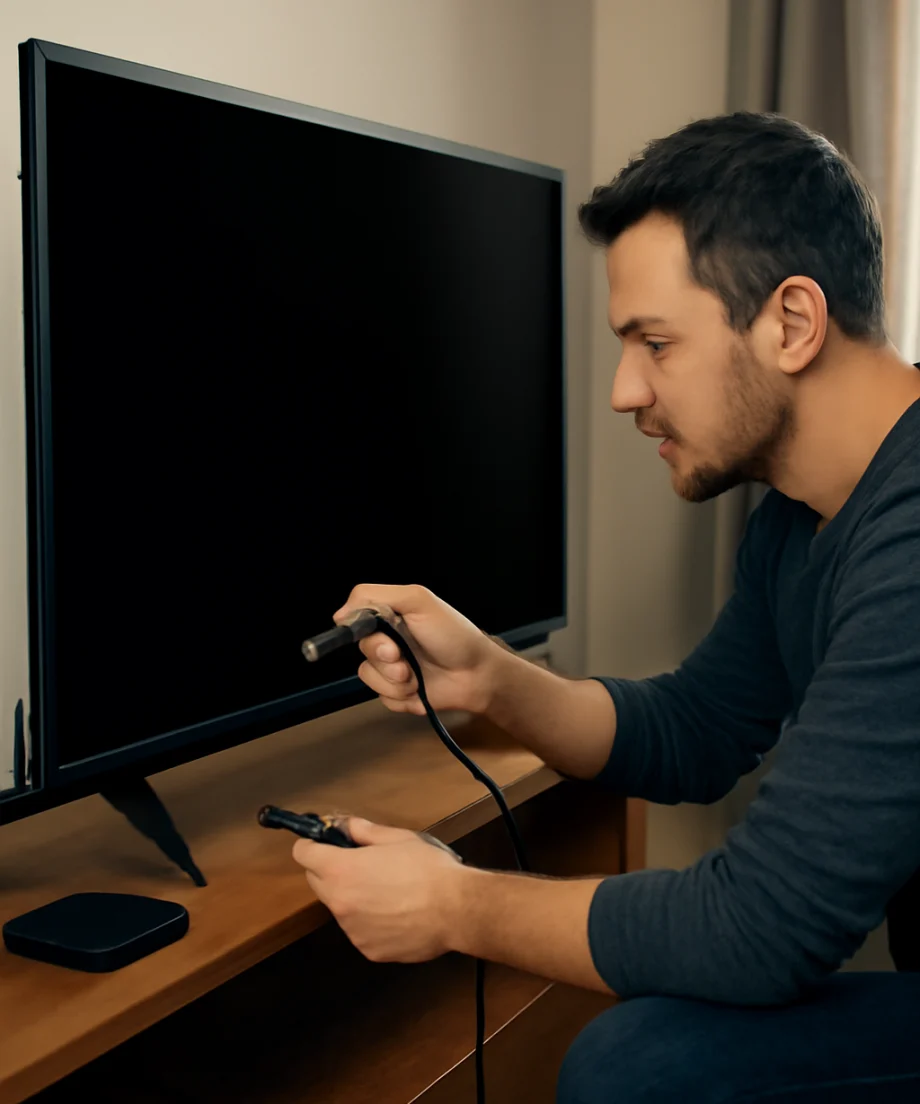
Confirm that the power cord is firmly connected at the back of the TV and at the wall outlet or surge protector. If the cord is removable, check both ends. Avoid testing through a questionable extension cord or overloaded power strip. Connect the TV directly to a known-working wall outlet temporarily.
Test the outlet with another device, such as a lamp. If the outlet is controlled by a wall switch, make sure the switch is on. Also check whether a surge protector has been turned off or tripped.
Next, try turning on the TV with its physical power button instead of the remote. The button may be underneath the screen, along the side, or on the back, depending on the model. If the TV turns on this way, the remote, its batteries, or the remote-to-TV connection may be the real cause. Our guide to a TCL TV remote that suddenly stopped working covers those checks in more detail.
Perform a safe power cycle
A power cycle can clear a temporary startup or HDMI-handshake problem without deleting your settings. Turn the TV off, unplug it from the wall, and wait at least one minute. While it is unplugged, press and hold the TV’s physical power button for several seconds if your model has one. This helps discharge remaining power, although the exact behavior differs by model.
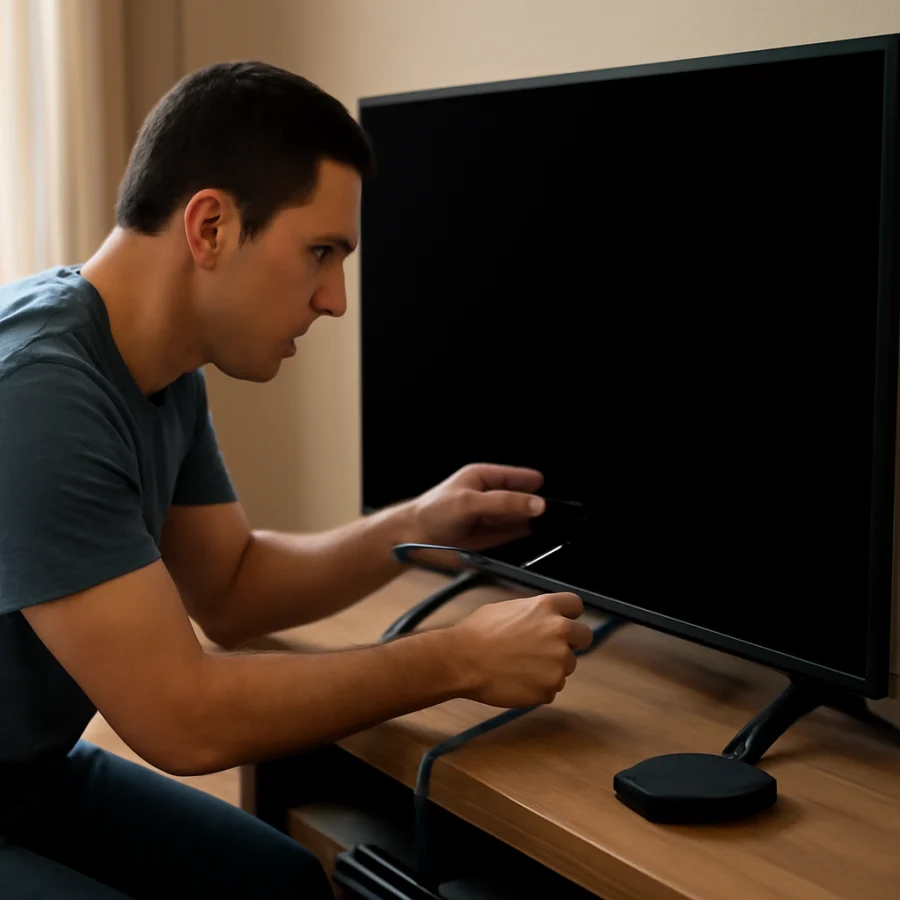
Plug the TV directly into the wall and turn it on using the physical button. Give it time to complete startup before pressing other buttons. If the picture returns, the black screen was likely caused by a temporary software or power-state problem. If the problem returns repeatedly, continue troubleshooting rather than assuming the issue is fixed.
Make sure the TV is on the correct input
If the TV has a working backlight but shows no picture from a connected device, press the input or source button and select the port used by that device. Check the HDMI cable at both ends and reconnect it firmly.
Test a different HDMI port if one is available, then try another known-good HDMI cable. Connect the device directly to the TV rather than through an audio receiver, HDMI switch, splitter, or capture device. Temporarily disconnect all other HDMI equipment and test only one source.
A cable box, console, or streaming player may be powered on but not sending a usable video signal. Restart that device as well. If the TV’s own home screen appears but one external source remains black, focus on the source device, cable, or HDMI connection. For broader display troubleshooting, see the TV picture and sound troubleshooting section.
Check whether the screen is actually producing a faint image
Turn on the TV in a dim room and look closely at the screen. You can also shine a flashlight across the display from an angle while using the remote to open the home screen or change the volume. Do not press hard on the panel.
If you can see a very faint image, the TV is producing video but the backlight may not be working correctly. The cause could involve LED strips, a power board, a connection, or another internal component. These parts are not safe for most people to service without the correct training. Unplug the TV and arrange professional repair rather than removing the back cover.
If there is no faint image, the problem may involve the main board, display panel, power system, software, or a disconnected internal cable. A flashlight test cannot identify the exact failed component, but it can help separate a likely backlight problem from a completely different fault.
Look for sound, status lights, and other clues
Press the volume buttons or try launching an app. If you hear menu sounds, startup audio, or content while the screen stays black, the TV may be operating normally apart from the display system. If the screen becomes black only after a few minutes, overheating, a failing backlight, or a power-related fault becomes more likely.
Observe the standby or status light without relying on a specific blink pattern. TCL models can use different light behaviors, and an exact interpretation depends on the model. A light that stays off, changes when you press power, or repeatedly flashes can provide useful information for support, but it does not by itself confirm a particular failed part.
Disconnect accessories and test the TV by itself
Unplug every external device from the TV, including HDMI equipment, USB drives, antenna cables, soundbars, and receivers. Leave only the TV’s power cord connected, then restart it.
A damaged accessory or an incompatible HDMI signal can interfere with startup or leave the TV on the wrong input. If the home screen appears after removing the accessories, reconnect them one at a time. The device or cable that brings the black screen back is the most likely source of the problem.
USB devices can also cause unusual startup behavior on some televisions. Do not leave a storage device connected while diagnosing a power or boot problem unless you need it for a specific test.
Check software and settings if the menu is visible
If you can see the TV’s home screen or settings menu, check for a software update using the update option provided by your model. The menu wording and location can differ between TCL televisions, so do not rely on instructions written for a different operating system.
Also review picture settings if the screen is visible but unusually dark. Turn off any energy-saving, screen-off, or display-related option temporarily, and restore normal picture brightness. Avoid changing many settings at once; otherwise, it becomes difficult to know which change helped.
If the screen goes black only inside one streaming app, close and reopen the app, restart the TV, and check whether other apps display video. A single app problem is different from a TV-wide display failure. You can find related steps in our guide to TCL TV apps that will not load or keep closing.
When a factory reset may help
A factory reset can correct persistent software or configuration problems, but it erases saved settings, accounts, app data, and network information. Use it only after the TV can display its menus and you have completed the simpler checks.
The reset path varies by TCL model and software platform. Use the reset option shown in your TV’s own settings, or consult the model’s official documentation. Do not interrupt power during the reset. If the screen is completely black and you cannot see the menus, a factory reset may be impractical and is unlikely to repair a failed backlight or display component.
Signs the TV may need repair
Professional service is the safer choice when the TV remains black after a direct-wall power test, power cycle, input check, and accessory removal. Repair is especially likely when:
- The TV has sound but no picture on its home screen or any input.
- A flashlight reveals a faint image.
- The screen flashes briefly and then goes dark.
- The TV shuts off, restarts, or becomes black as it warms up.
- You smell burning, hear repeated clicking, or see physical damage.
- The TV was exposed to liquid, a power surge, or an impact.
Unplug the television if it smells hot, makes unusual electrical noises, or shows signs of damage. Do not open the back cover unless you are qualified to work around high-voltage electronics. Even when unplugged, internal components can retain dangerous electrical charge.
How to describe the problem to support or a repair shop
Record the TV model number from the label or paperwork, along with what happens when you press power. Note whether the status light changes, whether sound works, whether a flashlight reveals a faint picture, and whether the home screen is visible. Tell the technician which cables and devices were disconnected and whether a direct wall outlet made any difference.
This information is more useful than simply reporting that the TV is “dead.” It helps distinguish a power issue, an input problem, a software fault, and a display hardware failure without unnecessary resets or part replacements.
In short, begin with power, the physical TV button, a complete power cycle, and the selected input. Then test the TV without accessories and check for a faint image. If the screen remains black everywhere, especially with working sound or a flashlight-visible picture, the problem is more likely hardware-related and should be evaluated safely by a qualified technician.
Comments
0No comments yet. Be the first to share a helpful note or question.
Leave a Comment
Your email address will not be published. Comments are reviewed before appearing on the site.