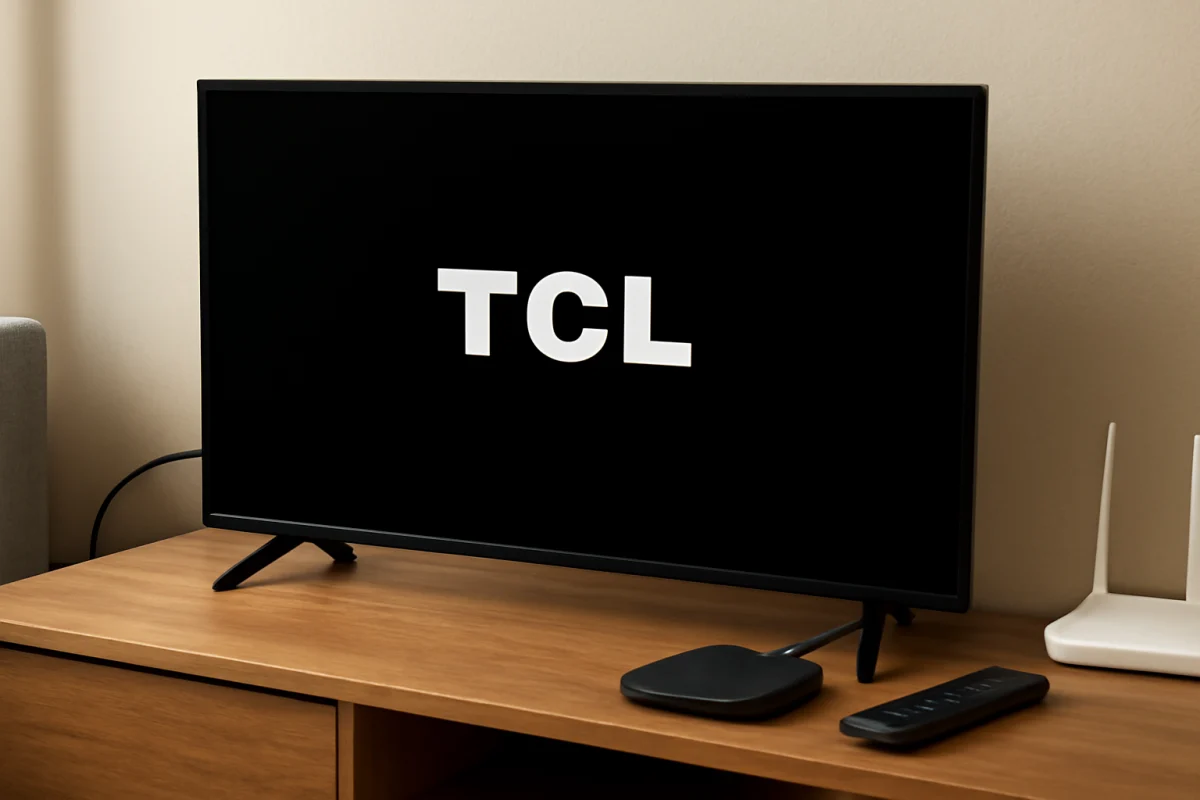
A TCL TV that keeps restarting is usually dealing with an unstable power connection, a software problem, overheating, a faulty remote command, or an issue with a connected device. Start with the simple checks first: disconnect external devices, reseat the power cable, test another wall outlet, and give the TV time to cool down. These steps can solve the problem without erasing your settings.
If the TV still restarts after those checks, the next step is to determine whether it restarts at a specific time, while using one app, or even when nothing is connected. That pattern can help separate a power problem from a software or hardware fault.
1. Check the power connection
An inconsistent power connection is one of the first things to rule out. A loose plug, damaged power cord, overloaded power strip, or failing surge protector can cause the TV to shut off and start again.
- Turn the TV off and unplug it from the wall.
- Check both ends of the power cord, if your model has a detachable cord. Look for looseness, cuts, bent contacts, or signs of heat damage.
- Plug the TV directly into a known-good wall outlet instead of a power strip, extension cord, or surge protector.
- Make sure the plug fits firmly and is not being pulled sideways by the cable.
Do not use a visibly damaged cord. If the TV works normally from a direct wall connection, the original power strip or surge protector may be the cause. You can reconnect it later for testing, but replacing unreliable power equipment is safer than continuing to use it.
2. Perform a complete power cycle
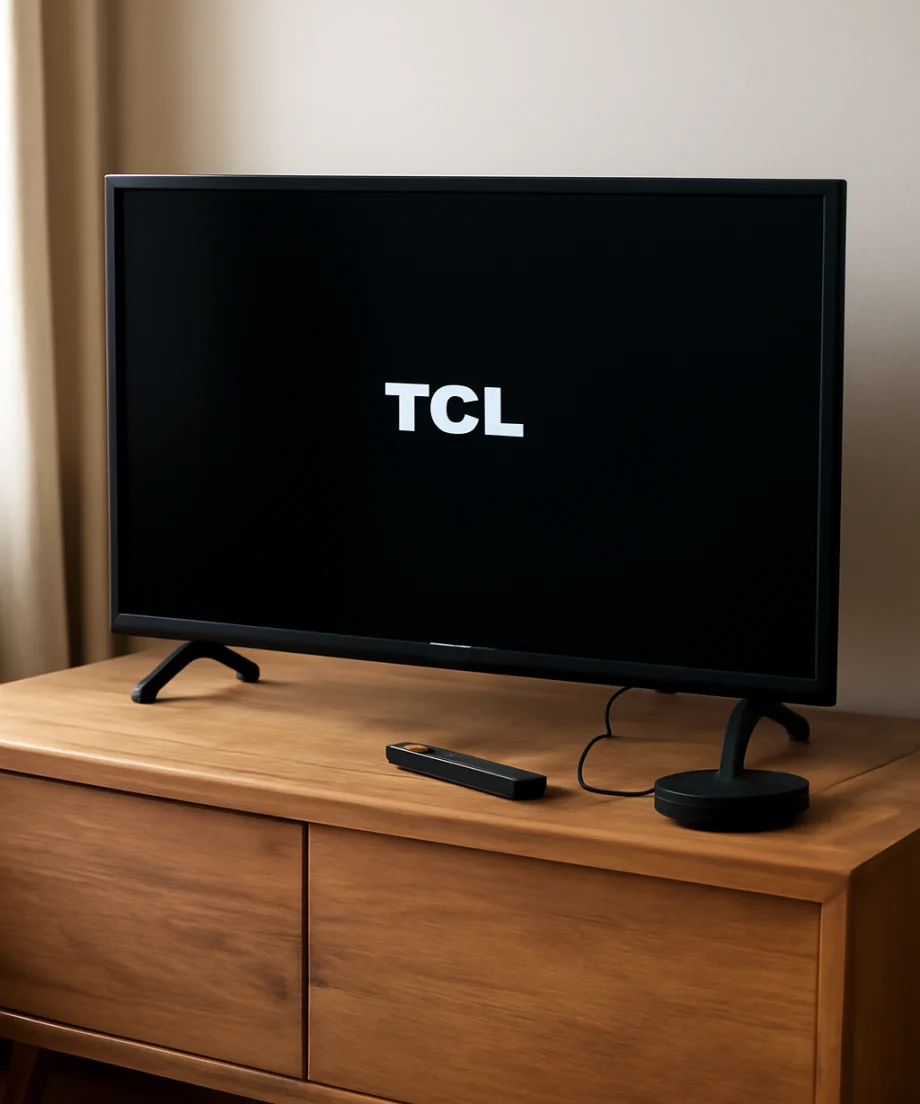
Standby mode does not fully clear every temporary state. A complete power cycle can remove a temporary software lockup or an unusual startup condition.
- Turn the TV off.
- Unplug it from the wall.
- Wait at least one minute.
- While the TV is unplugged, press and hold the physical power button on the TV for about 10 to 15 seconds, if your model has one.
- Plug the TV directly into the wall and turn it on with the TV's button or remote.
The location and design of the physical button vary between TCL models. If you cannot find one, simply leave the TV unplugged for the full wait period before reconnecting it. Watch the TV for several minutes after it starts. If it remains on, reconnect devices one at a time rather than plugging everything back in at once.
3. Disconnect HDMI and USB devices
A streaming stick, game console, soundbar, Blu-ray player, USB drive, or HDMI control signal can sometimes cause unexpected power behavior. A connected device may be sending a wake or power command, failing during startup, or creating a communication problem through HDMI.
Turn off the TV, unplug every HDMI and USB device, and then start the TV with nothing connected except its power cable. This includes soundbars and receivers. If the restarting stops, reconnect one device at a time and test the TV after each connection.
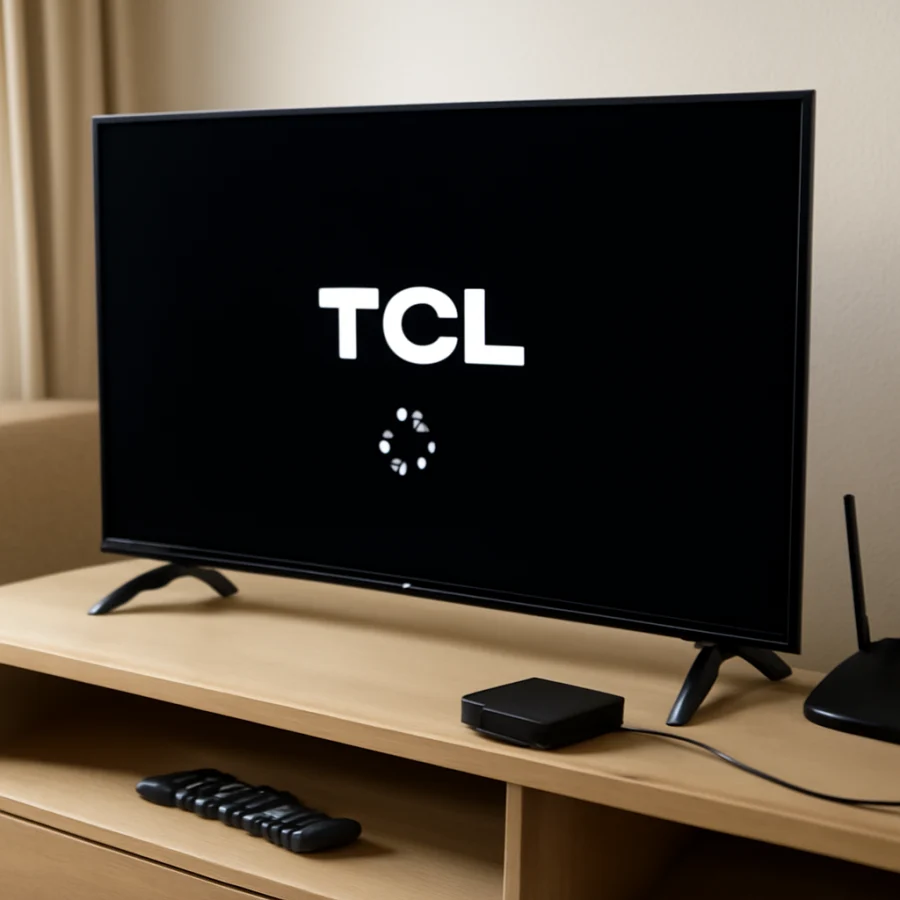
When one device brings the problem back, check that device's power cable and settings. You can also try a different HDMI port or cable. HDMI control features have different names and menu locations depending on the TCL model and its operating system, so do not assume the same setting appears on every TV. Temporarily disabling HDMI device control may help confirm whether connected equipment is involved.
4. Check the remote control for stuck buttons
A stuck power button can repeatedly send commands to the TV. The problem may come from the TCL remote, a universal remote, a cable box remote, or a mobile remote-control app.
- Remove the batteries from the TCL remote and use the TV's physical button for a short test.
- Move other remotes away from the TV and remove their batteries temporarily.
- Check whether the power button feels stuck, unusually soft, or difficult to press.
- If you use a phone as a remote, close the app and disconnect it from the TV temporarily.
If the restarting stops when the batteries are removed, replace the remote or clean around the buttons carefully. Avoid spraying liquid into the remote. If another device controls the TV through HDMI or a cable box, test with that device disconnected.
5. Look for overheating
A TV may restart when it becomes too warm, especially if the vents are blocked or the set is installed in a tight cabinet. Heat-related trouble often appears after the TV has been running for a while and may become more frequent as the set warms up.
Check the space around the TV and keep its ventilation openings clear. Do not cover the back of the TV, press it tightly against a wall, or place equipment directly over its vents. Dust can also restrict airflow, but clean only the exterior with the TV unplugged. Do not open the back cover.
Turn the TV off and let it cool for at least 30 minutes. Then place it in a well-ventilated location and test it without connected devices. If it restarts only after extended use, overheating or a temperature-sensitive internal component becomes more likely. A TV that feels unusually hot, smells like burnt plastic, or shows signs of melting should be unplugged and inspected by a qualified technician.
6. Check whether one app causes the restart
If the TV restarts only while using a particular streaming app, the app or its stored data may be involved. First, test the TV's home screen and another app. If only one service triggers the restart, avoid repeatedly launching it until you complete the basic checks.
Depending on the TCL model and operating system, you may be able to update, stop, remove, or reinstall an app. The exact menu names and available options vary, so use the instructions shown on your TV rather than following a menu path from a different TCL model. Signing out of the app and signing back in can also help, but it should not be the first step if the TV restarts throughout the entire system.
For broader streaming troubleshooting, you can also review the TV Fix Guide streaming apps section. If every app and the home screen cause the same restart, the issue is probably not limited to one service.
7. Test the network connection
A weak or unstable internet connection usually causes buffering rather than a full TV restart, but network-related software errors can occasionally appear during streaming. This is more worth checking if the TV restarts only during online video.
Restart your router and modem, then test the TV again after the network is available. If possible, compare the TV's behavior on another network, such as a temporary phone hotspot. Do not use a hotspot for extended streaming unless you understand your mobile data limits; this is only a diagnostic test.
If other devices also lose connection, the TV may not be the source of the problem. For more network checks, see the Wi-Fi and network troubleshooting guide.
8. Install available TV software updates
Outdated or corrupted system software can cause restart loops, app crashes, or problems after the TV wakes from standby. If the TV stays on long enough, check for an official software update using the update option provided in its settings.
Menu names and update procedures vary by TCL model, region, and operating system. Keep the TV connected to reliable power during an update, and do not unplug it while the update is being installed. If the TV cannot remain on long enough to complete an update, avoid repeatedly interrupting the process and move on to the reset or service options appropriate for your model.
9. Try a factory reset only after the basic checks
A factory reset can fix persistent software corruption, but it erases personal settings and account information. You may need to reconnect Wi-Fi, reinstall apps, sign in again, and reconfigure picture, sound, and input settings.
Before resetting, write down any settings you want to restore and make sure you know the passwords for your streaming accounts. Use the reset option found in your TV's own settings. The exact location and wording differ between TCL models, so do not rely on instructions that specify a menu path for another operating system.
If the TV restarts before you can reach the settings, some models provide a physical-button recovery procedure. Because the steps are model-specific, confirm them in the user guide or TCL's official support information for the exact model number. Do not press random buttons or repeatedly force a reset if the instructions are unclear.
10. When the problem points to hardware
The issue may require professional service if the TV restarts with no HDMI or USB devices connected, after a direct-wall power test, and after a complete power cycle. Hardware becomes more likely when the TV:
- Restarts immediately after pressing the power button.
- Shows a repeating startup loop and never reaches the home screen.
- Turns off when the backlight becomes bright or when the picture changes.
- Clicks, flashes, displays unusual lines, or shows a dark screen before restarting.
- Has a swollen area, burn mark, damaged cord, liquid exposure, or a burning smell.
Unplug the TV and stop testing it if there is smoke, a burning odor, visible damage, or evidence of liquid inside the set. Do not remove the back cover. Internal power components can retain dangerous voltage even after the TV is unplugged, and opening the set can create additional damage.
How to identify the most likely cause
The timing of the restart offers a useful clue. A restart immediately after turning on often points to power delivery, corrupted startup software, or an internal hardware fault. A restart after the TV warms up suggests ventilation or heat-related hardware. A restart only when a specific device is connected points to HDMI communication, the device itself, or its cable. A restart only in one app points more toward that app or its stored data.
Keep a short record while testing: note what the TV was doing, how long it had been on, whether an app was open, and which devices were connected. Change only one thing at a time. That makes it easier to identify the cause and gives a technician useful information if service becomes necessary.
For more TCL-specific troubleshooting, visit the TCL TV troubleshooting section. In many cases, a direct wall connection, complete power cycle, disconnected HDMI devices, and a cool, well-ventilated setup reveal the cause without requiring a factory reset.
Comments
0No comments yet. Be the first to share a helpful note or question.
Leave a Comment
Your email address will not be published. Comments are reviewed before appearing on the site.