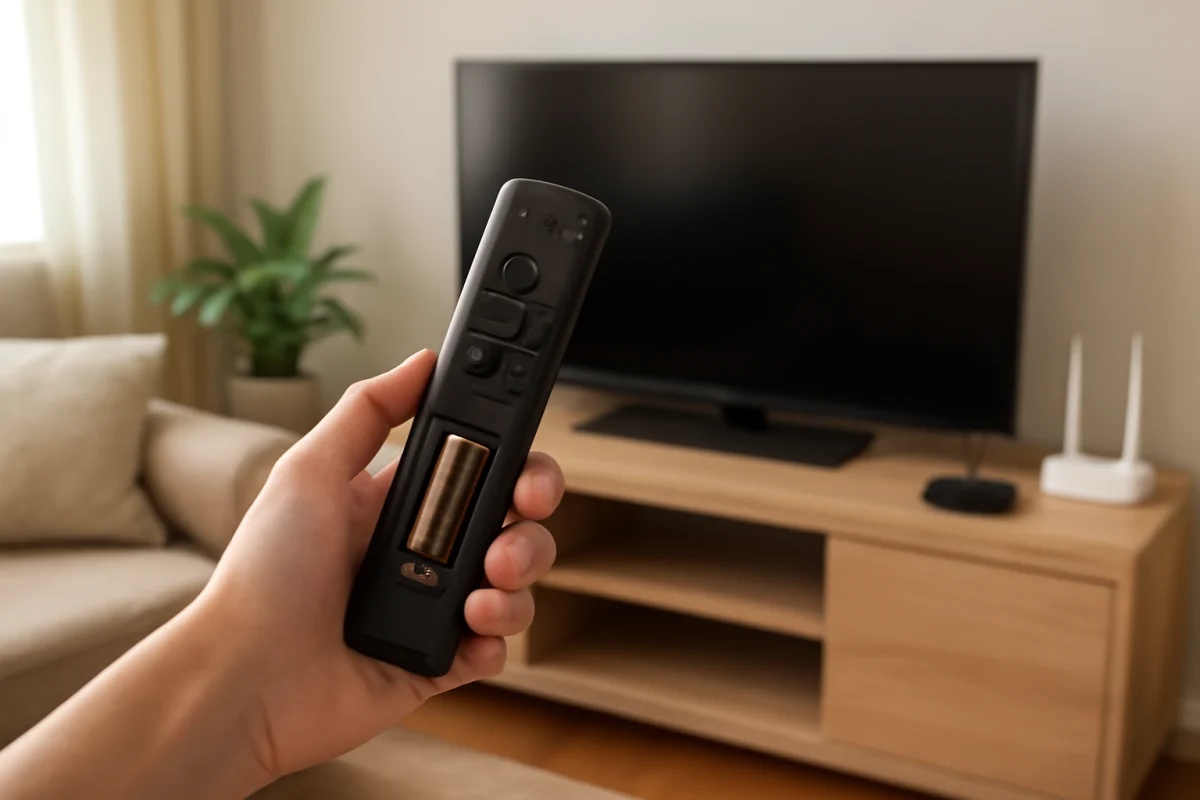
If your TCL TV remote suddenly stopped working, start with the simple checks: replace the batteries, make sure nothing is blocking the TV’s receiver, and confirm that the remote is controlling the TV rather than another device. If the remote is a voice or Bluetooth model, it may also need to be paired again. Work through the steps below in order so you do not reset the TV unnecessarily.
1. Check whether the problem is the remote or the TV
First, look at the TV itself. Can you turn it on, change the volume, or open a menu using the physical button or joystick on the television? The location and function of this control vary by TCL model, so check along the underside, rear panel, or side of the TV.
If the TV responds to its physical control but ignores the remote, the remote, its batteries, or its connection is the more likely cause. If the TV does not respond to the physical control either, the issue may involve power, a temporary software freeze, or the TV itself rather than the remote.
Also check whether the TV screen is completely off or only showing a dark picture. A small standby light can help indicate whether the television is receiving power, but its behavior varies by model. If the TV is not turning on at all, troubleshoot the power connection before focusing on the remote.
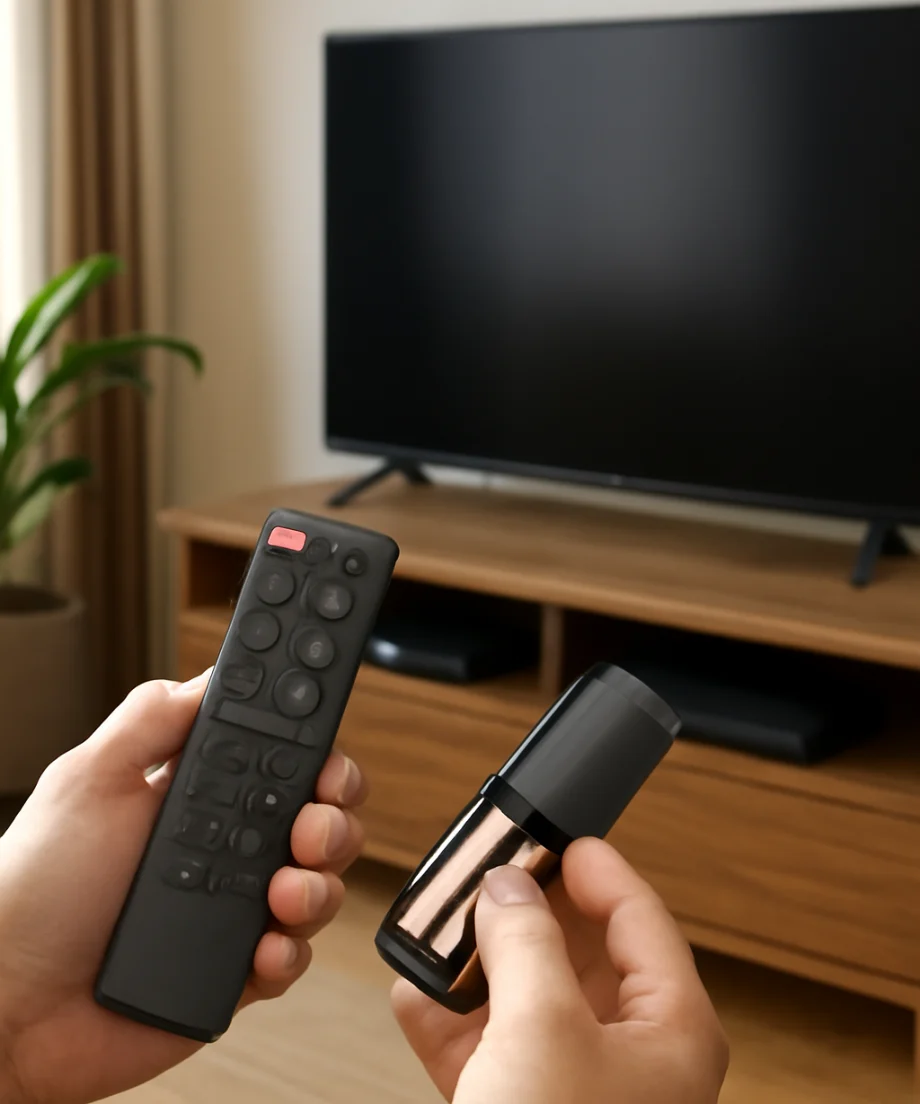
2. Replace both batteries
Weak batteries are the most common reason a remote appears to stop working. A remote may still show a light or respond intermittently even when the batteries no longer provide enough power for reliable operation.
- Remove both batteries from the remote.
- Wait a few seconds, then install two new batteries of the correct type.
- Match the positive and negative symbols inside the battery compartment.
- Press several buttons while pointing the remote toward the TV.
Do not mix an old battery with a new one, and do not assume that a battery is good simply because it was recently purchased. If the remote has corrosion, residue, a loose contact, or visible physical damage in the battery compartment, it may need to be replaced.
After installing batteries, try the power, volume, and navigation buttons. Testing several functions helps identify whether the entire remote is failing or only one button is damaged.
3. Check the remote’s signal path
Many basic TCL remotes use infrared signals. These remotes need a reasonably clear path between the front of the remote and the receiver on the TV. Remove objects in front of the television, including soundbars, decorations, game consoles, and tightly placed media equipment.
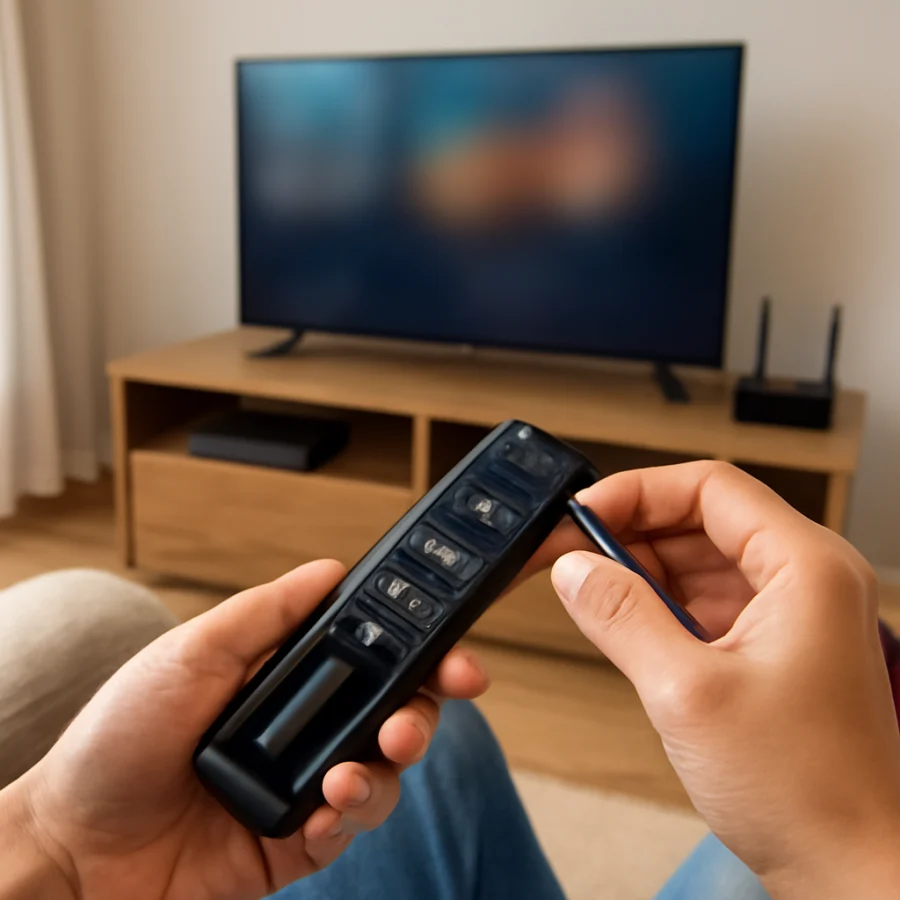
Point the remote directly at the TV from a short distance. Try it from several positions rather than testing only from the couch. Bright sunlight or strong lighting directed at the receiver can sometimes interfere with infrared commands, so close nearby blinds or move a lamp temporarily if the problem occurs only in one room or at one time of day.
Clean the remote’s front tip and the area around the TV’s receiver with a soft, dry cloth. Do not spray cleaner into the remote or onto the TV. If the TV is mounted behind glass or inside a cabinet, open the door and test again.
4. Look for a stuck or damaged button
A button that is pressed down, sticky, or damaged can make the remote behave as though it is not working. Inspect the power, navigation, volume, and input buttons for signs that one of them is stuck.
Press each button once with normal pressure. Do not force a button or take the remote apart unless you are comfortable repairing small electronics. If some buttons work while others do not, the remote may have worn contacts or liquid damage. In that situation, replacing the remote is often more practical than continuing to reset the TV.
If the remote was recently dropped, exposed to moisture, or used by a pet or child, physical damage becomes more likely. Remove the batteries if the remote is wet, let it dry completely in a safe place, and do not use heat to dry it.
5. Restart the TCL TV
A temporary TV software freeze can prevent the remote from being recognized even when the remote itself is working. Use the TV’s physical button to turn the television off if possible.
Then unplug the TV from the wall outlet. Leave it disconnected for about one minute, reconnect it, and allow it to start normally. Avoid repeatedly unplugging and reconnecting the set in quick succession.
Once the TV is back on, test the remote again. This restart does not normally erase installed apps, accounts, or picture settings. It is different from a factory reset, which should be reserved for more serious problems.
If other devices are connected through HDMI, temporarily disconnect them while testing. A connected device or control feature can occasionally create confusing behavior, such as changing inputs or sending commands that make the remote seem unresponsive.
6. Pair a TCL voice or Bluetooth remote again
Some TCL TVs use a remote that communicates wirelessly rather than relying only on infrared. These remotes may control basic functions through infrared but require pairing for voice commands, navigation, or other features. The exact pairing process depends on the TV platform, remote design, and model.
Look for a pairing or setup button inside the battery compartment or on the remote. If the TV displays instructions when it starts, follow those instructions. You may also be able to begin pairing through the TV’s settings using the physical control or a temporary replacement remote, but the menu names and steps can vary.
Keep the remote close to the TV during pairing and install fresh batteries first. If the remote was previously paired with another TCL TV, it may need to be disconnected from that television before it will connect reliably to the current one.
If the remote has a voice button but voice commands fail while regular buttons work, check whether the TV is connected to the internet and whether the remote is properly paired. Voice features can depend on the TV platform and network connection, so a voice problem does not always mean that the basic remote controls are defective.
7. Check whether the remote is controlling the wrong device
If you use a cable box, streaming player, soundbar, or universal remote, confirm that the remote is set to control the TCL TV. Device-selection buttons or activity modes can send commands to another component instead.
Test the remote with the TV’s power and volume controls after selecting the TV device mode, if your remote has one. If the TV responds only to certain buttons, the remote may be programmed with an incomplete or incorrect device code.
When possible, use the original TCL remote for testing. A cable or universal remote may require separate programming even if it previously worked. If you need another way to control the television temporarily, a compatible mobile app may be available for your specific TCL TV platform, but the phone and TV generally must be connected to the same network.
8. Test an infrared remote with a phone camera
If your TCL remote uses infrared, a phone camera can sometimes show whether it is transmitting a signal. Open the camera app, point the front of the remote toward the camera, and press a button. Some cameras show a flashing light from the remote’s infrared emitter.
This test does not work with every phone camera, and it does not prove that the TV receiver is functioning. If you see no flash after installing fresh batteries and trying several buttons, the remote may be defective. If you do see a flash but the TV does not respond, inspect the signal path, restart the TV, and consider a problem with the TV’s receiver or remote pairing.
Do not use this test as the only diagnosis. A working infrared light does not guarantee that every button is sending the correct command.
9. Update the TV only if you can control it another way
If the remote began failing after the TV became sluggish, restarted, or installed an update, the television may need time to finish starting. Give it several minutes after a restart before testing again.
If you can access the settings with the TV’s physical control, a compatible app, or another properly paired remote, check for available software updates. The location and wording of update options differ between TCL models and TV platforms. Do not interrupt the TV while it is installing an update, and do not assume that an update will fix a physically damaged remote.
If you are also seeing repeated restarts or the TV cannot stay on long enough to use its menus, see our guide to why a TCL TV keeps restarting.
10. Consider a factory reset only as a last resort
A factory reset erases personal settings and may remove saved accounts, app data, network information, and customized preferences. It is unlikely to repair a remote with dead batteries, liquid damage, or worn buttons.
Before considering a reset, confirm that the TV works through its physical controls or another compatible control method. Back up or note any settings you may need to restore. Because reset instructions and menu names vary by TCL model, use the instructions for your exact television rather than guessing from a different model.
If you cannot navigate the TV at all, a reset may not be practical and could make setup more difficult. Contact TCL support or consult the TV’s manual before using button combinations or recovery procedures. Avoid unofficial key sequences unless you can verify that they apply to your exact model.
When to replace the remote
Replace the remote or seek a compatible replacement when fresh batteries, a clear signal path, a power cycle, and pairing steps do not help. A replacement must match the TV’s platform and may need to be paired before all features work.
Before ordering one, record the exact model information from the label on the back of the TV or from its settings, if available. TCL sells or supports different remote designs, and a remote that fits physically may not support every function your TV uses. If you use a universal remote, check that it supports your TCL TV platform and the functions you need.
For more general remote troubleshooting, you can also browse TV Fix Guide’s remote control troubleshooting section. If the remote works but the TV has another issue, our TCL TV troubleshooting guides cover related picture, sound, network, and restart problems.
What the symptoms usually mean
- No buttons work: Check the batteries, signal path, TV power, and possible remote damage.
- Only some buttons work: Look for worn, stuck, or damaged buttons.
- The remote works close to the TV but not from across the room: Check batteries, obstructions, and the TV receiver.
- Basic buttons work but voice control does not: Re-pair the remote and check the TV’s network connection.
- The TV ignores both the remote and its physical control: Investigate power or TV software problems rather than replacing the remote immediately.
- A replacement remote works only partly: Confirm compatibility and complete the required pairing or setup.
In most cases, the fix is a fresh set of batteries, a clear path to the TV, a power cycle, or renewed pairing. Start with those low-risk checks before resetting the television or buying replacement equipment.
Comments
0No comments yet. Be the first to share a helpful note or question.
Leave a Comment
Your email address will not be published. Comments are reviewed before appearing on the site.