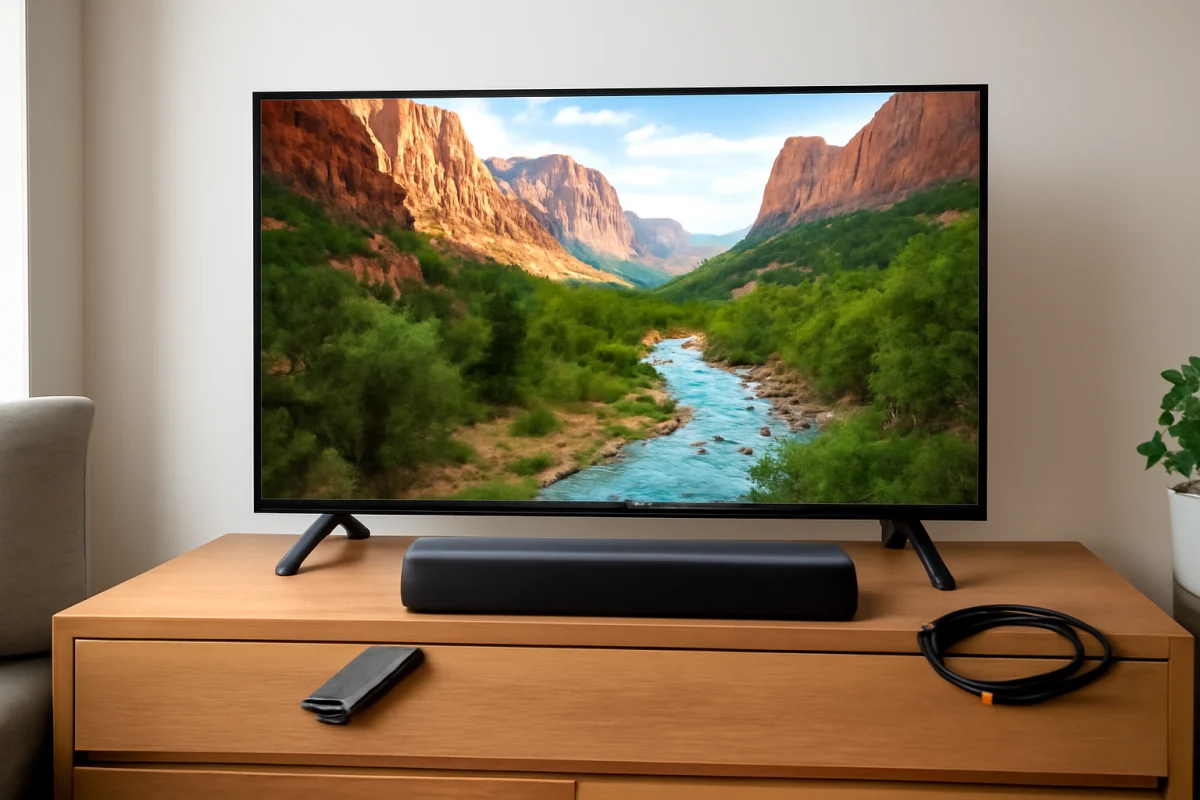
If your TCL TV has a normal picture but no sound, start with the volume and audio output settings before resetting anything. Press the volume-up button on the TV or remote, make sure mute is off, and check whether the problem affects every source or only one app or device. A wrong audio output, a muted external speaker, a loose HDMI connection, or a temporary software issue can all cause this symptom.
The exact menu names and available audio options vary by TCL TV model and operating system. Your screen may use Roku TV, Google TV, Fire TV, or another platform, so follow the option that most closely matches what you see.
1. Check the basic volume and mute controls
First, confirm that the TV is actually receiving volume commands. Press the volume-up button several times and watch for an on-screen volume indicator. If the indicator does not appear, try the buttons on the TV itself if they are accessible. This helps distinguish a sound setting problem from a remote-control problem.
- Press mute once to turn it off, then raise the volume.
- Replace or recharge the remote batteries if the TV does not respond.
- Check whether headphones are connected to the TV or to a connected device.
- If you use a cable box, game console, or streaming player, raise its volume as well.
- Make sure the connected soundbar or receiver is powered on and set to the correct input.
Some devices control their own volume separately from the TV. For example, increasing the TCL TV volume may not raise the volume of a soundbar if the soundbar is using its own remote or a separate control system.
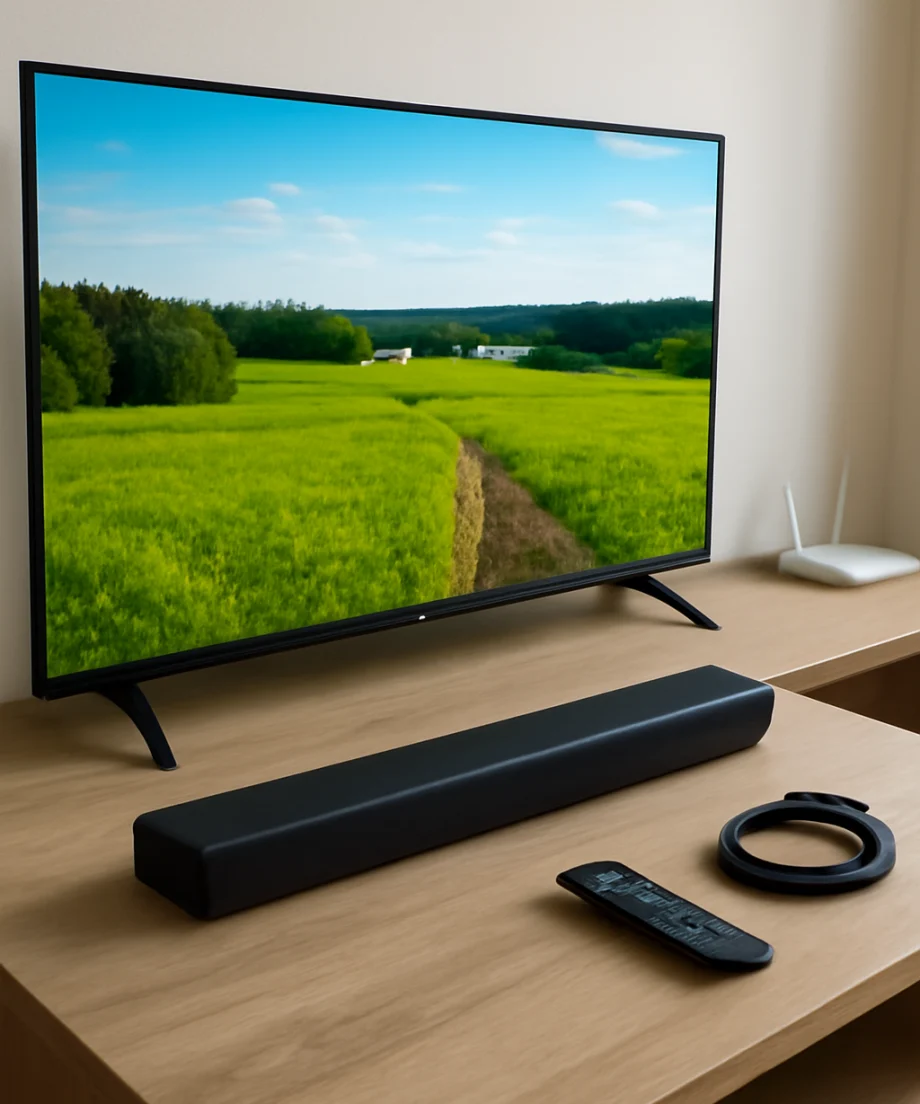
2. Find out whether the problem affects everything
Open a different built-in app or switch to the TV’s home screen. Play content from another source and listen for sound. If audio works in one app but not another, the TV speakers may be fine and the issue may be limited to the app, its content, or its audio settings.
If there is no sound anywhere, including menus or multiple inputs, continue with the TV’s audio settings. If the problem appears only on one HDMI input, focus on that device and its cable before changing system-wide settings.
3. Check where the TV is sending audio
A TCL TV can send sound through its built-in speakers, a soundbar, an AV receiver, headphones, Bluetooth audio, or an HDMI audio connection. If the TV is set to use an external device that is turned off or disconnected, the picture can continue working while the room remains silent.
Open the TV’s settings and look for a section related to audio, sound, speakers, or output. Choose the internal TV speakers temporarily if that option is available. The wording differs by model, so do not worry if your menu uses different terms.
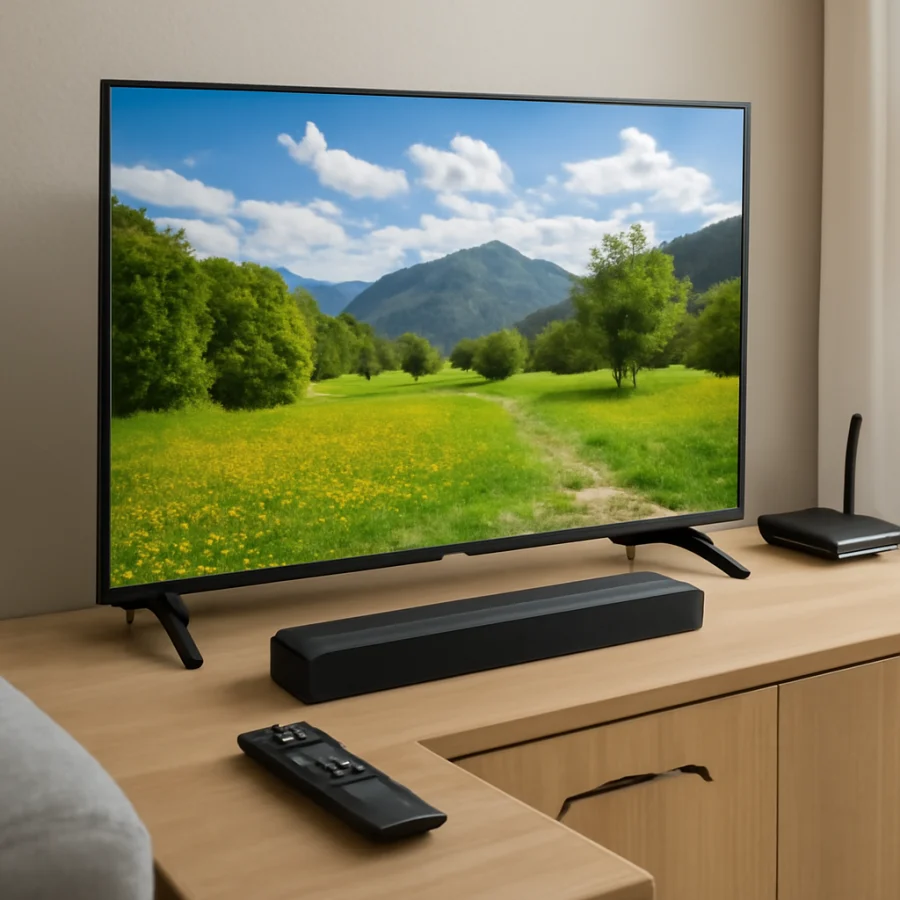
Also check for settings related to:
- Audio output or speaker selection
- Bluetooth headphones or wireless speakers
- HDMI audio or ARC/eARC
- Digital audio format
- Headphone or line-out behavior
If Bluetooth audio is connected, disconnect it and test the built-in speakers. If a soundbar is connected through HDMI, confirm that both devices support the connection method you are using and that the soundbar is set to the matching input.
4. Power-cycle the TV and audio equipment
A complete power cycle can clear a temporary audio communication problem without deleting your apps or settings. Turn off the TCL TV, soundbar, receiver, cable box, and other connected devices. Unplug the TV and the affected audio device from the wall outlet for about one minute.
Reconnect the TV first and turn it on. Test the built-in speakers before reconnecting the soundbar, receiver, or other equipment. If sound returns from the TV speakers, reconnect the external device and test again. This sequence helps identify whether the external equipment is causing the problem.
Do not repeatedly unplug devices while they are updating or displaying a warning. If a device indicates that an update or installation is in progress, allow it to finish before removing power.
5. Inspect HDMI, optical, and other audio connections
A damaged or loose cable can pass video while failing to carry audio. Disconnect and reconnect the HDMI cable at both ends, making sure it is fully inserted. If possible, test another HDMI port or a different known-good cable. When testing, switch the TV to the input that matches the port you are using.
For a soundbar or receiver connected through an optical cable, check that the cable ends are firmly inserted and that any protective caps have been removed. The soundbar must also be set to its optical input. Optical connections can carry sound without allowing the TV to control the external device’s volume, so use the soundbar remote during the test.
If a cable box, game console, or streaming player is connected, temporarily connect a different device to the same TV input. This can show whether the fault follows the source device or stays with the TV input.
6. Check the source device’s audio settings
If the TCL TV has sound from built-in apps but not from a cable box, console, or streaming player, the source device may be using an audio format the current connection does not handle correctly. Open the source device’s audio settings and try an automatic, stereo, or PCM-style output option if available. The exact choices depend on the device.
When using a soundbar or receiver, advanced surround formats may require compatible equipment and the correct HDMI connection. For troubleshooting, use a simpler audio output setting first. Once sound works reliably, you can try the higher-quality or surround option again.
Also check the source device for its own mute setting, volume level, accessibility audio controls, and app-specific volume controls. A streaming stick or game console may have separate audio behavior from the TV.
7. Test more than one app and program
Sometimes the issue is limited to a specific title or stream. Start another program in the same app, then test a different app. If only one movie, channel, or live stream is silent, the content may have an audio-track problem rather than a TCL TV hardware fault.
If one app is silent while others work, close and reopen that app. Signing out and back in can help with account or playback errors, although it should not be the first step if the entire TV has no sound. You can also check whether the app has an audio-language or soundtrack selector and choose another available track.
For more streaming troubleshooting, see the TV Fix Guide streaming apps section.
8. Review audio processing and accessibility settings
Open the sound settings and temporarily disable unusual processing options if your model provides them. Features such as volume leveling, virtual surround, dialogue enhancement, or night mode do not normally remove all sound, but a setting conflict can affect certain sources or external audio equipment.
Check accessibility settings as well. Audio descriptions, voice guidance, and related features usually add audio rather than silence it, but testing with the standard audio configuration can help rule out a setting conflict. Restore one change at a time so you know which option affected the result.
9. Update the TV only if the problem continues
If the TV has no sound across all sources after the basic checks, check for a software update in the system settings. The update path and wording vary by TCL model and operating system. Use the TV’s built-in update process rather than downloading files from an unverified source.
Keep the TV connected to power and the network while an update is running. Do not turn it off unless the TV specifically instructs you to do so. If the television cannot connect to the internet, you can continue troubleshooting without updating it; an update is not required for every no-sound problem.
10. Consider a reset only as a later step
A factory reset can remove saved apps, accounts, network settings, picture settings, and other preferences. It is therefore not a good first response to a silent TV. Before using it, record your important settings and make sure you know the passwords needed to set up the TV again.
If you decide to reset the television, use the reset option provided in its own settings and read each confirmation screen carefully. Menu names differ by model. After the reset, test the built-in speakers before reinstalling apps or reconnecting external audio equipment.
When the TV may need service
Contact TCL support or a qualified TV repair professional if the built-in speakers remain silent after testing multiple sources, power-cycling the TV, checking the audio output, and trying the available software troubleshooting steps. Service may also be appropriate if the sound cuts in and out, becomes distorted, works only after the TV warms up, or is accompanied by clicking, burning smells, visible damage, or repeated restarts.
Before requesting help, note the TCL model, the sources you tested, whether headphones or a soundbar were connected, and whether the TV’s on-screen volume indicator responds. This information can make diagnosis faster. Avoid opening the TV or attempting board-level repairs, because internal components can retain dangerous electrical charge even after the set is unplugged.
For related troubleshooting, browse the TCL TV troubleshooting guides or review the broader picture and sound section on TV Fix Guide.
Comments
0No comments yet. Be the first to share a helpful note or question.
Leave a Comment
Your email address will not be published. Comments are reviewed before appearing on the site.