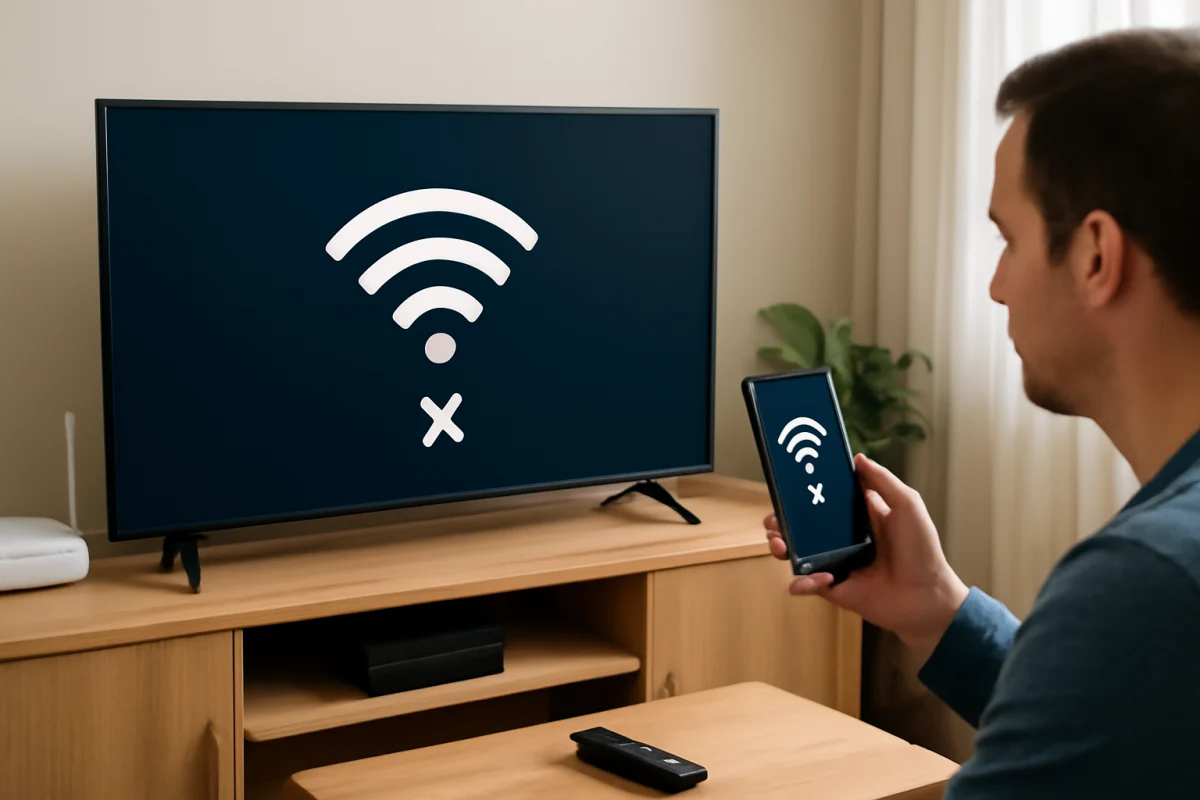
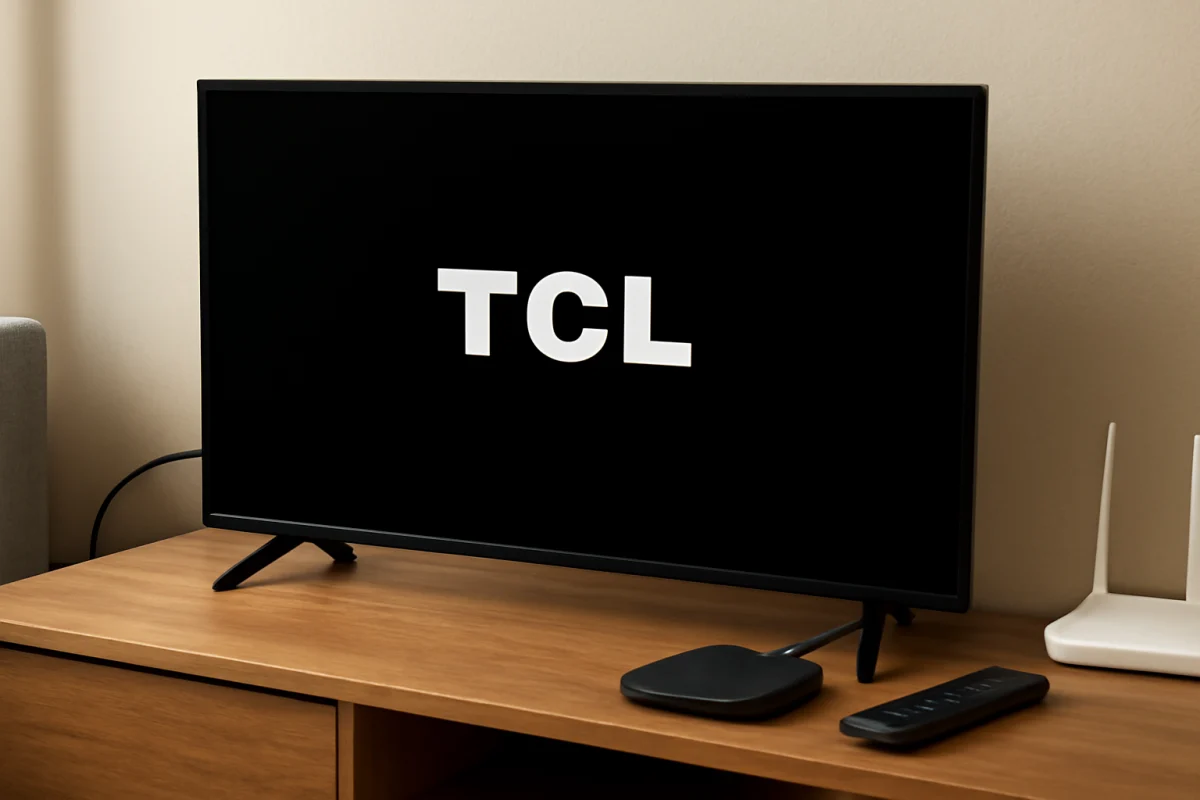
If your TCL TV keeps disconnecting from Wi-Fi, start by checking whether other devices lose internet access at the same time. If your phone, laptop, or streaming device also goes offline, the problem is probably your router, internet service, or wireless signal. If only the TCL TV disconnects, restart the TV and router, move the router or TV away from interference, and reconnect the network before trying more advanced fixes.
The exact menu names and available network options can vary between TCL televisions, Roku TV models, Google TV models, and other TCL software versions. Use the closest matching option on your screen rather than relying on an exact menu path.
Check whether the problem affects only the TV
Before changing settings, determine where the connection is failing. Connect a phone or computer to the same Wi-Fi network and use it for a few minutes. You can also test another device near the TV, since the signal may be weaker in that part of the room.
- If several devices disconnect, focus on the modem, router, internet service, or wireless interference.
- If only the TCL TV disconnects, focus on the TV's saved network connection, software, signal strength, or wireless hardware.
- If the TV stays connected but only one app stops working, the issue may be with that app or its service rather than Wi-Fi.
It can also help to notice the pattern. A TV that disconnects only at night may be affected by network congestion or an automatic router event. A TV that disconnects whenever you start a movie may be dealing with a weak signal, while a TV that drops Wi-Fi after sitting idle may have a software or power-management issue.
Restart the TCL TV and network equipment
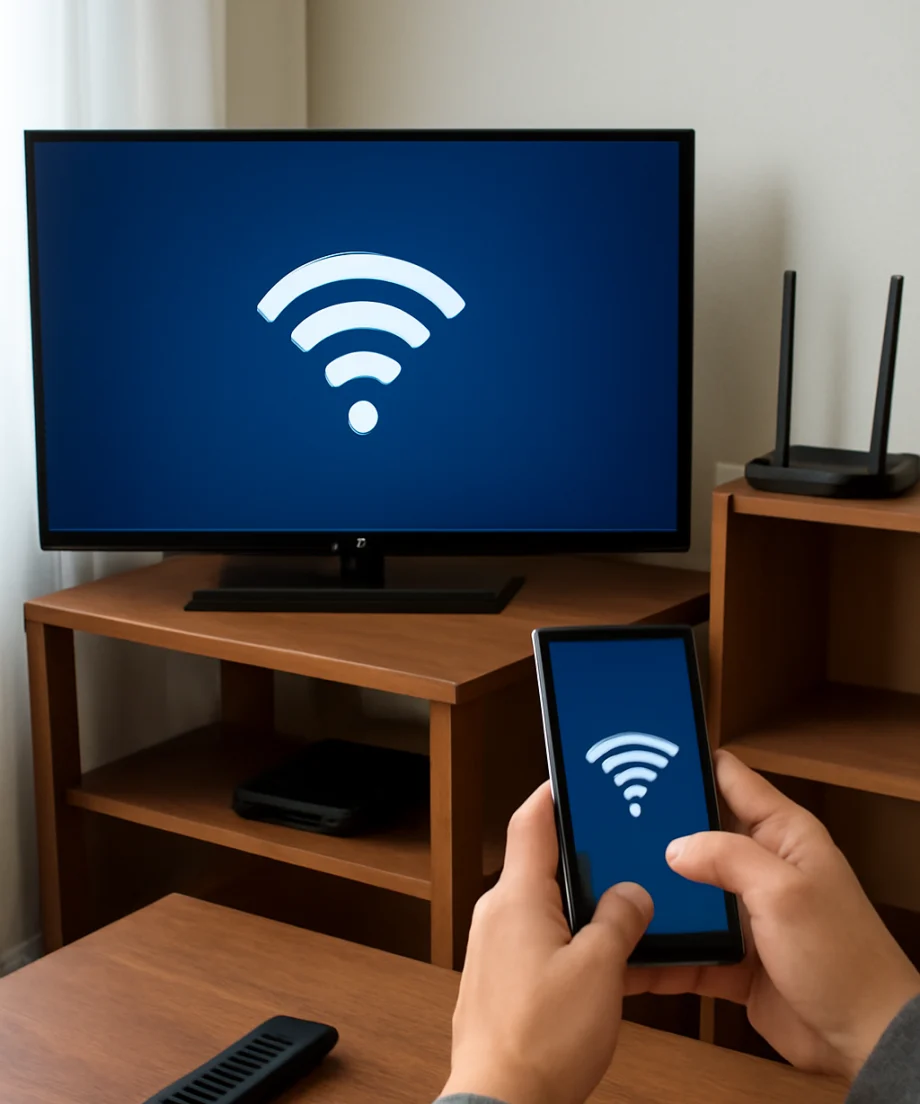
A normal restart often clears a temporary network or software problem. Turn off the TV and unplug it from the wall. Leave it unplugged for about one minute, then reconnect it and turn it on. If the TV has a physical power button, you can press it once while the TV is unplugged, but do not repeatedly press buttons or disconnect cables unnecessarily.
Next, restart the modem and router. Unplug both devices, wait at least one minute, and plug them back in. If you have a combined modem-router unit, only one device may need to be restarted. Wait until the equipment has finished starting up before testing the TV. This may take several minutes.
Do not reset the router to factory defaults at this stage. A factory reset removes wireless names, passwords, parental controls, port settings, and other custom configurations. A simple power cycle is safer and usually enough for a temporary connection problem.
Improve the wireless signal near the TV
A TCL TV can remain connected to Wi-Fi when the signal is marginal, but the connection may drop whenever interference increases. Check the physical distance between the TV and router. Thick walls, floors, cabinets, mirrors, appliances, and large pieces of furniture can weaken or block the signal.
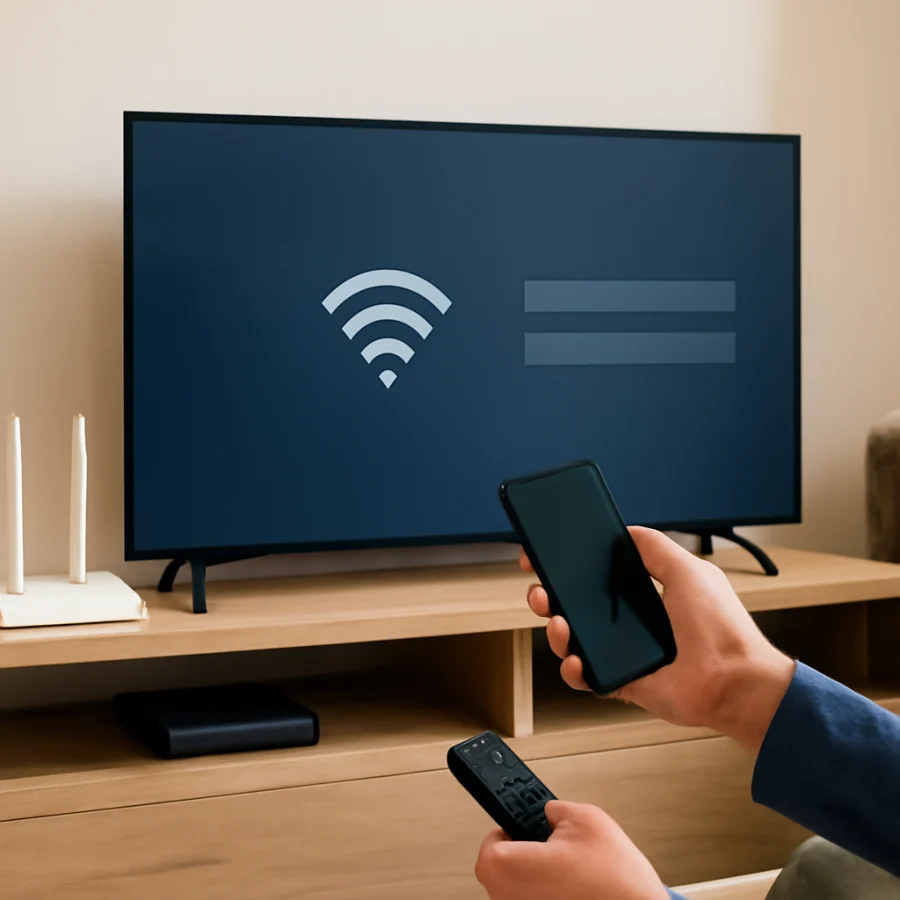
If possible, temporarily place the router closer to the TV or move the TV into the same room for testing. You do not need to permanently rearrange the room; this is a diagnostic step. If the TV becomes stable when it is closer to the router, the likely problem is signal strength or interference rather than the TV's internet settings.
Keep the router in an open, elevated location rather than inside a cabinet. Avoid placing it directly beside a cordless phone base, Bluetooth hub, microwave, soundbar, game console, or other devices that may create wireless interference. If your router offers separate Wi-Fi network bands, test the TV on each available band. The best choice depends on the distance, walls, router, and TV model. A band with better range may be more reliable, while another may perform better nearby.
If you use a mesh Wi-Fi system or extender, the TV may be switching between access points or connecting to an extender with a weak backhaul connection. Test the TV near the main router if you can. Also confirm that the extender is positioned between the router and TV, not in an area where it already receives a poor signal.
Forget the Wi-Fi network and reconnect
A saved network profile can become damaged or outdated, especially after changing the Wi-Fi password, replacing the router, changing security settings, or moving to a mesh system. Open the TV's network or internet settings and look for an option to remove, forget, disconnect, or set up the current network again. The wording depends on the TCL platform and software version.
After removing the saved connection, restart the TV if it does not restart automatically. Then scan for available networks, select your Wi-Fi name, and carefully enter the current password. Check uppercase letters, numbers, spaces, and similar-looking characters. If the password was recently changed, remove the old saved network before entering the new one.
Test the connection for several minutes after reconnecting. Do not judge the result only by whether the TV connects successfully once. The important question is whether it remains connected while opening apps and playing video.
Test the TV with a phone hotspot
A phone hotspot can help separate a TV problem from a home-network problem. Enable a hotspot on a phone with mobile data, then connect the TCL TV to that temporary network. Keep the phone close to the TV and test a low-demand app or video for a short period.
If the TV stays connected to the hotspot but repeatedly disconnects from your home Wi-Fi, investigate the router, wireless signal, network compatibility, or home internet setup. If the TV disconnects from the hotspot as well, the TV may have a software issue, a compatibility problem, or a hardware fault.
Hotspot testing can use mobile data quickly, so do not leave it running for a long time. It is a diagnostic check, not necessarily a permanent solution. Some mobile networks also limit hotspot performance, so a poor hotspot result is not conclusive by itself.
Check date, time, and network restrictions
Incorrect date or time settings can interfere with secure connections and app sign-ins. If the TV provides an automatic date and time option, enable it when the TV is connected to the internet. If automatic time fails, confirm that the selected time zone is correct.
Check the router for restrictions that may affect the TV. These can include access controls, device limits, scheduled Wi-Fi downtime, guest-network isolation, MAC filtering, or a full list of connected devices. The names differ by router manufacturer. If you recently changed router security settings, temporarily review those settings and consult the router's documentation before making major changes.
A captive portal network, such as Wi-Fi at a hotel, dorm, or workplace, may require a browser sign-in that a TV cannot complete. Public networks can also block streaming devices or limit connected devices. For reliable testing, use a normal private home network whenever possible.
Update the TV and router when practical
Software updates can resolve network bugs, but the update process varies by TCL model. Look in the TV's settings for a system, support, device, or software-update section and check whether an update is available. Do not interrupt the TV while it is updating or unplug it during the installation.
If the TV cannot remain online long enough to update, use the phone-hotspot test or temporarily move the TV closer to the router if that is safe and practical. Some models may offer another update method, but you should use only instructions intended for the exact model. Do not install firmware intended for a different TCL series.
Router firmware can also affect Wi-Fi stability. Check the router manufacturer's app or support instructions for available updates. Because router update steps vary widely, avoid changing advanced wireless settings unless you know how to restore the previous configuration.
Try a wired connection if your setup supports it
If the TV and router are close enough, connect the TV to the router with an Ethernet cable, provided your model has a compatible network port. A wired test is useful because it bypasses wireless interference and signal-strength problems.
If the TV works reliably over Ethernet, the issue is probably limited to Wi-Fi coverage, interference, router band selection, or wireless compatibility. If the TV still loses internet access over Ethernet, investigate the router, internet service, TV software, and individual apps instead of focusing only on wireless settings.
Reset network settings before a full factory reset
Some TCL models offer a network reset or an option to restore network settings without erasing the entire TV. Use this option only after restarting, improving the signal, and reconnecting the network. A network reset normally removes saved Wi-Fi details, so make sure you know the current network password first.
A full factory reset should be a last resort. It may erase installed apps, account information, preferences, parental controls, picture settings, and other personal data. The exact reset process and warning screens vary by model. If you choose this step, record important settings and confirm that you can sign back in to your streaming accounts.
When the problem may be the TV or router
Contact your internet provider or router manufacturer if multiple devices repeatedly disconnect, the router loses its internet indicator, or wired devices also go offline. Ask whether there is an outage or a line problem, but avoid assuming the provider is at fault if only the TCL TV is affected.
Consider TCL support or qualified repair help if the TV disconnects from several different networks, including a nearby hotspot, after a network reset and software check. A TV that cannot detect networks at all, has a damaged network port, or loses Wi-Fi after every restart may have a hardware problem.
For more troubleshooting help, browse the Wi-Fi and network guides or visit the TCL TV troubleshooting section. If your TV is also restarting unexpectedly, see our guide to why a TCL TV keeps restarting.
The most useful order is simple: test other devices, restart the TV and router, improve the signal, forget and reconnect the network, try a hotspot, check software and router restrictions, and only then consider a network reset or factory reset. This approach helps identify the cause without erasing settings prematurely.
Comments
0No comments yet. Be the first to share a helpful note or question.
Leave a Comment
Your email address will not be published. Comments are reviewed before appearing on the site.