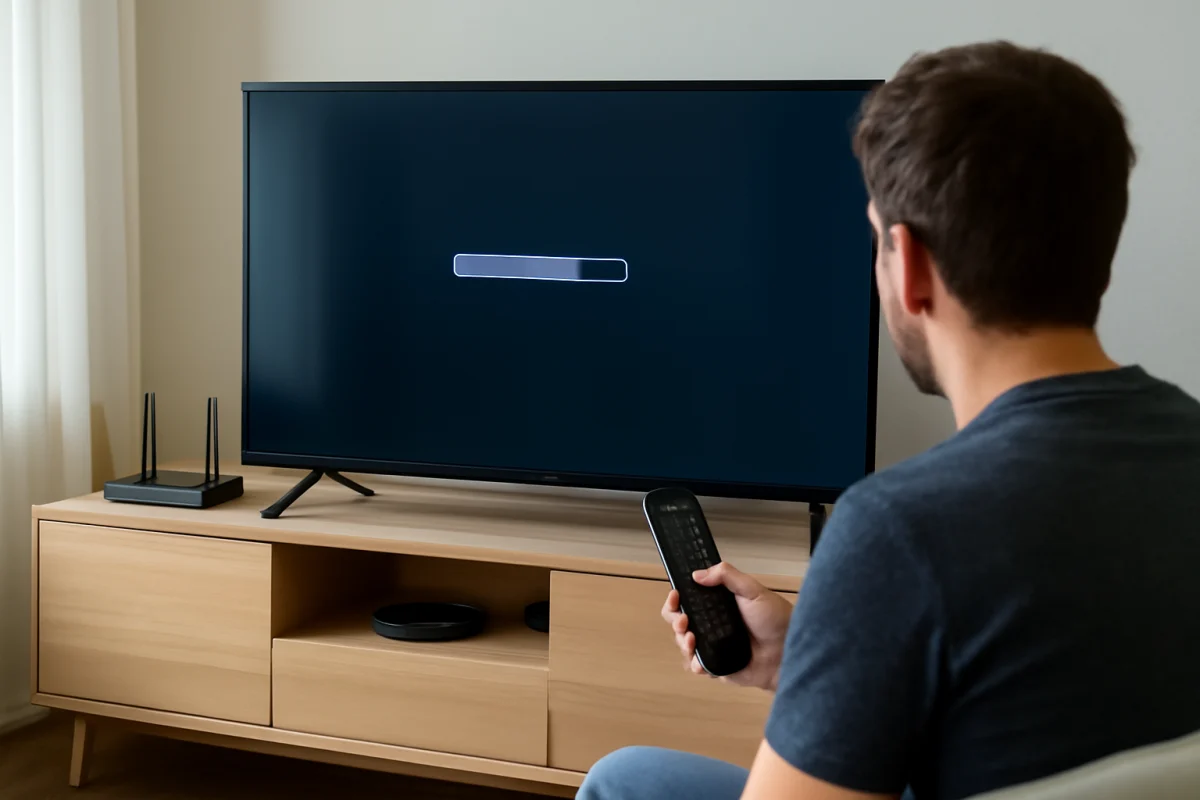
If your LG TV takes a long time to open apps, responds slowly to the remote, or pauses while moving through menus, the problem is usually caused by one of a few practical issues: too many background processes, limited free storage, a weak network connection, outdated software, or a remote that is not registering commands properly. Start with the simple checks below before changing advanced settings or performing a factory reset.
First, identify what is actually slow
Pay attention to when the delay happens. If the entire TV interface responds slowly, including the Home screen, settings, and input menu, the TV itself may need a restart, software update, or storage cleanup. If only streaming video is slow or keeps buffering, the network or streaming service is more likely to be responsible. If the TV works normally but reacts slowly to button presses, check the remote and its batteries first.
Also test more than one app. A delay in only one app may be an app-specific problem rather than a problem with your LG TV. If several apps are slow, continue with the system-level checks in this guide.
Restart the TV completely
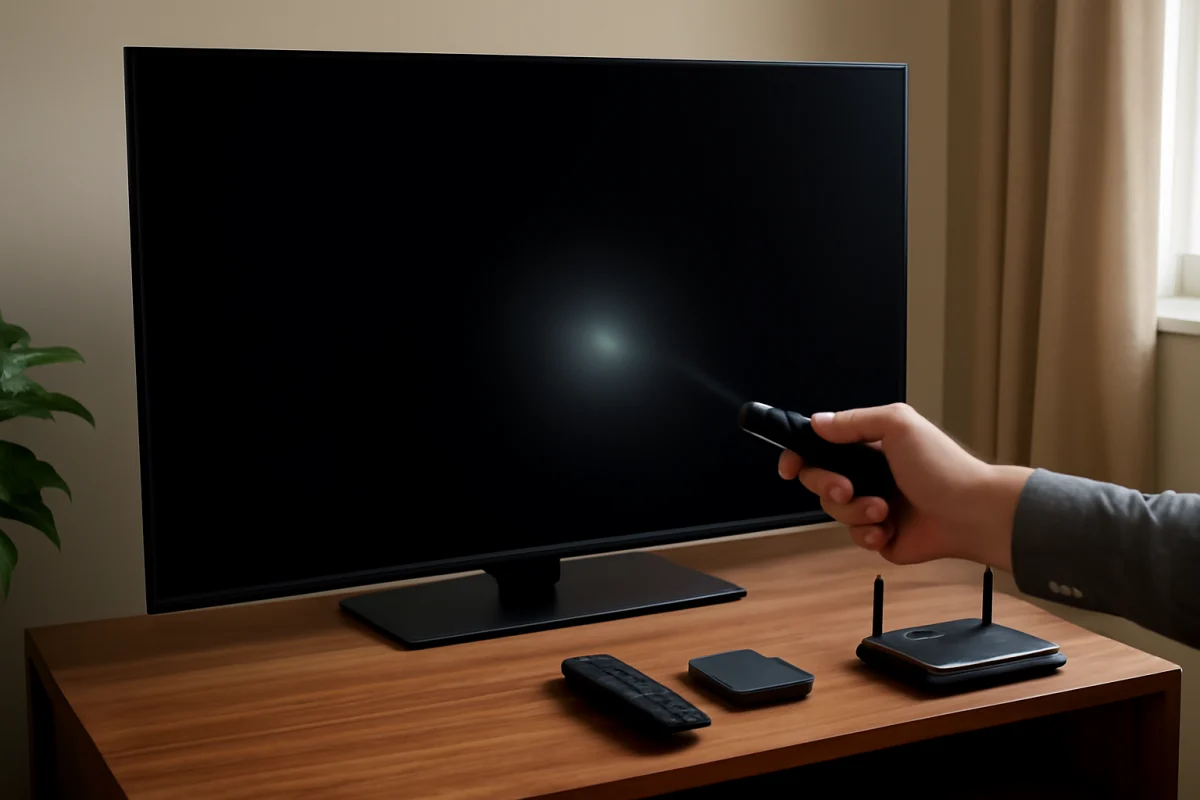
A normal restart can clear temporary memory and close processes that became stuck in the background. Turn the TV off with the remote, wait a short time, and turn it back on. If the menus are too slow to use, unplug the TV from the wall outlet after turning it off. Leave it disconnected briefly, then plug it back in and start it again.
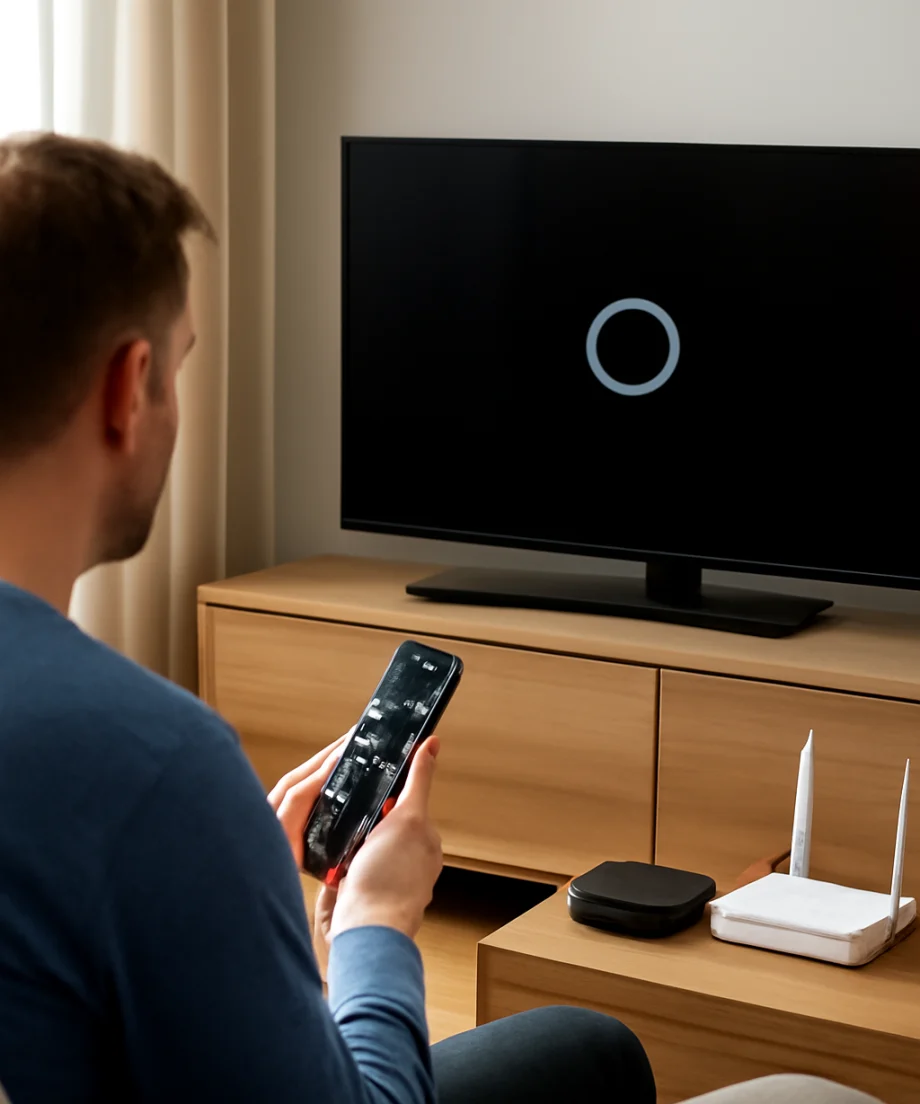
Use the TV's physical power button if the remote is not responding. The button's location varies by model and may be underneath the screen, along the side, or near the rear panel. Avoid repeatedly pressing buttons while the TV is starting; sending many commands during startup can make the response appear even slower.
If the TV becomes fast again after a restart but slows down repeatedly, make a note of how often this happens. A recurring slowdown can point to an app, network issue, software problem, or hardware fault that needs further testing.
Check whether the remote is causing the delay
A slow TV interface and a slow remote can feel identical. Replace both batteries with fresh ones, making sure they are installed in the correct direction. Then point the remote directly at the TV and test several buttons.
Move objects away from the front of the TV and the remote. Bright sunlight, certain lights, soundbars, and other devices can sometimes interfere with remote signals, depending on the remote type and TV model. If your LG remote uses wireless pairing, the exact pairing and reset procedure can vary by model, so use the instructions for your specific TV rather than relying on a button combination from another model.
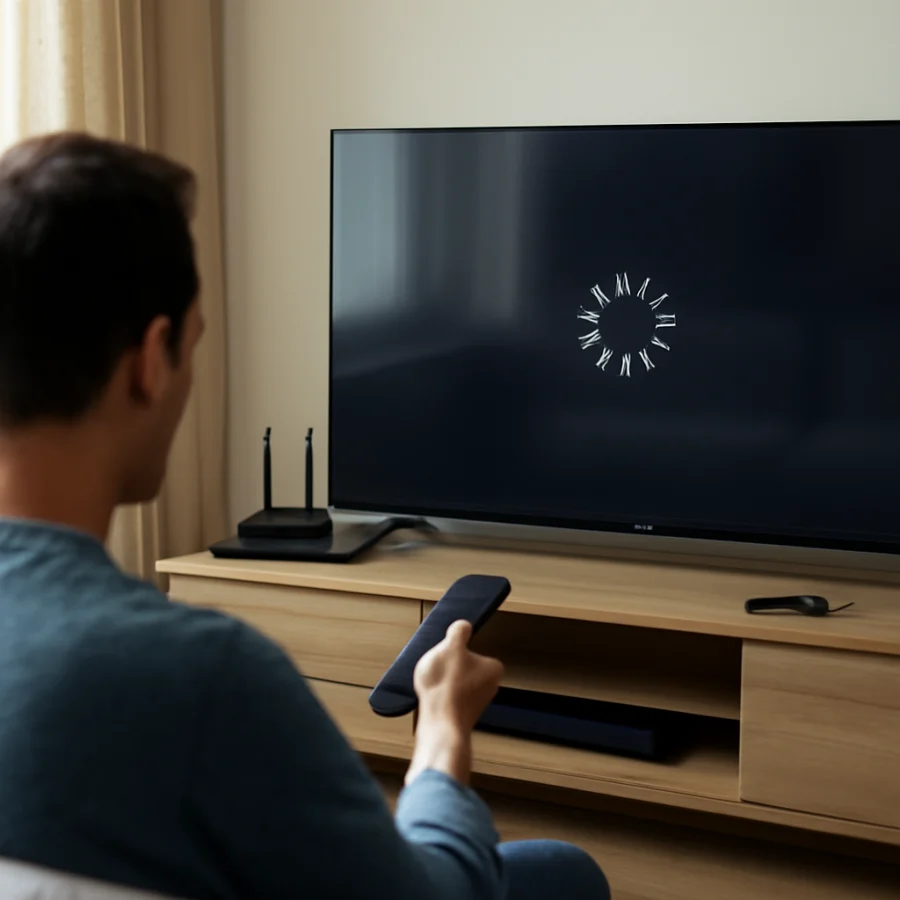
Try the controls on the TV itself. If the physical button responds promptly while the remote does not, the TV may be working normally. For additional remote troubleshooting, see what to do when an LG TV remote works slowly or stops responding.
Test your internet connection
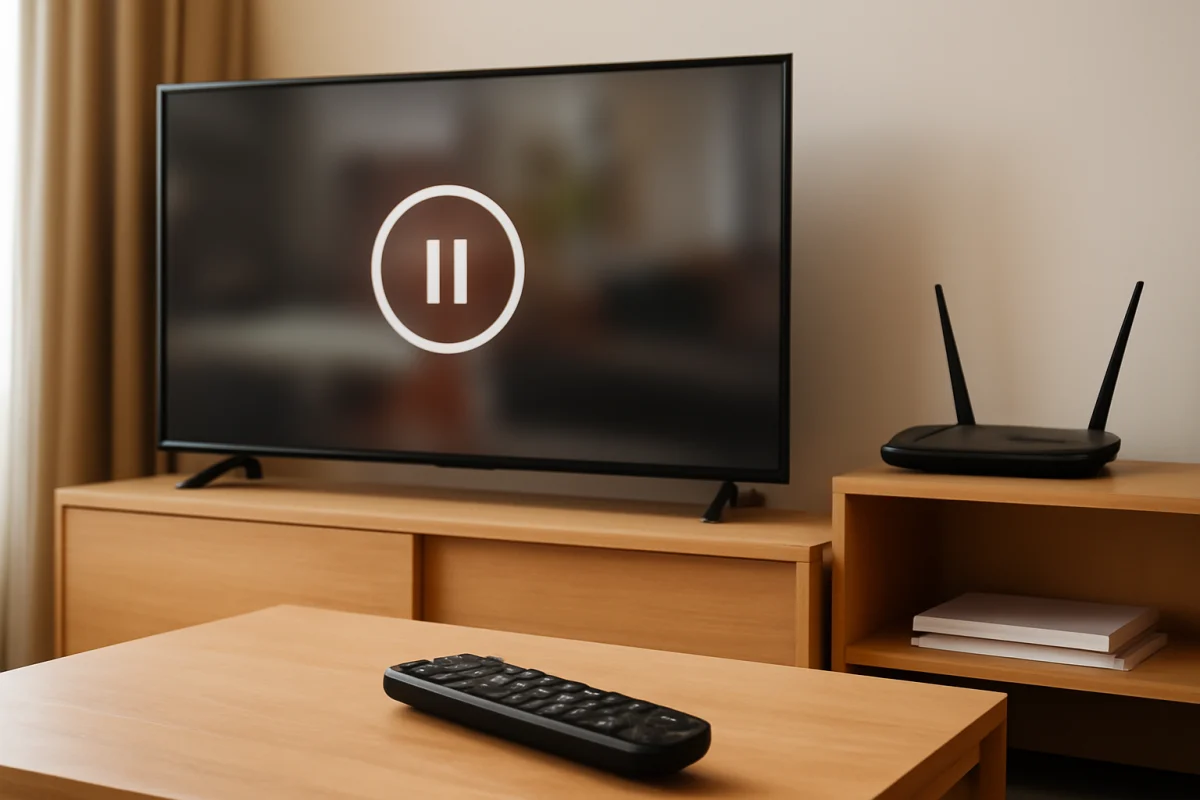
If the Home screen is responsive but apps take a long time to load, streaming is interrupted, or video quality changes constantly, focus on the network. A slow internet connection can make an app appear frozen while it waits for data.
Test another device connected to the same Wi-Fi network in the same room. If that device also struggles, restart the modem and router. Unplug the networking equipment, wait briefly, reconnect it, and allow it time to restore the connection before testing the TV again.
Distance and obstacles can weaken the TV's Wi-Fi signal. If possible, move the router closer to the TV or reduce obstructions between them. Testing a wired network connection, when supported by your equipment and TV, can help determine whether Wi-Fi is the cause. You can also try the TV on a different network temporarily, such as a phone hotspot, but avoid using a hotspot for extended streaming if your mobile plan has data limits.
When the problem is mainly buffering or repeated disconnections, use this guide to troubleshoot Wi-Fi that keeps disconnecting on an LG TV. If menus and apps remain slow even with a reliable connection, continue with the TV-focused checks below.
Close or remove apps you no longer use
Unused apps do not always run continuously, but a crowded app environment can make it harder to identify which app is causing trouble. Remove apps you no longer need, especially ones that crash, take a long time to open, or show unusual behavior.
The layout and wording of app-management options can differ between LG TV models and software versions. Look for the TV's app list or app management area, then select an unused app and follow the on-screen removal option. Do not remove an app if you still need it without confirming that you can install it again later.
If only one app is slow, check whether it has an available update. You can also remove and reinstall that app if the TV provides the option. This may sign you out, so make sure you know the account details before deleting it.
Install available TV and app updates
Software updates may improve stability, fix app compatibility problems, or address issues that affect the TV's menus. Open the TV's settings and look for a software update or support section. The exact menu names and update options vary by model and region.
Keep the TV connected to power and the internet while an update is installing. Do not unplug it or repeatedly press the remote buttons during the process. If automatic updates are available, enabling them can reduce the chance of staying on an older software version, although the available controls depend on the model.
Apps may update separately from the TV software. Check the app store or app management screen if a particular service is still slow after the TV has been updated.
Check the TV's available storage
Some LG TVs can become less responsive when their available storage is nearly full. Large apps, downloaded content, temporary files, and accumulated app data can all contribute. If your model shows storage information, review it and remove apps or content you no longer use.
Do not delete system files or change settings that you do not recognize. The names and storage controls differ by model, and some TVs provide little or no manual storage management. If there is no visible storage option, concentrate on removing unnecessary apps and restarting the TV.
Power-cycle connected devices
External devices can contribute to delays, especially if the TV is repeatedly checking an HDMI connection or switching inputs. Disconnect streaming sticks, game consoles, cable boxes, Blu-ray players, and other accessories from the TV. Leave only the TV connected to power, then restart it and test the menus.
If the TV becomes responsive, reconnect the devices one at a time. Wait after connecting each device and test the TV before adding the next one. This can reveal whether a particular accessory, HDMI cable, or input is causing the slowdown. For a device that shows no picture or repeatedly loses its signal, follow these steps for an LG TV HDMI port that says no signal.
If your TV reacts slowly only when an external device is connected, check that device for its own updates and restart it. You may also want to test a different HDMI cable or port, provided the cable and port are compatible with the device.
Check for overheating and ventilation problems
An LG TV should have open space around its ventilation areas. Do not cover the rear or sides with fabric, place the TV tightly inside a cabinet, or block vents with other equipment. Dust buildup can also reduce airflow over time.
Turn the TV off and allow it to cool if it feels unusually hot or has recently been running for many hours. Keep it away from heaters and direct sunlight. Do not open the TV to clean internal components unless you are qualified to do so; internal parts can retain dangerous electrical charges even when the TV is unplugged.
When to consider a factory reset
A factory reset can help when corrupted settings or persistent software problems make the TV slow, but it should not be the first step. It removes personal settings, installed apps, account information, and network details. You will need to set up the TV again afterward.
Before resetting, record your Wi-Fi password and make sure you can sign back in to your streaming services. The reset path and wording vary by LG model, so use the instructions shown on your TV or in the manual for that exact model. If the menus are still usable, look for the reset option in the general, support, or system settings area without changing unrelated options.
Do not interrupt the reset once it begins. If the TV cannot complete the process, becomes stuck at startup, or remains extremely slow immediately afterward, the issue may be more serious than a temporary software problem. For a TV that remains on the startup logo, see what to do when an LG TV is stuck on the logo screen.
Signs the problem may be hardware-related
Contact LG support or a qualified TV technician if the TV stays slow after a restart, app cleanup, network test, software update, and appropriate reset. Hardware may be involved when the TV freezes frequently, restarts by itself, shows abnormal lines or flickering, becomes extremely hot, makes unusual sounds, or fails to respond even to its physical controls.
Before seeking service, write down the TV model, when the slowdown began, whether it affects every app, and which troubleshooting steps you already tried. This information can make diagnosis easier. If the issue affects only streaming, check the network first; if every menu is delayed, prioritize restarting, app cleanup, software updates, ventilation, and then model-specific support.
Comments
0No comments yet. Be the first to share a helpful note or question.
Leave a Comment
Your email address will not be published. Comments are reviewed before appearing on the site.