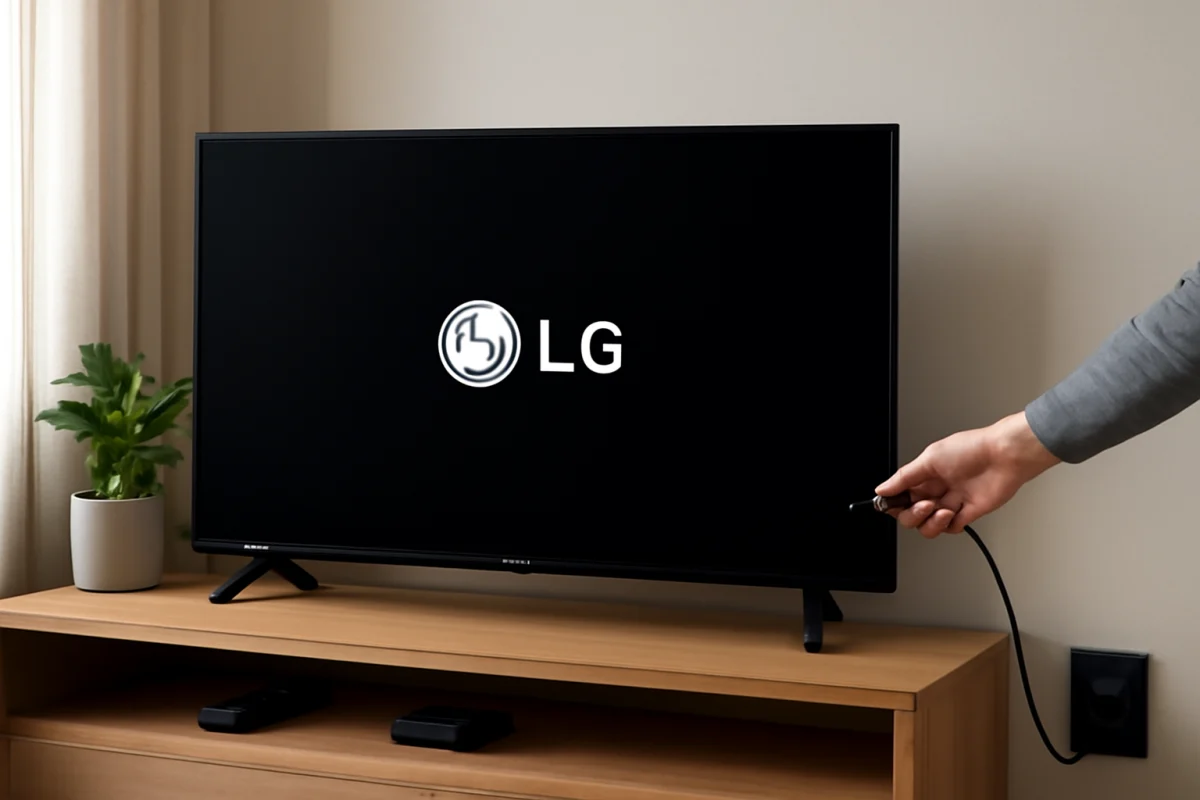
If your LG TV stays on the LG logo and never reaches the home screen, start with a complete power cycle and disconnect every external device. This often clears a temporary startup problem without changing your settings. If the TV still freezes, work through the checks below to determine whether the cause is a connected device, software issue, remote command, or possible hardware failure.
What to check first
Before trying a factory reset, unplug the TV from the wall, remove all HDMI and USB devices, and wait several minutes. Then reconnect the TV directly to a working wall outlet and turn it on with the physical power button if your model has one.
The exact button location and startup behavior vary by LG TV model. Some models have a button underneath the screen, while others place it near the side or rear. If you cannot find it, use the TV's included documentation rather than pressing random buttons or opening the back cover.
1. Perform a full power cycle
- Turn the TV off if it responds. If it does not respond, continue with the next step.
- Unplug the TV's power cord from the wall outlet.
- Disconnect the TV from any power strip, surge protector, or smart plug temporarily.
- Remove all HDMI devices, USB drives, antennas, Ethernet cables, and other accessories.
- Wait at least one minute. Waiting a few minutes is also reasonable if the TV was unusually warm.
- Plug the TV directly into a known-working wall outlet.
- Turn it on using the physical power button instead of the remote.
If the TV starts normally after this test, reconnect devices one at a time. Wait for the home screen to load after each connection. A particular streaming stick, game console, cable box, USB drive, or HDMI-CEC command may be interfering with startup.
2. Test the outlet and power connection
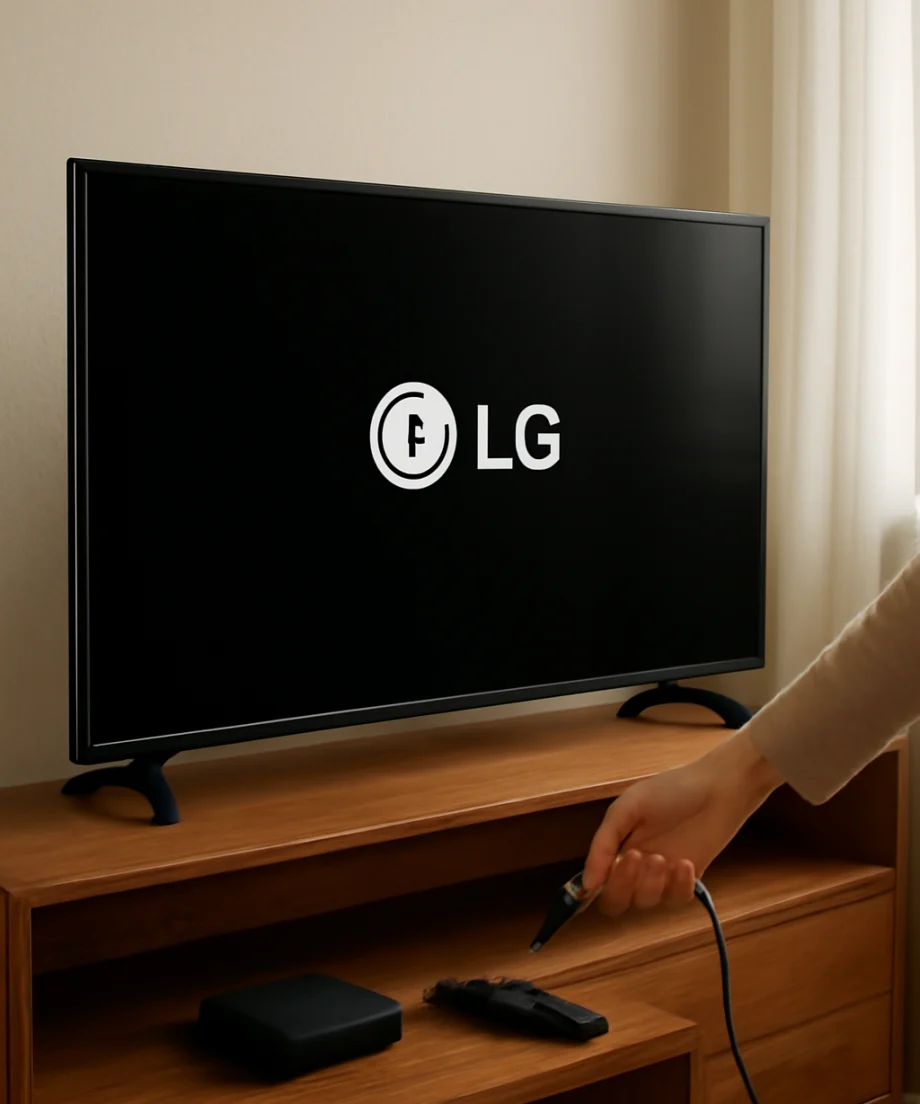
A TV can appear to power on while still receiving unstable or insufficient power. Test the outlet with a lamp or another simple device. If you are using a surge protector, bypass it for this test. Also check that the power cord is firmly seated at the TV and the wall, where the cord is removable.
Do not use a visibly damaged power cord. Do not force a loose plug into an outlet, and do not continue testing if you notice burning smells, crackling, smoke, unusual heat, or visible damage. Unplug the TV and arrange professional service in those situations.
Disconnect external devices completely
An LG TV may freeze during startup when an attached device sends an unexpected signal or repeatedly attempts to control the television. HDMI devices can also create problems through automatic input switching or control features. This is why testing the TV by itself is important.
With the TV unplugged, disconnect every external connection, including:
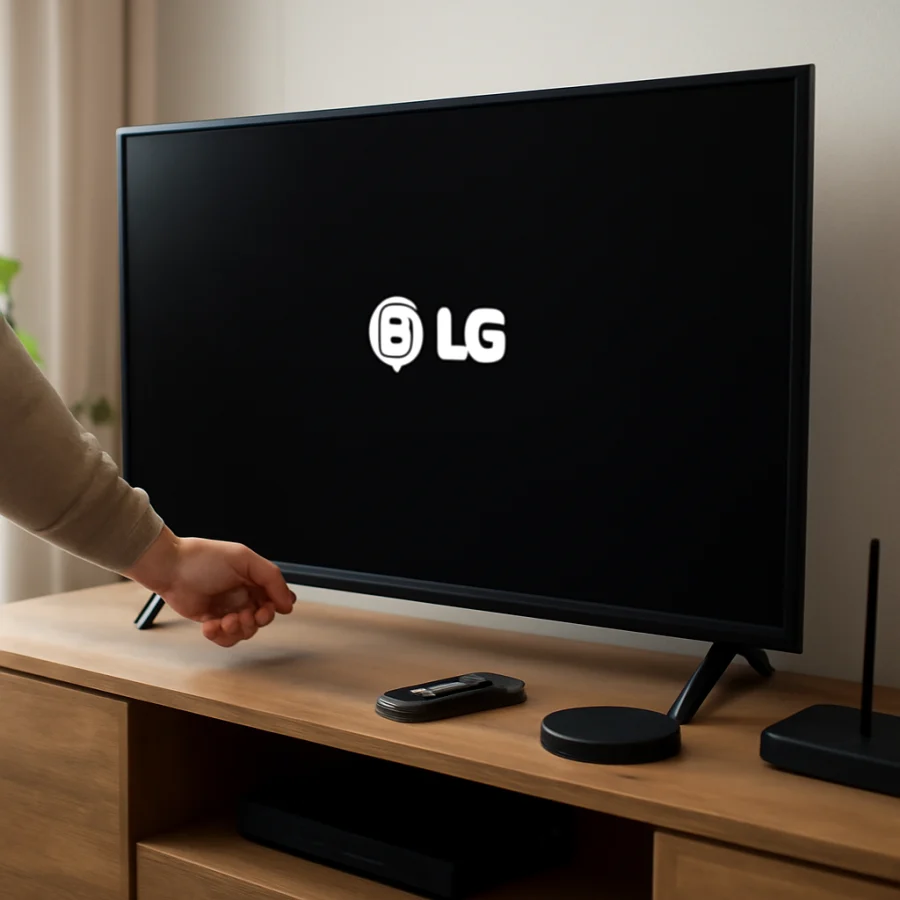
- Streaming players and game consoles
- Cable, satellite, or over-the-air receiver boxes
- Soundbars and AV receivers
- USB flash drives and external storage
- Ethernet cables and antenna cables
- Adapters, HDMI splitters, and capture devices
Leave only the power cord connected and start the TV. If it reaches the home screen, reconnect one accessory at a time. The last device connected before the problem returns is the most likely trigger. Check that device for its own updates, power problems, or a damaged cable. For a separate HDMI issue, see our guide to an LG TV HDMI port that says no signal.
Try the remote and physical controls
A stuck remote button can repeatedly send commands while the TV is trying to start. Remove the batteries from the remote, then power-cycle the TV again. If the TV starts normally without the batteries installed, inspect the remote for a stuck power, home, input, or navigation button. Replace the batteries if they are old or leaking.
Use the TV's physical button for this test. If the physical button works but the remote does not, the startup problem may be related to the remote rather than the television. If neither control method works and the logo remains frozen, continue with the power and software checks.
Give the TV extra time after an update
If the problem began immediately after a software update, do not repeatedly unplug the TV every few seconds. Some startup processes can take longer than normal after an update or configuration change. Leave the TV connected to power for several minutes while watching for any change.
However, a logo that remains unchanged for a long period and returns to the same frozen screen after every restart is not behaving normally. Avoid interrupting a confirmed update if the screen displays progress or a clear update message. If there is no progress indicator and the TV has been stuck at the logo through multiple careful restarts, proceed to the next steps.
Check whether the problem is limited to the screen
Pay attention to what the TV is doing, not just what appears on the panel. Can you hear startup sounds? Does the standby light change? Does the screen briefly flash, change brightness, or respond when you press a physical button? These observations can help separate a frozen startup process from a display problem.
If you hear sound or can navigate by another sign but the picture remains stuck, the issue may involve the display rather than the operating system. For example, a backlight or panel-related problem can make a startup image appear frozen or unusually dark. Our guide to an LG TV with sound but no picture covers a different set of checks.
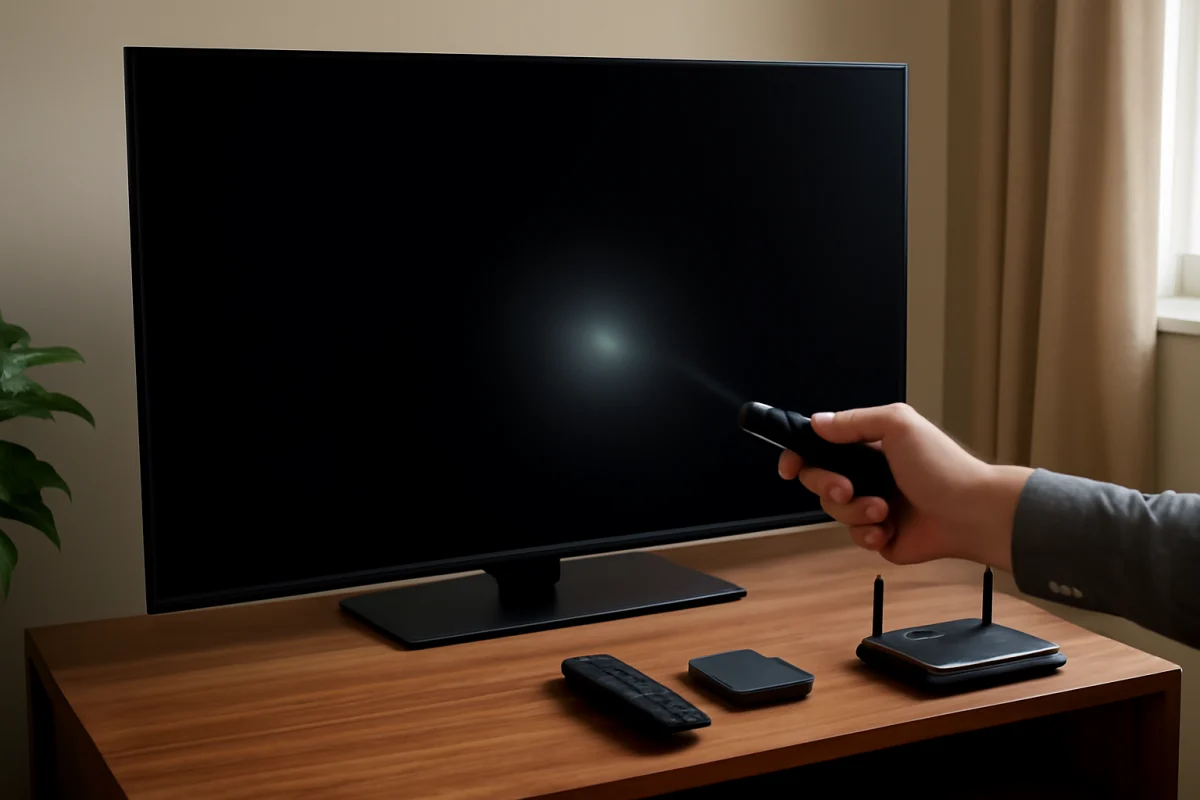
If the screen is visible but extremely dim, compare it in a dark room and look for a faint image using a flashlight only as a brief diagnostic check. Do not press on the panel or remove the back cover. If the TV has a picture but the brightness is the main problem, use our guide to a dark LG TV screen.
Try model-appropriate software recovery options
If the TV can eventually reach its menus, check for available software updates and install them only through the TV's normal settings or LG's official support resources. Menu names and update procedures differ by model, region, and software version, so avoid following instructions that require a different model's menu path.
If the TV never reaches the home screen, some models may support a recovery or forced-reset procedure. These procedures are not universal. Button combinations can differ, and using the wrong procedure may erase settings or create additional problems. Look up the exact instructions for your model number in the owner's manual or official LG support documentation before attempting them.
Do not download firmware from unofficial websites, rename files unless the official instructions require it, or install software intended for another model. A failed or incompatible update can make the television harder to recover.
Consider a factory reset only as a later step
A factory reset can help when corrupted settings or a software configuration problem prevents normal startup, but it also removes personal settings and may sign you out of apps. It should not be the first response when the TV is stuck on the logo, especially if you have not ruled out external devices and unstable power.
If the TV reaches its settings, use the reset option provided for that specific model. Read the on-screen warning carefully before confirming. If the TV cannot reach the settings menu, use only a reset method documented for the exact model. A generic button sequence found for another LG television may not apply.
When the problem likely needs service
Professional diagnosis becomes more likely when the TV remains stuck on the logo after a direct-wall power test, a complete accessory disconnect, and a careful restart. Hardware problems can involve the main board, internal storage, power board, display system, or other components. These parts are not safely interchangeable without the correct model information and testing equipment.
Arrange service if the TV repeatedly freezes at the same point, restarts in a loop, makes clicking or buzzing sounds, shows signs of overheating, or stopped working after a power event. Keep the model number, approximate purchase date, and a description of what happened before the failure. A short video of the startup behavior may also help a technician.
Do not open the television unless you are qualified to work on TV electronics. Internal components can retain dangerous electrical charge even after the TV has been unplugged. If the set is still covered by a retailer or manufacturer service arrangement, check the applicable documentation before paying for parts or attempting a repair.
How to prevent the logo screen from returning
- Use a reliable wall outlet or a properly rated surge protector.
- Keep ventilation openings clear and avoid placing the TV in an enclosed, overheated space.
- Disconnect damaged HDMI cables and replace questionable adapters.
- Install software updates through official sources when the TV is operating normally.
- Power down connected devices that repeatedly restart or lose power.
- Avoid unplugging the TV during a clearly indicated software update.
In many cases, the fastest fix is simply removing all accessories and completing a proper power cycle. If that does not work, the pattern of symptoms matters: a TV that starts without HDMI devices points toward an accessory or cable, while one that remains frozen with nothing connected is more likely to need model-specific software recovery or professional hardware diagnosis.
Comments
0No comments yet. Be the first to share a helpful note or question.
Leave a Comment
Your email address will not be published. Comments are reviewed before appearing on the site.