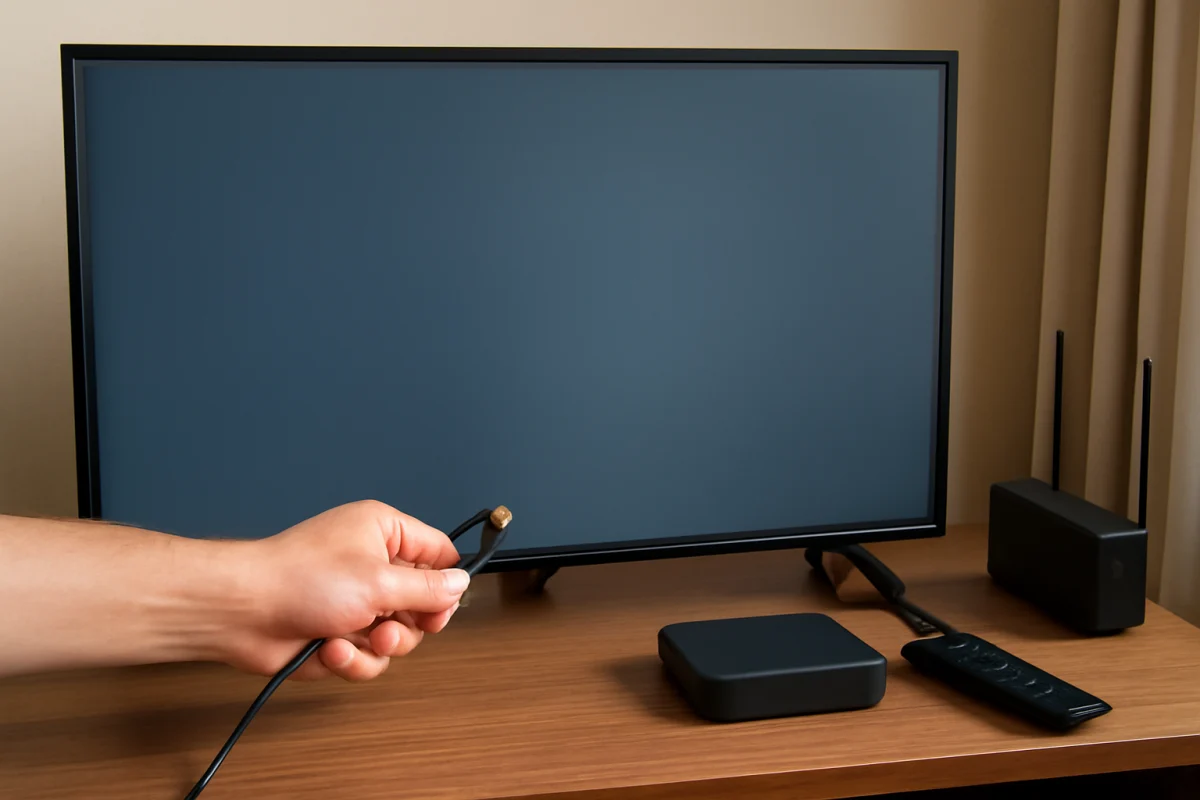
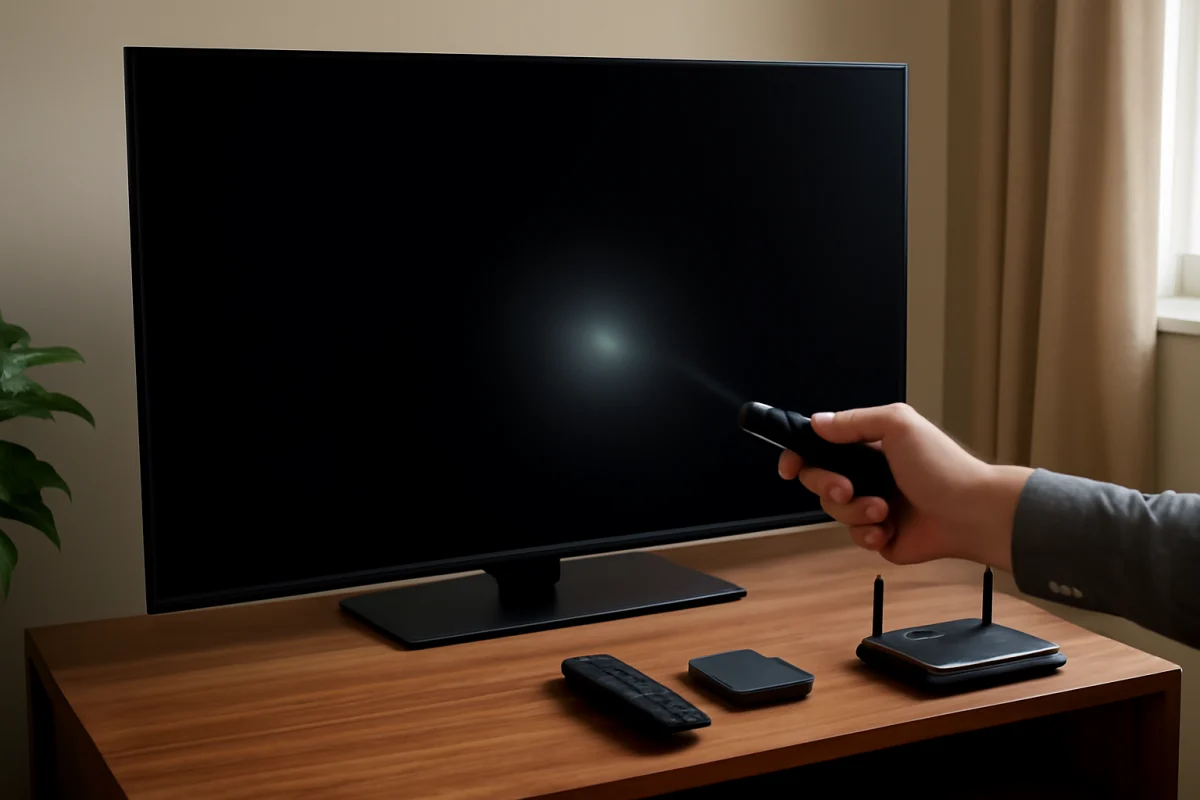
If your LG TV says “No Signal” after you select an HDMI input, first confirm that the connected device is powered on, the correct HDMI input is selected, and both ends of the HDMI cable are firmly connected. These simple checks solve many cases without changing TV settings or resetting anything.
The message does not necessarily mean the HDMI port is damaged. The problem may come from a streaming device, game console, Blu-ray player, cable box, HDMI cable, or a temporary communication problem between the TV and the source device. Work through the steps below in order, starting with the least disruptive checks.
1. Confirm the connected device is on
Look at the device connected to the LG TV. It should be fully powered on rather than turned off, asleep, or stuck during startup. A game console may need to be turned on with its own controller or power button. A streaming stick or cable box may need a moment to wake up.
If the device has a power light, check whether it is illuminated. A light does not always prove that the device is working correctly, but no light is a useful clue. Try pressing the device’s power button once, then wait several seconds for its video output to appear.
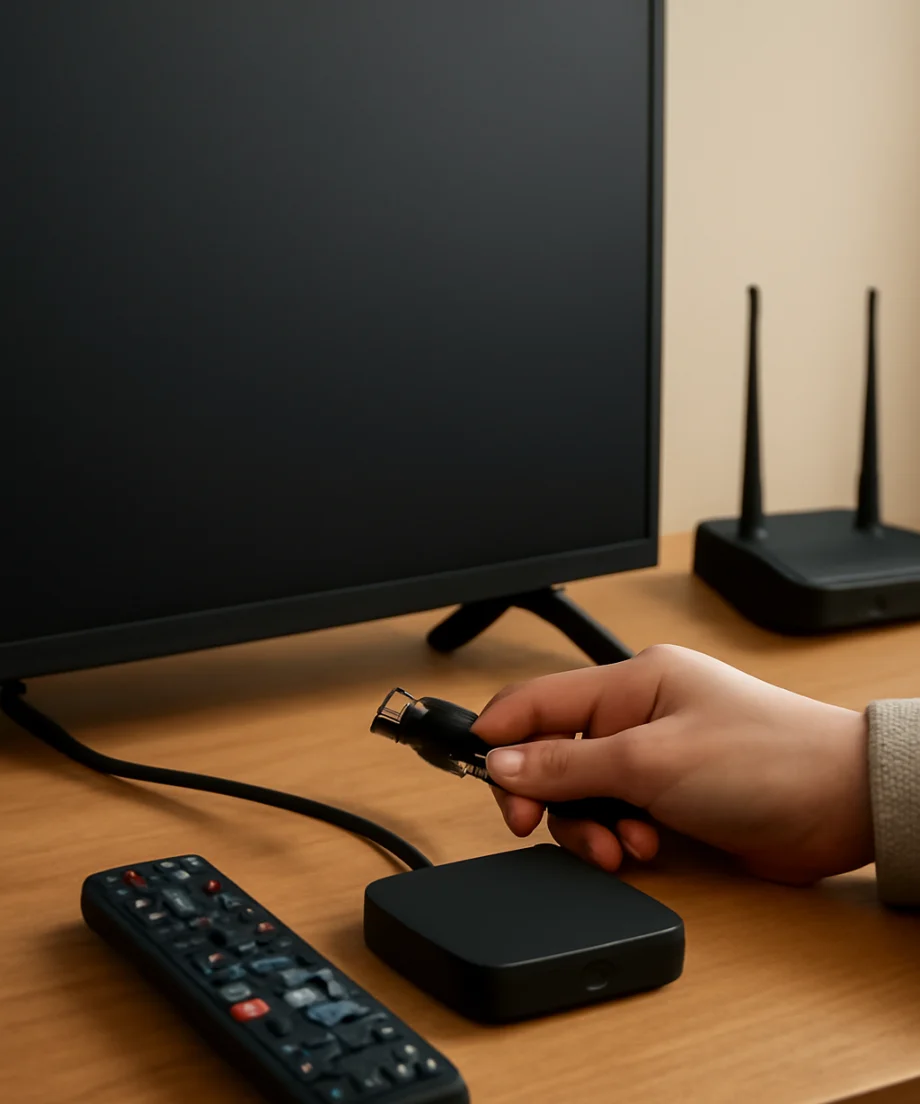
For a laptop or desktop computer, make sure the computer recognizes the external display. On Windows, the display mode can usually be changed with the keyboard display shortcut. On a Mac, check the display settings. The exact options vary by operating system and computer model.
2. Select the correct HDMI input on the LG TV
Press the Input, Source, or Home button on the LG remote and choose the HDMI port where the device is connected. The label may identify the port by a number, such as HDMI 1 or HDMI 2, but the available names and on-screen layout vary by LG TV model and software version.
If you are unsure which port is in use, inspect the back or side of the TV and follow the cable to its source device. Select that same HDMI input on the TV. Do not assume that the TV will automatically switch to the right source every time a device wakes up.
After selecting the input, give the TV and source device a few seconds to establish a connection. If the “No Signal” message remains, continue with the cable and port checks.
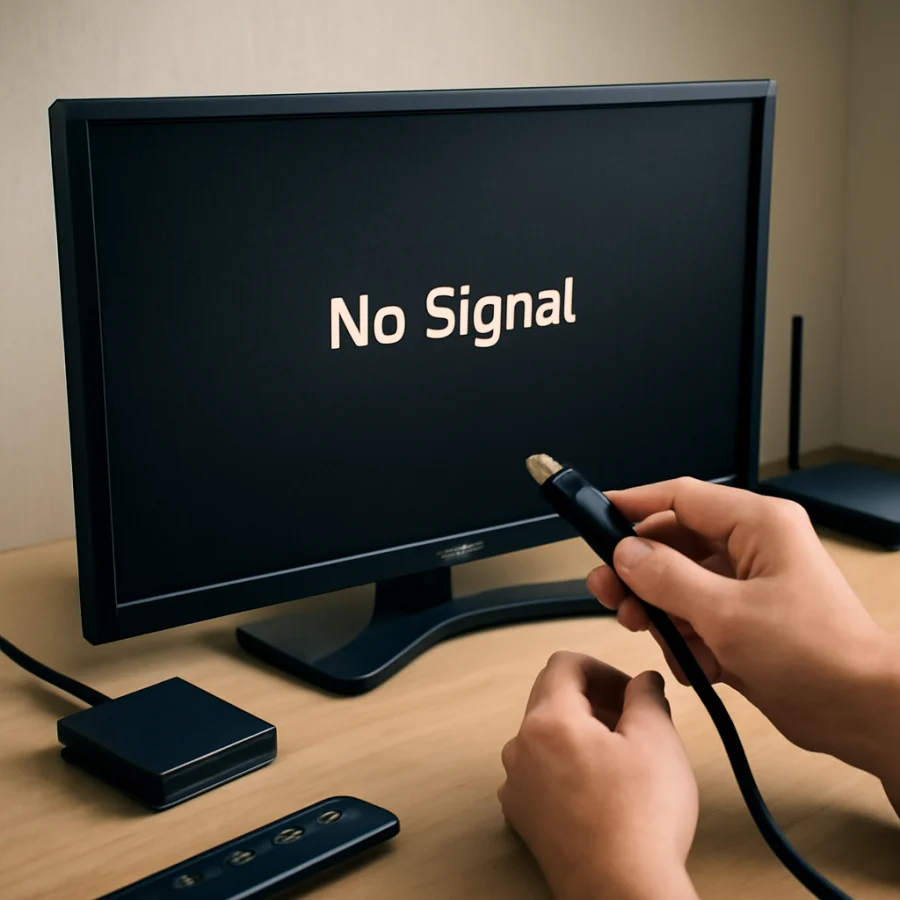
3. Reseat the HDMI cable
Turn your attention to the HDMI cable. A connector can look attached while still making poor contact. Carefully unplug the cable from the TV and the connected device, then plug both ends back in firmly.
- Push the connector straight into the port without forcing it.
- Check that the plug is fully inserted at both ends.
- Look for a loose connection, bent connector housing, or visible damage.
- Make sure the cable is not being pulled sideways by its weight or by nearby cables.
Avoid repeatedly twisting the connector or pushing at an angle. HDMI ports can become loose or damaged if a cable is forced, especially when the TV is mounted close to a wall. If the cable feels unusually loose in the TV, note that as an important clue.
4. Try another HDMI cable
HDMI cables can fail internally even when their outer jacket looks normal. If you have another known-working cable, use it temporarily. Keep the test simple: connect the same source device to the same LG TV port with the replacement cable.
If the picture appears with the second cable, the original cable is probably the cause. Replace it with a cable suitable for the equipment you are using. You do not need to buy the most expensive cable, but the cable should be in good condition and appropriate for the video and audio features you need.
When testing a cable, remove adapters, couplers, HDMI switches, soundbars, and receivers from the path if possible. Each additional connection creates another possible failure point.
5. Test a different HDMI port
Move the source device and cable to another HDMI port on the LG TV. Select the new port using the TV’s input menu, then check whether the picture appears.
This test helps separate a port problem from a source or cable problem:
- If the device works on another HDMI port, the original port or its connection may be the problem.
- If no HDMI port works with that device, the source device or cable may be at fault.
- If another device works on the original port, the TV port is probably functioning and the first source device needs attention.
- If no device works on any HDMI port, continue with the power-cycle and compatibility checks below.
Some LG TV models include ports with different capabilities, while the exact arrangement varies. For basic troubleshooting, the key question is whether the same source produces a picture on a different port.
6. Test the source device on another screen
If possible, connect the streaming device, console, computer, or cable box to another TV or monitor. This is one of the most useful diagnostic tests because it identifies whether the source can produce a video signal at all.
If the source shows no picture on another screen, restart or troubleshoot that device. Check its power supply, display settings, and output connection. If the source works elsewhere but not on the LG TV, focus on the LG input, HDMI cable, TV settings, or compatibility between the two devices.
For a computer, the output resolution or refresh rate may be unsuitable for the TV in some situations. If the computer works on another display, temporarily select a more basic display setting and reconnect it to the LG TV. The exact steps depend on Windows, macOS, the graphics hardware, and the TV model.
7. Power-cycle both devices
A full power cycle can clear a temporary HDMI handshake problem. Turn off the LG TV and the connected source device. Unplug both from the electrical outlet, then wait about one minute.
Reconnect the devices and turn them on again. If the source device has a separate power adapter, make sure that adapter is connected securely. Turn on the source and wait for it to finish starting before selecting its HDMI input on the TV.
Do not unplug a device while it is installing an update or writing data. If the device displays an update or shutdown message, allow that process to finish first. Also avoid using a power strip switch as a substitute for a normal shutdown when the source device is actively working.
8. Remove HDMI accessories from the connection
HDMI switches, AV receivers, soundbars, capture devices, splitters, adapters, and extension cables can interrupt the signal. Disconnect these accessories for testing and connect the source directly to the LG TV.
If the direct connection works, reconnect one accessory at a time. This can reveal which component or cable is causing the “No Signal” message. If a soundbar is involved, test the video source directly on the TV first. You can troubleshoot the audio connection separately after the picture is restored.
Some equipment also uses copy-protection and resolution handshakes that may fail when several devices are connected together. That does not automatically mean any device is defective. A direct connection is the safest way to narrow down the cause.
9. Check for a source-device setting problem
The source may be set to send video through a different output or display mode. On a game console, computer, or cable box, review its display settings if you can access them through another screen.
For a computer, try duplicating the display instead of using an extended or external-only mode. For a console or streaming device, restart it and check whether its video settings return to a supported mode. The exact menus differ by device, so avoid changing several settings at once.
If the source has a reset option for display settings, use it only after the basic cable, port, and power checks. A display reset can help when the source is sending a signal the TV cannot display, but the procedure varies significantly by manufacturer and model.
10. Check the LG TV for software and setting issues
If the TV displays its home screen and other functions normally but HDMI inputs do not work, check the TV’s available software update options. Menu names and update locations can vary by LG model and software version, so use the options shown on your screen rather than following instructions written for a different model.
You can also review the input settings for the affected HDMI port. Some models offer additional options related to HDMI signal formats or enhanced features. If a setting was recently changed, return it to its previous state or test the more basic option. Change one setting at a time and record what you changed.
Do not reset the entire TV as an early troubleshooting step. A factory reset removes saved settings and accounts, and it may not fix a failed cable, source device, or physical port. Use it only when simpler checks have failed and you are prepared to set up the TV again.
What the test results mean
The picture works with another cable
Replace the original HDMI cable. Keep the replacement connected without sharp bends or pressure on the TV port.
The picture works on another HDMI port
The original port may be damaged, loose, or experiencing a connection problem. You can continue using the working port, but arrange inspection if the port is physically loose or if multiple devices fail on it.
Only one device shows “No Signal”
The source device, its power adapter, its display settings, or its HDMI output is the most likely cause. Test that device with another cable and screen.
No device works on any HDMI port
After testing known-working cables and direct connections, the TV may have an input-board, software, or power-related fault. At this point, avoid repeatedly inserting and removing cables. Professional service may be appropriate, especially if the TV has visible port damage, a burning smell, unusual heat, or intermittent picture loss.
When to get help
Contact the device manufacturer or a qualified TV repair professional if the LG TV continues to show “No Signal” after you test multiple cables, sources, and HDMI ports. Include the TV model, the source device, which ports were tested, and the results of each cable test. This information is more useful than simply reporting that HDMI is not working.
If the TV has sound but no picture rather than an HDMI “No Signal” message, the cause may be different. See our guide to an LG TV with sound but no picture. For other LG troubleshooting steps, visit the LG TV troubleshooting section on TV Fix Guide.
Most HDMI problems can be narrowed down by changing only one part of the setup at a time: first the input, then the cable, then the port, and finally the source device. That approach helps identify the failed component without unnecessary resets or risky repairs.
Comments
0No comments yet. Be the first to share a helpful note or question.
Leave a Comment
Your email address will not be published. Comments are reviewed before appearing on the site.