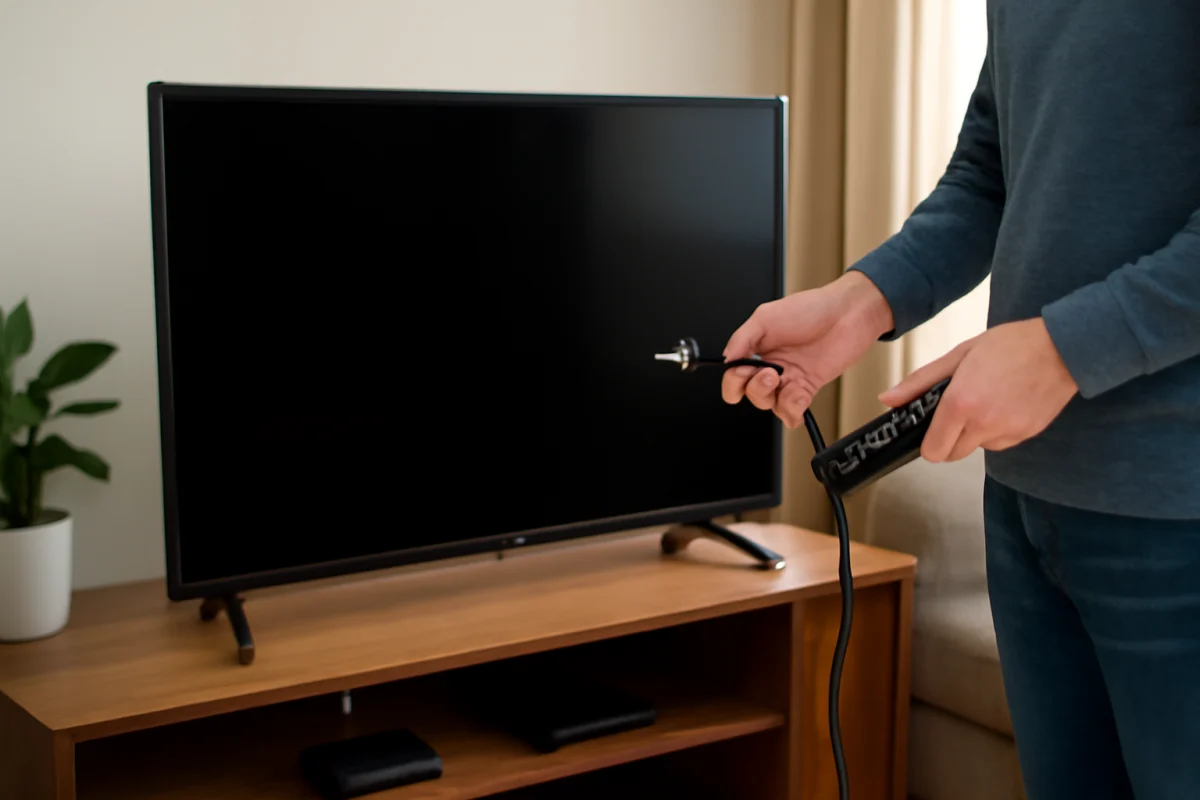
If your LG TV keeps turning off, start with the simplest possibilities: a loose power connection, an accidental remote command, an enabled timer, overheating, or a problem with the device connected to the TV. Unplug the TV briefly, check the power path, and disconnect external devices before changing settings or performing a reset.
The exact menu names and available options can vary by LG TV model, webOS version, and region. If a step does not appear on your TV, look for a similarly named setting or consult the manual for your specific model.
1. Check whether the TV is actually losing power
First, watch what happens when the screen goes black. Does the standby light change, does the TV restart by itself, or does it remain unresponsive until you press the power button? These details help separate a power interruption from a software or display problem.
- Make sure the power cord is firmly connected to the TV, if it is removable, and to the wall outlet or surge protector.
- Try a different wall outlet temporarily. Avoid using an overloaded extension cord for this test.
- If the TV is connected to a surge protector, power strip, smart plug, or energy-saving outlet, bypass it briefly and connect the TV directly to a known-working wall outlet.
- Check the cord for cuts, crushed sections, exposed wiring, or a loose connection. Do not use a visibly damaged cord.
If the TV turns off only when another appliance starts, such as an air conditioner or space heater, the outlet or household circuit may be involved. In that situation, stop testing if the outlet becomes warm, makes noise, smells unusual, or shows signs of damage, and contact a qualified electrician.
2. Remove accidental commands from the remote
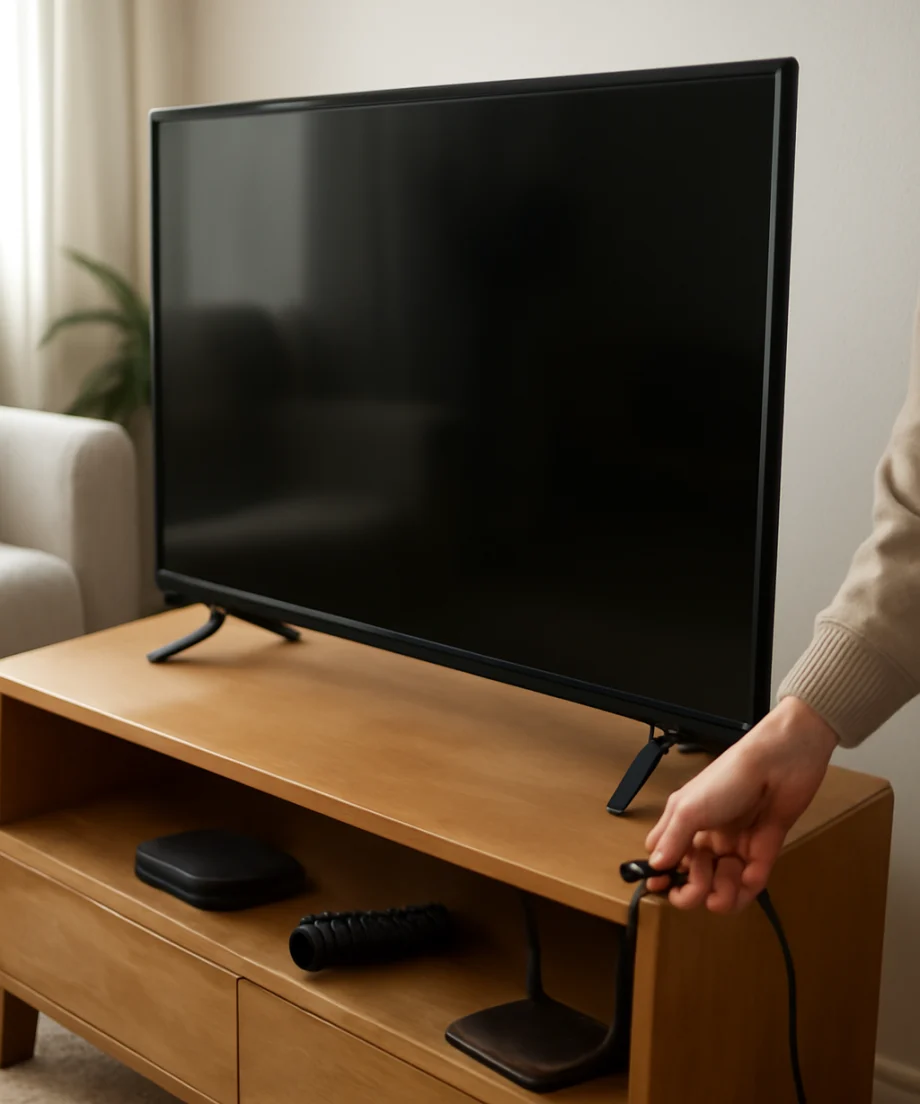
A stuck power button can make an LG TV turn off repeatedly. Press each button on the remote once, paying special attention to the power button. If a button feels stuck or the remote has been dropped, remove its batteries and observe the TV for several minutes.
You can also test the TV without the remote. Use the physical control on the TV, which may be underneath the panel, on the side, or on the back depending on the model. If the TV remains on with the remote batteries removed, replace the batteries or use another compatible remote.
Do not overlook other remotes in the room. A universal remote, cable box remote, game controller, or smart-home device may be programmed to send power commands to the TV. Disconnect or disable those devices temporarily if the shutdowns continue.
3. Turn off timers and automatic power features
LG TVs can include timer and energy-related settings that turn the television off after a period of inactivity or under certain conditions. The names and locations differ between models, but check the TV's settings for options related to timers, sleep, automatic power off, energy saving, inactivity, or standby.
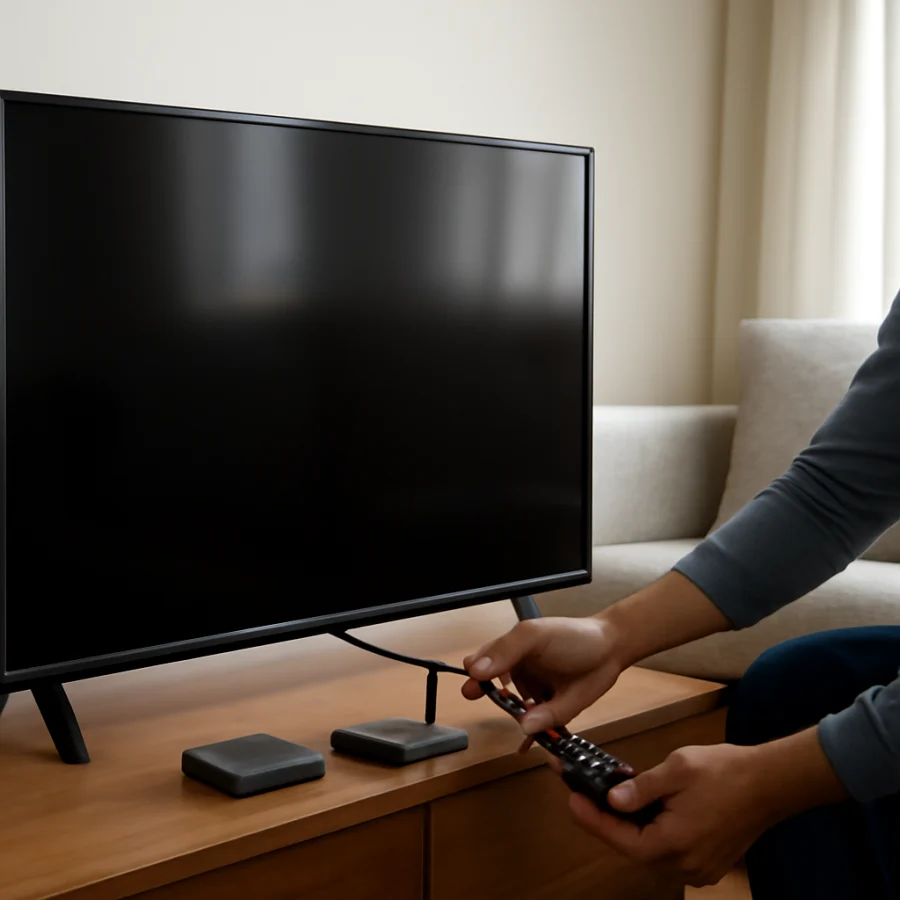
Review these settings rather than changing every option at once. If a sleep timer is active, disable it and test the TV. If an automatic power-saving feature is enabled, temporarily turn it off to see whether the behavior changes. You can restore the setting later if it is not the cause.
Also check whether the TV is scheduled to turn on or off at a particular time. A scheduled event may be easy to miss if the TV shuts down at roughly the same time each day. If you cannot find the setting, search the on-screen help or the manual using your model number.
4. Disconnect external devices
A connected device can turn an LG TV off through HDMI control features. Streaming boxes, cable receivers, game consoles, soundbars, and Blu-ray players may send commands that power the TV on or off or change its input.
Turn off the TV, unplug every HDMI device, and disconnect any USB accessories. Leave only the TV connected to power, then test it using the TV's own controls. If the shutdowns stop, reconnect devices one at a time. Wait long enough after each connection to identify which device or cable brings the problem back.
When you find the likely cause, check the device's power-control or HDMI-CEC settings. The feature may have a different name on the connected product. You can also test a different HDMI cable or HDMI port. A faulty cable is less common than a control conflict, but changing the cable is a low-risk way to narrow the problem.
If the issue happens only while using a streaming device, the TV may not be the source. For additional device-specific guidance, you can browse the Streaming Apps troubleshooting section or the relevant device category.
5. Check for overheating
Overheating can cause a TV to shut down as a protective response. Check whether the back of the television feels unusually hot or whether the problem appears after the TV has been running for a while.
- Make sure the ventilation openings are not covered by a wall, cabinet, cloth, or other object.
- Keep the area around the TV clear and avoid placing heat-producing equipment directly beneath it.
- Clean visible dust from the exterior vents with the TV unplugged. Do not insert objects into the openings.
- If the TV is mounted tightly inside furniture, test it in a more open location if doing so is safe and practical.
After improving airflow, unplug the TV and let it cool completely before testing it again. Do not spray cleaner into the vents and do not remove the back panel. Internal components can retain dangerous electrical energy even when the TV is unplugged.
6. Perform a safe power cycle
A full power cycle can clear a temporary software or power-management problem without erasing your settings. Turn the TV off, unplug it from the wall, and wait at least a few minutes. While it is unplugged, press and hold the TV's physical power button briefly if your model has one. Then reconnect the TV directly to the wall outlet and turn it on.
This is different from a factory reset. A power cycle normally does not remove installed apps, network information, picture settings, or accounts. If the TV continues turning off, avoid repeatedly unplugging it while it is updating or starting up unless it has become completely unresponsive.
7. Check the software and connected network
Software problems can cause unexpected restarts or shutdowns, particularly if the issue began after a new app, a change in connected equipment, or an interrupted update. If the TV stays on long enough, check its software-update area and install an update only through the TV's normal settings or LG's official support resources.
Because update procedures vary by model, do not use firmware files intended for a different model or region. Do not turn off the TV during an update unless the on-screen instructions specifically tell you to do so. If the TV shuts down during updates, record the model number and the circumstances before seeking support.
Network problems usually cause buffering or app errors rather than a complete loss of power, but a poorly behaving app can make the TV appear unstable. Test the TV on its home screen with external devices disconnected. If it turns off only inside one app, update or reinstall that app if the TV allows it, and check the service on another device.
8. Test the TV in a simple setup
For a useful diagnostic test, remove as many variables as possible. Disconnect HDMI devices, USB storage, antennas, Ethernet cables, and sound systems. Use the TV's built-in menus or a basic input for a while. Keep the original remote's batteries installed only if the remote appears to be working normally.
Note the pattern:
- It turns off at regular intervals: a timer, inactivity setting, remote command, or connected device is more likely.
- It turns off after warming up: overheating or an internal hardware fault becomes more likely.
- It turns off only on one input: investigate the connected device, HDMI cable, or HDMI-control settings.
- The standby light changes but the screen stays black: the TV may still be powered, while the problem involves the display, input, or software.
- It will not respond until unplugged: a serious software or hardware issue may be involved.
9. Consider a factory reset only after basic tests
A factory reset can help when corrupted settings or software behavior is responsible, but it should not be the first step. It removes personal settings and may require you to reconnect to Wi-Fi, sign in to apps, and restore picture or sound preferences. If you decide to use it, write down important settings first and follow the reset procedure shown for your exact model.
If the TV turns off too quickly to complete the reset, do not keep attempting it. A reset is unlikely to repair a damaged power board, failing component, overheating problem, or defective cable.
When an LG TV needs professional service
Stop using the TV and arrange qualified service if you notice smoke, a burning smell, crackling, sparks, liquid damage, a damaged power cord, or a rapidly repeating cycle of turning on and off. Do not open the television or attempt component-level repairs unless you are trained to work safely with high-voltage electronics.
Service is also appropriate when the TV shuts off with no external devices connected, after testing multiple outlets, and after a power cycle. Before contacting support, record the model number, how long the TV runs before shutting down, whether the standby light changes, and what devices were connected. A short video of the behavior can help, provided it is safe to make one.
These checks can identify many simple causes without erasing your settings. If the problem remains in a bare-bones setup, the evidence points away from a remote or connected accessory and toward the TV's power, thermal, software, or internal hardware system. For related television troubleshooting, visit the LG TV troubleshooting section or browse the broader picture and sound guides.
Comments
0No comments yet. Be the first to share a helpful note or question.
Leave a Comment
Your email address will not be published. Comments are reviewed before appearing on the site.