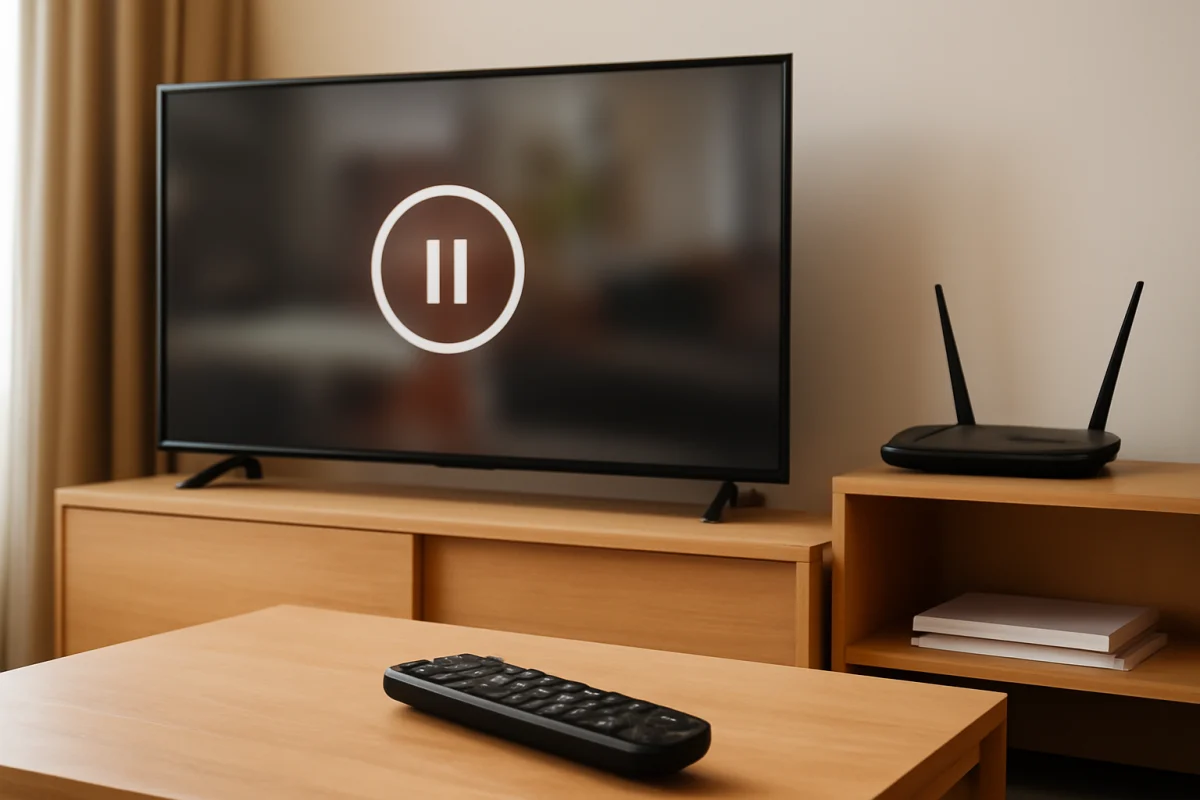
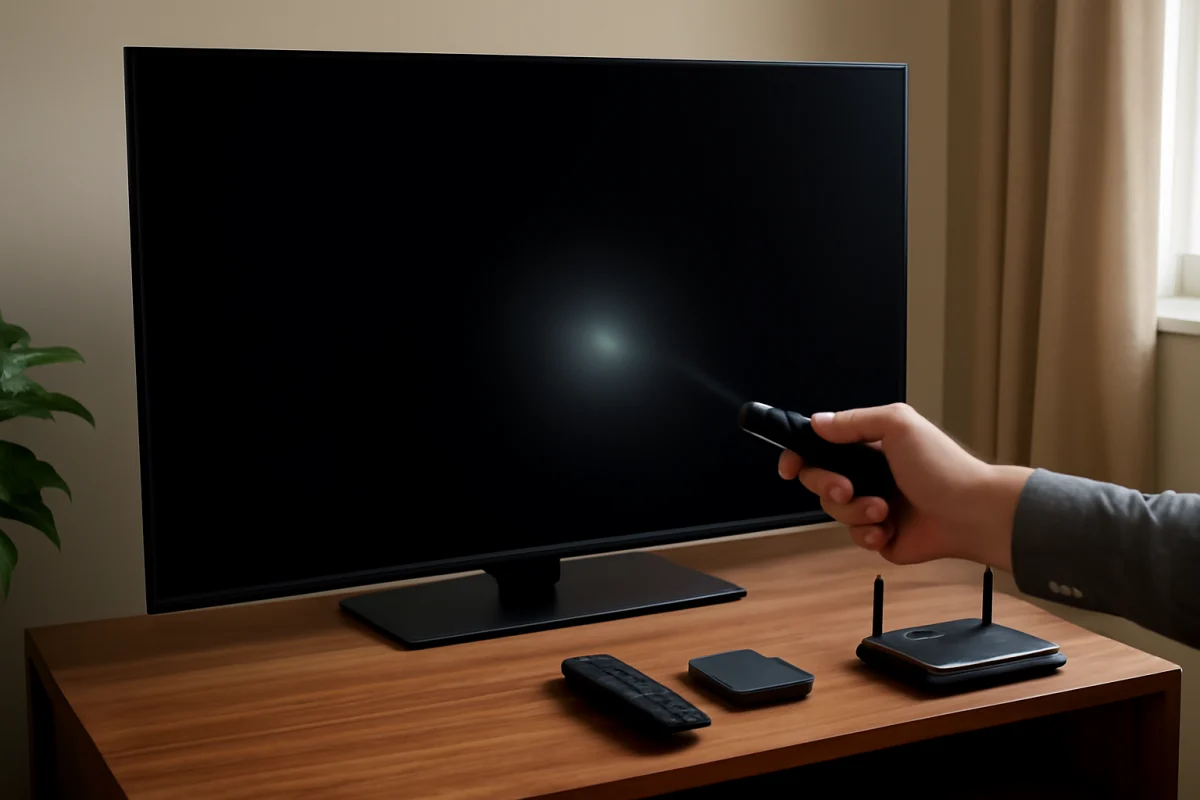
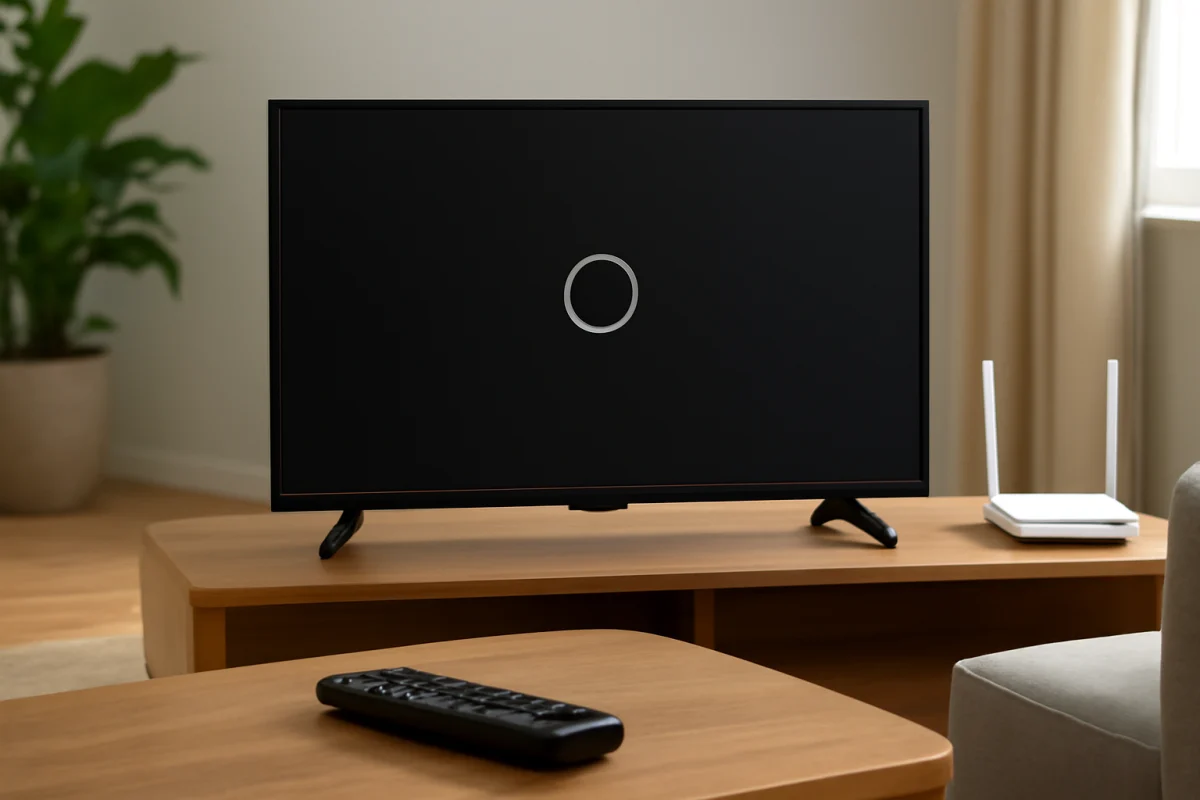
If your LG TV keeps disconnecting from Wi-Fi while you stream, start by checking whether the problem affects only the TV or your entire home network. Pause the stream, test another device in the same room, and restart the router and TV before changing advanced settings. If phones, laptops, or other streaming devices also lose connection, the router or internet service is the more likely cause. If only the LG TV disconnects, focus on the TV’s saved network connection, signal strength, software, or wireless interference.
Menu names and available options can vary between LG TV models, webOS versions, and regions. Use the closest matching option on your screen rather than forcing a setting that is not available.
1. Check whether the TV or the network is disconnecting
Begin with a simple comparison. When the LG TV loses its connection, check a phone or computer connected to the same Wi-Fi network. Try loading a website or playing a short video. If those devices also struggle, the TV may be working correctly and the problem may be caused by the router, internet connection, or wireless interference.
If the other devices remain online while the LG TV disconnects, test the TV with a different network if possible. A phone’s mobile hotspot can be useful for a short diagnostic test, although it may use cellular data quickly. You do not need to stream for a long time; connecting the TV and opening an app can show whether the original Wi-Fi connection is the main issue.
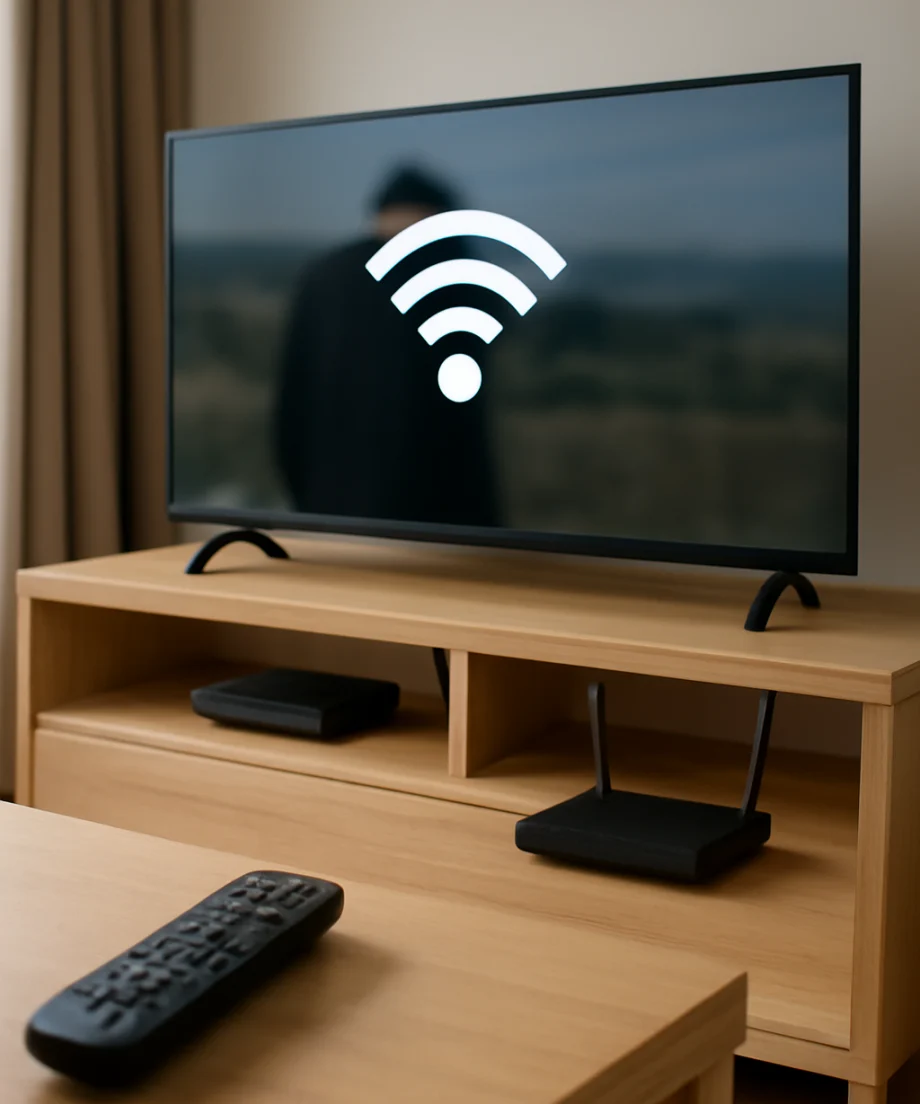
Also check whether the failure happens in one streaming app or everywhere. If only one app stops playing while the TV remains connected, the issue may involve that app, its account, or its service rather than Wi-Fi. If every app loses access at the same time, continue with the network checks below.
2. Restart the LG TV and network equipment
A full power cycle can clear a temporary network or software state without changing your saved settings.
- Stop the stream and turn off the LG TV.
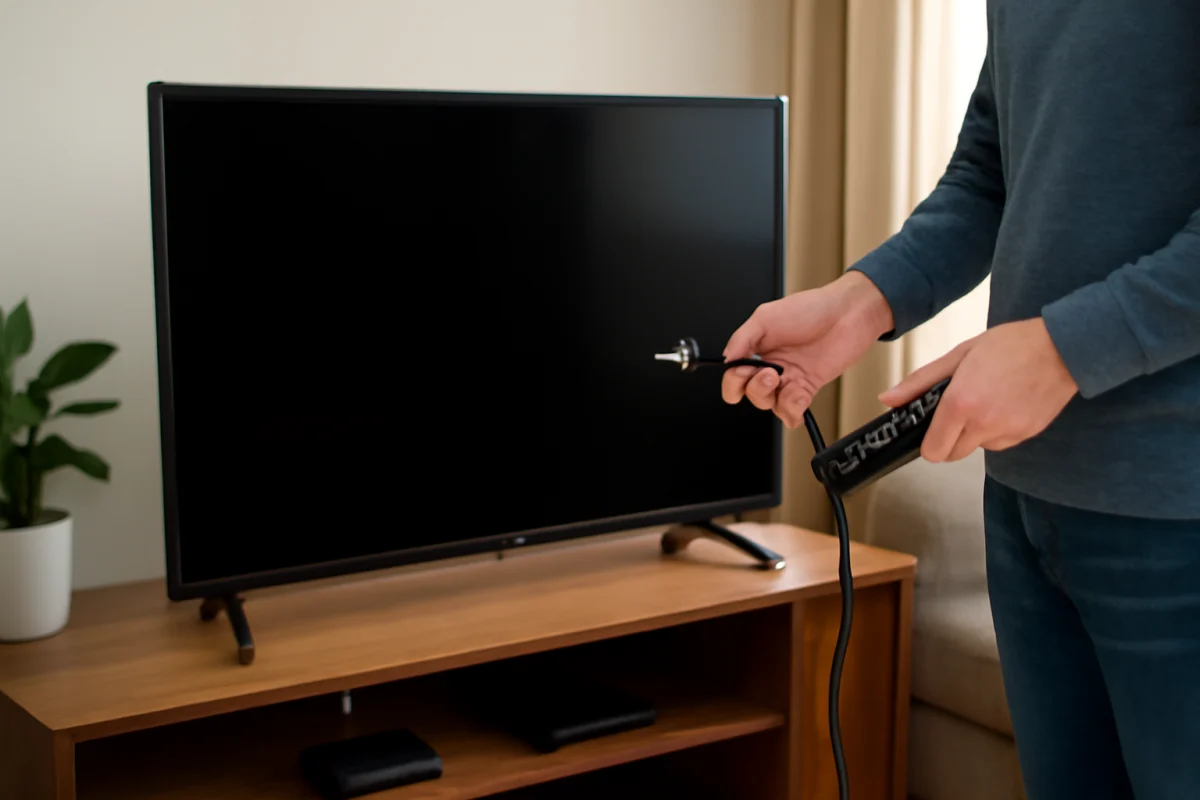
- Unplug the TV from the wall outlet for about one minute.
- Unplug the modem and router, or the single gateway device supplied by your internet provider.
- Wait a few minutes, then reconnect the modem or gateway first.
- Allow the network equipment time to finish starting up before reconnecting the TV.
- Plug in the TV, turn it on, and try the stream again.
The startup process can take longer than expected, especially when the modem and router are separate devices. Wait until the usual status lights or connection indicators show that the internet is available. Avoid repeatedly unplugging the equipment during this process.
3. Improve the TV’s Wi-Fi signal
A weak or unstable signal can appear to work during menus but fail when the TV is downloading continuous video. Place the router in an open, elevated location rather than inside a cabinet, behind a television, or near large metal objects. Keep it away from cordless phone bases, wireless speakers, microwaves, and other devices that may create interference.
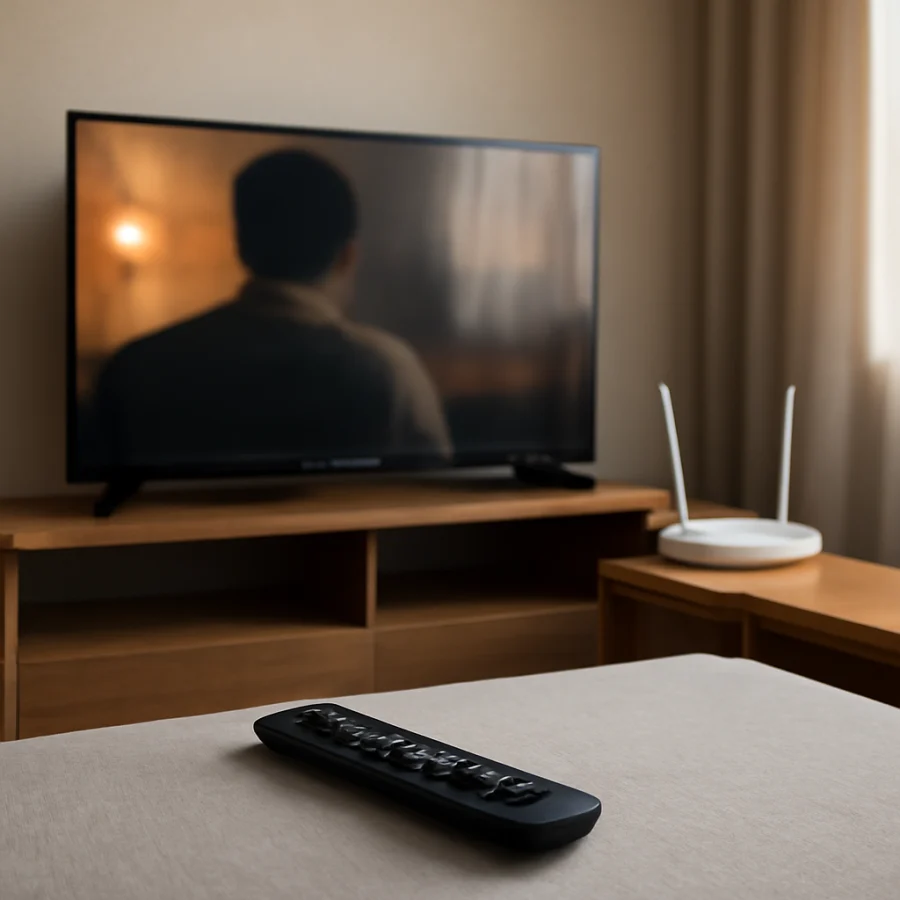
If the router is in another room, temporarily move it closer to the TV or test the TV from a different location if that is practical. This helps distinguish distance and interference from a problem with the TV’s network settings.
Some routers broadcast separate network bands, while others combine them under one network name. If your router offers separate choices, test the other available band. One may work better in your home depending on distance, walls, and nearby networks. Do not assume that the faster-sounding option is always the most reliable for the TV’s location.
Mesh systems and Wi-Fi extenders can also cause inconsistent results if the TV repeatedly moves between access points. Check whether the TV stays connected when it is close to the main router. If it does, the mesh placement or extender configuration may need attention.
4. Forget and reconnect to the Wi-Fi network
The LG TV may have a damaged or outdated saved connection even when the password is correct. Open the TV’s network settings and remove, forget, or disconnect the saved Wi-Fi network if your model provides that option. Then scan for available networks, select your home network, and enter the password carefully.
Use the current Wi-Fi password from the router or network administrator. Watch for common typing mistakes, such as confusing uppercase and lowercase letters or entering a space at the end. If your router name or password contains unusual characters, testing with a temporary simple network name and password can help identify a compatibility issue, but change it back or secure the network afterward.
After reconnecting, leave the TV on its home screen for a few minutes before starting a stream. Then test the app that normally disconnects. If the connection fails again, write down what happens: whether the TV says it is disconnected, whether the app shows a loading message, or whether video stops while the network still appears connected. These details help separate a Wi-Fi problem from an app problem.
5. Check the TV’s network status
LG TVs usually provide a network or connection status screen, although the path and wording vary by model. Look for information showing whether the TV is connected to Wi-Fi, the local network, and the internet. A TV can remain connected to the router while losing internet access, so these are not always the same problem.
If the TV reports that it is connected to Wi-Fi but apps cannot load, test the same network on another device. You can also restart the router and check whether the internet service is having an outage. If all devices have internet access except the TV, reconnect the TV to Wi-Fi and continue with software and app checks.
Do not manually enter advanced network values unless you know why they are required. Incorrect DNS, gateway, or address settings can make troubleshooting harder. Automatic network settings are normally the safer starting point.
6. Check for software and app updates
Outdated TV software or a streaming app can cause playback failures that look like repeated Wi-Fi drops. With the TV connected if possible, open its software update area and check for an available update. The exact menu location depends on the LG model and webOS version. If the TV cannot stay online long enough to update, use another device to check LG’s support information for your specific model and follow only the instructions that match it.
Update the streaming app through the TV’s app management or content store area when an update is offered. If only one app has the problem, close it completely and reopen it. Signing out and back in can also refresh the app session, but make sure you know the account email and password before signing out.
Temporary app data can sometimes become corrupted. If your model allows you to remove and reinstall the affected app, try that after the simpler checks. Reinstalling may erase downloaded content or require you to sign in again, so treat it as a targeted step rather than the first solution.
7. Check the router for connection limits or interruptions
Some home networks become unreliable when many devices are active at once. Pause large downloads, cloud backups, game updates, or other high-bandwidth activity and test the LG TV again. If streaming improves, the issue may be congestion rather than a faulty television.
Look at the router’s connected-device list if you have access to it. An unfamiliar device, a very large number of devices, or a router that frequently restarts can affect every connection. If the router is supplied by your internet provider, contact the provider if it repeatedly loses its internet link or shows warning indicators.
Parental controls, access schedules, device limits, and security settings can also interrupt a TV at particular times. Review these settings if the disconnects follow a pattern, such as happening every evening or after a fixed period. Router controls vary widely, so use the manufacturer’s documentation for the exact instructions instead of guessing at advanced wireless settings.
8. Test with a wired connection when available
If your LG TV and router can be connected with an Ethernet cable, use that as a diagnostic test. A wired connection avoids most wireless interference and signal-distance problems. If streaming becomes stable over Ethernet, the TV’s internet connection is probably fine and the issue is related to Wi-Fi coverage, router settings, or interference.
Use a suitable cable and connect it directly to the router or network switch. Then check the TV’s network status and test playback. If the wired connection also drops, investigate the router, internet service, TV software, or the streaming app rather than focusing only on wireless signal strength.
9. Use a hotspot only as a short diagnostic test
A mobile hotspot can show whether the TV behaves differently on another network. Connect the TV temporarily, open the affected app, and try a short stream. If the TV works normally on the hotspot but not on home Wi-Fi, the home router, internet service, wireless coverage, or network configuration needs attention.
This test does not prove that the TV is compatible with every network, and it may consume mobile data. Do not use it as a permanent streaming solution unless your mobile plan and signal can support it.
10. Reset network settings only after the basic checks
If the connection still fails, look for a network reset or reset connection option in the LG TV’s settings. This removes saved network information and requires you to reconnect afterward. Because the wording and location differ by model, read the on-screen explanation before confirming.
Have your Wi-Fi password ready. After the reset, reconnect the TV and test it before changing other settings. If the TV repeatedly forgets the network, cannot detect nearby networks, or disconnects from every router and hotspot, the problem may be deeper than a saved connection profile.
When to contact LG or your internet provider
Contact your internet provider when multiple devices lose service, the router repeatedly restarts, or the modem cannot maintain its connection. Provide the approximate times of the interruptions and explain whether the issue affects the whole home.
Contact LG support when only the TV is affected after you have tested another network, reconnected Wi-Fi, installed available updates, and checked the streaming apps. Have the TV model information, the steps you tried, and the behavior of the network status screen available. Avoid performing a full factory reset unless support recommends it or you are prepared to set up the TV and apps again.
For more troubleshooting guidance, browse the LG TV troubleshooting section or review our broader Wi-Fi and network guides. The most useful clue is whether other devices disconnect at the same time: that single test often tells you whether to focus on the home network or the LG TV itself.
Comments
0No comments yet. Be the first to share a helpful note or question.
Leave a Comment
Your email address will not be published. Comments are reviewed before appearing on the site.