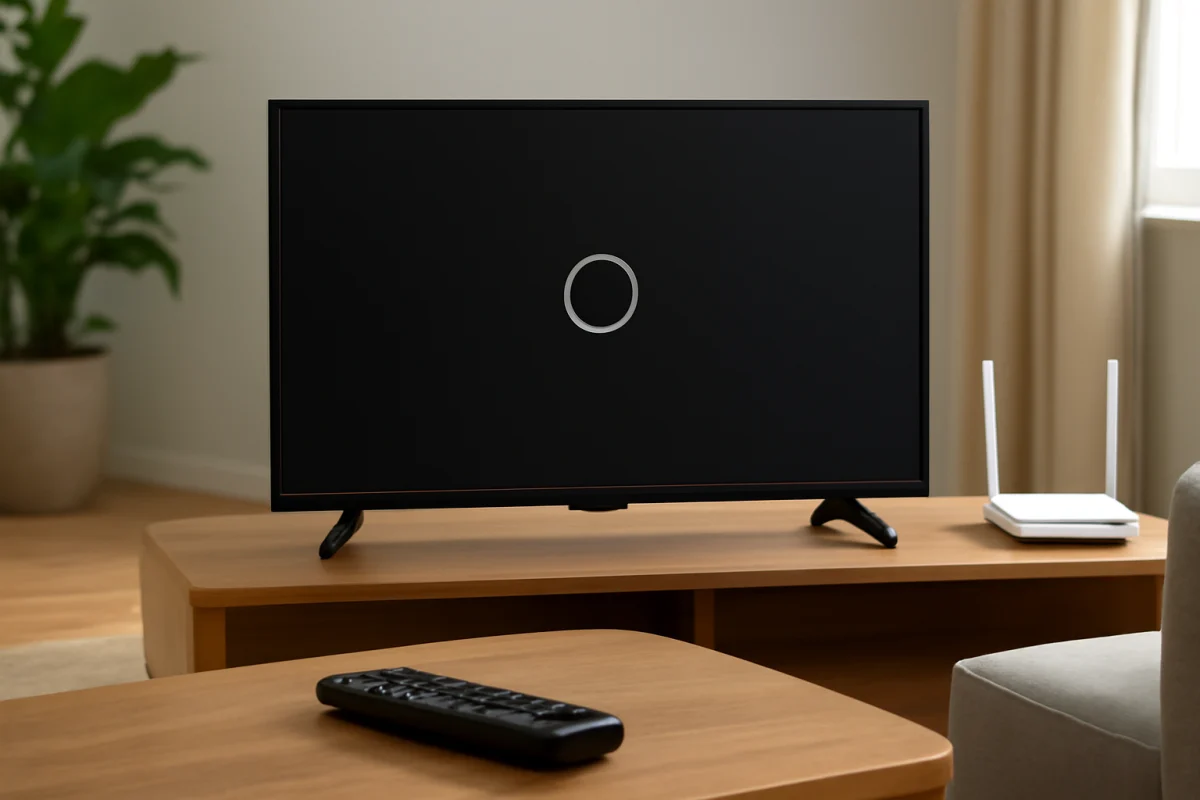
If apps won’t open on your LG TV, start by checking the internet connection, restarting the TV completely, and testing whether the problem affects one app or every app. A temporary network problem, an app outage, low available storage, or outdated software can all prevent streaming apps from launching normally.
Use the steps below in order. The menu names and available options can vary by LG TV model, webOS version, region, and remote control, so look for options with similar wording if your screen is different. Avoid a factory reset until you have tried the simpler fixes, because a reset can remove accounts, app data, picture settings, and other preferences.
First, identify what is actually failing
Try opening two or three different apps. If only one app refuses to open, the issue is probably related to that app, its service, or its stored data. If every app fails, focus first on the TV’s network connection, system software, power state, or account and service settings.
Pay attention to what happens when you select the app:
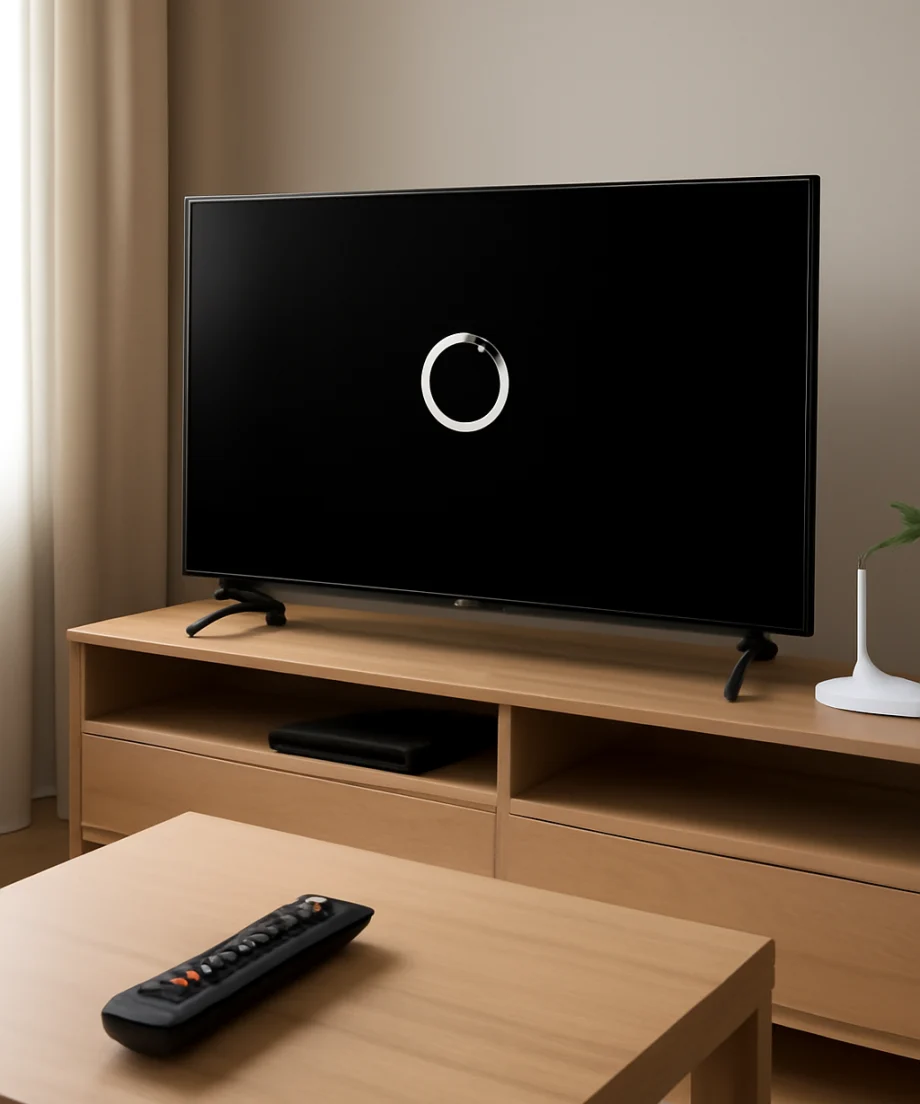
- The app does nothing or remains on the home screen.
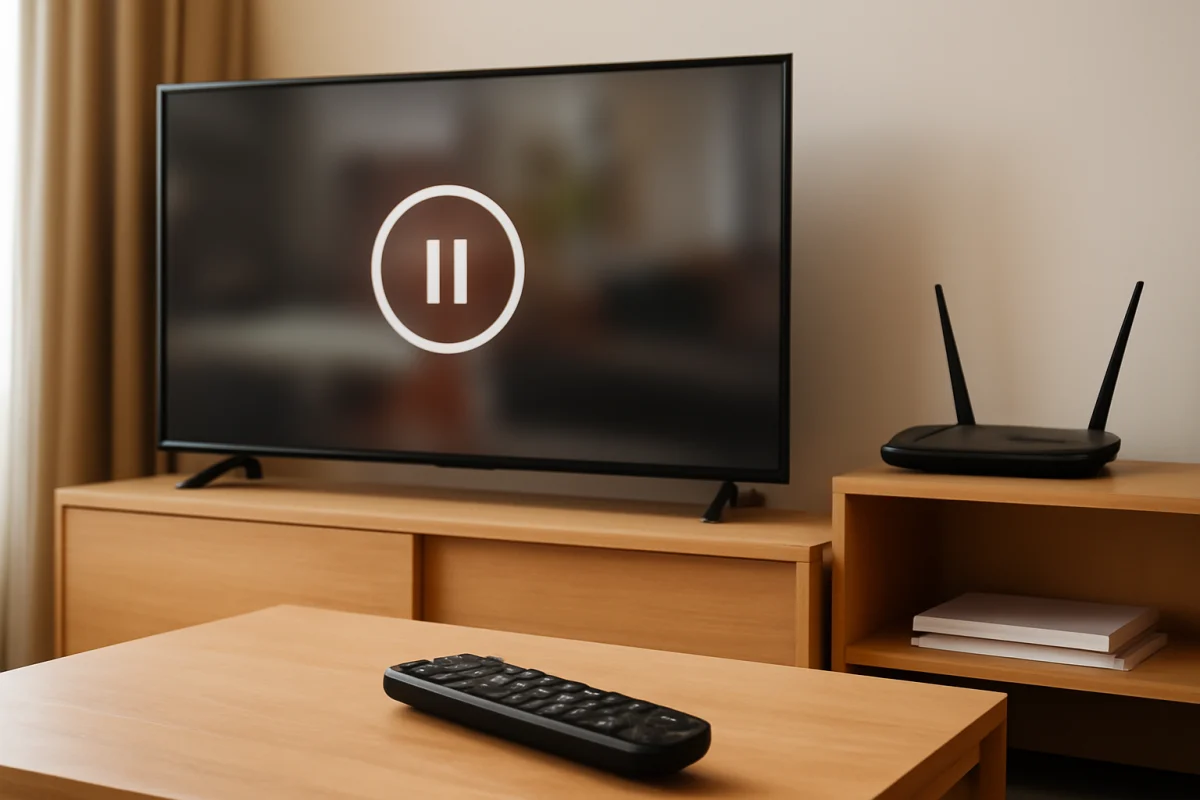
- A loading animation continues indefinitely.
- The app opens and closes immediately.
- The app opens, but videos will not play.
- The TV reports that the app cannot connect to the service.
These symptoms can have different causes. An app that opens but cannot play video may have a network or account problem, while an app that crashes before showing its home screen may need an update, reinstall, or reset of its app data.
Restart the LG TV and your network equipment
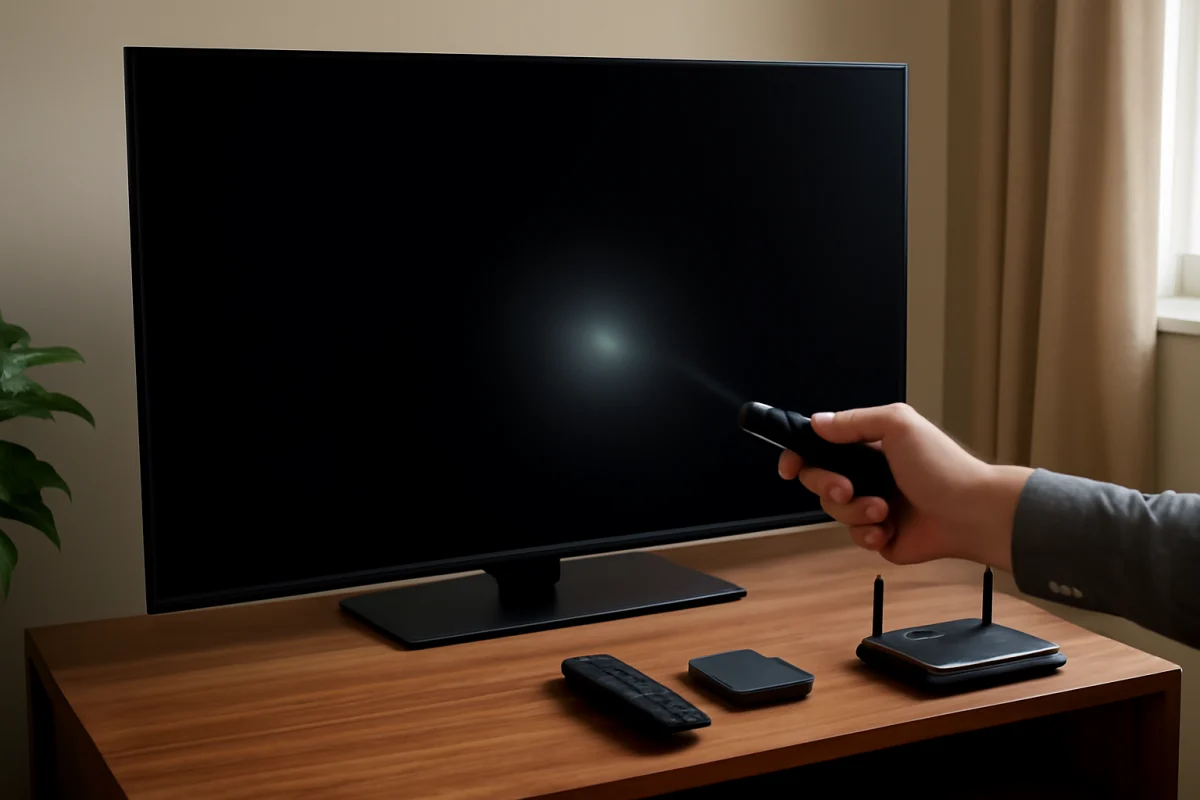
A normal standby press may not fully clear a temporary software or network problem. With the TV turned on, press and hold the power button on the remote until the TV restarts, if your model supports that action. If it does not restart this way, turn it off, unplug the power cord from the wall outlet, wait at least one minute, and plug it back in.
Do not repeatedly unplug the TV while it is installing an update or displaying a message that it is processing a change. Otherwise, a complete power cycle is a low-risk first step.
Restart the modem and router as well. Unplug the networking equipment, wait for it to shut down, then reconnect it and allow time for the internet connection to return. Test the TV again only after other devices can connect normally.
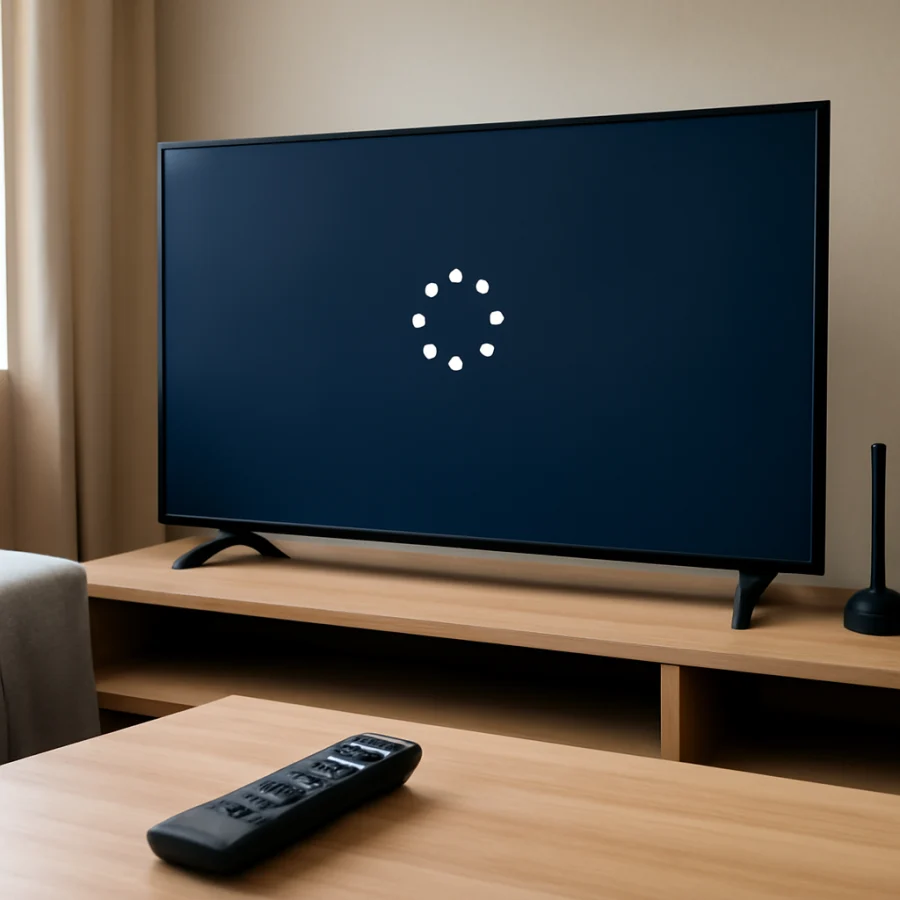
If your LG TV often loses its connection while streaming, see our guide to Wi-Fi disconnecting while streaming on an LG TV.
Check whether the TV is really online
Open the TV’s network settings and check the connection status. The exact path differs by model, but it is usually found in the main settings area under a section related to network, connection, or internet. Confirm that the TV is connected to the intended Wi-Fi network or Ethernet connection.
Then test the connection in another app. If the TV says it is connected but no apps work, the router may not be providing a usable internet connection, or the TV may have a DNS or service communication problem. Try another device on the same network. If websites or streaming services also fail on that device, fix the home network before changing the TV.
If possible, temporarily connect the TV to a phone’s mobile hotspot. This is only a diagnostic test, and streaming can use significant mobile data. If the app works through the hotspot but not through your home network, the TV is probably functioning and the problem is related to the router, wireless signal, DNS behavior, filtering, or internet service.
Also check the Wi-Fi signal where the TV is located. A router that works well in another room may provide an unstable connection behind a wall, cabinet, or large piece of furniture. Ethernet can be a useful comparison if your setup supports it.
Check for an app outage or service problem
When one app will not open, check the service on a phone or computer connected to the same network. You can also look at the service’s official support page or status information. If the service is having an outage, changing settings on the TV is unlikely to help.
Make sure you are using the correct account details if the app shows a sign-in error. Some services may require a new sign-in after an update, password change, subscription change, or security review. Do not share your password with anyone troubleshooting the TV, and avoid entering account information into unofficial prompts.
Update the app and the TV software
An outdated app may stop launching after the service changes its requirements. Open the LG TV’s app store or app management area and look for an available update. The location and wording of the update controls vary by webOS version. Some TVs update apps automatically, while others provide a manual update option.
Also check the TV for a system software update. Look in the settings area for a section related to support, software, system updates, or device information. Do not assume that every LG TV displays the same menu path. Follow the instructions shown for your particular model.
Keep the TV connected to power and the internet during an update. If the television reports that it is already current, move to the next step rather than trying to install an unverified file from a third-party website.
Remove and reinstall the affected app
If one app continues to fail, reinstalling it can replace damaged or incomplete app files. From the TV’s home screen or app management area, highlight the affected app and look for an option to delete, remove, or uninstall it. Then find the app again in the TV’s official app store and install it.
The exact process depends on the model and webOS version. Some built-in or preinstalled apps may not offer a normal uninstall option. If the app cannot be removed, look for an option to reset, refresh, or clear its stored information instead. These choices are not available on every LG TV.
Reinstalling an app may sign you out and erase downloads or app preferences. Make sure you know the account email address and password before removing it. If you use two-factor authentication, keep access to the verification method nearby.
Check storage and free up space
A TV with very little available storage may have trouble updating or launching apps. If your model provides a storage, app management, or memory screen, review it for unused apps and remove ones you no longer need. Do not delete an app simply because it has a similar name to another service unless you are certain which one it is.
After removing unused apps, restart the TV and try the affected app again. Available storage information and cleanup controls differ considerably between LG models, so do not rely on instructions intended for a different webOS version.
Check the TV’s date, time, and region settings
Incorrect date or time settings can interfere with secure connections, account sign-ins, and app licensing. In the TV’s general or system settings, check whether the date and time are set automatically. If your model allows it, use the network-provided time rather than entering the values manually.
Region and location settings can also affect which apps are available. A change in region may remove an app, require a fresh sign-in, or make a previously installed service unavailable. Do not change the region repeatedly as a troubleshooting experiment. If you recently moved, changed the TV’s location, or altered these settings, restore the appropriate location for your household and restart the TV.
Check parental controls and app restrictions
Parental controls, content restrictions, or a managed account may prevent an app from opening or displaying certain content. Review the TV’s restrictions and the settings inside the streaming service. If a child or family profile is being used, test the app with the primary account only if you are authorized to do so.
Some services also restrict access based on location, account type, or device limits. If the app opens but shows a message about authorization or devices, contact the service provider rather than repeatedly resetting the TV.
When a factory reset may be appropriate
Consider a factory reset only if multiple apps still fail after network checks, updates, reinstallations, and a full restart. A reset can help when the TV’s software state or configuration has become corrupted, but it is a major step rather than a routine fix.
Before resetting, record the model information, make sure you know your streaming account credentials, and note any custom picture, sound, network, accessibility, and parental-control settings. Disconnecting external devices is not always necessary, but removing unnecessary accessories can make the setup process simpler.
Use the reset option built into the TV’s settings. Do not choose an unfamiliar service menu or attempt a hidden button sequence from an unverified source. The reset process and wording vary by model, and the TV may restart several times. Once it finishes, connect the TV to the network, install only the affected app first, and test it before restoring every setting and app.
When to contact LG or the app provider
Contact the app provider when only one service fails across multiple devices, the account will not authenticate, or the service reports an outage or device-limit issue. Contact LG support when several apps fail after a reset, the TV cannot complete system updates, the network settings repeatedly disappear, or the television freezes or restarts during normal use.
Before contacting support, write down the TV model, the affected app, what happens when you launch it, whether other apps work, and which troubleshooting steps you completed. Avoid guessing at an error code; if the TV displays a message, record it exactly or take a photo for reference.
In most cases, apps that will not open are fixed by a complete restart, a reliable network connection, an app or system update, or a clean reinstall. Start with those low-risk checks, change one thing at a time, and reserve a factory reset for situations where the simpler steps have not restored normal operation.
Comments
0No comments yet. Be the first to share a helpful note or question.
Leave a Comment
Your email address will not be published. Comments are reviewed before appearing on the site.