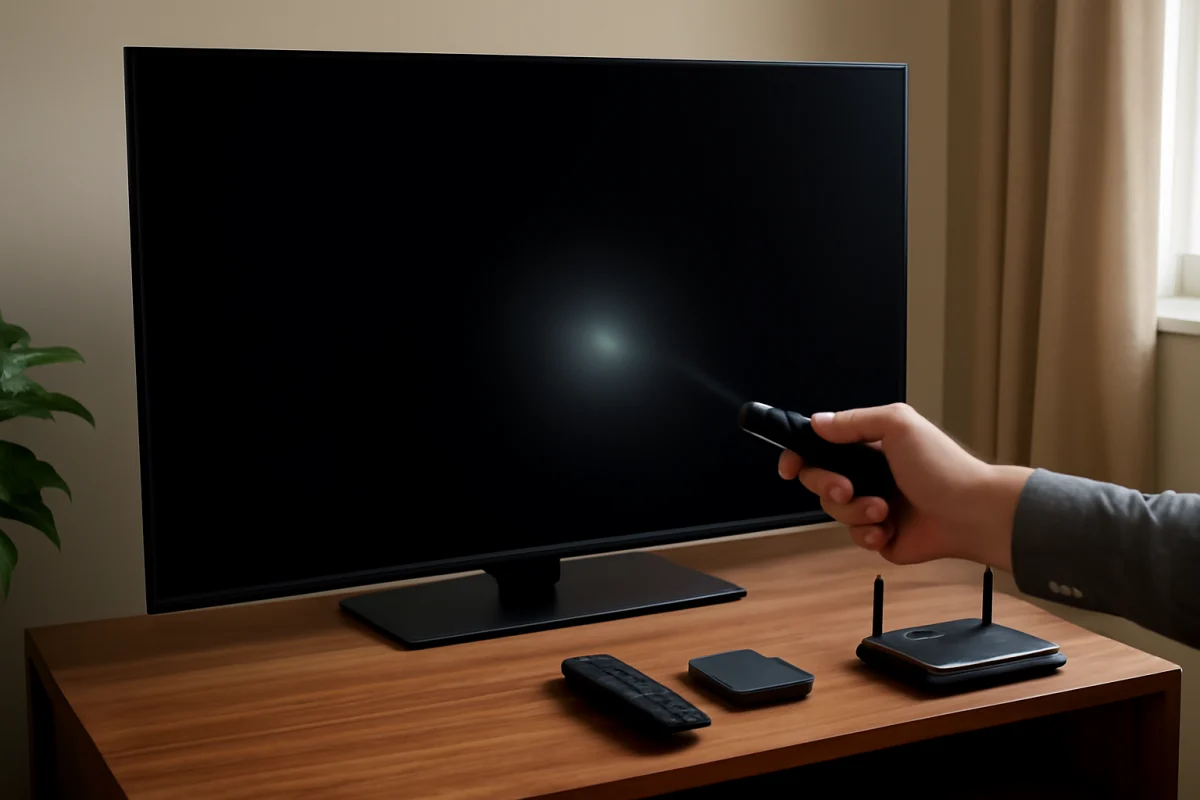
If your LG TV has sound but no picture, start with the simple possibilities: make sure the screen is not turned off, select the correct input, reconnect the video source, and perform a safe power cycle. If the TV’s menus or volume indicator appear normally, the panel is probably working and the problem may be limited to a connected device or cable. If the screen stays completely black, even when you open the TV menu, the cause may involve the backlight, display panel, power board, or another internal component.
Work through the checks below in order. The menu names and available options can vary by LG model, webOS version, and region, so use the closest matching option on your TV rather than forcing an exact menu path.
1. Check whether the screen is turned off
Some LG TVs have a screen-off or picture-off function that keeps audio playing while the display is disabled. Press a normal button such as the volume, home, input, or power button on the remote. If the volume indicator or another on-screen message appears, the TV is producing an image and the screen-off setting may have been enabled accidentally.
Look through the TV’s picture, accessibility, or energy-saving settings for an option related to turning the screen off. The exact name and location differ by model. If you cannot see the menus, use the remote to press the volume button and watch closely for any brief change on the screen. A visible volume bar confirms that the panel can display at least some information.
2. Confirm that the TV is on the correct input
A black screen with sound often comes from selecting the wrong HDMI input. Press the input or source button and move through the connected inputs one at a time. Pause briefly on each source so the TV has time to detect the signal.
If the sound is coming from a cable box, game console, Blu-ray player, streaming stick, or another device, confirm that the TV is connected to the same HDMI port that is selected on screen. For example, a device connected to one HDMI port will not display its video when the TV is set to a different port, even if the device is powered on and producing audio through another connection.
Disconnect unused HDMI devices temporarily and test the TV with only one source connected. This removes possible HDMI handshake problems and makes it easier to identify the device causing the issue.
3. Check the connected device and video cable
If the problem occurs only with one source, the LG TV may be working normally. Restart the cable box, game console, streaming device, or other source. Unplug that device from power, wait about a minute, and plug it back in. Allow it to finish starting before testing the picture again.
Inspect the HDMI cable at both ends. Make sure each connector is fully inserted into the source and the TV. If possible, try another HDMI cable and another HDMI port on the television. A cable can carry audio while failing to carry a usable video signal, particularly if it is damaged, loose, or incompatible with the selected video output.
Test a different source on the same HDMI input. For instance, if a game console shows no picture but a built-in TV app displays normally, the console, its settings, or its cable is more likely to be responsible. If every external source has the same symptom but the TV’s own apps work, focus on the HDMI connections and connected equipment.
For additional guidance on display and audio symptoms, see the Picture & Sound troubleshooting section.
4. Check whether the TV’s own menus or apps appear
Press the home button on the LG remote. If the home screen appears, open one of the TV’s built-in apps or switch to another internal source. This test separates an external signal problem from a television display problem.
- Built-in apps and menus appear: The screen is likely functioning. Check the external device, HDMI cable, input selection, or the device’s video output settings.
- Menus appear briefly and then disappear: The TV may have a picture setting, energy-saving behavior, software problem, or hardware fault that needs further testing.
- Nothing appears at all: Continue with the power reset and flashlight test below. A display or backlight problem becomes more likely.
5. Perform a safe power cycle
A power cycle can clear a temporary control or signal problem without erasing your settings. Turn the TV off with the remote, then unplug the power cord from the wall outlet. If the TV does not respond to the remote, unplug it while it is on.
Wait at least one minute. While the TV is unplugged, press and hold the physical power button on the TV for several seconds if your model has one. This can help discharge remaining power, but do not open the back of the television. Plug the TV directly into a known-working wall outlet, turn it on, and test the picture before reconnecting other devices.
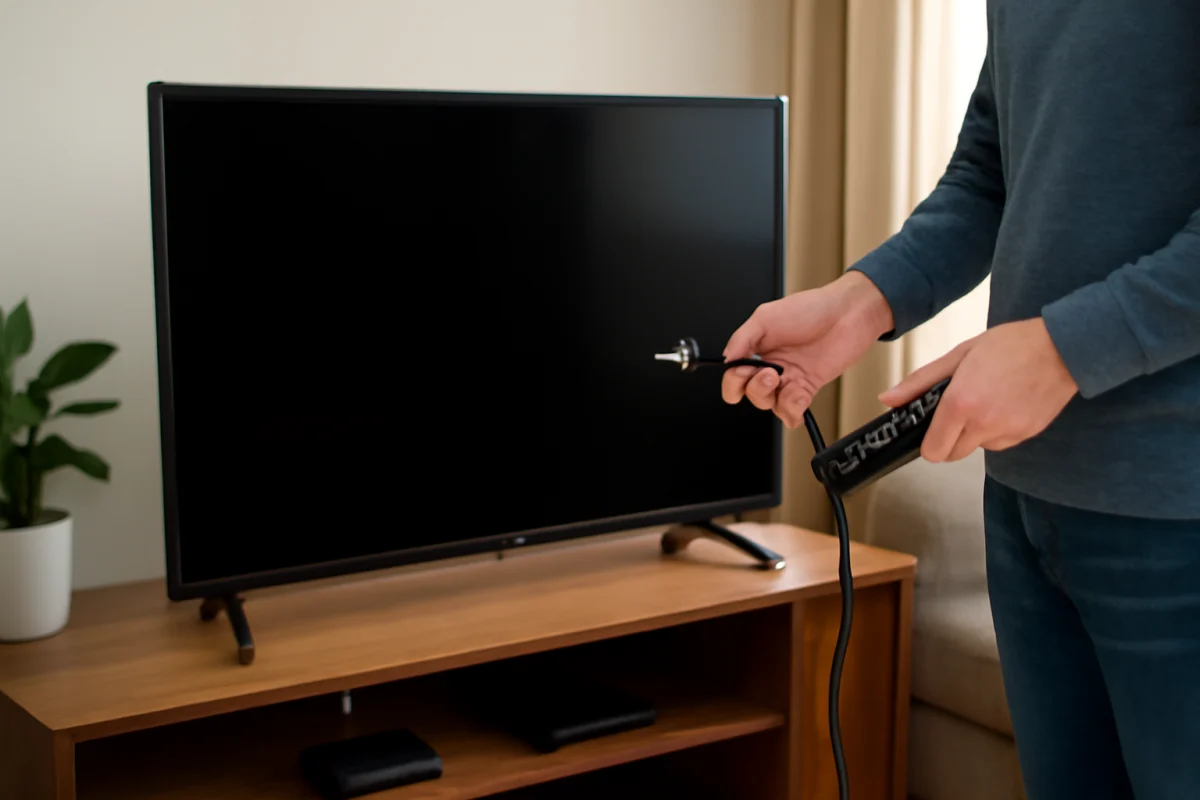
Avoid using a power strip or surge protector during this test if practical. This does not mean those products are always faulty; it simply removes another variable. If the picture returns, reconnect your equipment one device at a time to find out whether a particular source causes the problem.
6. Check the picture settings carefully
If you can see the menus but the video area is dark, review the picture settings. Brightness, contrast, backlight, energy-saving, and picture-off options can affect how dark the screen appears. Select a standard or normal picture mode if one is available, then temporarily disable aggressive energy-saving options for testing.
Do not assume that raising brightness will fix a failed backlight. If the TV menu is bright but the program image is missing, the issue is more likely related to the source or its signal. If both the menu and video image are extremely dark, a setting or hardware problem may be involved.
If the TV recently changed picture behavior after a configuration adjustment, use the picture settings reset option if your model provides one. This is different from a full factory reset and normally affects picture preferences only. Read the on-screen warning before confirming any reset.
7. Use a flashlight test for a completely black screen
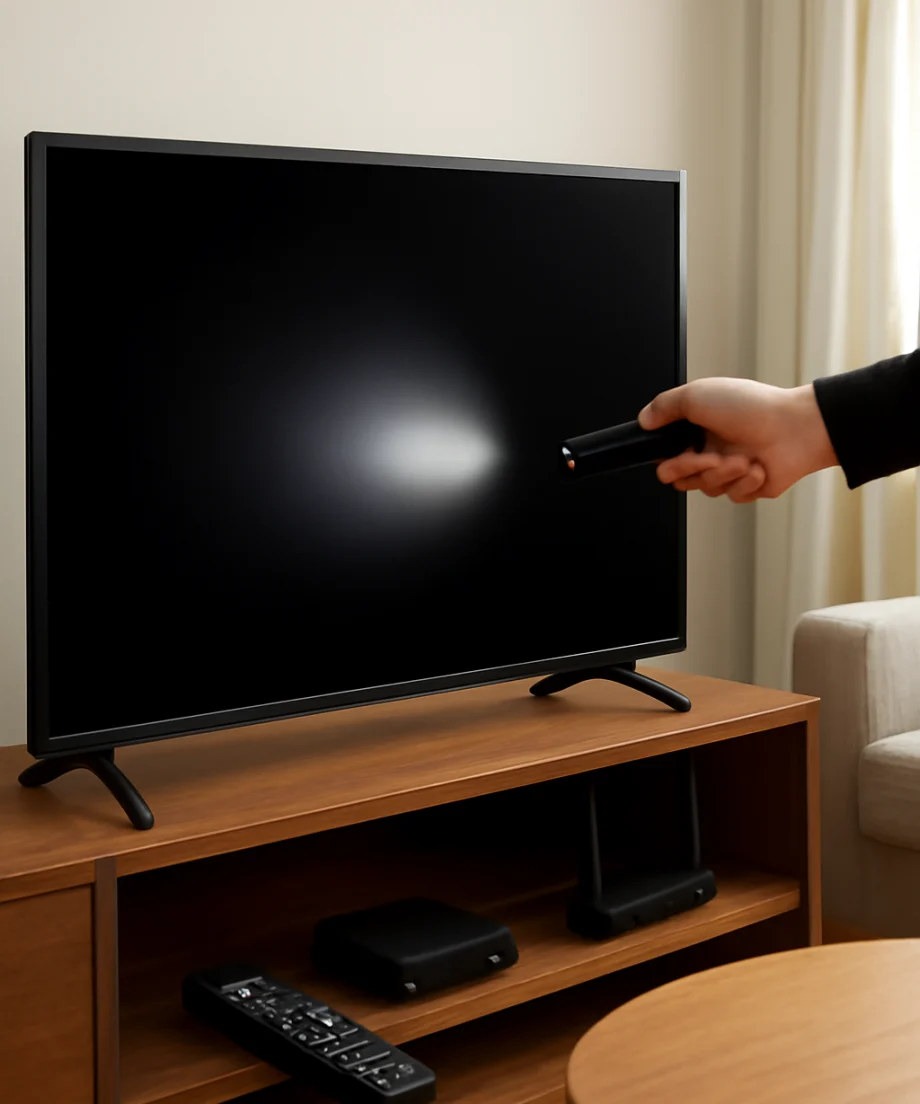
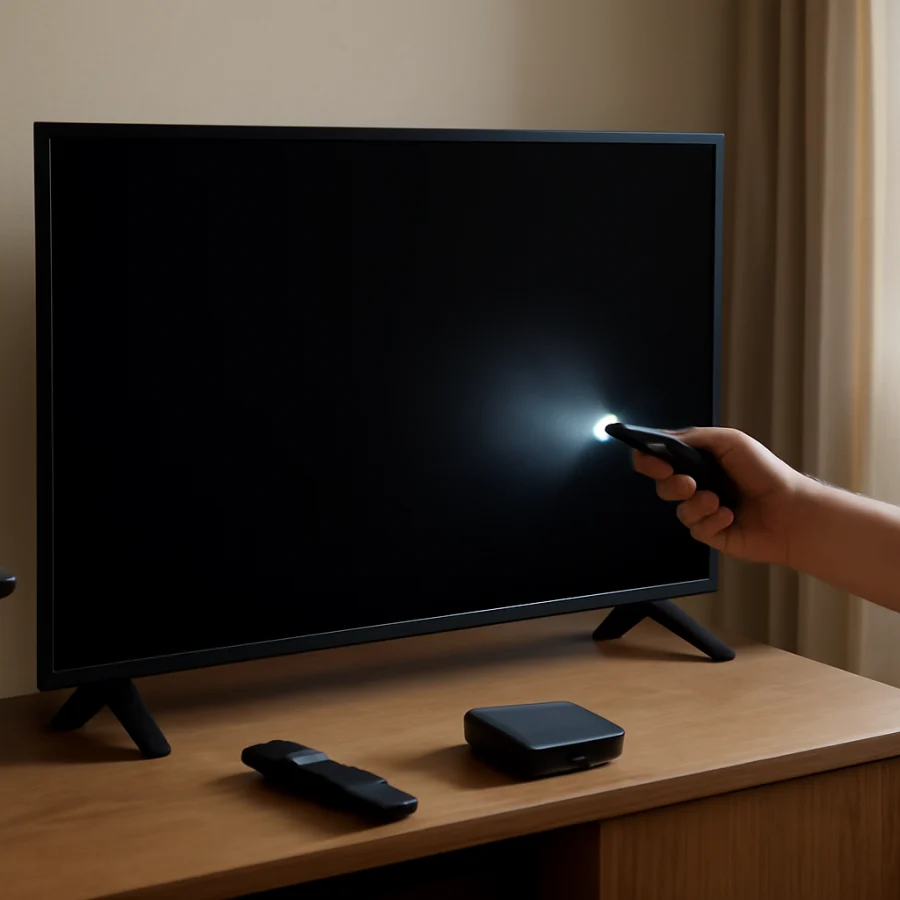
A flashlight test can help identify a possible backlight failure. Turn the room lights down and turn on the TV. Play a source that should produce a picture, then shine a bright flashlight at an angle against the screen. Look closely for a very faint image, outlines, or movement.
If you can barely see a picture with the flashlight, the LCD panel may be receiving an image while the LED backlight is not illuminating it. This points toward a backlight, power, or related internal hardware problem. The test is not definitive, and it is less useful on OLED models because OLED TVs do not use a conventional LED backlight in the same way as many LCD TVs.
Do not press hard on the screen, remove the back cover, or attempt to replace internal parts unless you are trained to work safely with television electronics. Internal components can retain dangerous electrical charges even after the TV is unplugged.
8. Check for overheating or intermittent behavior
Notice whether the picture disappears after the TV has been running for a while, whether it returns after cooling down, or whether the screen flickers before going black. Make sure the ventilation openings are not blocked by a wall, cabinet, cloth, or other object. Leave space around the television as recommended for your model.
Unplug the TV and allow it to cool before testing again. If the picture repeatedly fails after warming up, stop relying on repeated power cycling. Intermittent behavior can indicate a developing hardware problem, and continued use may make diagnosis more difficult.
9. Consider a full reset only as a last software step
If the TV displays its menus and the problem began after a setting change or software-related malfunction, a factory reset may be worth considering. A factory reset erases saved preferences and may remove installed apps, network details, accounts, and other personal settings. The exact reset path varies by LG model and webOS version.
Before resetting, write down your Wi-Fi password and make sure you know the sign-in details for important streaming services. If the screen is completely black and you cannot see the confirmation prompts, do not guess at a reset sequence. A factory reset is unlikely to repair a failed backlight or damaged panel and can make troubleshooting harder by removing useful settings.
10. When the problem likely needs service
Professional repair is the safer next step when the TV has sound but no picture on every input, the menus never appear, the flashlight test reveals a faint image, or the screen shows flashing, lines, large dark areas, or physical damage. The same applies if the TV clicks repeatedly, shuts down, smells burnt, or shows signs of liquid exposure. Unplug it and do not continue testing if you notice smoke, a burning odor, or unusual heat.
Before contacting a repair shop or LG support, record the TV model number, the symptoms, whether menus appear, and which tests you completed. Also note whether the problem affects built-in apps, HDMI sources, or both. This information can help distinguish a source problem from a display or power fault.
Quick diagnosis
- Menus and built-in apps work: Check the selected input, HDMI cable, external device, and source settings.
- Sound works but the screen is very dim: Review picture and energy-saving settings, then consider a backlight problem.
- A faint image appears during the flashlight test: A backlight or related internal fault is possible.
- No menu, image, or on-screen indicator appears: Power, display, or internal hardware trouble is more likely.
- The issue affects only one device: Troubleshoot that device and its cable before resetting the TV.
For more LG-specific troubleshooting, visit the LG TV guide. If the remote is also behaving strangely, check our guide to an LG remote that works slowly or stops responding.
Comments
0No comments yet. Be the first to share a helpful note or question.
Leave a Comment
Your email address will not be published. Comments are reviewed before appearing on the site.